Best Practices for Handling File Data such as CSV in Google Drive
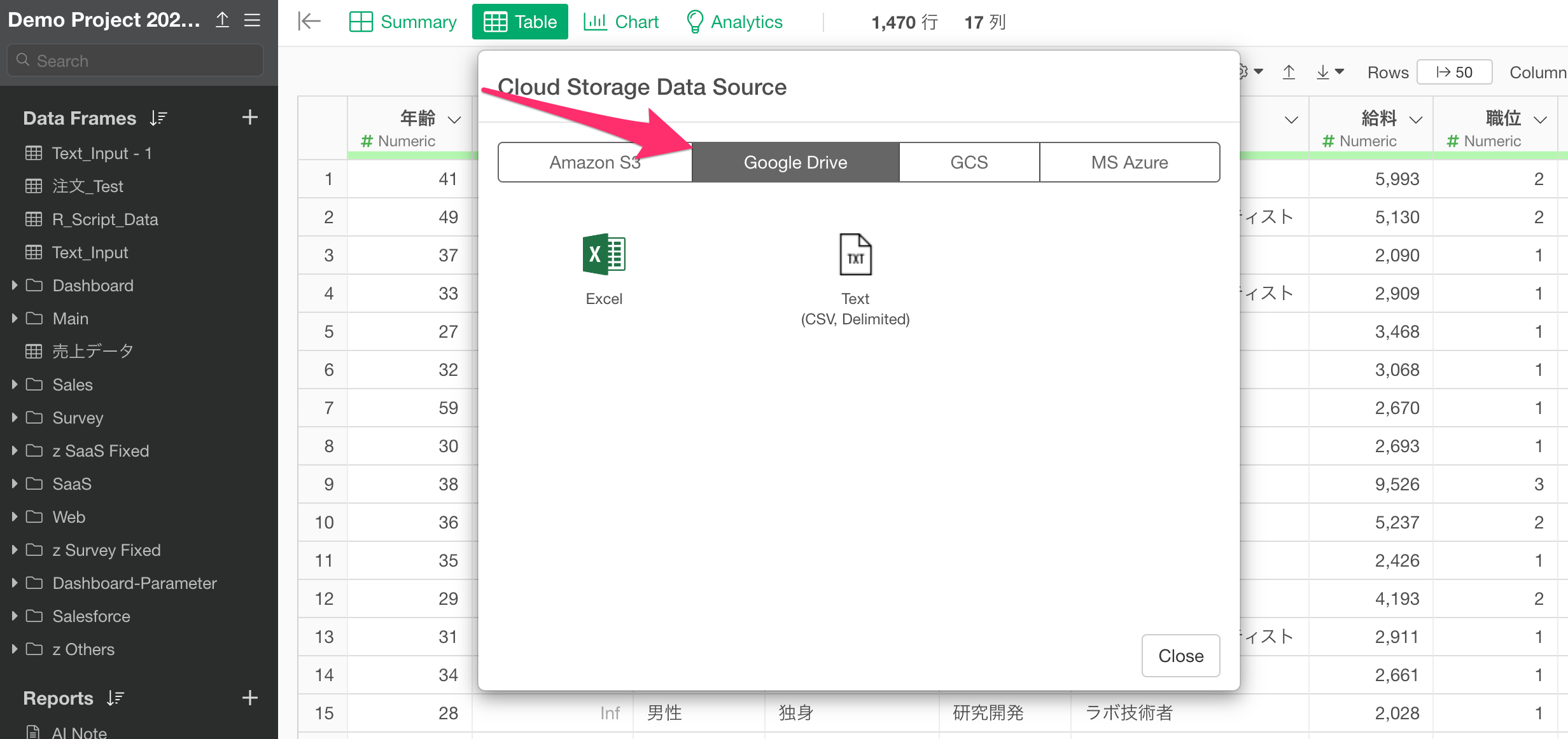
In this note, we will introduce common issues and their solutions when using file data, such as CSV files stored on Google Drive, within Exploratory.
Common Issue: Opening CSV Files with Google Sheets
When you right-click a CSV file uploaded to Google Drive, a menu appears allowing you to open it as a Google Sheets.
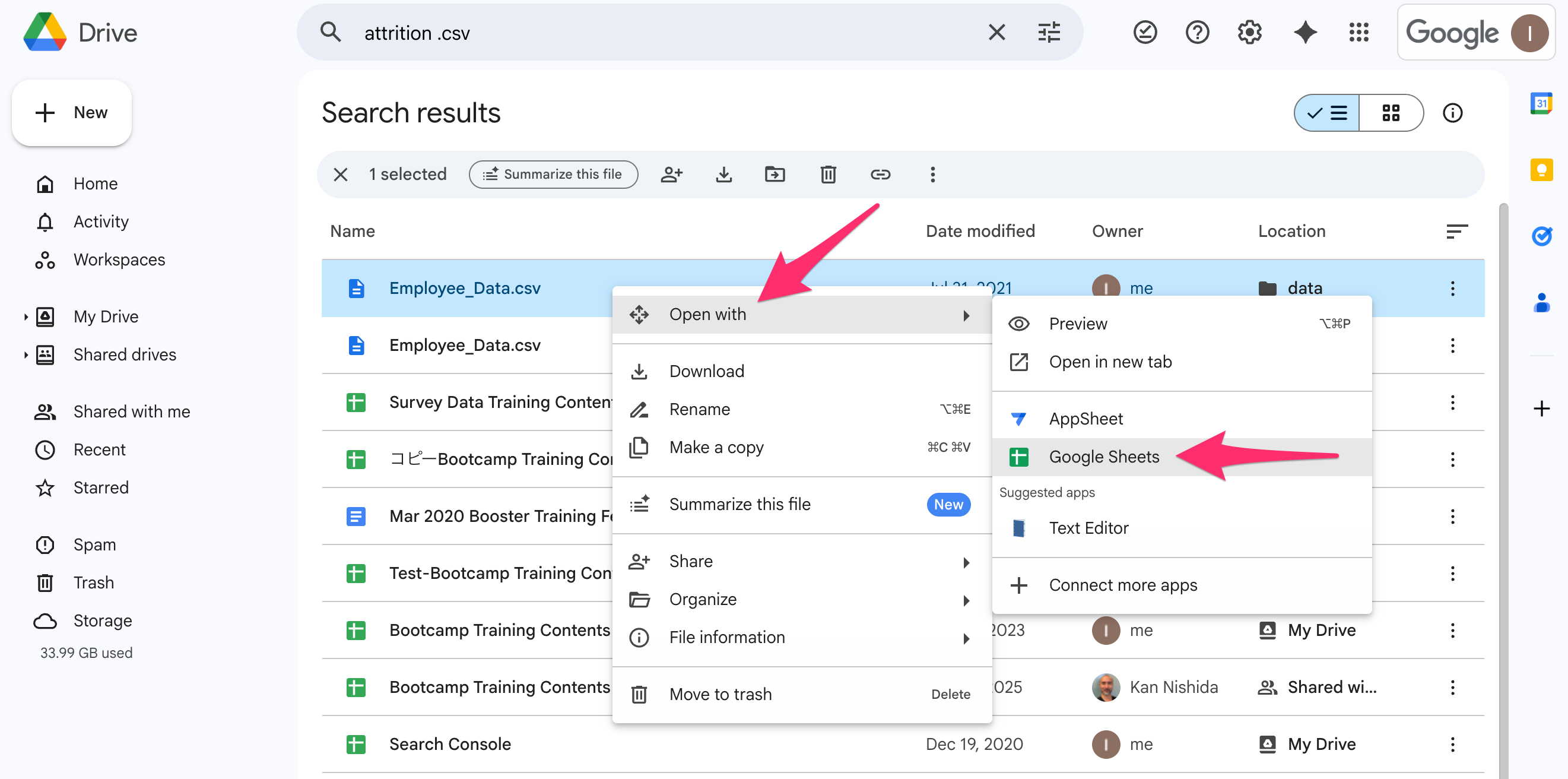
Clicking on “Google Sheets” opens the spreadsheet interface.
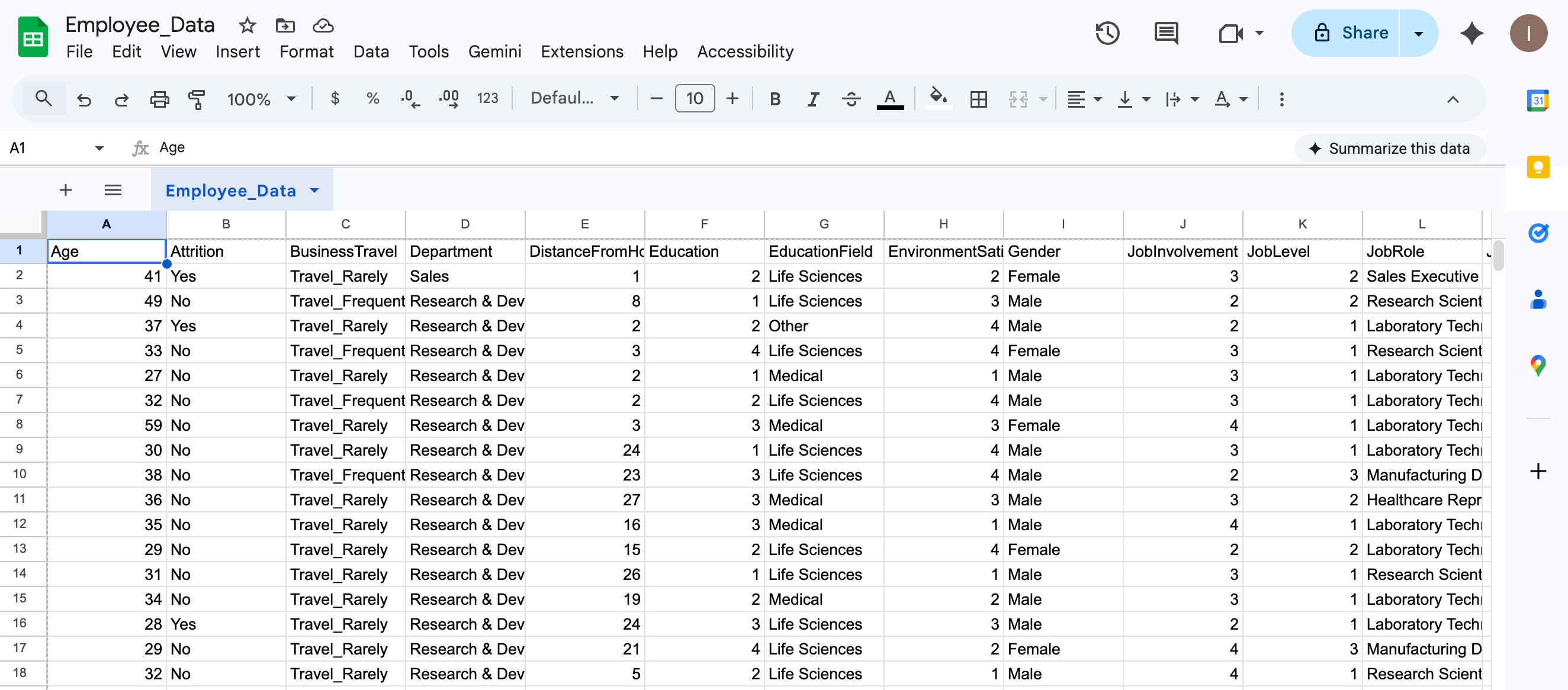
At this point, Google Drive converts the specified CSV file into a new Google Sheet. Consequently, even if you edit and save the opened spreadsheet, the original CSV file itself is not updated; instead, only a separate Google Sheet with a different URL is modified.
Furthermore, every time you edit the CSV data via Google Sheets in this manner, a new spreadsheet is generated.
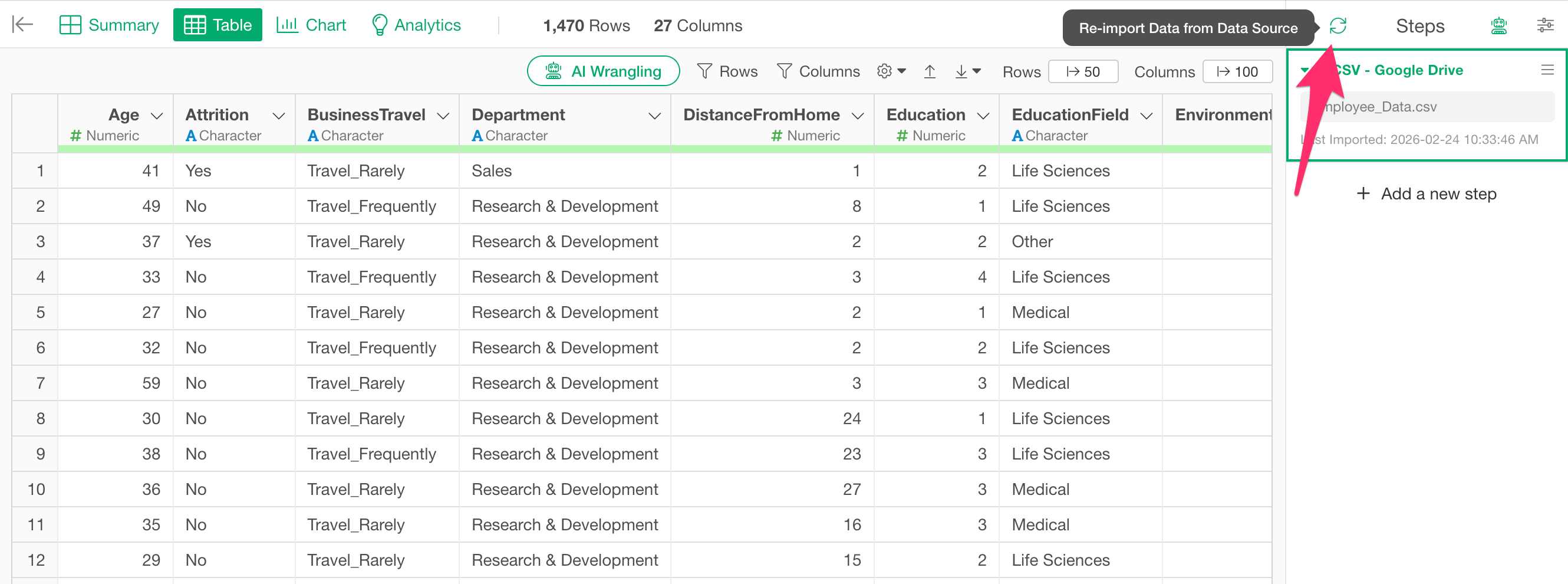
As a result, if you are using the Google Drive CSV file as a data source in Exploratory, re-importing the data will not reflect any changes because the source CSV file remains unupdated. This leads to the problem where the data on the Exploratory side does not stay current.
How to Update CSV Data: Three Solutions
To resolve this issue, we recommend the following three approaches.
1. Switch the Master Data to Google Sheets
Instead of using a CSV file, this method involves using a Google Sheet as the master data source from the beginning. In Exploratory, you can directly import data from Google Sheets as well as CSVs from Google Drive.
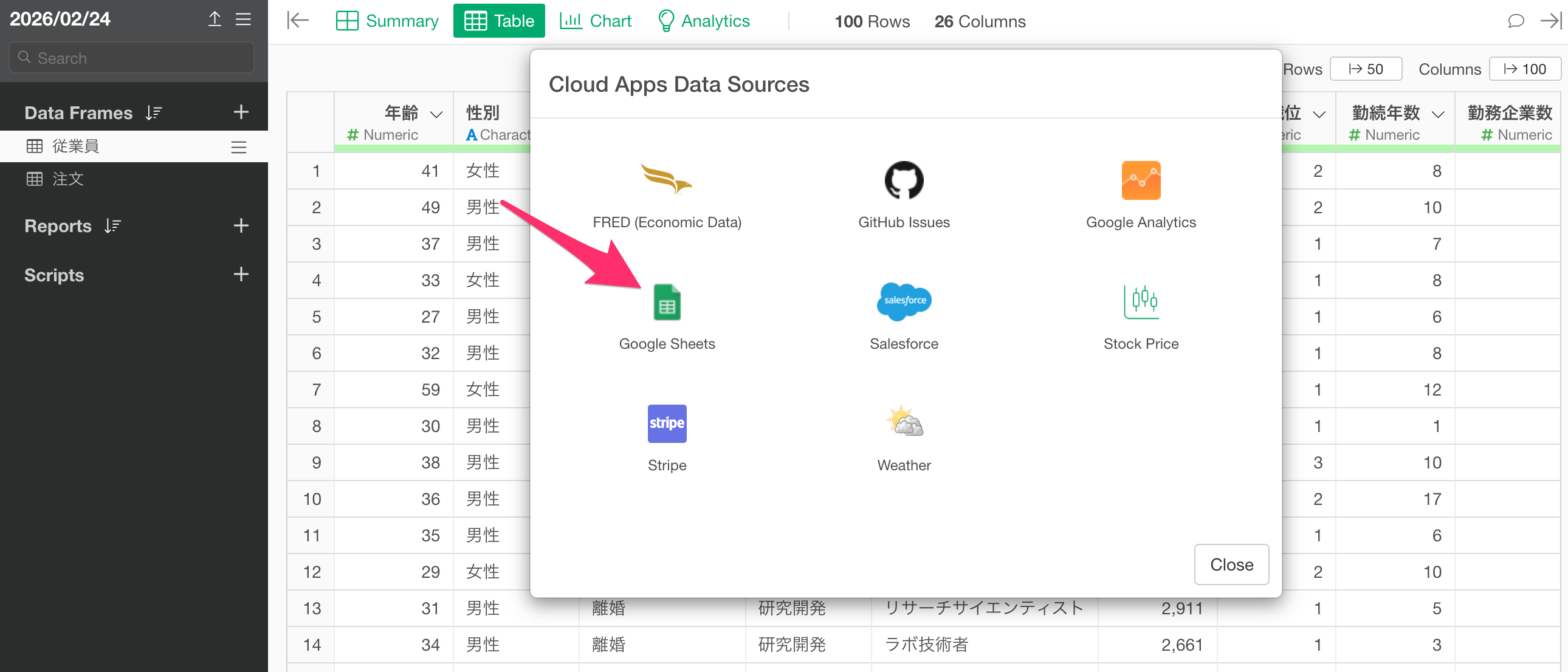
By performing all data additions and edits on a Google Sheet from the start and connecting to that spreadsheet as the data source in Exploratory, you can fundamentally resolve issues related to CSV file handling.
2. Overwrite the Updated CSV in Google Drive
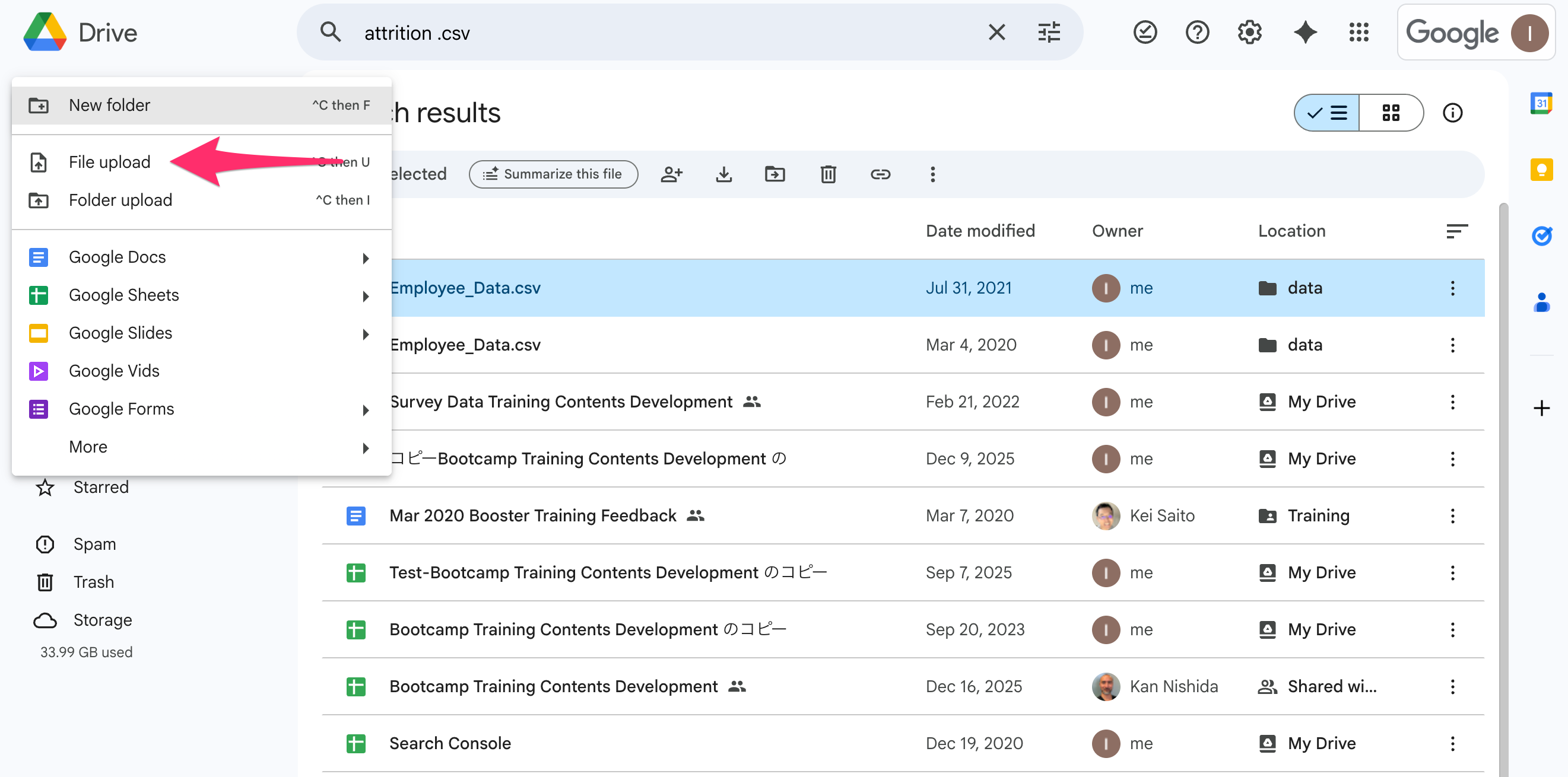
If you wish to maintain the CSV format, an effective method is to edit the CSV file in your local environment and then manually upload it to the same location in Google Drive to overwrite it.
By uploading a file with the same name or using drag-and-drop to overwrite it within the Google Drive interface, you can update the file content without changing its URL.
3. Utilize the Google Drive Desktop App
The most convenient and manageable method is to install the Google Drive desktop app (Google Drive for Desktop) and mount Google Drive as a drive on your local PC.
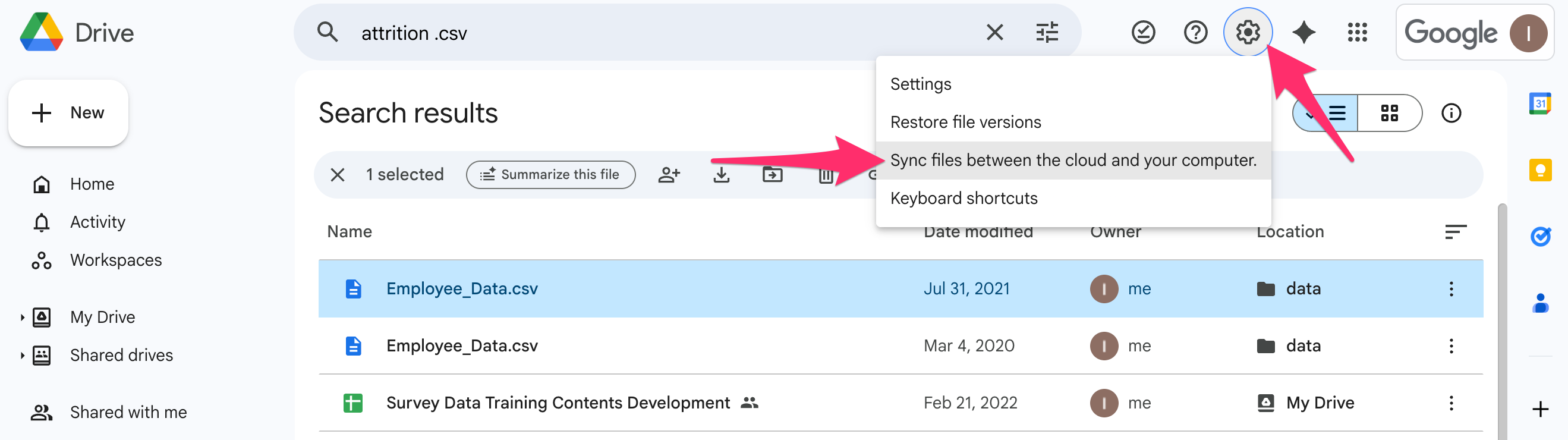
Once the Google Drive desktop app is installed, Google Drive appears as a folder on your local PC. You can open CSV or Excel files within this folder directly to edit and save them, and they will automatically sync with the Google Drive server.
With this method, you can edit CSV files with the same feel as regular local files, and simply saving them will automatically reflect the changes in the cloud. Afterward, you can bring in the latest data by re-importing it in Exploratory.