Column Names Are in a Separate Data Frame and You Want to Use Them as Column Names for the Current Data
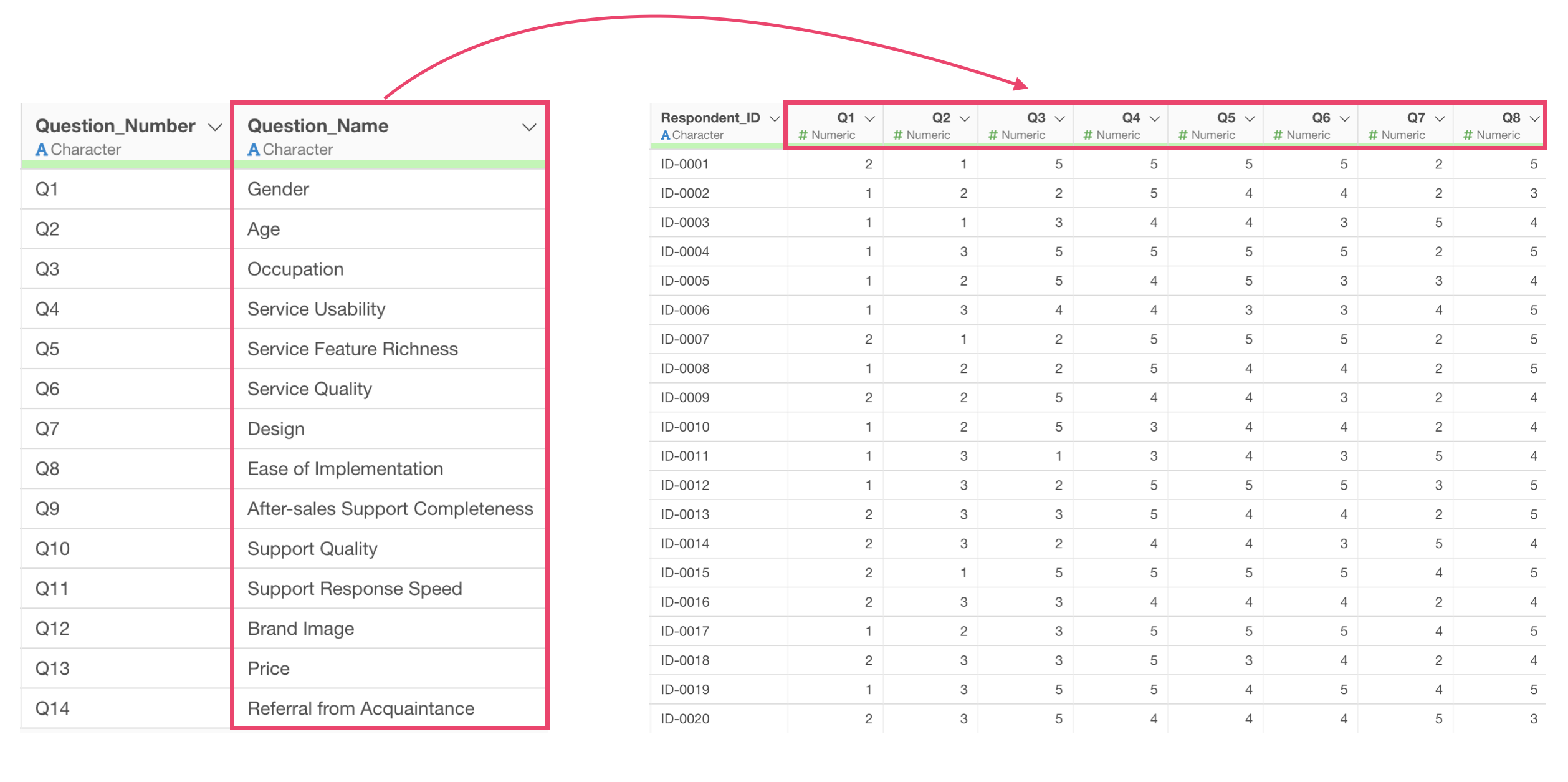
When column names in survey data are set as question numbers (e.g., Q1, Q2, Q3), it becomes difficult to understand what each question number represents. In such situations, it is common for a separate mapping of question numbers to question names to be provided.
This guide explains how to replace question numbers with question names to improve data readability and analysis efficiency.
Problem
When column names in survey response data consist of question numbers such as “Q1,” “Q2,” and “Q3,” it is difficult to intuitively understand what specific question content each column corresponds to. This creates the need to separately check question content during data analysis, which not only reduces work efficiency but also poses a risk of misinterpretation. This problem becomes more pronounced as the number of questions increases.
Solution
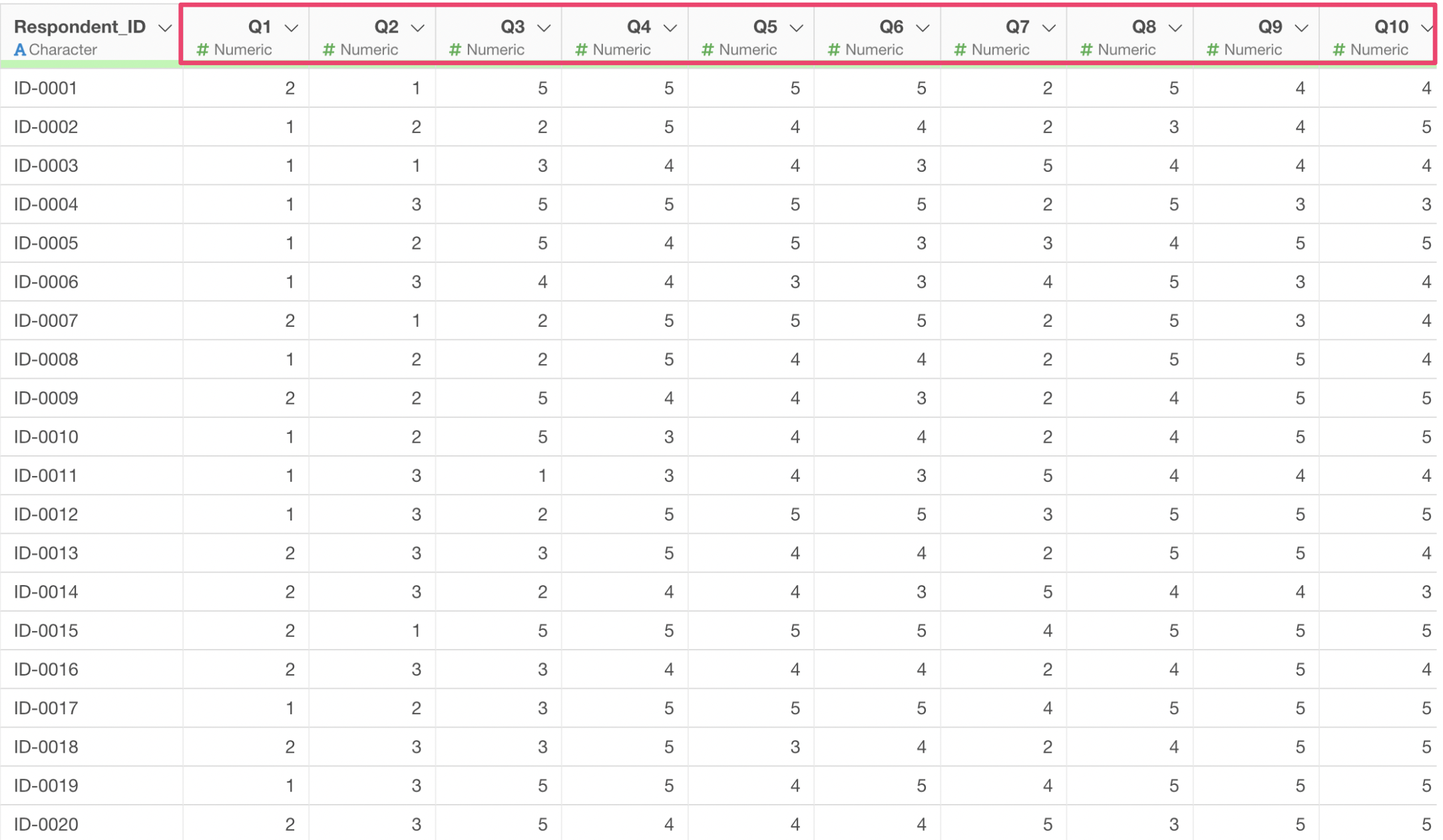
The survey response data used here has one row per respondent, with each column representing a question number (e.g., Q1, Q2, Q3).
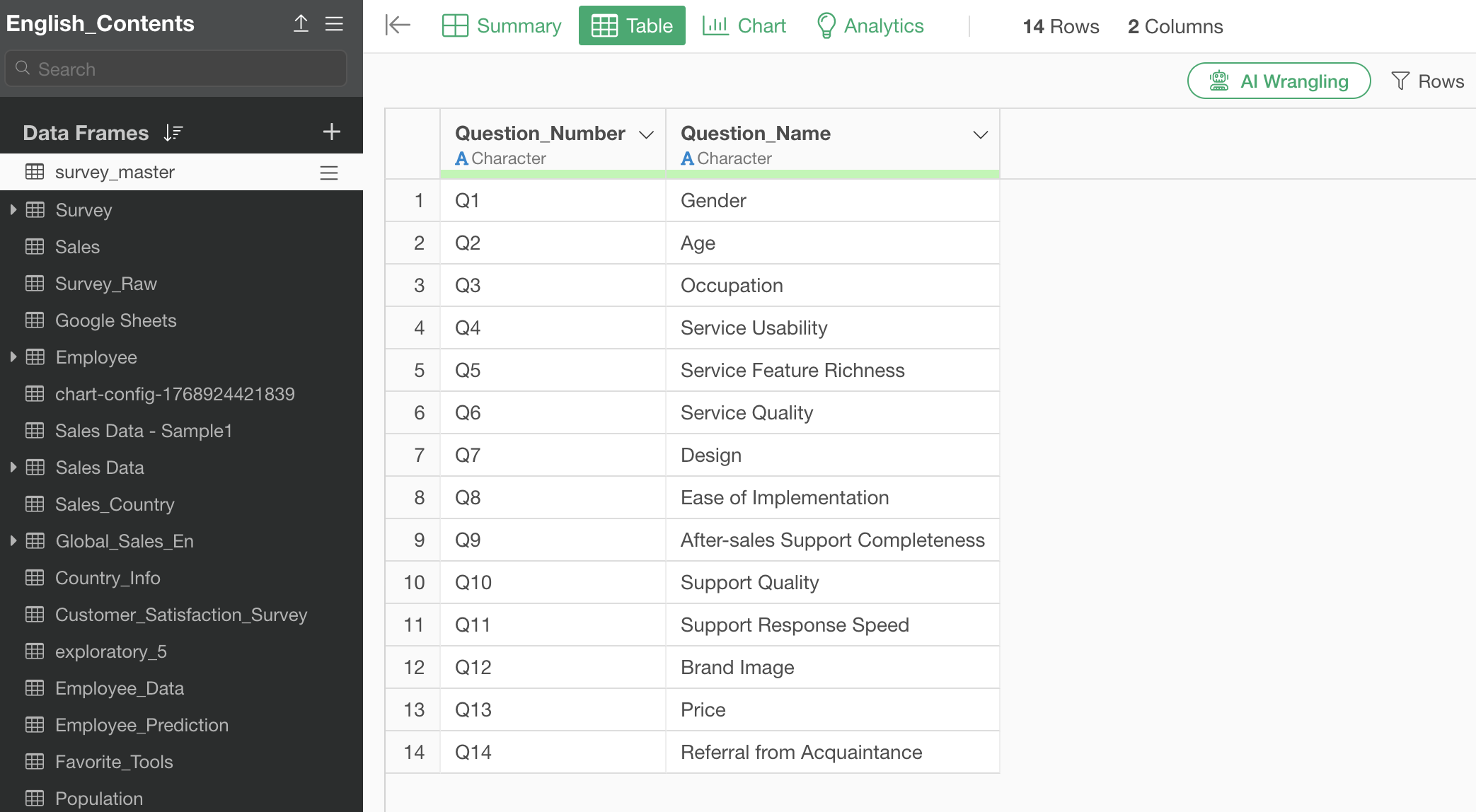
A master data table mapping question numbers to question names is also available.
Using the UI
First, open the master data that maps question numbers to question names, and convert the data shape from long to wide format.
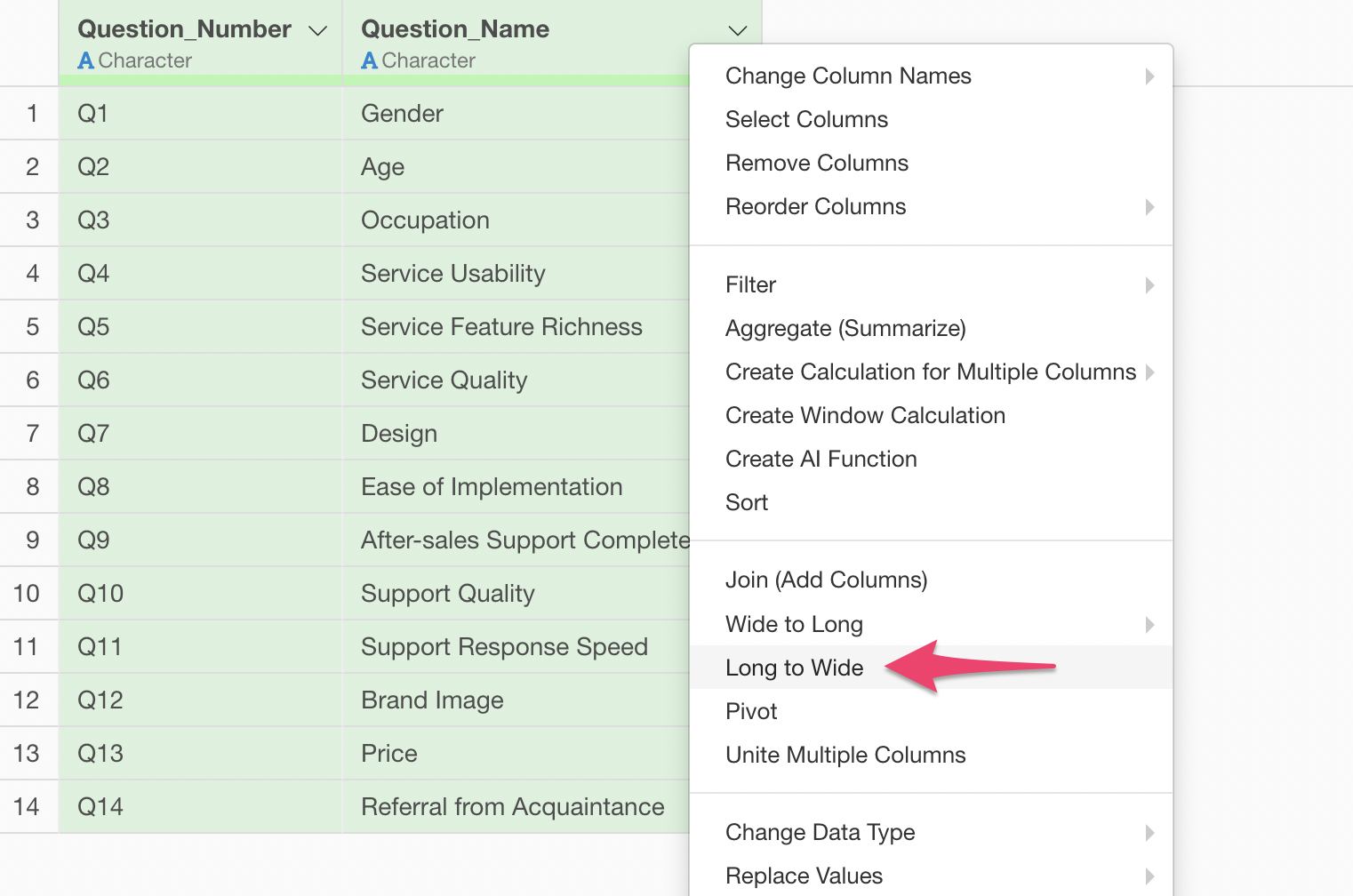
Select the question number and question name columns, then choose “Long to Wide.”
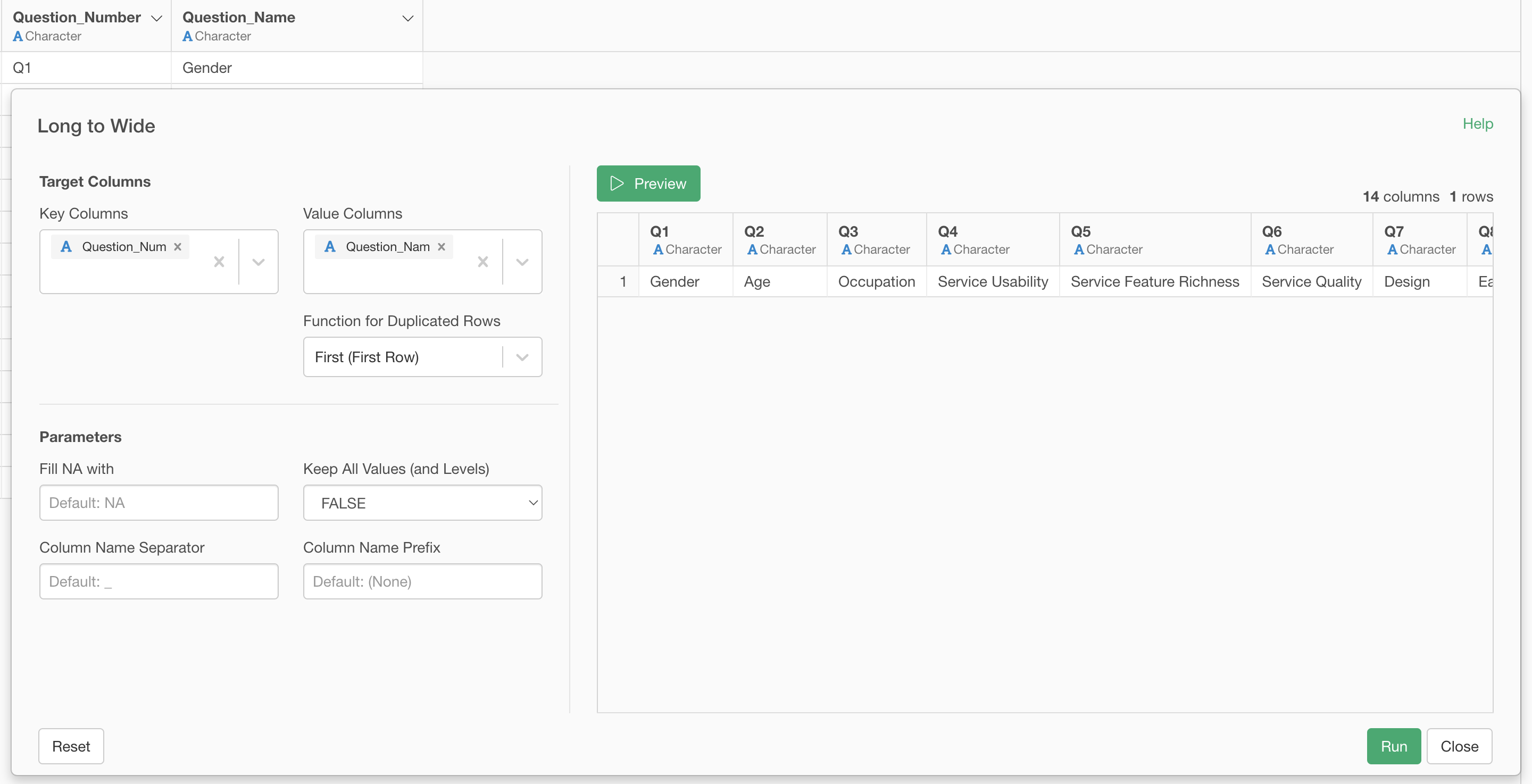
The Long to Wide dialog will appear. Run it as is.
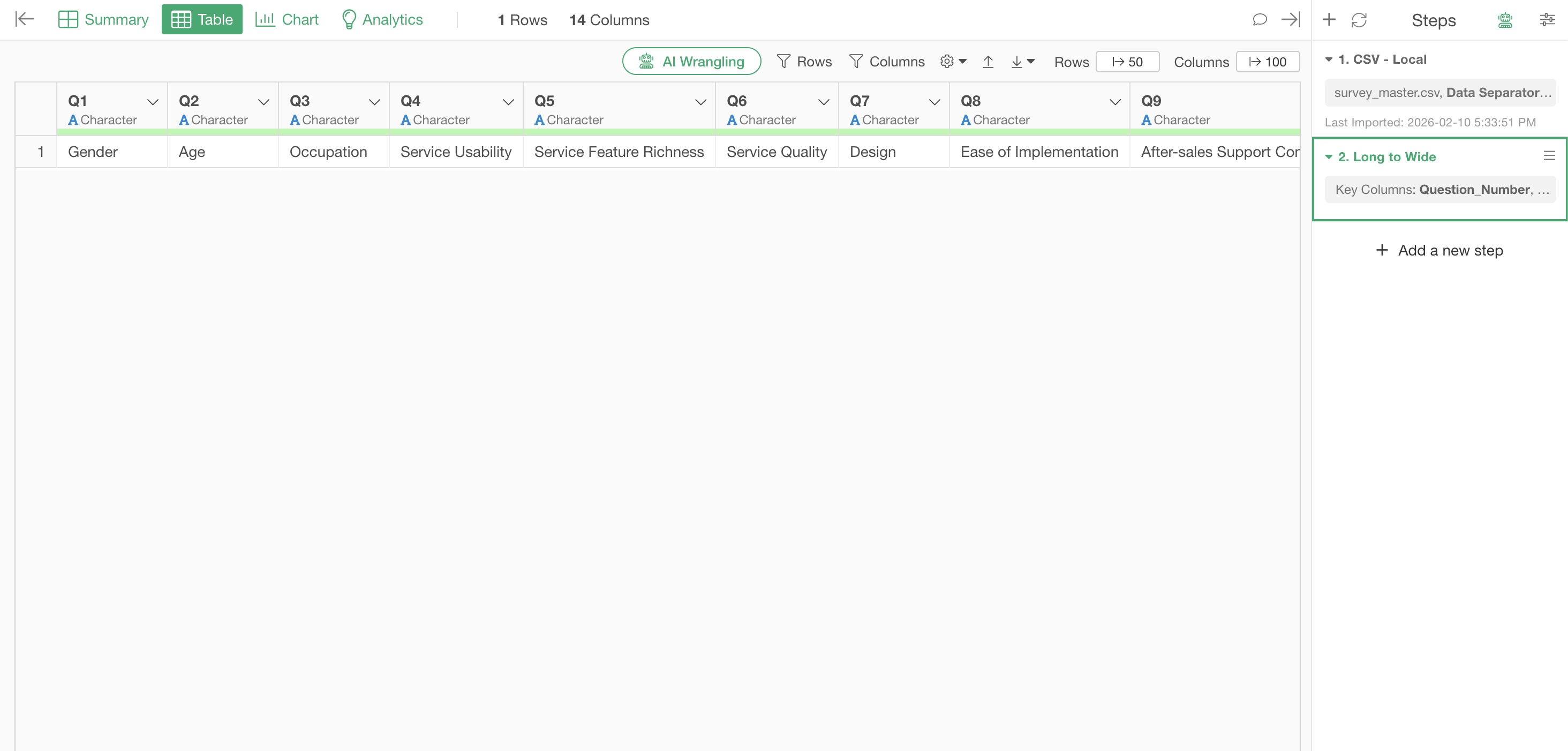
The data format has been converted to wide format, with question names as the values.
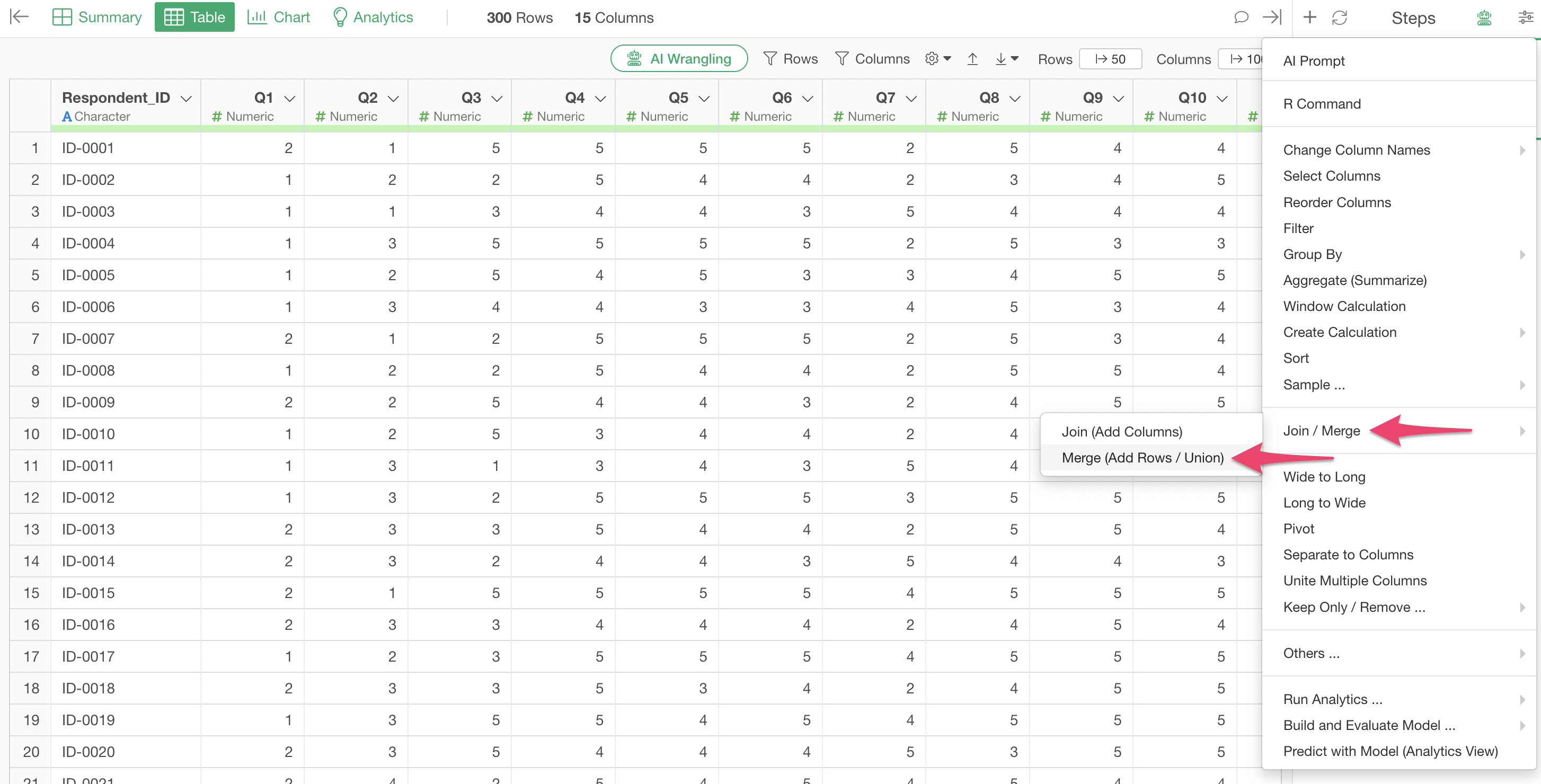
Open the response data frame, click the plus button on the step, and select “Merge” under “Join / Merge.”
Select the column name data frame as the data frame to merge, and run it.
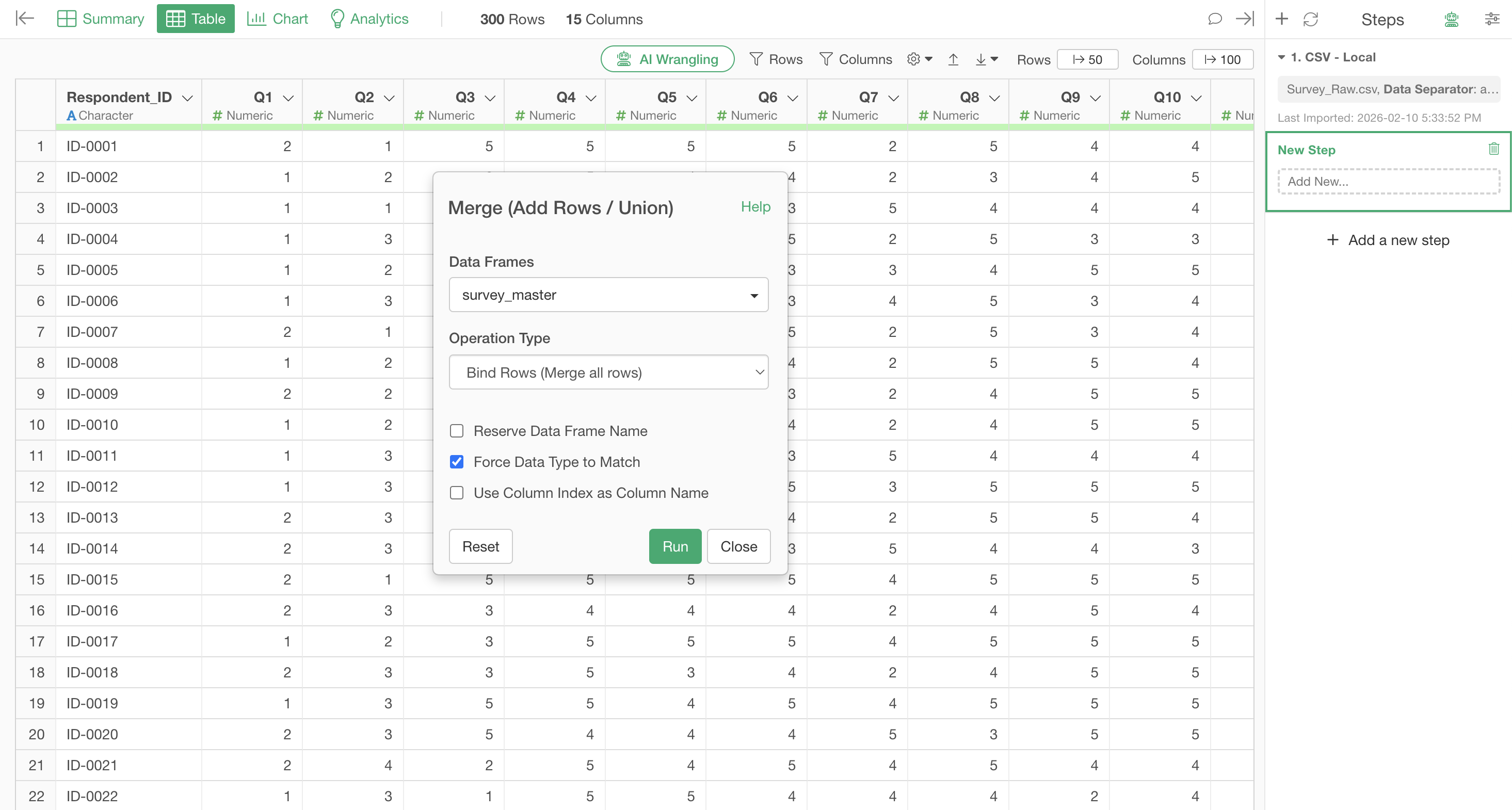
This appends the row you want to use as column names to the last row.
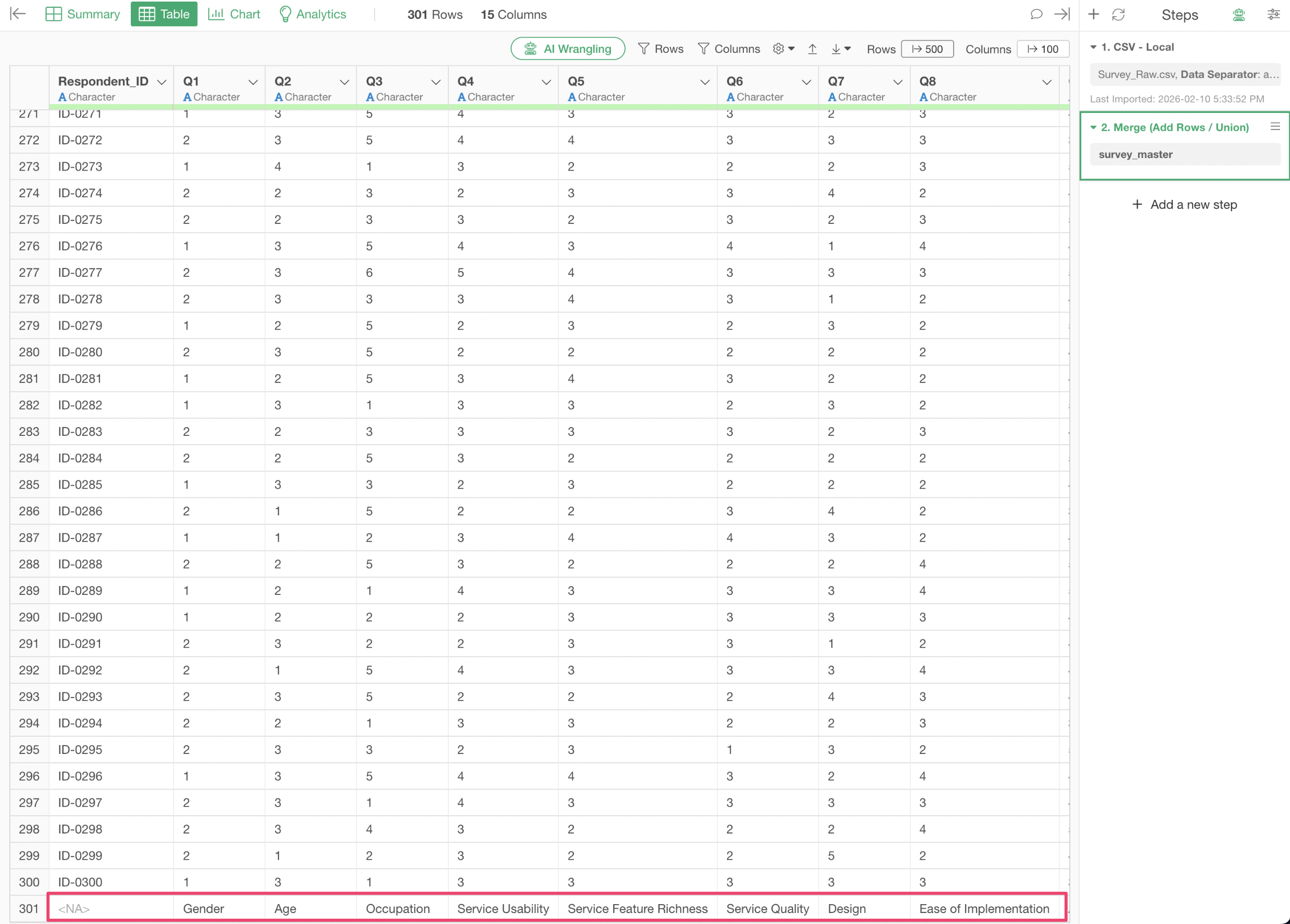
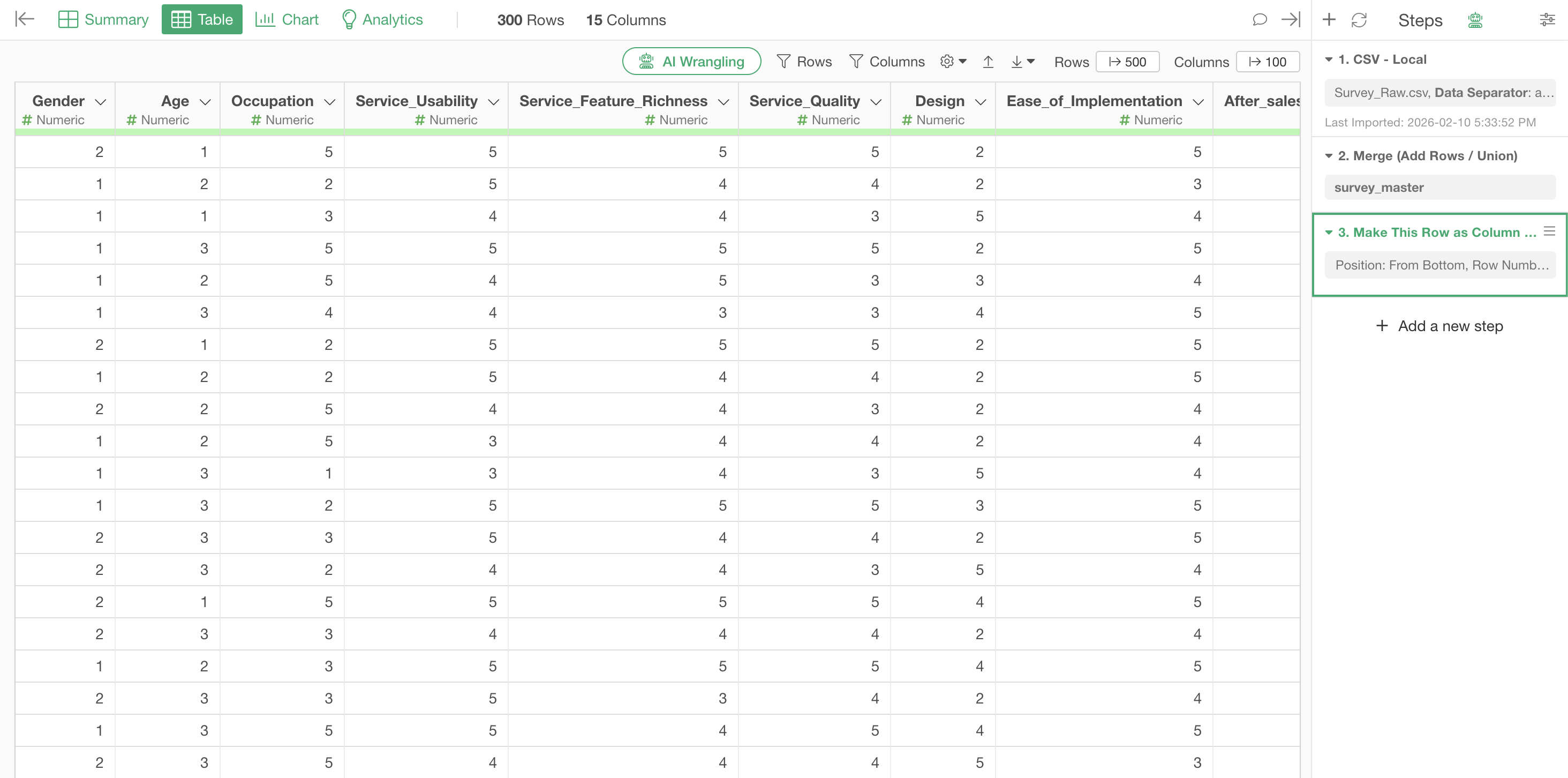
Finally, set the appended last row as the column names.
Click the plus button on the step and select “Set a Row as Column Header” under “Others.”
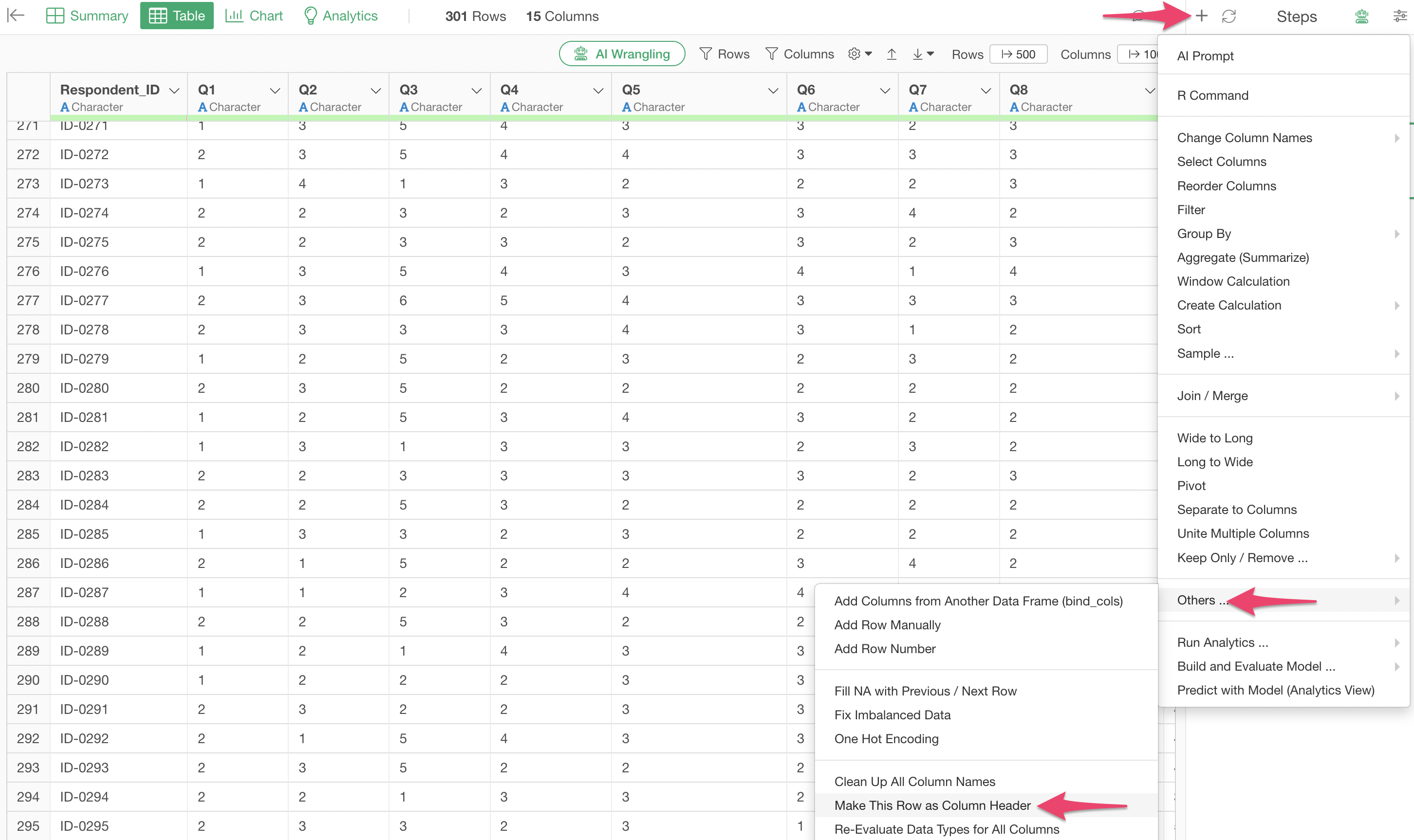
Change the position to “From Bottom” and set “Re-evaluate All Column Data Types” to TRUE.
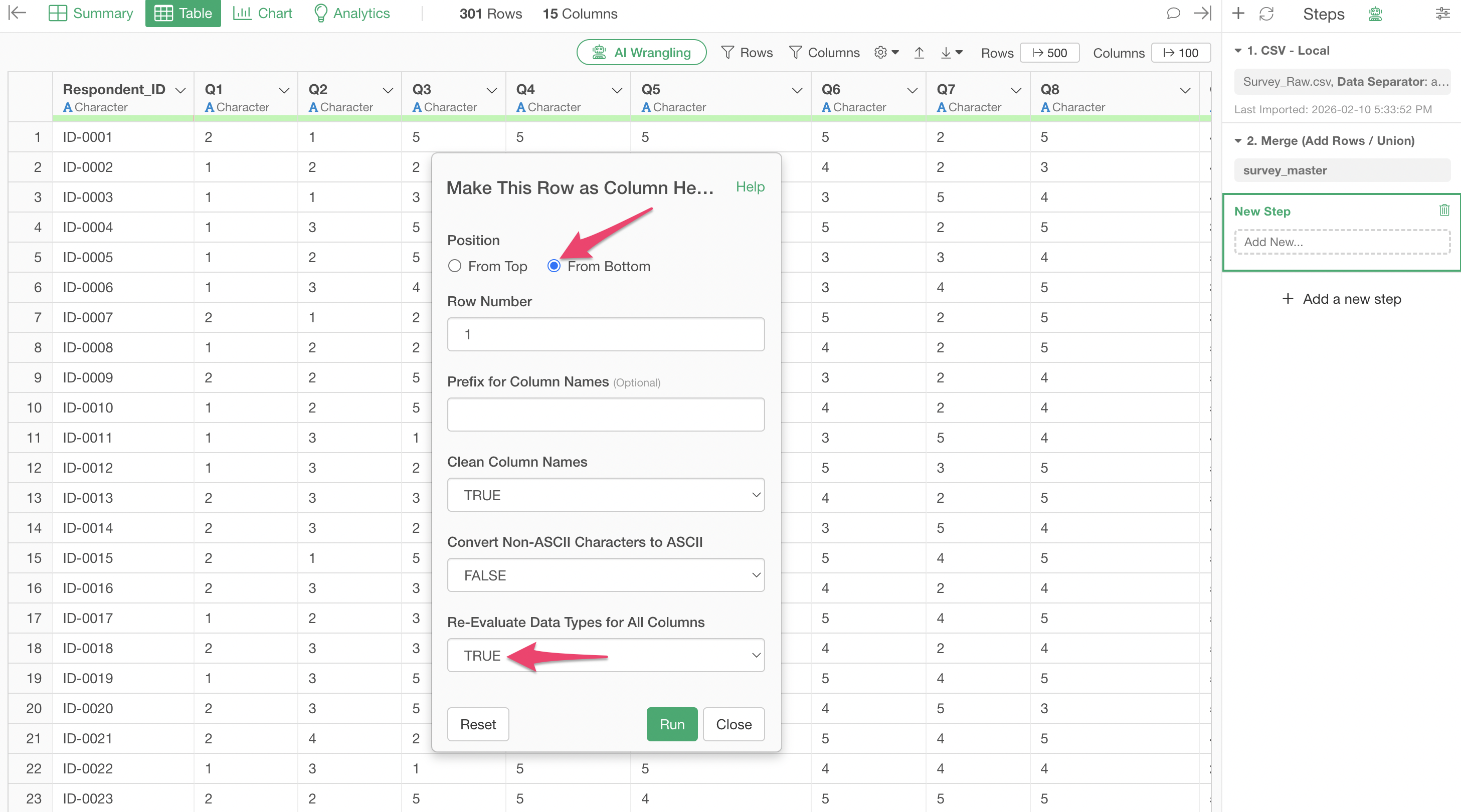
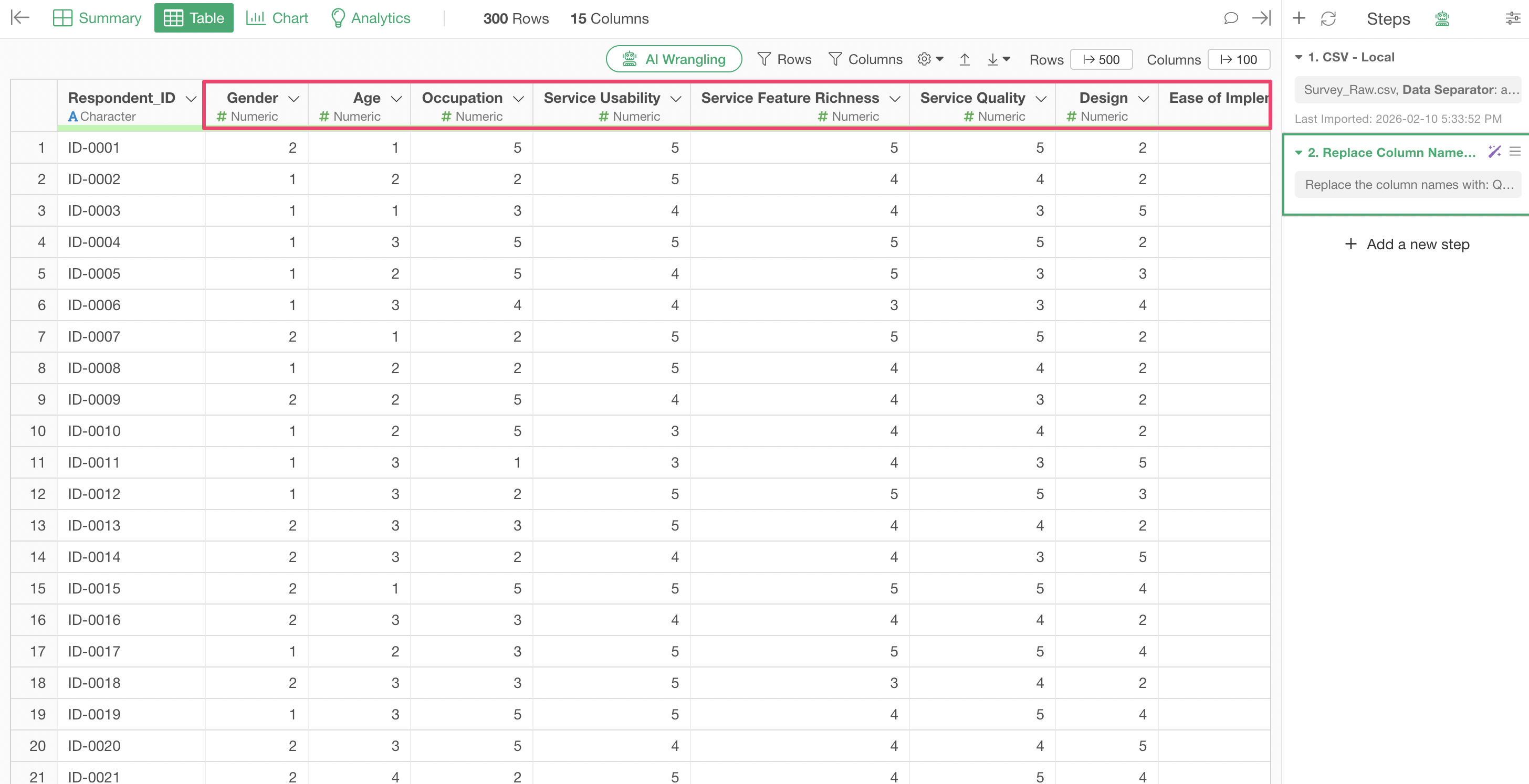
After running it, the column names have been successfully changed.
Using AI
By using AI, you can change column names more easily and quickly than with the UI.
Open the master data that contains question numbers and question names.
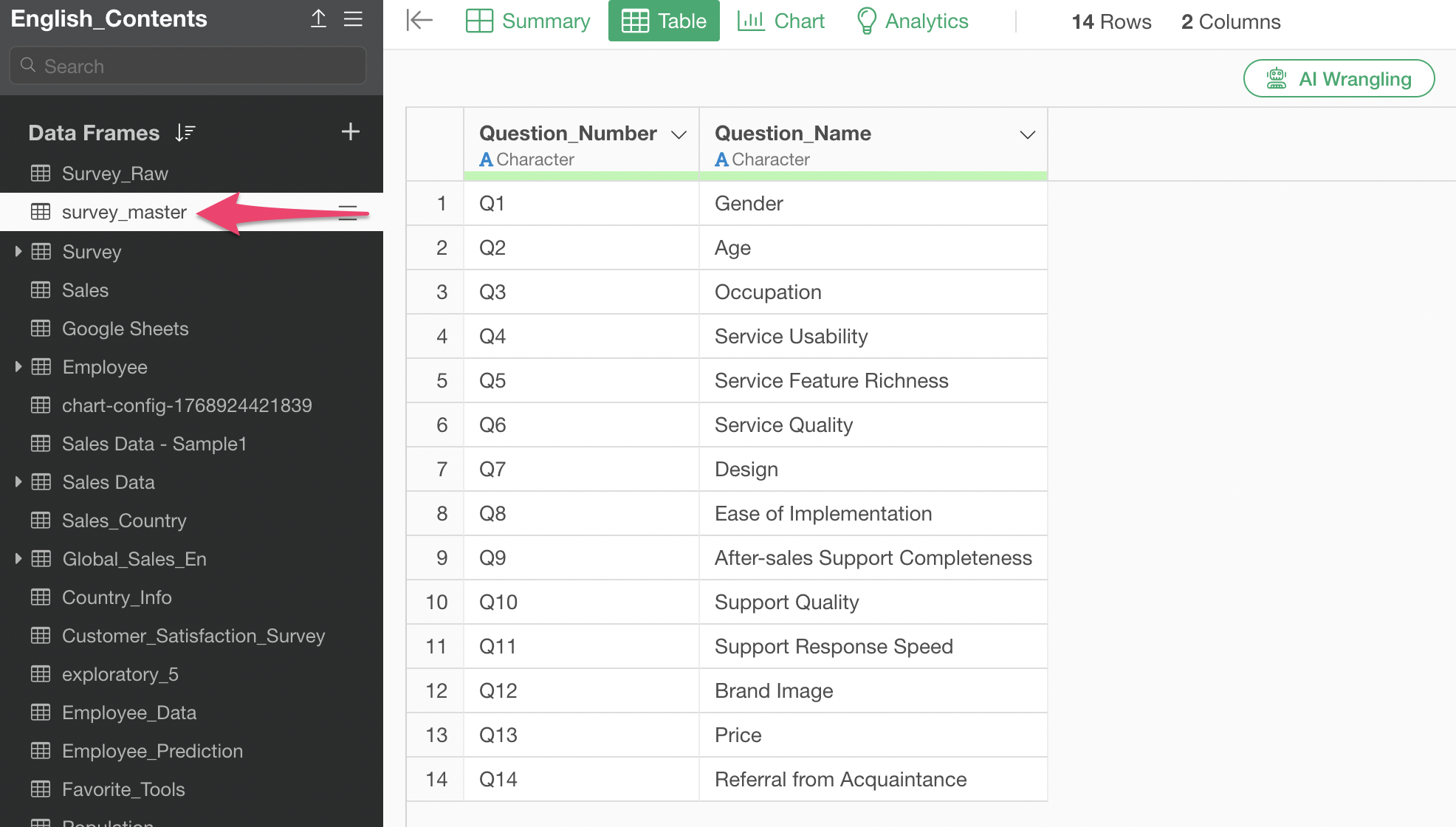
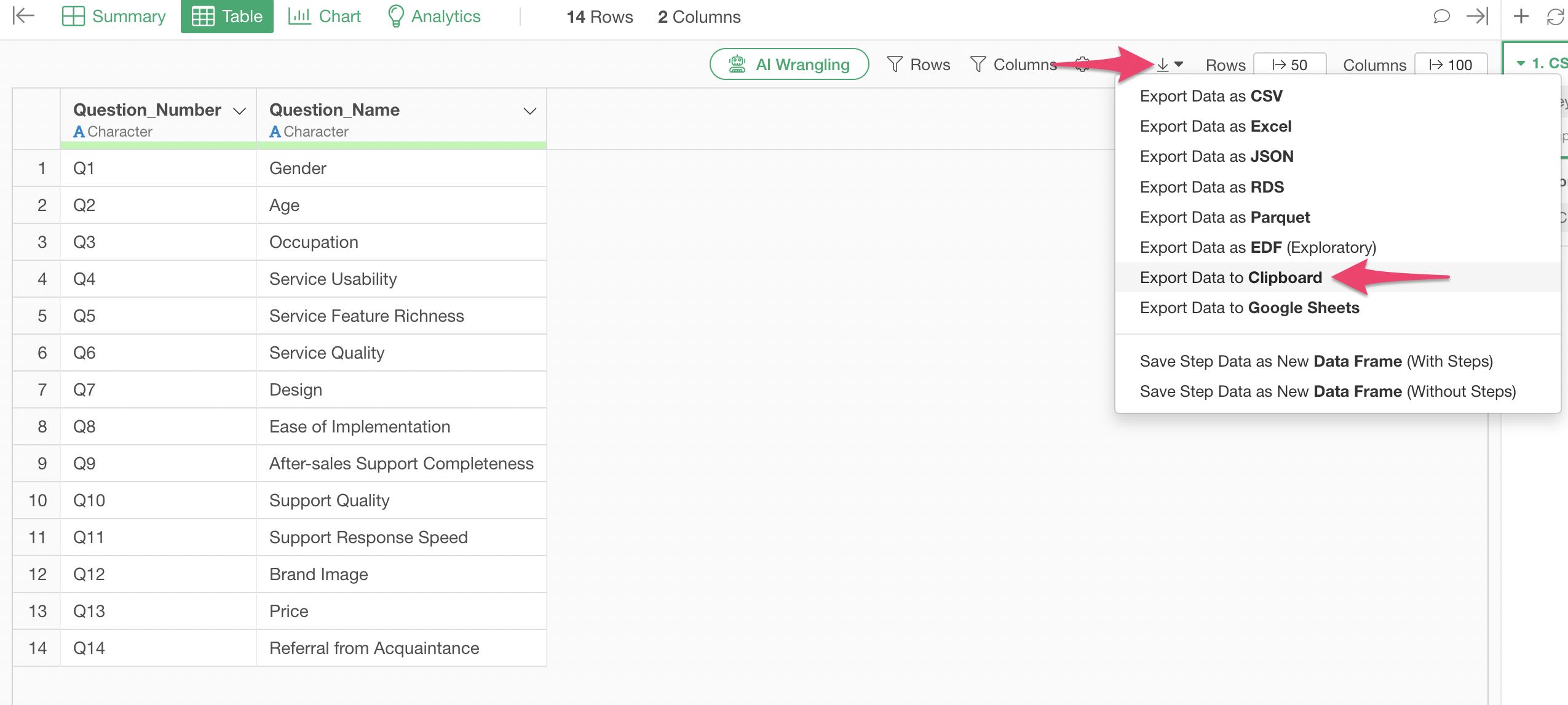
Click the Export button and select “Export to Clipboard.”
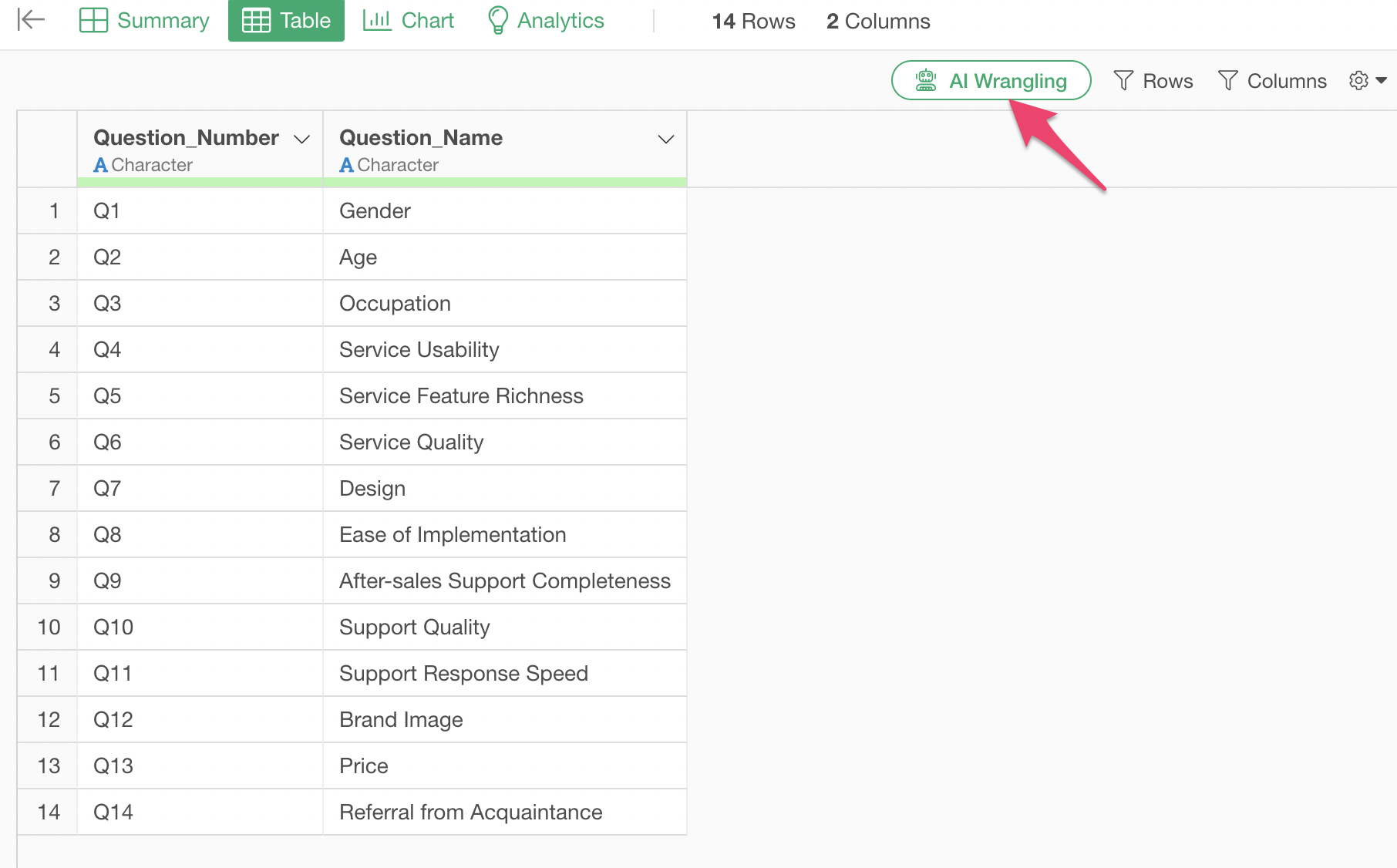
Open the response data frame and click “AI Data Wrangling.”
In the prompt, type “Replace column names with the following” and then paste the mapping table you exported to the clipboard.
Replace the column names with:

Question_Number Question_Name
Q1  Gender
Q2  Age
Q3  Occupation
Q4  Service Usability
Q5  Service Feature Richness
Q6  Service Quality
Q7  Design
Q8  Ease of Implementation
Q9  After-sales Support Completeness
Q10 Support Quality
Q11 Support Response Speed
Q12 Brand Image
Q13 Price
Q14 Referral from Acquaintance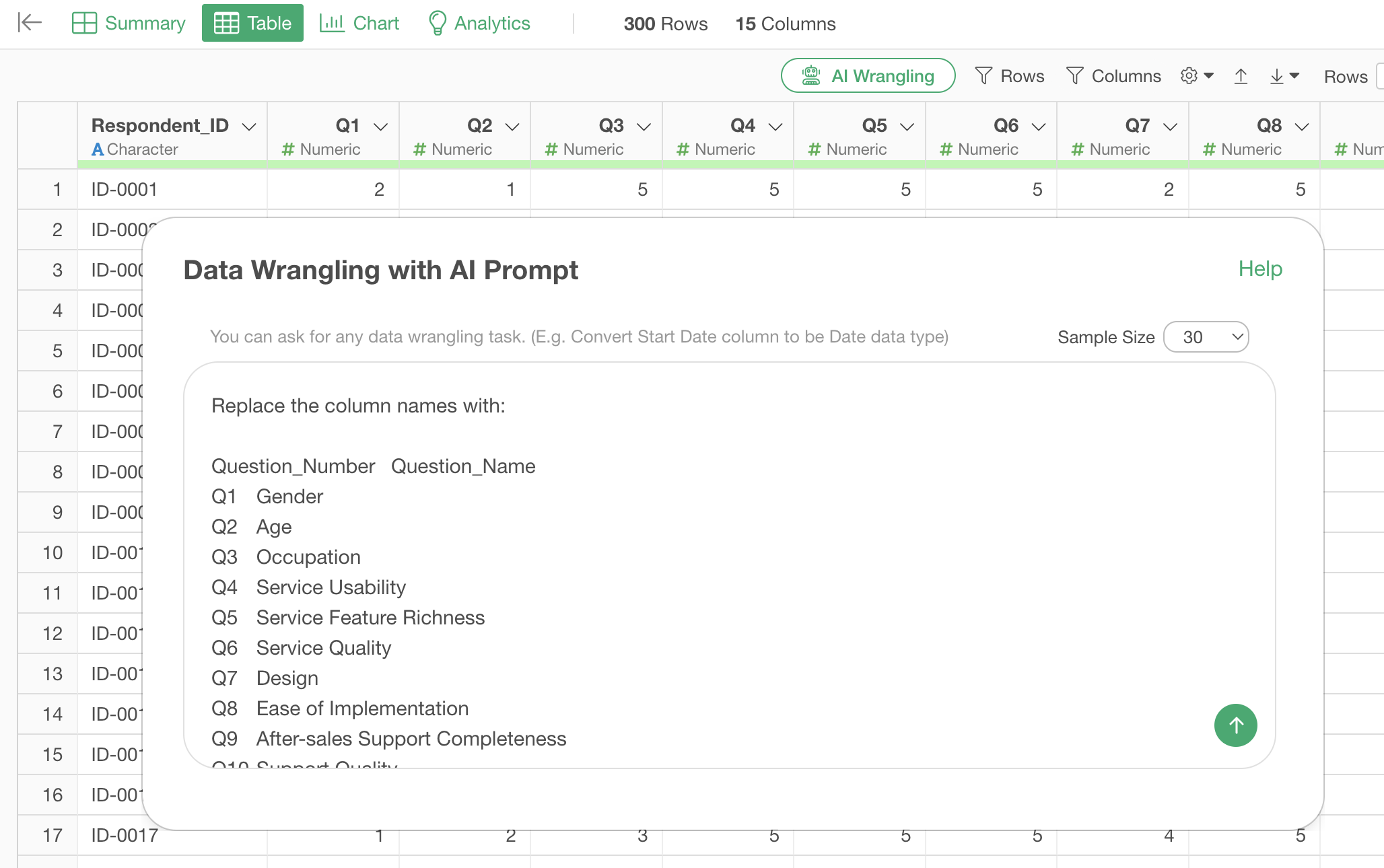
An R command is generated, and the column names are renamed to correspond to each question number.
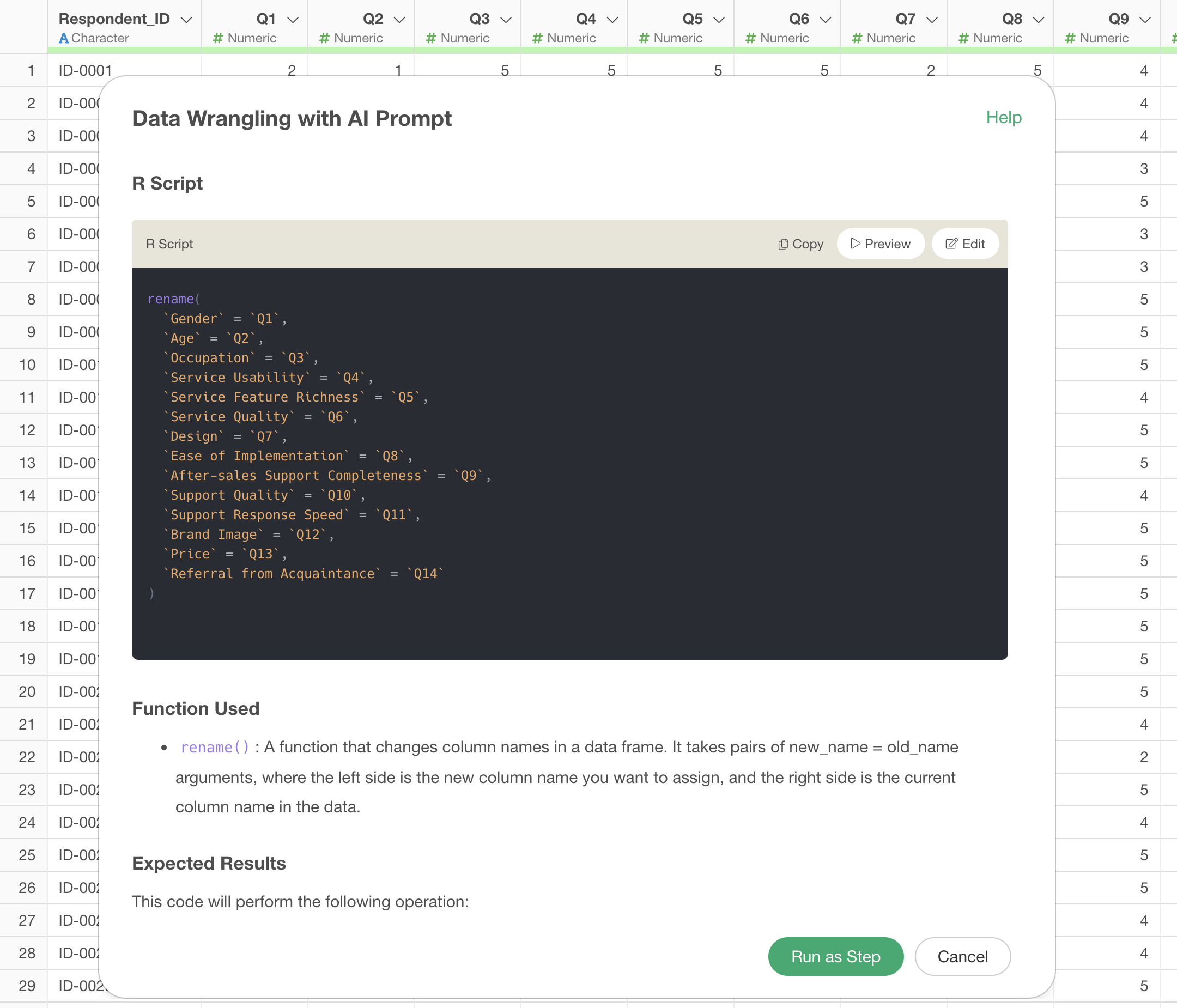
The column names that were previously question numbers have been successfully changed.