Creating Columns for the Nth Purchase Date
When analyzing customer purchasing behavior, there are times when you want to understand the purchase dates for specific purchase counts such as the 1st, 2nd, 3rd purchase for each customer.
Who Benefits
This process will be useful for those conducting customer behavior analysis, implementing repeat purchase analysis, and those who want to extract specific purchase timings from purchase history.
Problem
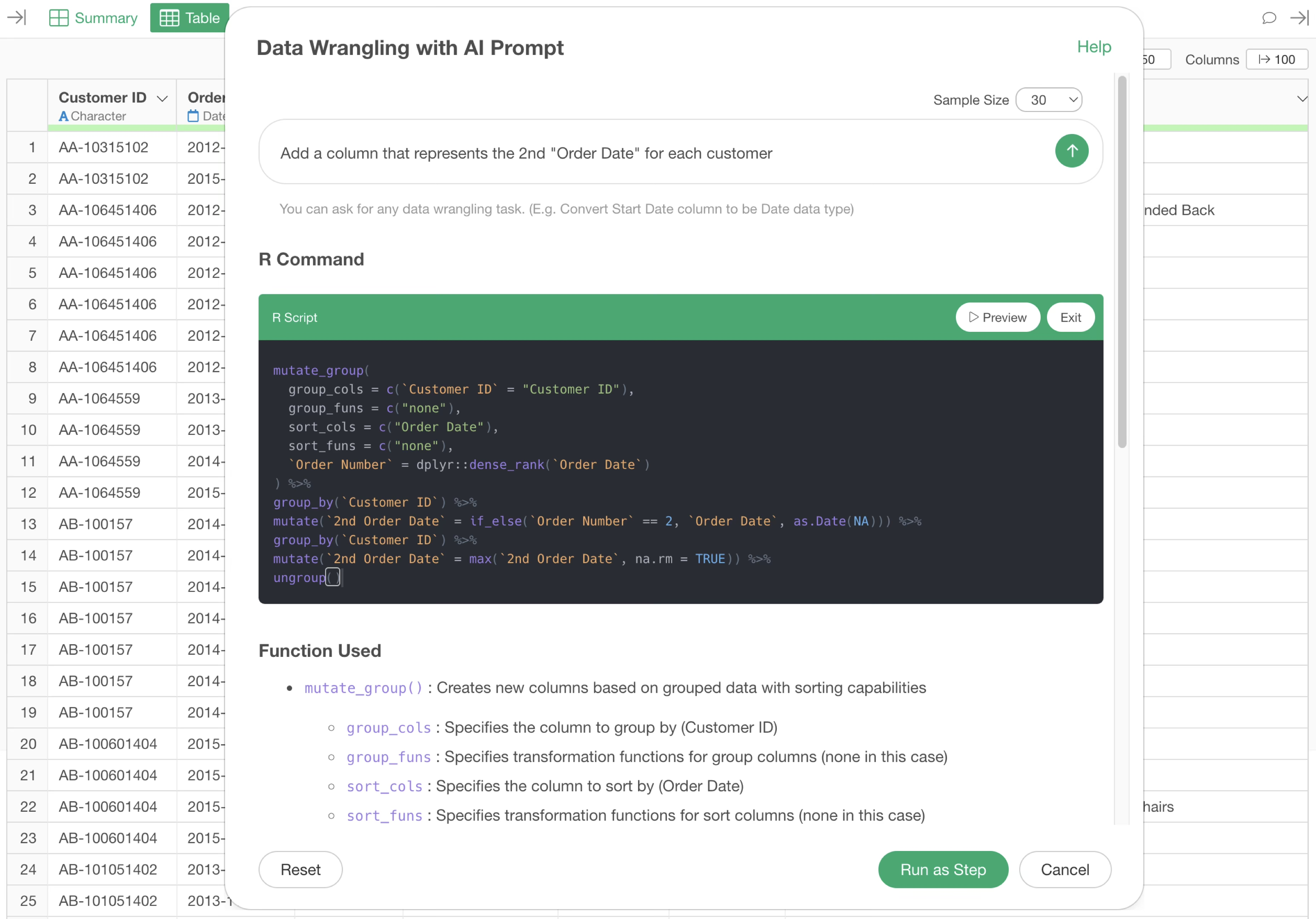
When performing customer purchase analysis from order data, you need information about purchase counts and purchase dates - specifically when each customer’s nth purchase occurred. However, regular order data does not include purchase count information, making it impossible to directly obtain the purchase date for a specific count (e.g., 2nd purchase) for each customer.
Solution
In this case, we’ll use order data where each row represents one order, and columns include CustomerID, Order Date, Product Information, etc. We’ll introduce both AI-based calculation methods and UI-based calculation methods.
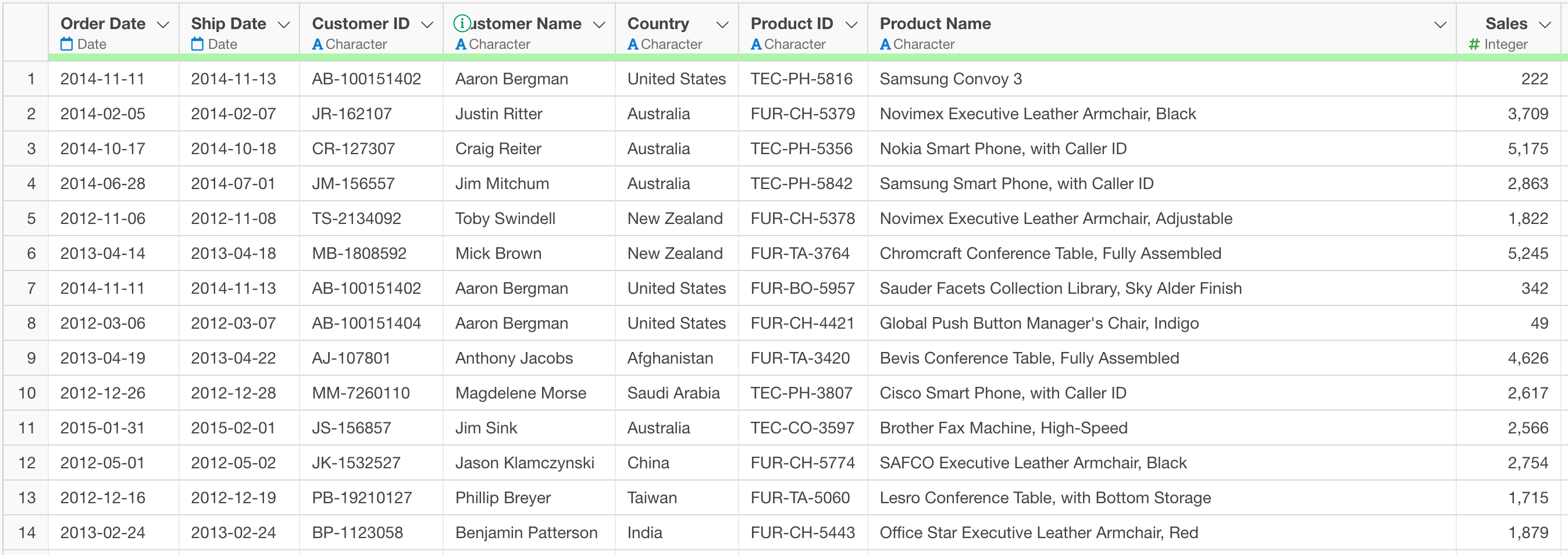
The specific steps involve first calculating the order count for each customer, then using conditional calculation functionality to create a column that extracts the order date for a specific count, and finally combining Group By functionality with missing value processing to apply unified order date information to all rows for each customer.
Processing Data with AI Prompt
Click the “AI Wrangling” button from Table View. When the AI Prompt dialog opens, enter the following prompt in the prompt input field and execute:
Add a column that represents the 2nd "Order Date" for each customer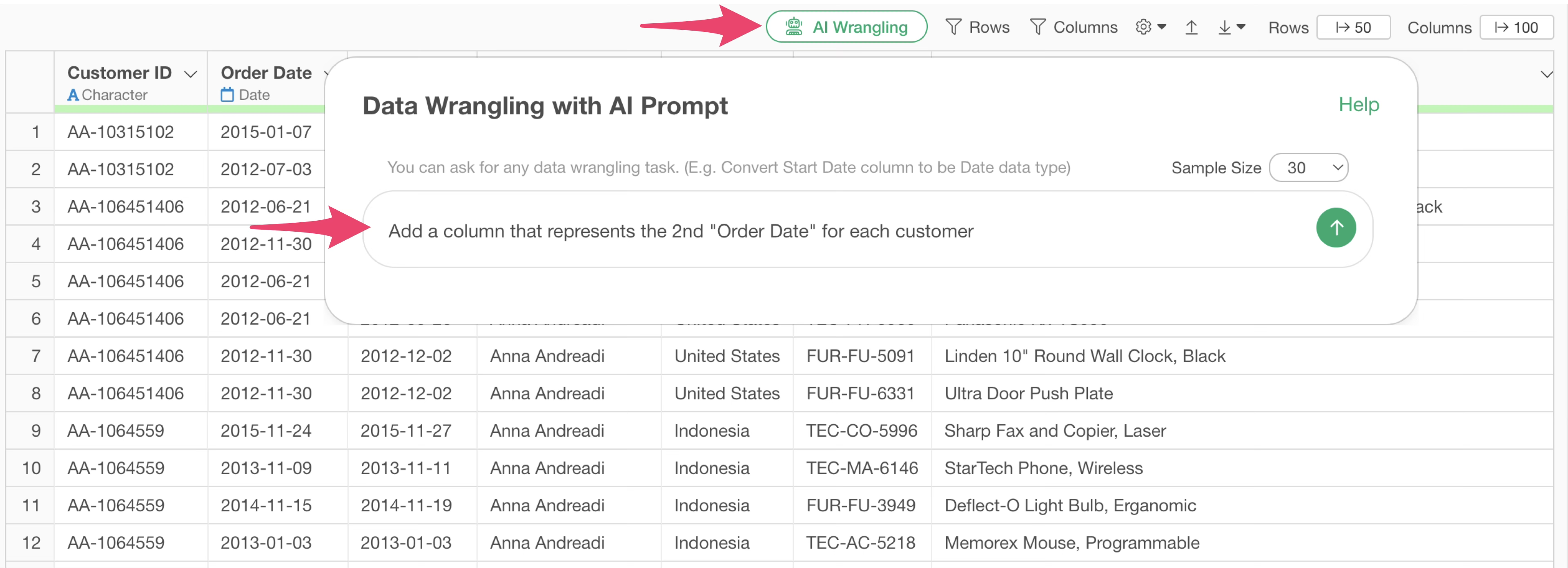 When
you execute the prompt, AI automatically generates an R script that
includes the following processing:
When
you execute the prompt, AI automatically generates an R script that
includes the following processing:
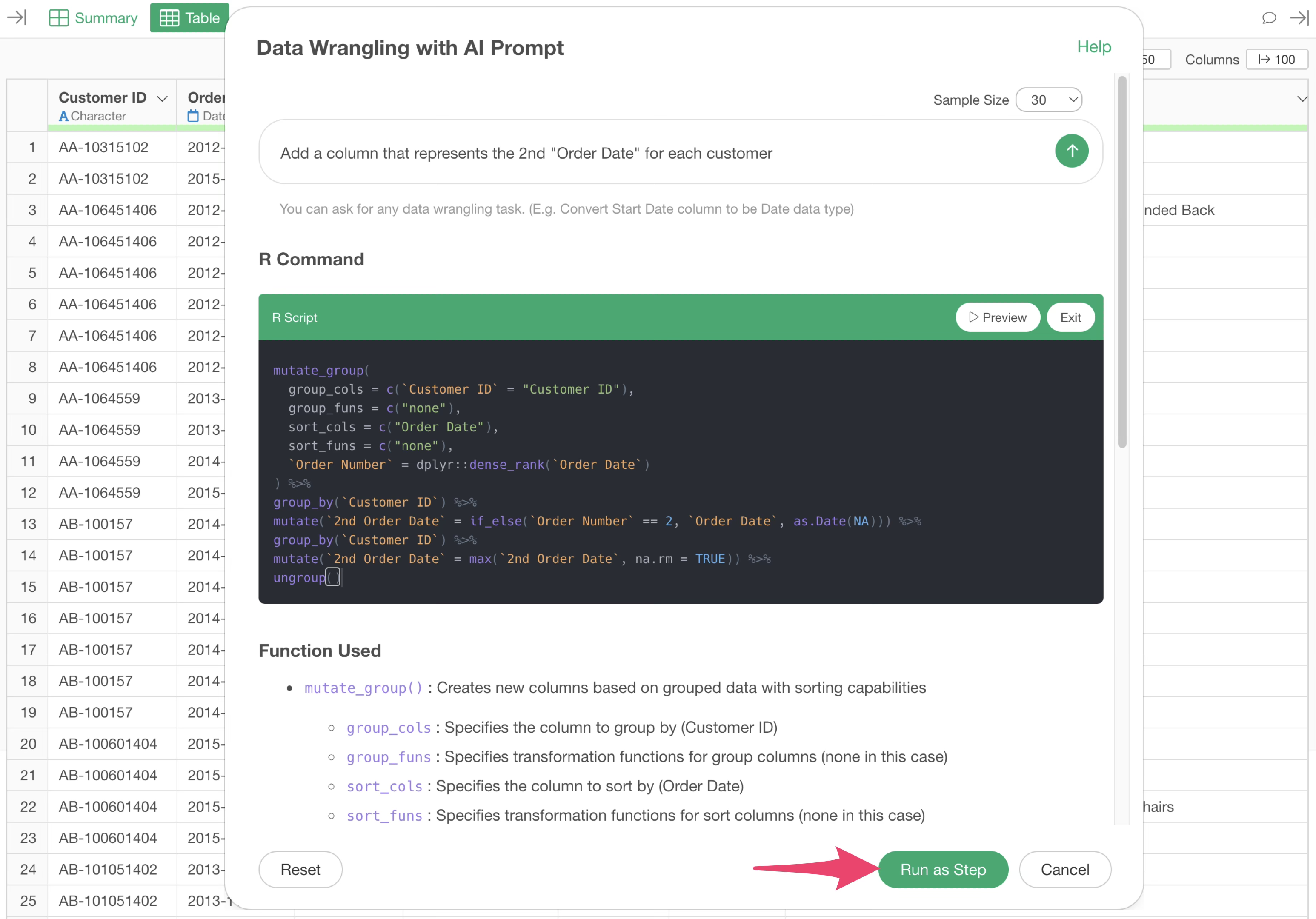
In the generated code, first the order count information is calculated, then for customers with 2 orders, the 2nd order date is identified and stored in a column, and finally this 2nd order value is set to all rows for each customer.
By clicking the “Run as Step” button, the processing is executed and the results are reflected.
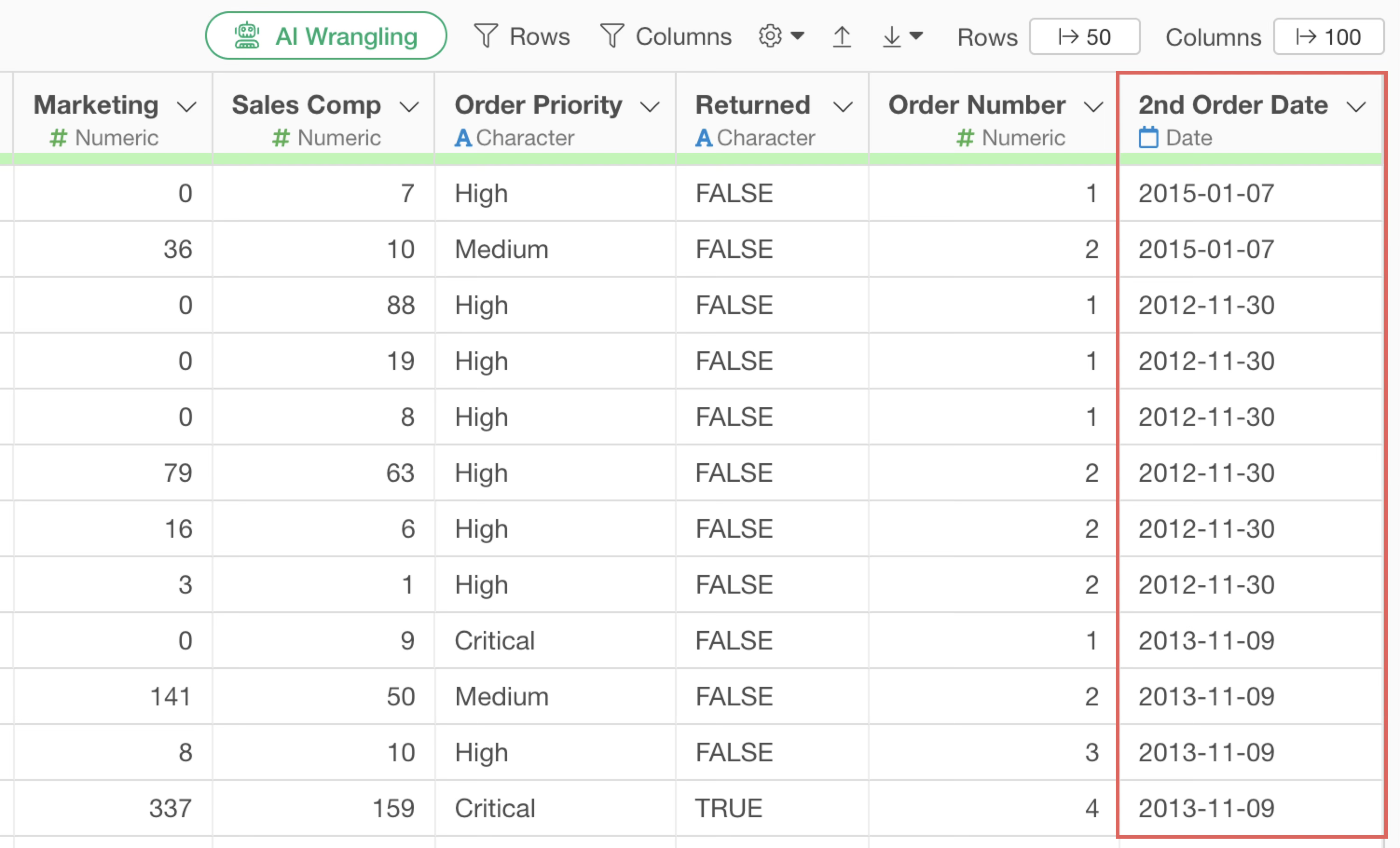
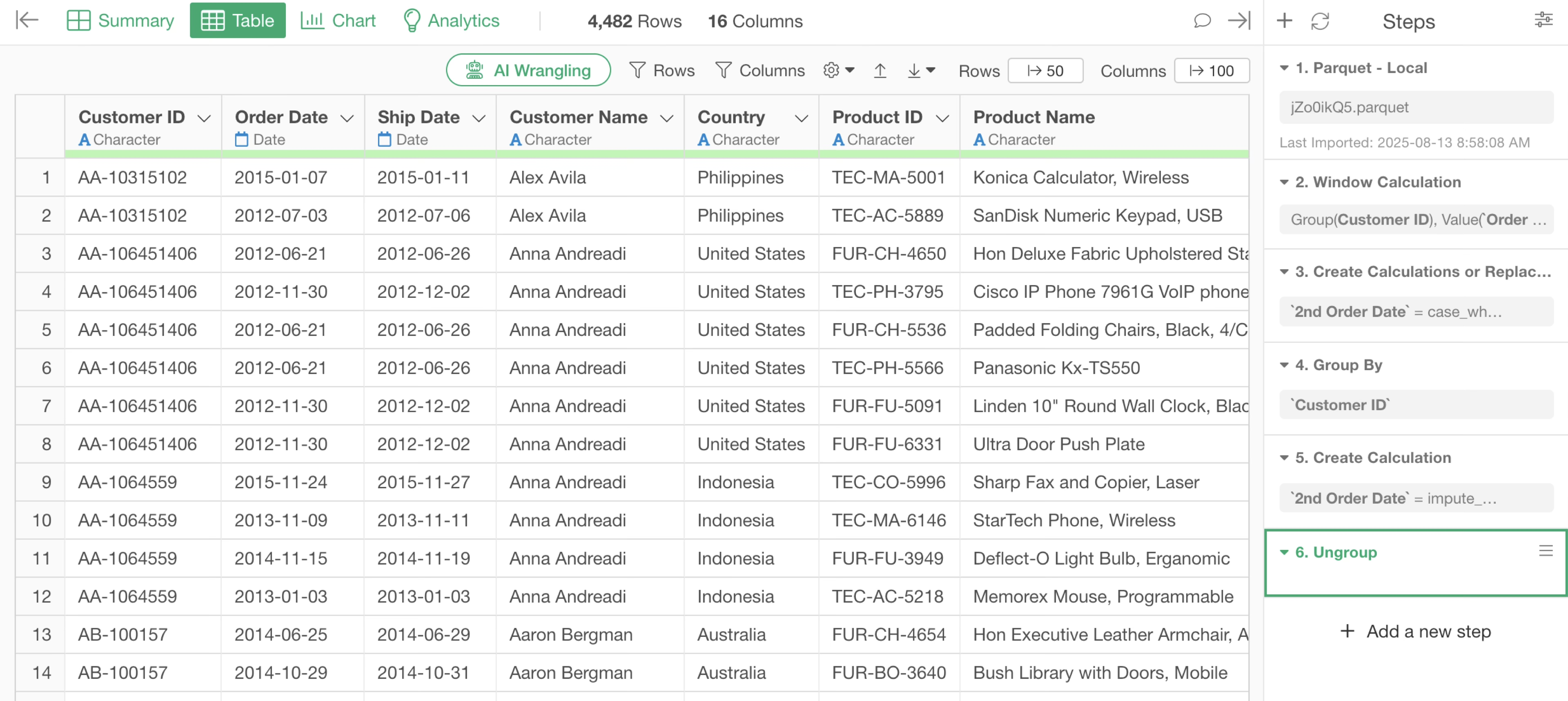
This adds a “2nd Order Date” column, and each customer’s 2nd purchase date is set to all rows. When actually confirmed, you can see that rows with the same customer ID have the same 2nd purchase date set.
Processing Data with UI
Calculate Order Count
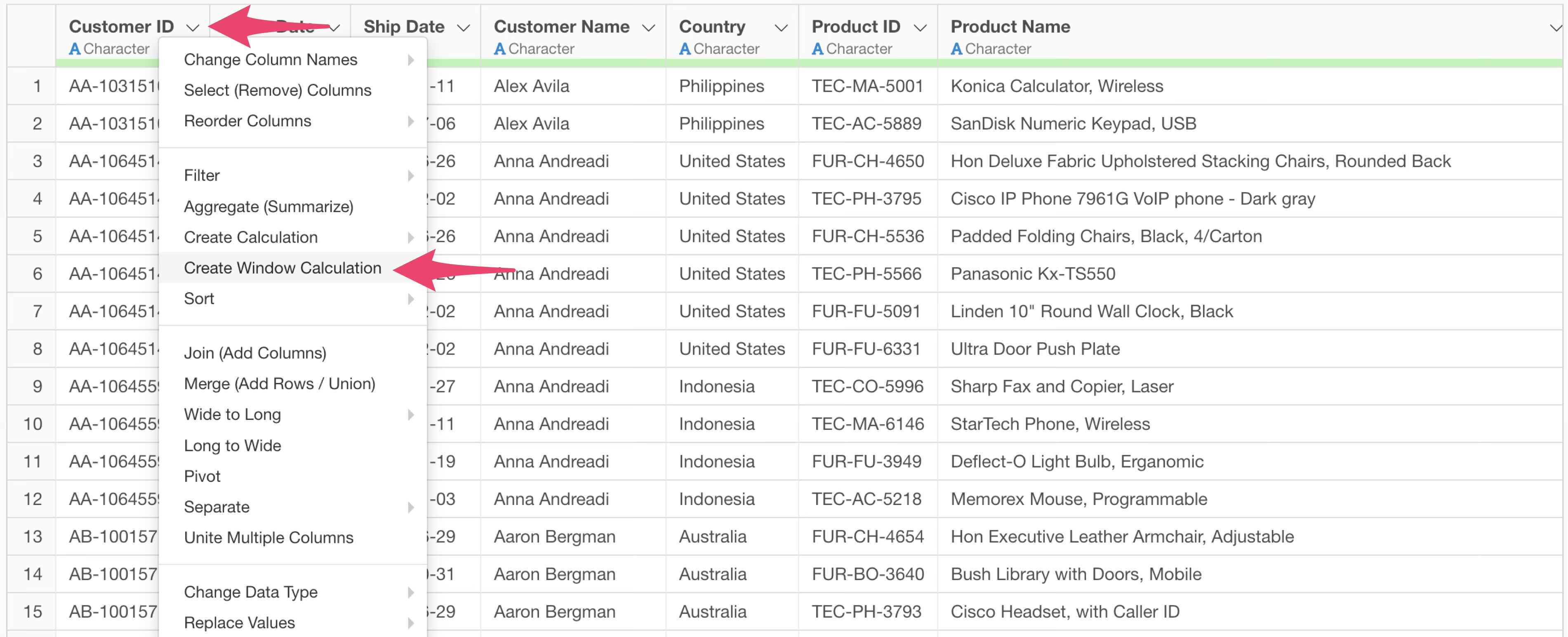
First, to calculate the order count for each customer, select “Create Window Calculation” from the “Customer ID” Column Header Menu.
When the window calculation dialog appears, confirm that “Customer ID” is selected for Group By, and select “Order Date” for Value.
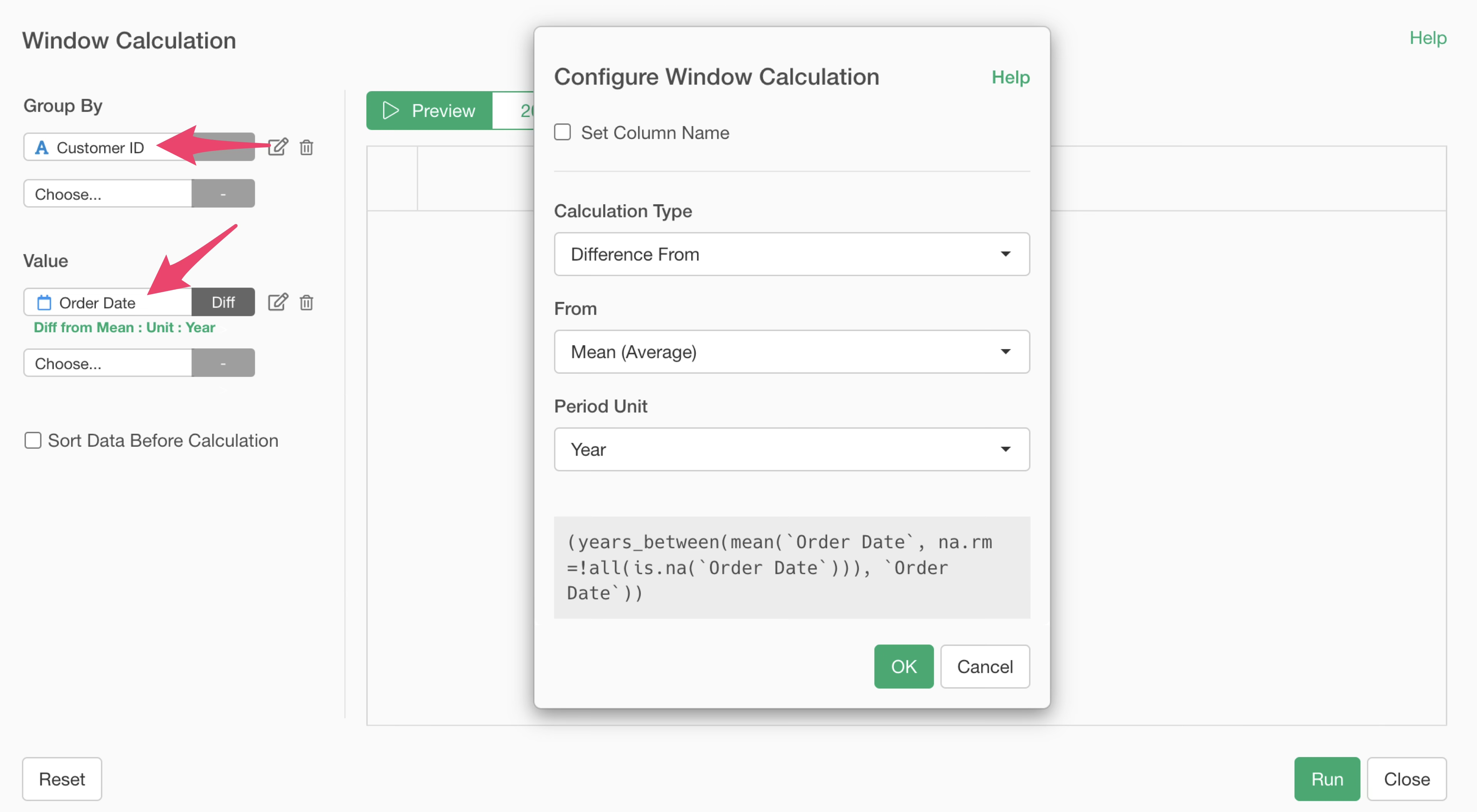
Next, select “Rank” for the calculation type.
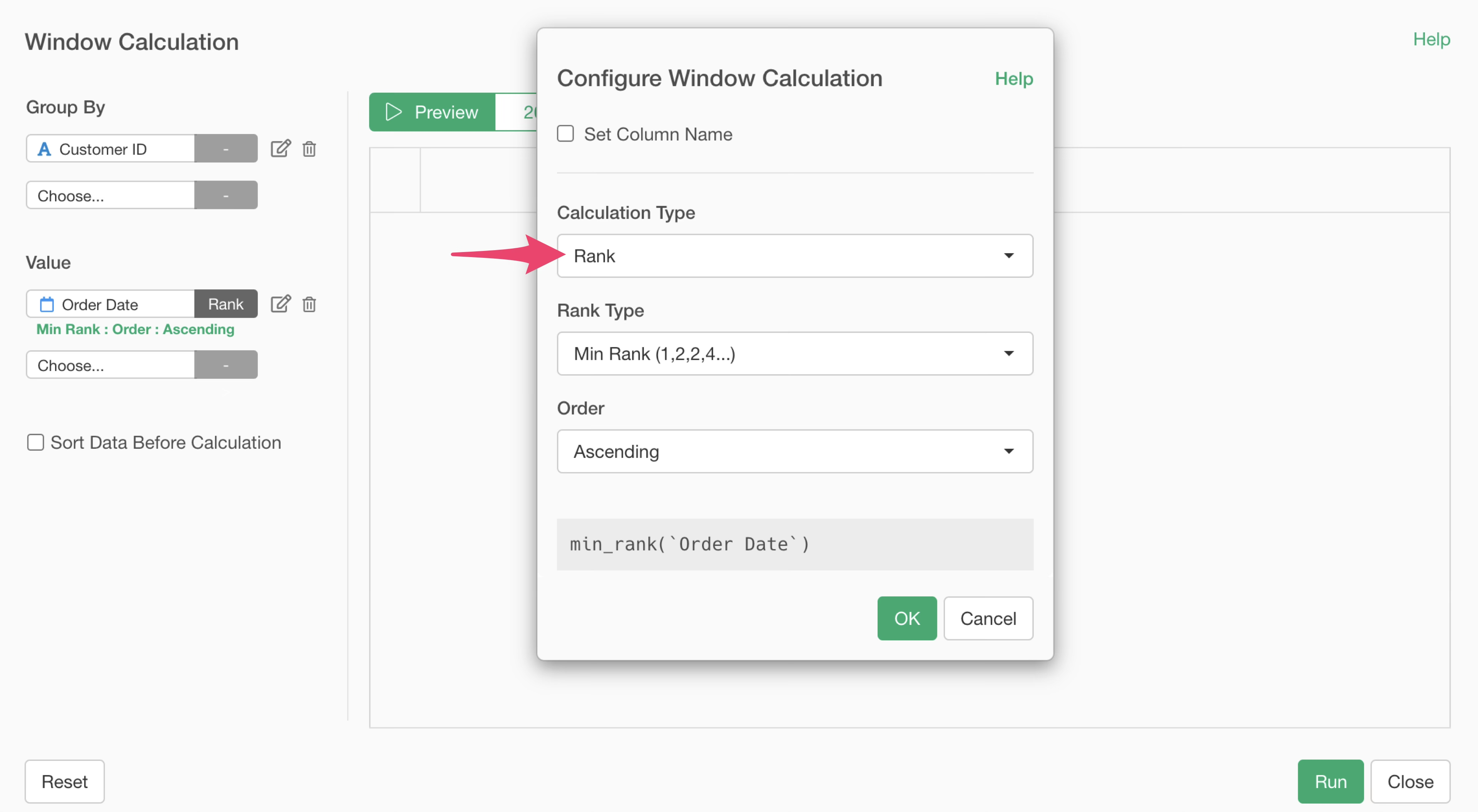
For the rank type, select “Dense Rank”.
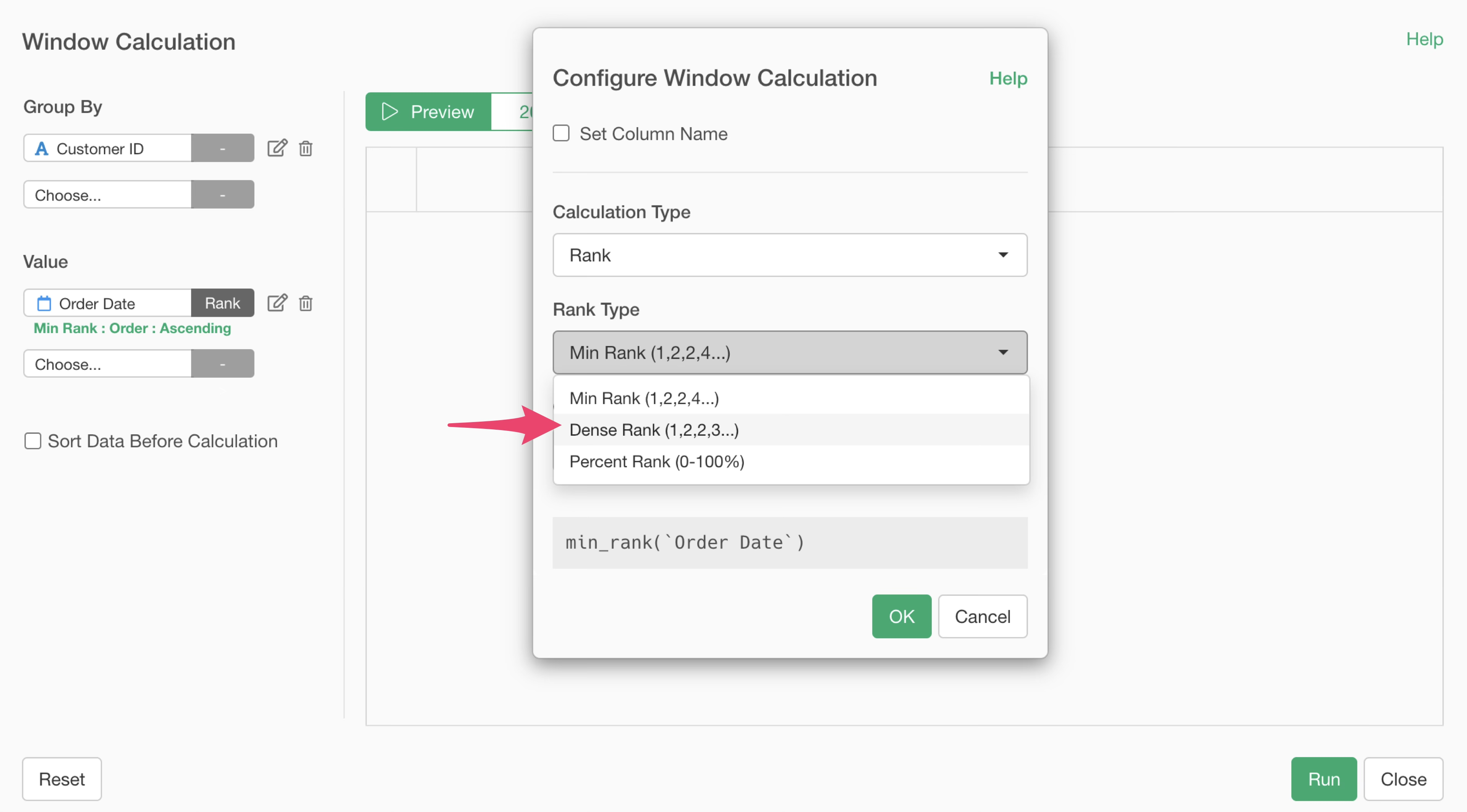
“Min Rank” skips the next value when there are identical values, but “Dense Rank” assigns consecutive rankings, so it can accurately calculate order counts even when there are multiple orders on the same date.
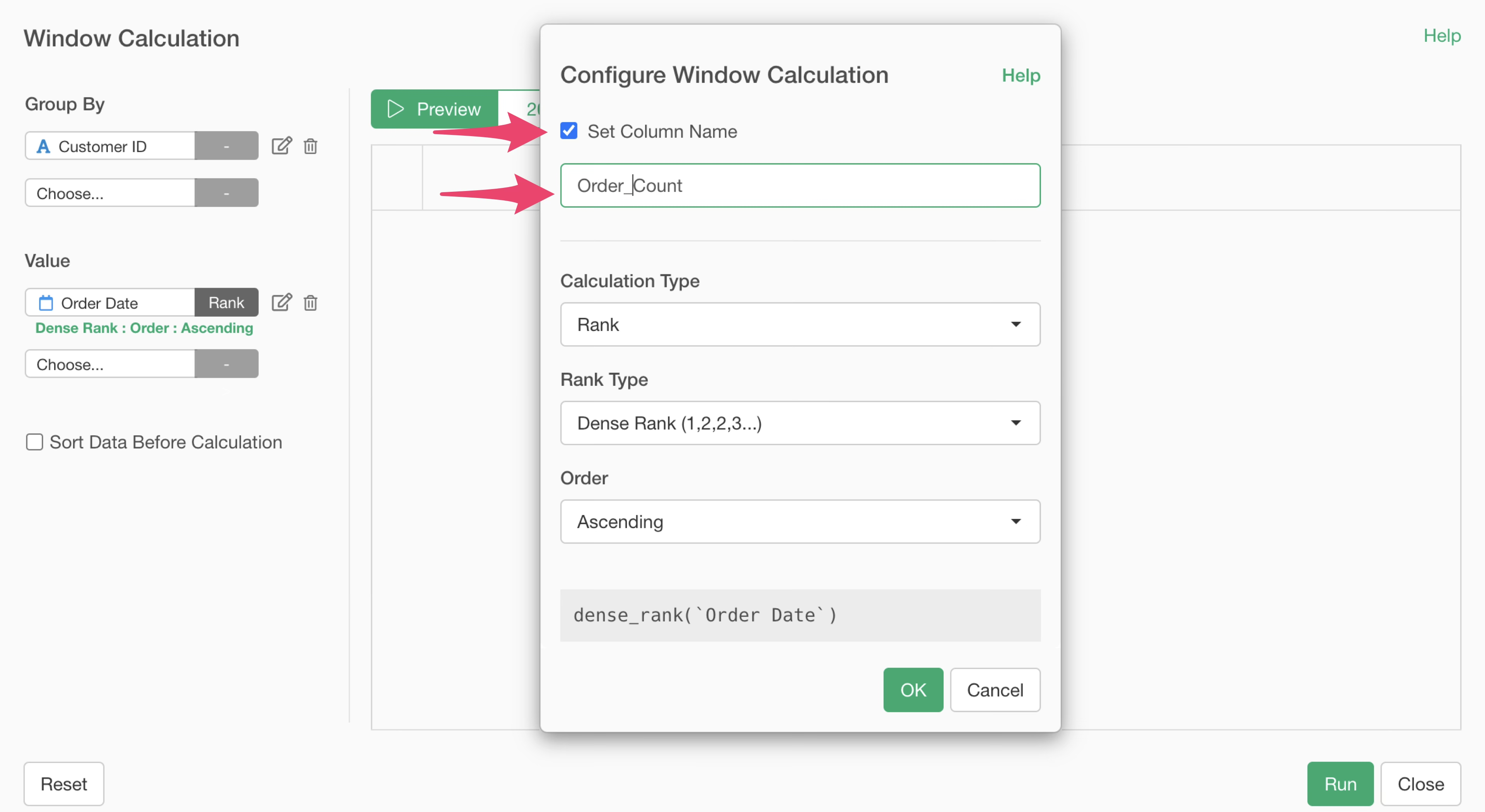
Change the new column name to “Order Count” and click the OK button.
Click the Preview button to confirm the content and run.
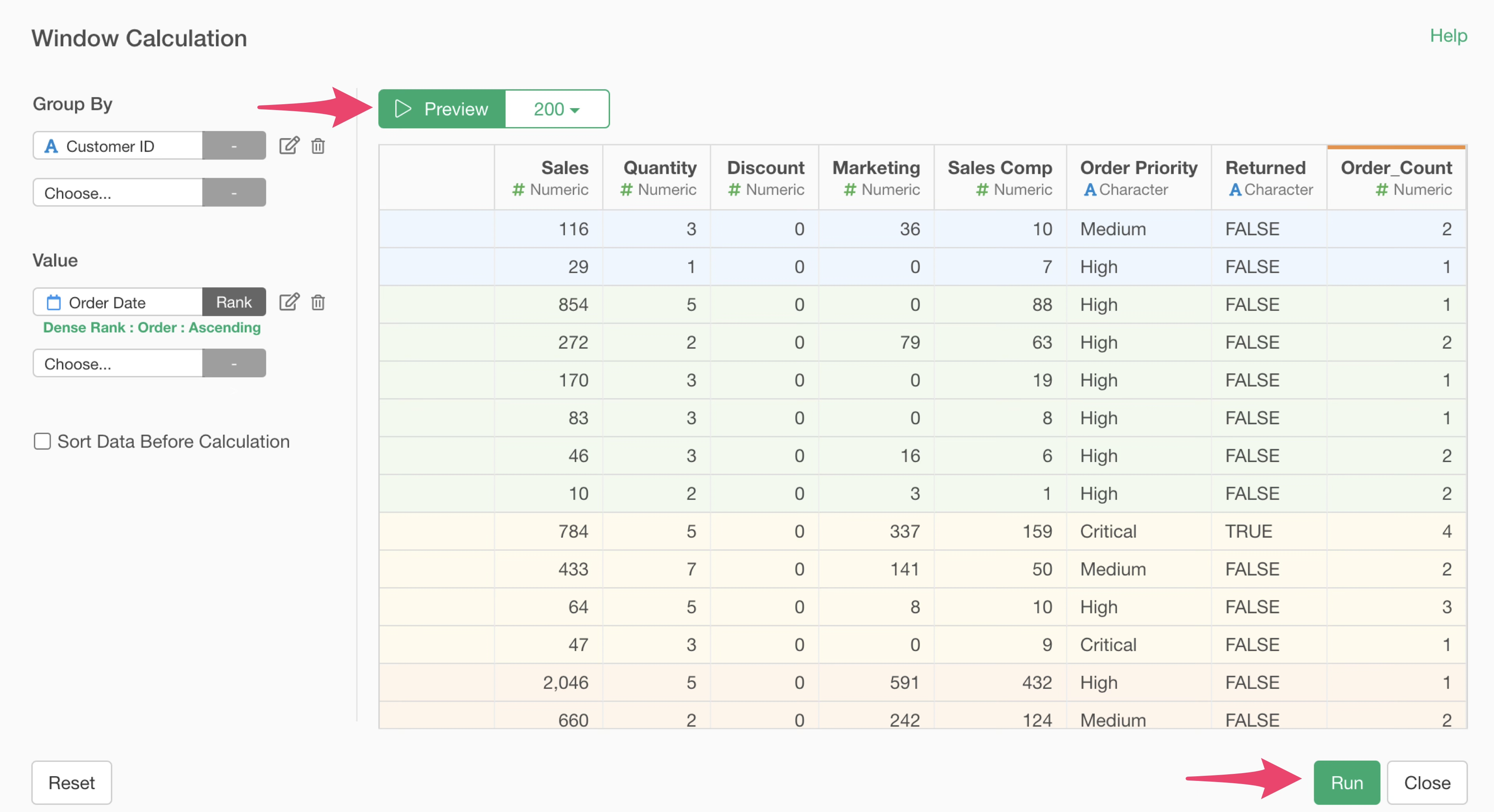
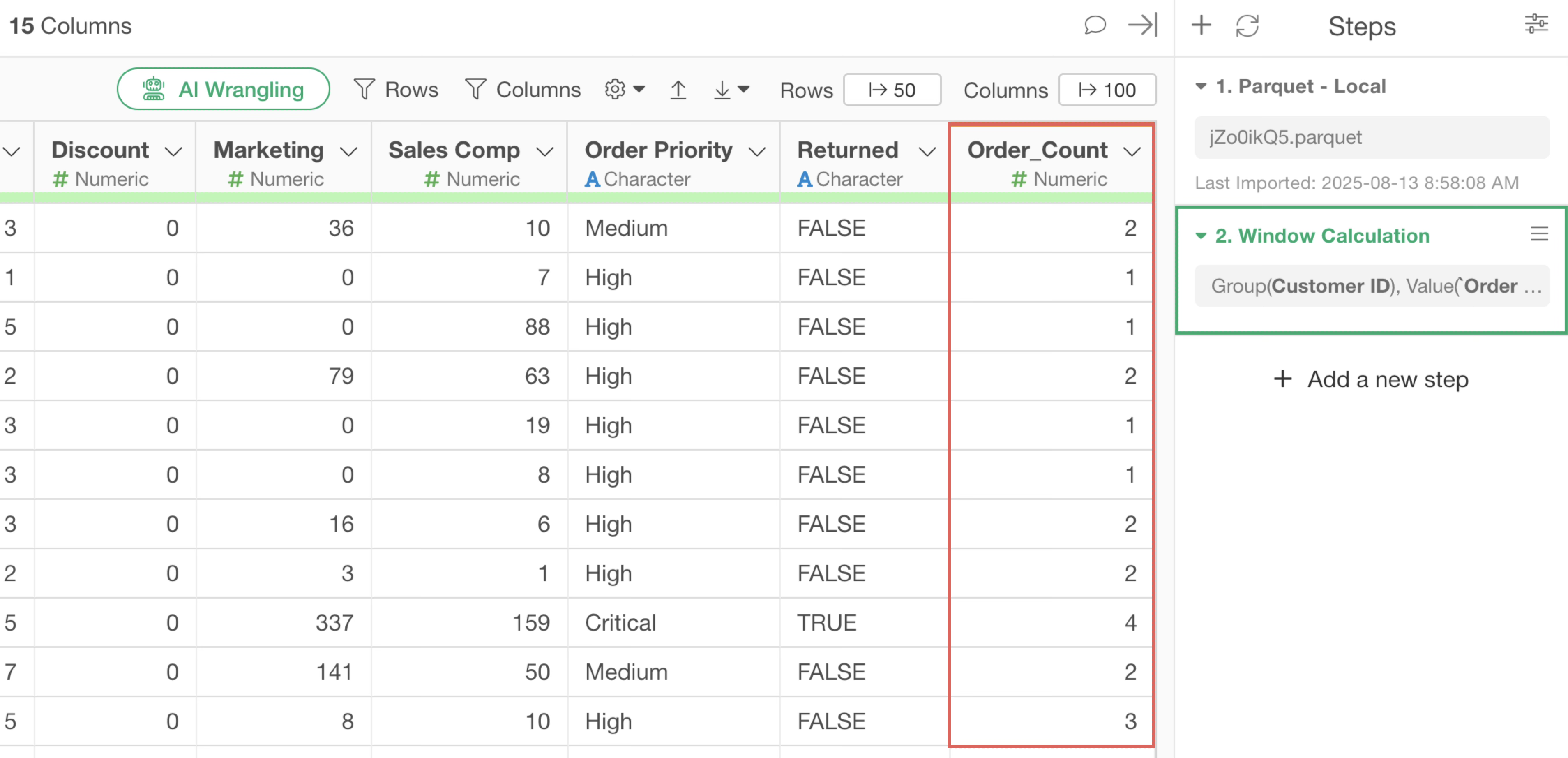
This adds order count information to each row.
Creating Order Date Column for Specific Count
Next, create a column that extracts the order date for a specific count (2nd time in this case).
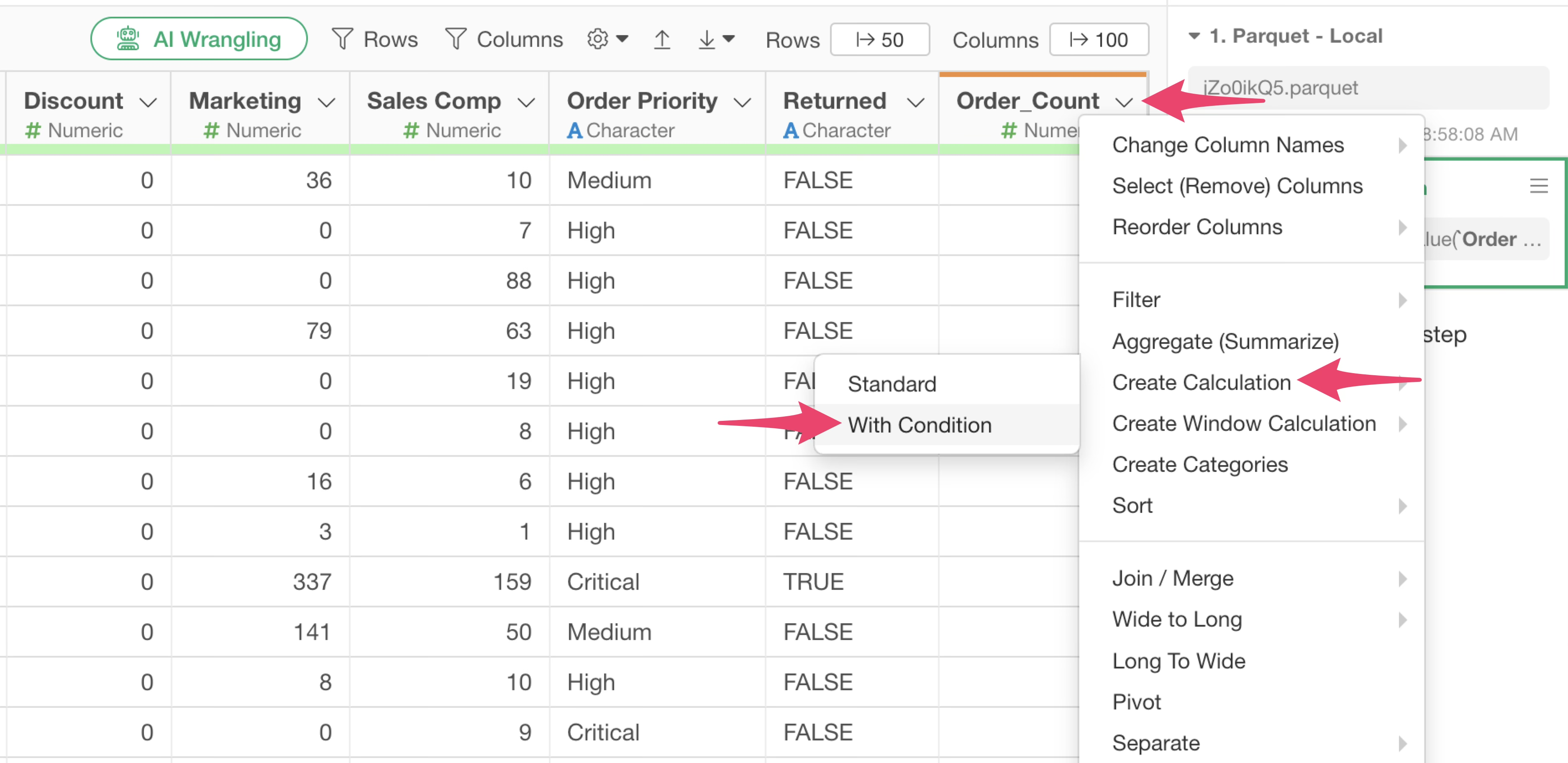
From the Order Count Column Header Menu, select “With Condition” under “Create Calculation”.
When the conditional calculation dialog appears, click the “Add Condition” button and set the condition where “Order_Count” Is “2”.
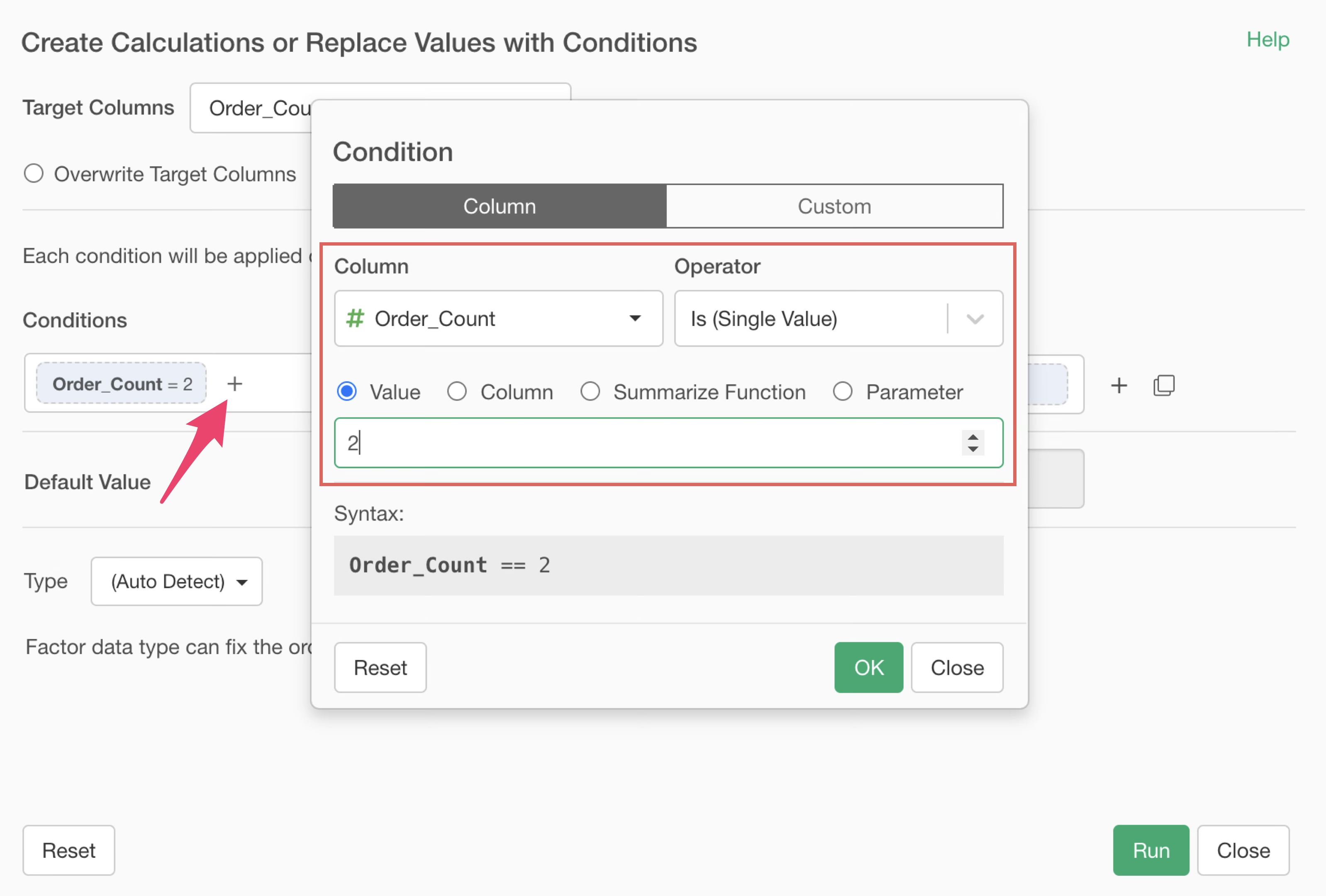
This creates a condition for rows where the order count is 2.
Select the “Order Date” column for the new value. This sets it to return the order date value only for rows where the order count is 2.
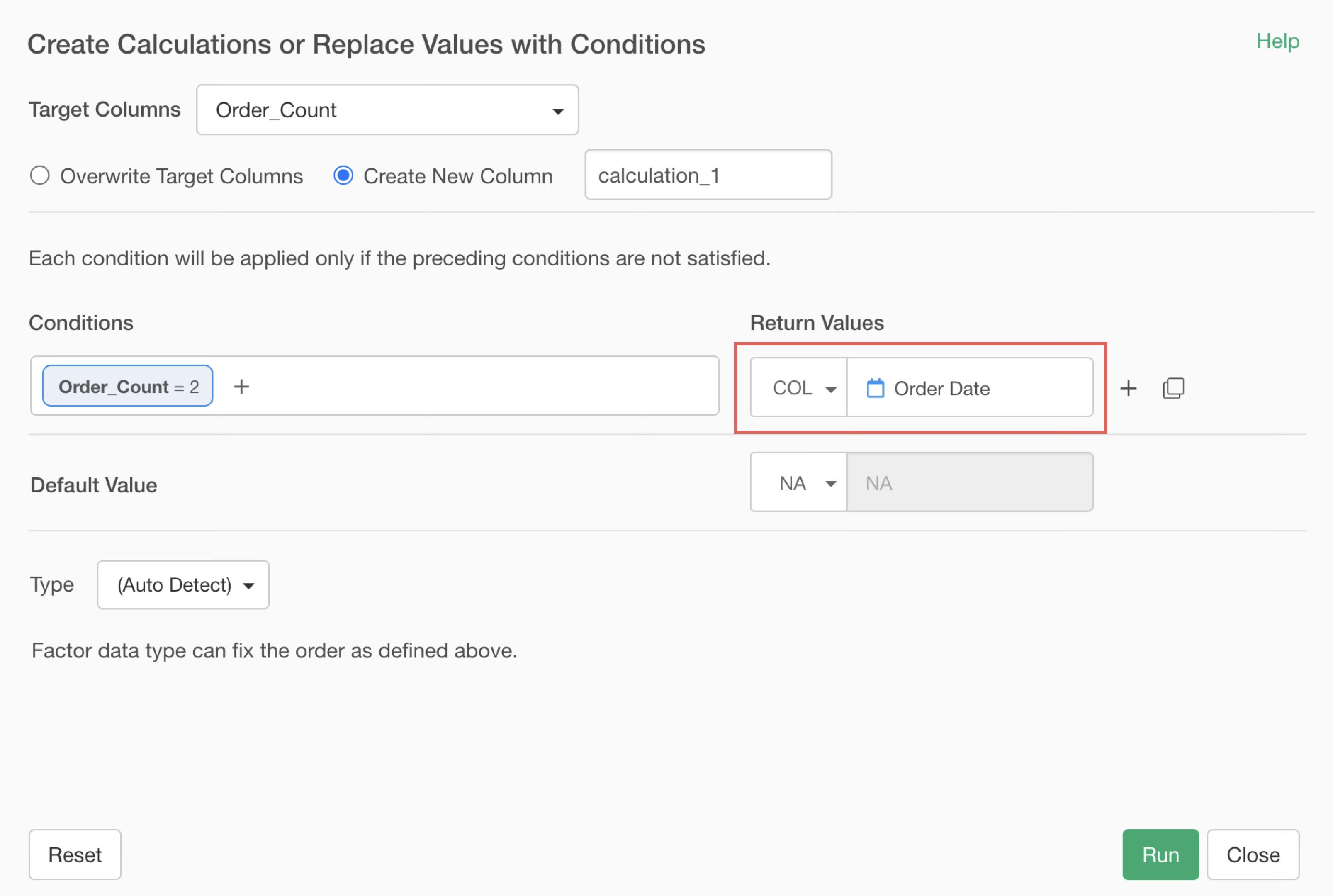
Other rows will default to missing values, so keep that setting as is. Set the new column name to “2nd Order Date” and click the run button.
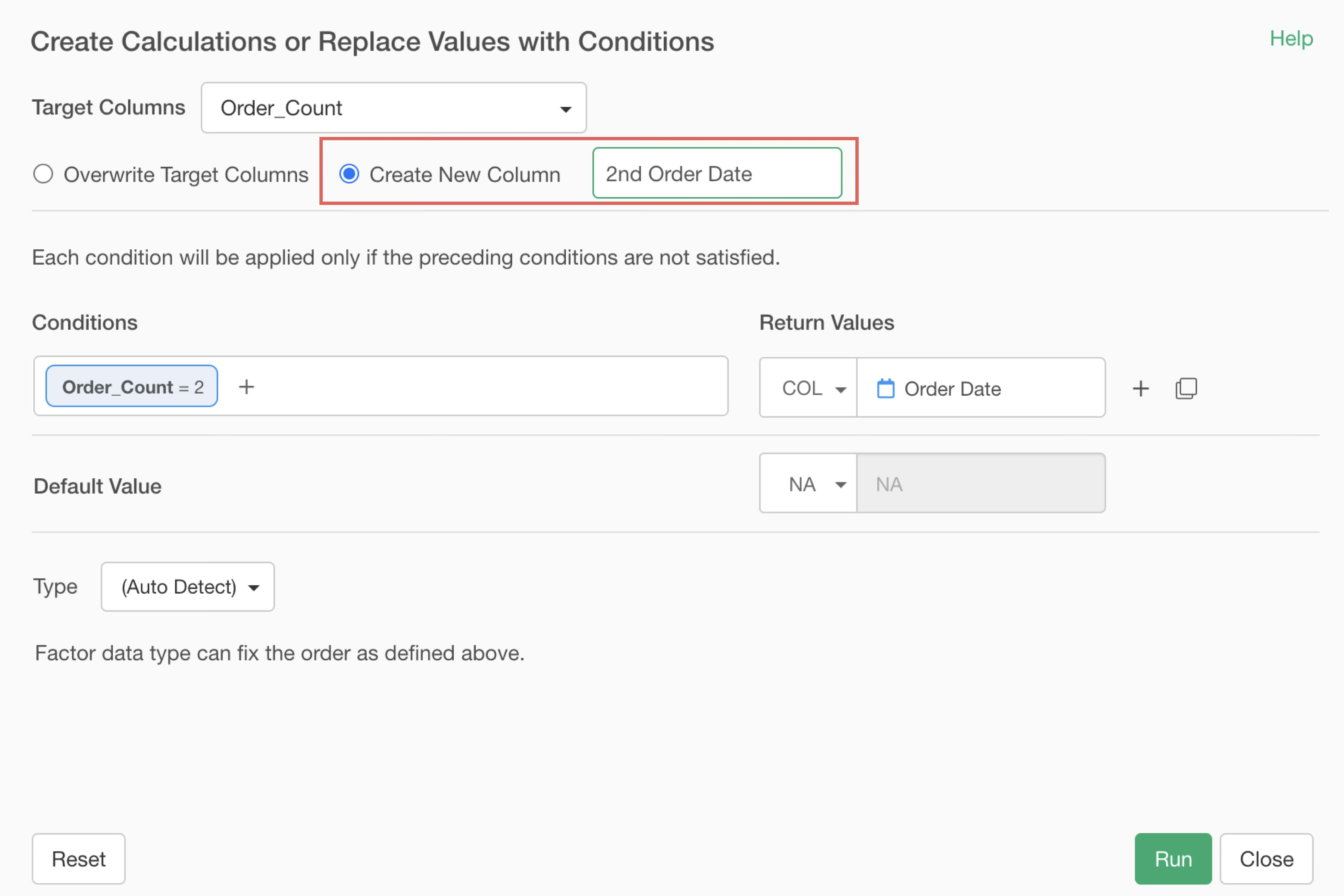
This adds a column representing each customer’s 2nd order date. However, at this stage, dates are only entered in rows where the 2nd order occurred, while other rows have missing values.
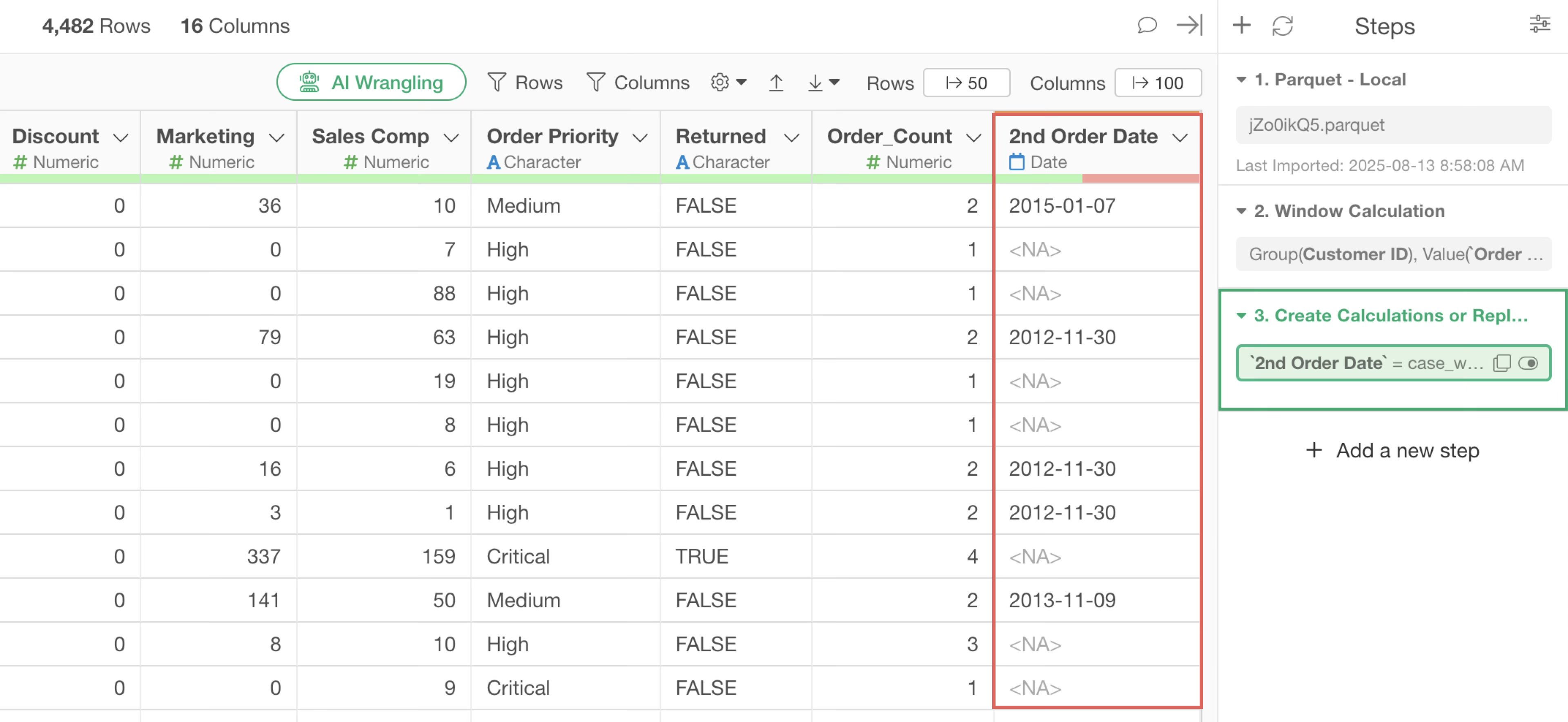
Replace Missing Values with Order Date for Specified Order Count by Customer
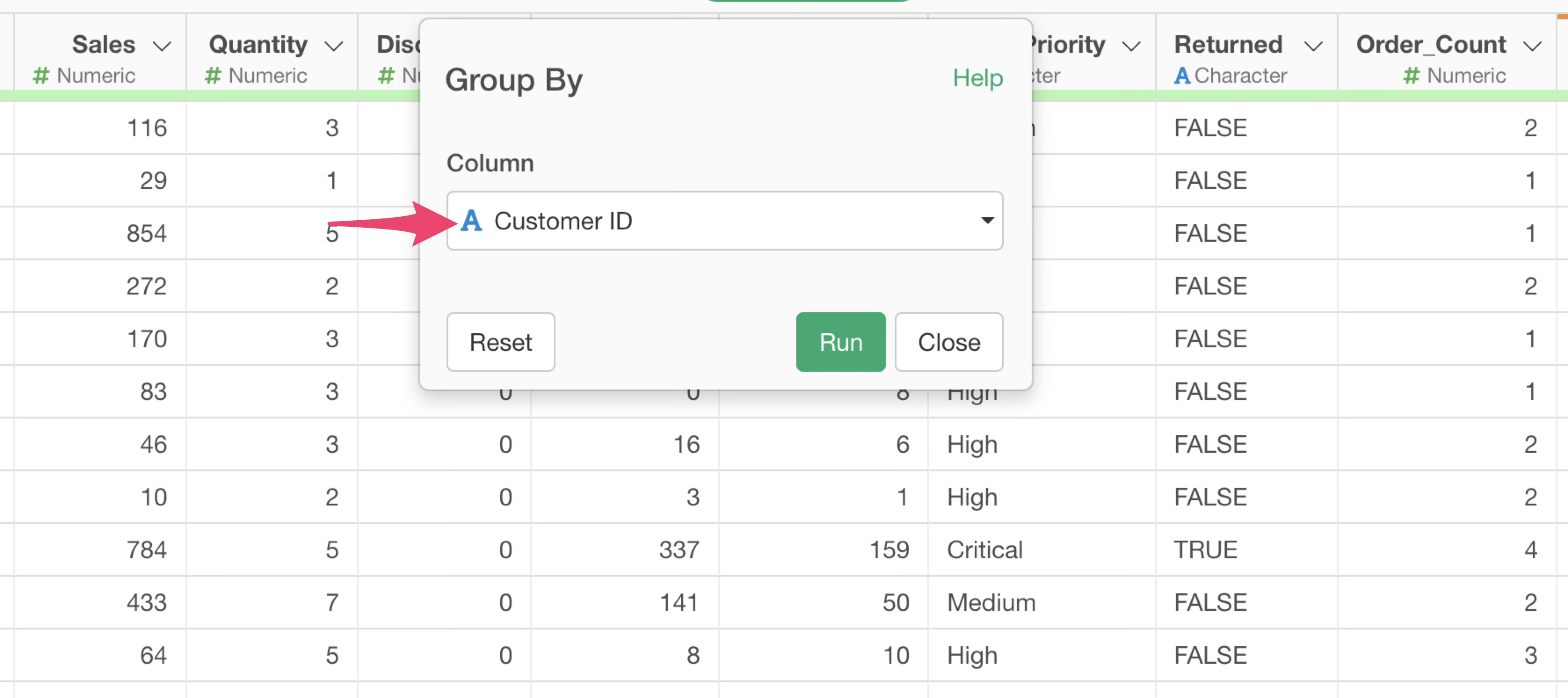
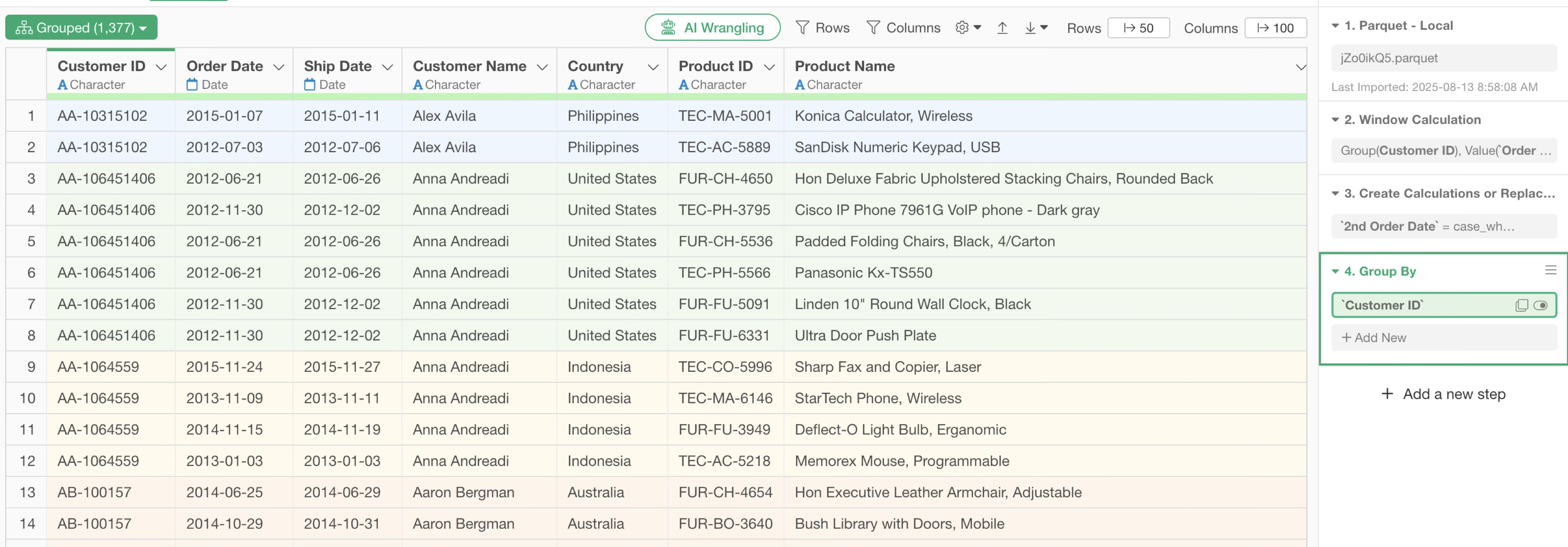
Finally, to apply the 2nd order date to all rows for each customer, first group the data by customer.
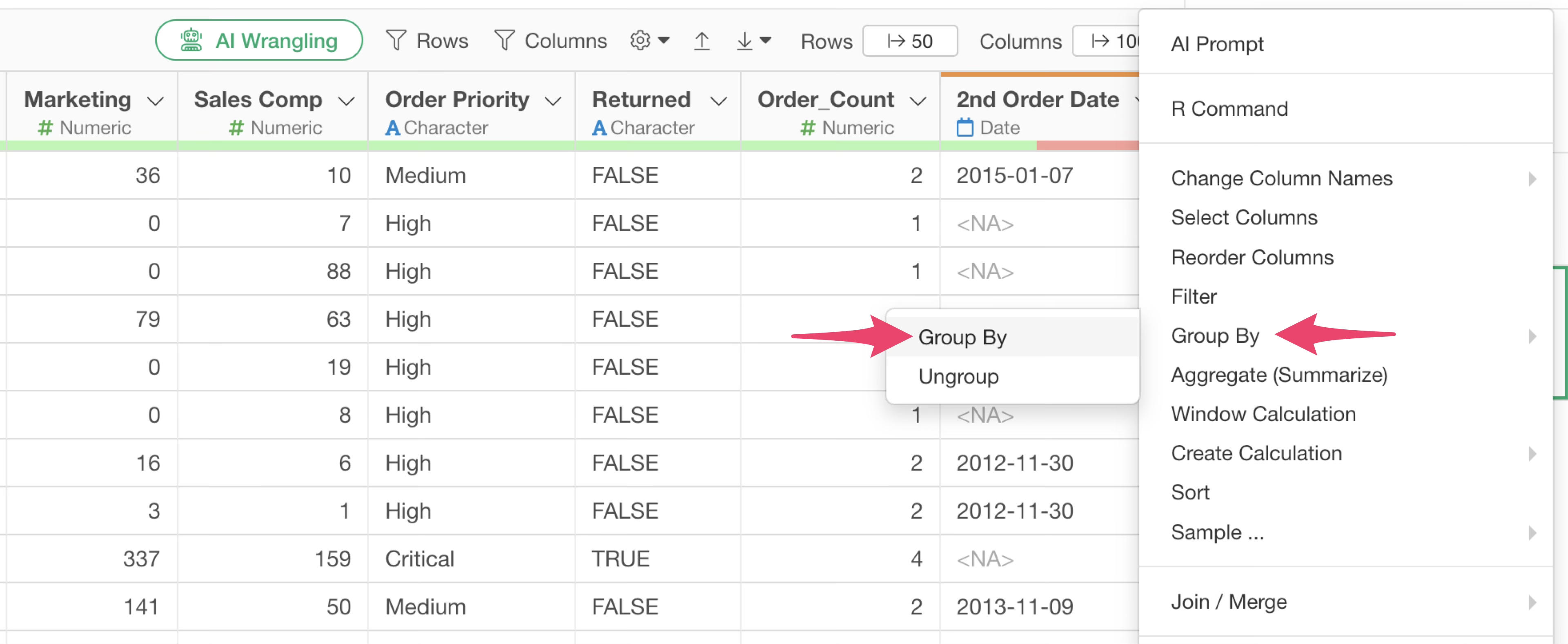
Select “Group By” from the Step Menu.
In the Group By settings, select “Customer ID” for the column and click the Execute button.
You can confirm that the data is grouped by Customer ID and displayed with color coding.
Next, to fill in the missing values, select “Work with NA” from the “2nd Order Date” Column Header Menu, then select “Mode” from the “Fill NA with…” submenu.
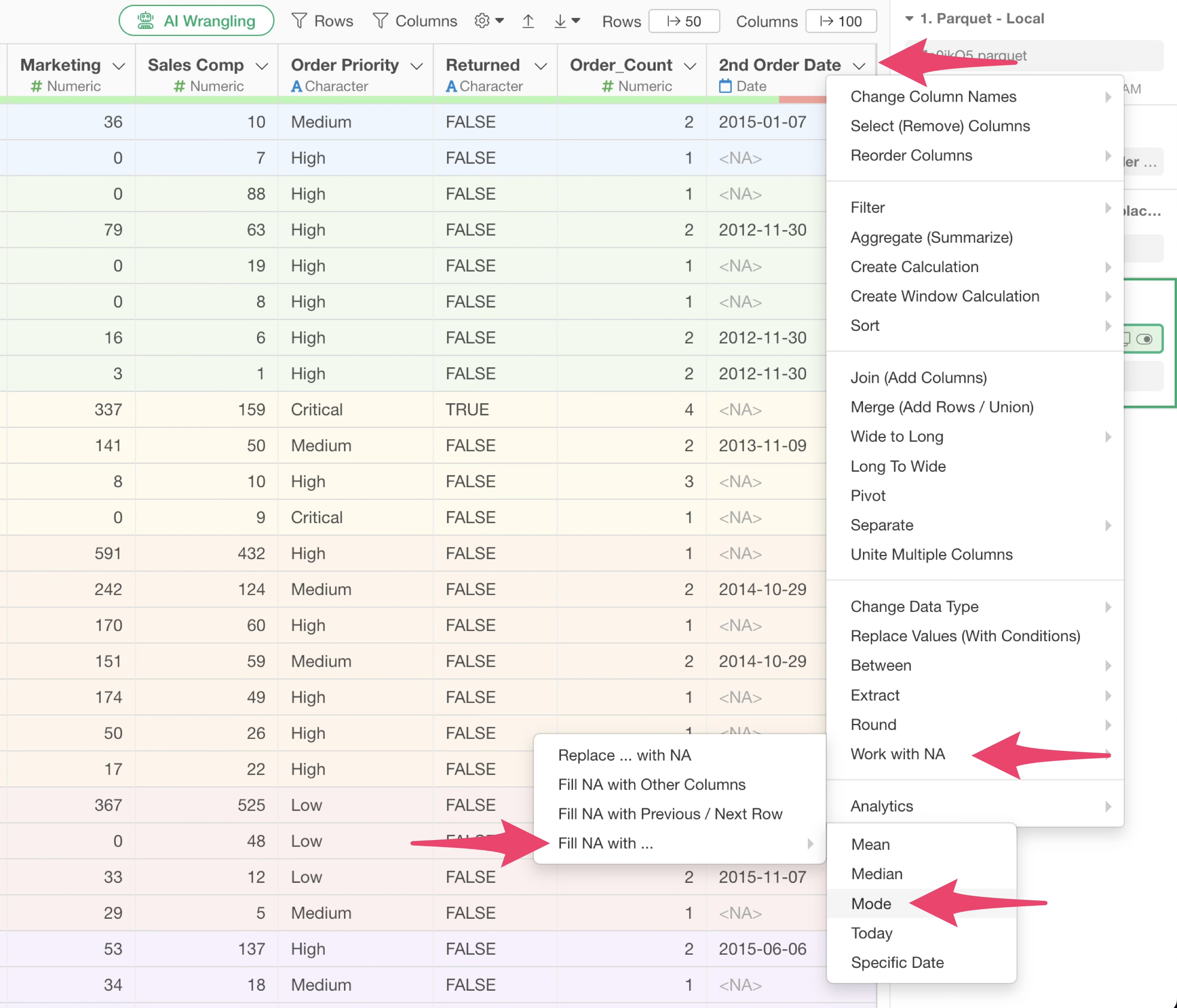
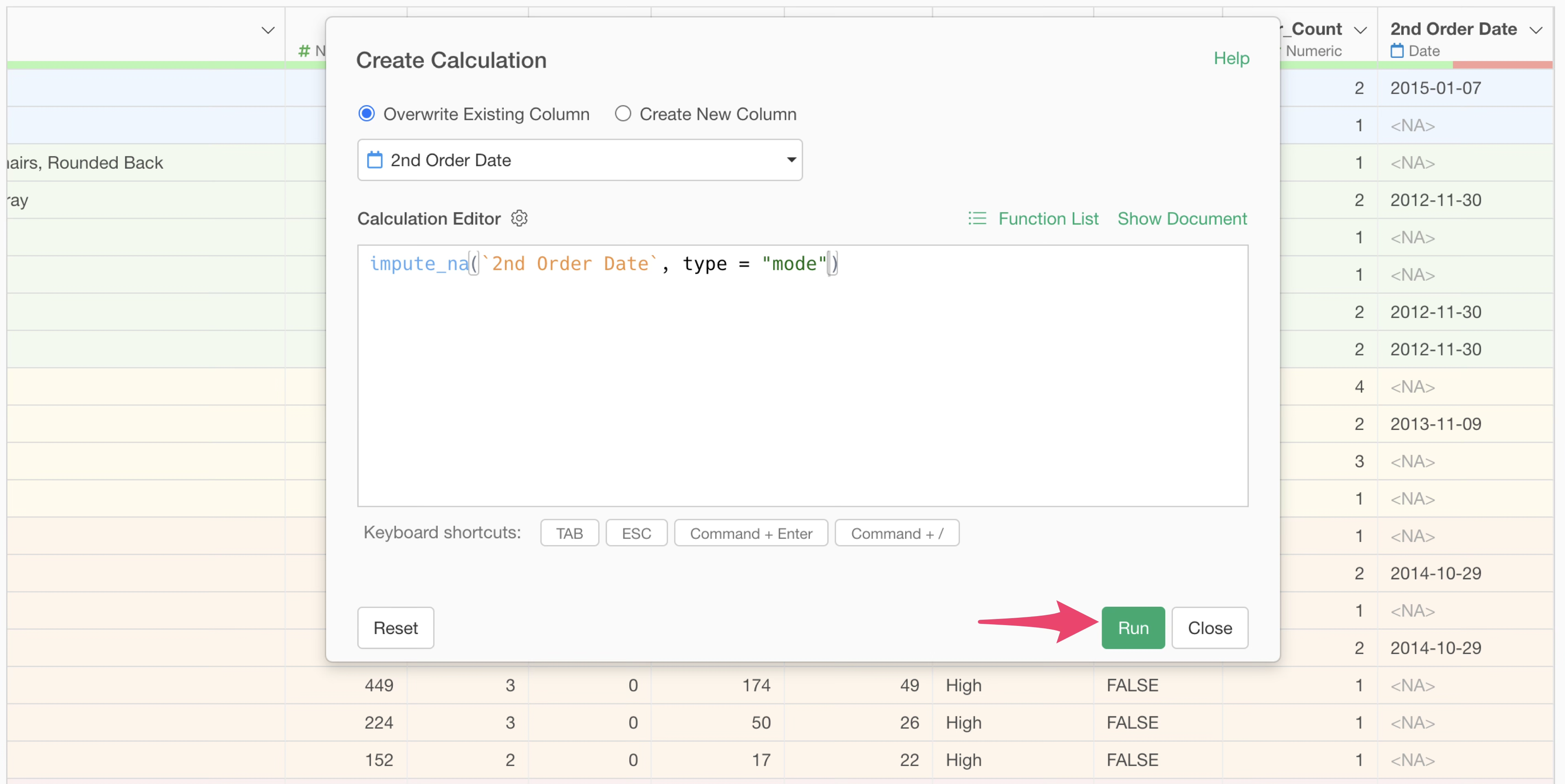
In the grouped state, the mode (in this case, the 2nd order date) within each customer group is applied to the missing value portions, so the 2nd order date is set to all rows for each customer.
When you click the Run button,
The 2nd order date is uniformly applied to all rows for each customer.
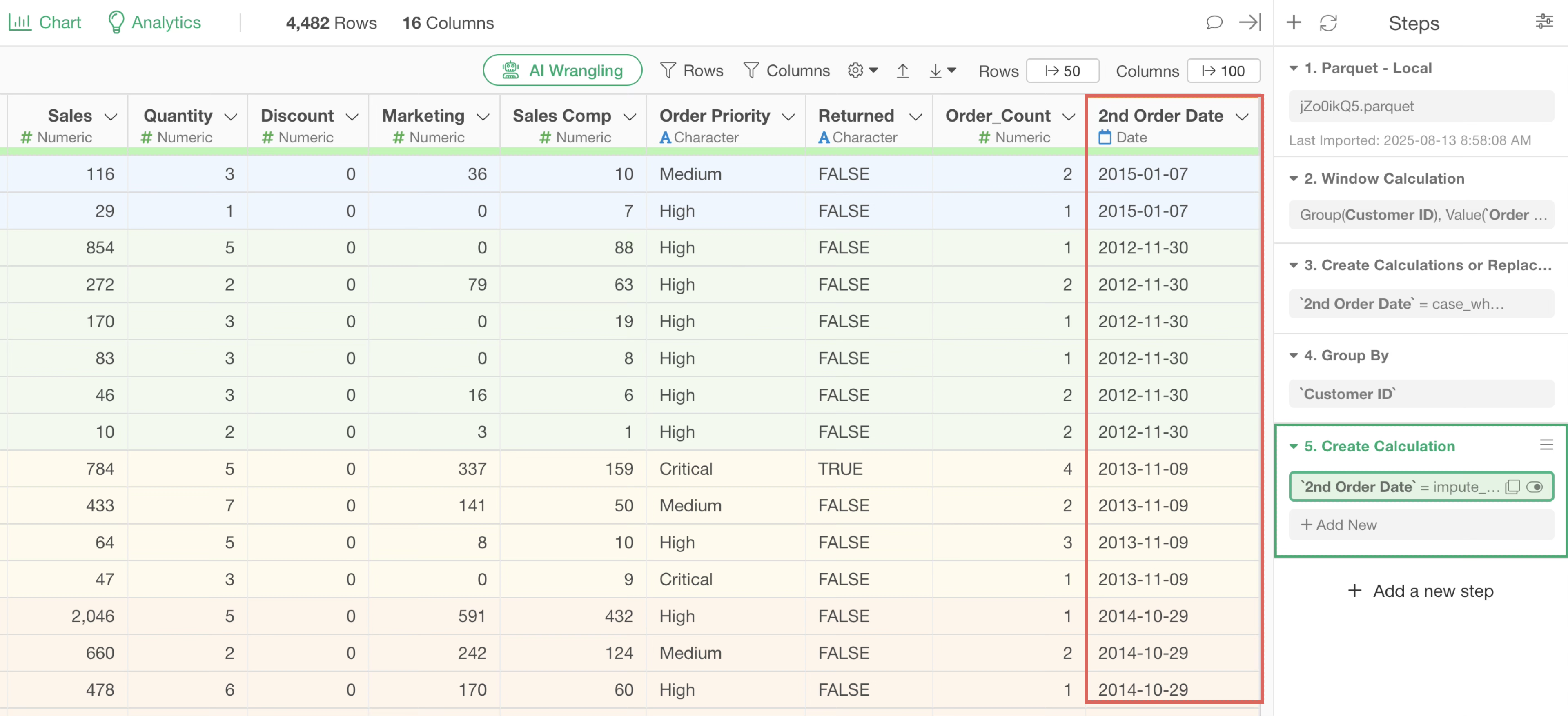
Finally, to ungroup, select “Ungroup”.
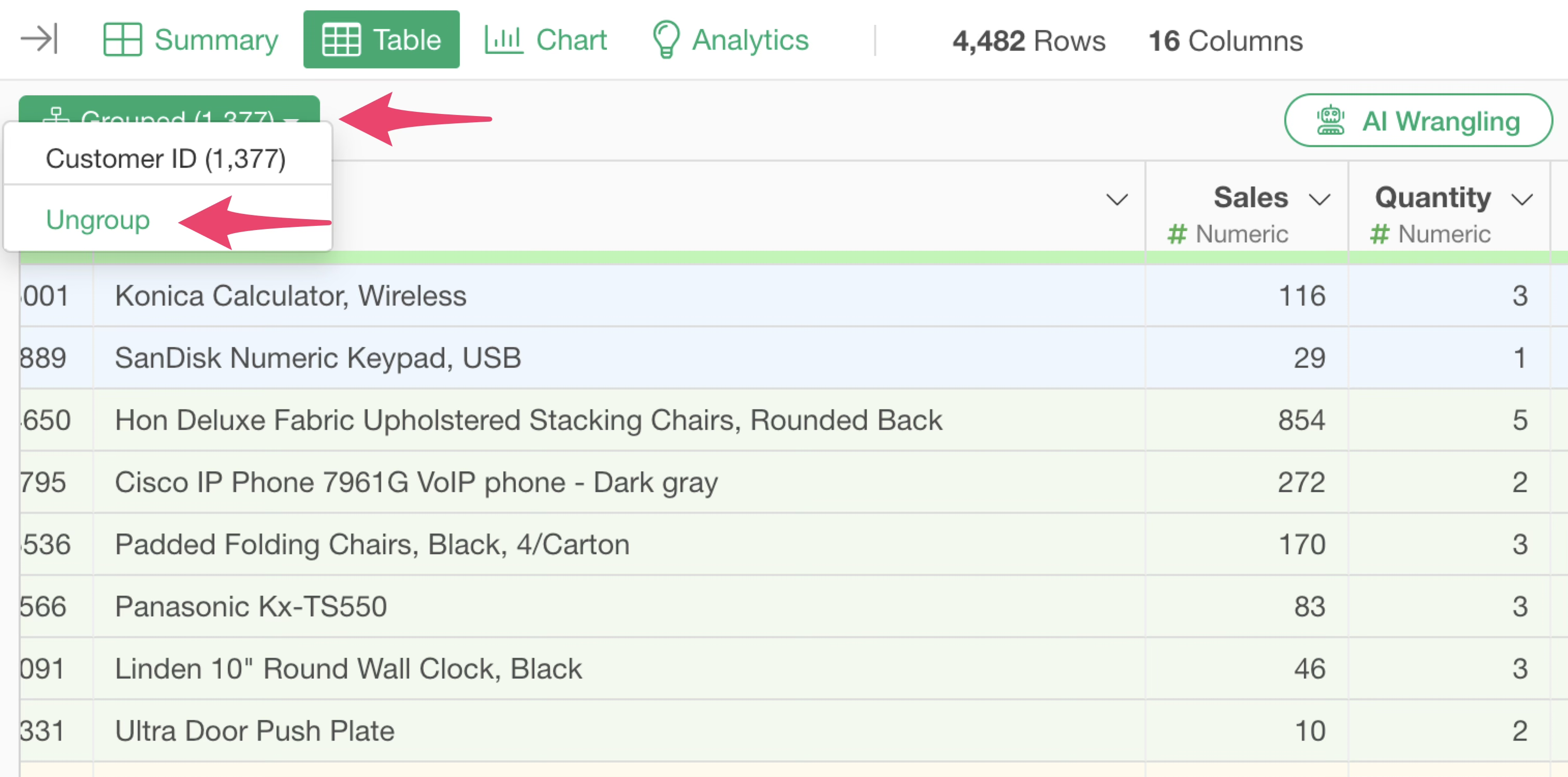
This completes the process of obtaining the Nth (2nd in this case) order date for customers.