Getting Started: CLI (Exploratory Desktop users)
From a terminal or an AI agent, you can read the Exploratory Desktop
projects on your computer. If you allow it, you can also create and
change content. The same expl CLI also has commands for
exploratory.io, under expl server.
What you need: Exploratory Desktop 17 (signed in)

No installation needed
expl comes with Desktop. You do not need to install it, and you do not need Node.js.
Steps
1. Turn on the CLI
The CLI is off by default. Until you turn it on, Desktop does not accept expl commands.
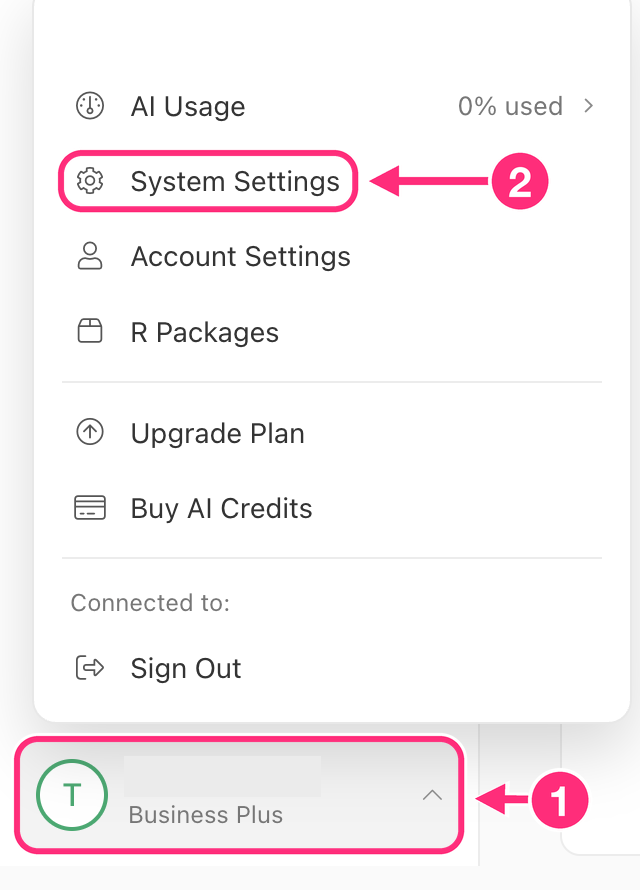
- In Desktop, choose your name (❶) at the bottom left of the screen, then choose System Settings (❷) in the menu that opens.
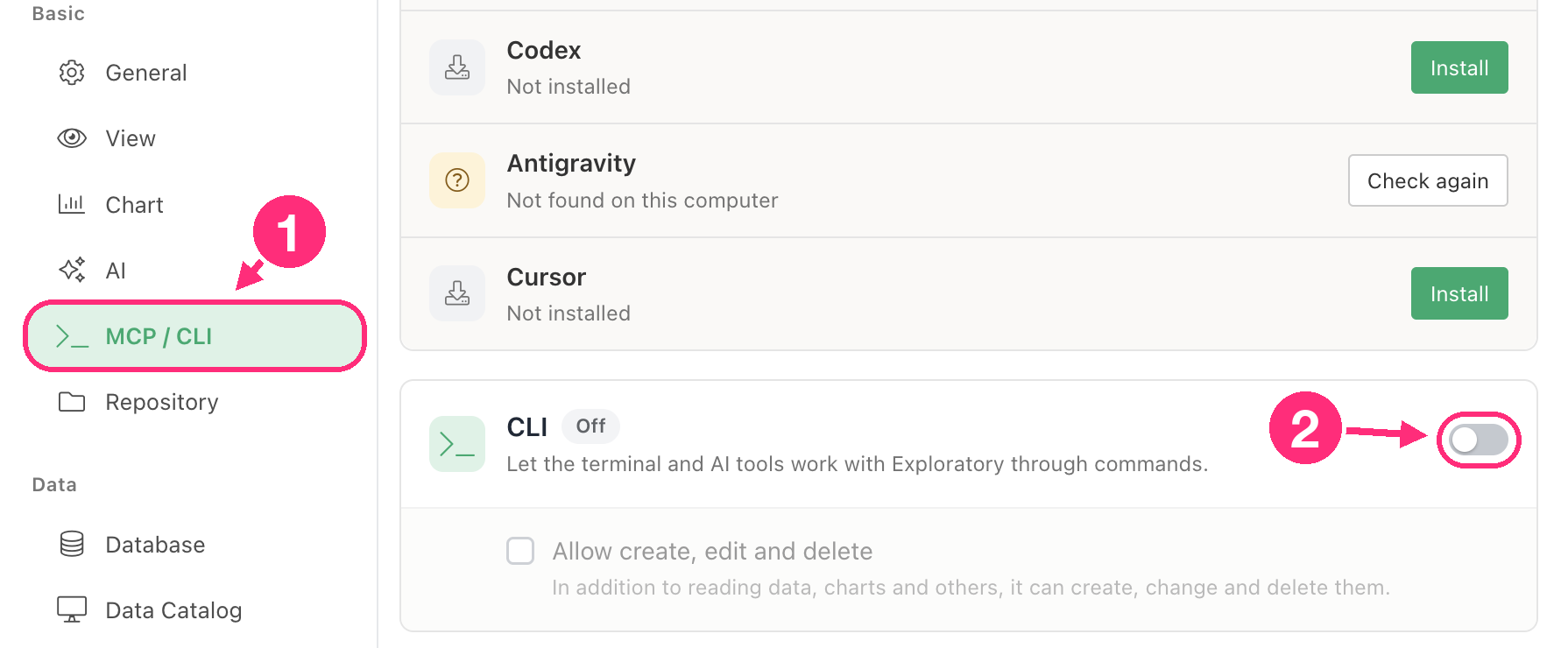
- In the menu on the left, choose MCP / CLI (❶).
- Turn on the switch (❷) on the CLI card.
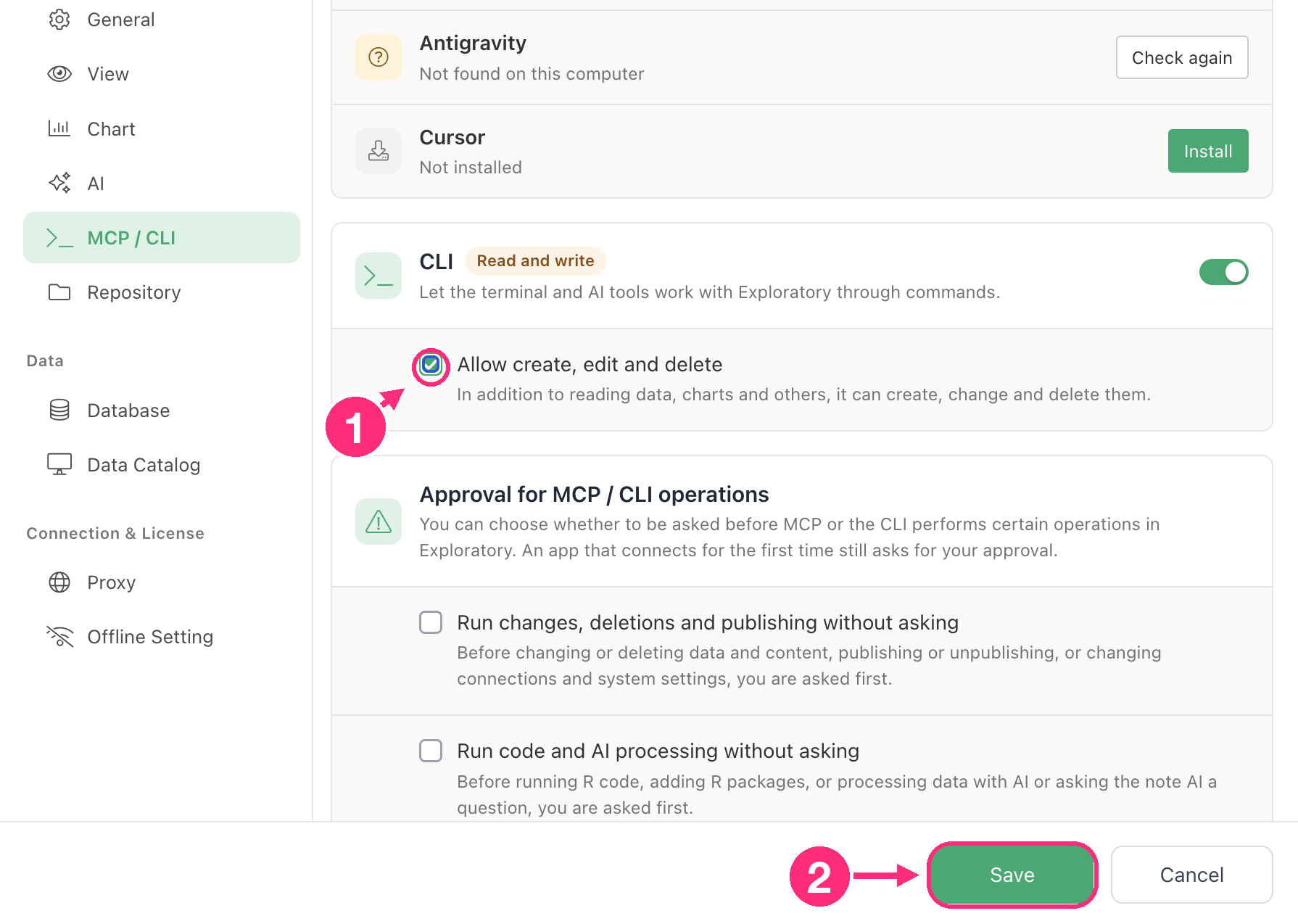
- Only if you also want to create, change or delete content, select the Allow create, edit and delete checkbox (❶).
- Select Save (❷) at the bottom of the screen.
Warning
If you select Allow create, edit and delete, an AI agent can change and delete the data and steps in your projects. If reading is enough, leave it off.
2. Check expl
Open a new terminal and run this command.
If the version of expl (❶) is shown, it worked.

Adding expl to your PATH
When you start Desktop, expl is added to your PATH automatically. On macOS, this happens only when the app is in /Applications or ~/Applications. If you are asked for an administrator’s permission and decline, expl is placed in ~/.local/bin. If a new terminal still cannot find expl, add that folder to your PATH.
3. Allow the connection
Run this command.
The first time you run it, Desktop shows a screen that asks “Allow expl to connect to Exploratory?” Check that it is the expl you started yourself, and choose Allow (the other button is Don’t allow).
❶ Allow it only when you started it yourself.
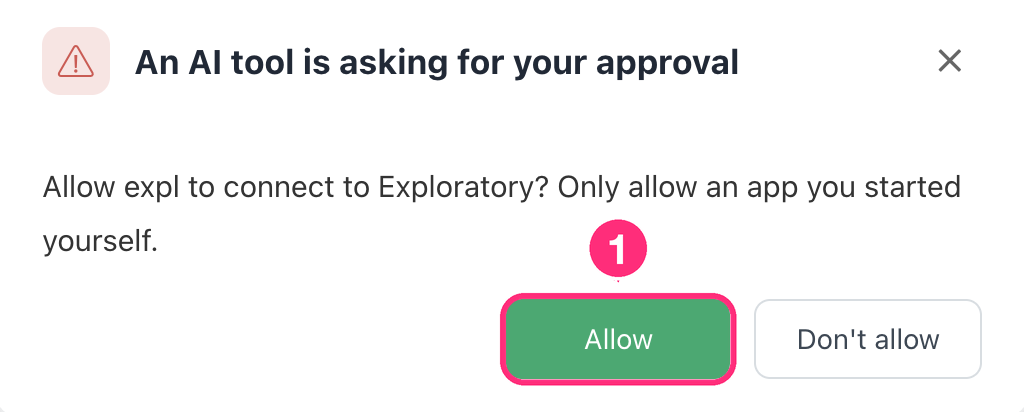
After you allow it, the command continues. If the Desktop version and the signed-in user (❶) are shown, it worked.

4. Look at projects and data
Show the list of projects.
Save the project you want to use as the default project.
Replace “Sales Orders (Line Items)” with the name of your own project. This command only saves the default project. It does not open the project in Desktop.
Open the project with the ID shown in the list. Replace
<project_id>, including the angle brackets, with the
real ID.
When the project opens in Desktop, show the list of data frames.
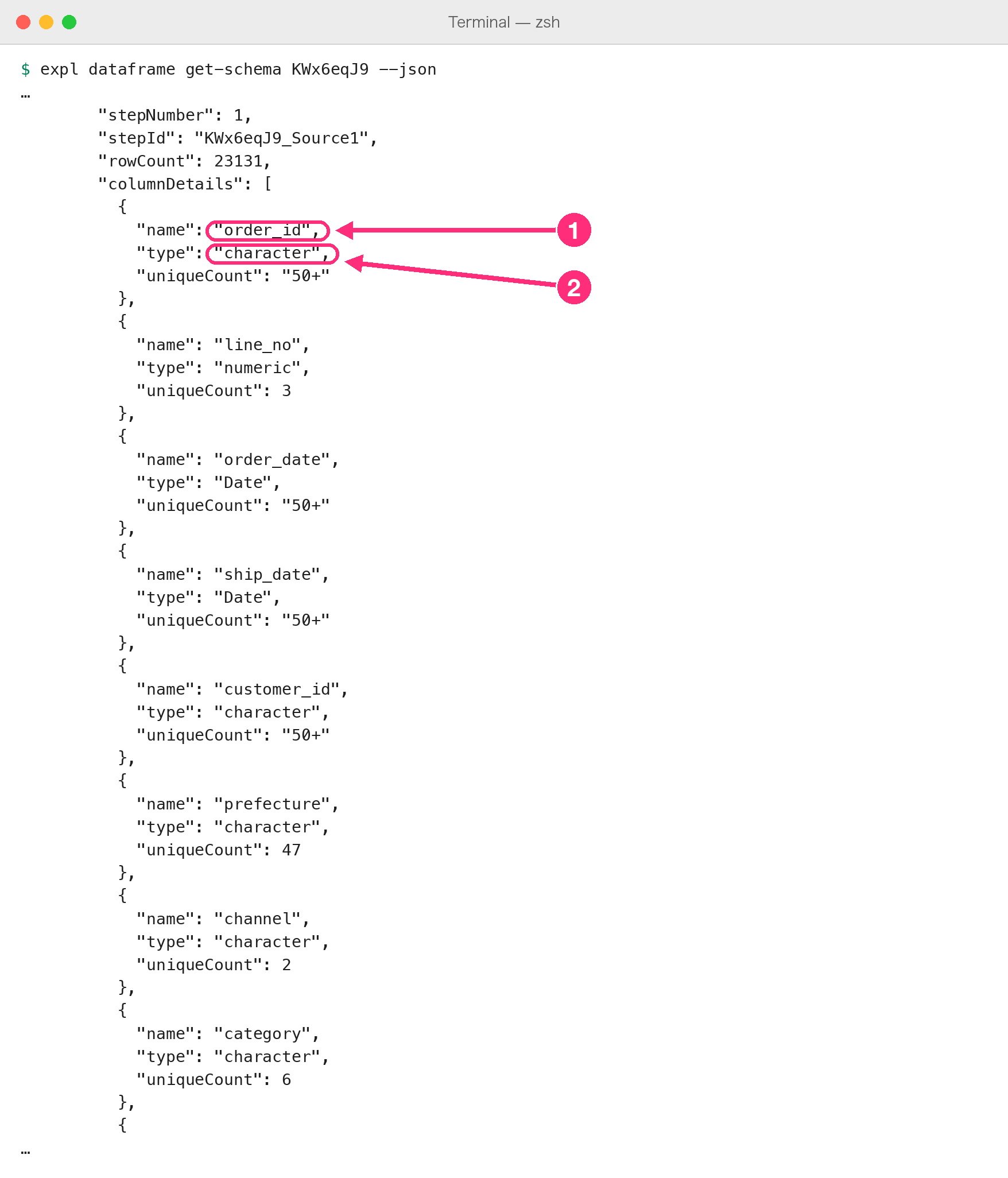
Pick the ID of the data frame you want to use, and show its column names and types.
The output is a long JSON document that includes the step
definitions. It can run to hundreds of lines. The column names (❶,
name) and types (❷, type) are listed under
columnDetails of the last step, so look there. If you can
find the column names and types, it worked.
Tip: you can also get rows and chart values
To look at rows, use
expl dataframe preview <dataframe_id>. To get chart values, use these two commands.
5. Let an AI agent use it
An AI agent that can run shell commands can use expl
directly. In Claude Code, for example, ask like this. It works the same
way with Codex, Antigravity and Cursor. For how to use it, see the CLI
documentation.
Use expl to list the data frames in the open project. Check the connection with expl status first.If the AI agent runs expl commands and returns the list of data frames, it worked. Claude Code runs the expl commands it needs and answers from the results.
Tip
An AI agent can list the available command names with
expl tools list --json. To check the arguments of one command, runexpl tools describe <tool_name>.
Try it yourself
A request you can paste into Claude Code:
Use expl to look at the columns of the "Sales Orders (Line Items)" in this project, and tell me which columns I could use to total sales by region.You can also read data on exploratory.io with expl. Sign
in as in step 2 of the note Getting
Started: CLI (exploratory.io only).
If something goes wrong
- Desktop is not running (exit code 3): Start Exploratory Desktop and run the command again.
- The CLI is off, or you did not allow it (exit code 4): Tell the cases apart by the code at the end of the message.
CHANNEL_DISABLED: Check the CLI switch and Save in step 1.PAIRING_REQUIRED: You chose Don’t allow on the connection screen. Wait 5 minutes, run the command again and allow it.PERMISSION_DENIED: You ran a create or change operation while Allow create, edit and delete is off.- It stops with
PROJECT_NOT_OPEN: The project is not open in Desktop. Runexpl project open <project_id>with the ID you found withexpl project list.- It stops with
PAIRING_PENDING(exit code 1): You did not answer the connection screen within 2 minutes. Answer it in Desktop, then run the command again.expl: command not foundappears: Open a new terminal. If it still appears, check that the app is in /Applications or ~/Applications, and restart Desktop. If you declined the administrator’s permission, add ~/.local/bin to your PATH.