Getting Started: Data Catalog
When you publish data you made in Exploratory Desktop to the Data Catalog, your team can find and use it. You can also ask an AI (such as Claude) questions about the data you published.
This guide takes you from publishing data to letting an AI use it. The example uses sales order data. You can follow the same steps with a data frame of your own.
What you need: Exploratory Desktop 17, an exploratory.io account (signed in), and a project that has the data frame you want to publish (the sales order data in this example)
What you need
- Exploratory Desktop 17 and an exploratory.io account (signed in)
- A project that has the data frame you want to publish. This guide uses Sales Orders (Line Items) as an example, but you can use your own data frame
In step 7, this guide uses the Claude app. The Server MCP also works with ChatGPT, Claude Code, Codex and Cursor. To use another AI tool, see the instructions for each client.
Steps
1. Prepare the data
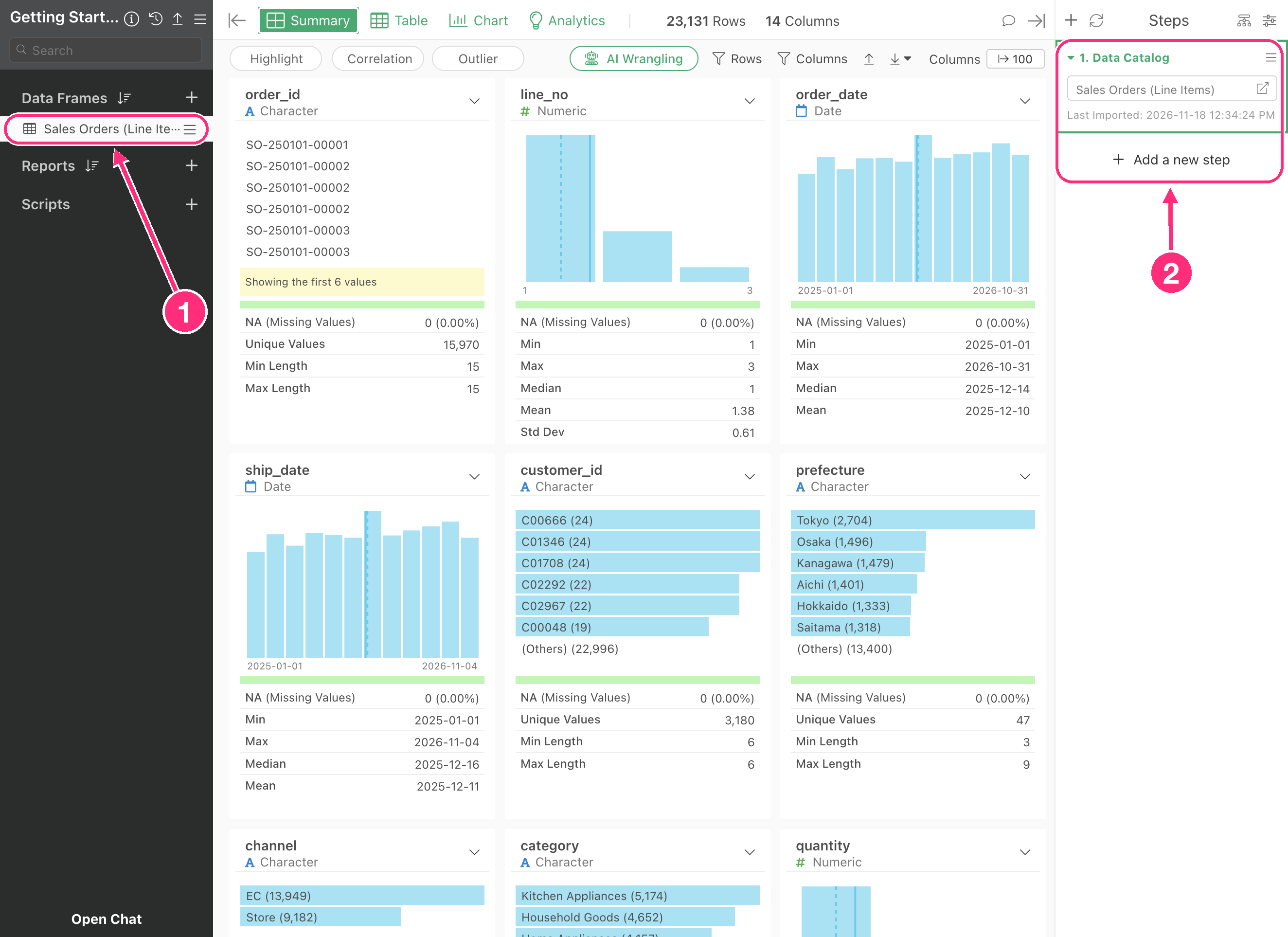
In Desktop, open the project (❶) that has the data frame you want to publish. In this example, it is the sales order data project.

Select the data frame (❶) you want to publish. The data frame in this example reads two CSV files (orders and a region master). It is built with several wrangling steps (❷): converting types, removing duplicates, cleaning prefecture names, joining the region master and calculating sales amounts. The steps in your own data frame are different, in content and in number.
When you publish, these wrangling steps also appear on the Wrangling Steps tab of the Data Catalog. Other people can check how the data was made.
2. Publish it as data
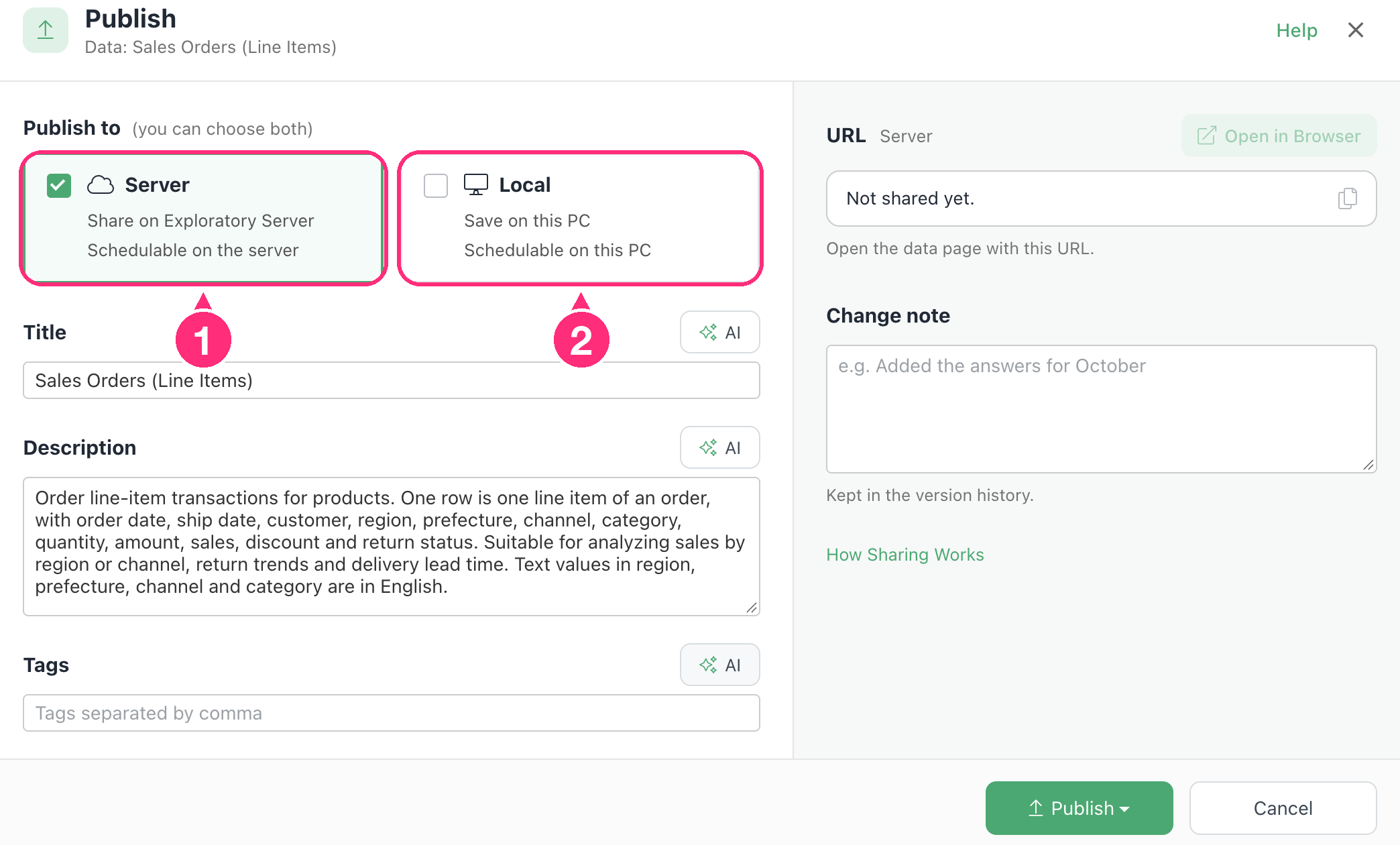
Select the data frame, and choose the Publish button at the top right of the Table tab. The Publish dialog opens. If the window is narrow, the button shows only its icon. You will not find it in the menu (≡) of the data frame. Under “Publish to”, there are two cards. You can select both.
- Server: Share the data on the Exploratory server. You can also schedule updates on the server.
- Local: Save the data on this PC. You can also schedule updates on this PC.
Choose Server when you use the data with your team, or from another AI tool such as the Claude app. This guide uses Server. Local is explained in a note in step 8.
❶ Choose Server when you use it with your team.
❷ Choose Local when you use it only on this PC.
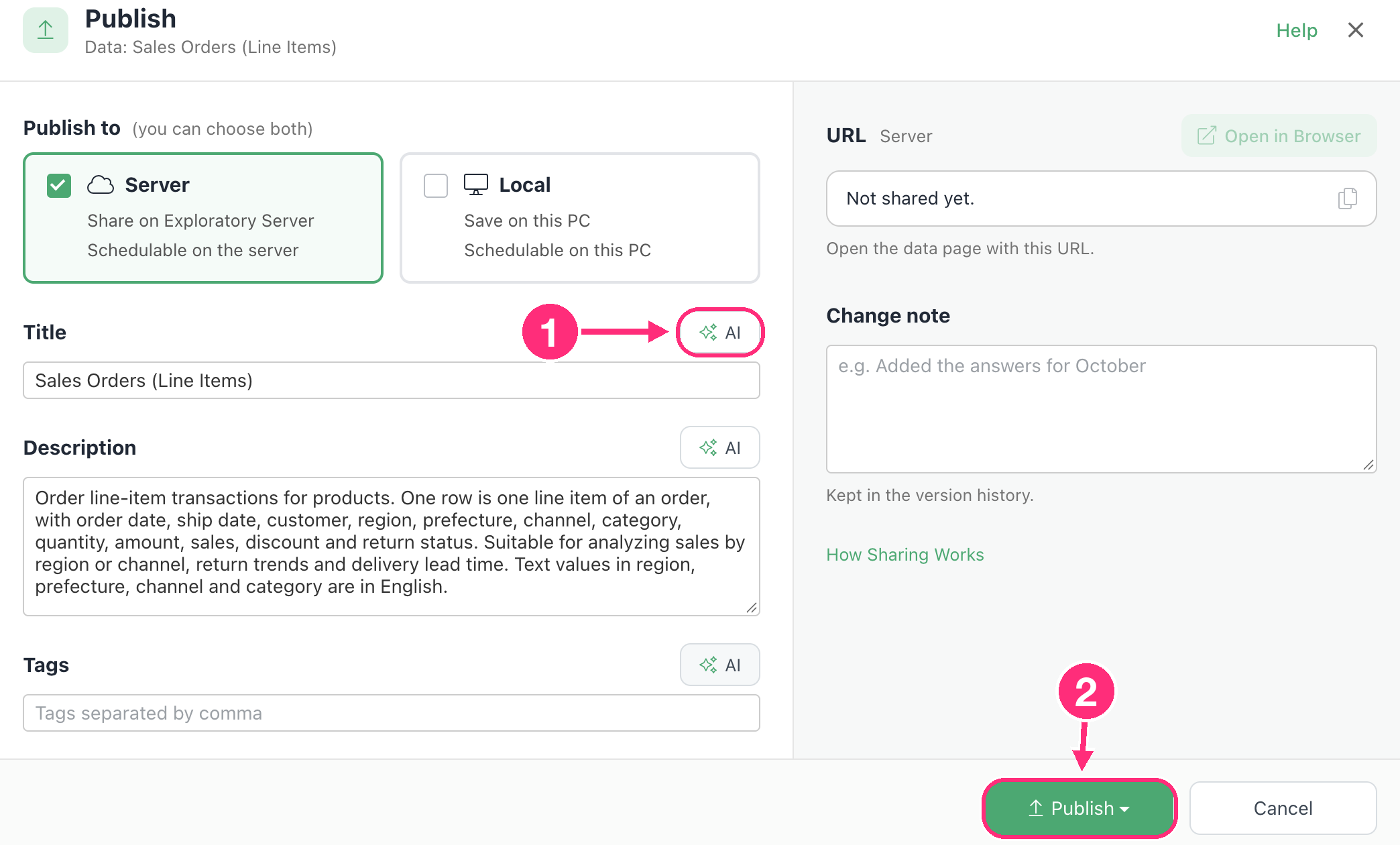
To the right of the Title, Description and Tags headings, there is an AI button (when you point at it, “Generate with AI” appears). It is shown when an AI service is available. Use AI to generate a draft, then review and edit it. When the content is ready, choose the Publish ▾ button at the bottom of the dialog, and select As Individual in its menu (As Team publishes it for a team). A “Ready to Publish?” confirmation appears. Choose OK. If you have already published this data, the button is Republish.
❶ Use the AI button to have the AI write a draft (only when the button is shown).
❷ When the content is ready, choose Publish ▾ (Republish if it is already published).
3. Open it in the Data Catalog
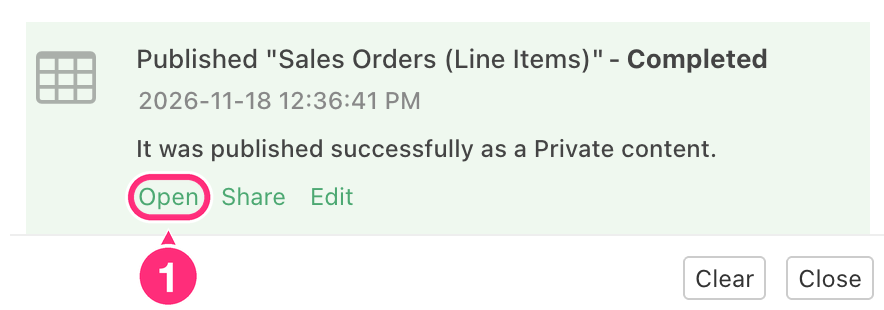
When publishing is done, a panel that shows the progress appears. Choose Open, and the data page on the server opens.
❶ Choose Open.
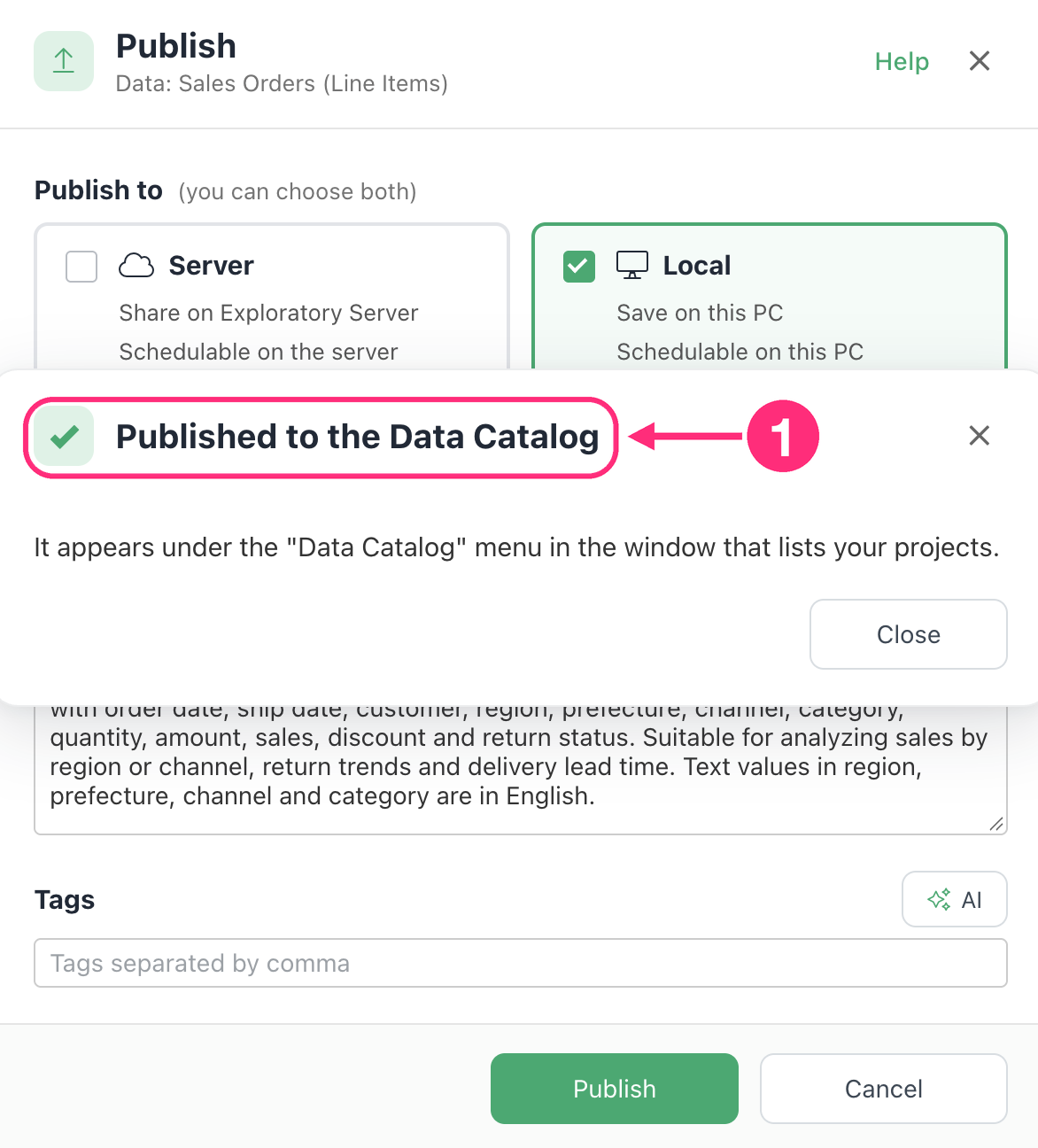
If you chose only Local, a dialog titled “Published to the Data Catalog” appears.
❶ This dialog appears when you chose only Local.
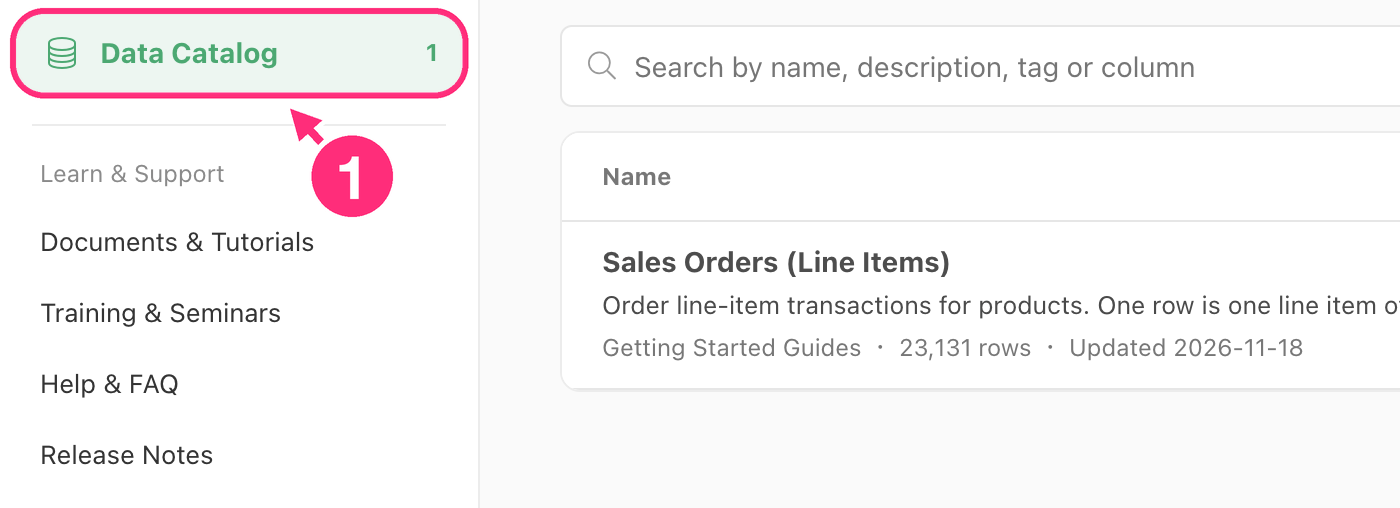
You can see the local Data Catalog under Data Catalog (❶) in the project list window.
4. Look at the Data Catalog page
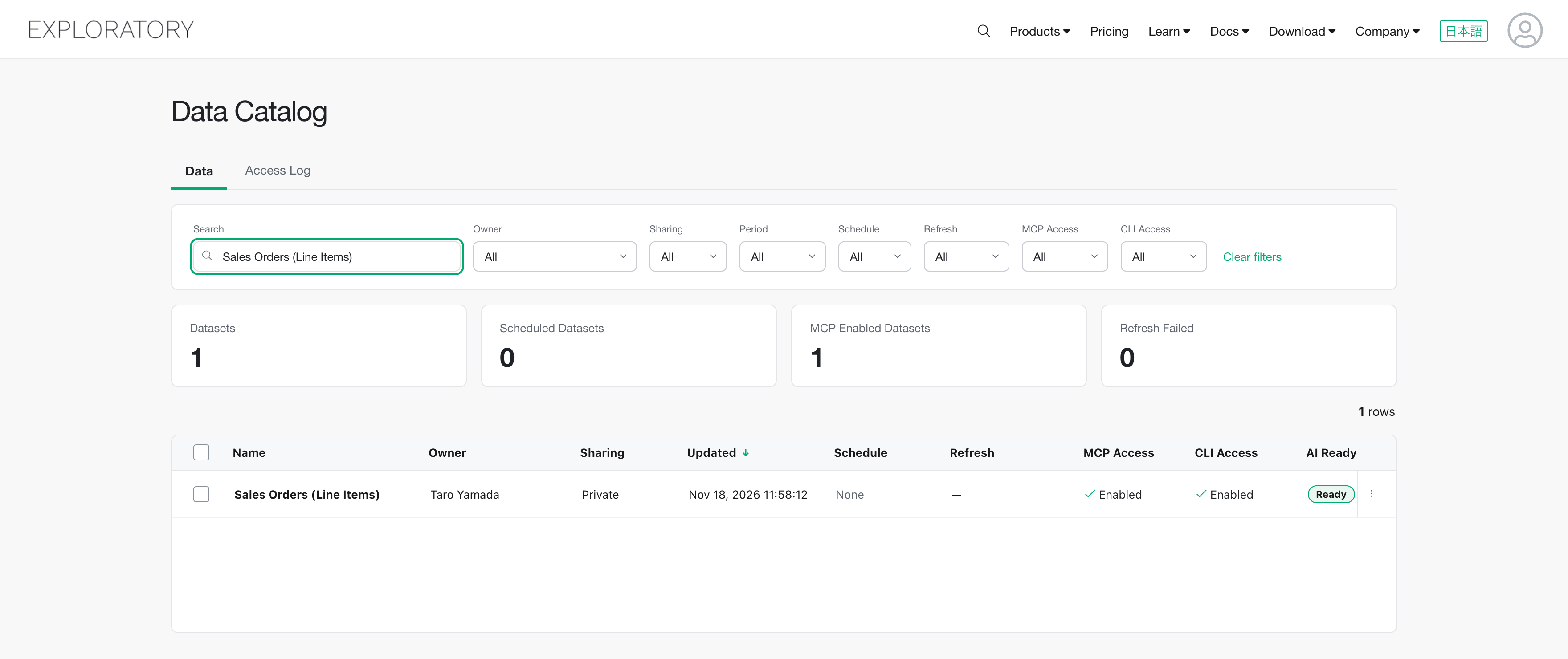
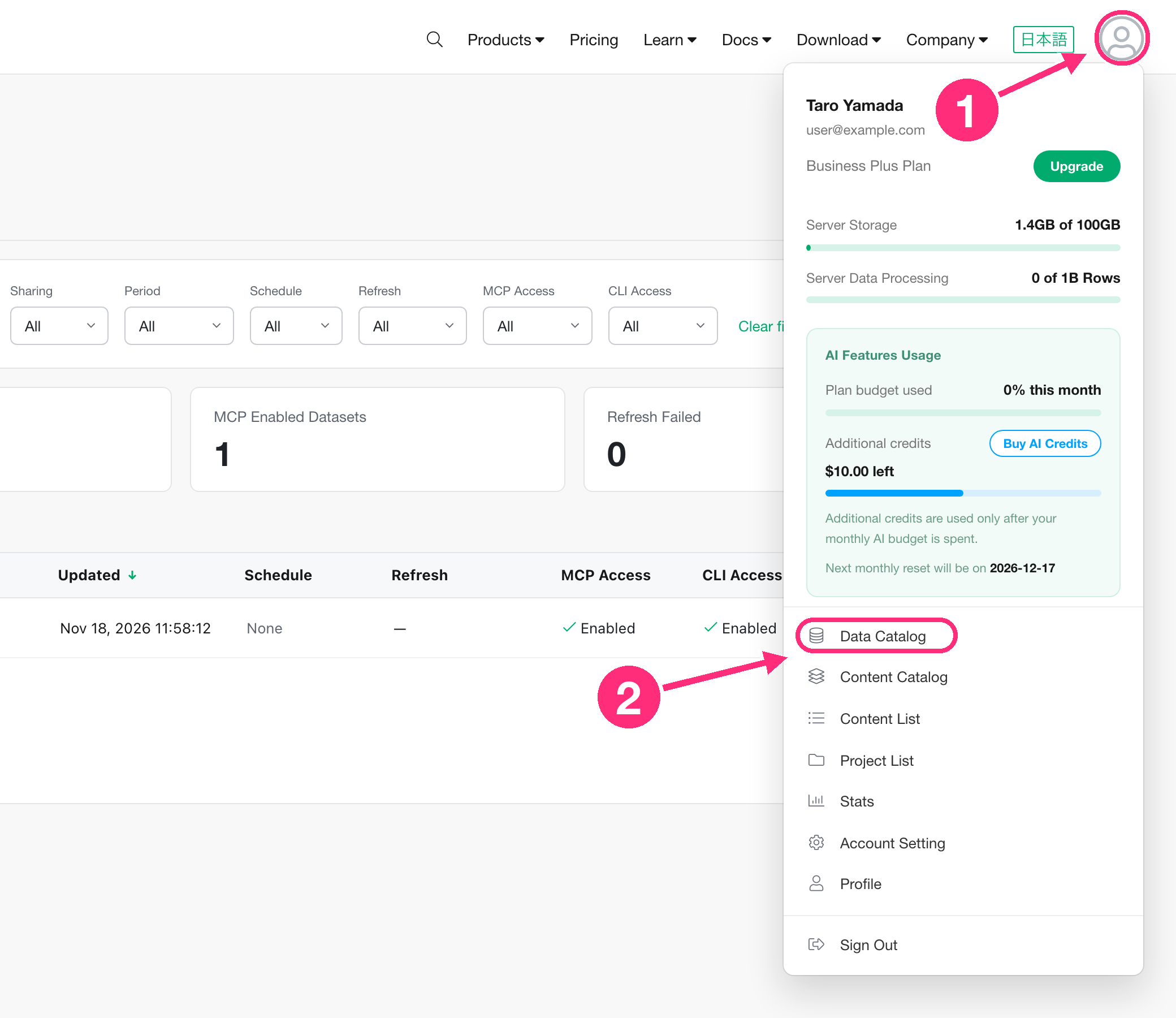
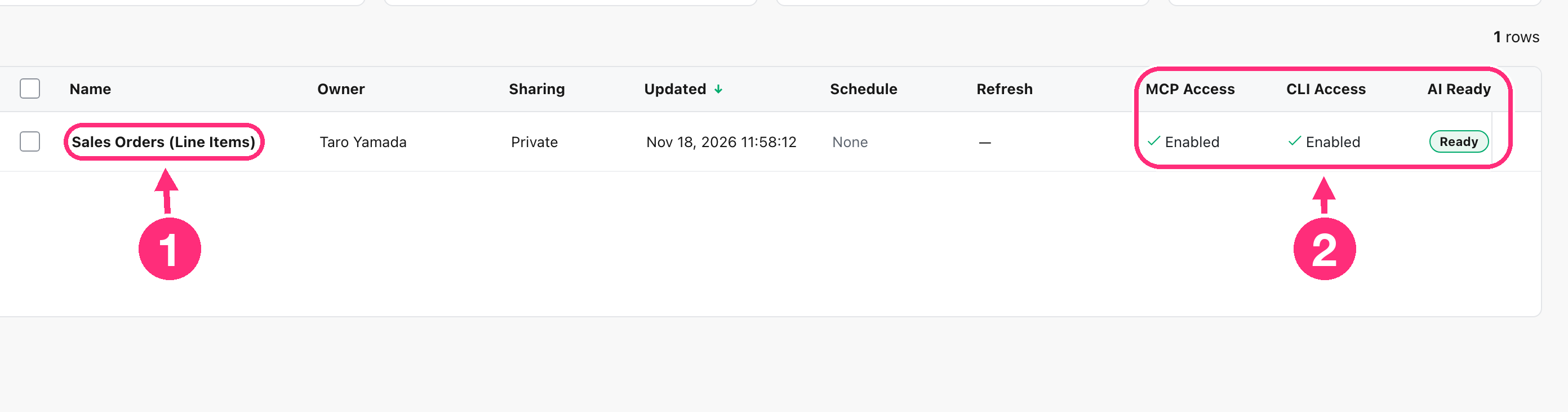
On exploratory.io, choose the account icon (❶) at the top right, and open Data Catalog (❷) in the menu. The list of the data you published appears.
The list is on the Data tab. Some accounts also show an Access Log tab. The list has these columns: Name, Owner, Sharing, Updated, Schedule, Refresh, MCP Access, CLI Access and AI Ready. The AI Ready column shows a status such as Ready. The result of the settings in step 6 also appears here.
Check the MCP Access, CLI Access and AI Ready status (❷), then select the dataset name (❶).
The data page opens. You can check the contents on tabs such as Summary and Table (❶). On the Wrangling Steps tab (❷), you can see the wrangling from step 1.

5. Create and approve semantic information
To aggregate data correctly, an AI needs to know what each row represents, and which columns to aggregate and how. This information is called “semantic information”.
- Open the Metadata tab (❶) of the data page.
- Choose Generate / improve with AI (❷).
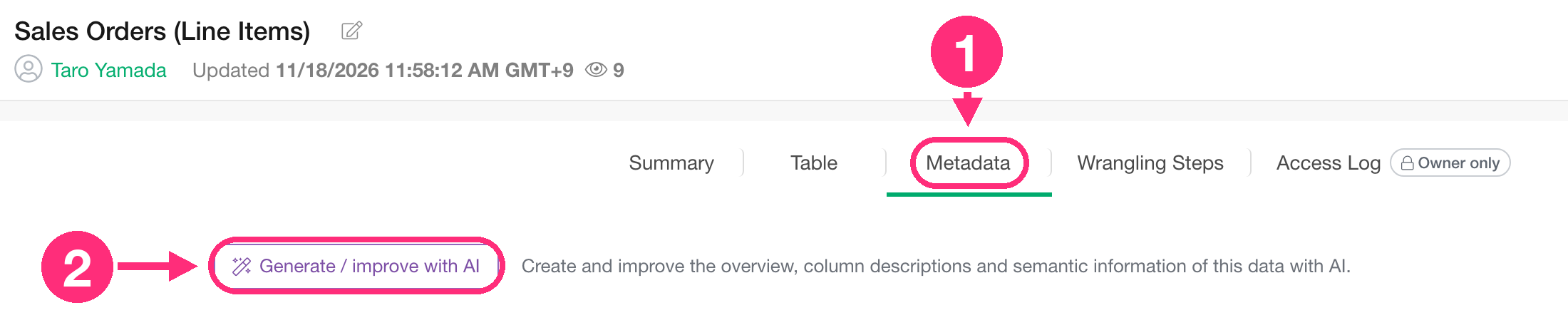
- The “Generate metadata with AI” dialog opens. Check What to generate (❶), and choose Generate (❷). The AI makes proposals for the meaning of the dataset (the grain of the data, the main date column and the scope of analysis), the meaning and role of each column, and the aggregation rules.
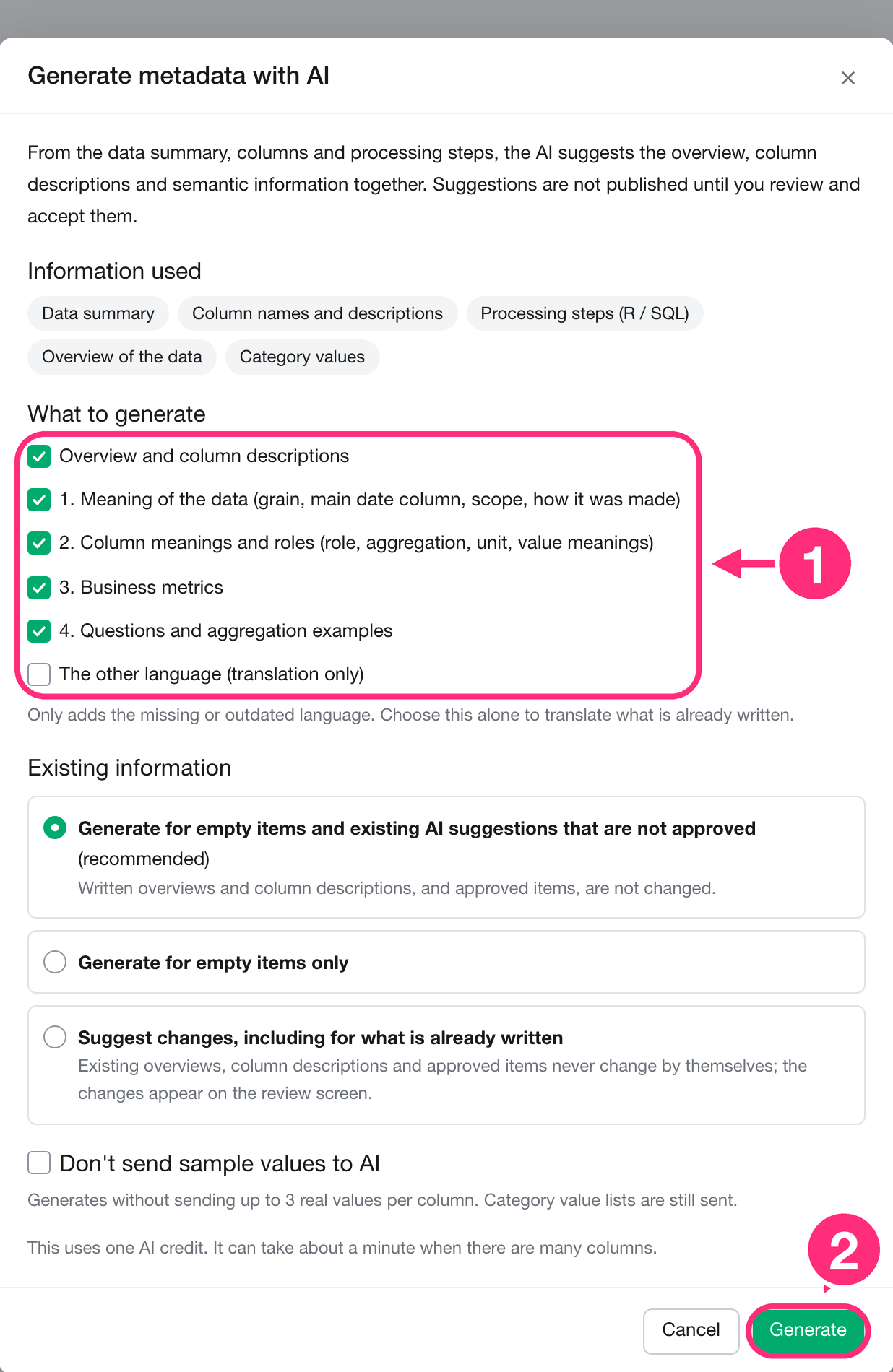
- Read the proposals, and fix anything that is wrong with Edit (❶).

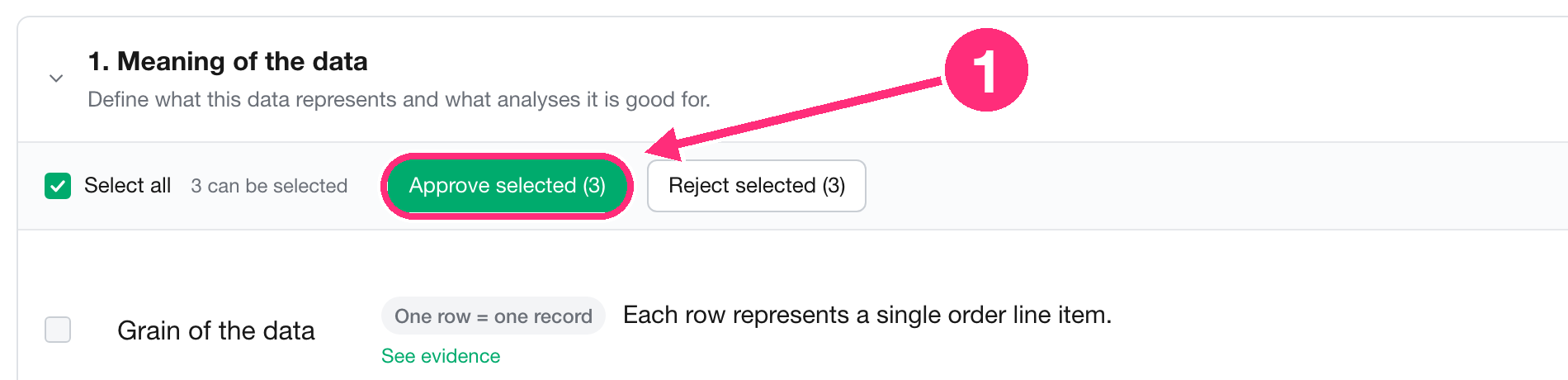
- For each item you have confirmed is correct, choose Approve (❶). To approve many at once, select Select all (❷) in each section.
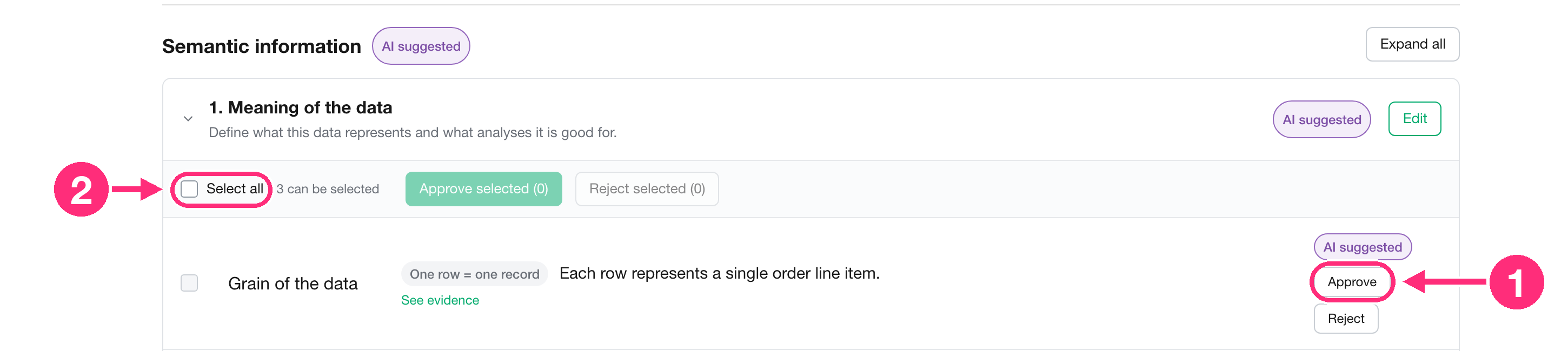
- Choose Approve selected (N) (❶). N is the number of items you selected. For “Grain of the data”, however, choose Approve on its own. If other items cannot be approved at once, check their contents and then choose Approve on each one.
Warning
The AI receives only approved semantic information as the official definitions. It does not use definitions you have not approved. It can still aggregate the values in the column itself.
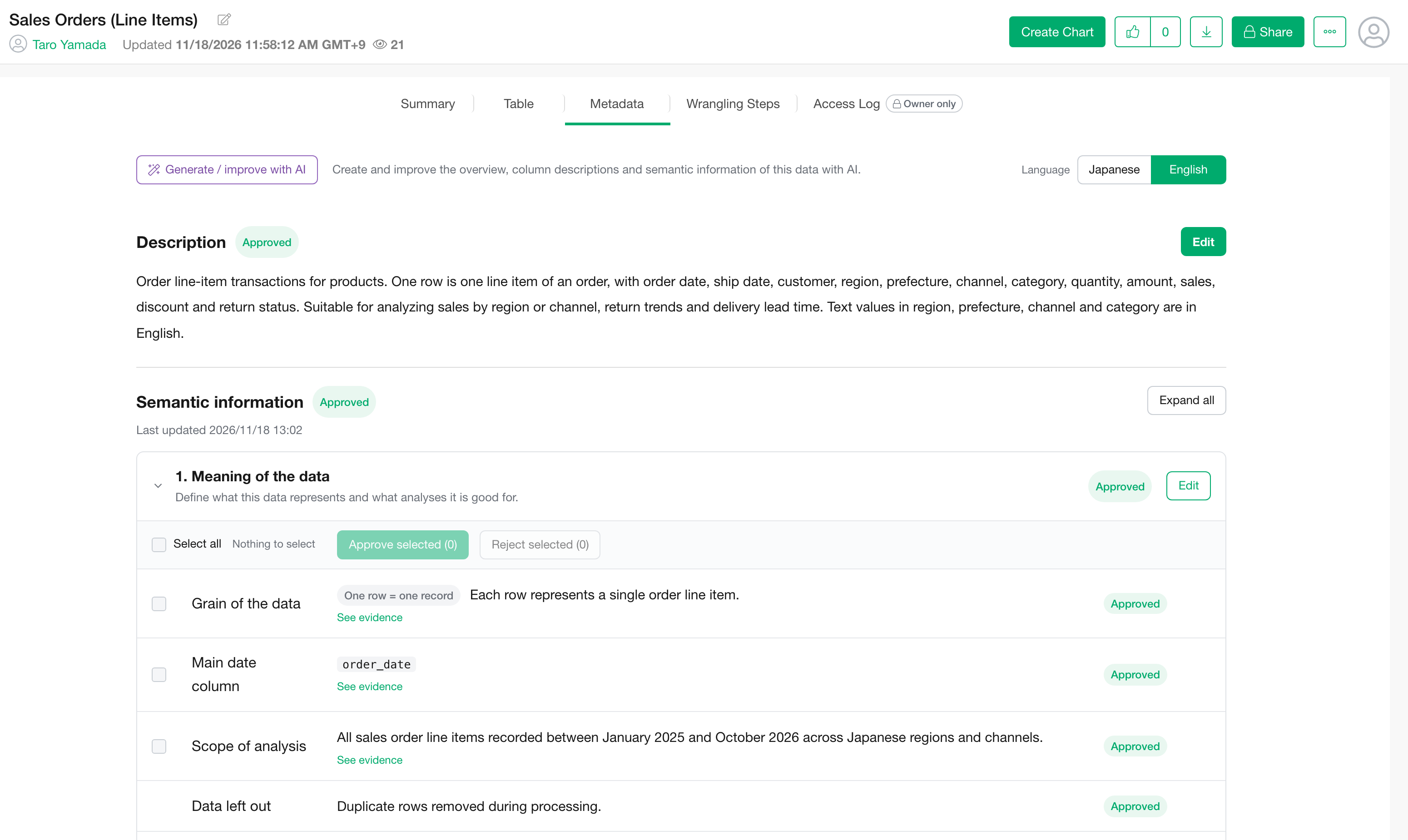
With the sales order data, for example, you check these items.
- Grain of the data: “1 row = 1 record” (an order line item)
- Main date column: order_date
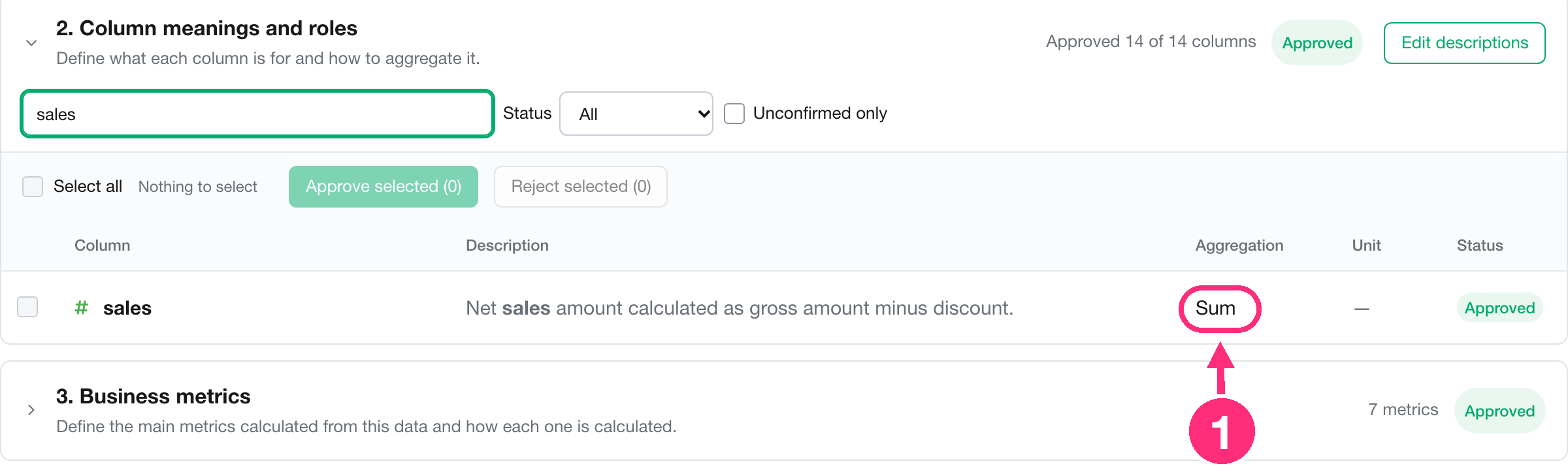
- Column role: sales is a “Numeric measure”, and its aggregation is “Sum” (❶)
6. Set access from MCP and CLI
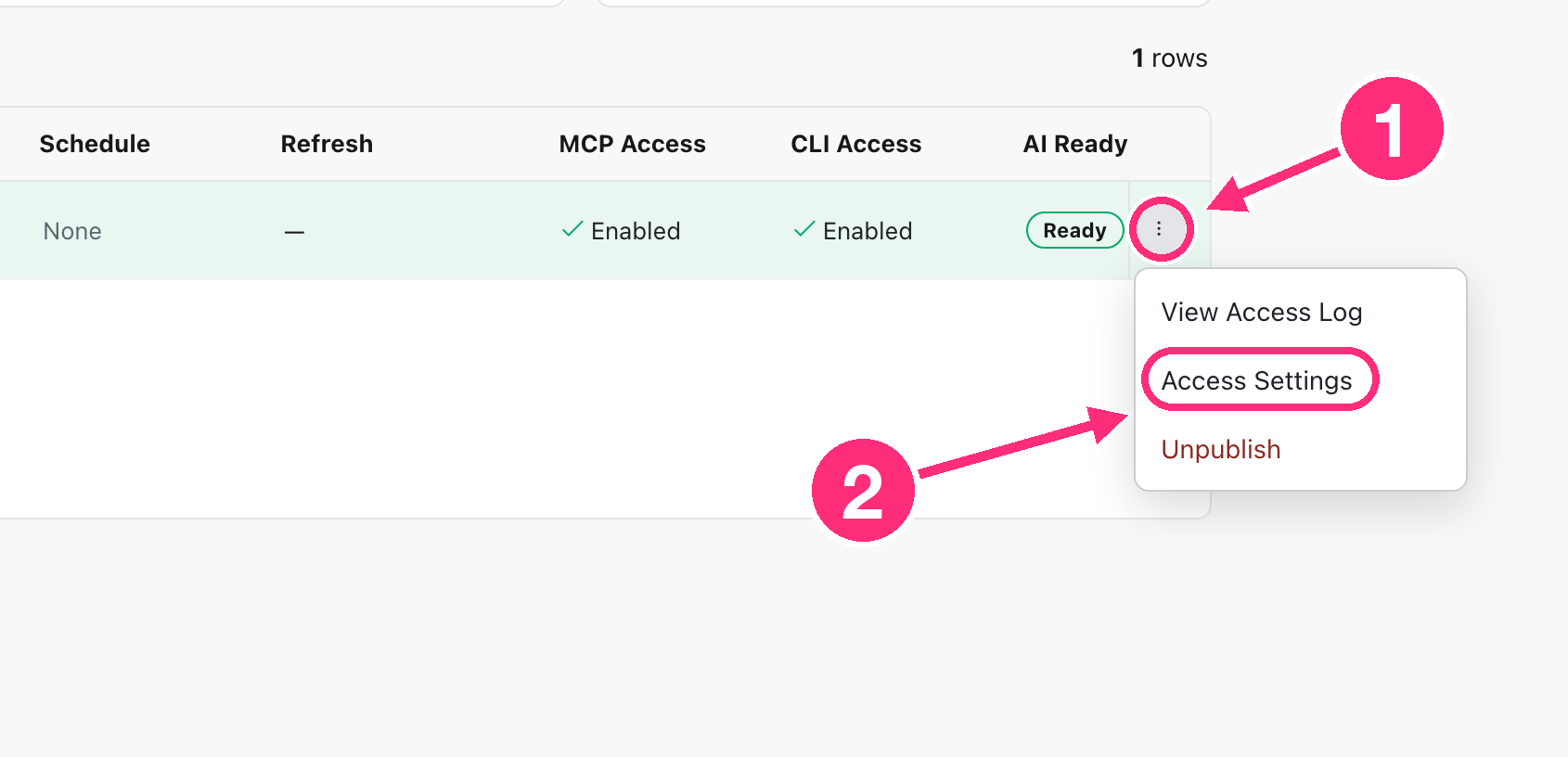
In the Data Catalog list, choose the “⋮” (❶) at the right end of the data row, and in the menu that opens, choose Access Settings (❷). The menu shows View Access Log, Access Settings and Unpublish.
You can also select several data items and set them all at once.
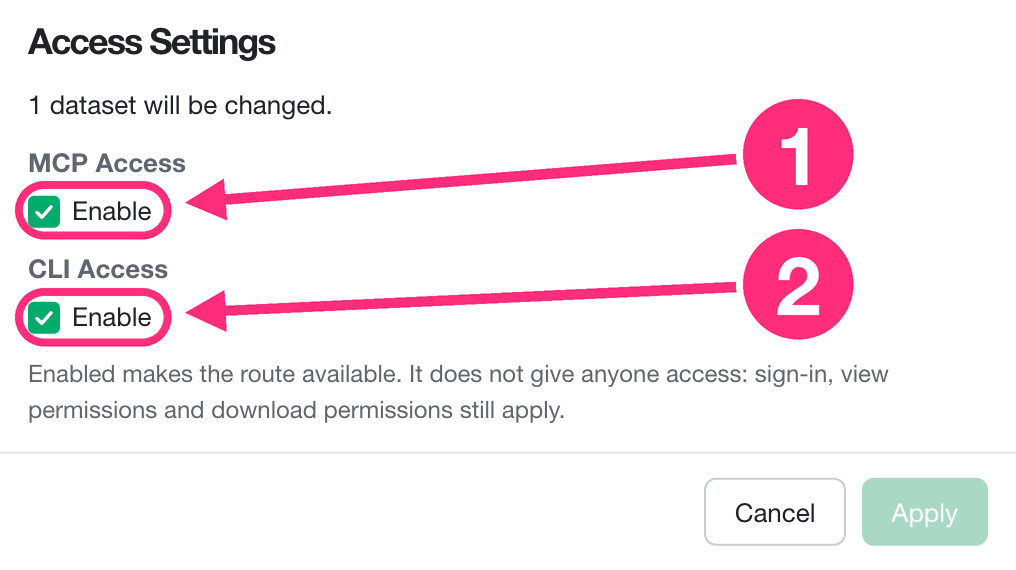
For each item below, decide whether to select Enable. First, MCP and CLI.
- MCP Access (❶): Read the data with MCP from an AI tool such as Claude.
- CLI Access (❷): Read the data with
expl serverfrom a terminal or an AI agent.
Next, REST API. This item does not appear in some environments.
- REST API access: Read the data from the API.
When you change a setting, choose Apply (❶). You cannot choose Apply until you change a setting.
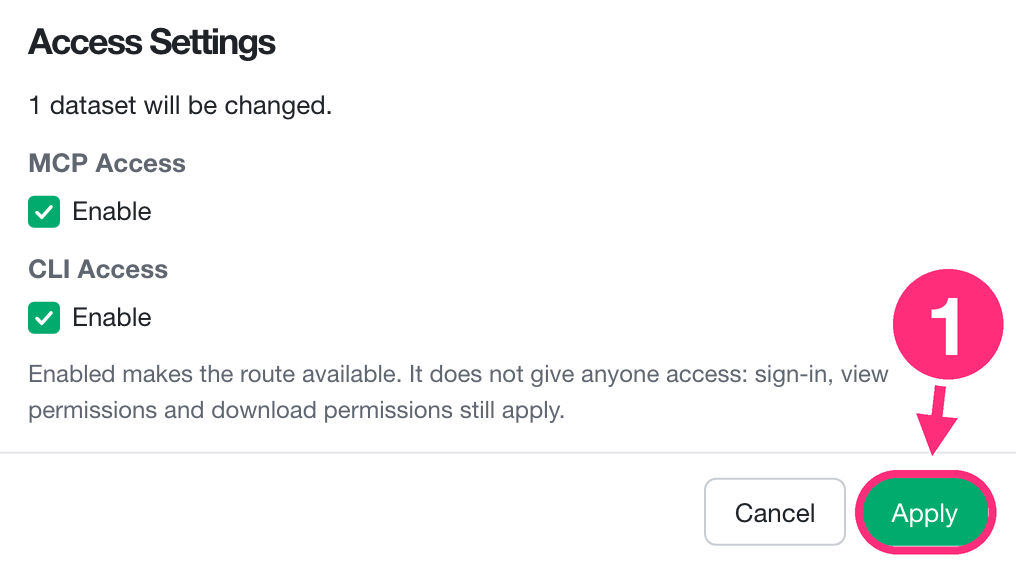
Enabling it does not open it to everyone
Sign-in, view permissions and download permissions apply as before.
7. Use it from the server’s MCP
When you connect the server’s MCP to the Claude app or another tool, you can ask an AI questions about the data you published. To connect, see the note Getting Started: Server MCP.
In this guide, the title of the published data is “Sales Orders (Line Items)”. If you used a different title, replace the data name in the request below with that title.
When you are connected, ask like this.
In Exploratory's "Sales Orders (Line Items)", show the sales total by region in descending order.❶ Enter the request in the input field and send it.
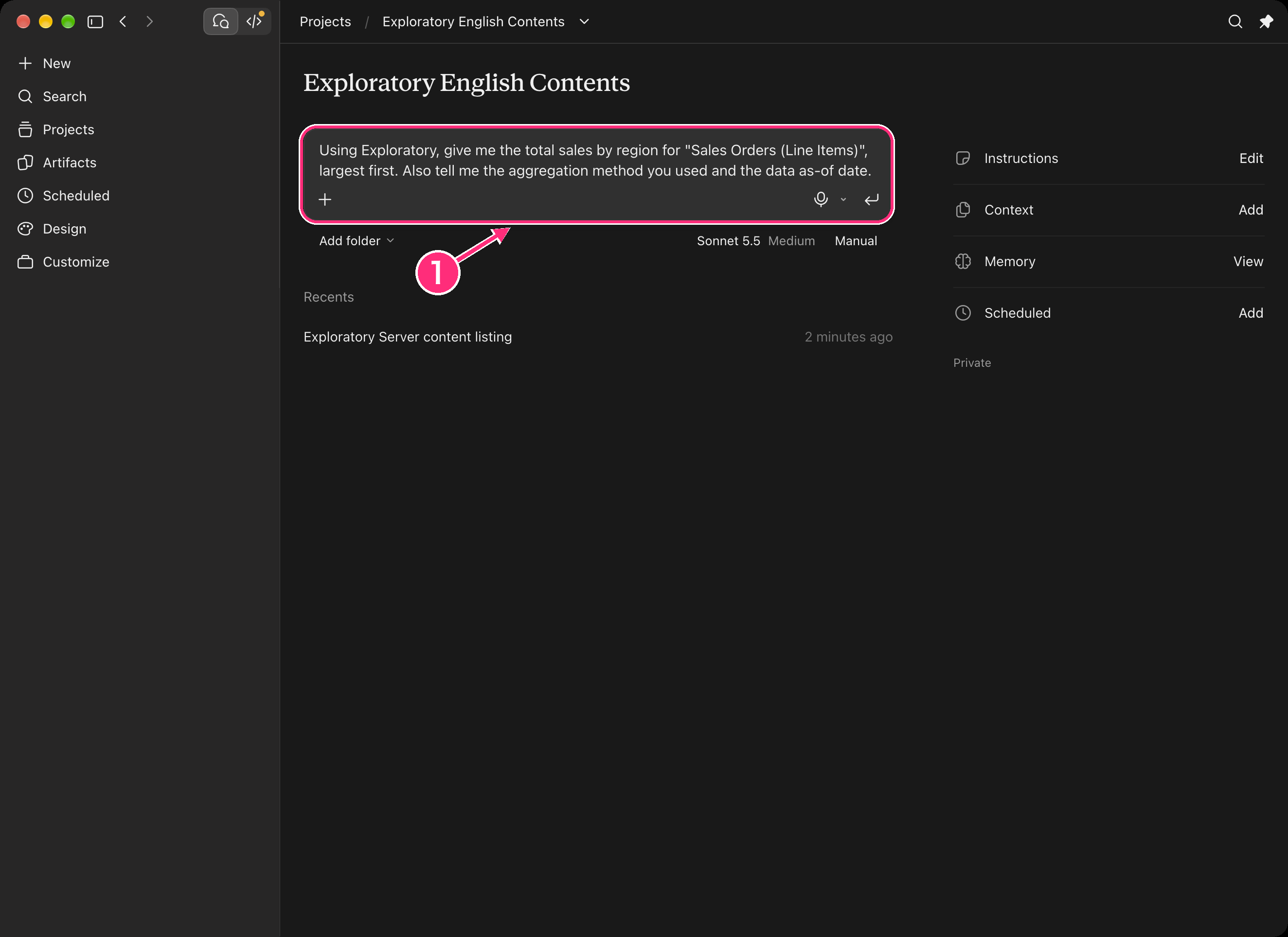
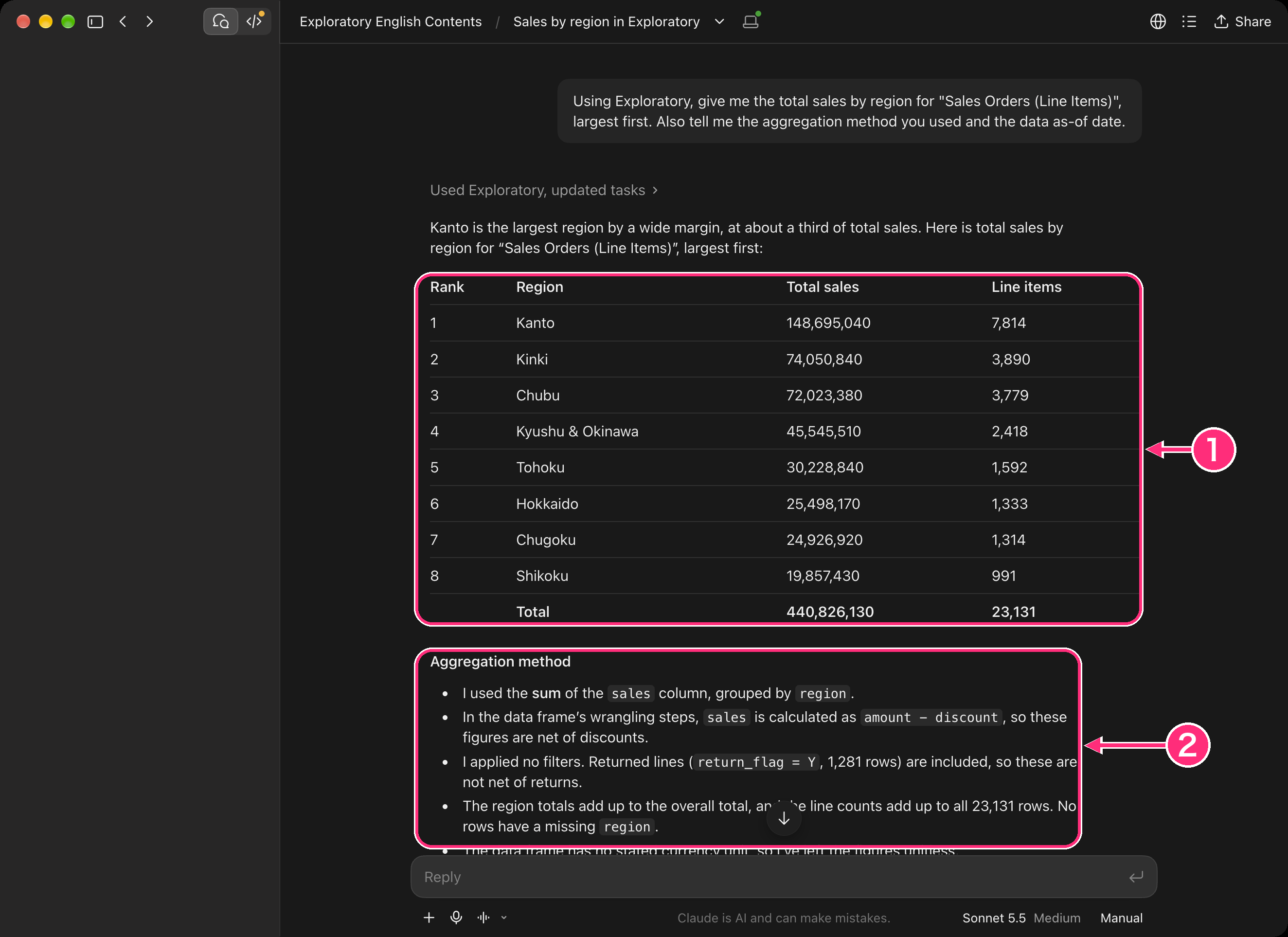
The AI reads the definitions you approved in step 5, and then aggregates.
❶ The sales total by region comes back.
❷ The aggregation conditions and the point in time of the data are included.
8. Import it into Desktop with the Desktop MCP
If you ask an AI (such as Claude Code) that is connected to the Desktop MCP, it can import the data you published into a project in Exploratory Desktop. To connect the Desktop MCP, see the note Getting Started: Desktop MCP. Sign in to the Exploratory Desktop that you import into.
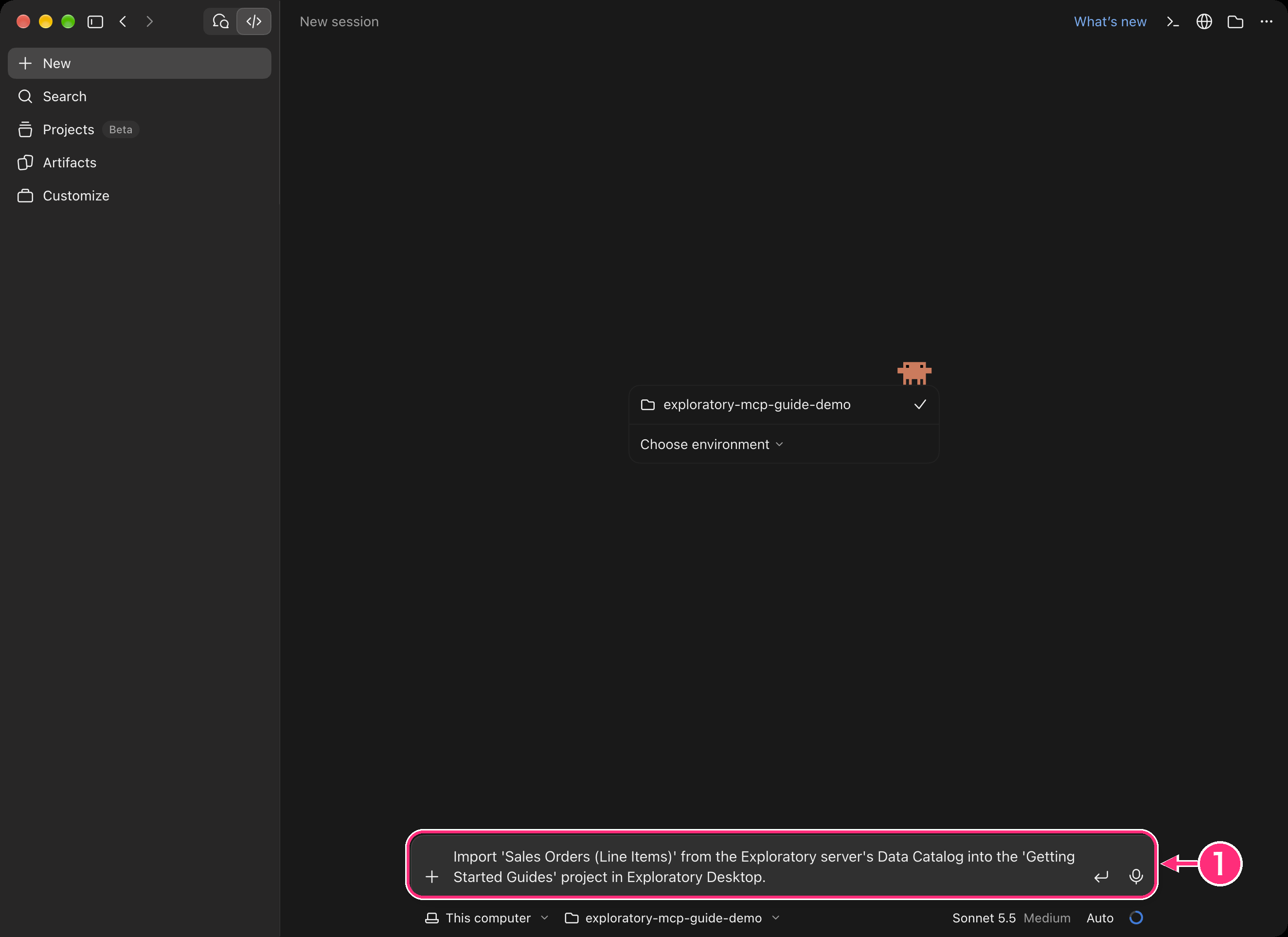
In Claude Code, with the Desktop MCP connected, ask like this. Replace “[project name]” with the name of the project to import into.
Import "Sales Orders (Line Items)" from the Data Catalog on the Exploratory server into the "[project name]" project in Exploratory Desktop.You can also ask by giving the URL of the data page (step 4).
❶ Enter the request in the input field and send it.
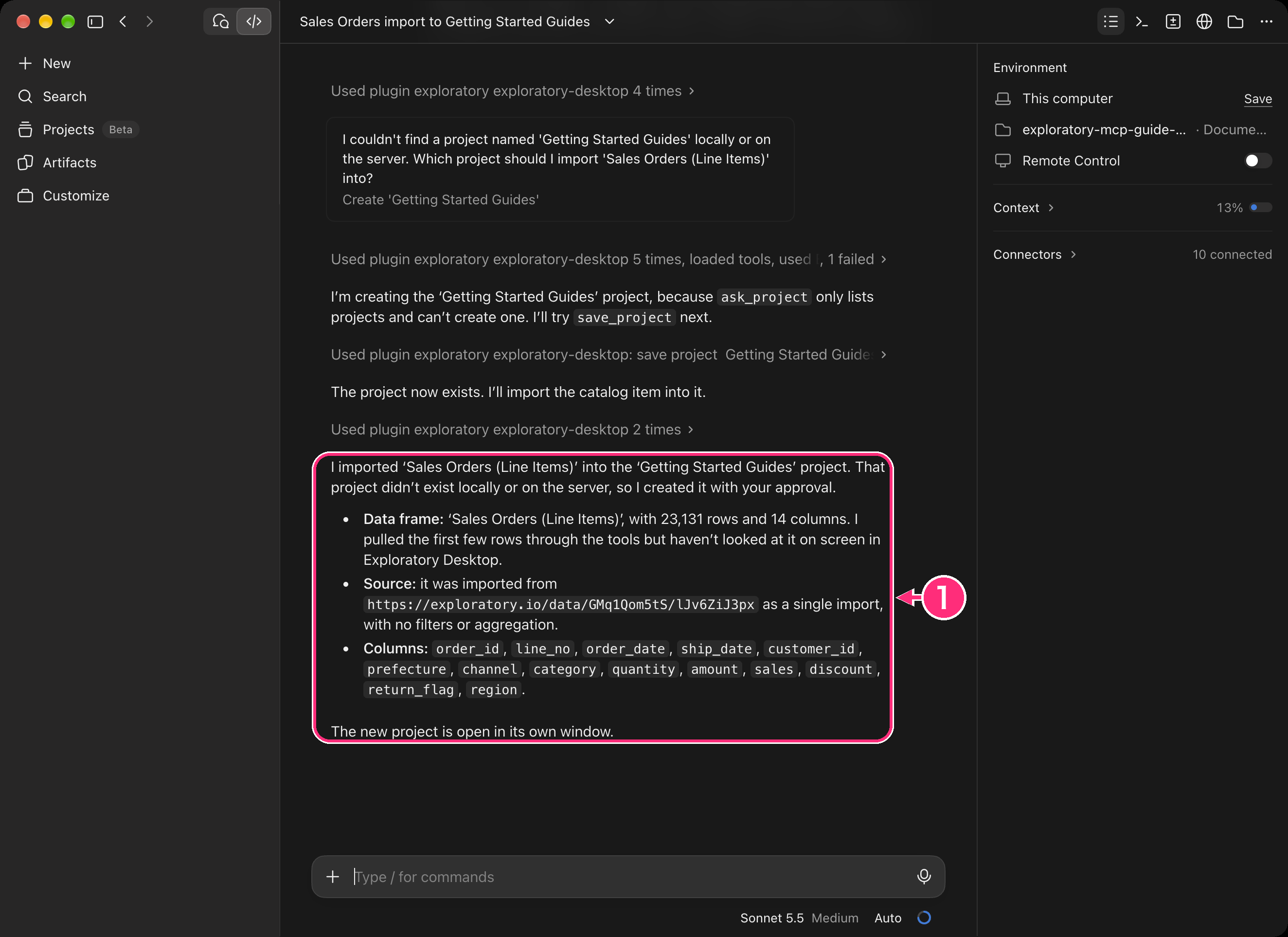
Claude uses the Desktop MCP to import the data from the server’s Data Catalog into Exploratory Desktop. Claude may ask which project to import into. If it does, answer like “Import it into the [project name] project”.
❶ Claude explains the result of the import.
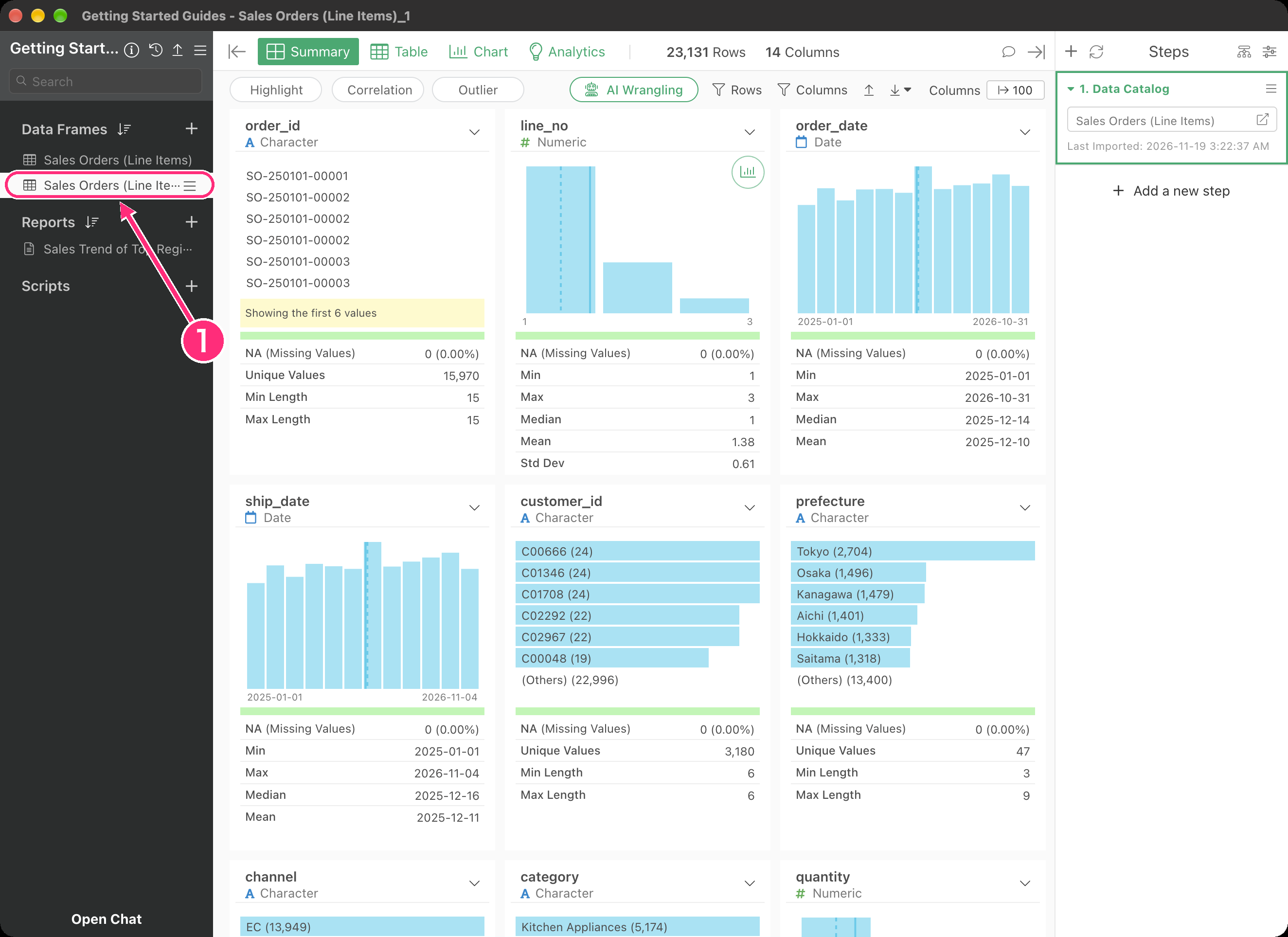
Finally, go back to Exploratory Desktop and open the project you specified. Check that the “Sales Orders (Line Items)” data frame has been created.
❶ The imported data frame appears in the list.
Warning When you can use this step
Importing from the server’s Data Catalog came with the newer Exploratory Desktop (17.0 or later). With an older version, Claude may be unable to import the data.
You can also import from the screen menu. In Desktop, open the project to import into, and choose Data Catalog in the menu for adding a data frame. The “Import from Data Catalog” dialog opens. On the Server tab, select the data to import. The data you published as Local in step 2 appears on the Local tab. To use it in another project on the same PC, import it from there.
Tip
If you ask the AI to include the aggregation method, any filters, and the data version and last update time in its answer, the numbers are easier to check.
Try it yourself
You can paste these requests as they are into Claude connected to the server’s MCP.
What columns does "Sales Orders (Line Items)" in Exploratory have? Also tell me what one row represents.For "Sales Orders (Line Items)", show the sales total by channel. Also write the aggregation method you used, any filters, and the data version and last update time.For "Sales Orders (Line Items)", show the top 5 categories by number of returns, in descending order.If something goes wrong
- It does not appear in the catalog: Check that the account you are signed in with is the same one you published with. On the server, it appears after publishing succeeds. Also check that the progress panel has finished.
- There is no “Generate / improve with AI” button, or you get an error when you choose it: Only the owner of the data can edit semantic information. It also does not work when the AI feature is off on the server, or when you have not yet agreed to the terms of use of the AI feature. Ask the owner or the server administrator.