
How to Check Data Type Differences Between Two Data Frames
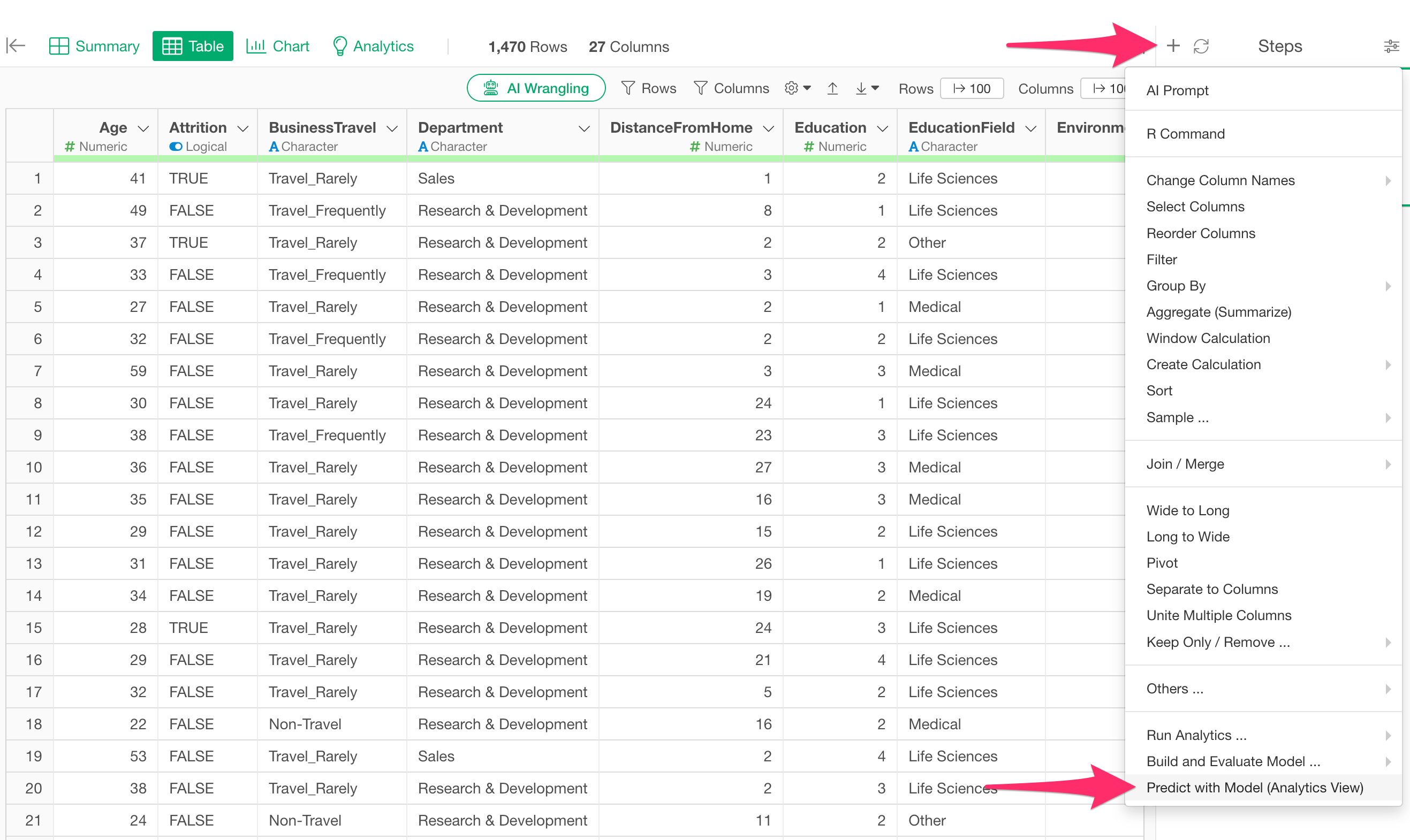
In Exploratory, you can use a prediction model created in the Analytics view to add a prediction step as a step in another data frame and add the prediction results to the data.
Note that if the data types of the explanatory variables in the model created in the Analytics view do not match the data types of the explanatory variables used in the target data frame for prediction, an error may be displayed, and the prediction may not be executed properly.
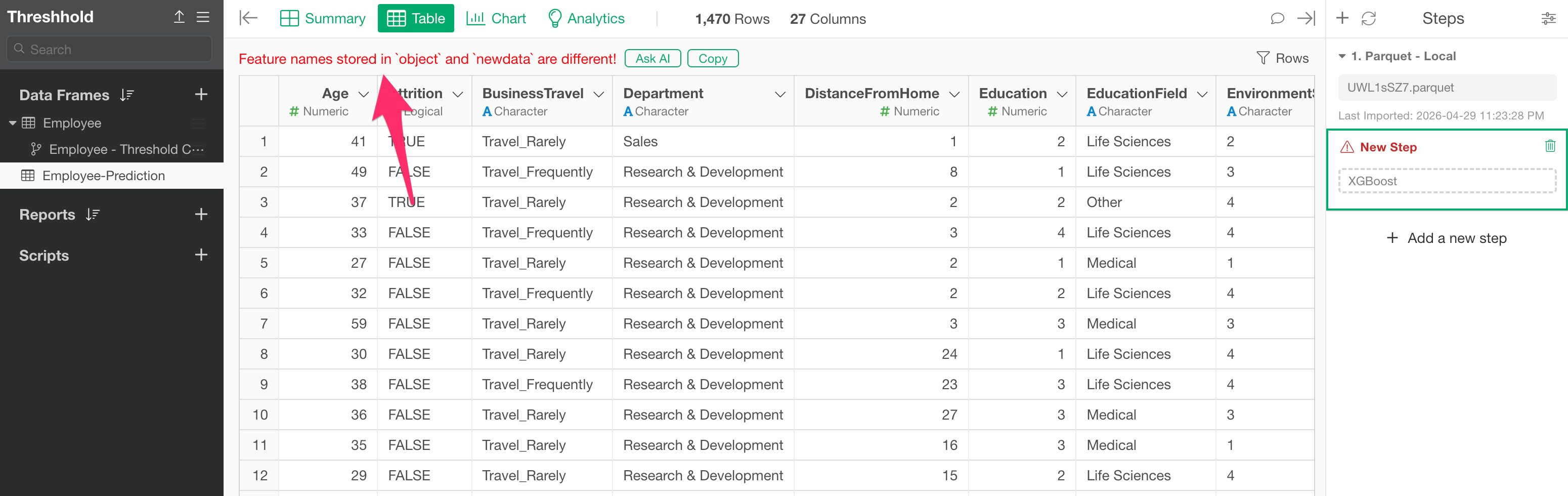
However, comparing two data frames and identifying columns with different data types can be time-consuming.
When you have two different data frames like this, there are times when you want to compare the data types between them.
Therefore, this note introduces how to compare the data types of two data frames.
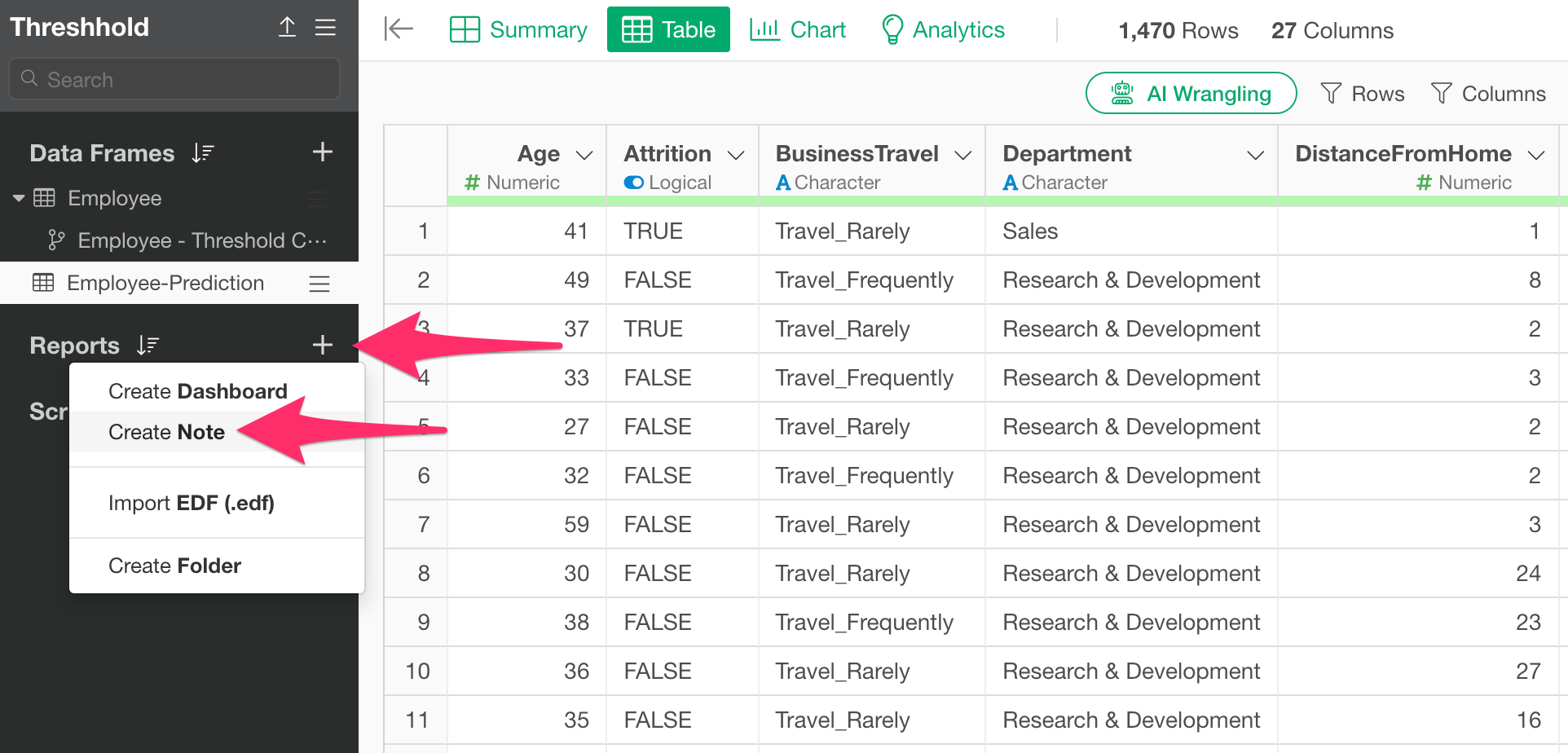
When you want to check the differences in data types between two data frames, click the “Add” button for reports and select “Create Note.”
Once the note is created, add a R Script code block to the note.

After the code block is added, write the following code in the script area.
compare_df_cols(`1st data frame name`, `2nd data frame name`, return = "mismatch")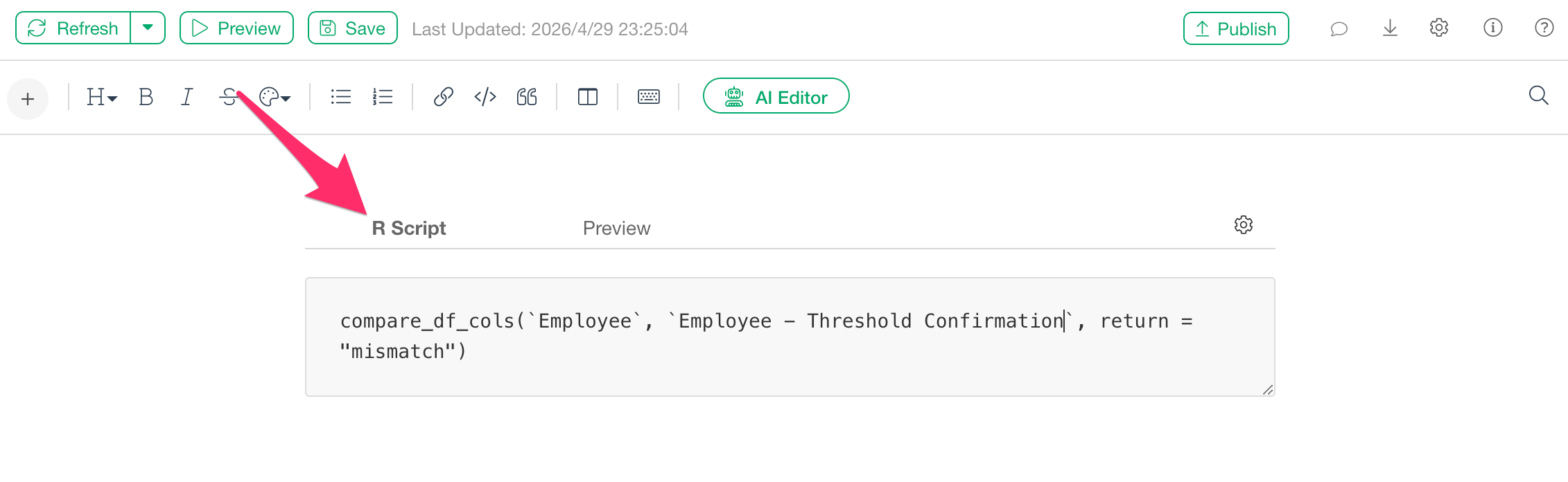
The compare_df_cols function is a function that can be
used to compare column names and data types across multiple data frames.
Specify the first data frame name as the first argument and the second
data frame name as the second argument.
Additionally, by specifying "mismatch" for the
return argument, you can return information only for
columns where the data types do not match.
By clicking the preview button in this state, you can check the columns with different data types between the two datasets.
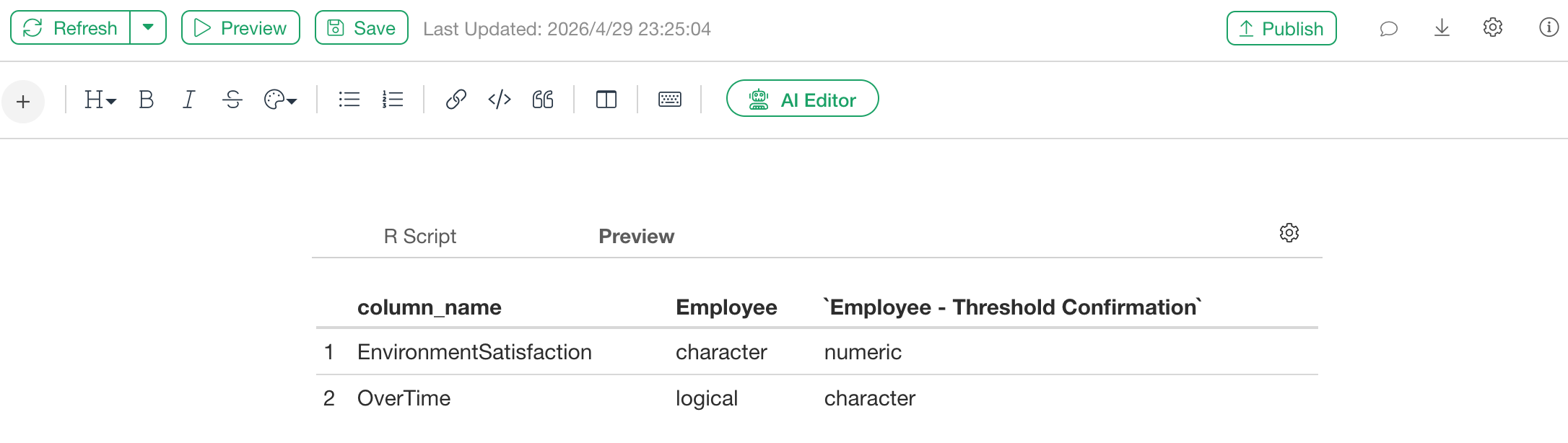
If you need to align the data types between the two data frames, you can align them by adding a step to process the data types in the data frame you wish to predict based on this information.