How to Create an Action Driver Chart Using AI Prompts
An Action Driver Chart is an analytical method that uses survey data to help determine how various evaluation items influence target metrics such as NPS (Net Promoter Score) or customer satisfaction, and to identify which areas require focused attention.
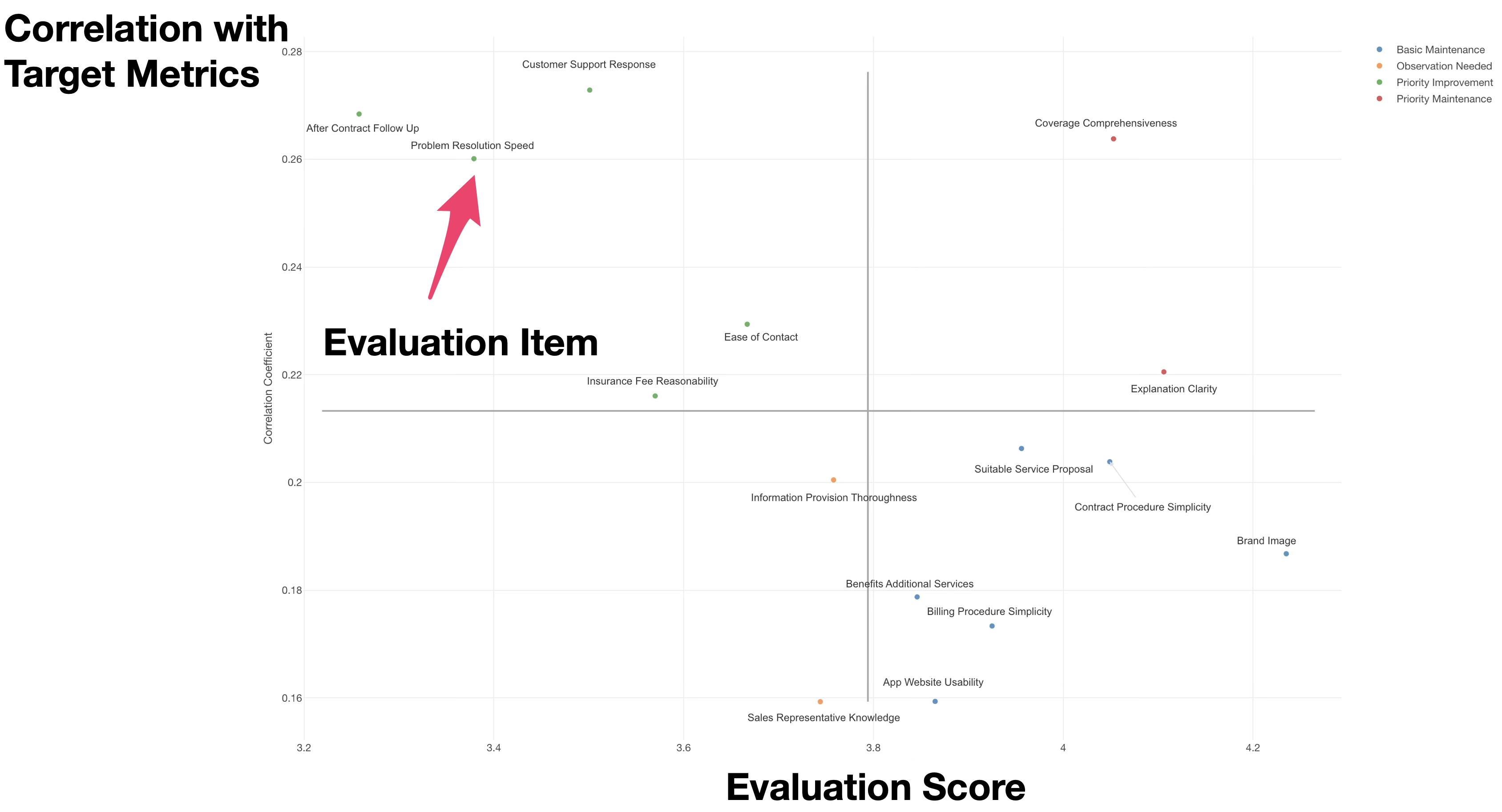
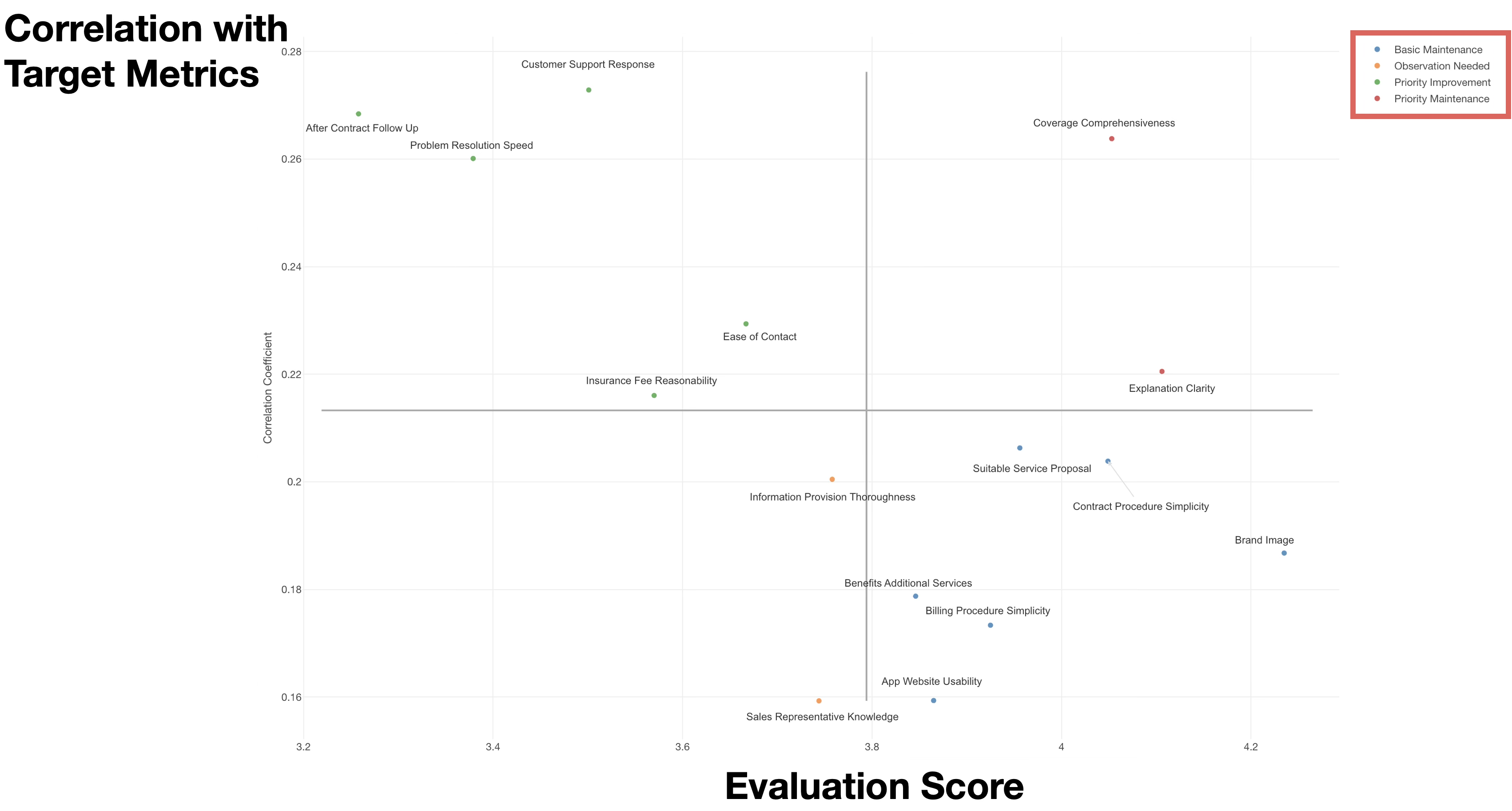
Action Driver Charts are represented using scatter plots, where the X-axis represents the score of the evaluation items and the Y-axis represents the correlation coefficient with the target metric. Each point represents an evaluation item.
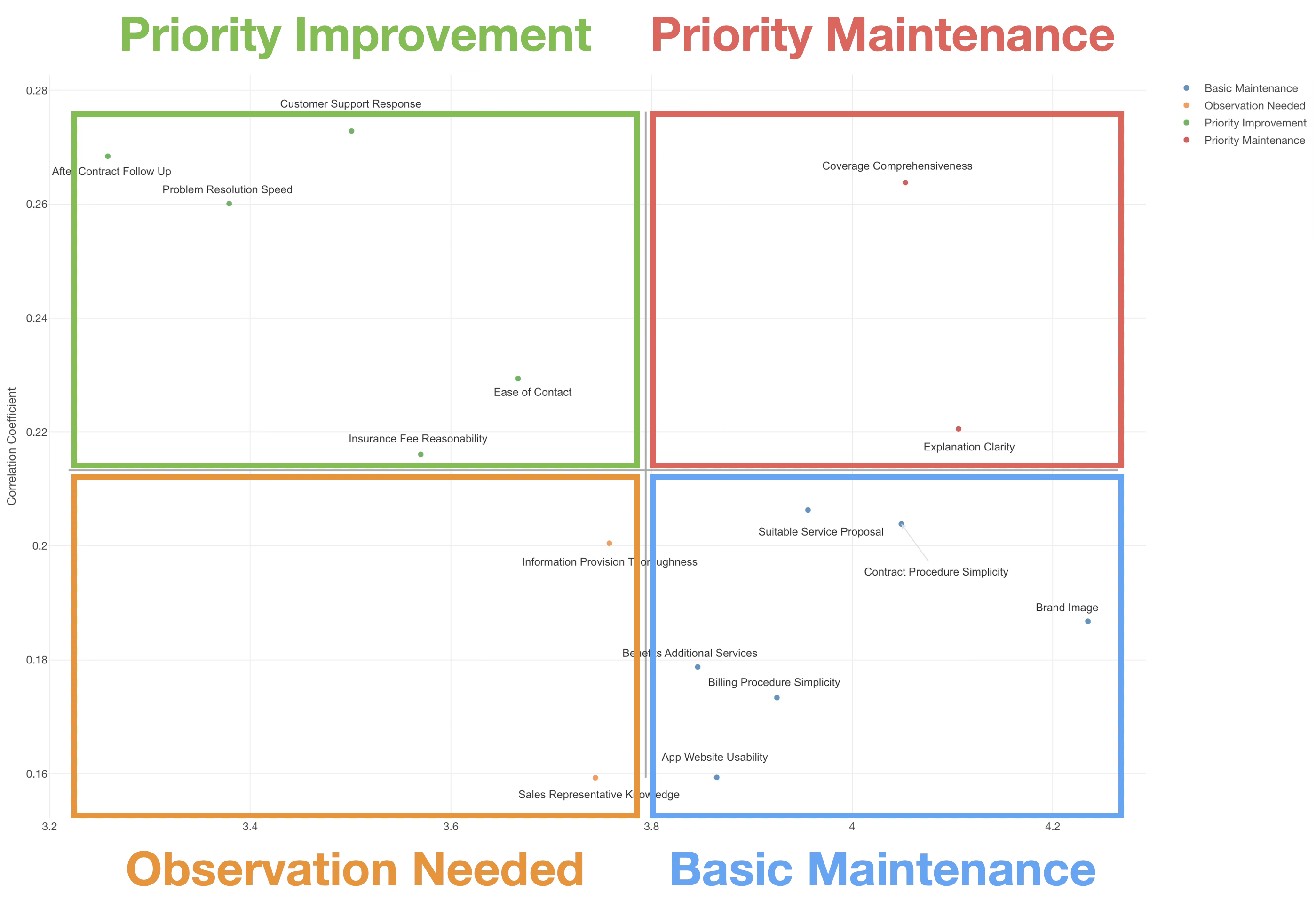
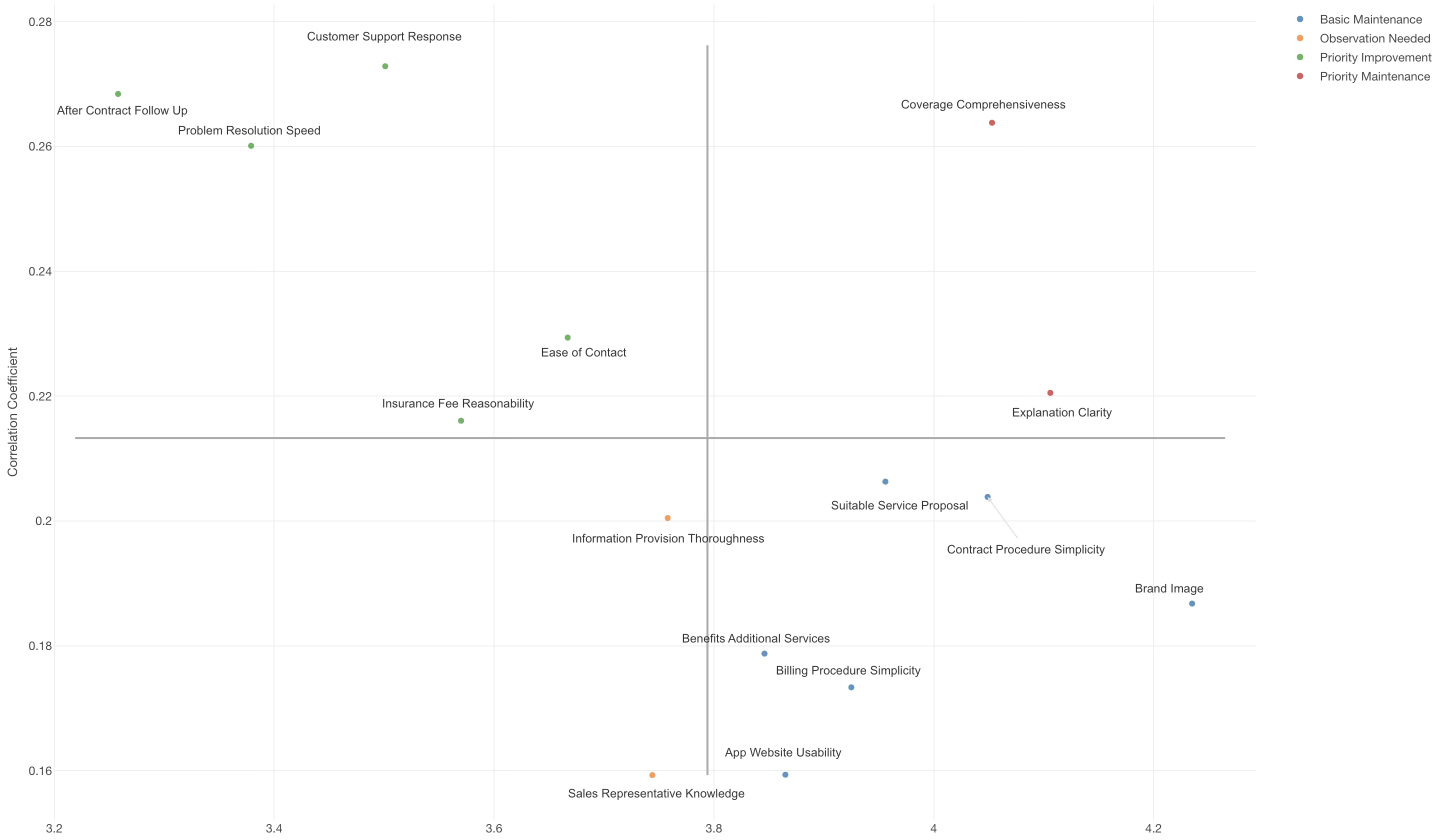
Each evaluation item is classified using the average value of all evaluation items and the average correlation coefficient with the target metric as thresholds.
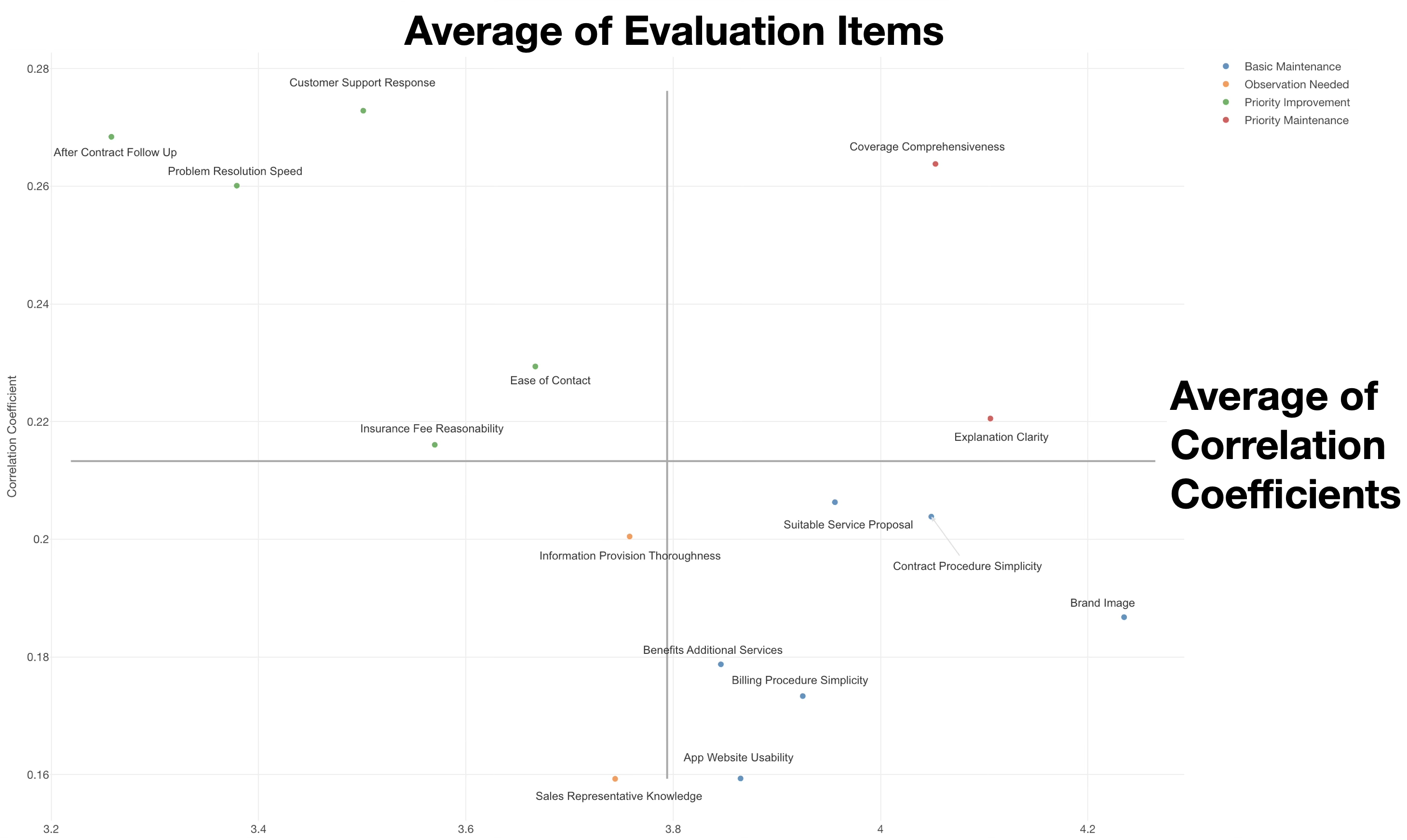
By visualizing the correlation between the average score of each evaluation item and the target metric on a scatter plot, you can identify items that should be prioritized for improvement or maintained.
Definition of the Four Categories and Action Plans
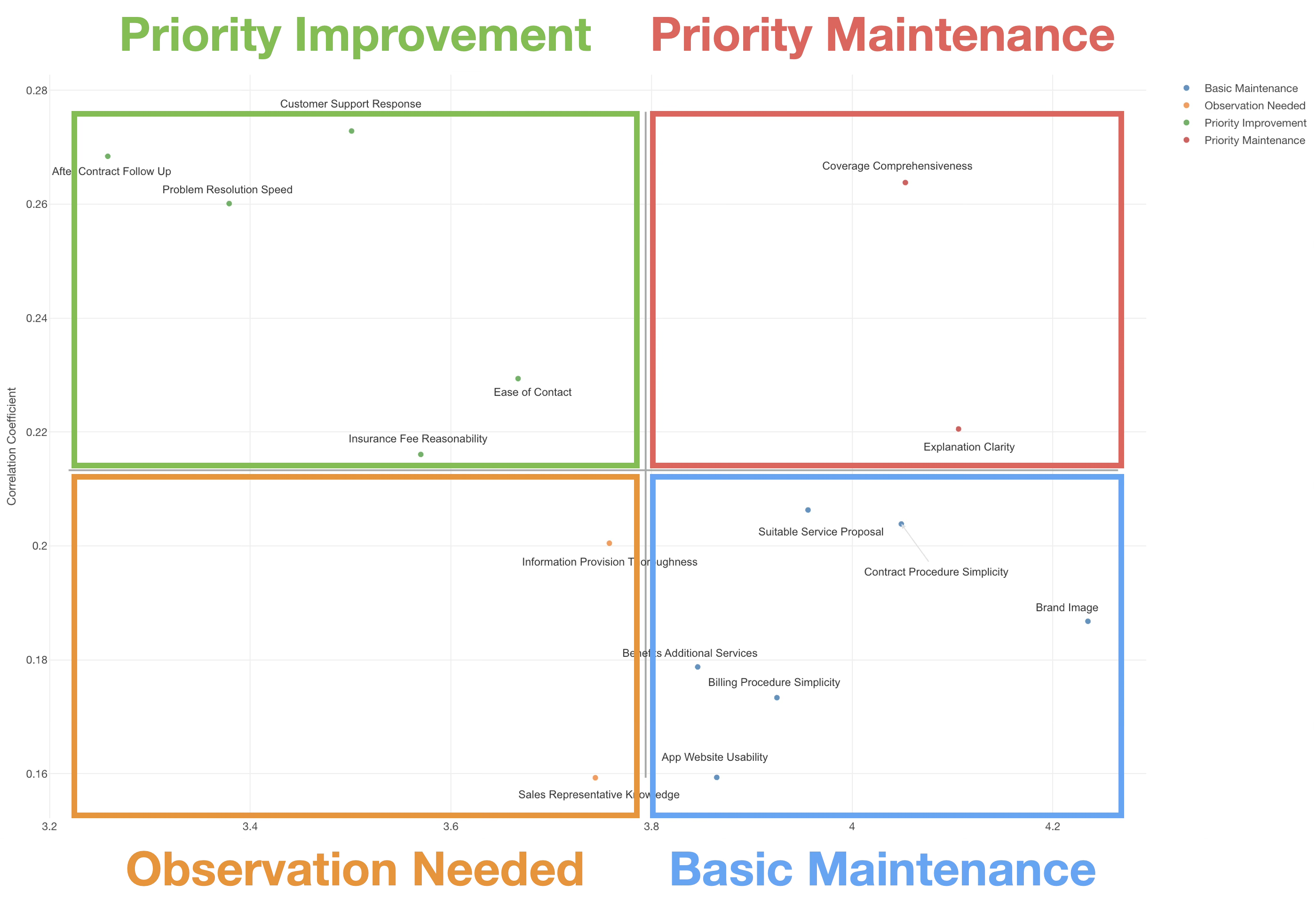
As mentioned earlier, evaluation items are divided into four categories based on the average score of the evaluation items and the average correlation coefficient with the target metric.
Priority Maintenance (High Score, High Correlation)
Items in this category have a significant impact on customer satisfaction (high correlation) and currently perform well (high score). In other words, they are already highly rated by customers and are factors that significantly drive overall satisfaction.
Therefore, the top priority is to continue maintaining these high standards. Resources should be invested continuously, and careful management is required to ensure that quality and service levels do not decline. Since these are likely sources of competitive advantage, it is crucial not to lose superiority in this area.
Priority Improvement (Low Score, High Correlation)
Items in this category have a large impact on customer satisfaction (high correlation), but their current evaluation is low (low score). These are areas with “great potential for growth,” where improvements are likely to lead directly to an increase in the target metric.
As such, these items should be the top priority for improvement efforts. Because of their high impact, focusing resources here allows for efficient improvement of customer satisfaction. It is recommended to develop short-term improvement measures and monitor progress regularly.
Basic Maintenance (High Score, Low Correlation)
Items in this category currently have high evaluations (high score), but their impact on customer satisfaction is relatively small (low correlation). While customers are satisfied, these are “basic requirements” that do not significantly sway overall satisfaction.
Therefore, maintaining the status quo is sufficient for this category. Avoid excessive investment and manage these items with the minimum resources necessary to keep current levels. However, since a drop in standards could lead to dissatisfaction, periodic checks are still necessary.
Observation Needed (Low Score, Low Correlation)
Items in this category have a small impact on customer satisfaction (low correlation) and currently have low evaluations (low score). Improving these areas will have a limited effect on increasing overall satisfaction.
For the time being, manage these with minimal resources and concentrate assets on other high-priority items. However, as industry trends or customer needs change, their importance may increase in the future, so continuous periodic monitoring is advised. Even if significant improvement is needed, consider starting only after improvements in other items are complete.
Utilizing the Action Driver Chart
By utilizing the Action Driver Chart, you can concentrate limited resources on the most effective measures.
Instead of trying to improve all evaluation items equally, prioritizing based on the two axes of impact on the target metric and current performance enables more strategic improvement activities. In particular, items with high correlation coefficients are directly linked to customer satisfaction and recommendation levels, so focusing on these items can yield efficient results.
For example, for customer support or customer success representatives, the Action Driver Chart can serve as a powerful tool for prioritizing customer experience improvement initiatives.
Required Data
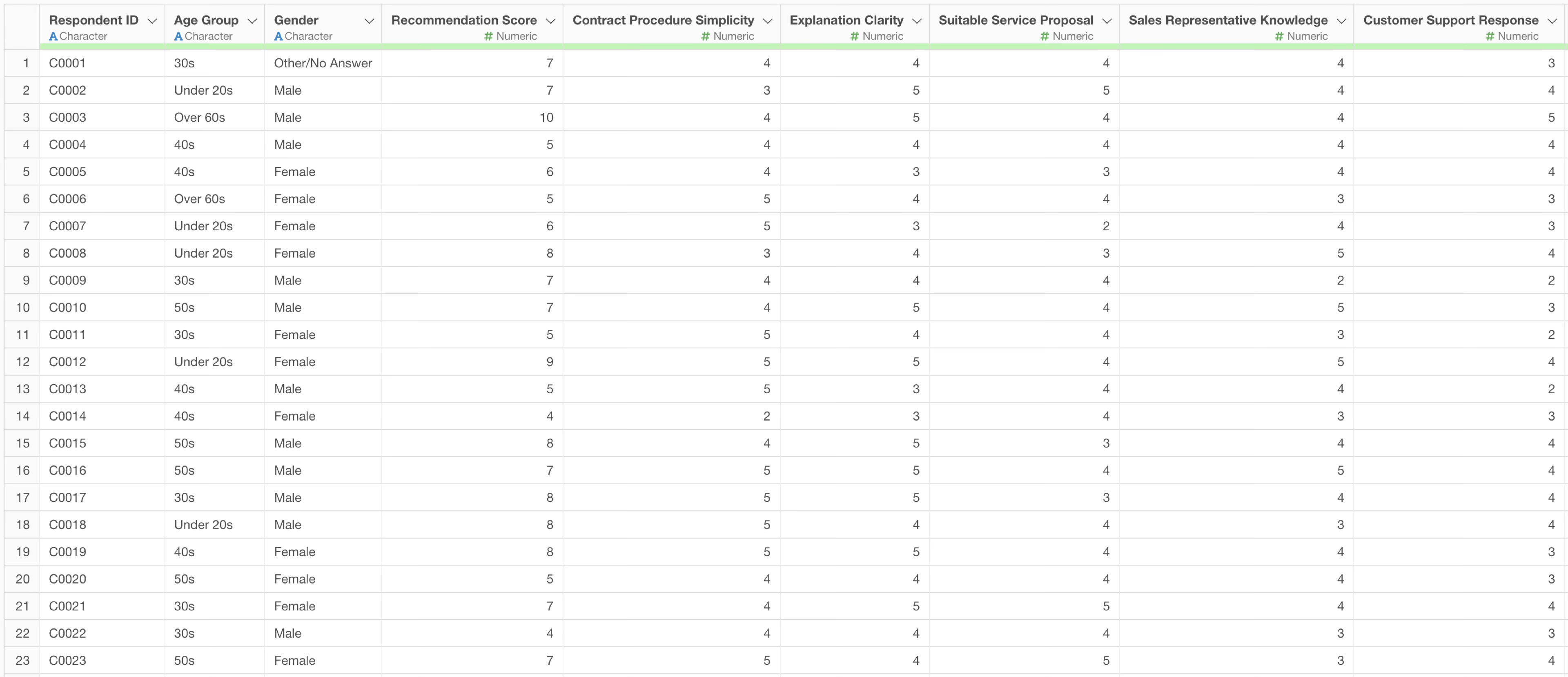
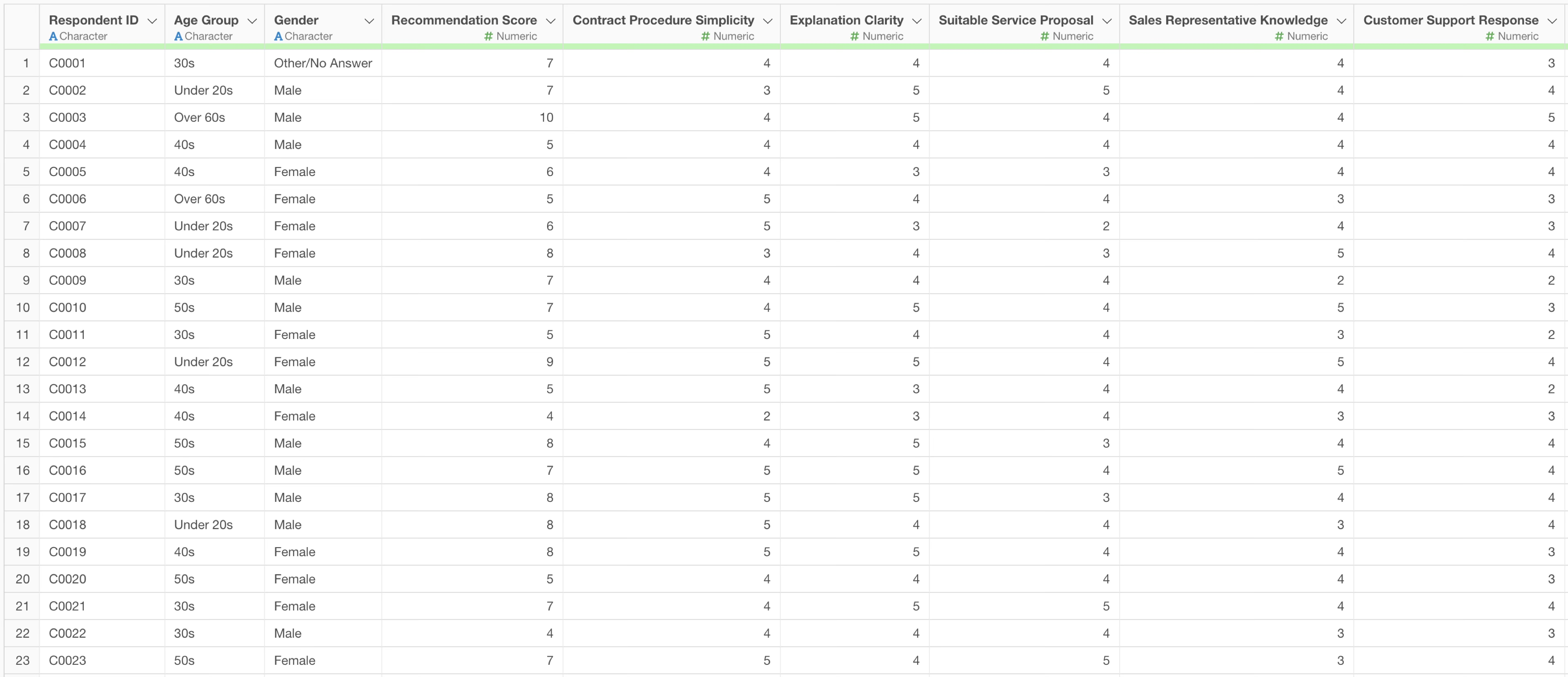
To create an Action Driver Chart, you need data where each row represents one respondent, with columns for the target metric and the scores for each evaluation item.
- Target Metric: NPS, Overall Satisfaction, Repurchase Intent, Recommendation Intent, etc.
- Evaluation Items: Product Quality, Price Fairness, Staff Responsiveness, Delivery/Lead Time, After-sales Support, Ease of Use, Design, Brand Image, etc.
Creating an Action Driver Chart Using AI Prompt
In this example, we will use survey data where each row represents one respondent to create an Action Driver Chart for NPS using an AI prompt. (The data can be downloaded from here).
Click the “AI Wrangling” button.
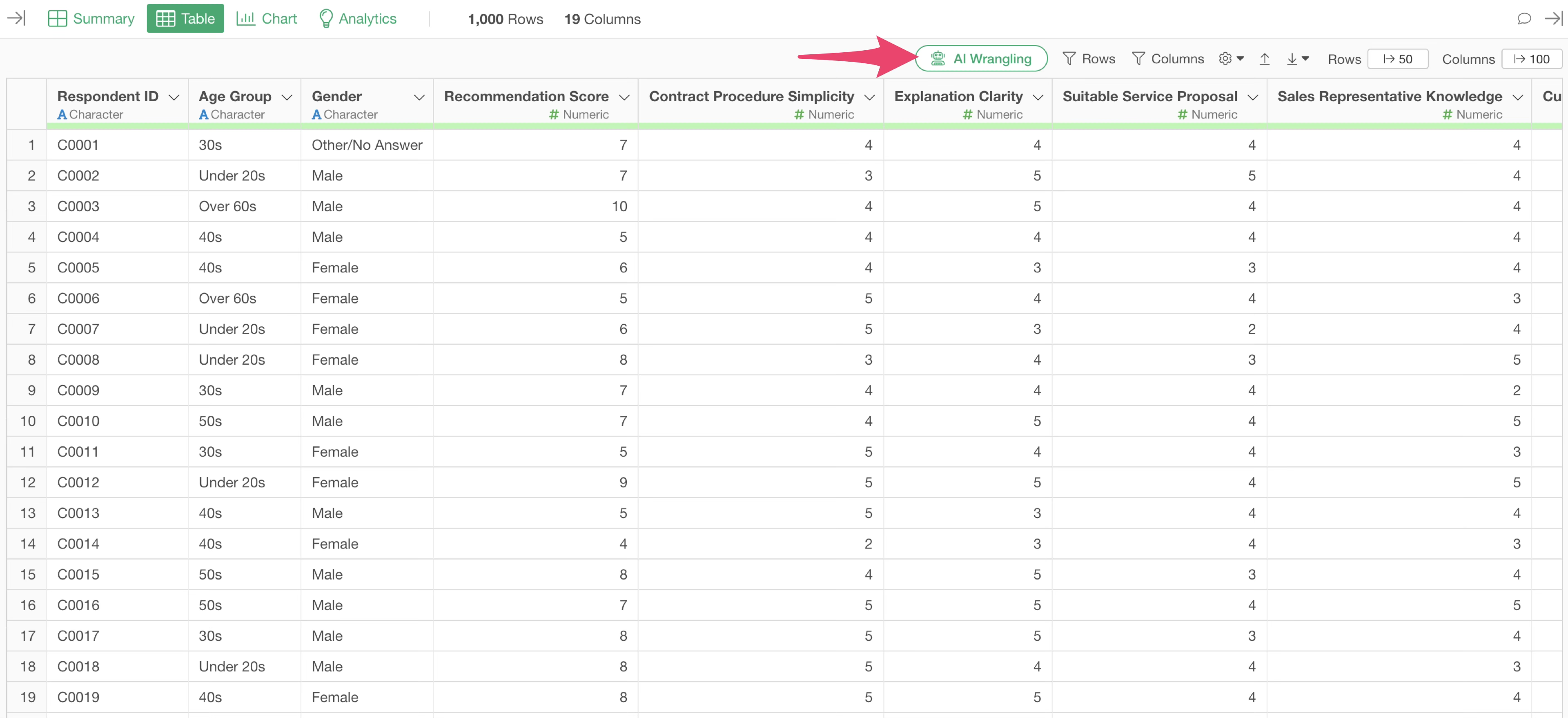
When the AI Prompt dialog opens, enter text like the following and execute it:
Create data for an Action Driver Chart
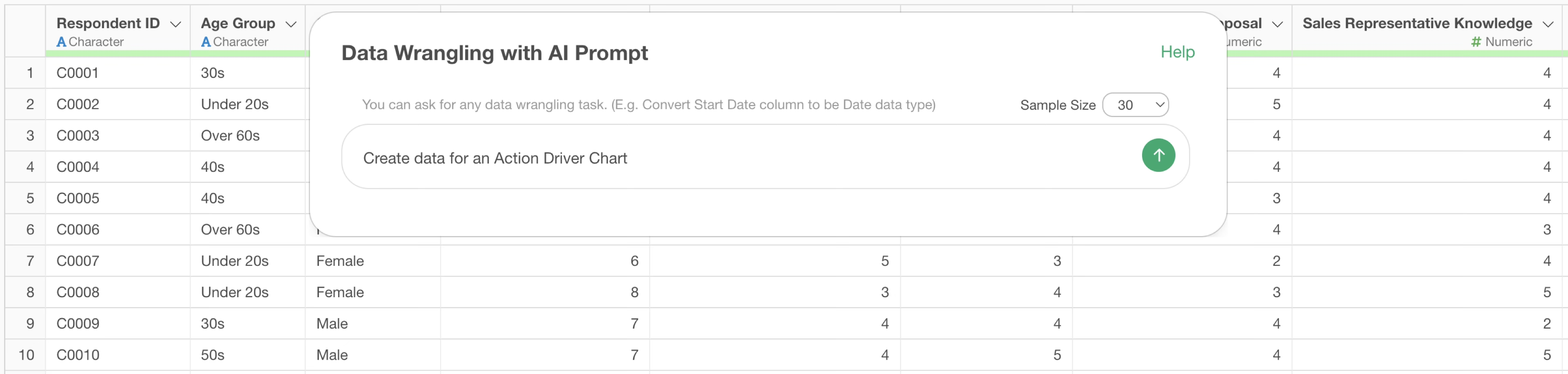
The code to create the Action Driver Chart will then be generated.
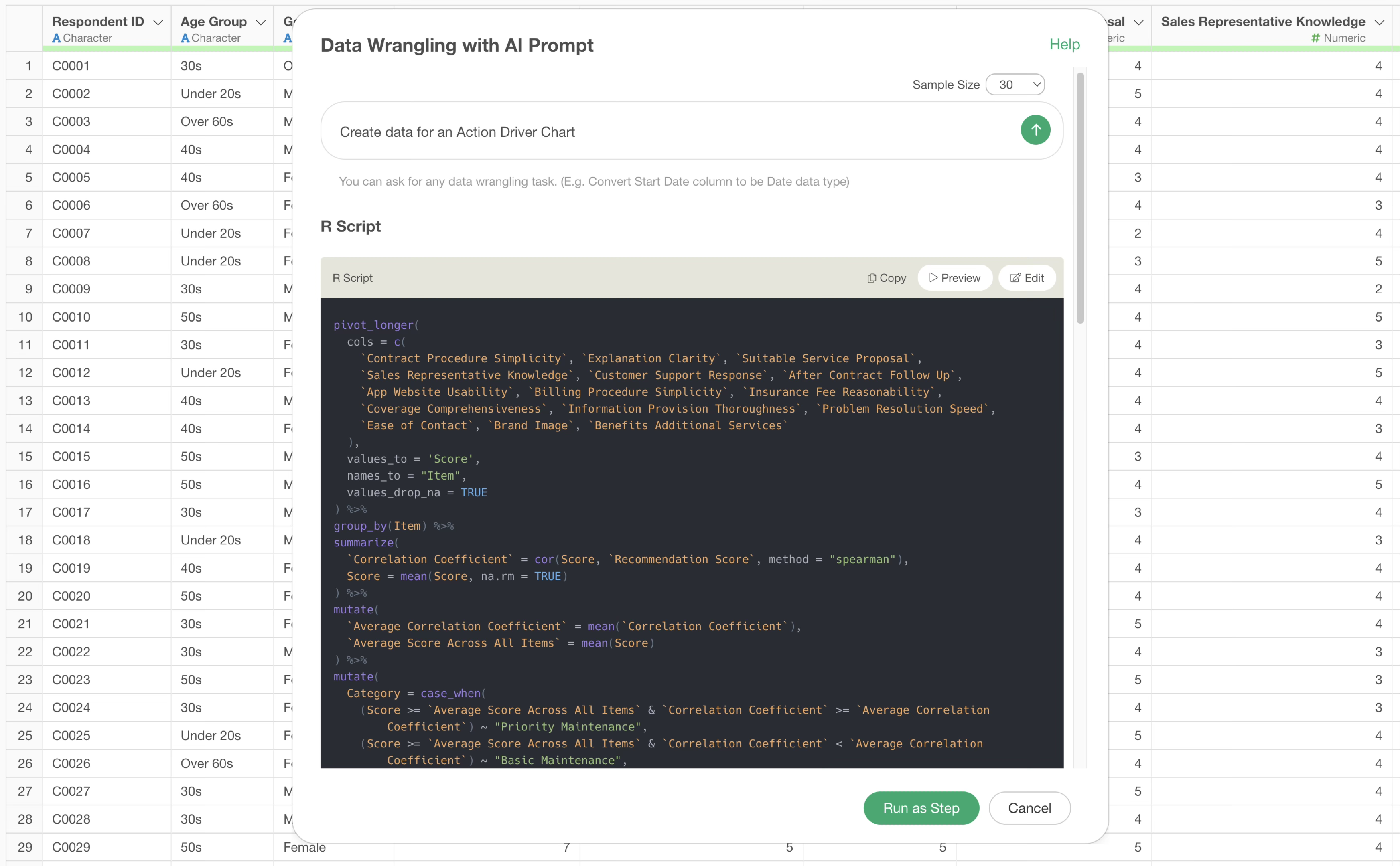
Review the explanation of the functions used and the expected results, then click the “Run as Step” button.
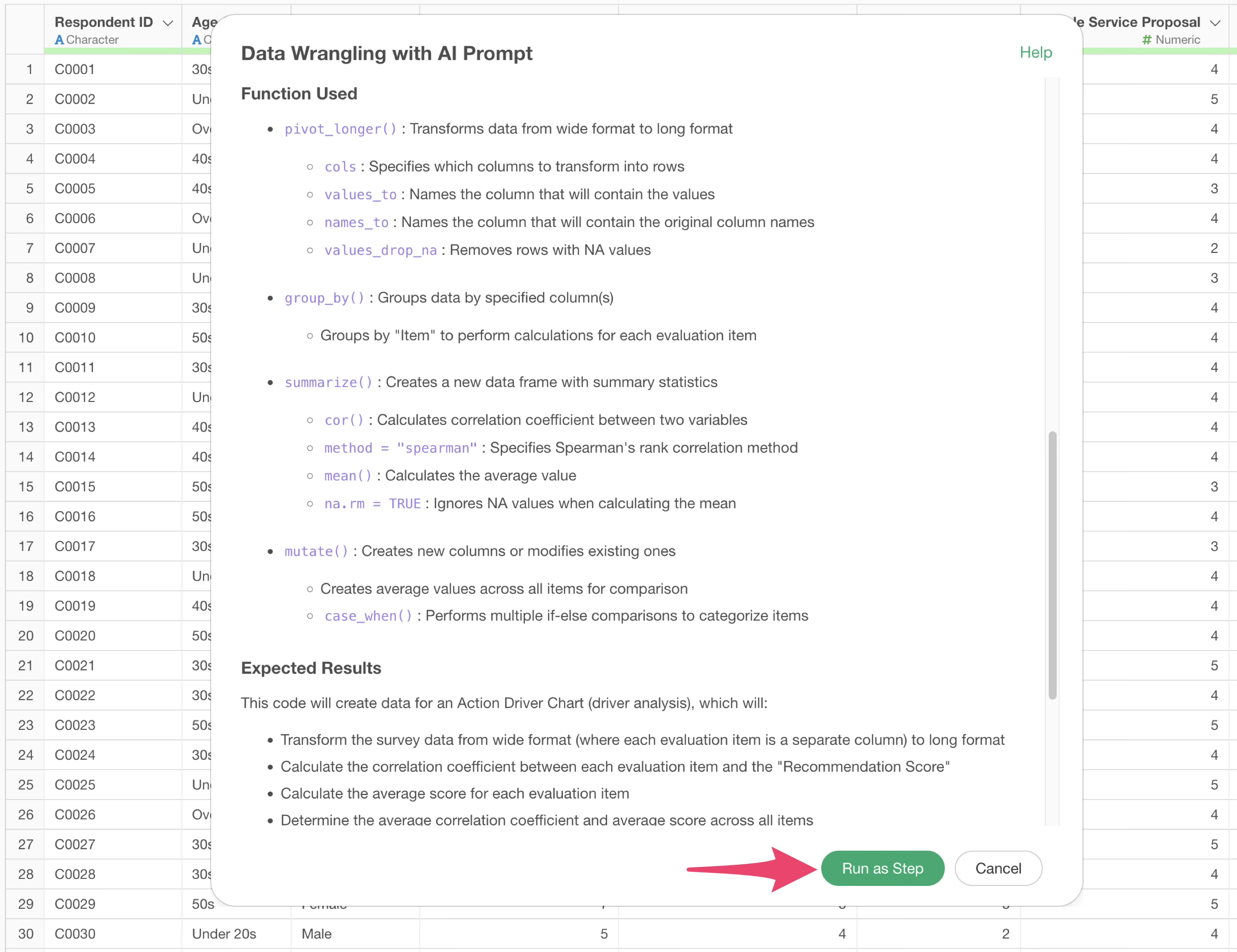
The step is added, and the data for the Action Driver Chart is created.
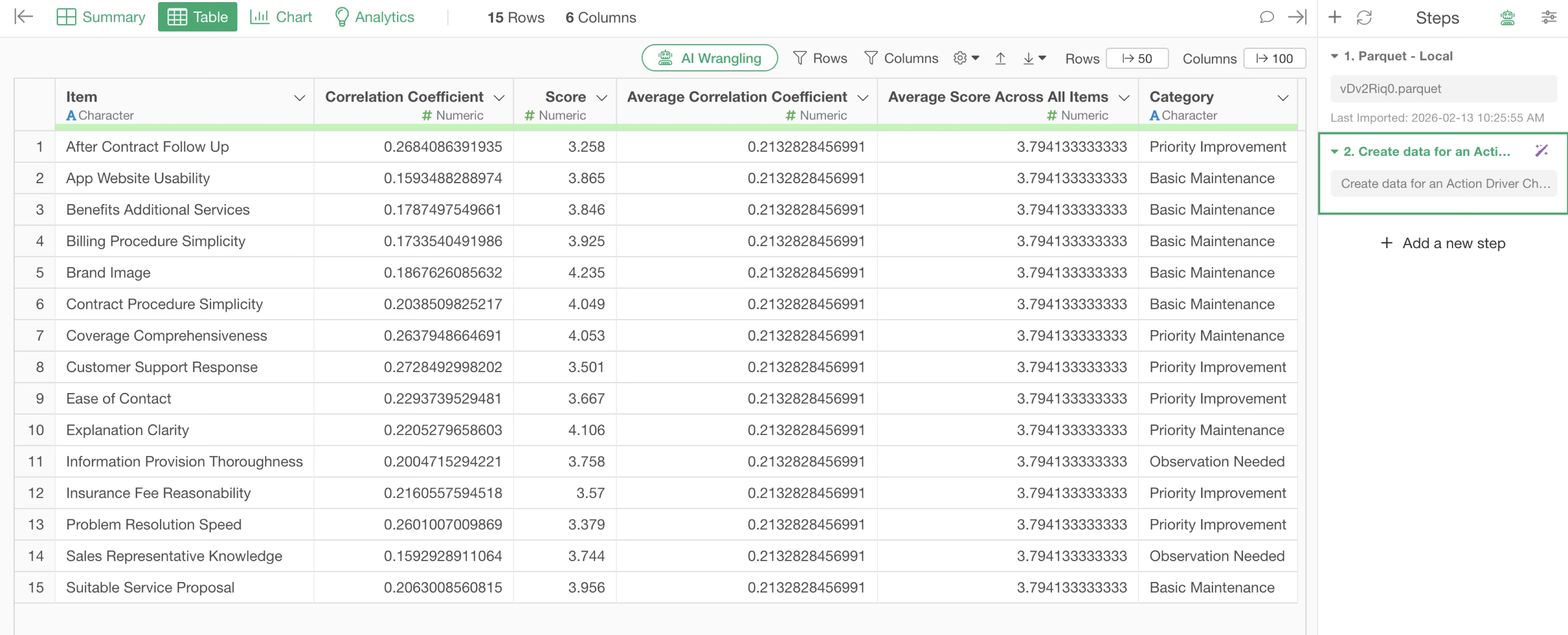
The created data includes the name of the evaluation item, the (average) score, the correlation coefficient with the target metric (NPS), and the category information (Priority Improvement, etc.) mentioned earlier.
Next, move to the Chart view to create the Action Driver Chart.
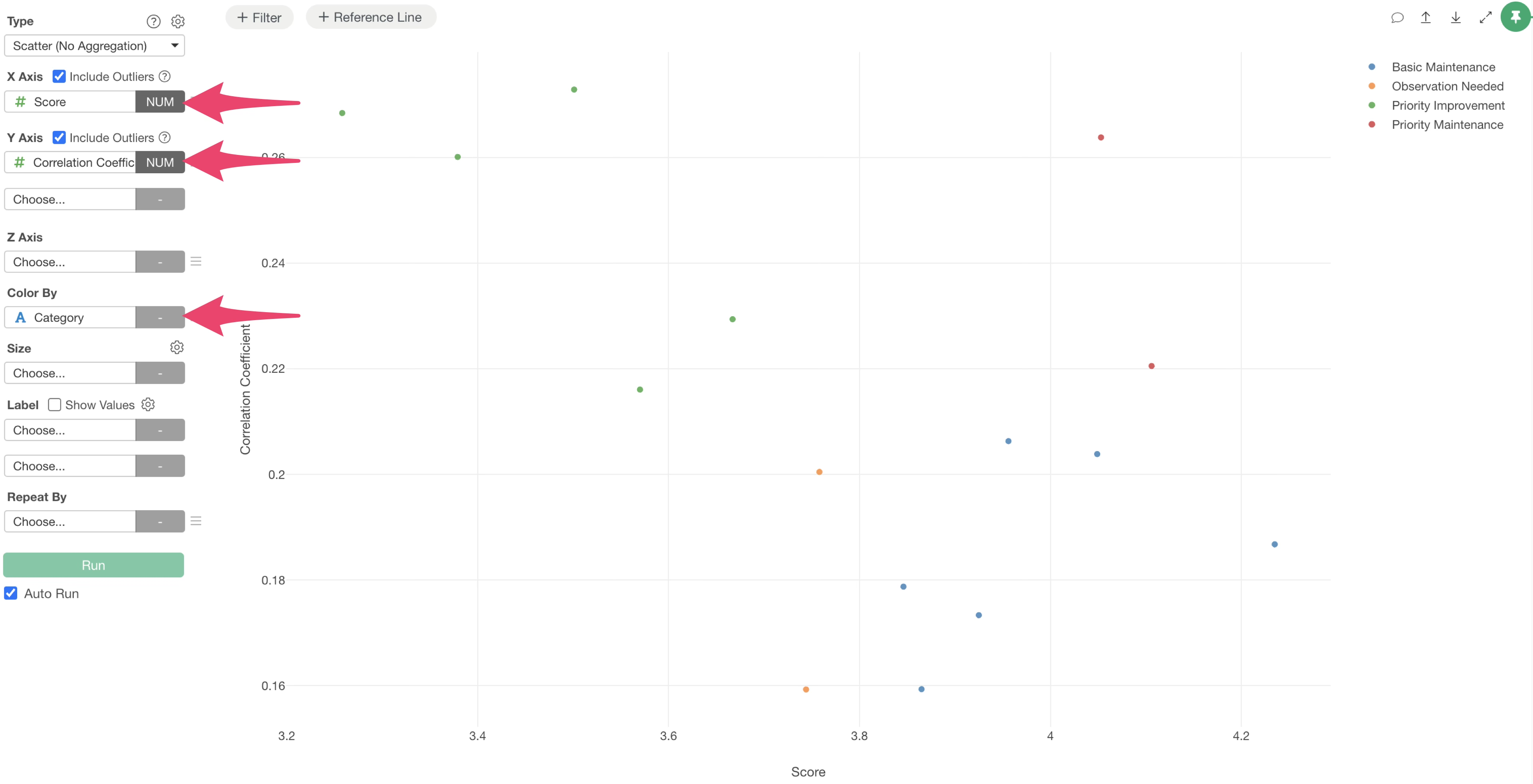
Select Scatter Plot (No Aggregation) as the type, set the X-axis to the “Score:, the Y-axis to the”Correlation Coefficient (with the target metric)“, and the Color to the”Category.”
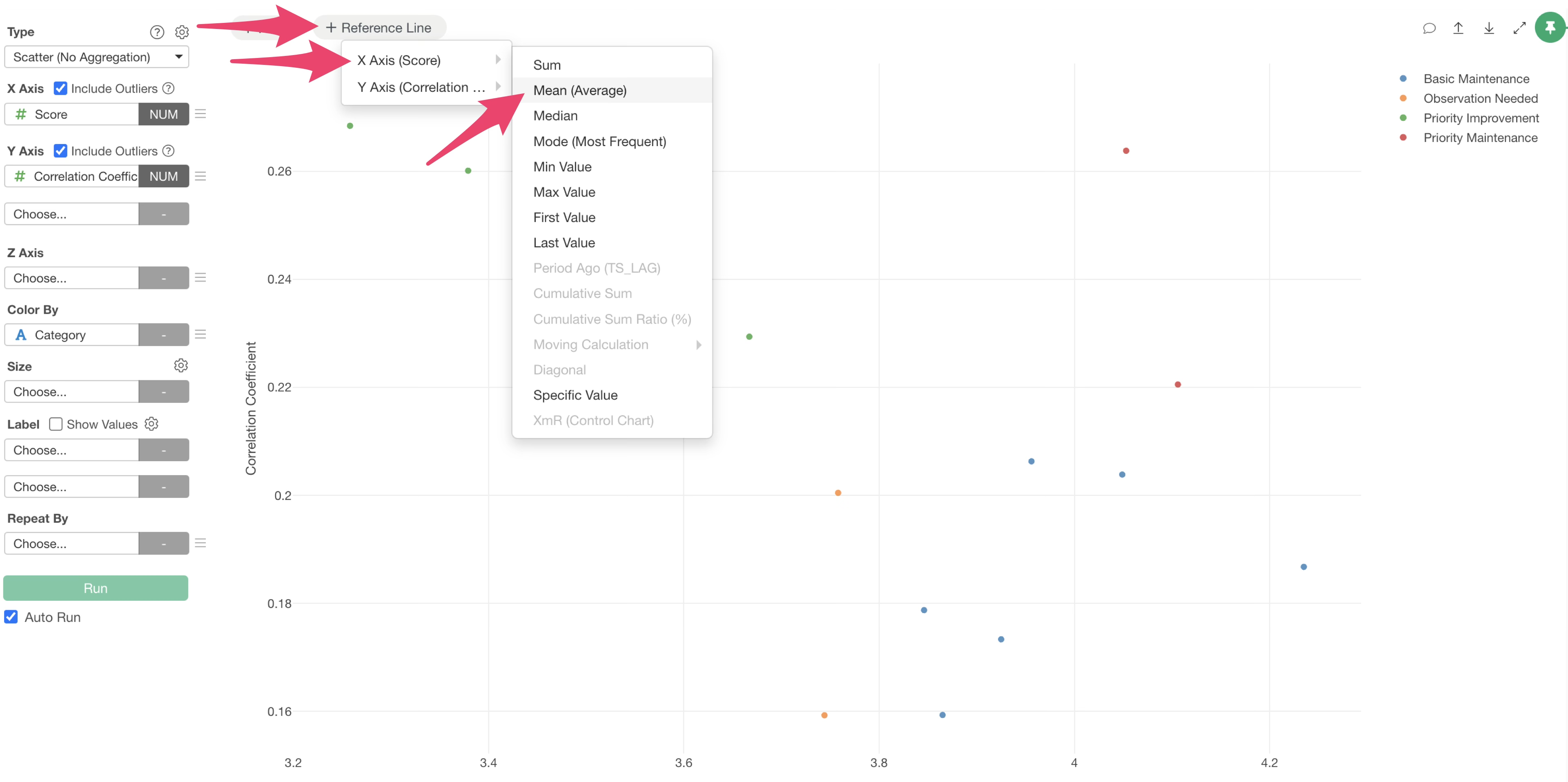
To display thresholds as reference lines for classification into the four categories, click the plus button for reference lines at the top of the chart and select the average value for the X-axis.
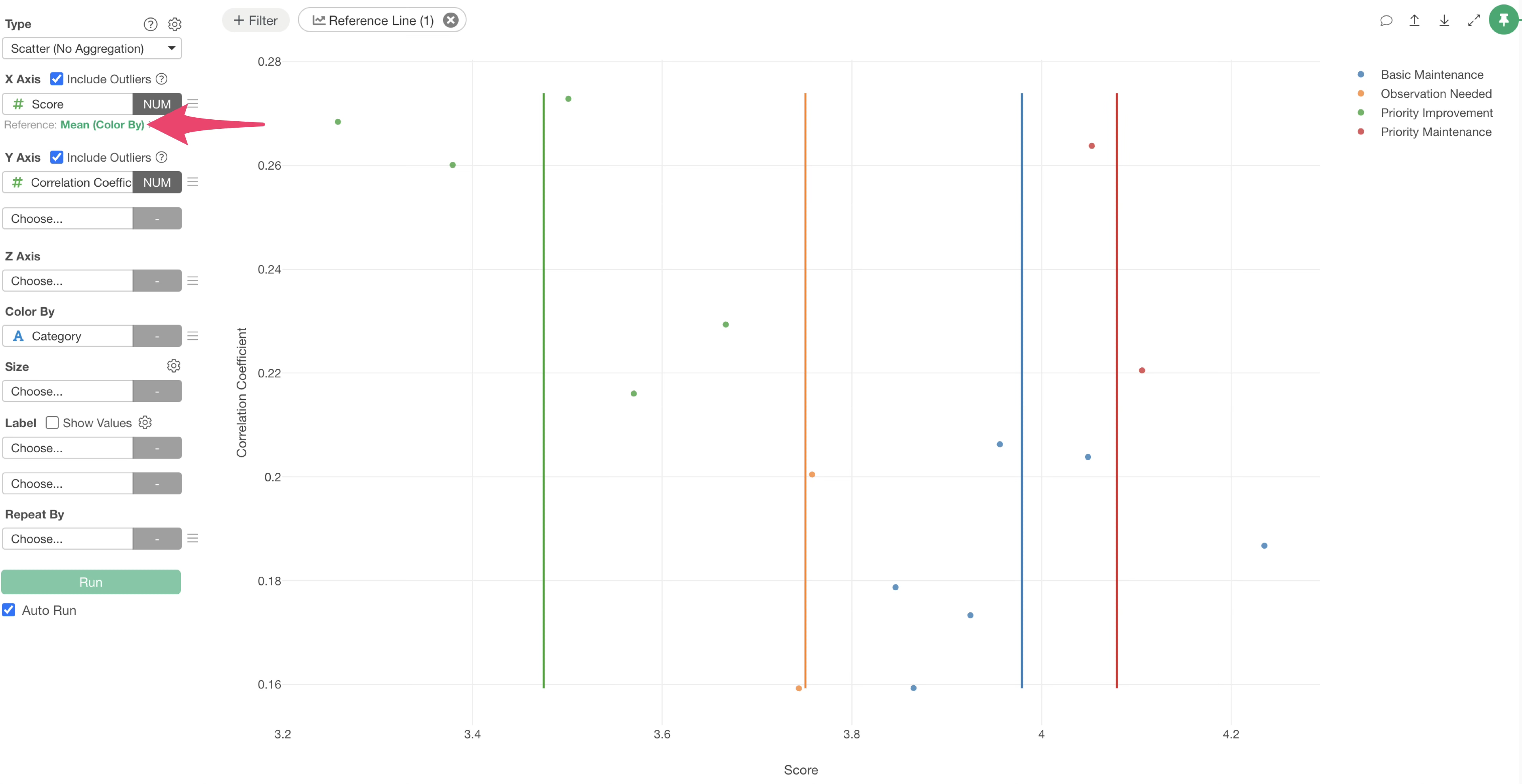
Next, click the green text of the reference line added to the X-axis.
 The reference line settings dialog will appear; change the grouping
setting to “All” and apply.
The reference line settings dialog will appear; change the grouping
setting to “All” and apply.
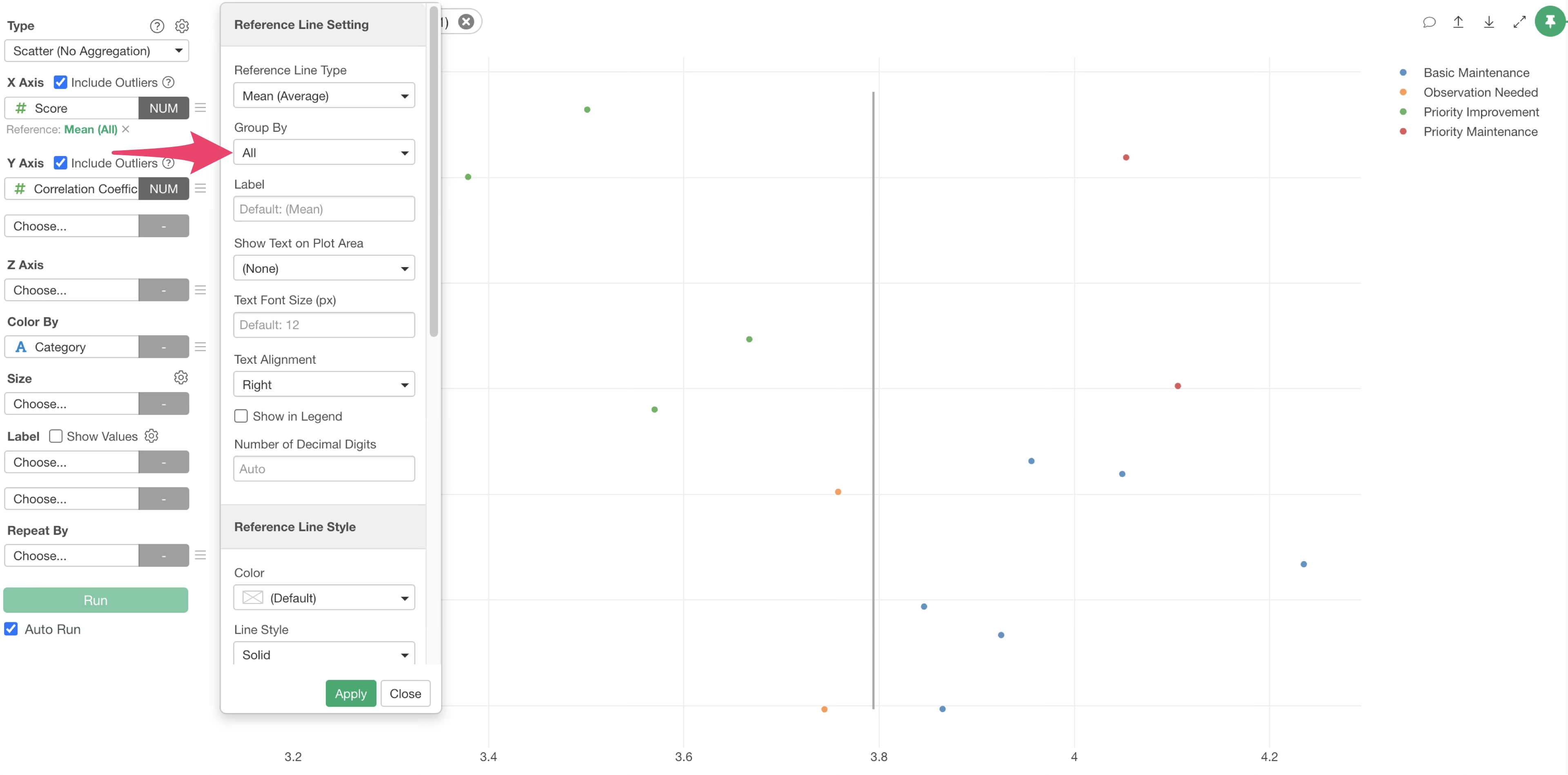
Similarly, click the reference line button to add a reference line for the correlation coefficient.
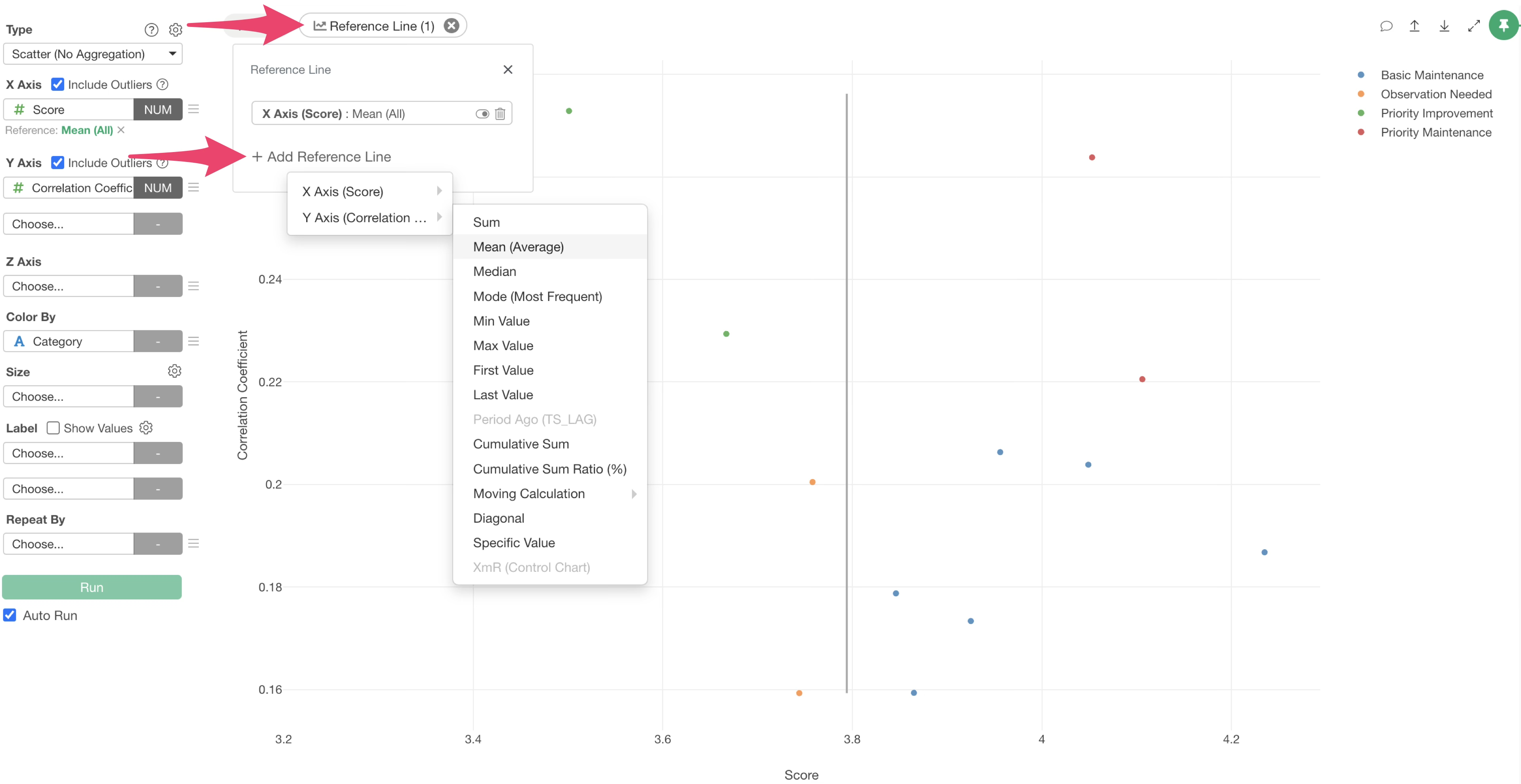
This time, select the average value for the Y-axis.
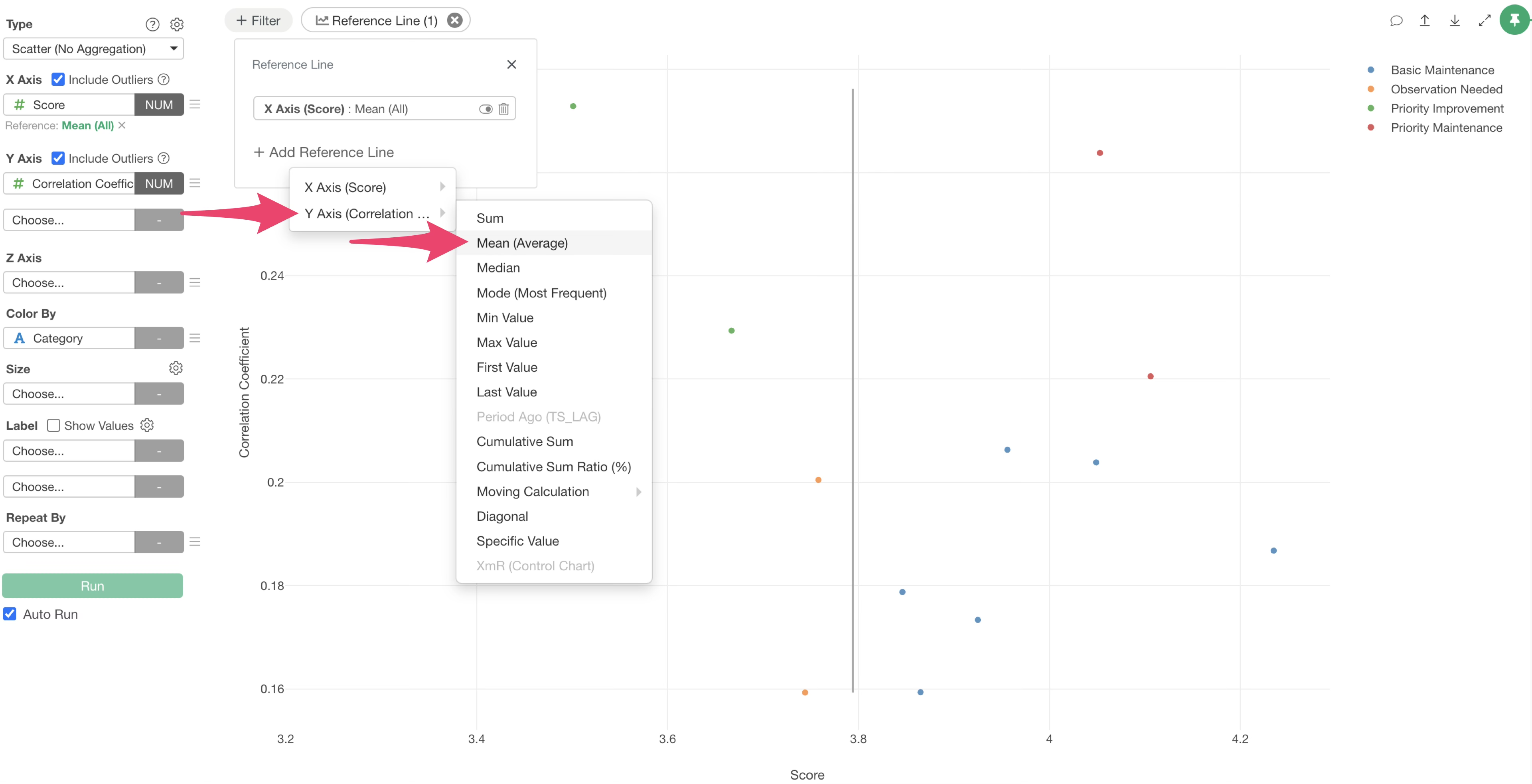
Next, click the green text of the Y-axis reference line as you did before.
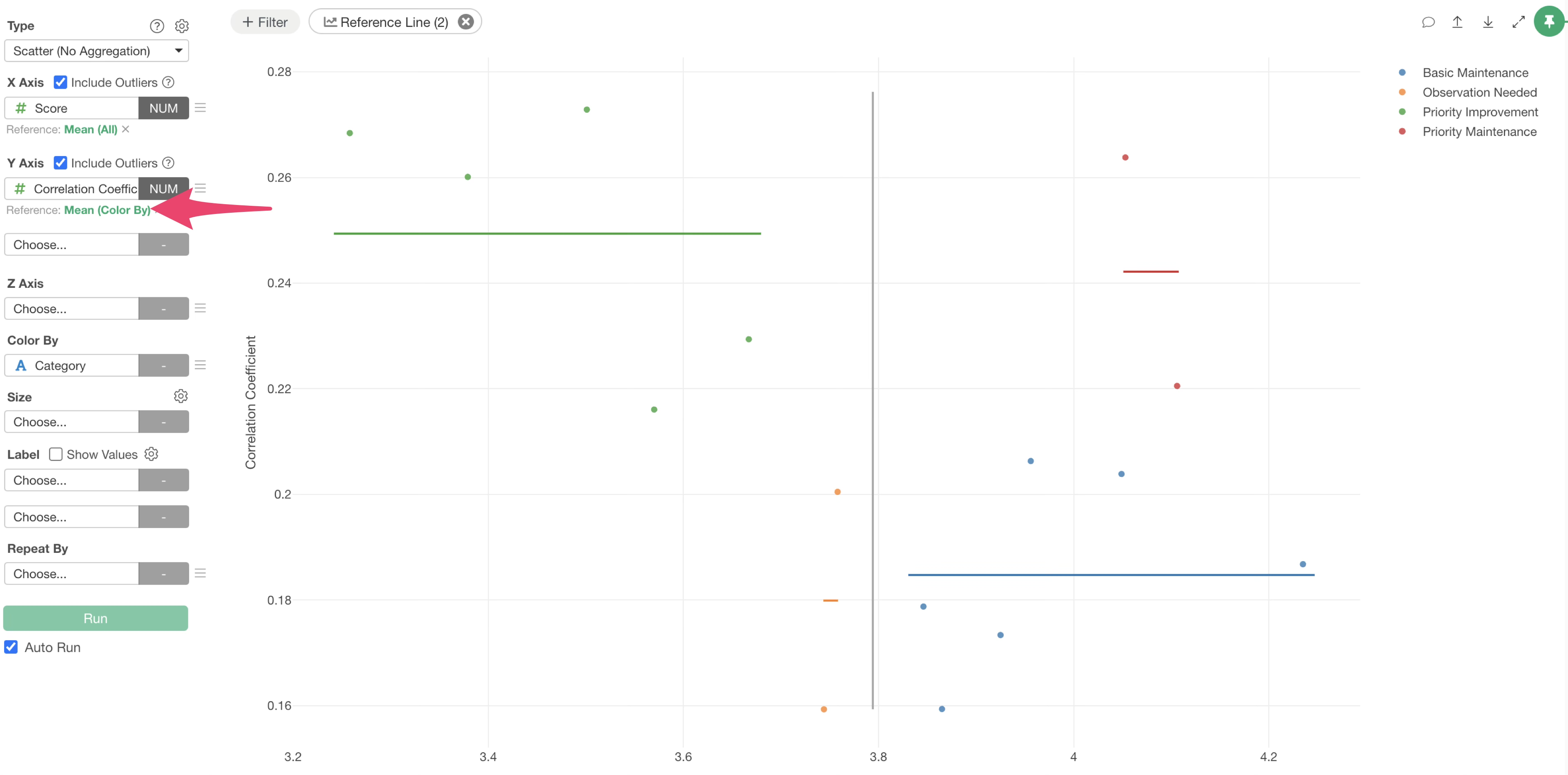
Change the grouping setting to “All” and apply.
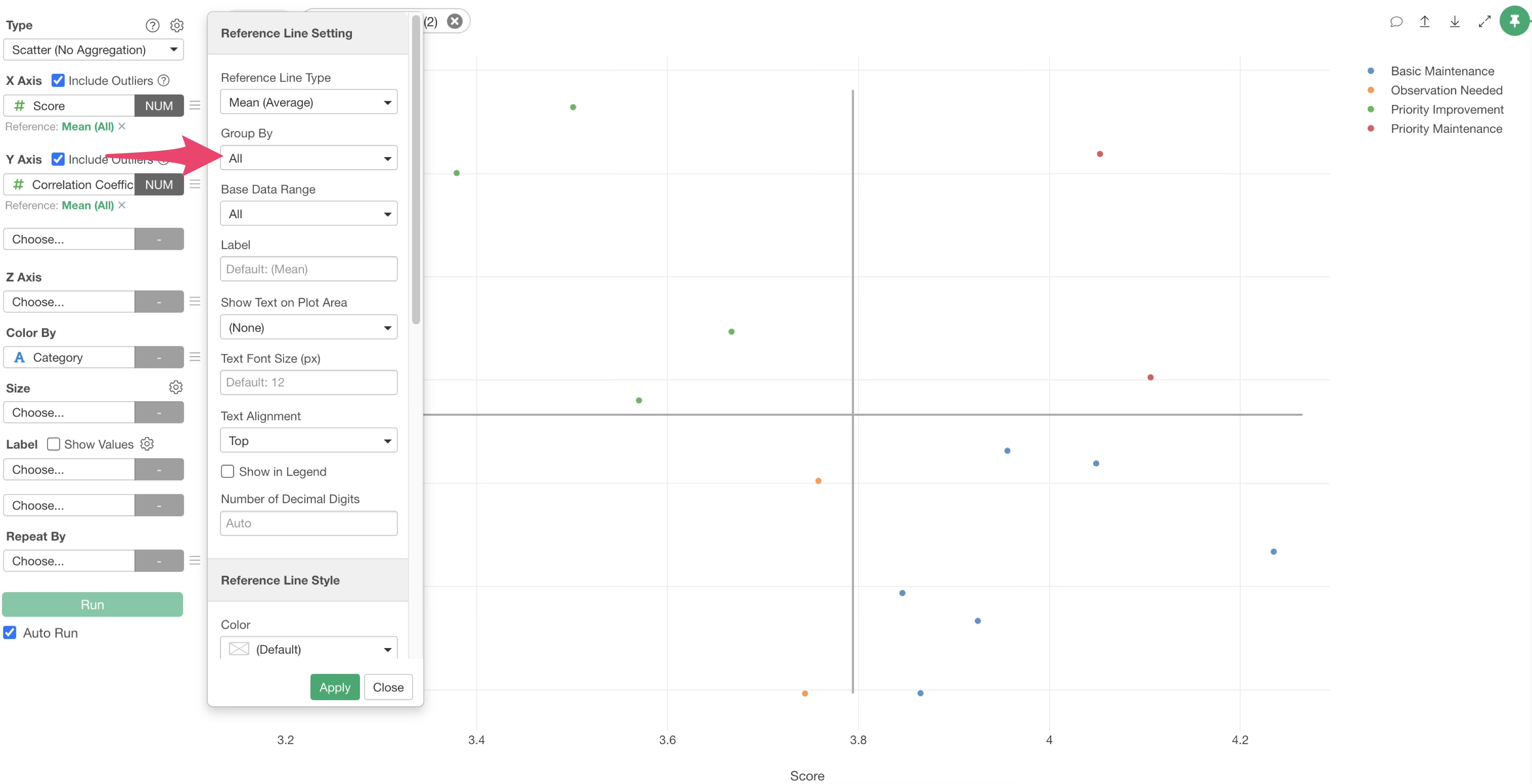
The reference lines to divide the evaluation items into four groups have now been drawn.
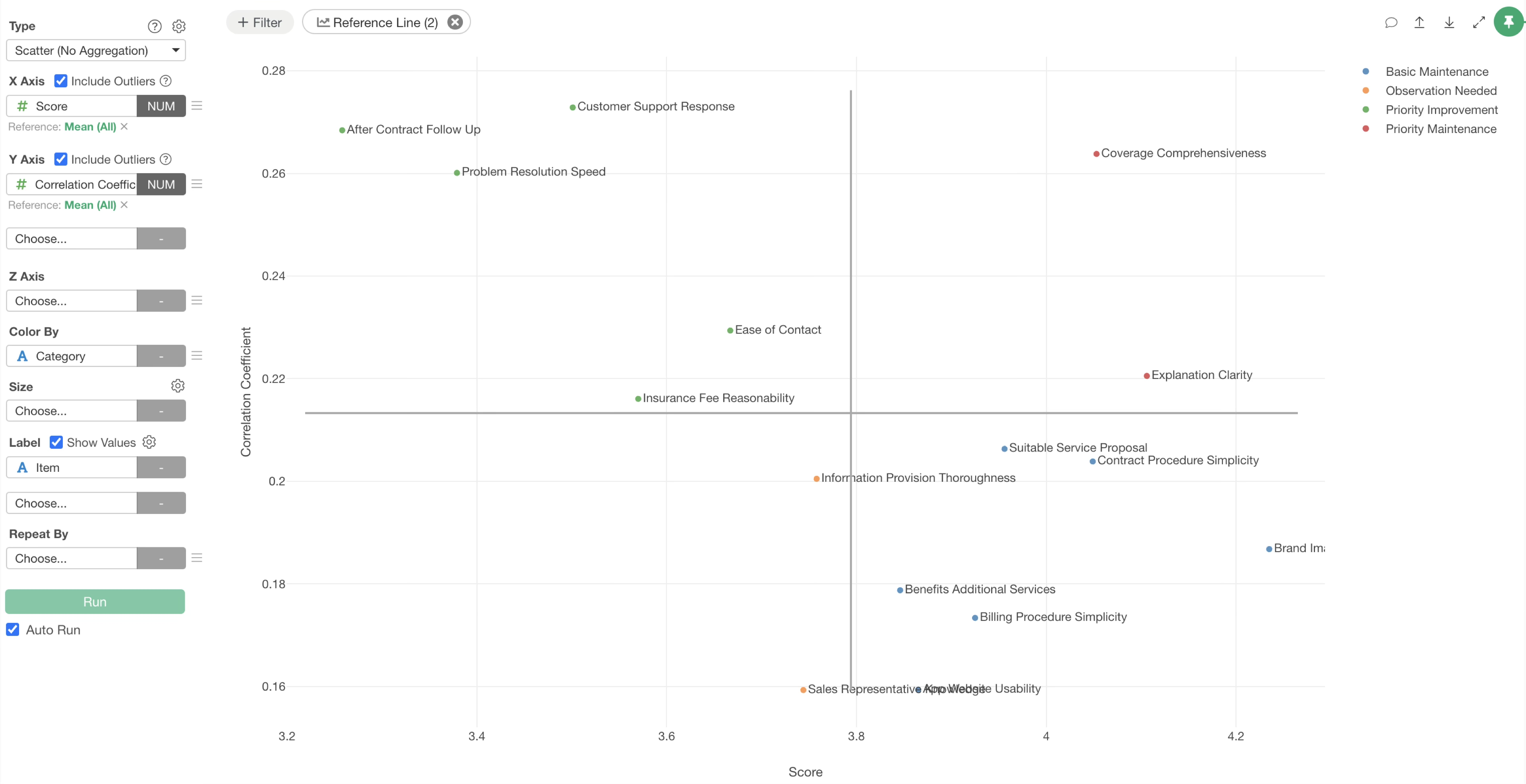
By checking each quadrant, you can see that items are classified into their respective categories based on the thresholds.
Finally, select “Item” for the label and check “Show Values.”
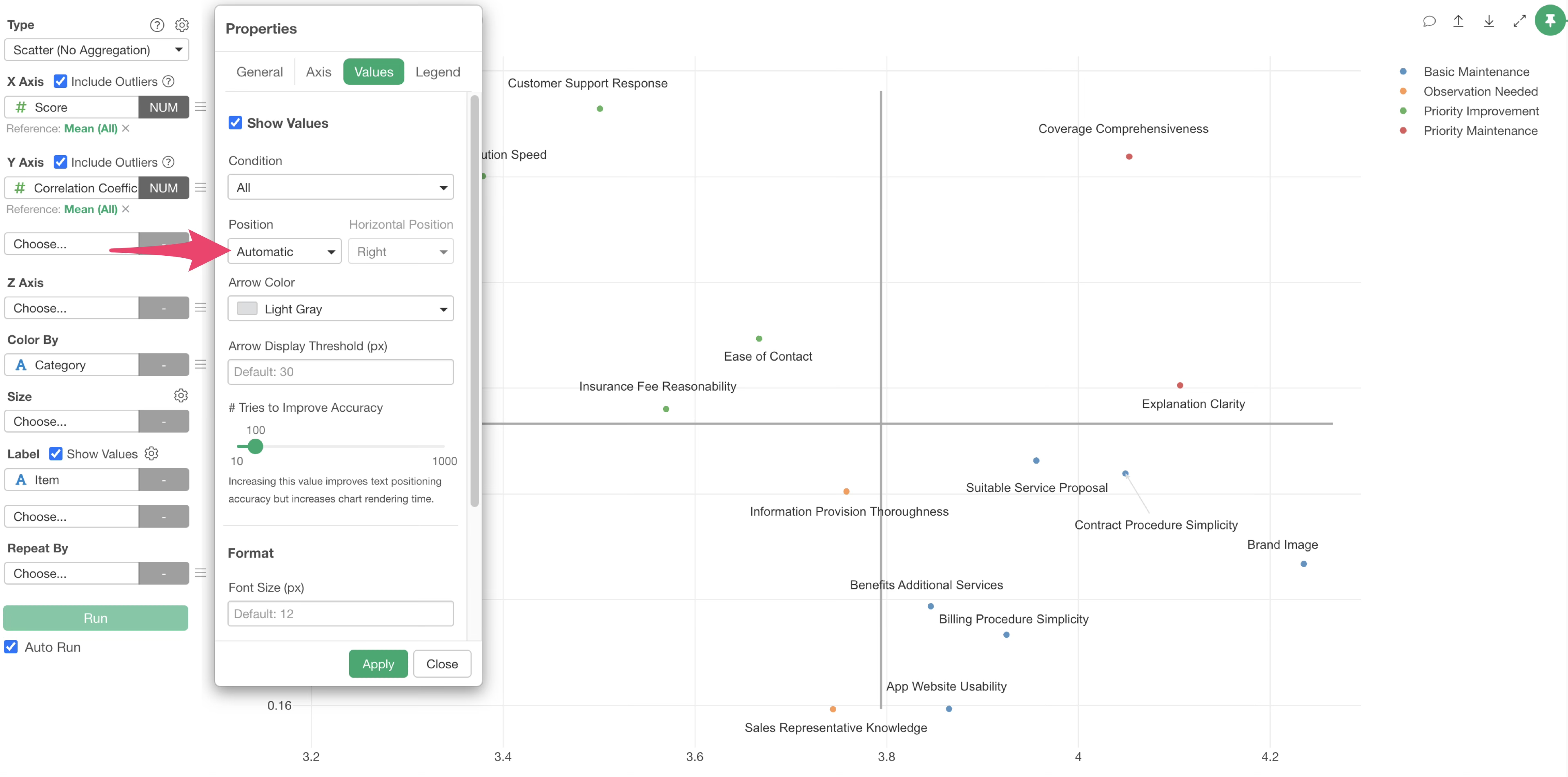
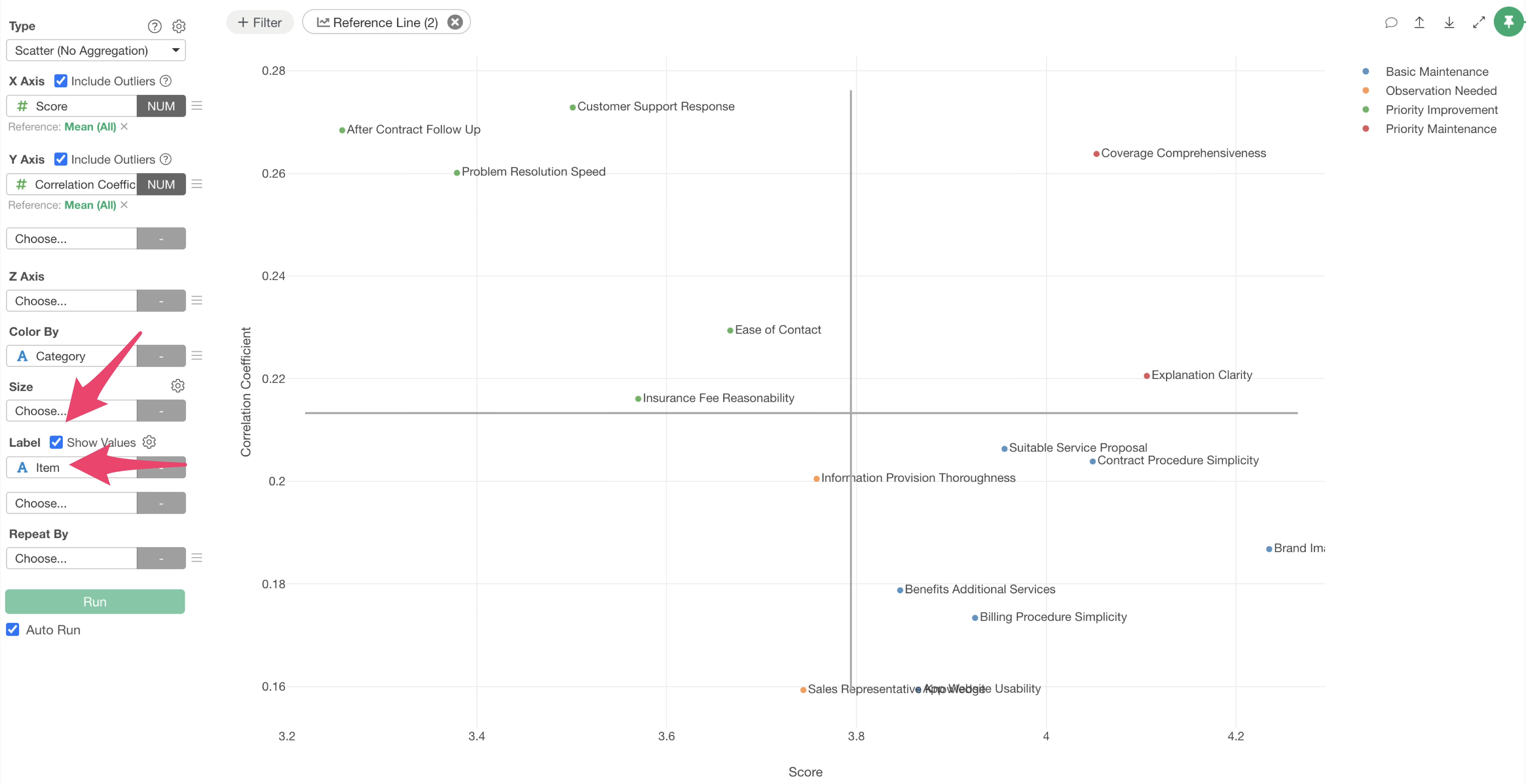 If
you are concerned about overlapping labels, click the chart settings
icon and go to the “Values” tab.
If
you are concerned about overlapping labels, click the chart settings
icon and go to the “Values” tab.
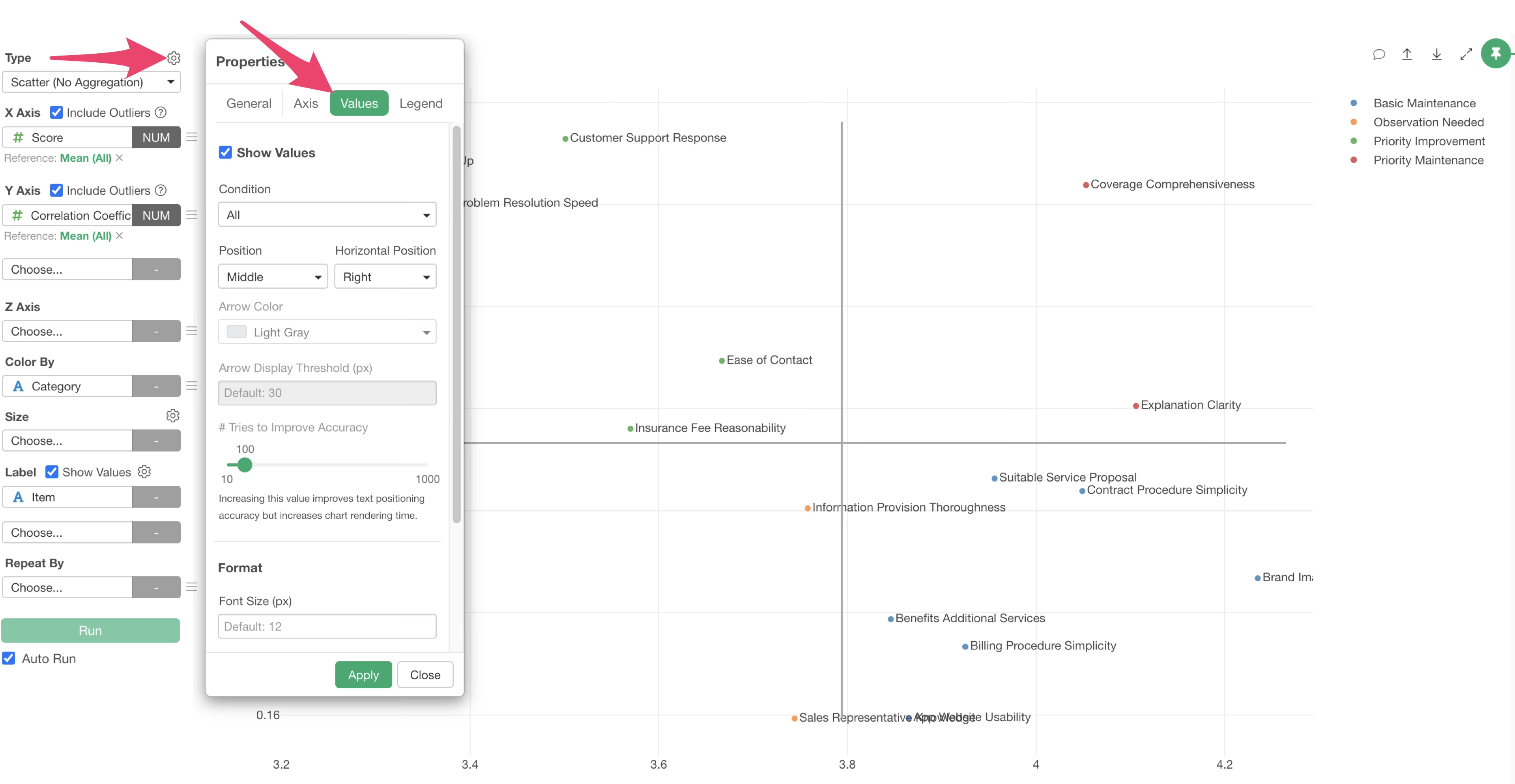
By changing the position within the “Show Value” menu to “Auto” and applying it, you can adjust the display of each value.
The Action Driver Chart is now visualized.
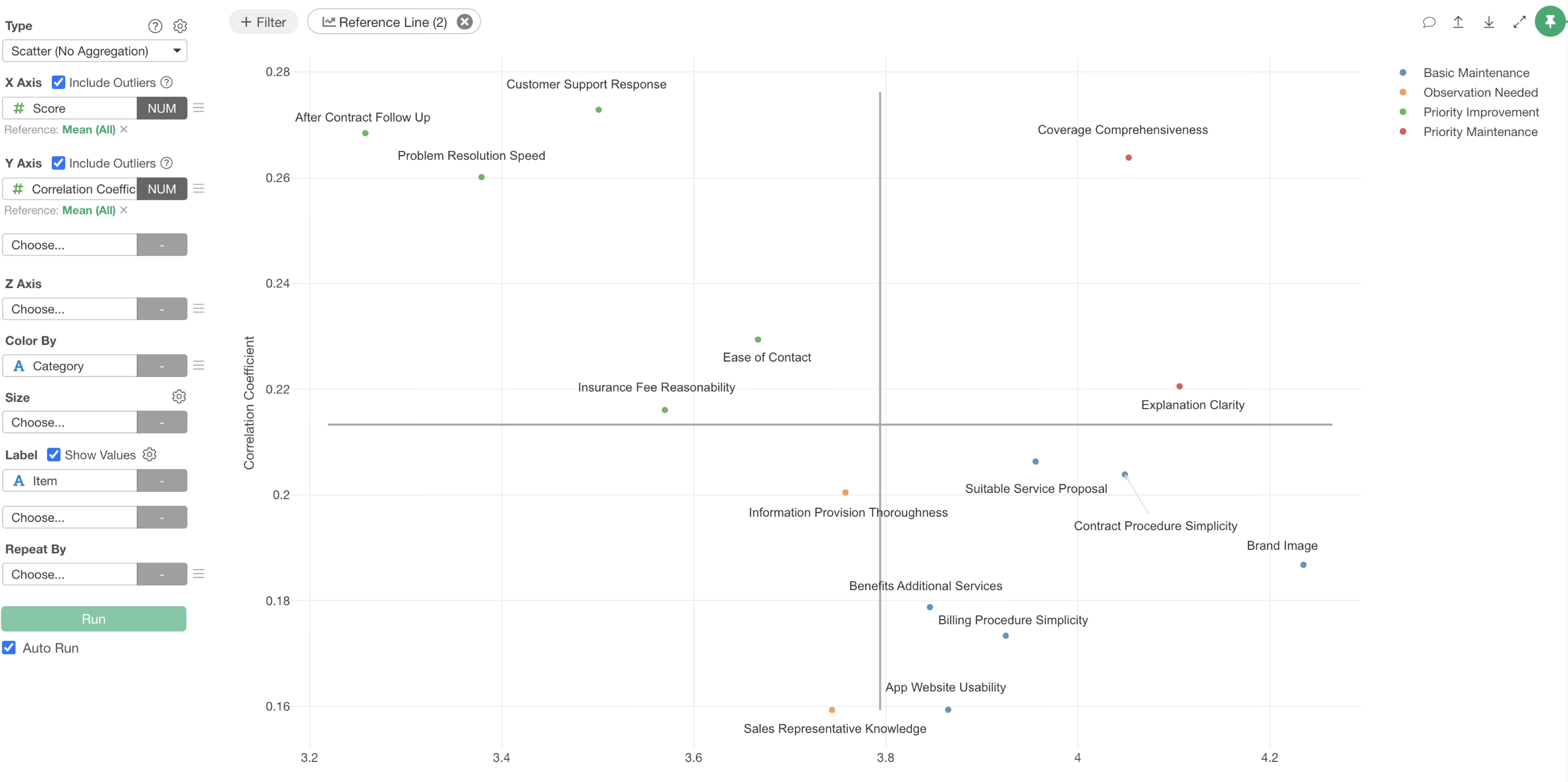
From this chart, you can understand at a glance which evaluation items should be prioritized for improvement and which items are currently functioning well.
For example, items in the “Maintain” area in the top right are important to keep at their current level because they have high scores and strong correlations.
Items in the “Prioritize Improvement” area in the top left are the highest priority for improvement efforts because they have strong correlations but low scores.