How to Import Data from Google BigQuery
To import data from Google BigQuery into Exploratory Desktop, you need to have a “project” and “dataset” created on Google Cloud Platform.
If you haven’t created a “project” and “dataset” on Google BigQuery yet, please complete those steps first.
Connecting with OAuth Authentication
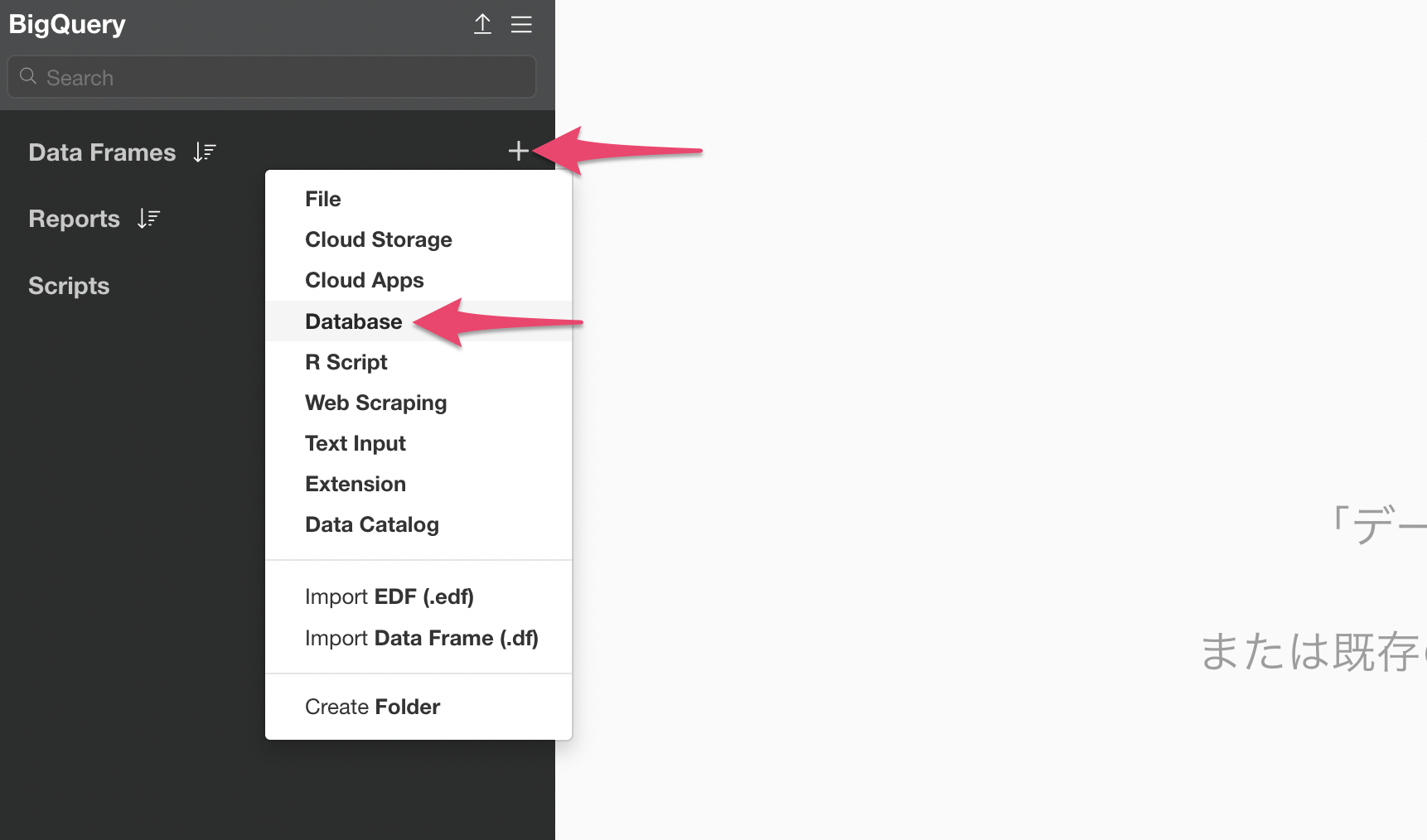
Click the + (plus) button next to the data frame and select “Database”.
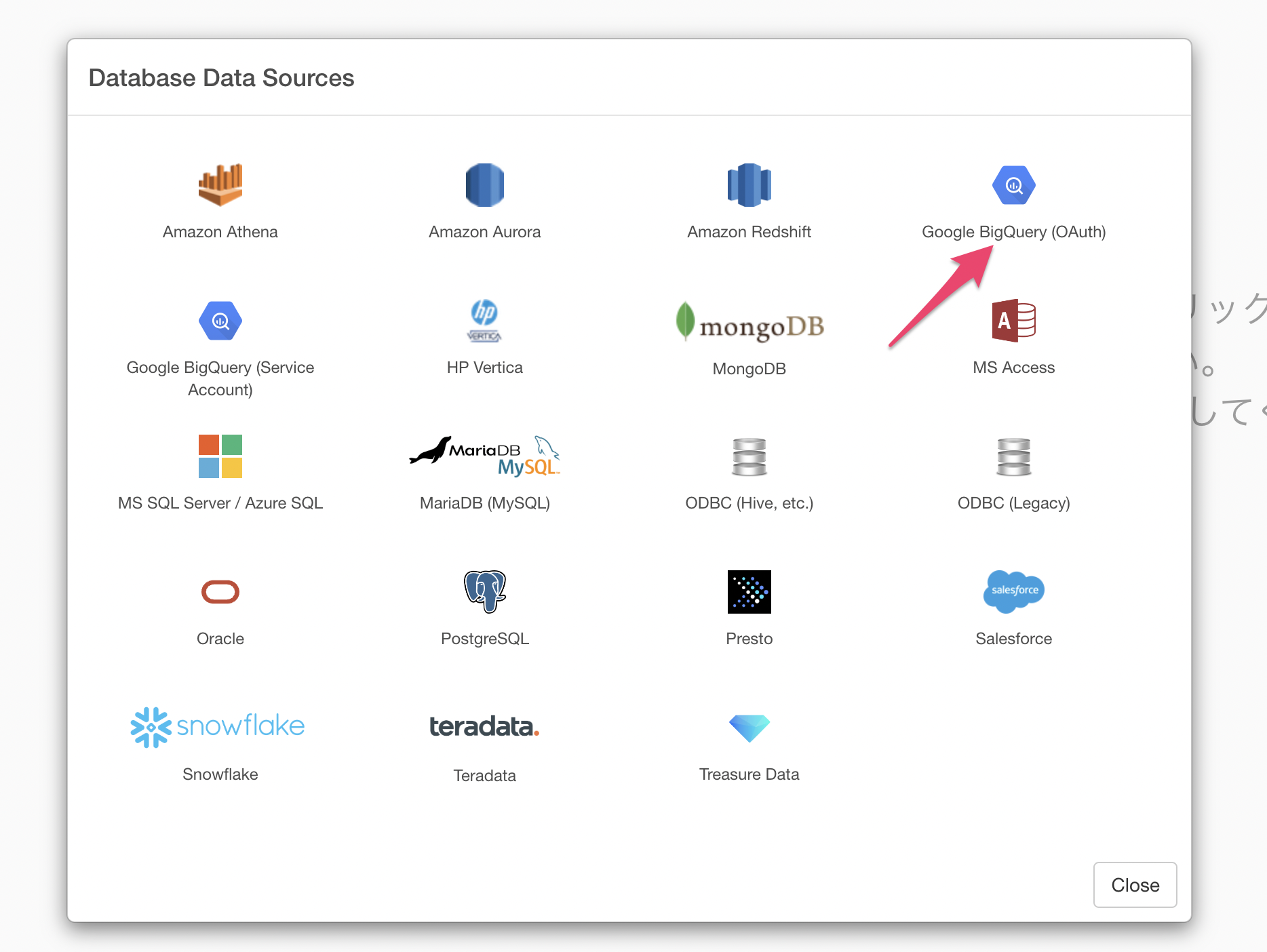
If you want to connect using OAuth authentication, select “Google BigQuery (OAuth).”
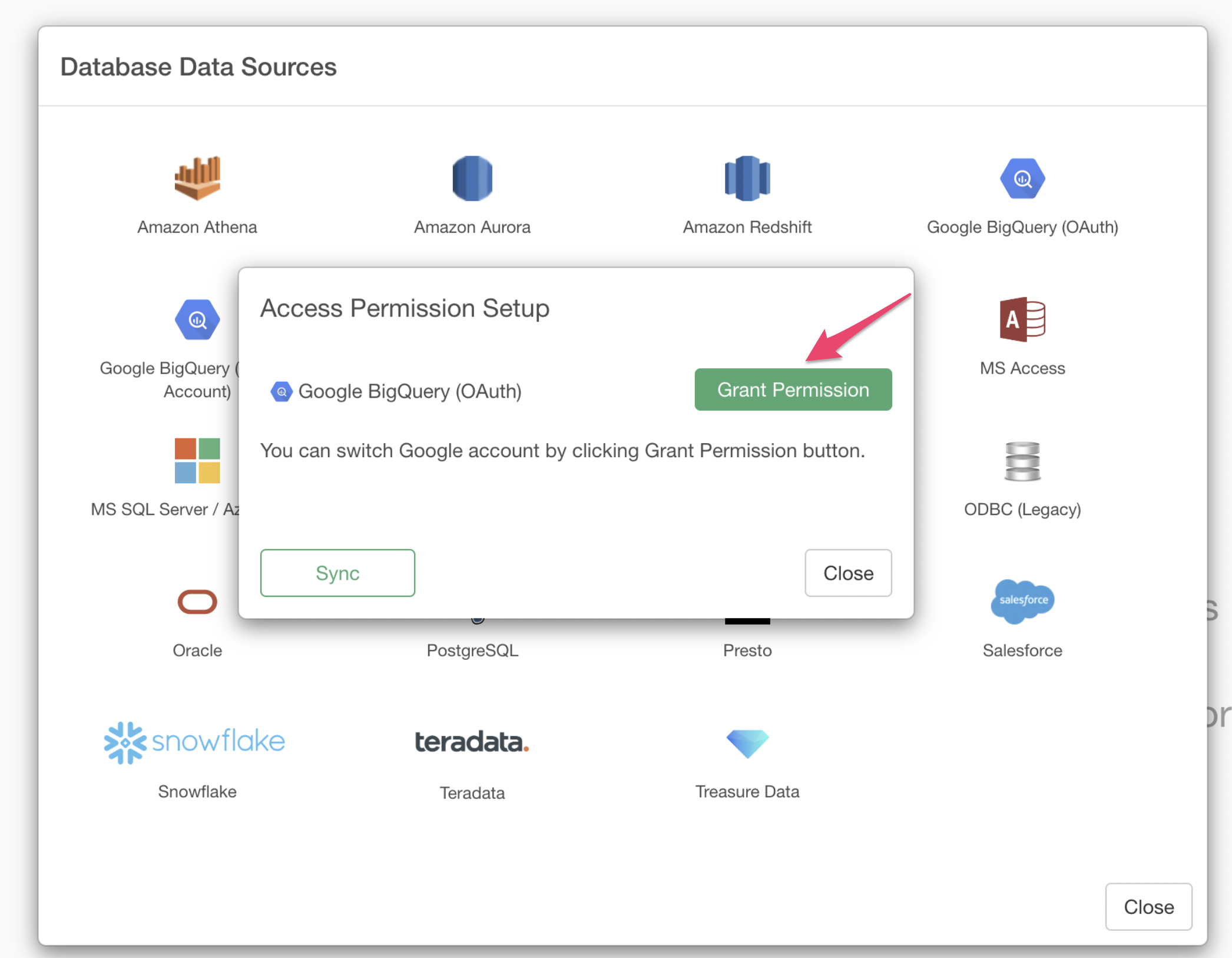
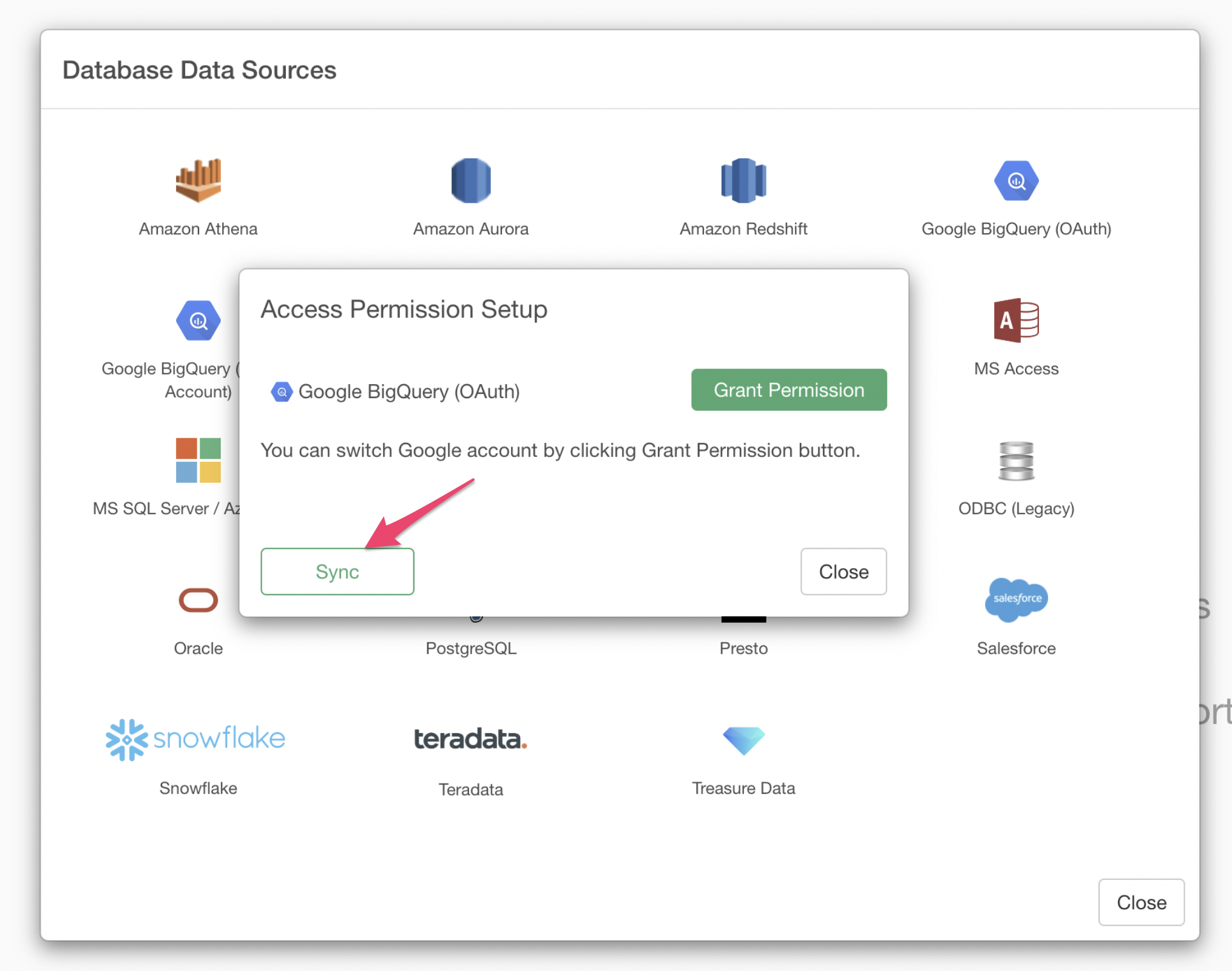
When the access permission settings dialog appears, select “Grant Permission.”
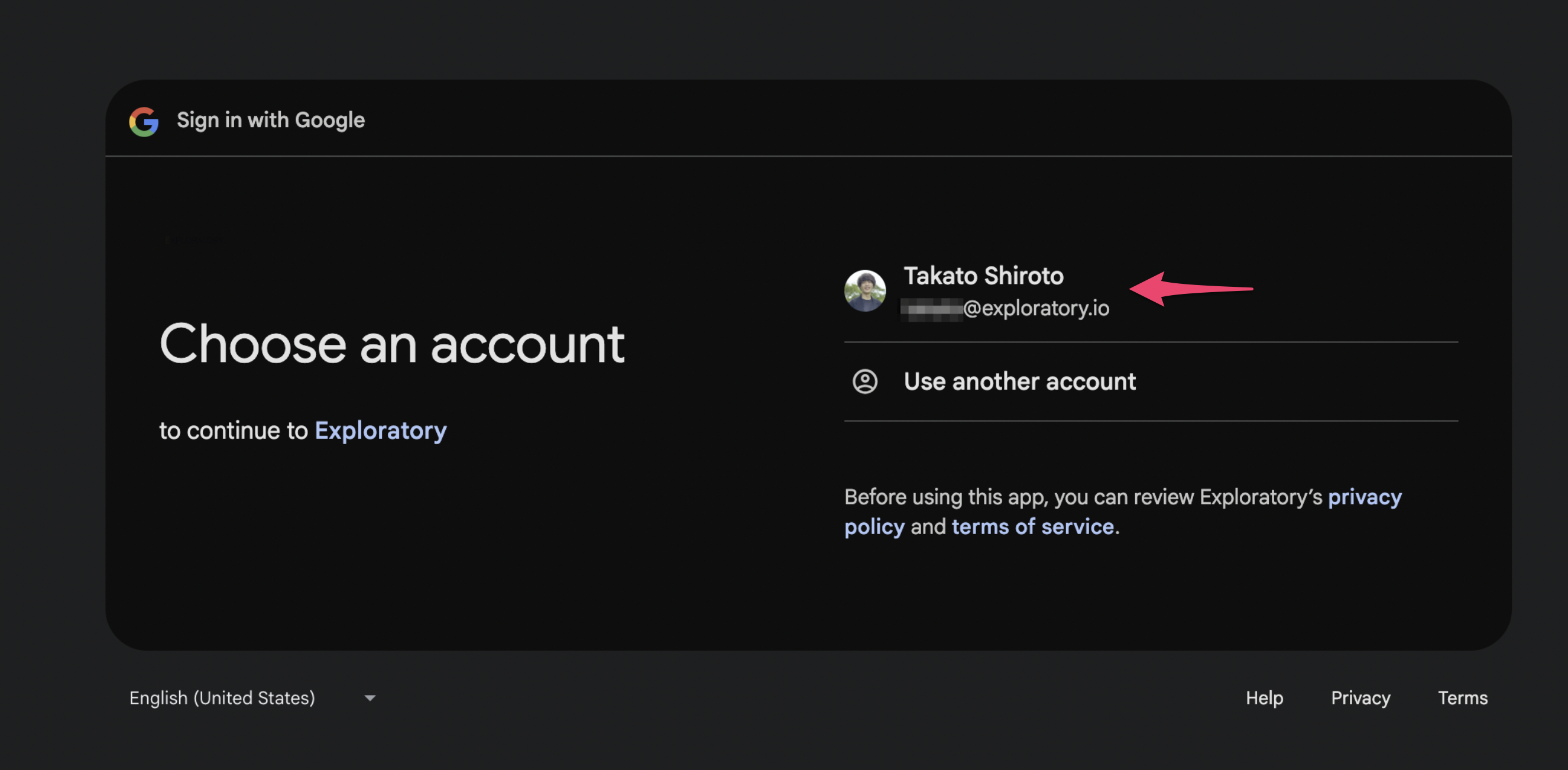
Your browser will launch, and an account selection screen will appear. Select the account you use for Google BigQuery.
When the dialog “Exploratory is requesting access to your Google account” appears, click “Allow.”
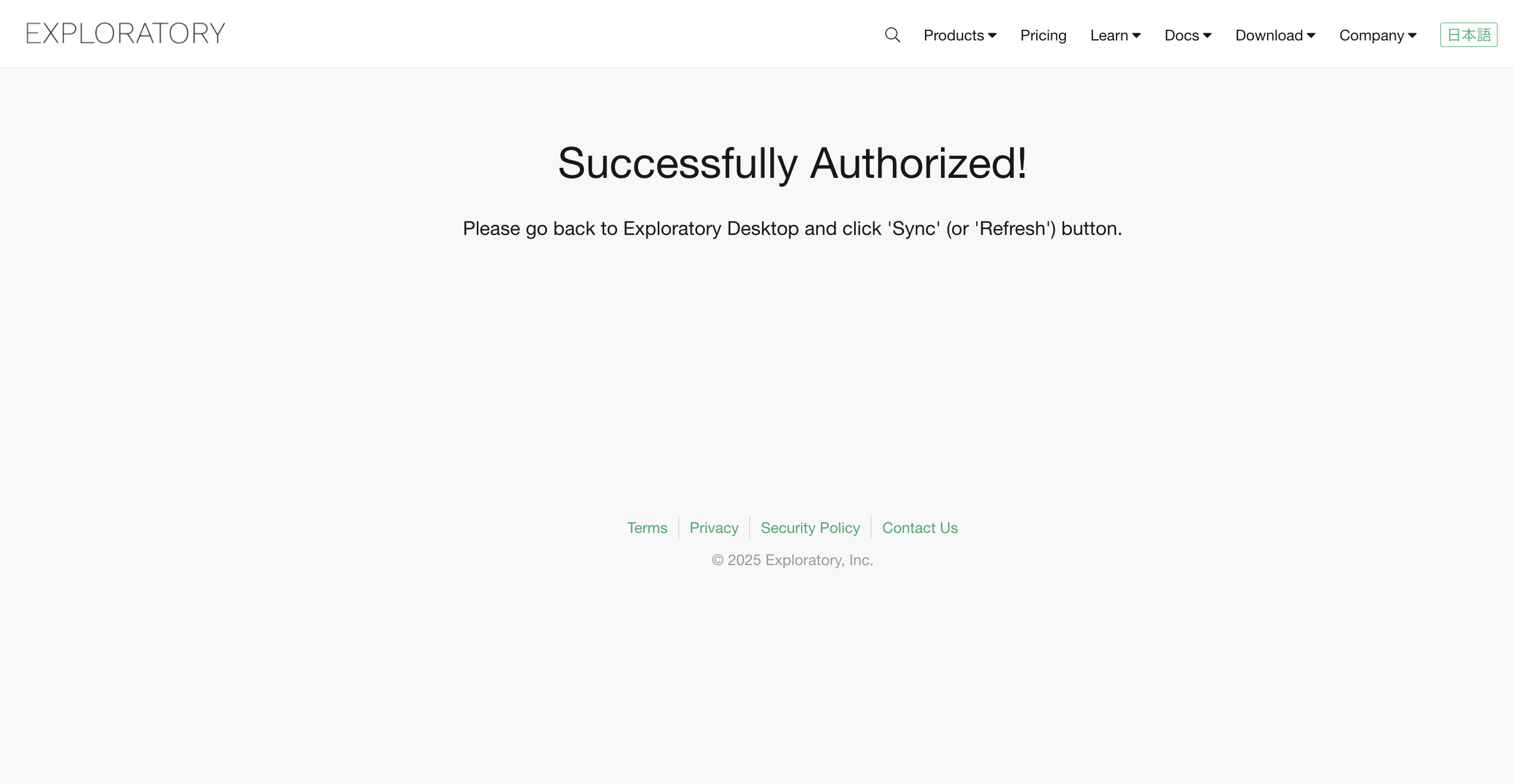
When the “Permission granted successfully!” screen appears, the access permission setup is complete.
Return to Exploratory Desktop and click the “Sync” button.
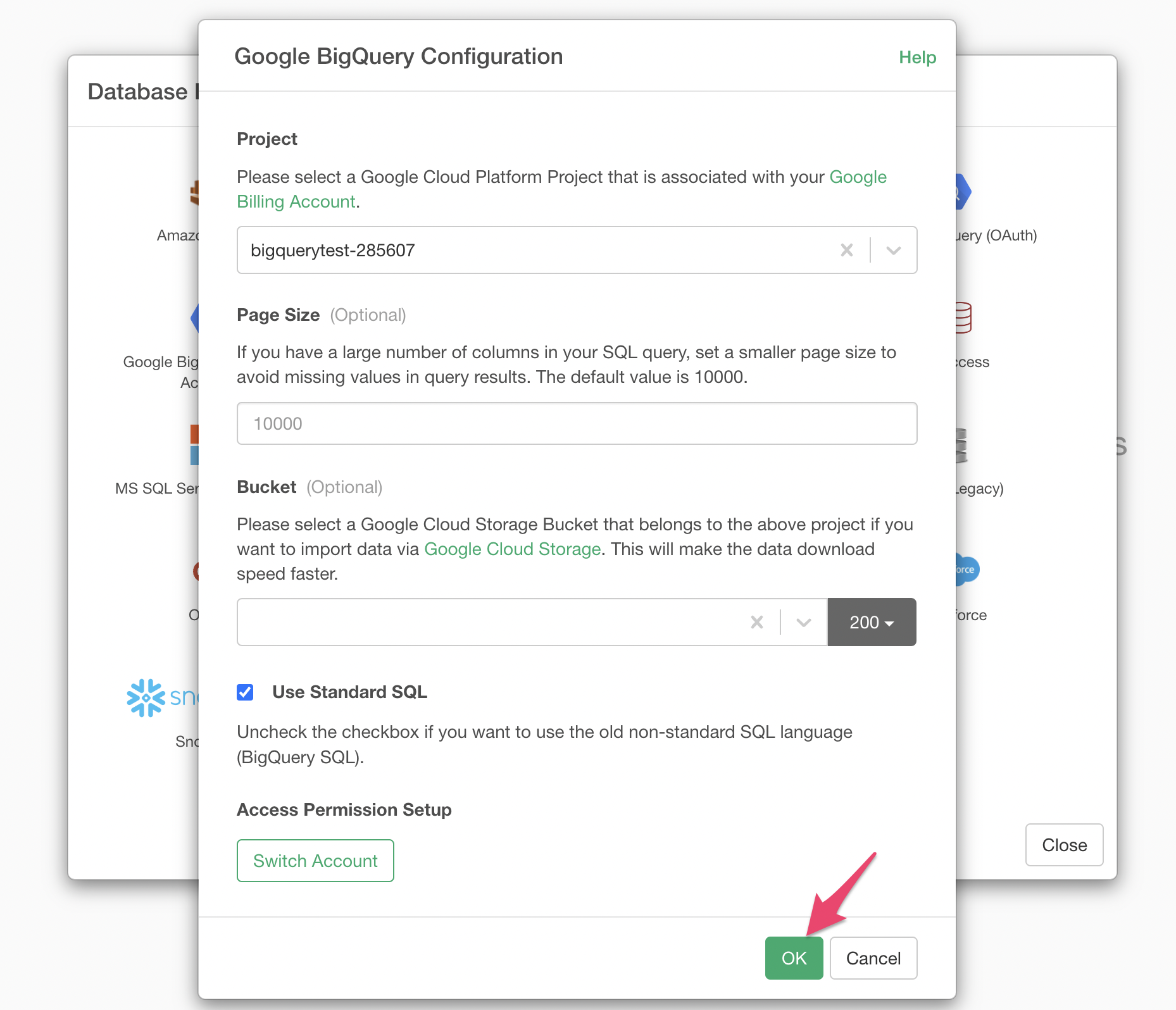
As you proceed with creating the connection, the Google BigQuery settings dialog will appear. Select your “Project” and click the “ok” button.
Connecting with a Service Account
Click the + (plus) button next to the data frame and select “Database Data.”(Since there was an issue resolved in newer versions, please update Exploratory Desktop to the latest version first if you are using a version prior to v14.5.)
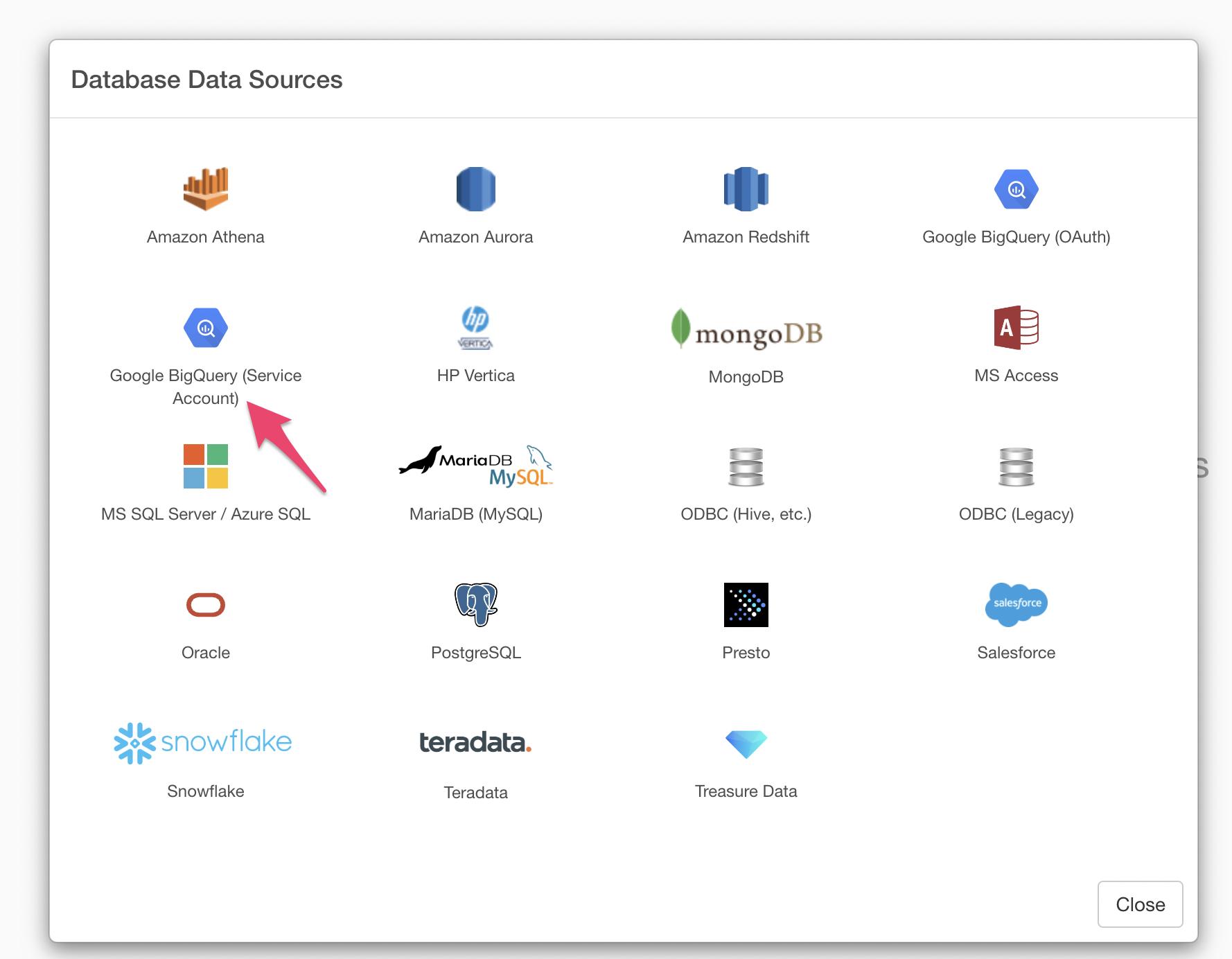
If you want to connect using a service account, select “Google BigQuery (Service Account).”
When the Add Connection dialog appears, enter a name of your choice for the connection and click on the service account file.
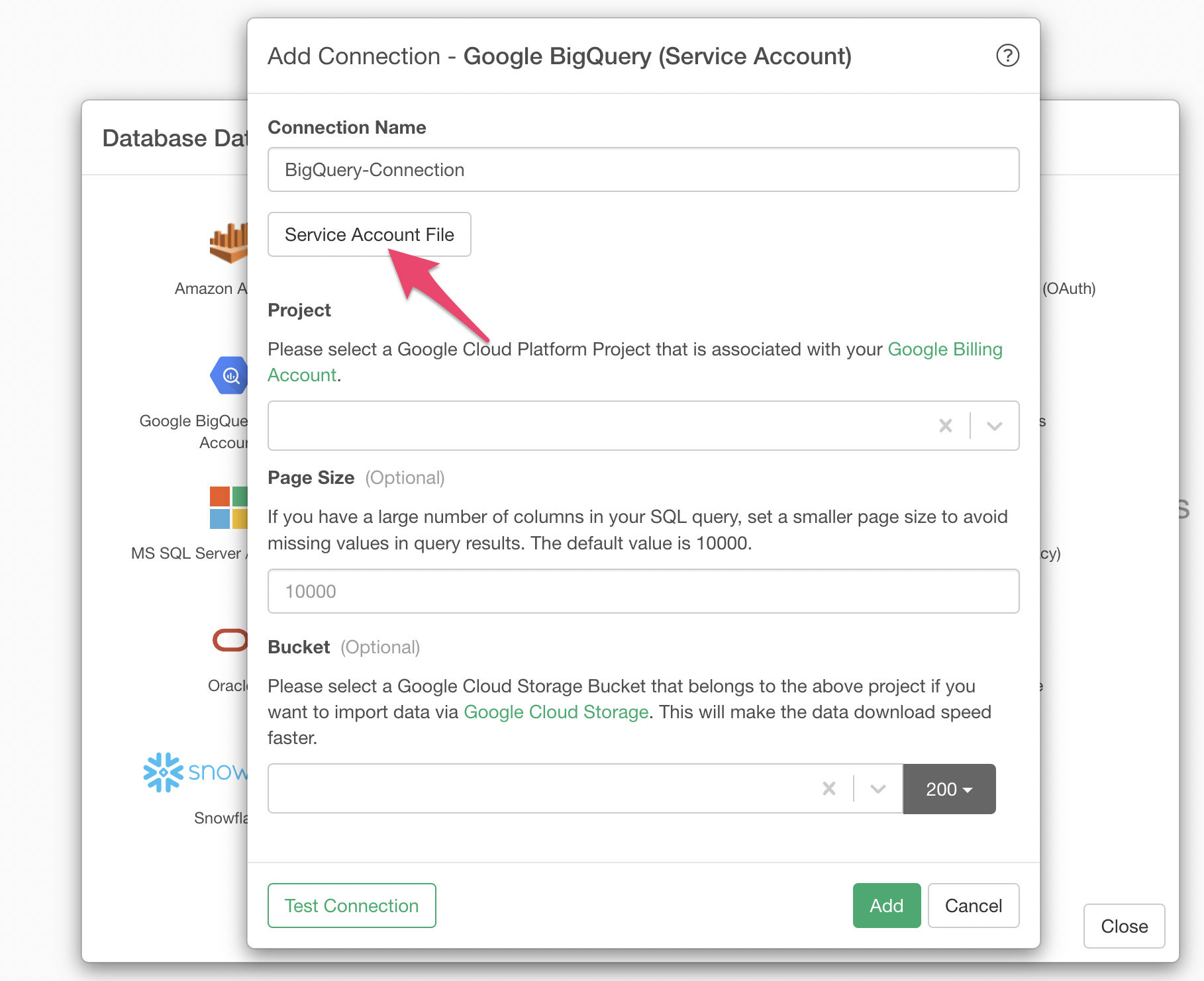
For the service account file, specify the service account JSON key file from Google BigQuery. This file contains authentication information necessary for Exploratory Desktop to access the Google Cloud API.
Steps to Obtain Service Account JSON File
Step 1: Create a Service Account in Google Cloud Console
- Access Google Cloud Console
- From the hamburger menu (☰) in the top left, select “IAM & Admin” → “Service Accounts”
- Click the “+ CREATE SERVICE ACCOUNT” button
- Enter the following information:
- Service account name: Use a descriptive name (e.g., bigquery-service-account)
- Service account ID: Auto-generated
- Description: Describe the purpose (e.g., For BigQuery data access)
Step 2: Grant Required Permissions
During creation or after creating the service account, grant the following permissions (roles):
Required roles:
BigQuery Data Editor- Read/write data permissionsBigQuery Job User- Query execution permissions
If importing via Cloud Storage, the following additional role is required:
Storage Admin- For data transfer between BigQuery and Cloud Storage
Step 3: Create and Download JSON Key File
- Click on the created service account from the service account list
- Select the “Keys” tab
- Click “ADD KEY” → “Create new key”
- Select “JSON” as the key type
- Click the “CREATE” button
Google BigQuery Settings
The following settings are supported for Google BigQuery:
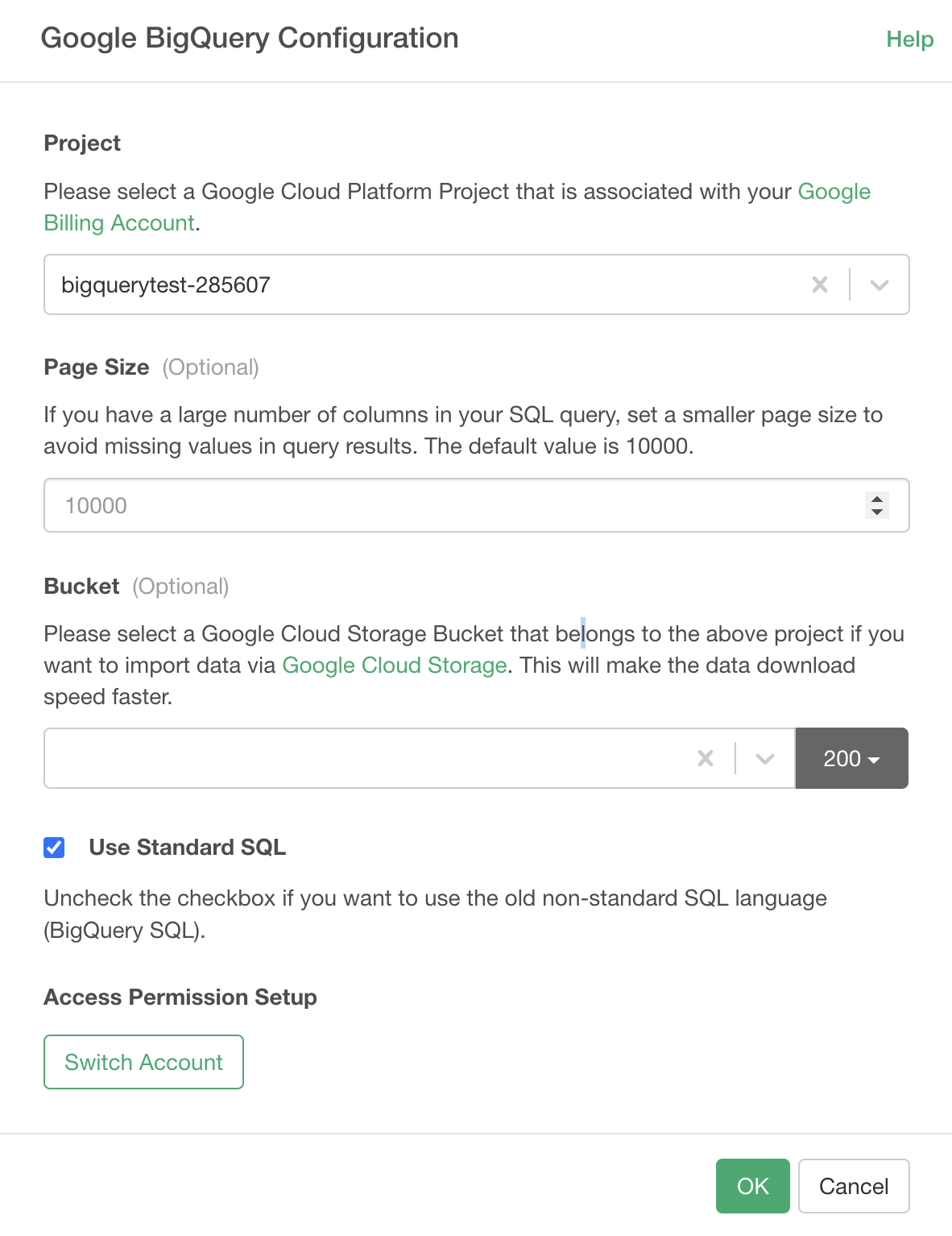
Page Size
If your SQL query contains many columns, query results may have missing values. When your SQL query includes many columns, setting a smaller “Page Size” value can help avoid this issue.
Also, if your query results contain many list-type columns, please set a smaller page size to import the query results. Note that setting a smaller page size will slow down the data import process. The page size can also be changed from the import dialog.
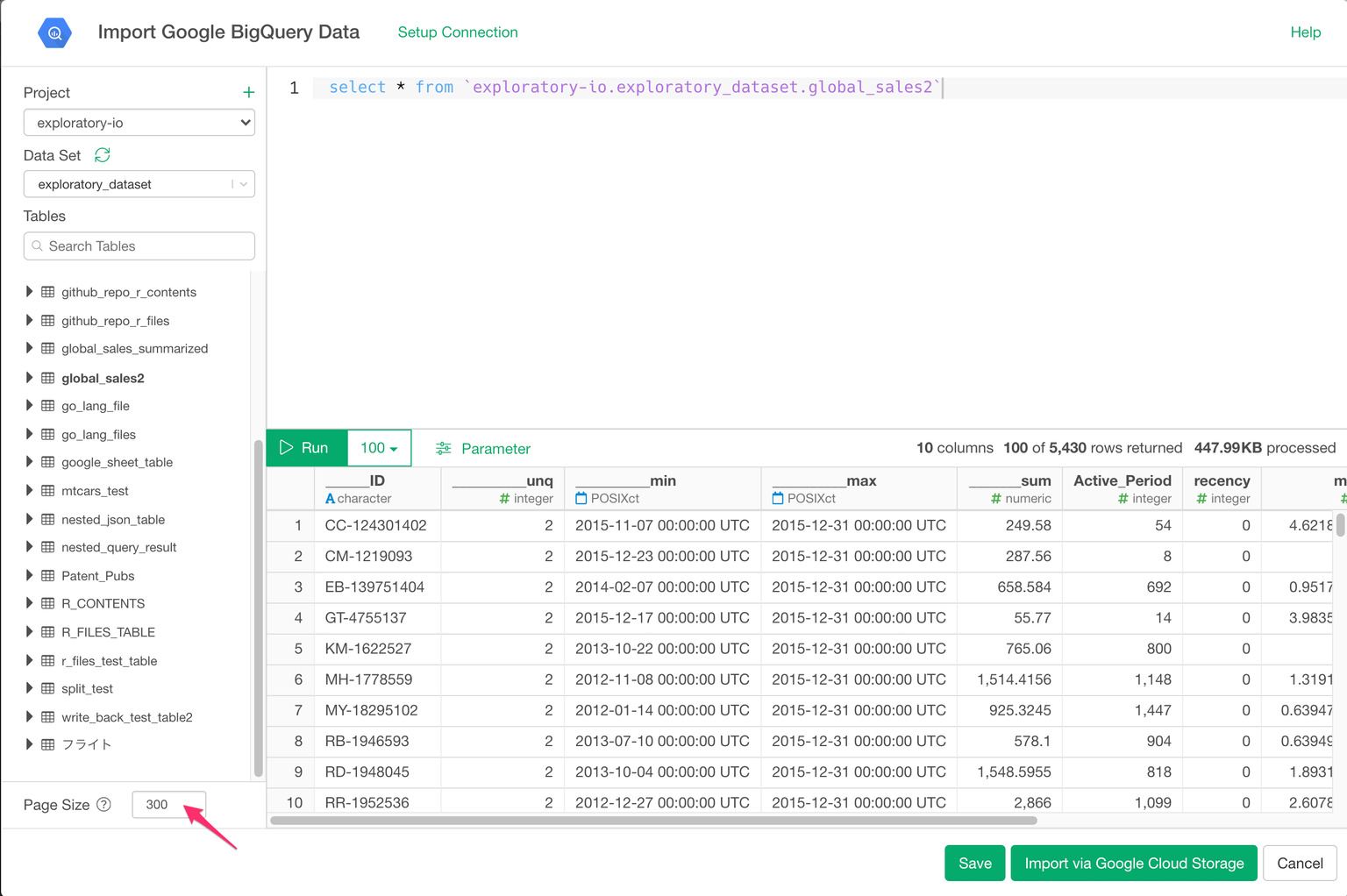
Bucket
If you are importing data via Google Cloud Storage, select a bucket that belongs to your selected project. This will improve data download speed.
Use Standard SQL
If you want to use the older non-standard SQL language called BigQuery SQL, uncheck the “Use Standard SQL” checkbox.
Google Standard SQL complies with the SQL 2011 standard and includes extensions that support querying nested and repeated data. Standard SQL has the following advantages over legacy SQL:
- Composability with WITH clauses and SQL functions
- Subqueries in SELECT lists and WHERE clauses
- Correlated subqueries
- ARRAY and STRUCT data types
- INSERT, UPDATE, and DELETE operations
- COUNT(DISTINCT ) is accurate and scalable, providing EXACT_COUNT_DISTINCT precision without its limitations
- Automatic predicate pushdown with JOINs
- Complex JOIN predicates including arbitrary expressions
For examples demonstrating some of these features, see Google Standard SQL Highlights. For information on migrating to Standard SQL, refer to this guide.
Changing Google BigQuery Settings Later
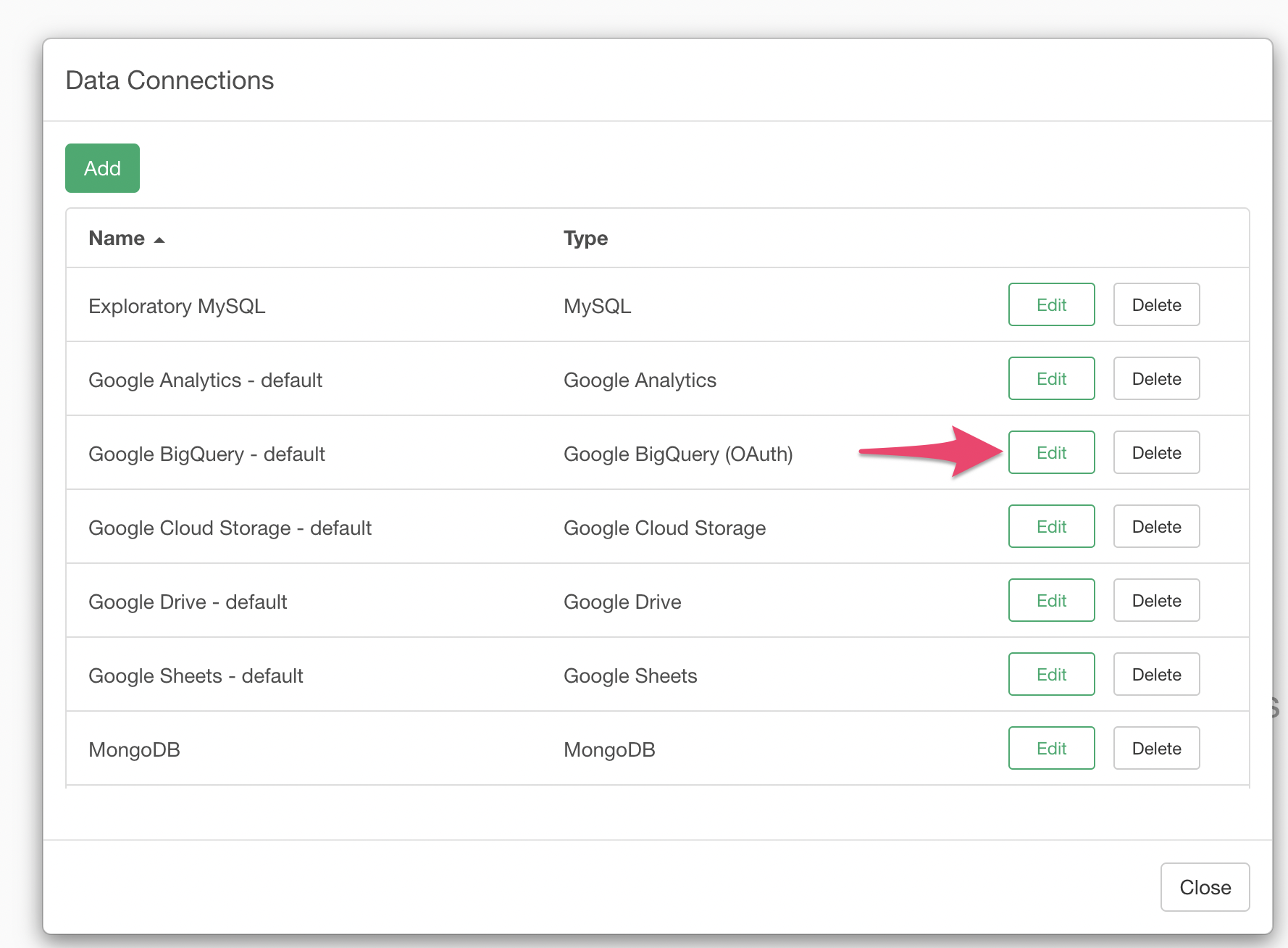
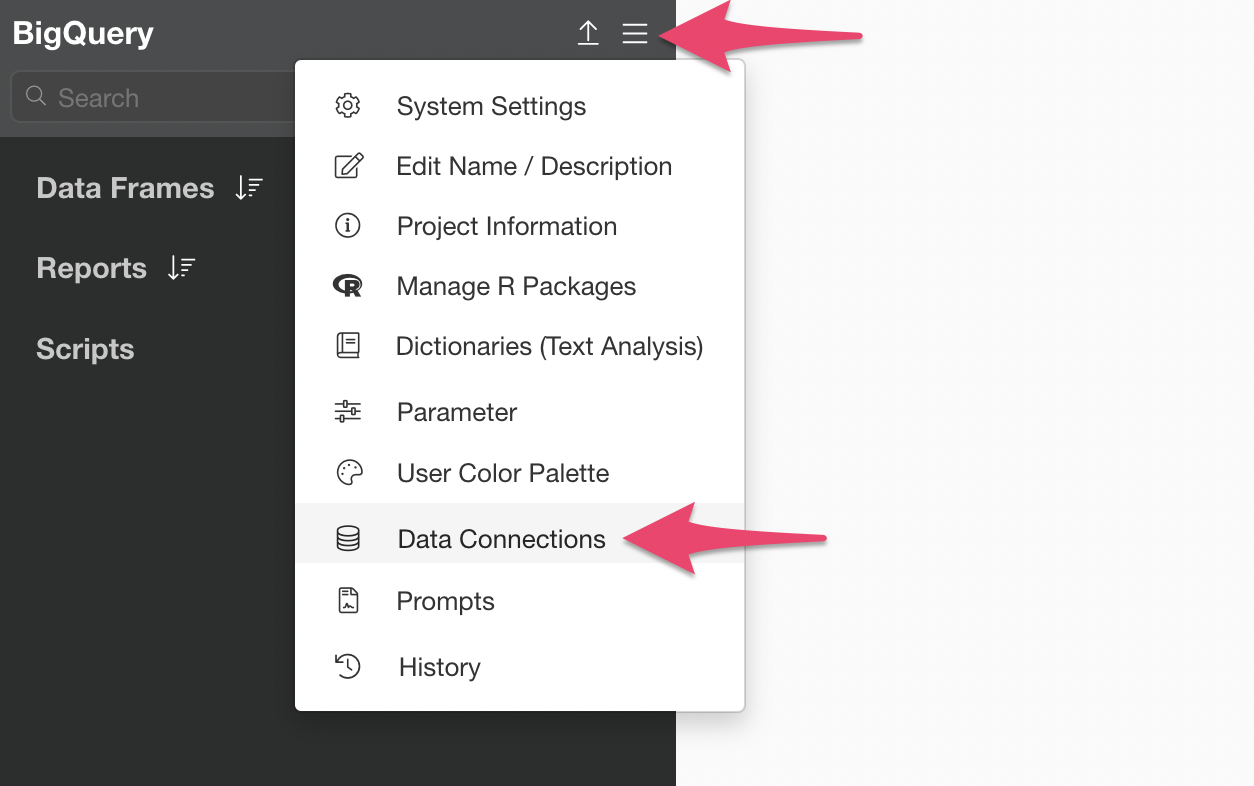
You can change the BigQuery settings you’ve configured from the “Data Connections” in the project menu.
Click the “Edit” button for the Google BigQuery connection from the data connections list.
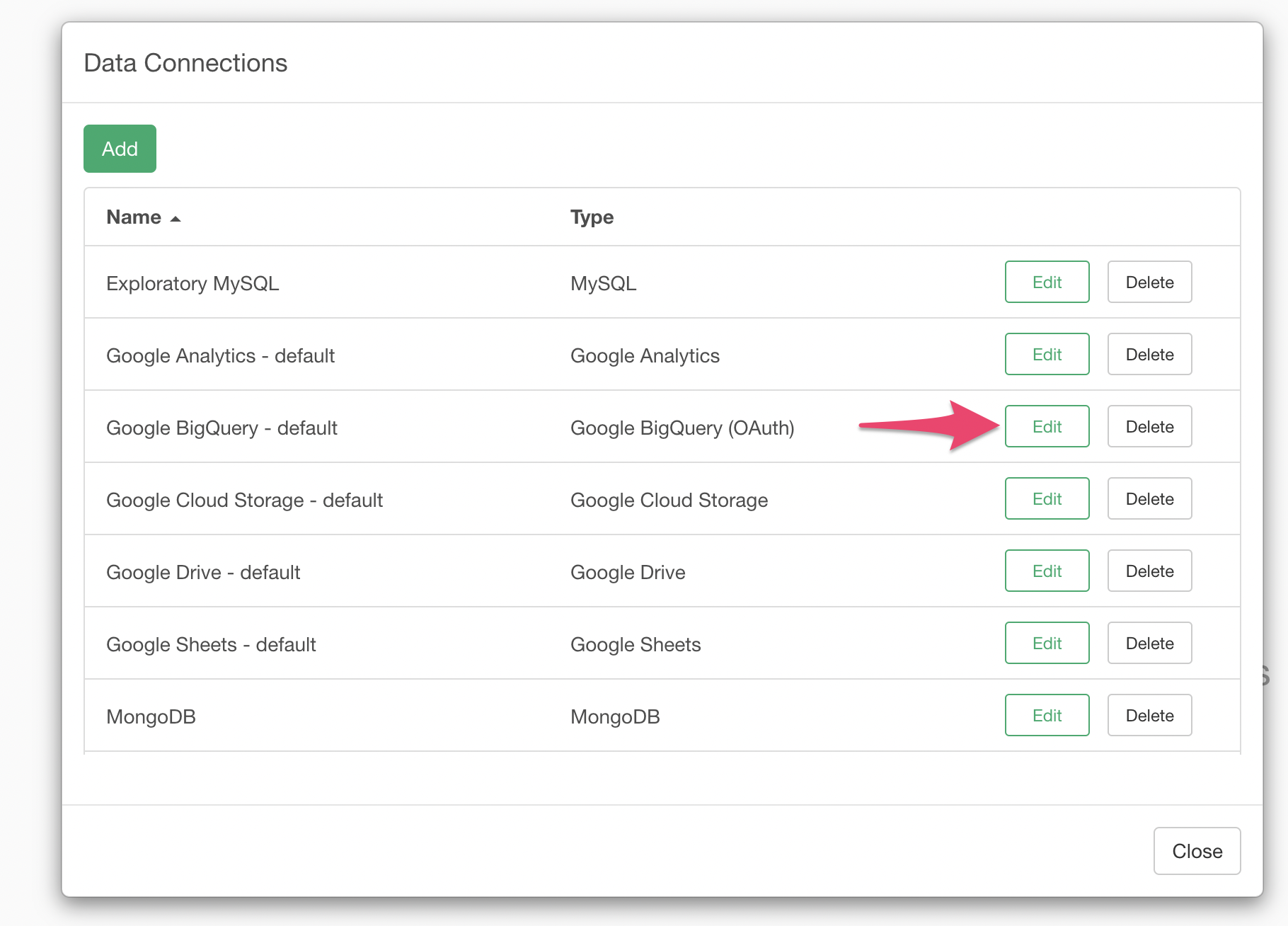
The Google BigQuery edit dialog will appear, allowing you to change the settings.