
How to Import Github Issue Data
You can import Github issue data via Github API with your personal access token.
1. Get Access Token on Github Page
Go to Github’s Account Setting page.
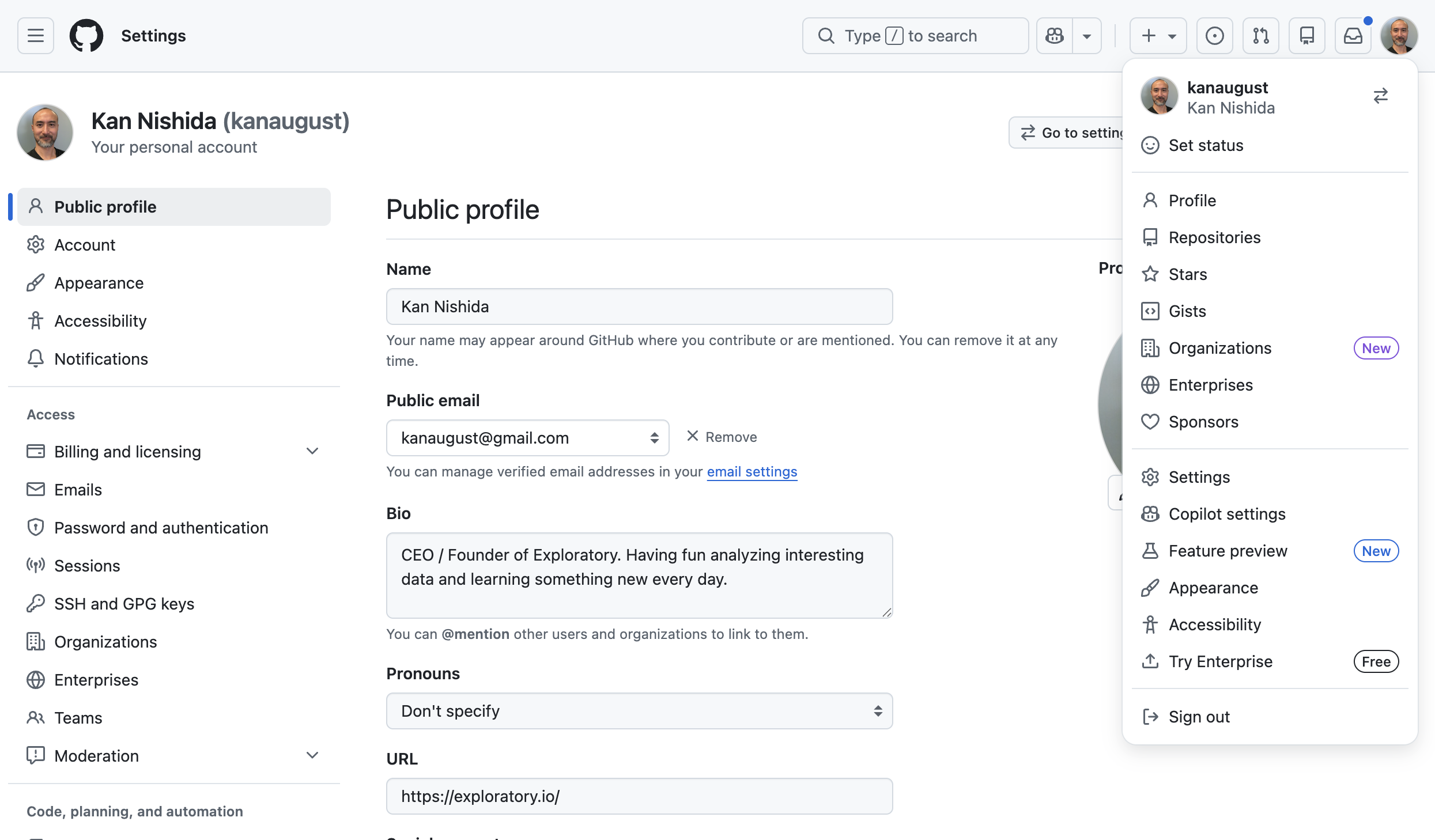
Select ‘Developer Setting’.
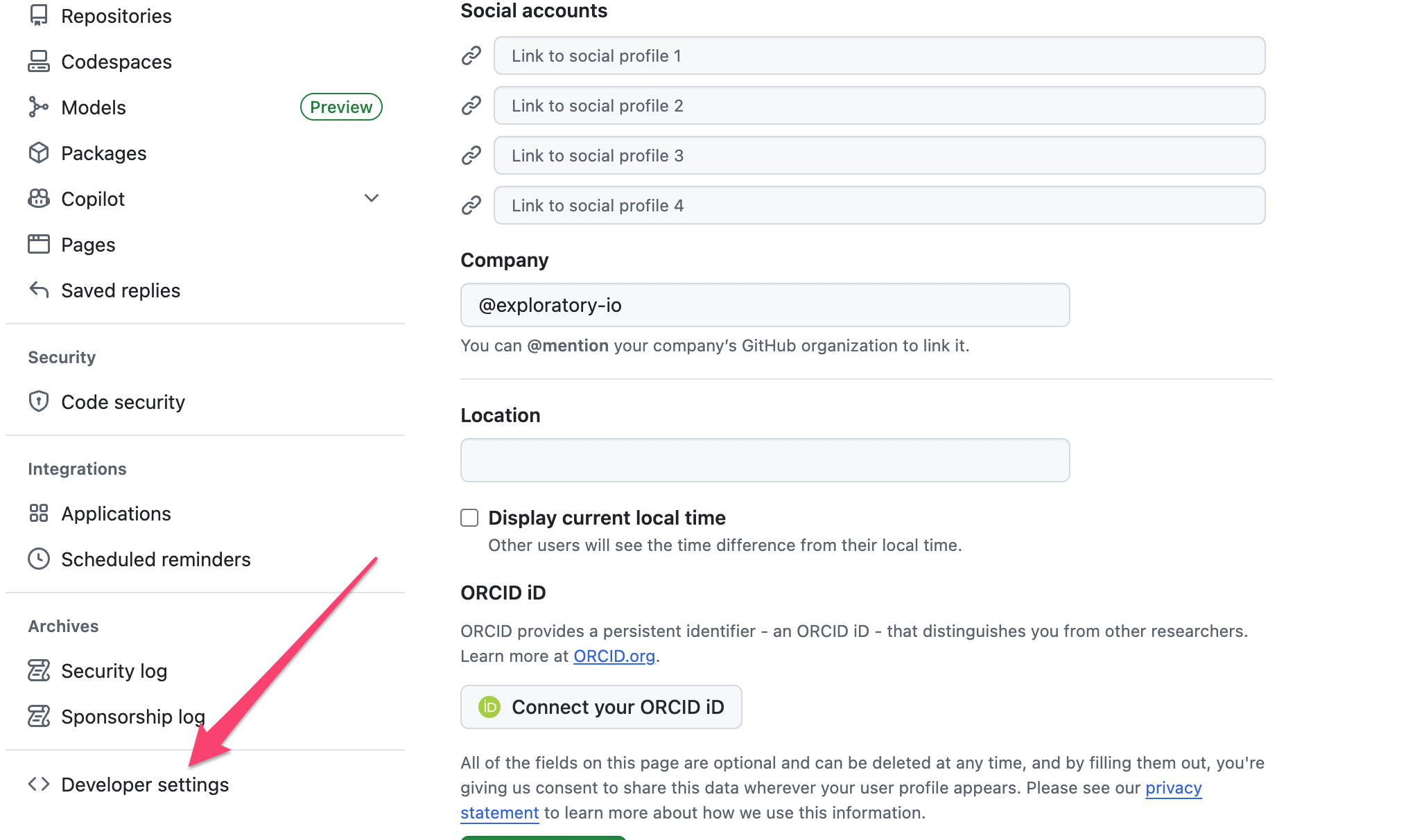
Select ‘Tokens (Classic)’ or ‘Fine-grained tokens’ under ‘Personal access tokens’.
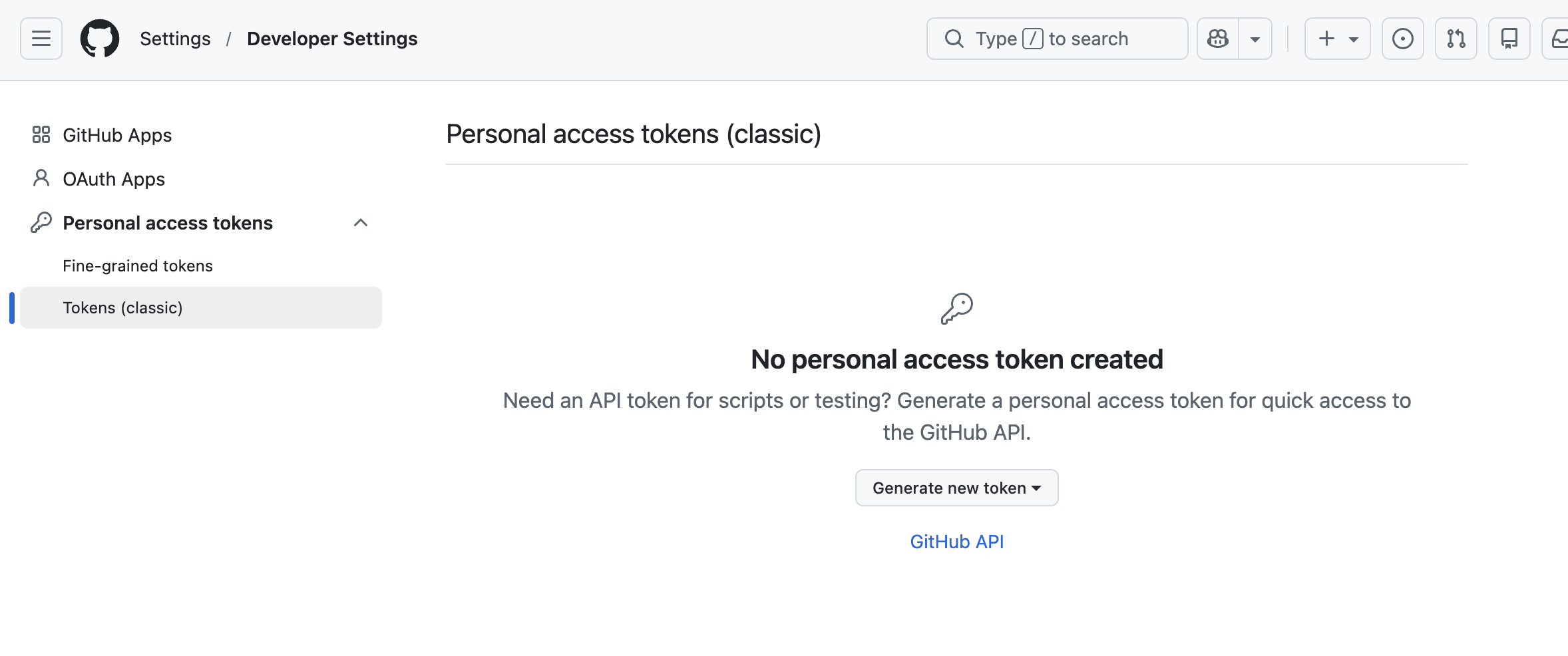
Check ‘repo’ is selected and authenticate you.
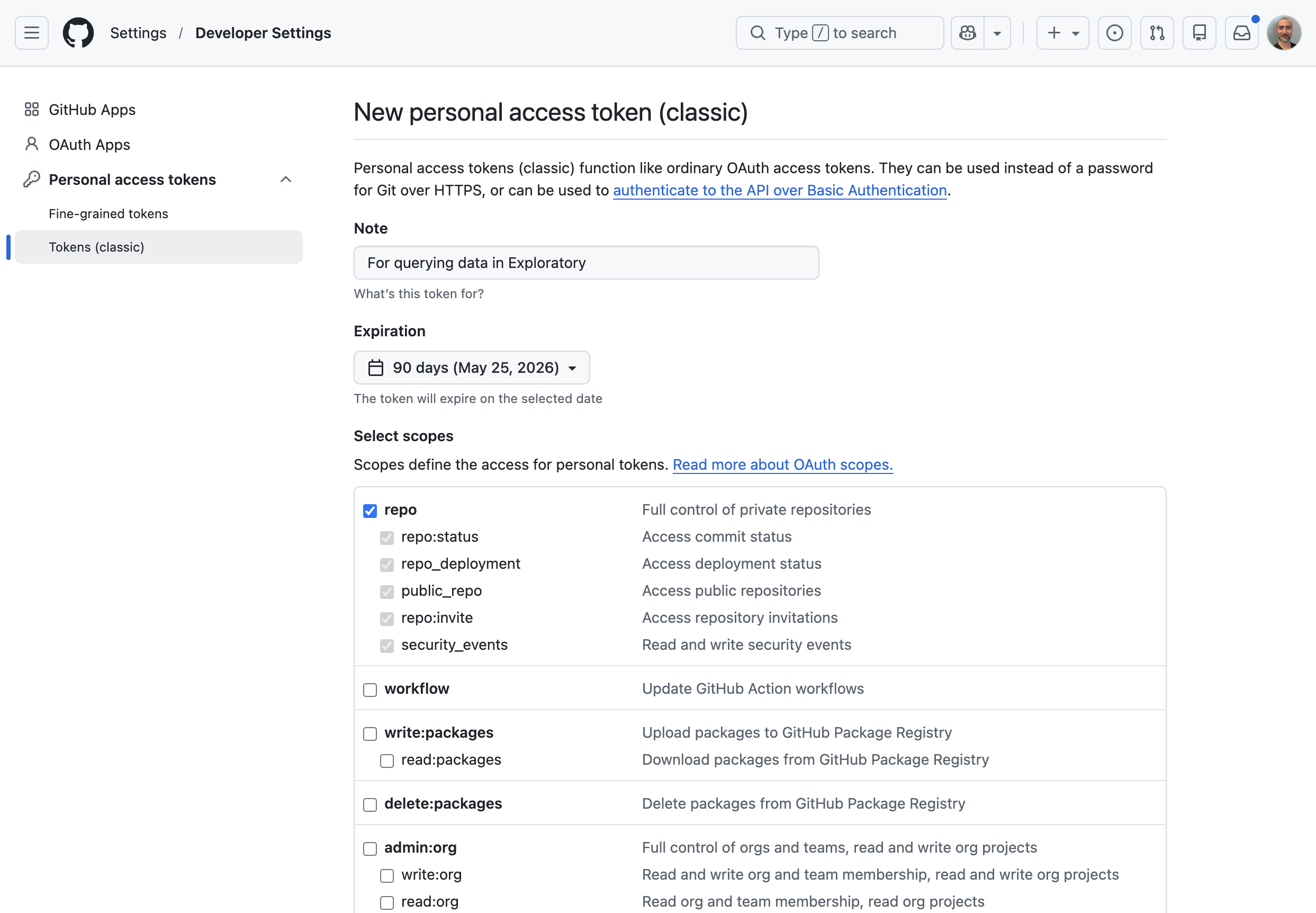
Once you’re authenticated you’ll see your Personal Access Token on the page. Make sure to copy it.
2. Create Github Connection in Exploratory
Select ‘Data Connections’ from the project menu.
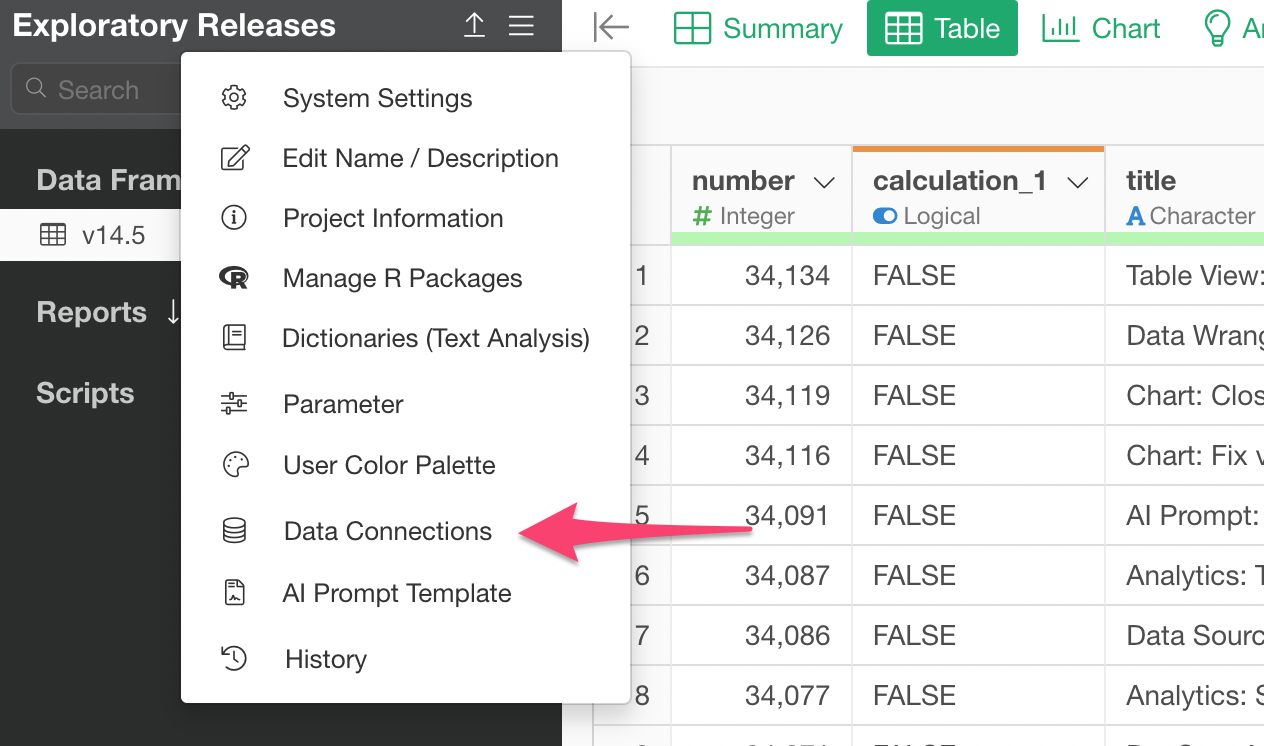
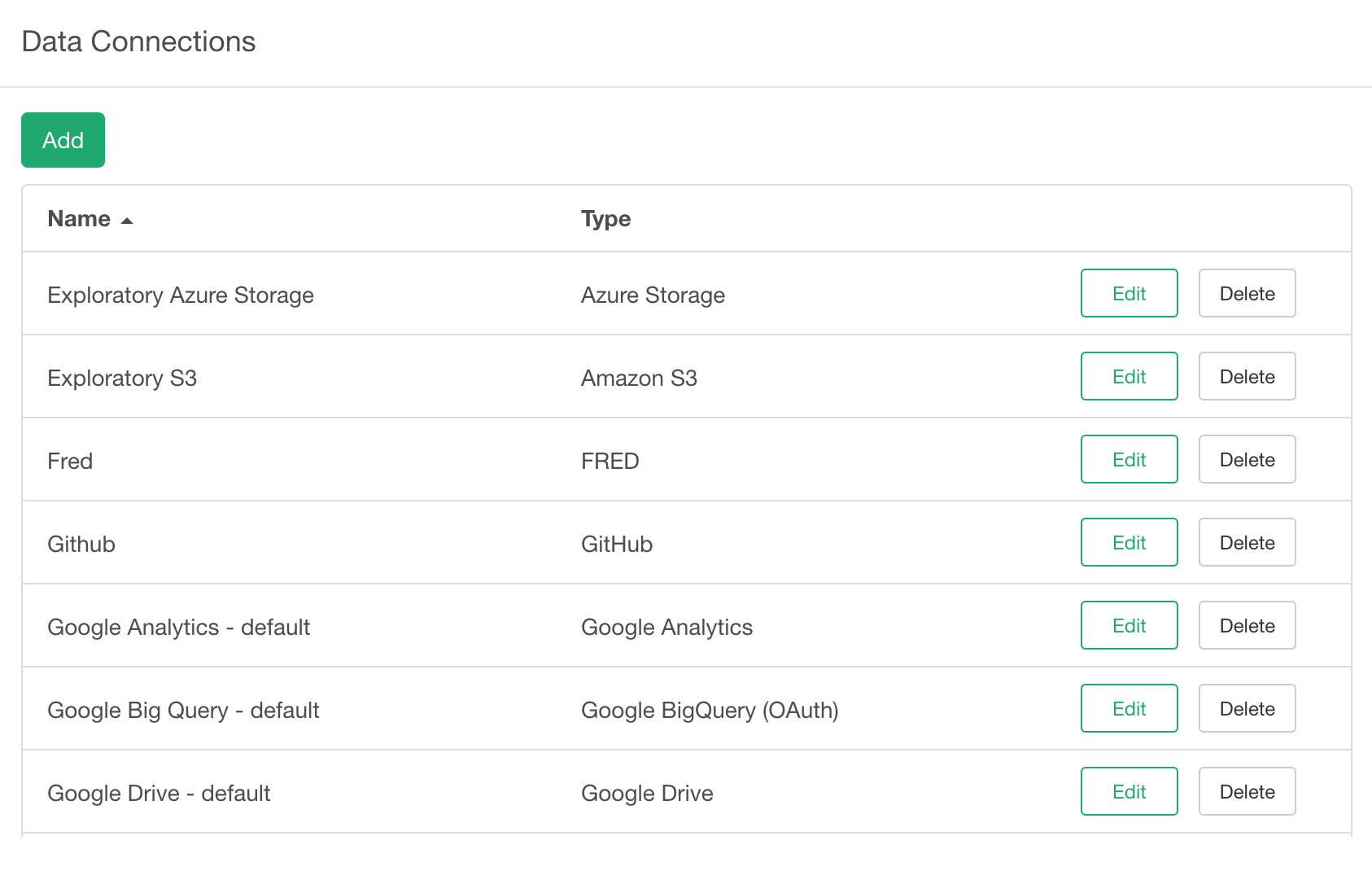
Click ‘Add’ button.
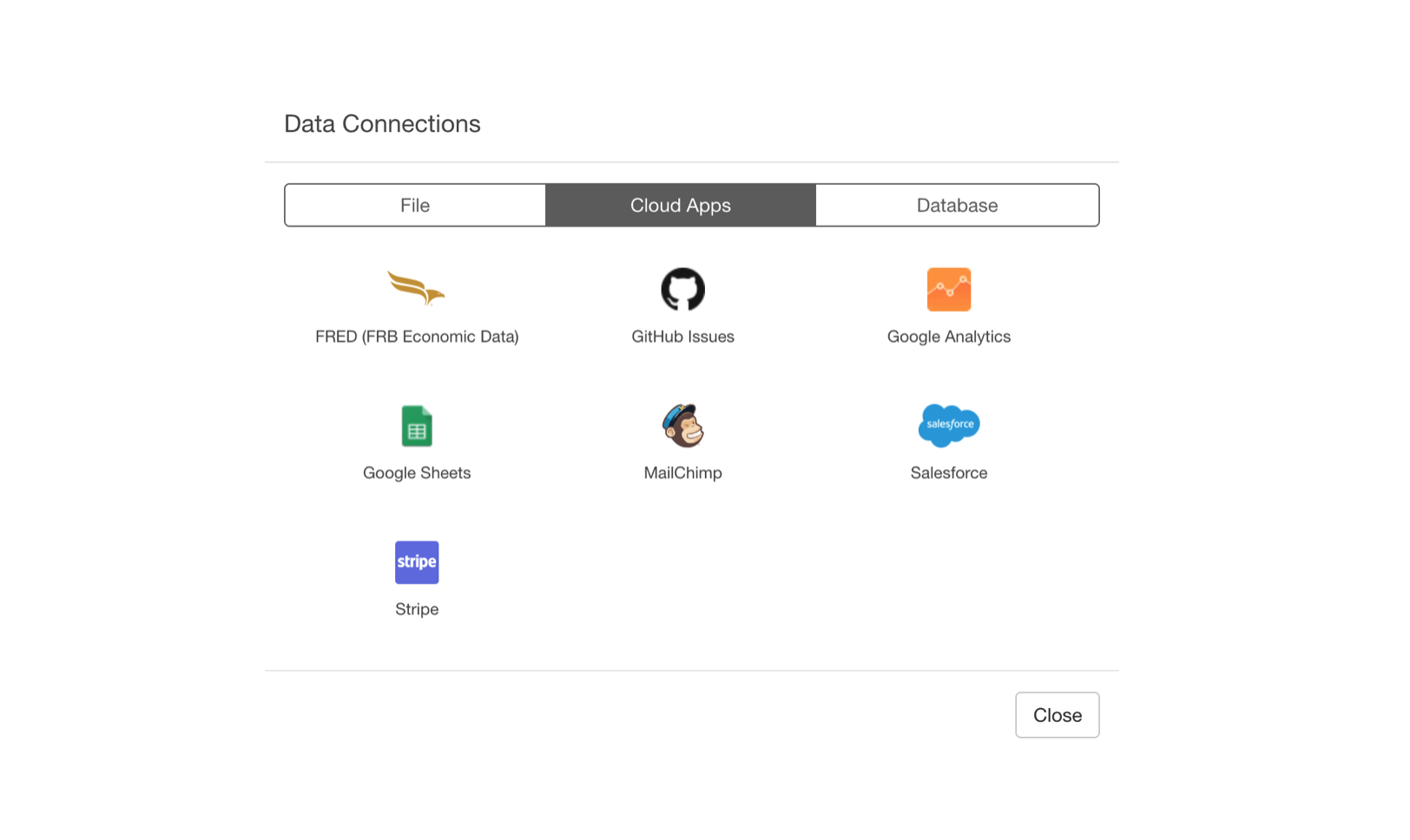
Select ‘Github’.
Type ‘Username’ and the previously copied ‘Personal Access Token’.
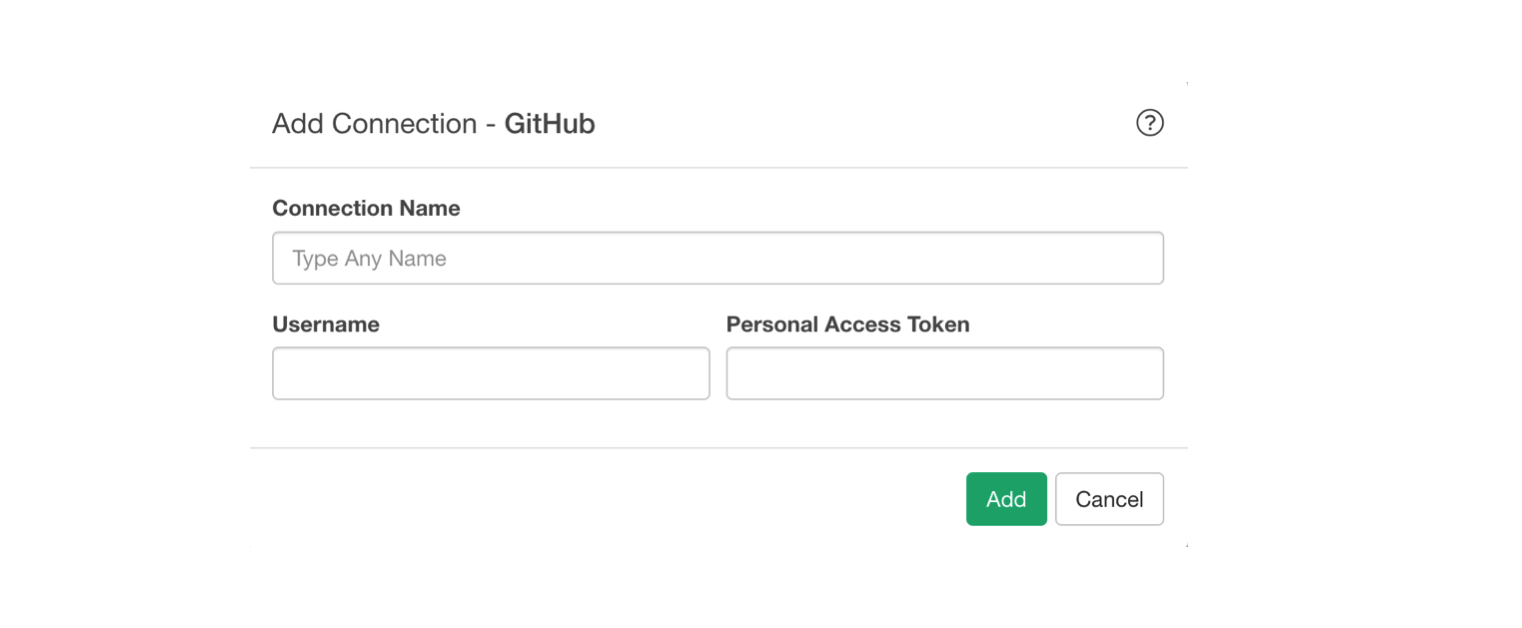
And click ‘Add’ button.
3. Import Github Issue Data
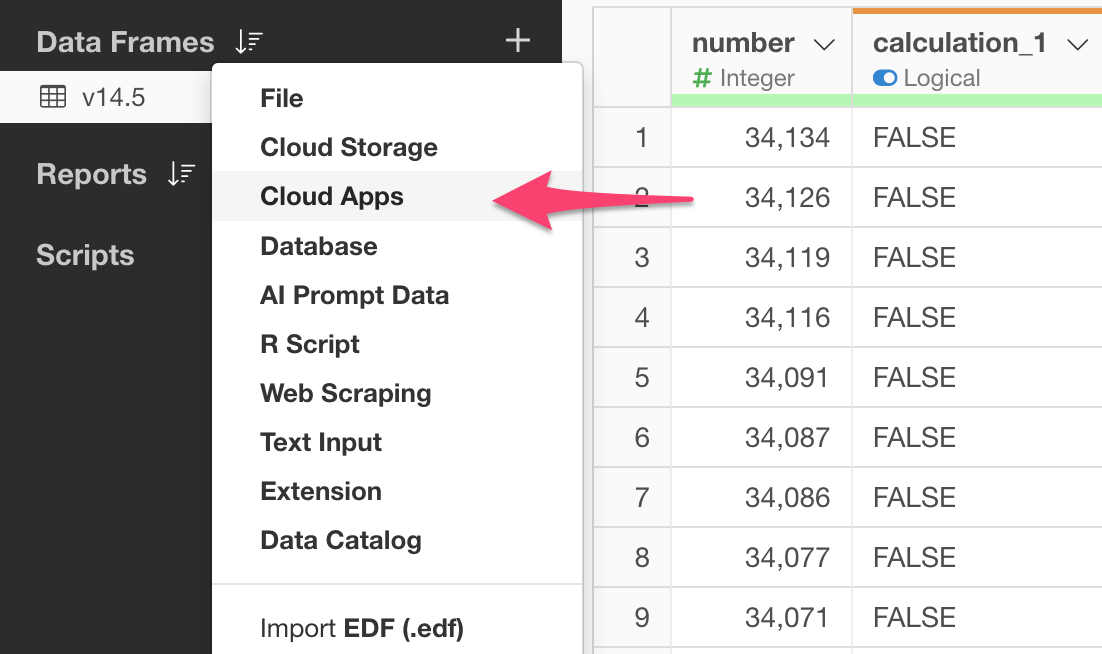
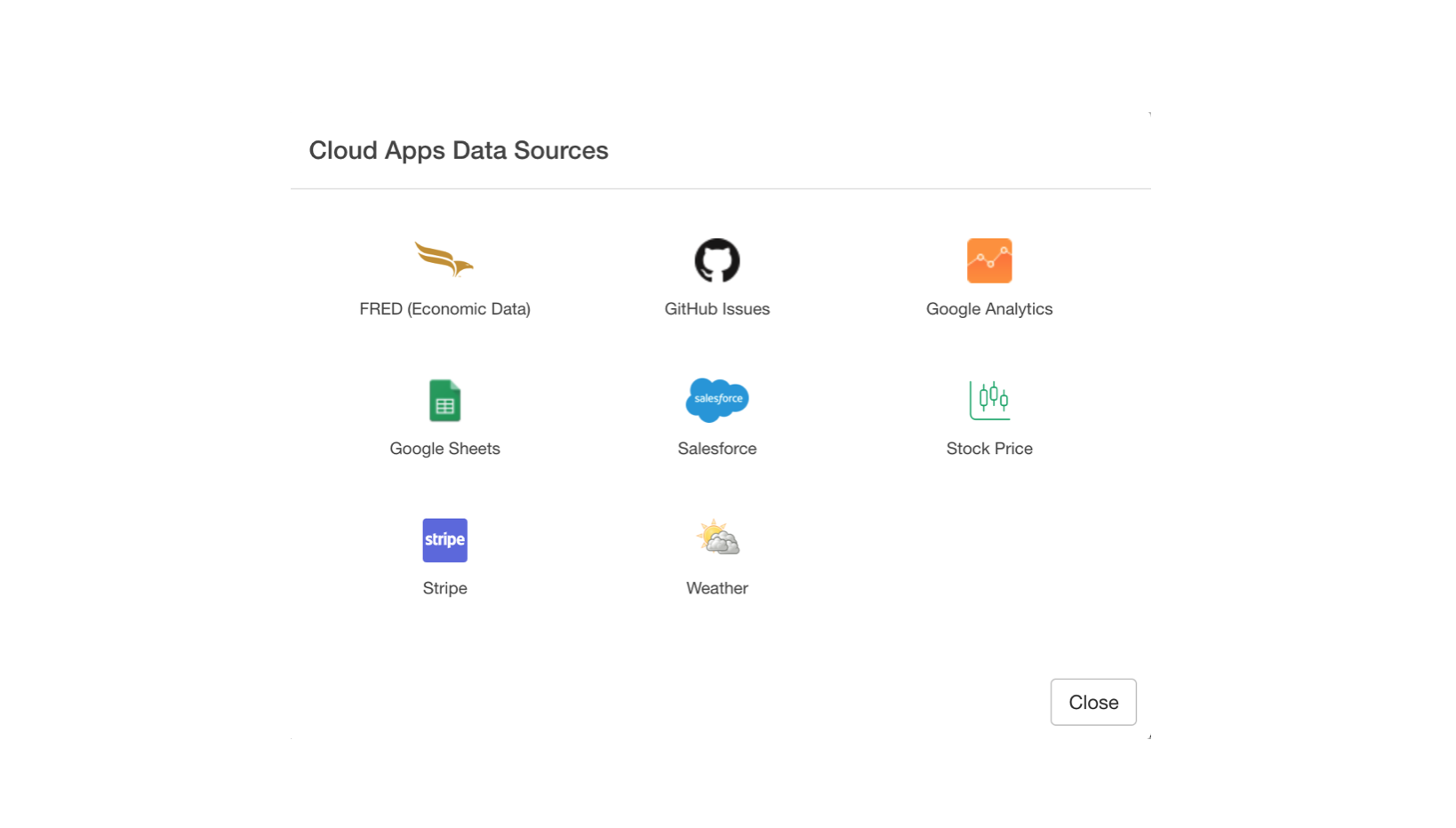
Click ‘Github Issues’.
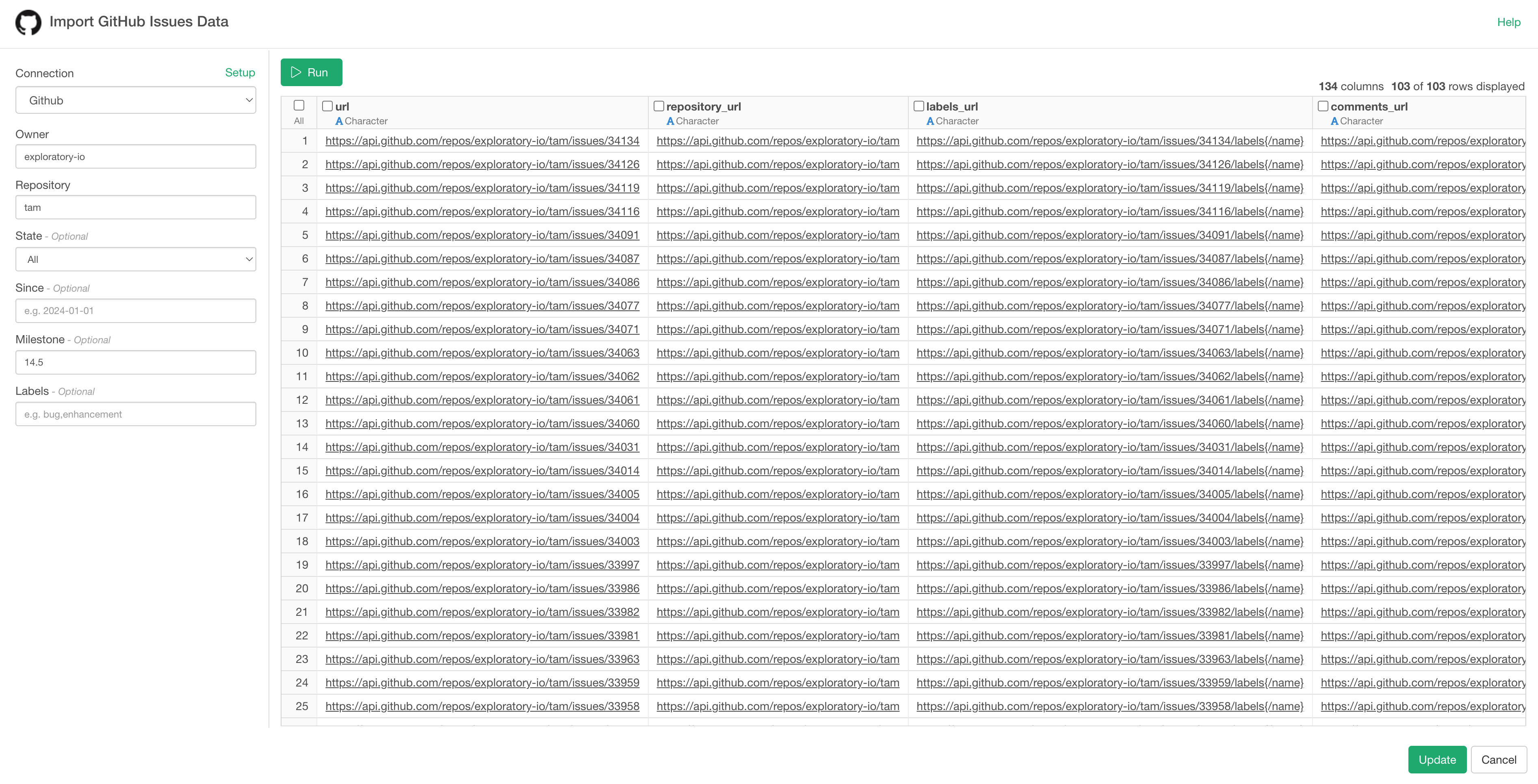
 Type
Owner and Repository and click ‘Run’ button.
Type
Owner and Repository and click ‘Run’ button.
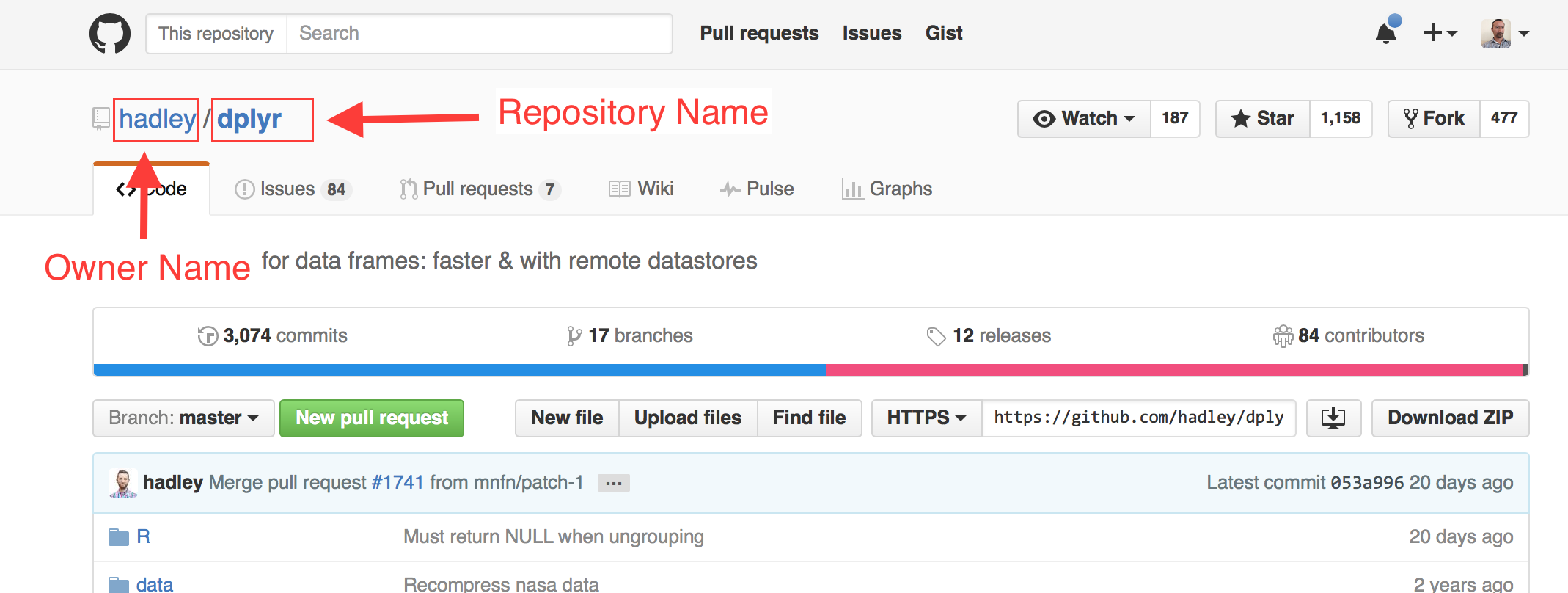
Repository Owner and Repository Name are something like below. (just in case!)
4. Filter Data
You can filter the data by using the following parameters. These are optional.
- State: Choose from All (default), Open, or Closed.
- Since: Retrieves only Issues updated after the
specified date. Enter the date in
YYYY-MM-DDformat (e.g.,2025-01-01). The default is all data. - Milestone: Filter by the title of the milestone.
- Labels: You can filter by multiple label names
using a comma-separated list (e.g.,
bug,enhancement).