How to Quickly Summarize Text, Score Sentiment, Categorize, Translate, and Standardize Names from the Column Header Menu
Starting from Exploratory Desktop v14.5, the “Create AI Function” option in the header menu for Character columns has been updated to a sub-menu format with several options.
Instead of writing a prompt from scratch every time, you can simply select common tasks such as summarization, sentiment calculation, categorization, translation, or name standardization. This will open the AI Function dialog with a high-quality prompt already pre-filled.
How to Use
Right-click on a text (character) column header and hover over “Create AI Function” to see the following eight sub-menus:
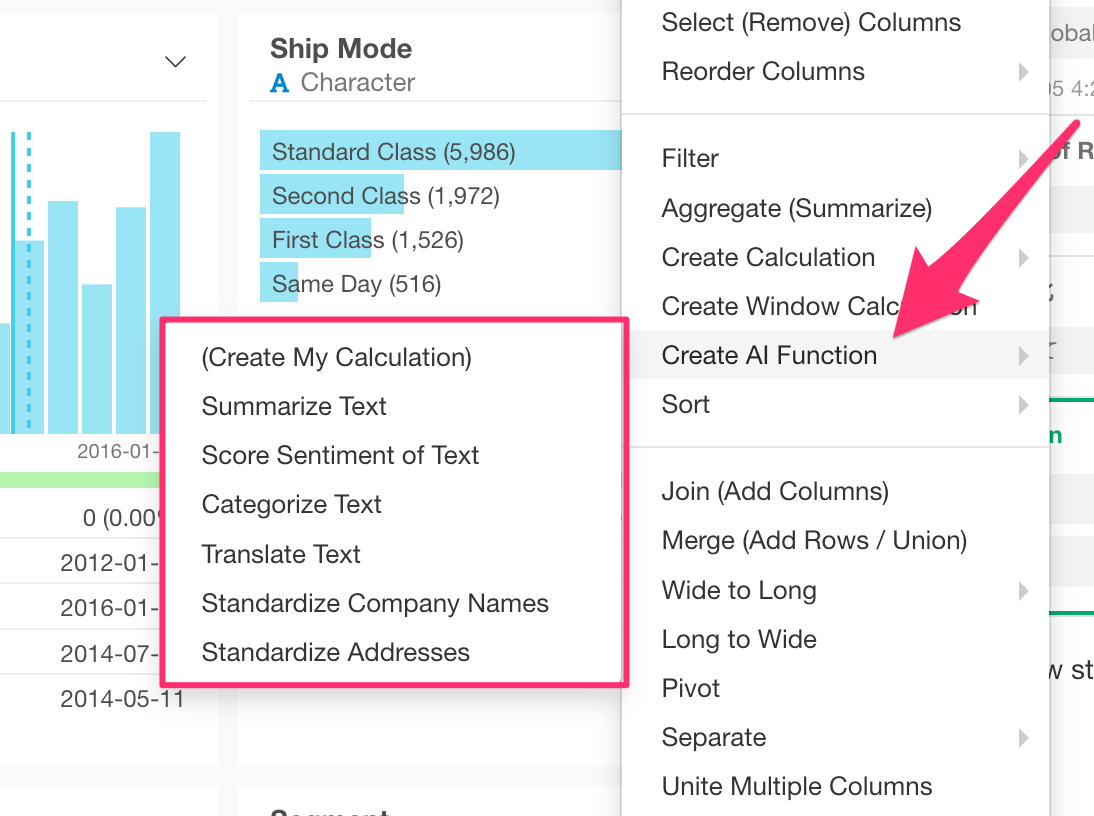
Selecting each menu will open the dialog with the following content pre-filled:
- (Create My Calculation): Opens an empty dialog.
- Summarize Text: A prompt for summarizing text.
- Score Sentiment of Text: A prompt to calculate a sentiment score (polarity score) between -1.0 and +1.0.
- Categorize Text: A prompt for creating groups based on the text content.
- Translate Text: A prompt for translating text into English.
- Standardize Product Names: A prompt to standardize product name variations.
- Standardize Company Names: A prompt to return official corporate names.
- Standardize Addresses: A prompt to unify addresses into a standard notation.
Note that this sub-menu is only displayed for text (character) columns. For other column types, such as Numeric, the standard “Create AI Function” menu will appear as before.