How to Re-import Data
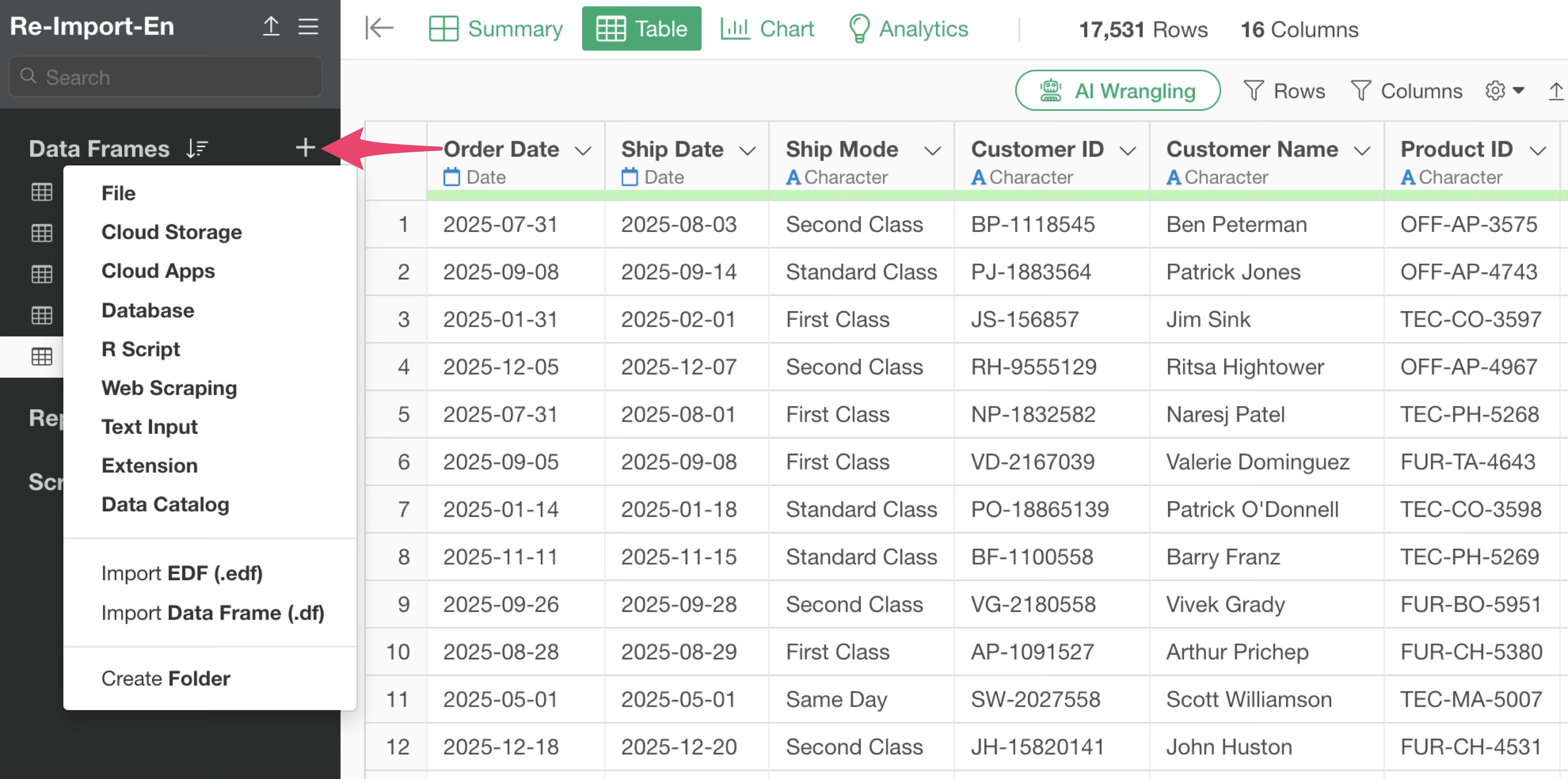
In Exploratory, you can import data from various data sources including local files on your PC, databases, cloud storage, and cloud applications.
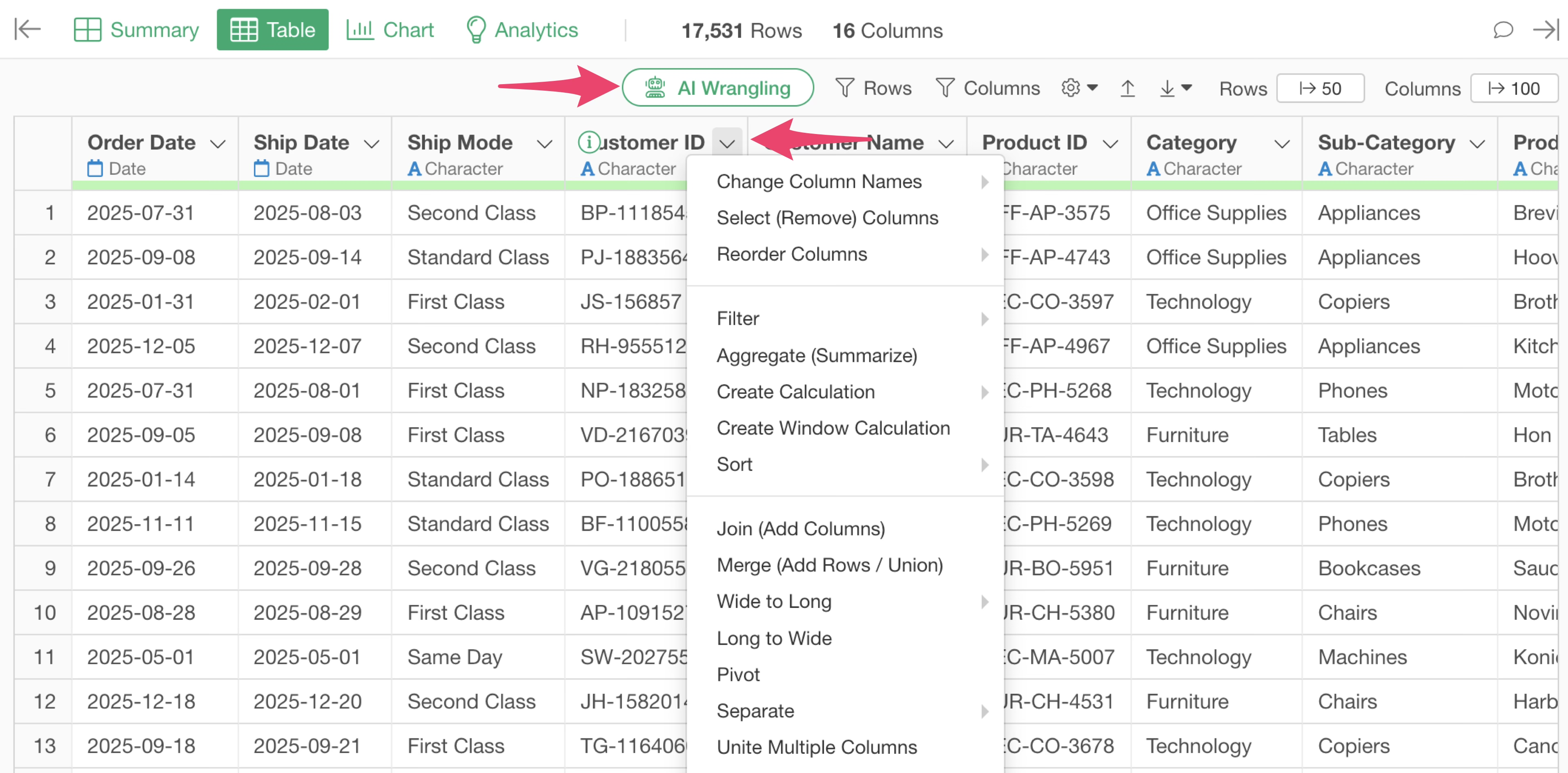
Once you import data, you can process it through AI or the UI.
When you process data in Exploratory, each operation is saved as a step.
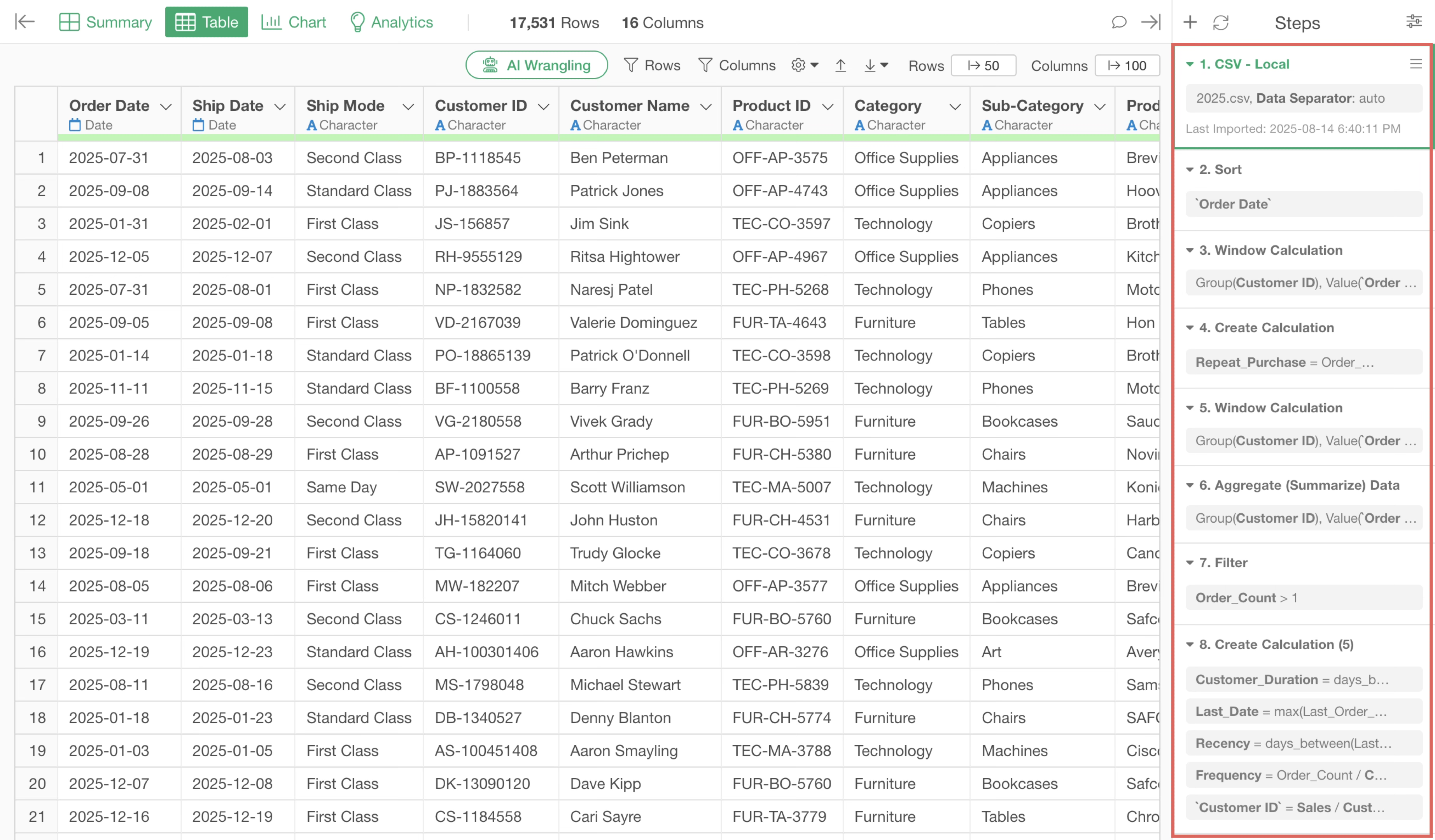
It’s common to want to reapply these data processing steps to updated data. In such cases, for example, when the contents of a file stored in the same location are updated, you can click the data re-import button at the top of the steps to re-import the file data, update the data to the latest content, and then re-execute the steps.
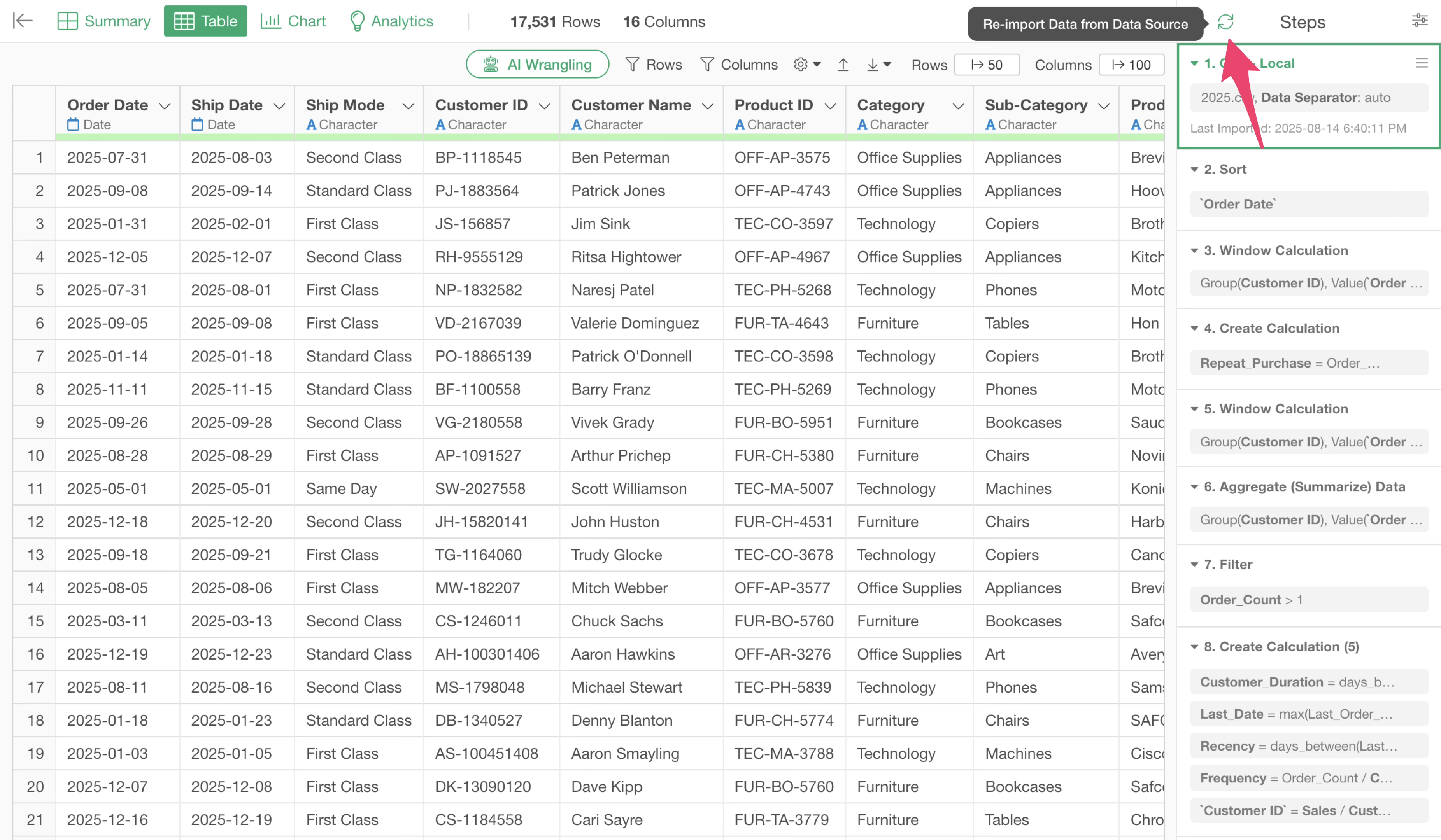
Note that data re-import can be executed not only for files but for all types of data sources.
Furthermore, when processing data in Exploratory, you can not only process data using a single dataset but also combine multiple data frames through column joins or row joins to process multiple data frames together.
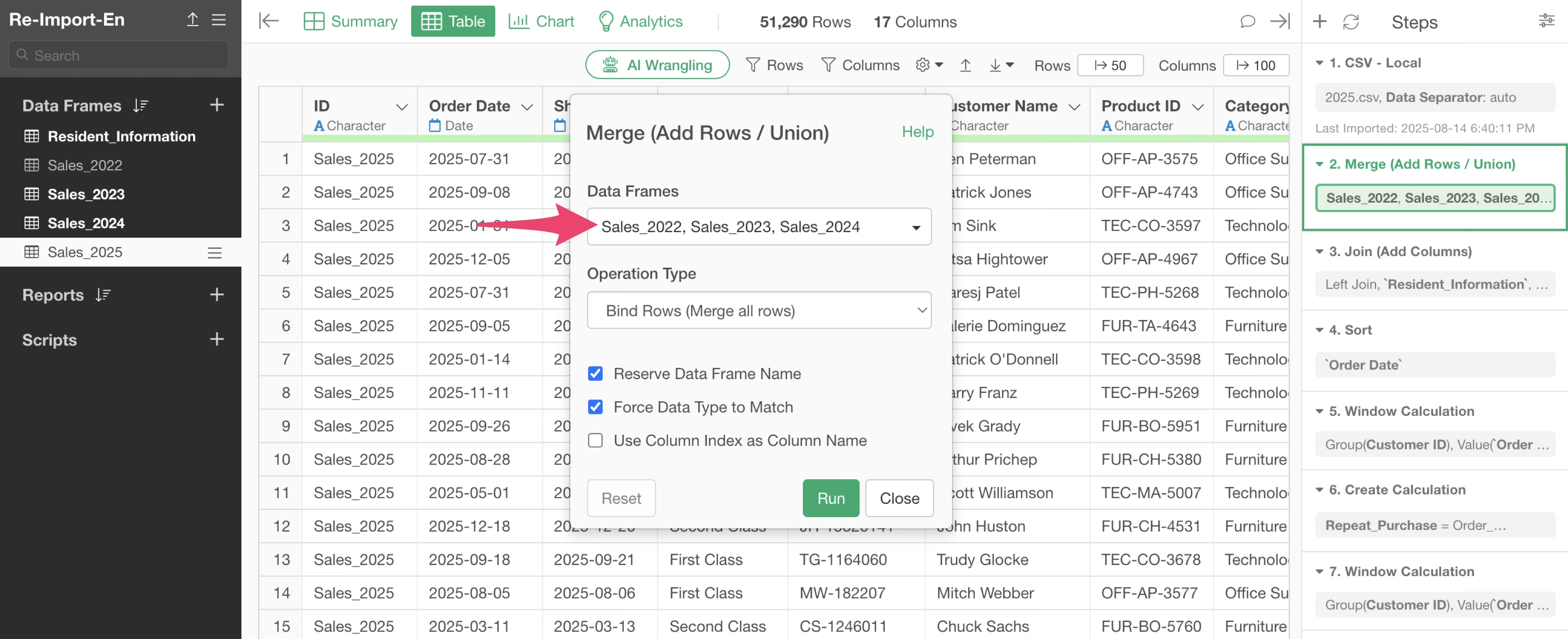
For example, in the following example, there is a step called “Bind Row(Merge all rows)” in the second step.
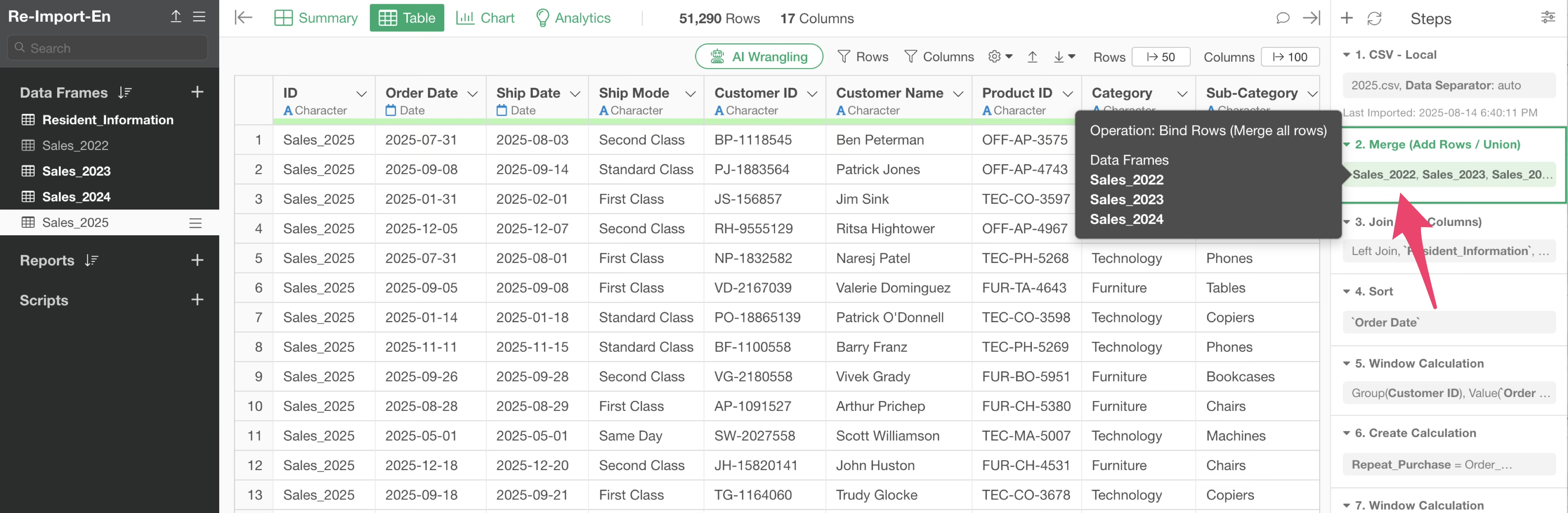
In this step, the 2022-2024 data frame is being merged to the currently open 2025 sales data frame.
Also, the third step has a column join step that joins customer residential area information from the “Customer Residential Area” data frame.
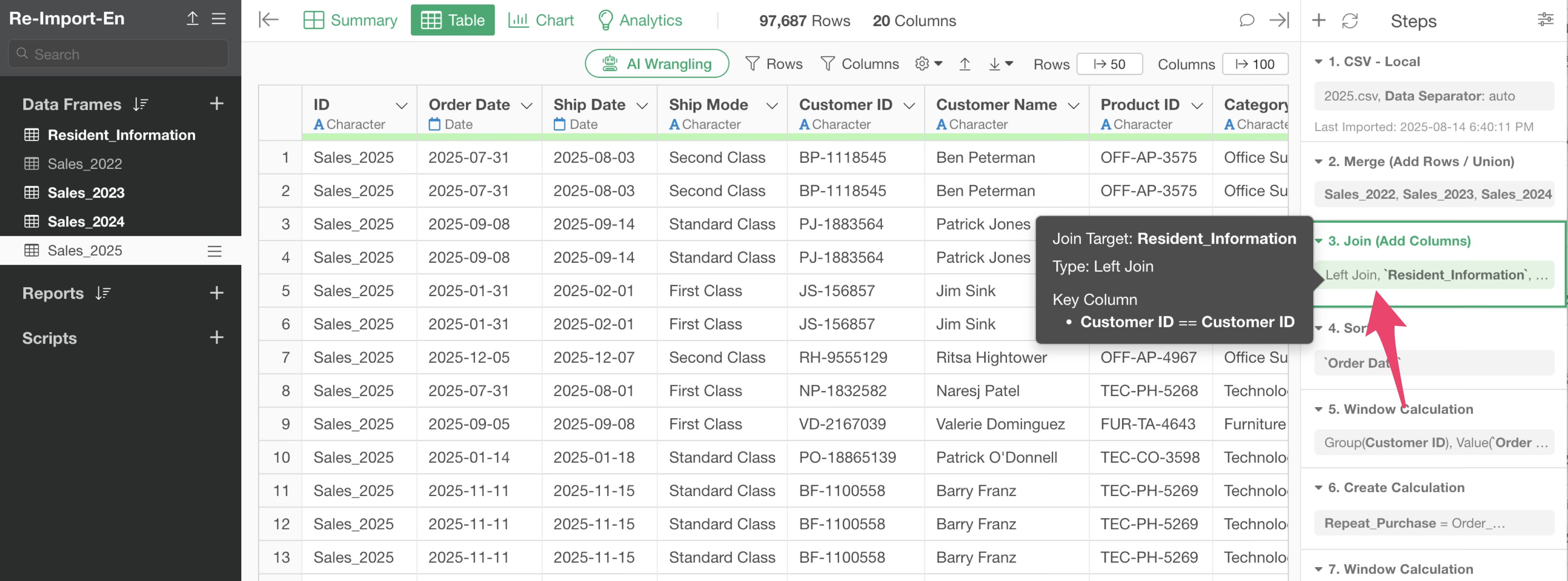
This way, in Exploratory, you can add steps that combine multiple data frames to process data.
Data re-import can be executed in the same way when combining and processing multiple datasets like this.
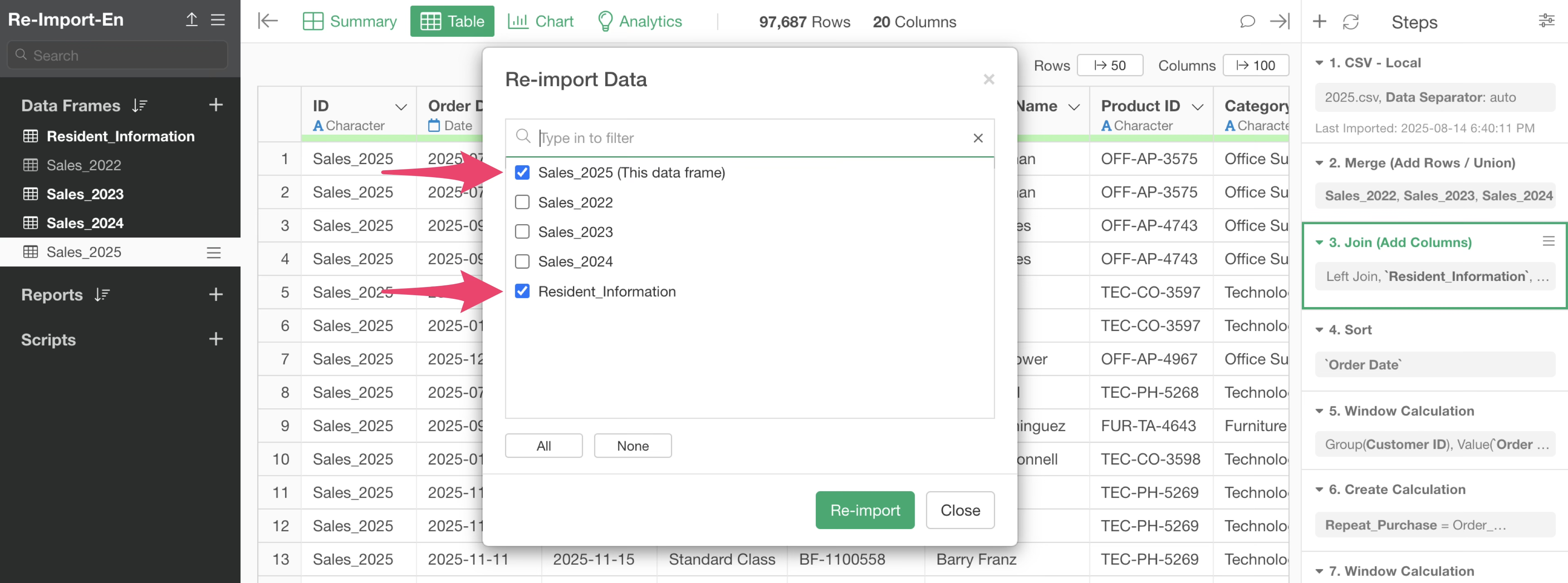
When you have steps that combine multiple data frames like in this case, clicking the re-import button will display all data frames related to the relevant data frame as a list.
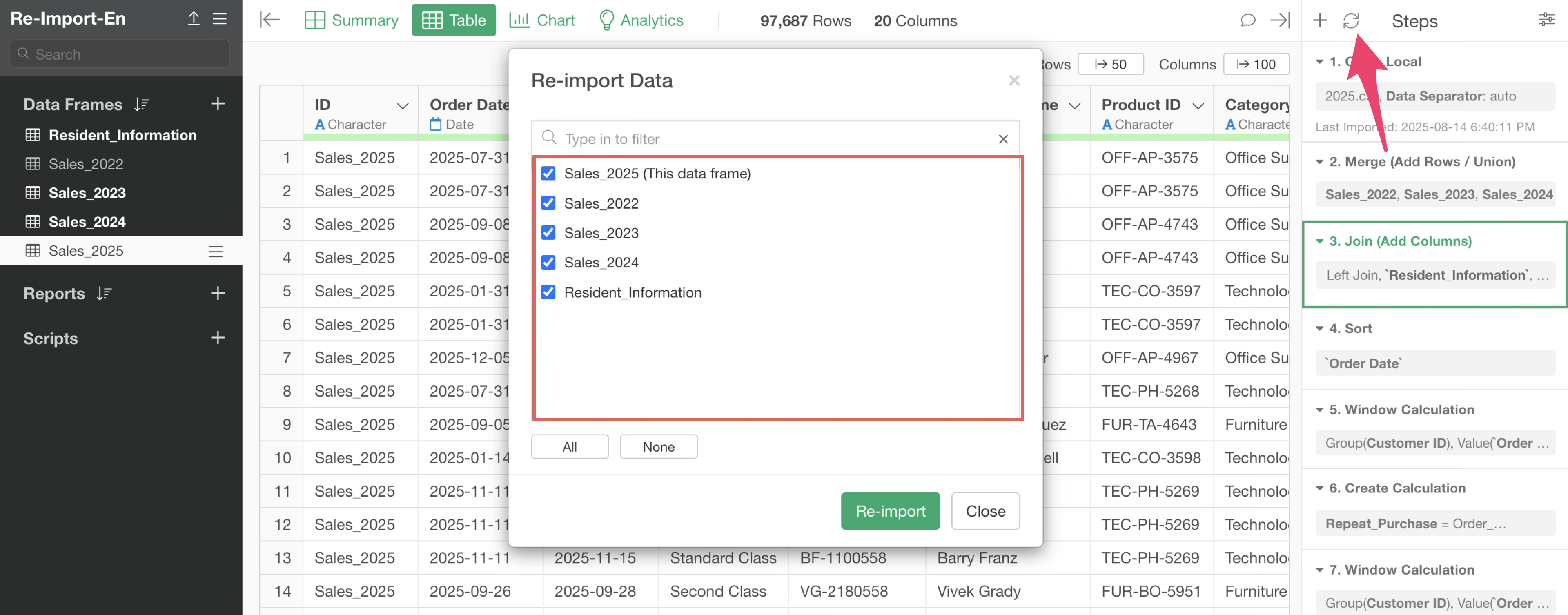
At this time, if you want to re-import all data, click the re-import button with all data frames checked.
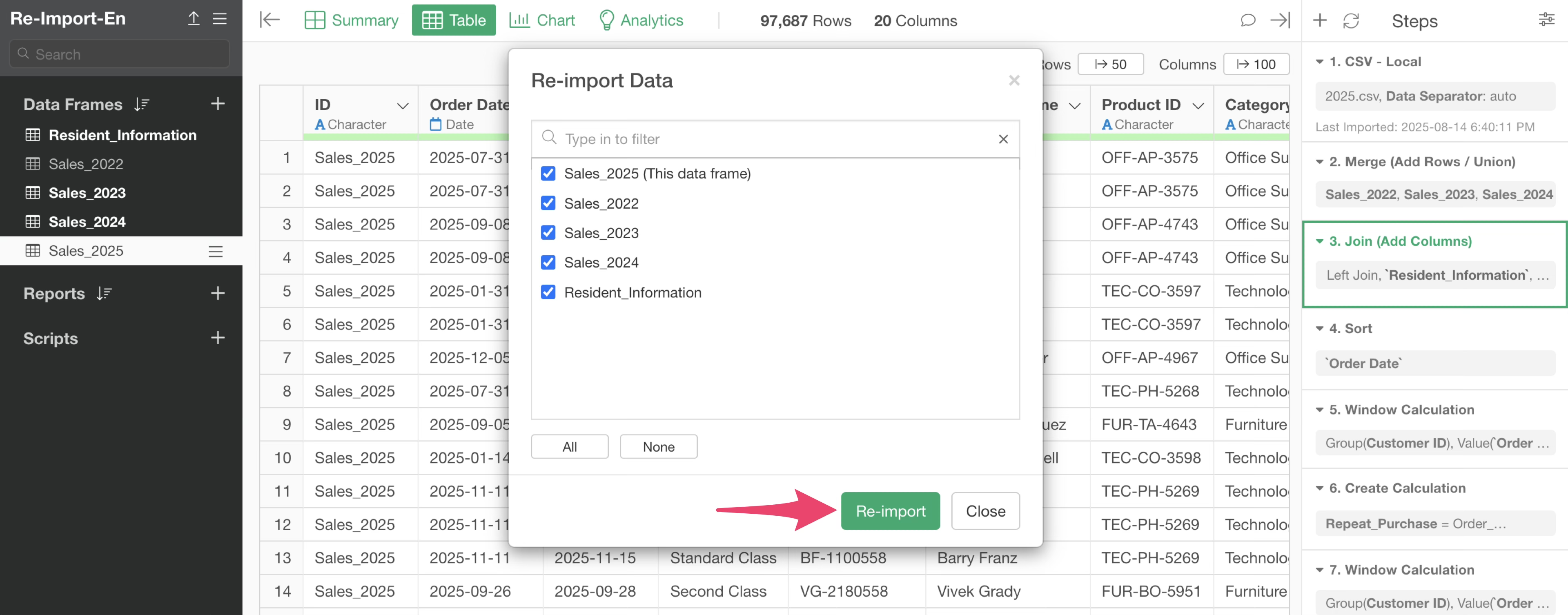
On the other hand, if the 2022-2024 data is historical data, those datasets will not be updated, so there’s no need to re-import them.
If the data volume is large, re-importing unnecessary data frames will cause unnecessary processing time.
Also, if the relevant data source comes from a database, the data may no longer exist in the database, meaning that re-importing data could result in the loss of data that should have remained.
In such cases, you can select which data to re-import and specify the targets for re-import.
For example, if you want to re-import data from the 2025 data frame you’re currently in and the customer residential area, you would check only these two and re-import the data.
By specifying which data to re-import in this way, you can not only avoid putting load on performance but also prevent unintended data frame updates.