How to Round Dates
This note introduces how to perform “rounding” on Date and POSIXct data types.
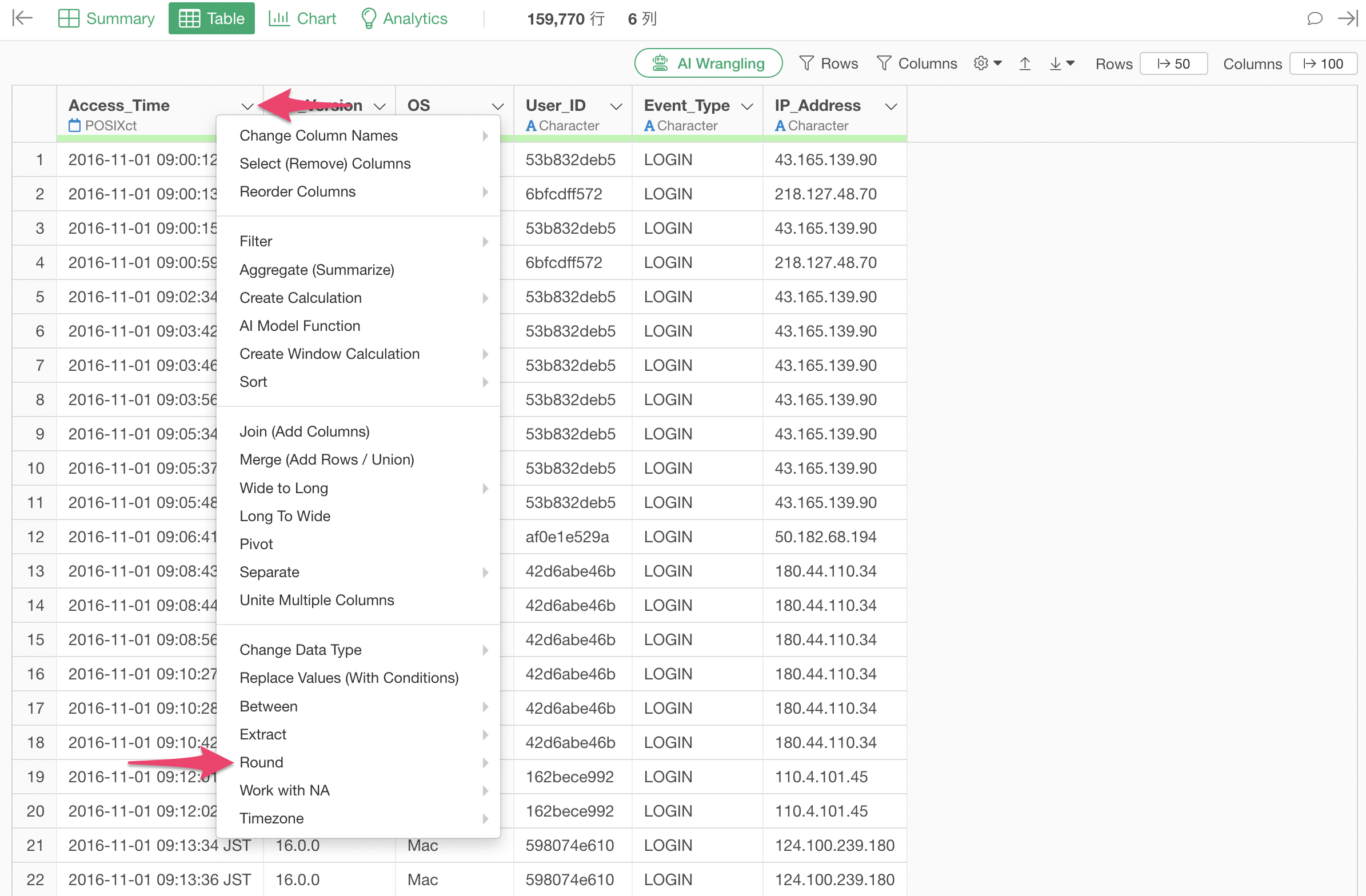
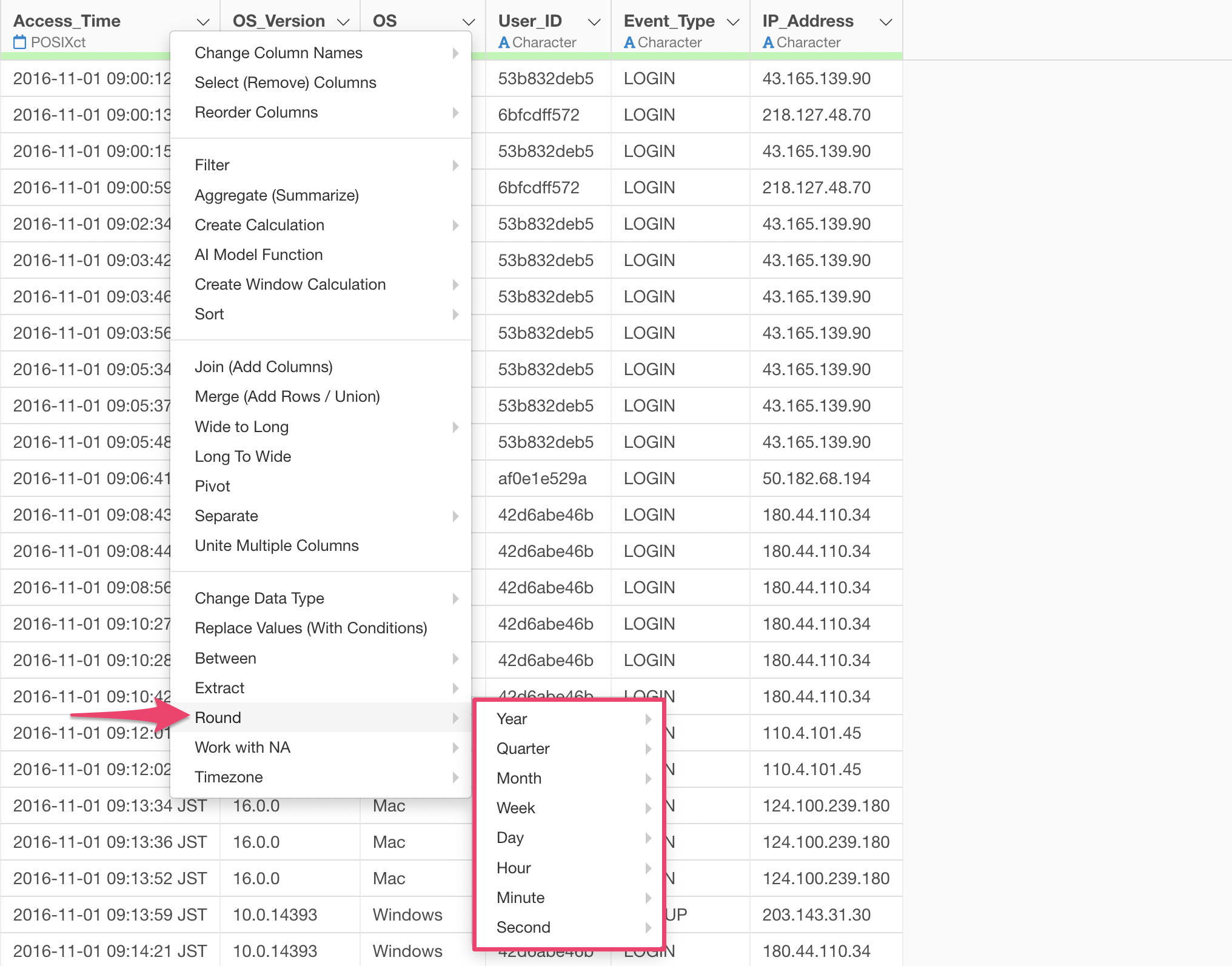
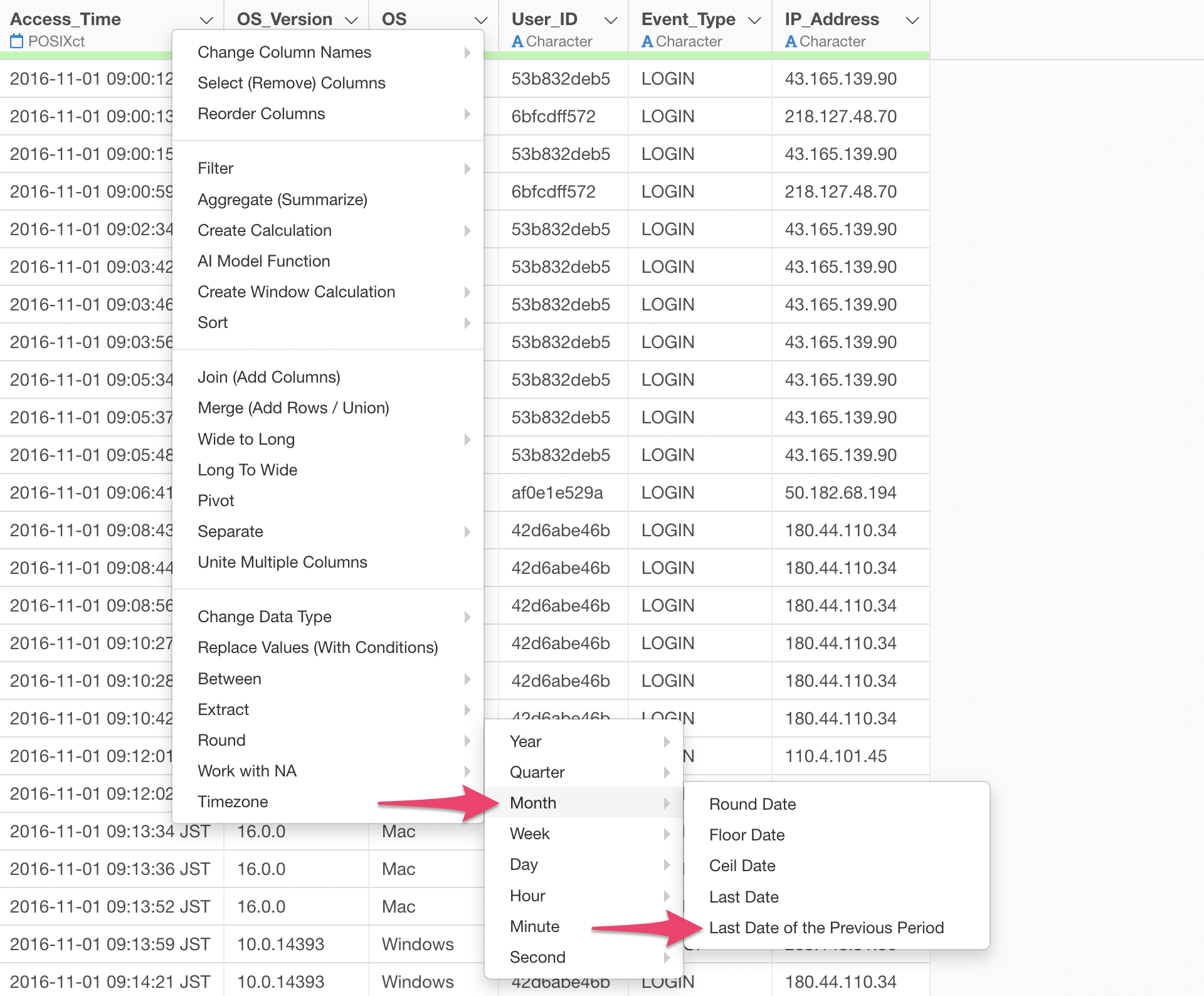
When you select “Rounding” from the Column Header Menu for a Date or POSIXct data type column, a menu appears allowing you to choose the unit of date to apply the rounding to:
- Year
- Quarter
- Month
- Week
- Day
- Hour (POSIXct type only)
- Minute (POSIXct type only)
- Second (POSIXct type only)
5 Types of Rounding
Let’s consider “month” as the unit for rounding in this example.
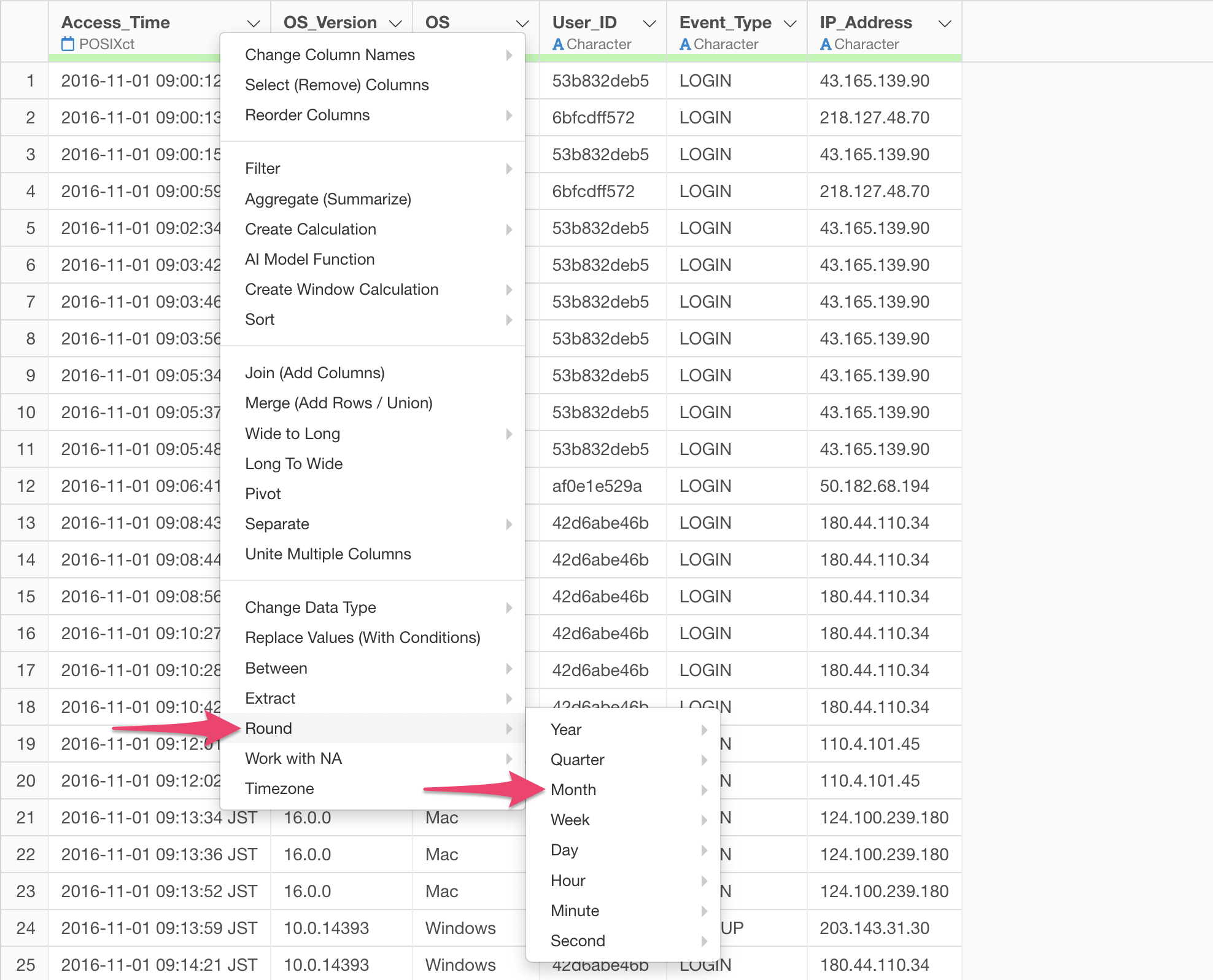
When “Month” is selected for “Rounding”, five “Rounding” menu options are displayed as follows:
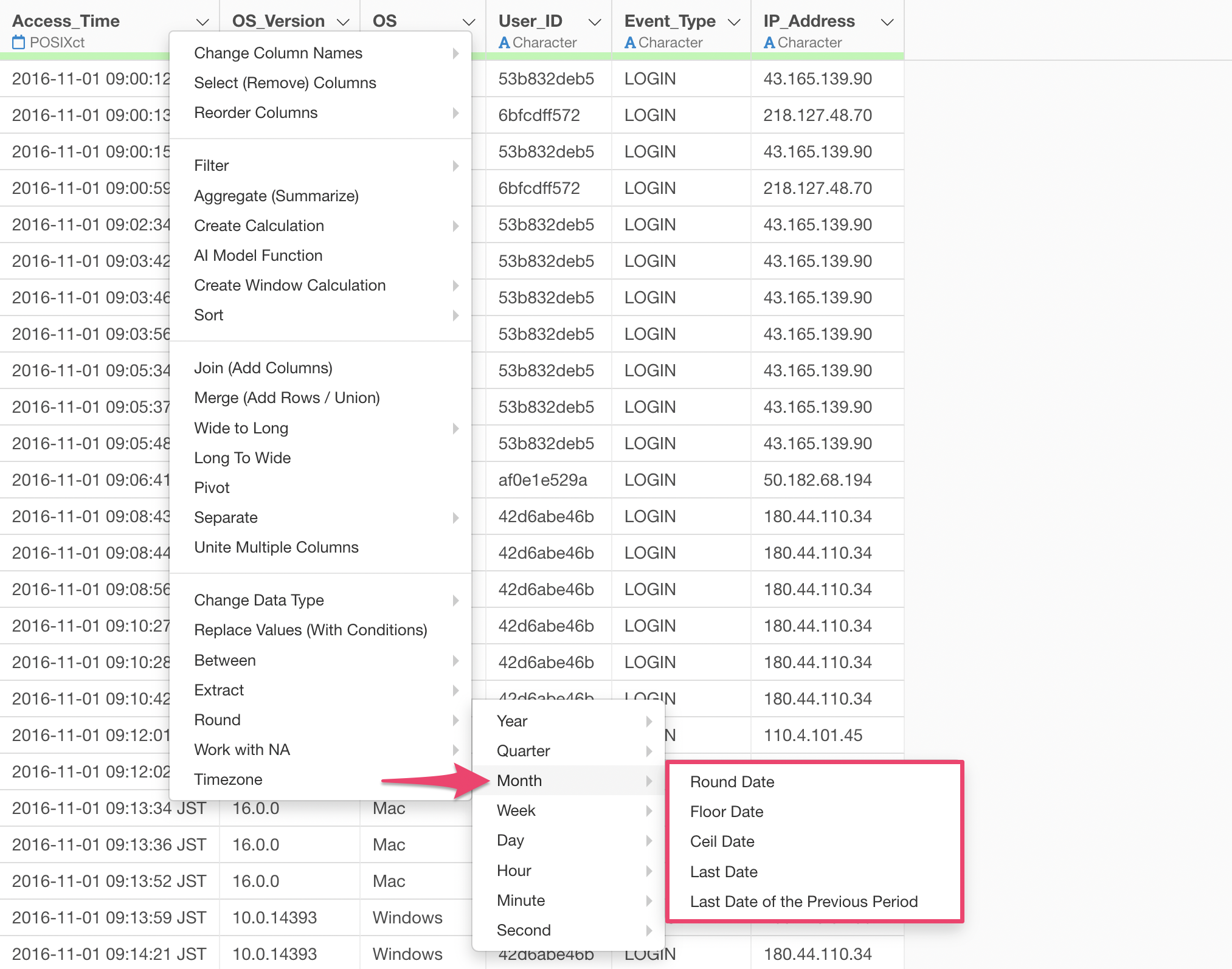
The five displayed menu options vary depending on the selected date or time unit.
- Round Date (Time)
- Floor Date (Time)
- Ceiling Date (Time)
- Last Date (Displayed only when Year, Quarter, Month, or Week is selected)
- Last Date of Previous Period (Displayed only when Year, Quarter, Month, or Week is selected)
Round Date (Time)
Let’s consider the case where “Month” is selected for “Rounding” and “Round Date” is chosen.
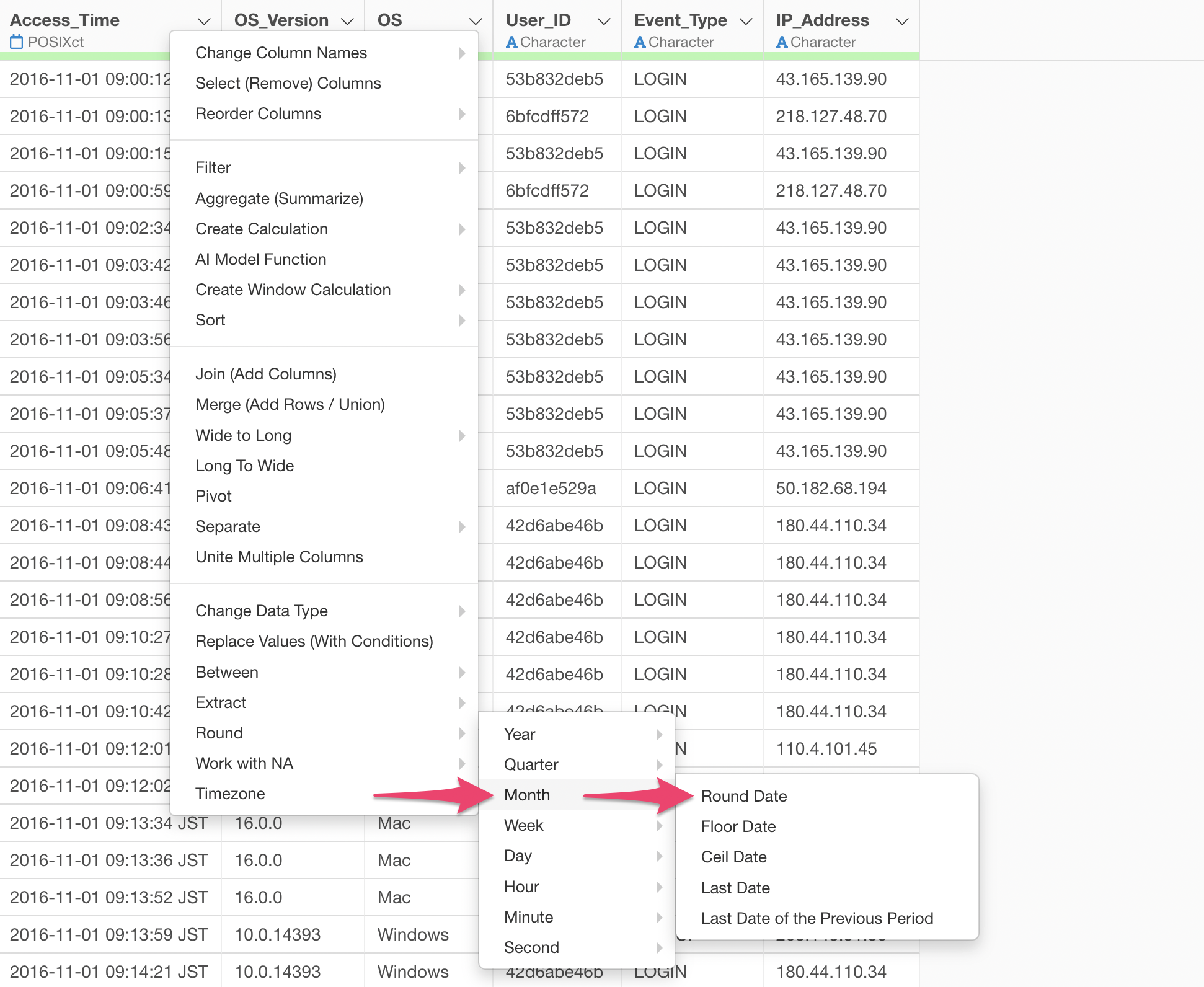
If the date of interest is in June, dates on or before June 15th are rounded to June 1st, and dates on or after June 16th are rounded to the 1st of the following month, as shown below.
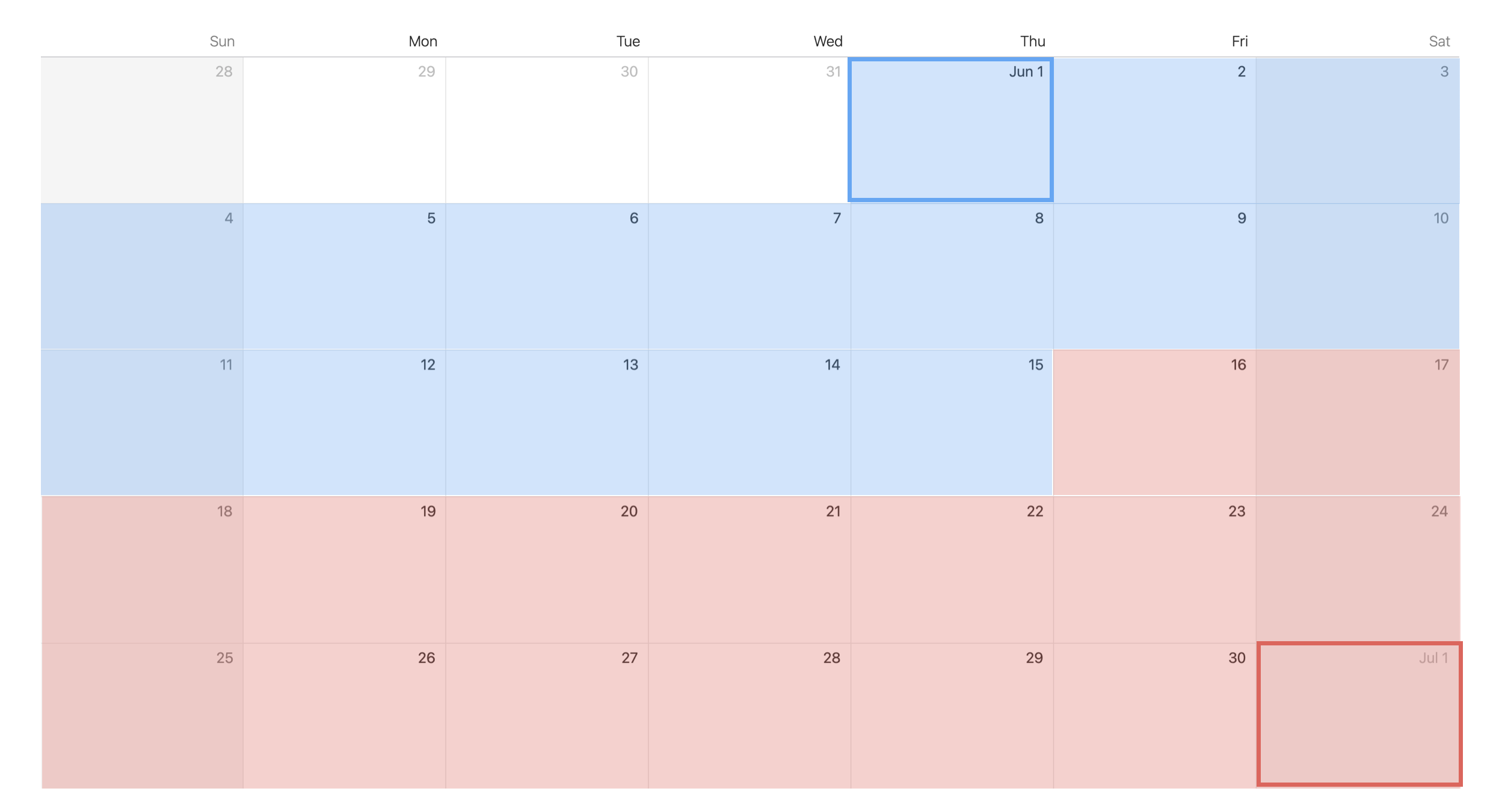
Thus, the “Round” operation adjusts a specific date or time by “rounding” it based on the chosen unit (e.g., “month”).
Here, “rounding” means that if the elapsed time within that unit is half or less (e.g., up to the 15th for a month), the date is rounded to the start point of that unit (e.g., the beginning of the month).
Conversely, if the elapsed time exceeds half (e.g., from the 16th of the month onwards), it is adjusted to the start point of the next unit (e.g., the beginning of the next month).
Therefore, for example, when “rounding” by “week”, dates from Sunday to Wednesday are rounded to the beginning of that week, while dates from Thursday onwards are rounded to the beginning of the next week.
Floor Date (Time)
Let’s consider the case where “Month” is selected for “Rounding” and “Floor Date” is chosen.
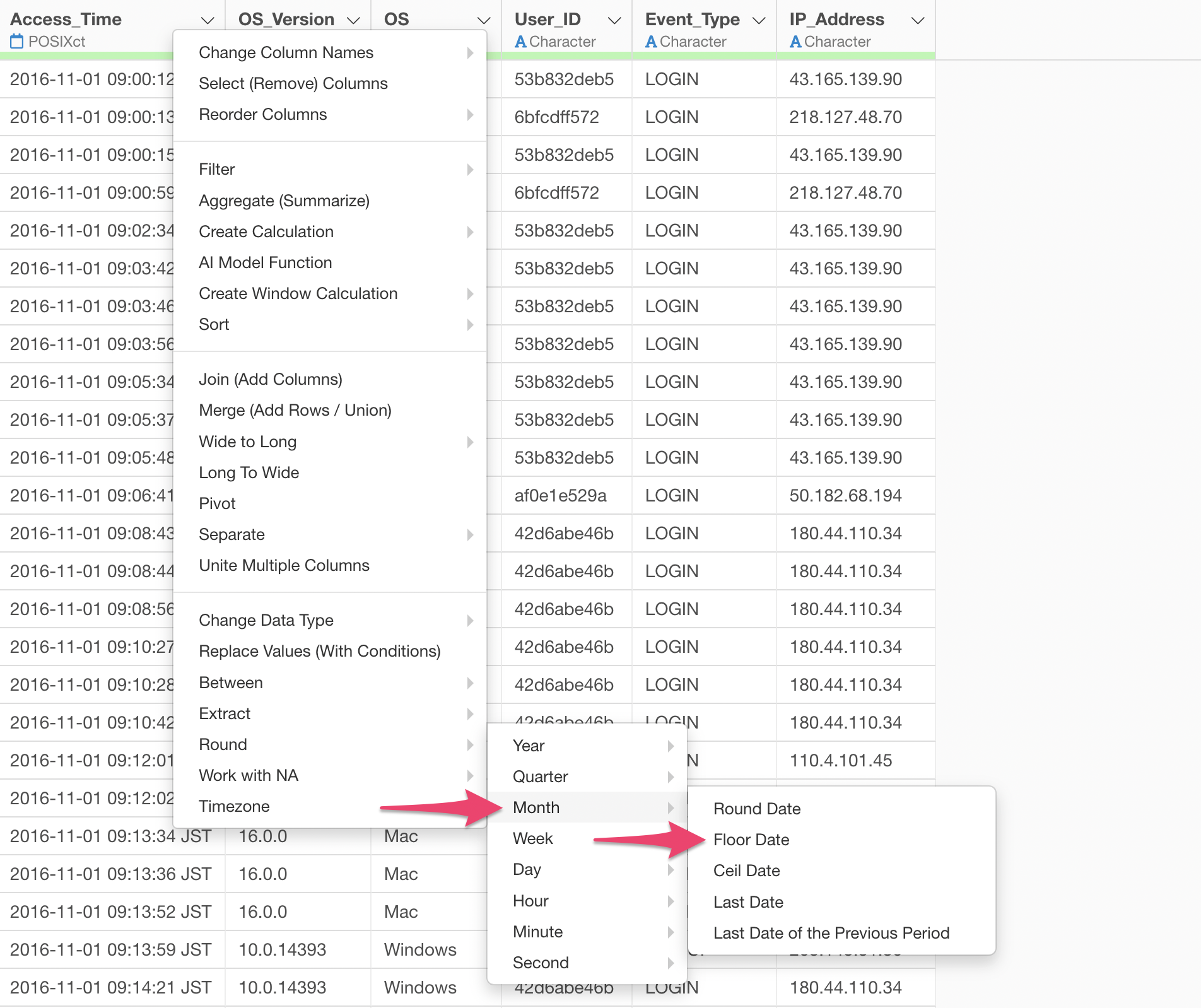
If the date of interest is in June, any day in June is truncated to June 1st, as shown below.
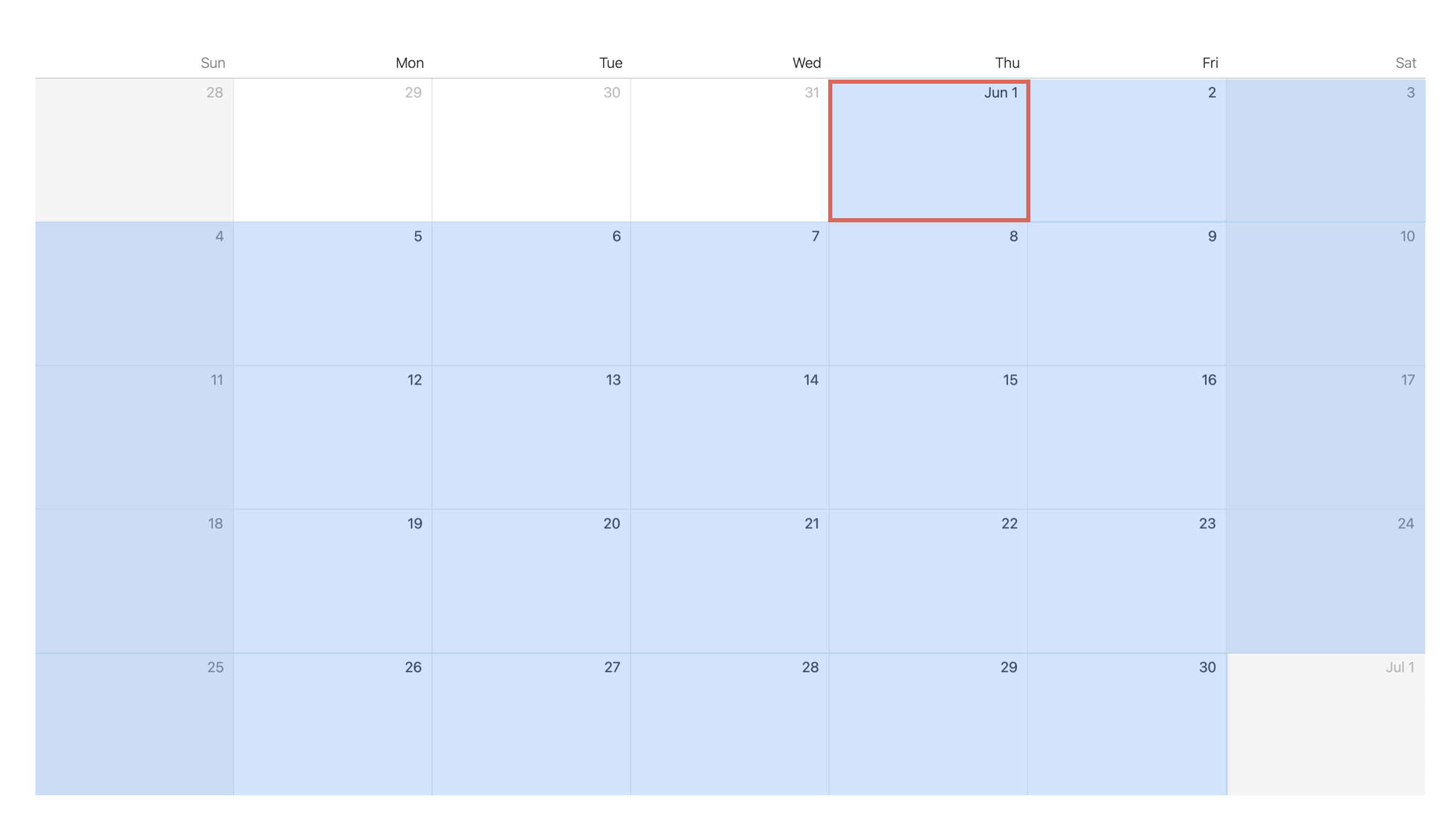
As shown above, “truncating” by “month” truncates the date to the first day of the month of interest.
Thus, selecting “Truncate” adjusts a specific date or time to the start point of the selected unit.
Therefore, for example, when “truncating” by “week”, it is truncated to the date of Sunday, which is the beginning of that week.
Ceiling Date (Time)
Let’s consider the case where “Month” is selected for “Rounding” and “Ceiling Date” is chosen.
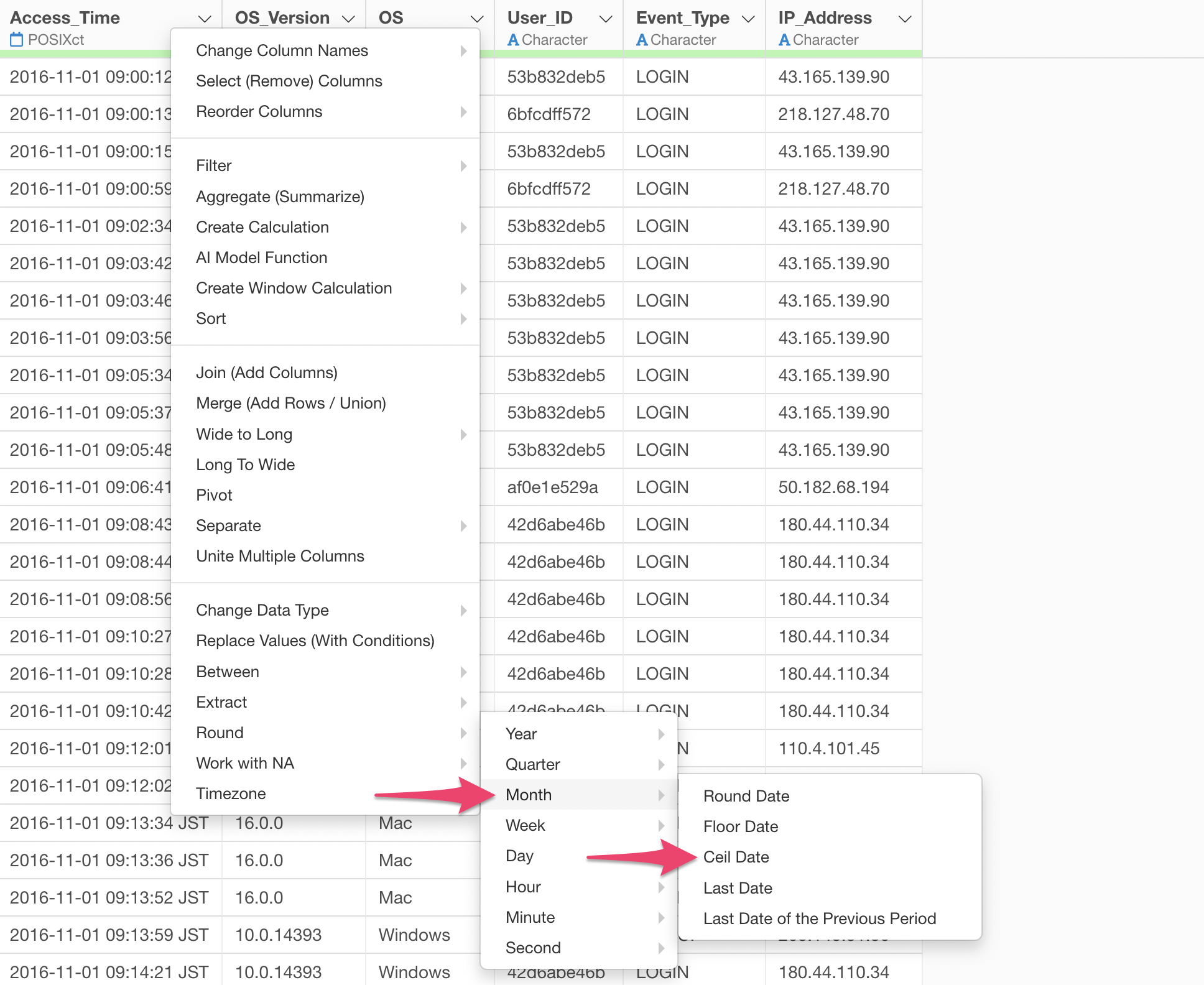
If the date of interest is in June, any day in June is rounded up to July 1st, as shown below.
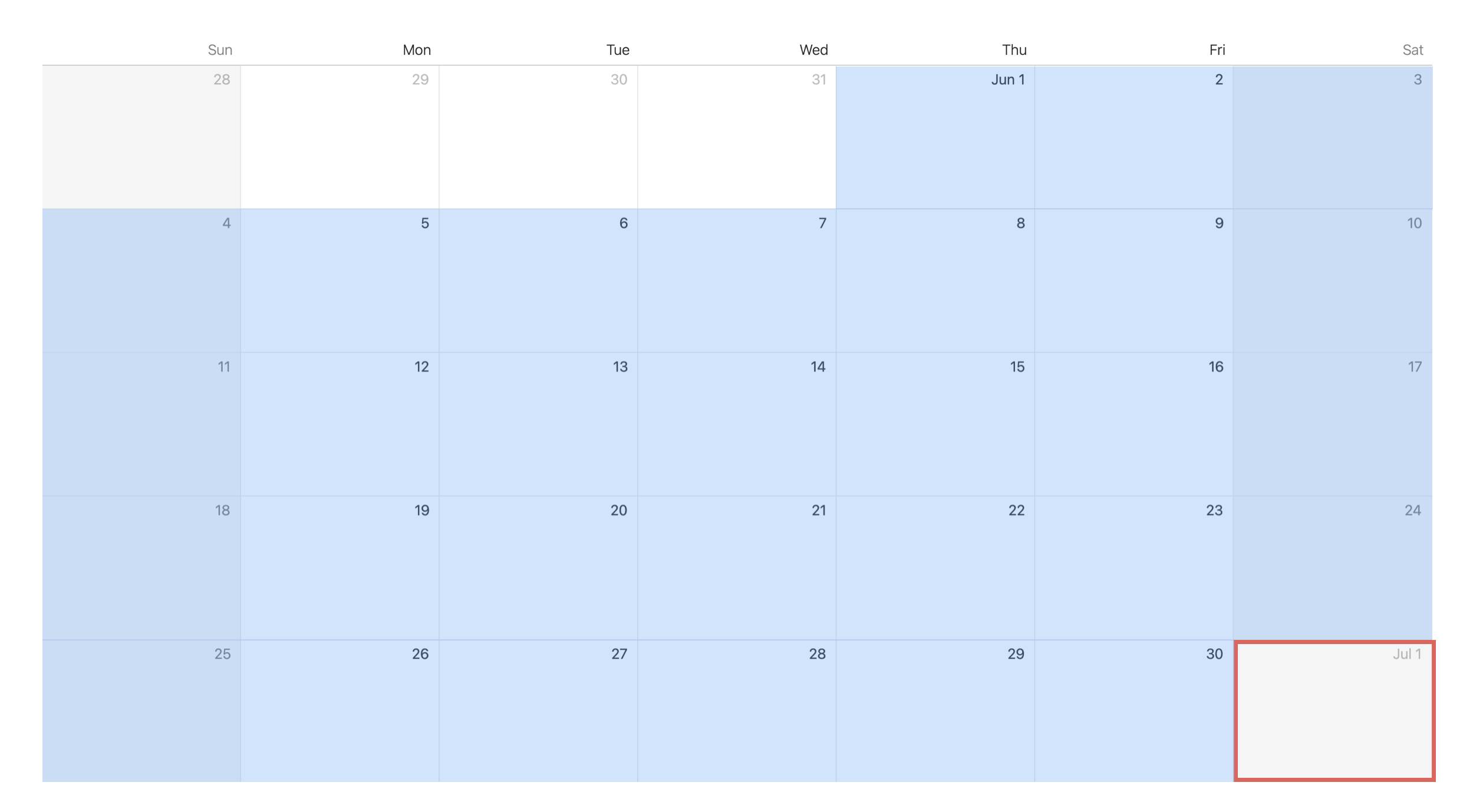
As shown above, “ceiling” by “month” rounds up the date to the first day of the next month.
Thus, selecting “Ceiling” adjusts a specific date or time to the next start point of the selected unit.
Therefore, for example, when “ceiling” by “week”, it is rounded up to the date of the following Sunday, which is the beginning of the next week.
Last Date
“Last Date” is a menu option that appears only when “Year”, “Quarter”, “Month”, or “Week” is selected for rounding.
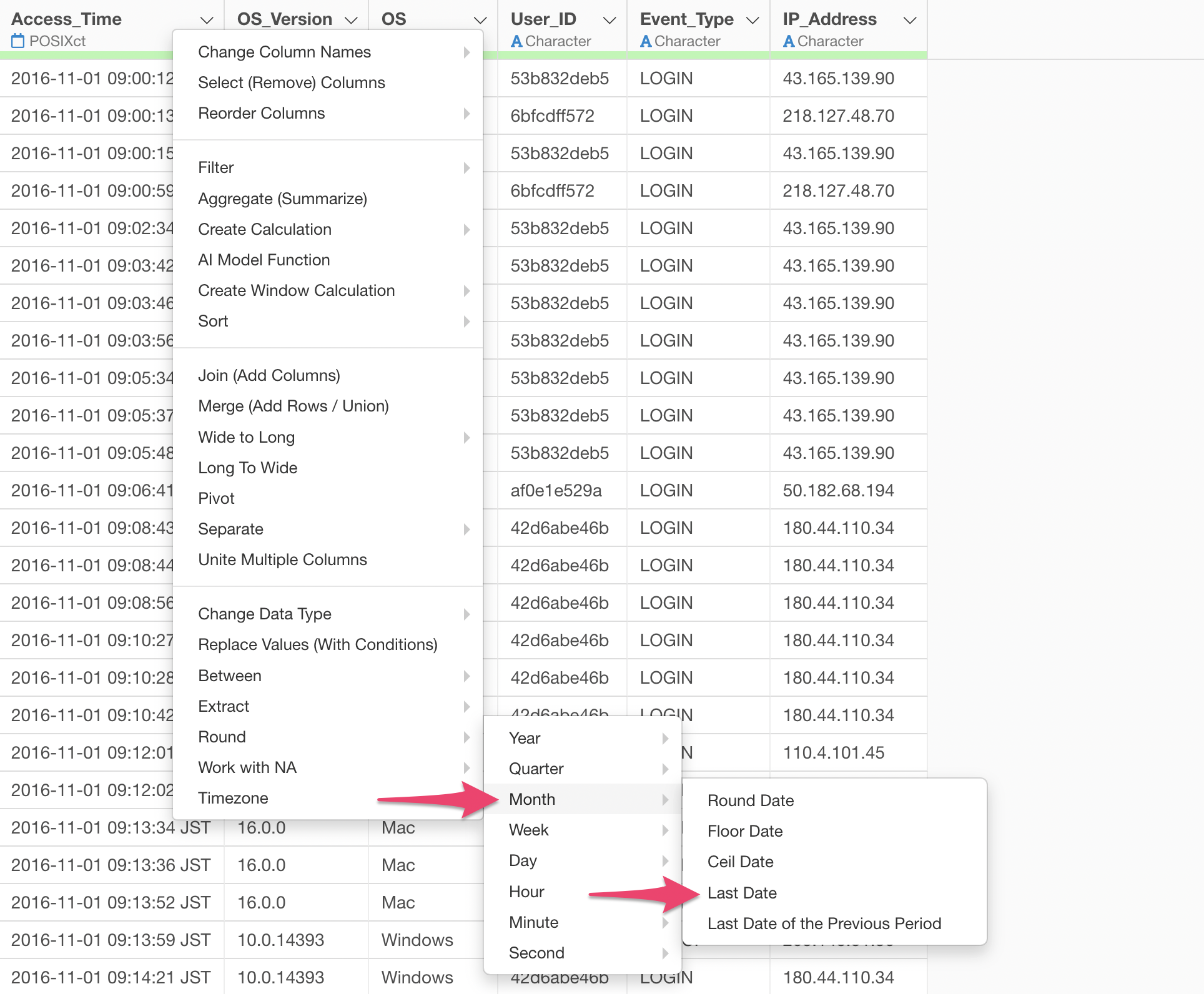
If the date of interest is in June, any day in June is rounded to June 30th, the last day of that month, as shown below.
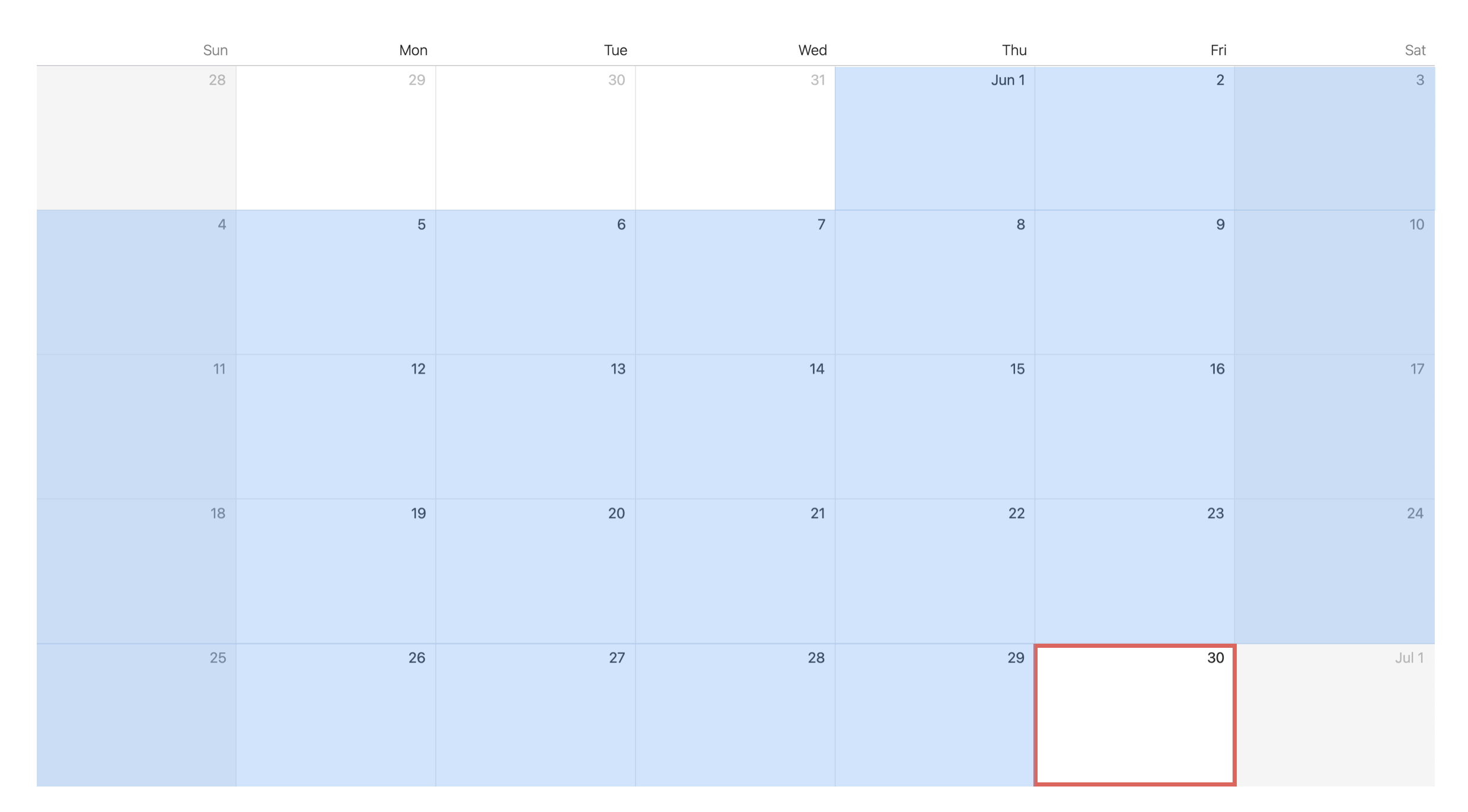
As shown above, rounding to the “Last Date” of the “month” rounds to the last day of the current month.
Thus, selecting “Last Date” adjusts a specific date or time to the end point within the selected unit.
Therefore, for example, when rounding to the “Last Date” by “week”, it is rounded to the date of Saturday, which is the last day of that week.
Last Date of the Previous Period
“Last Date of the Previous Period” is also a menu option that appears only when “Year”, “Quarter”, “Month”, or “Week” is selected for rounding.
If the date of interest is in June, any day in June is rounded to May 31st, as shown below.
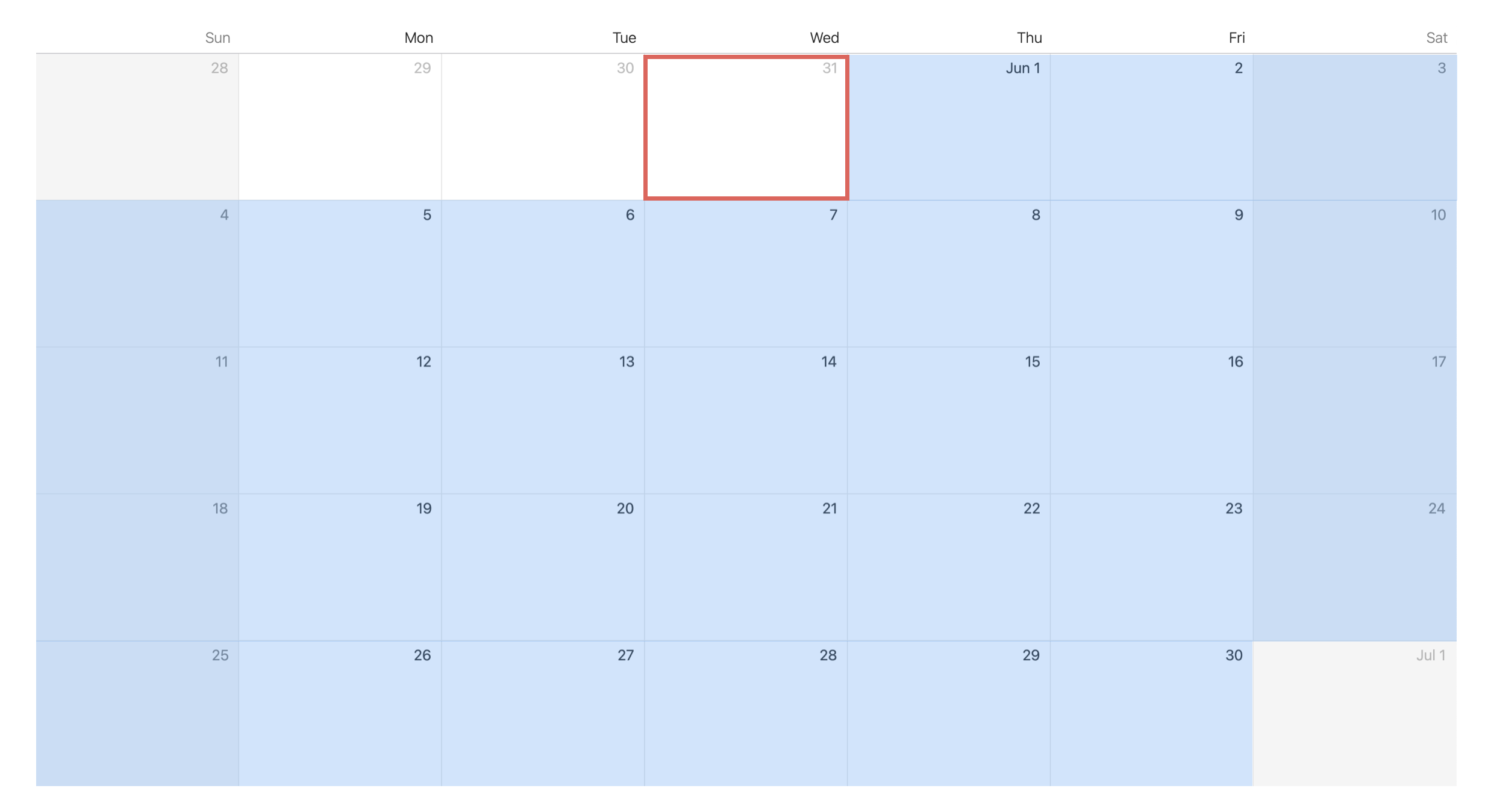
As shown above, rounding to the “Last Date of Previous Period” for “month” rounds to the last day of the previous month.
Thus, selecting “Last Date of Previous Period” adjusts a specific date or time to the end point of the previous period within the selected unit.
Therefore, for example, when selecting “Last Date of Previous Period” for “week”, it is rounded to the date of Saturday, which is the last day of the previous week.