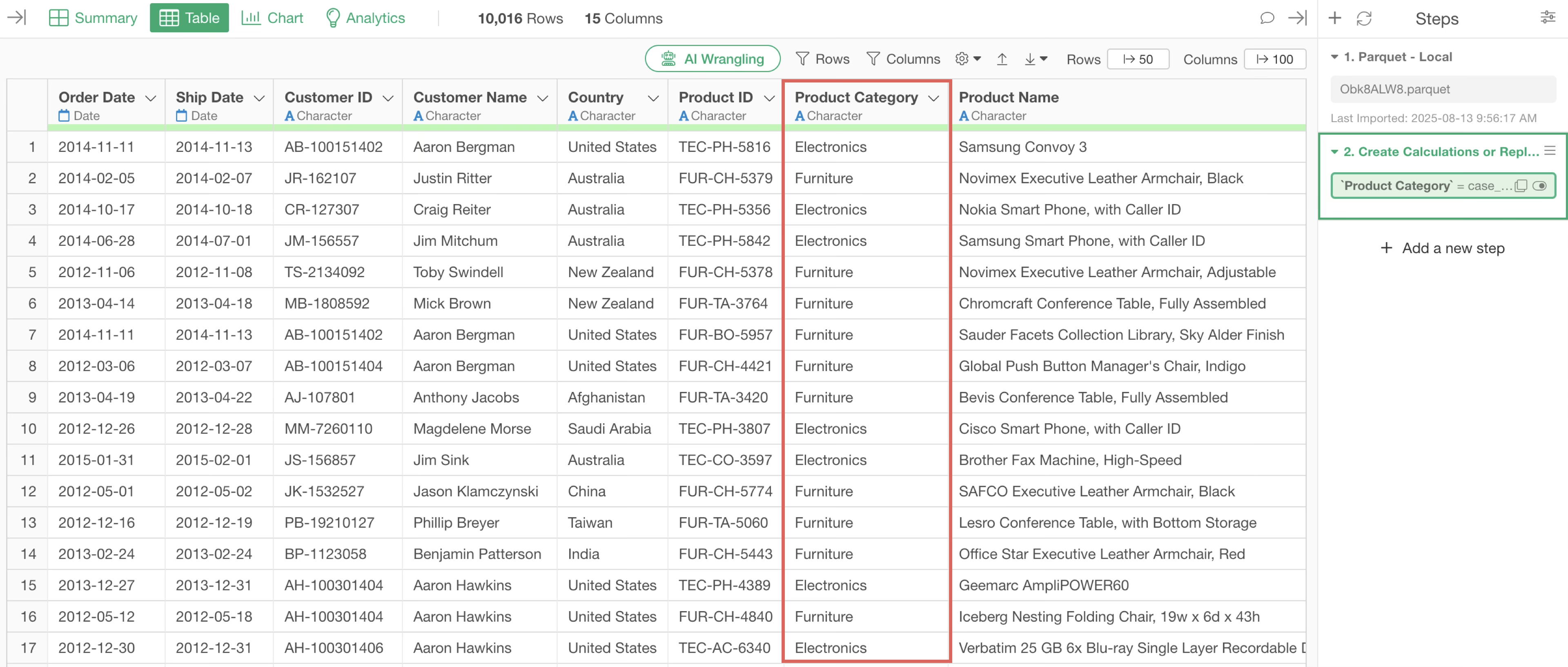
How to Set Labels When Specific String is Contained
Exploratory provides functionality to set labels when specific string patterns are contained. This can be achieved through both AI Prompts and UI operations.
Who Benefits
This is useful for those who want to categorize data based on string patterns.
Problem
When you have strings, you sometimes want to create new category columns based on whether certain strings are contained or not.
Solution
In this case, we’ll use data where each row represents one order, and columns contain information such as product ID, Product Name, purchaser information, and amount.
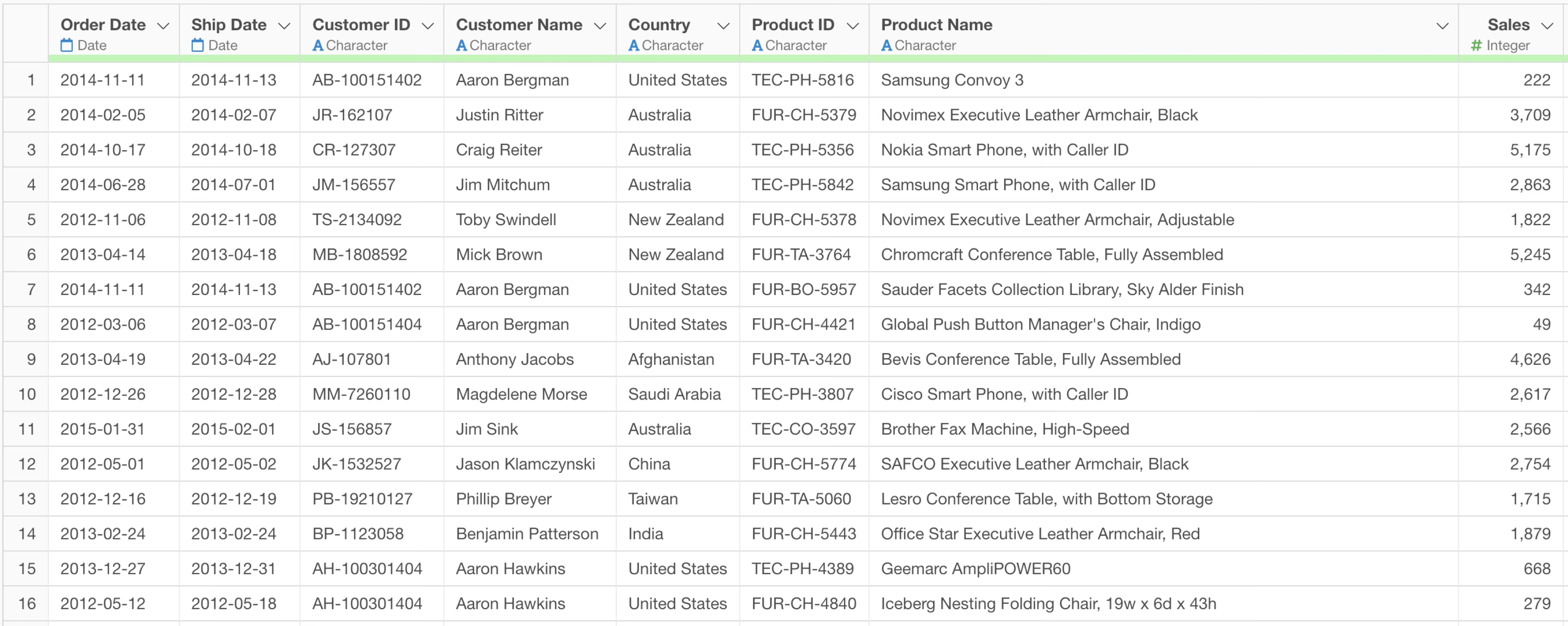
We’ll particularly utilize string patterns contained in the “Product ID” column to perform category classification.
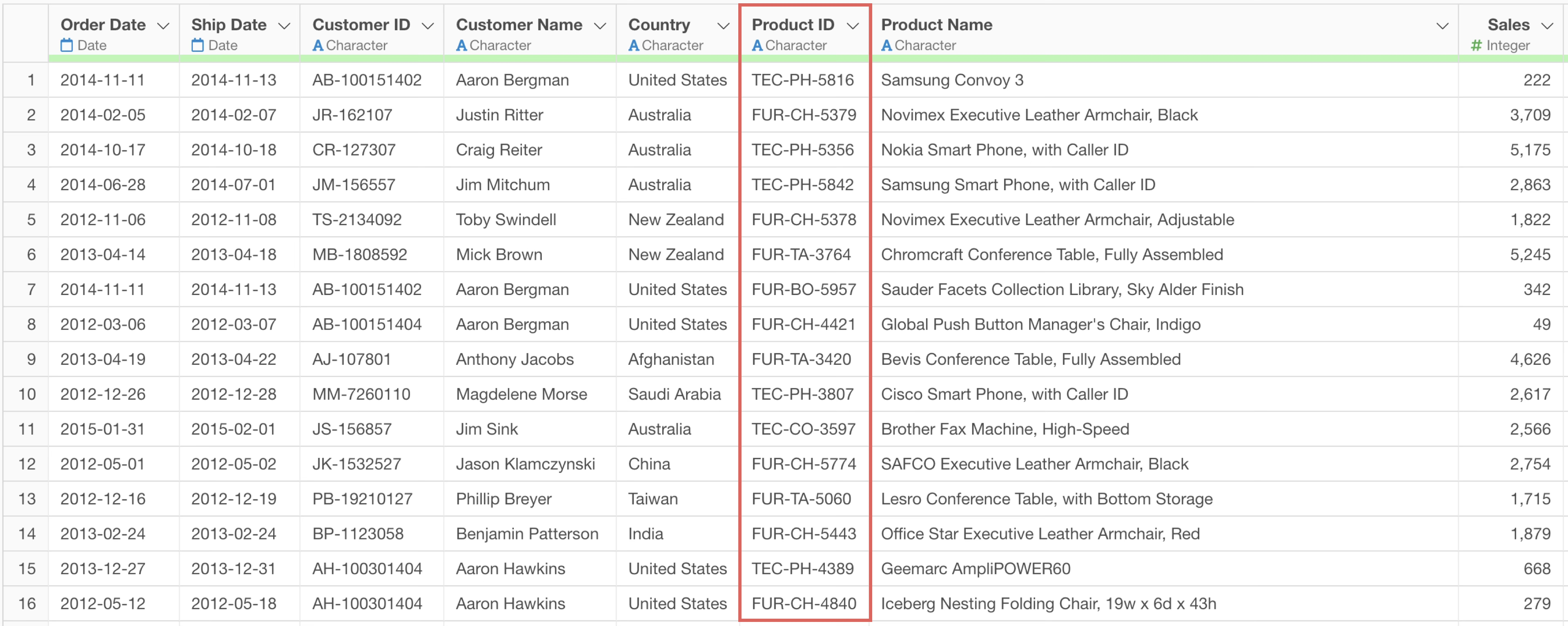
For example, Product IDs often contain category information. Product IDs starting with “TEC” might be electronics, those starting with “FUR” might be furniture, and those starting with “OFF” might be office supplies.
By utilizing such string patterns, you can automatically generate new classification columns from existing data.
Data Wrangling with AI Prompt
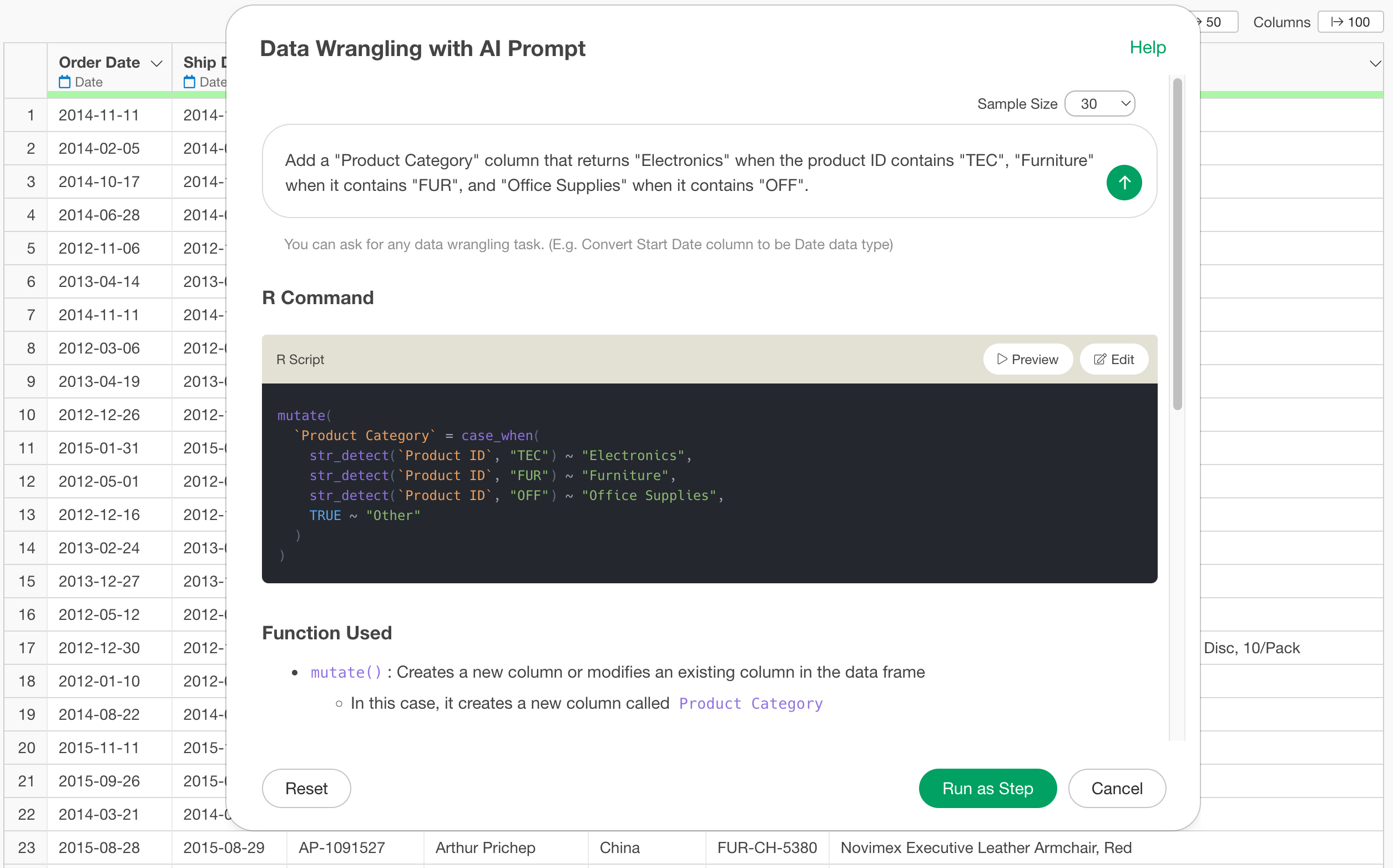
Click the “AI Wrangling” button from Table View to open the AI Prompt window. Enter the following prompt in the prompt window:
Add a "Product Category" column that returns "Electronics" when the "Product ID" contains "TEC", "Furniture" when it contains "FUR", and "Office Supplies" when it contains "OFF".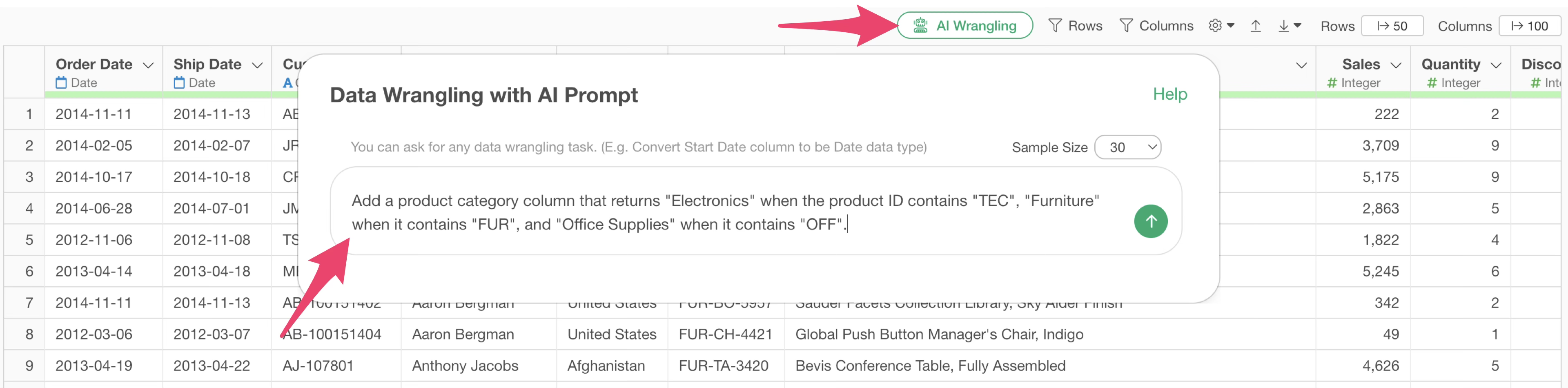
When you execute the prompt, AI automatically generates code that handles multiple conditions.
After confirming in the preview that each pattern is correctly classified, click the “Run as Step” button.
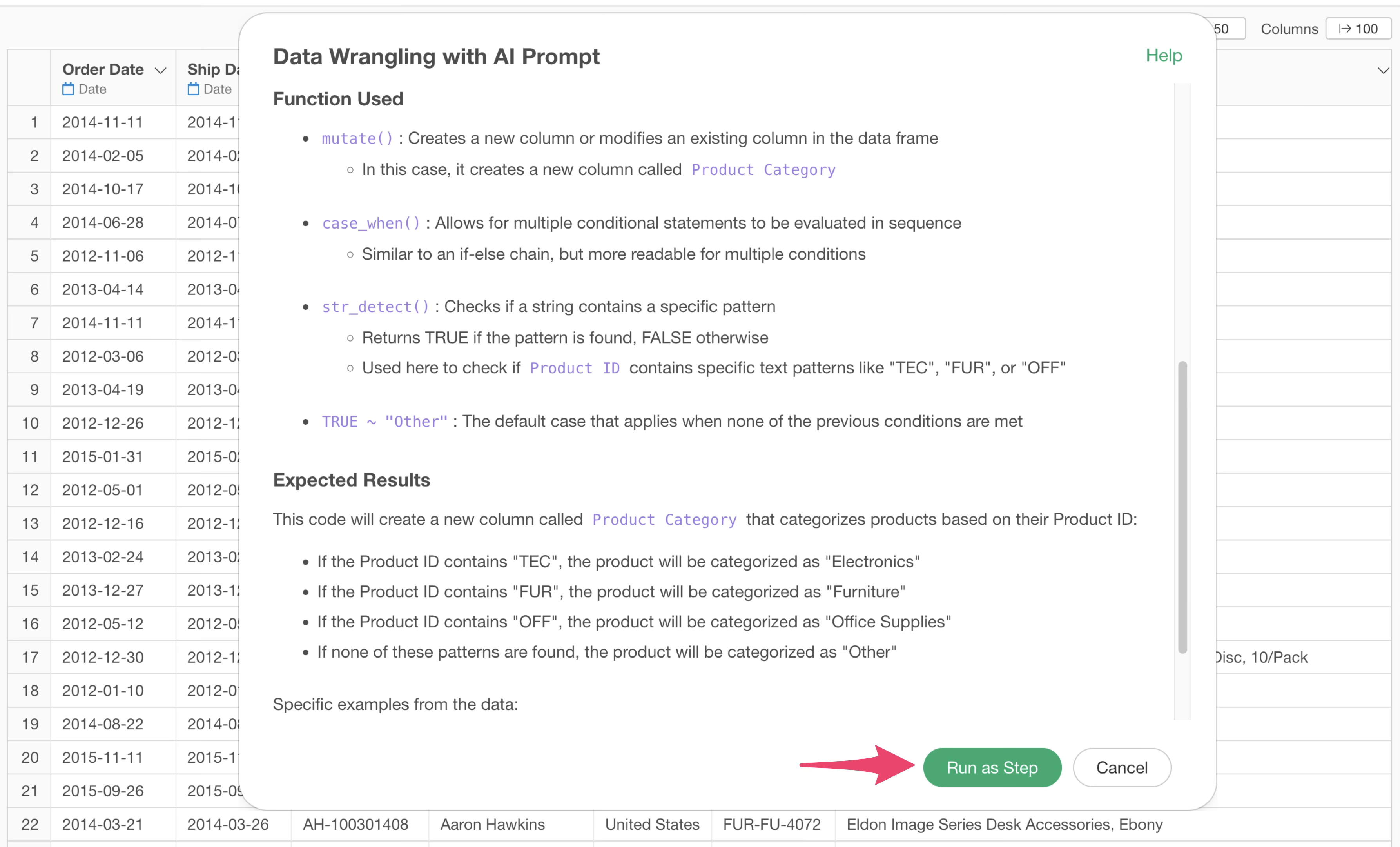
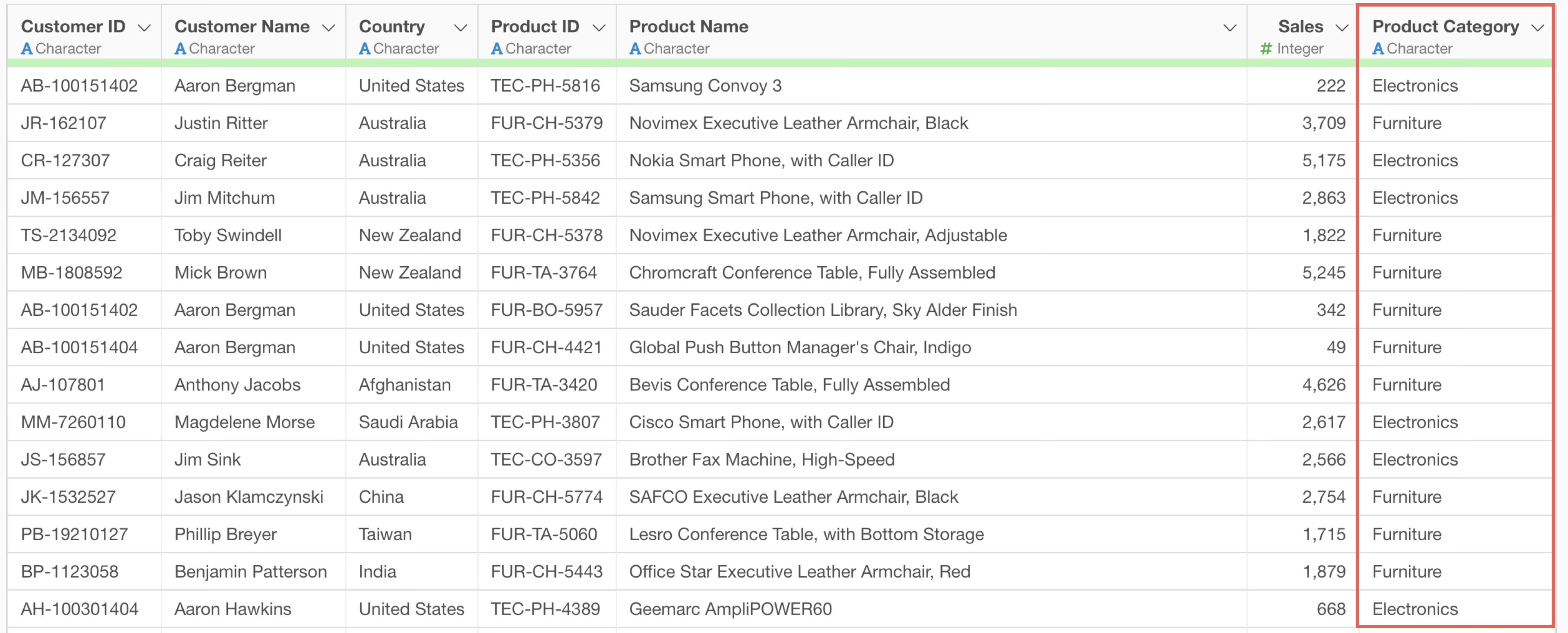
This completes the addition of the product category column and automatic classification based on string patterns.
UI Operation Method for Condition Setting
From here, we’ll explain the same process using UI operations.
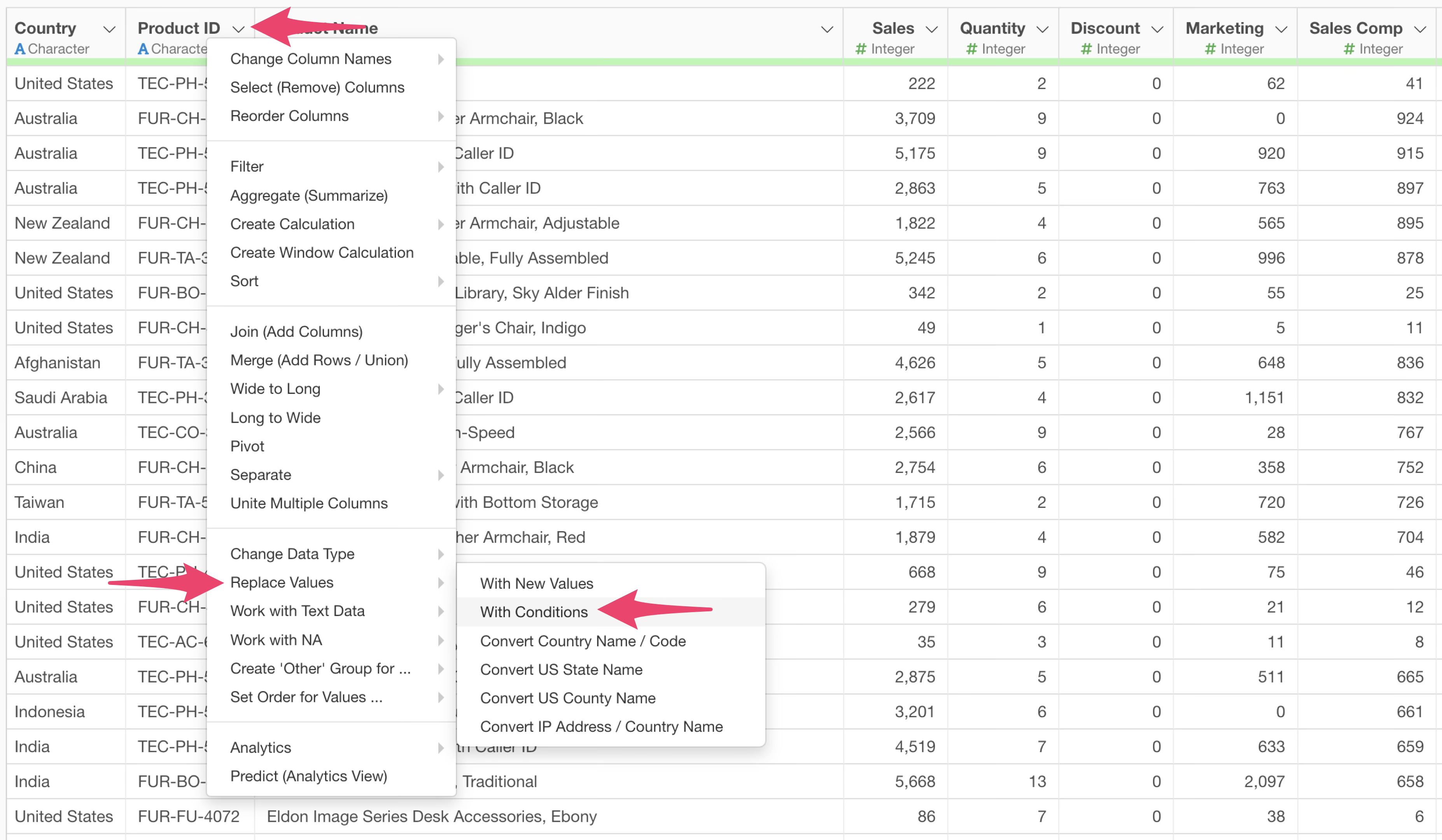
From the “Product ID” column’s Column Header Menu, select “Create Calculation”, “Replace Values”, “With Condition”.
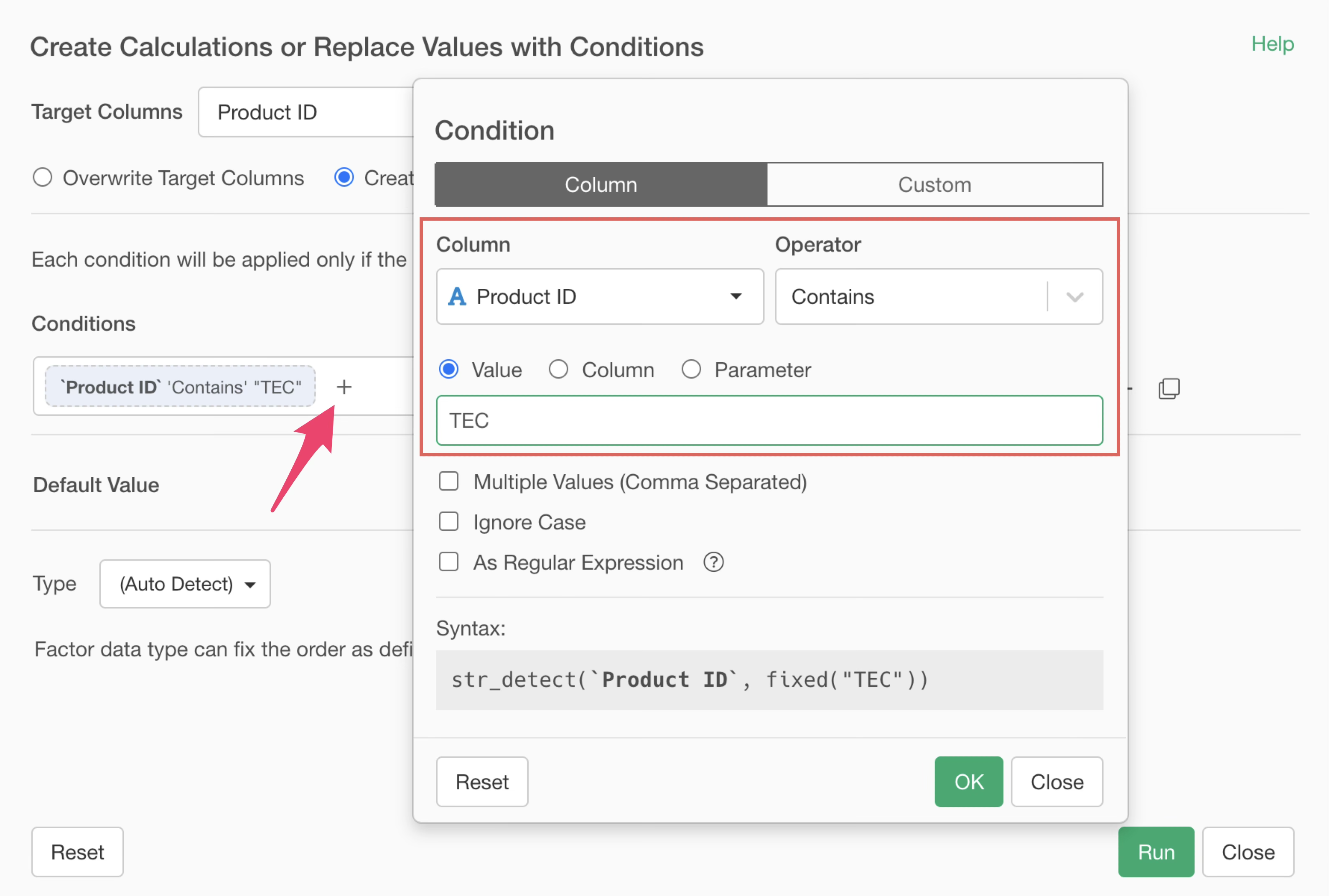
When the settings dialog appears, click the plus button to add the first condition. In the condition specification dialog, select “Contains”, enter “TEC”, and click the OK button.
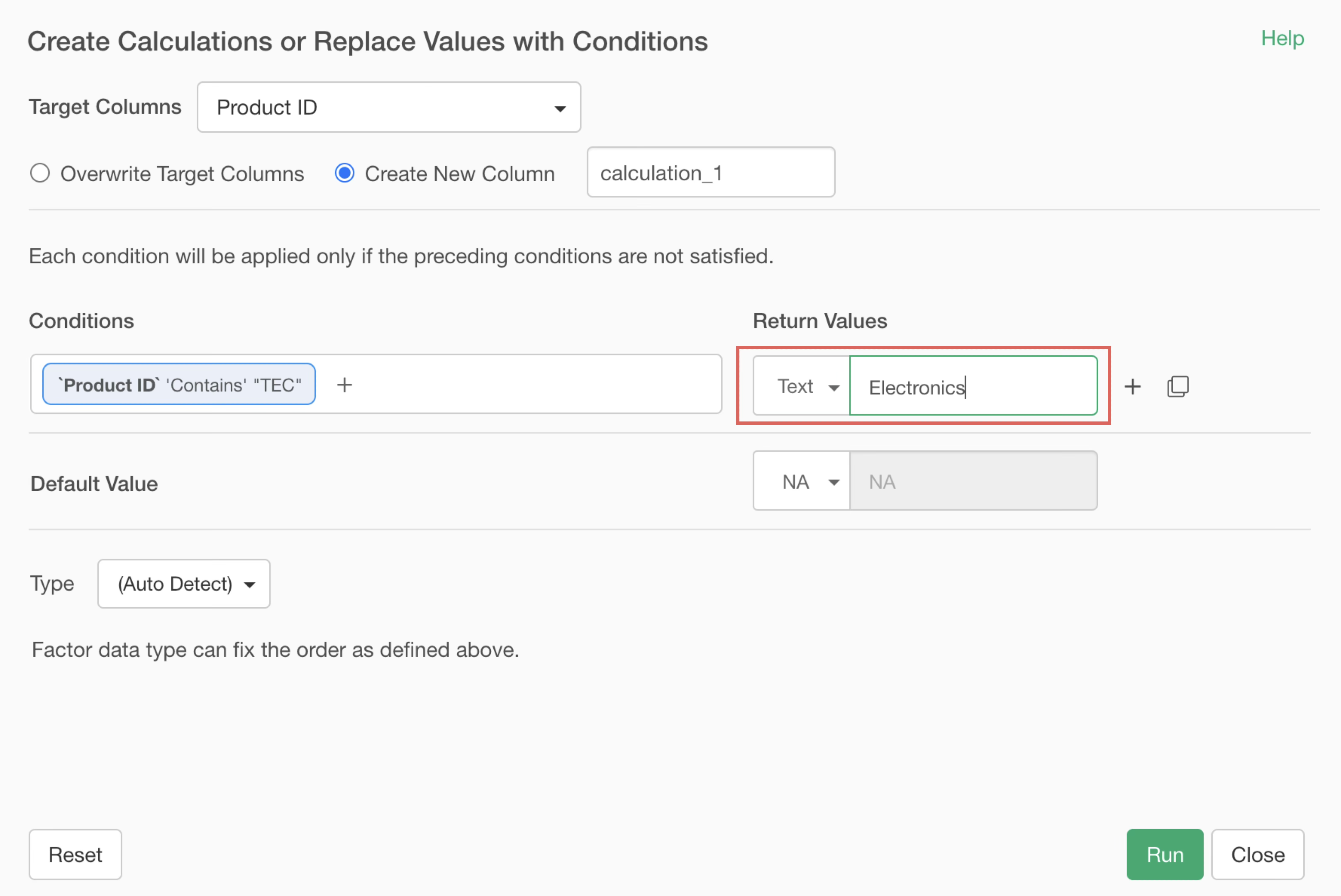
Enter “Electronics” as the new text value.
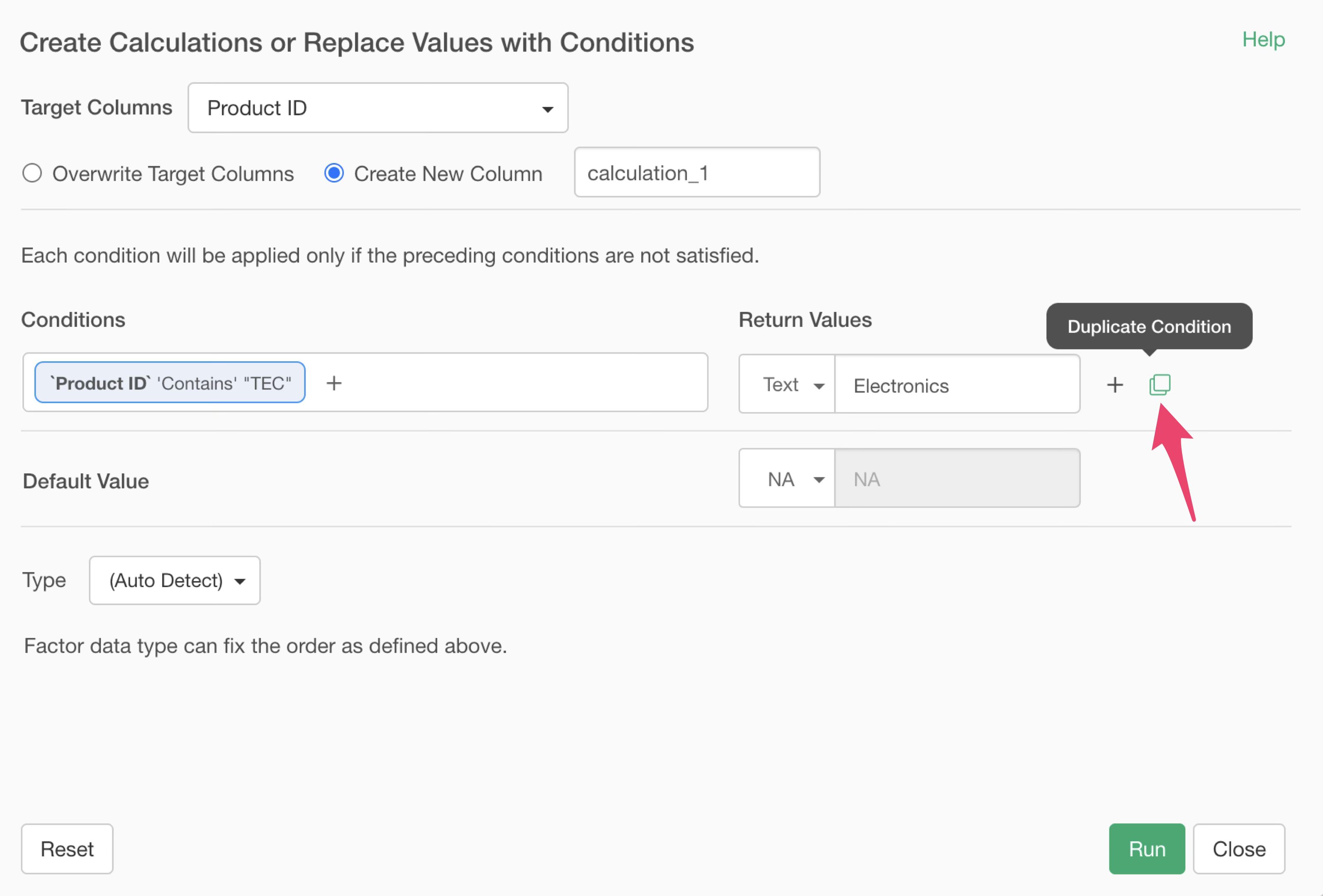
To add a second condition, click the “Duplicate Condition” button.
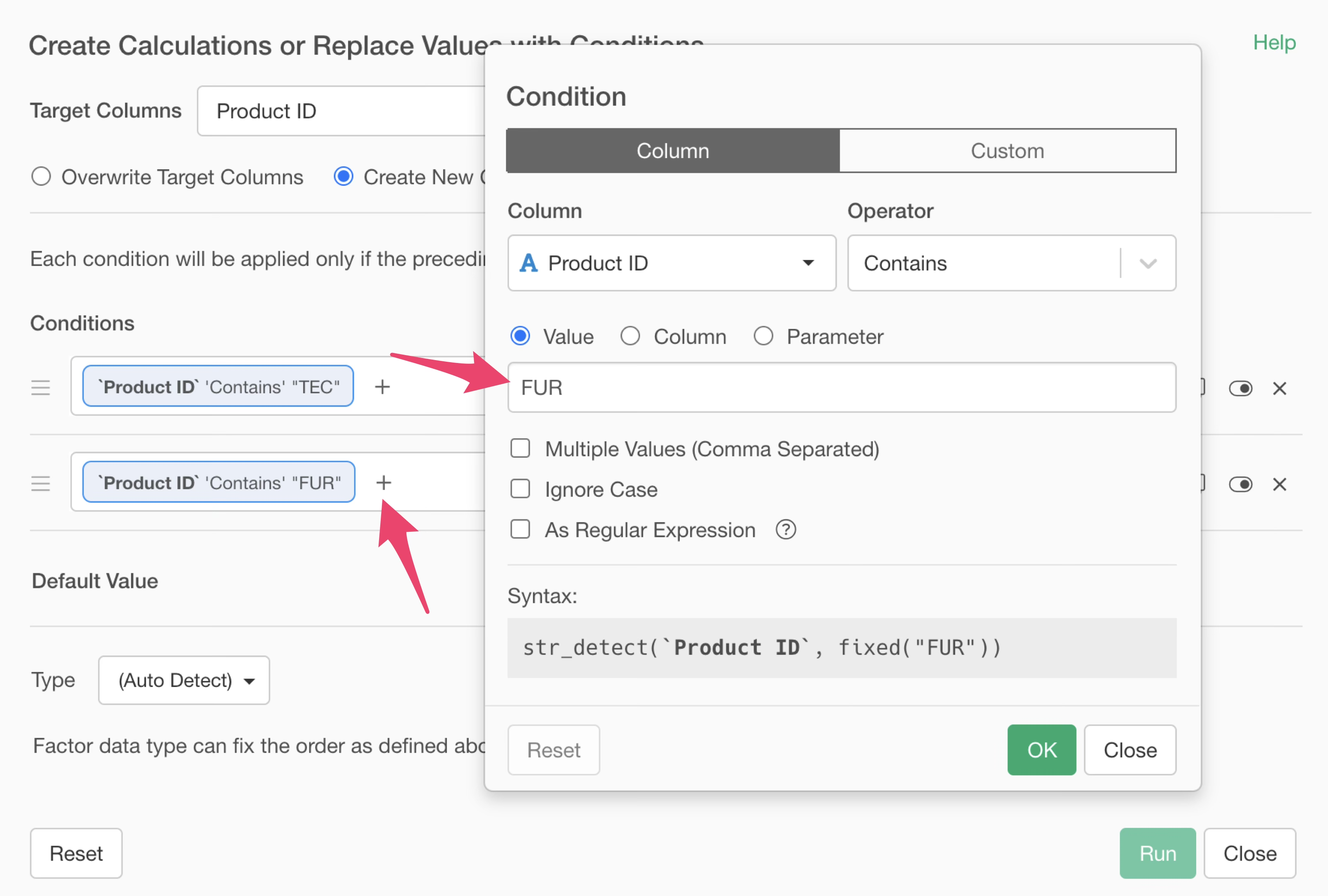
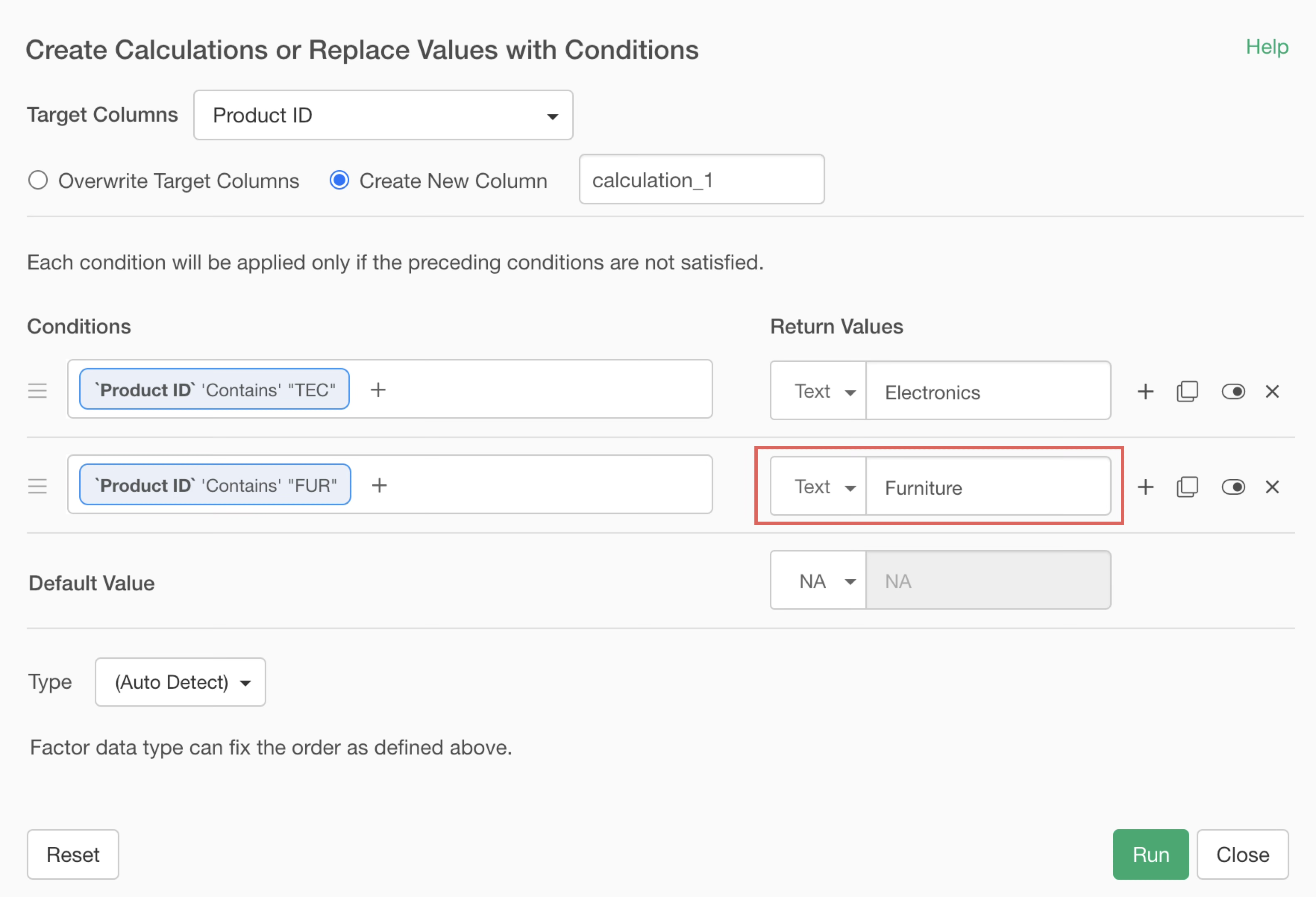
Modify the duplicated condition settings to”FUR” for the value.
Set “Furniture” as the new text value.
Finally, set “Office Supplies” as the default value.
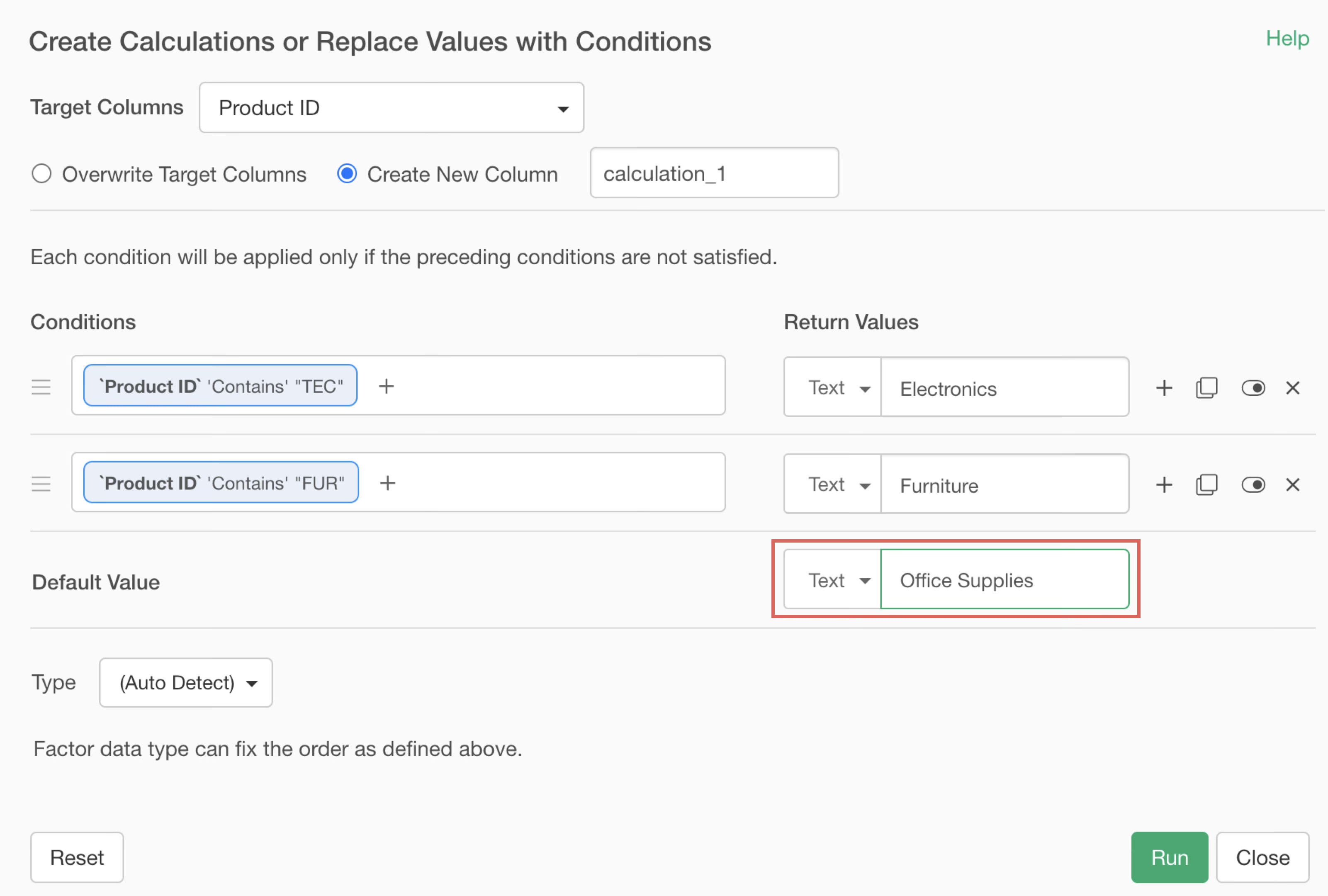
This way, all cases that don’t match the above conditions will be classified as office supplies.
Check “Create New Column”, set the column name to “Product Category”, and click the Run button.
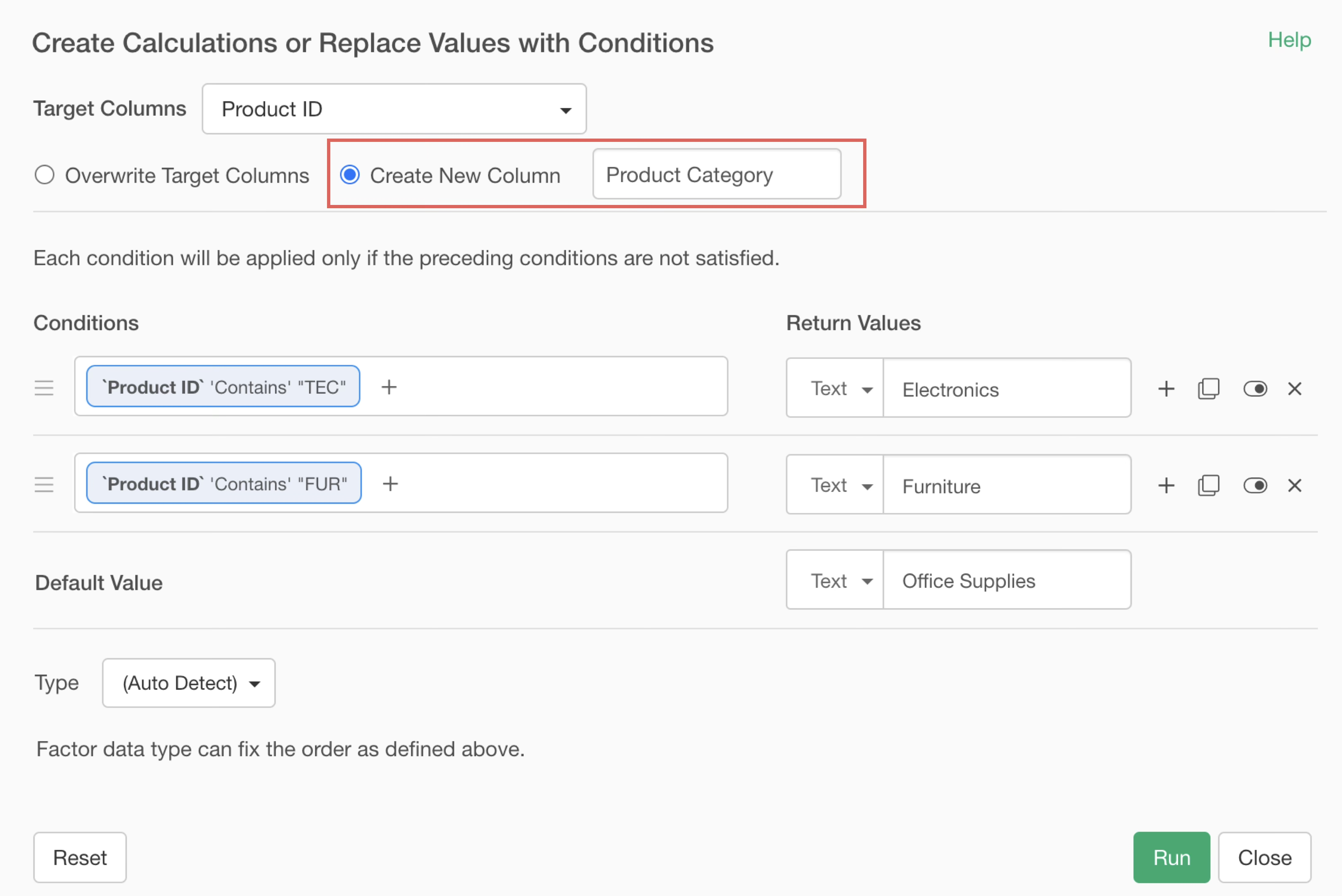
This adds the product category column after the original data, achieving the same results as when using the AI Prompt.