Publishing AI Prompt Templates
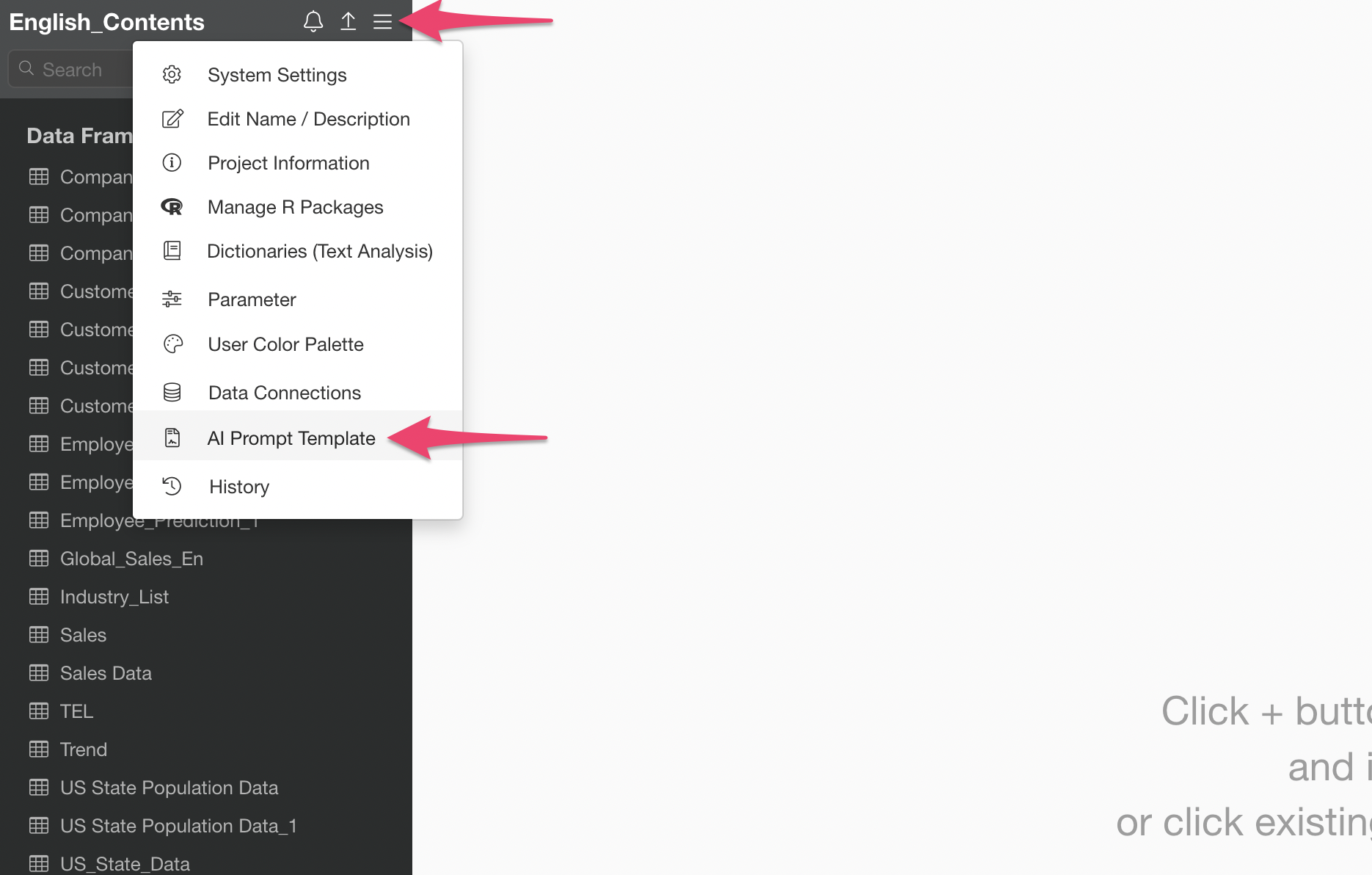
From the project menu, select “AI Prompt Templates”.
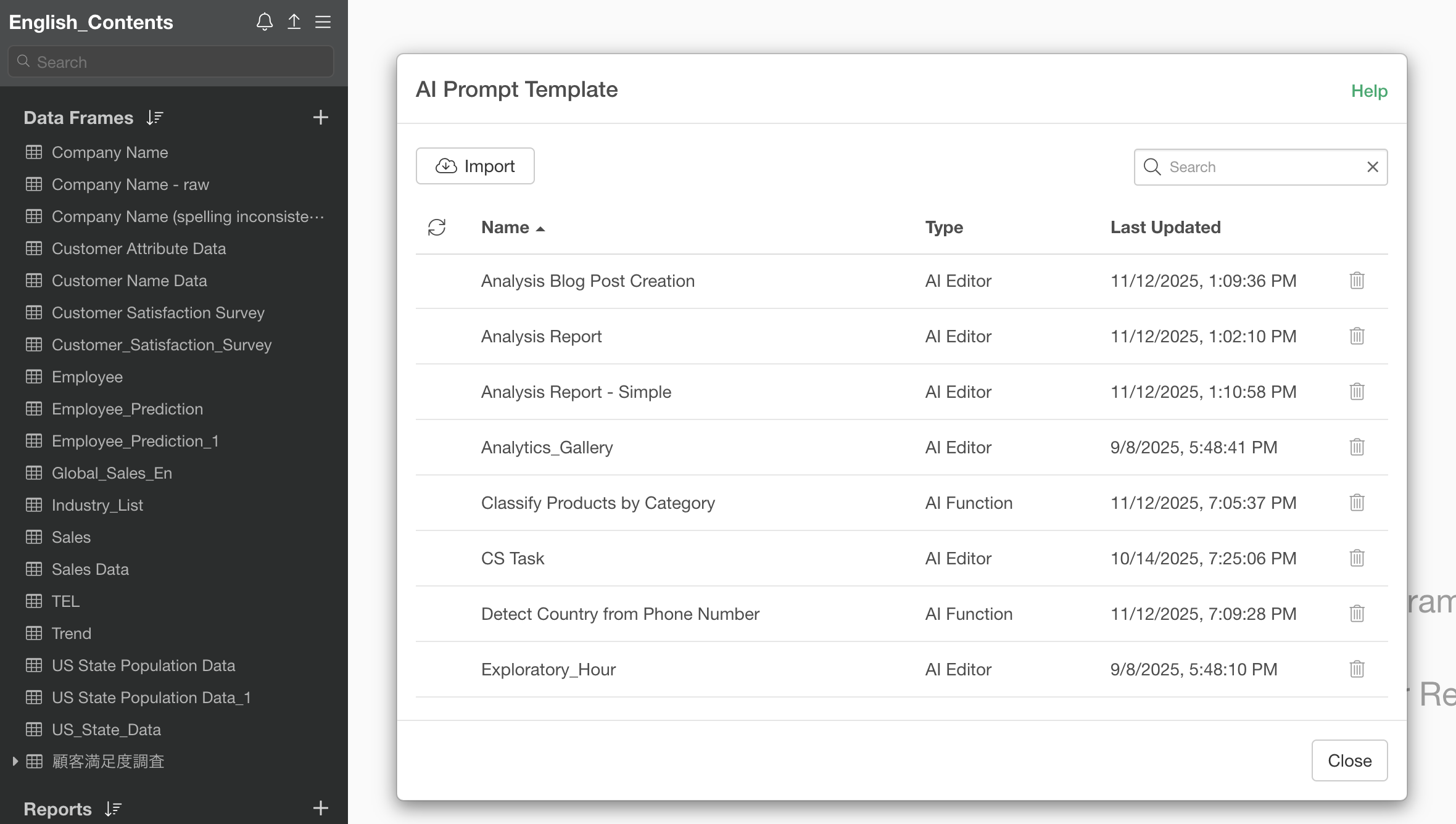
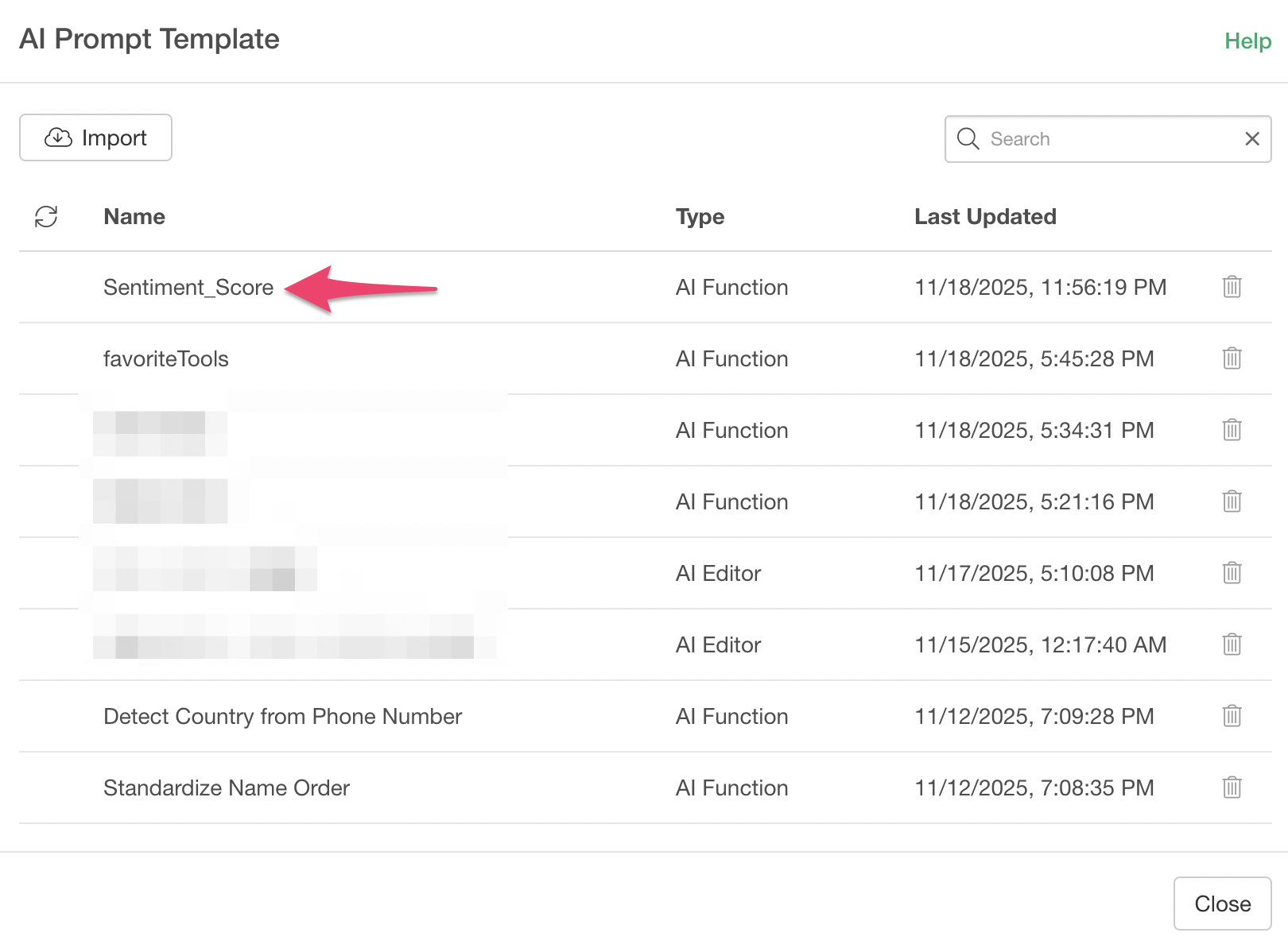
The AI Prompt Templates dialog will appear, displaying the prompts you have created.
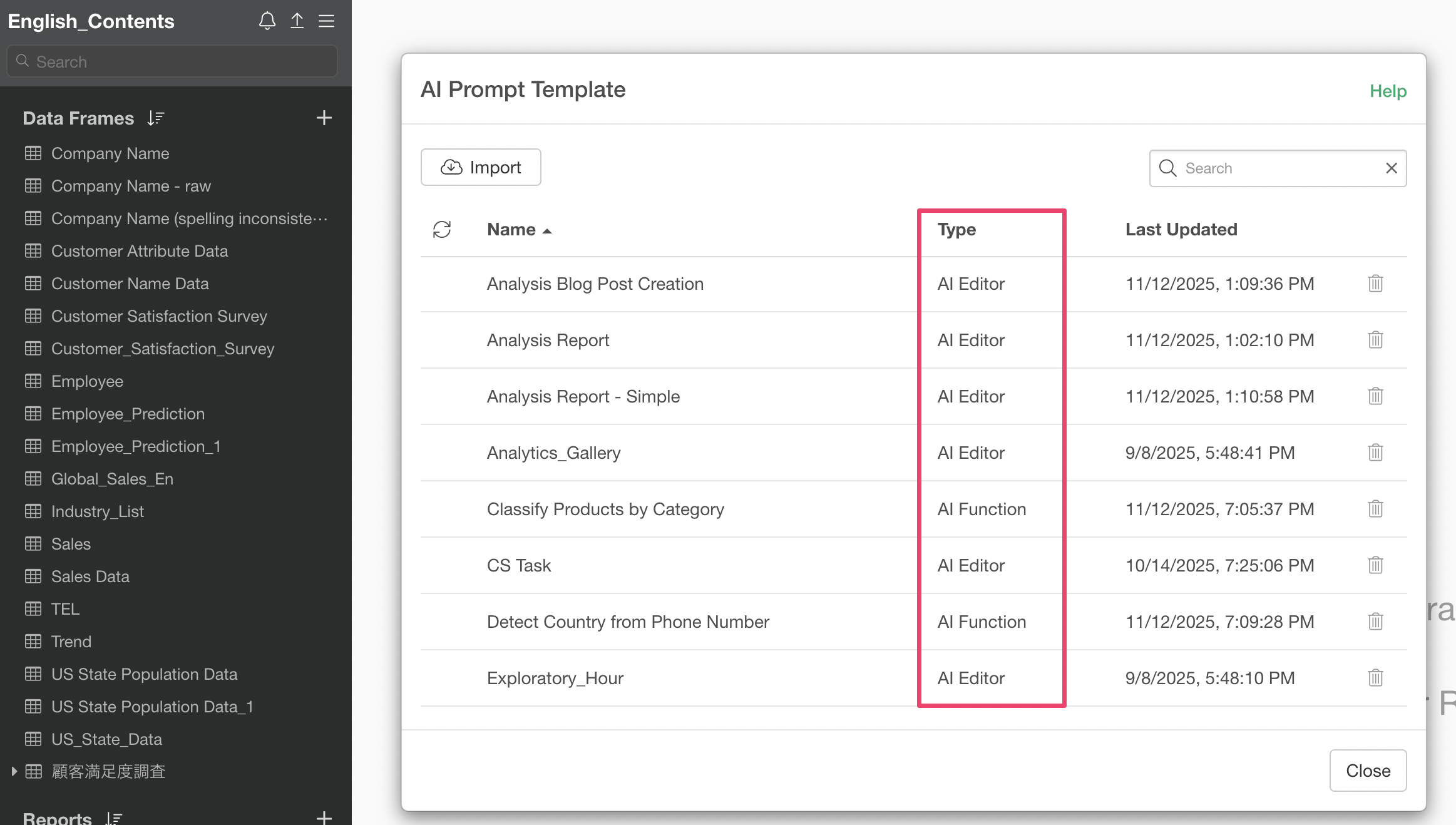
You can check whether a template is an “AI Function” or “AI Editor” from its type.
Select the template you want to publish and share.
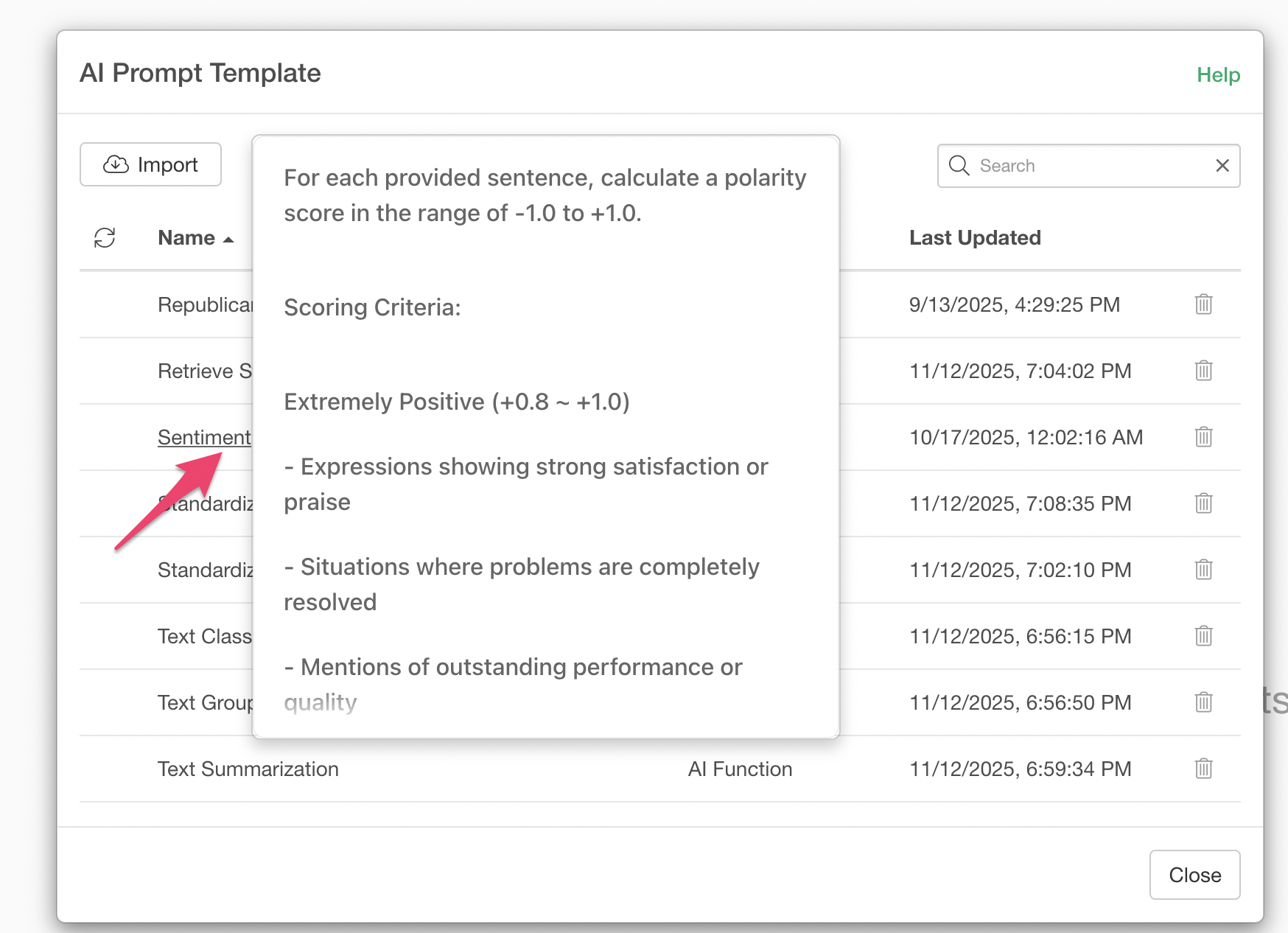
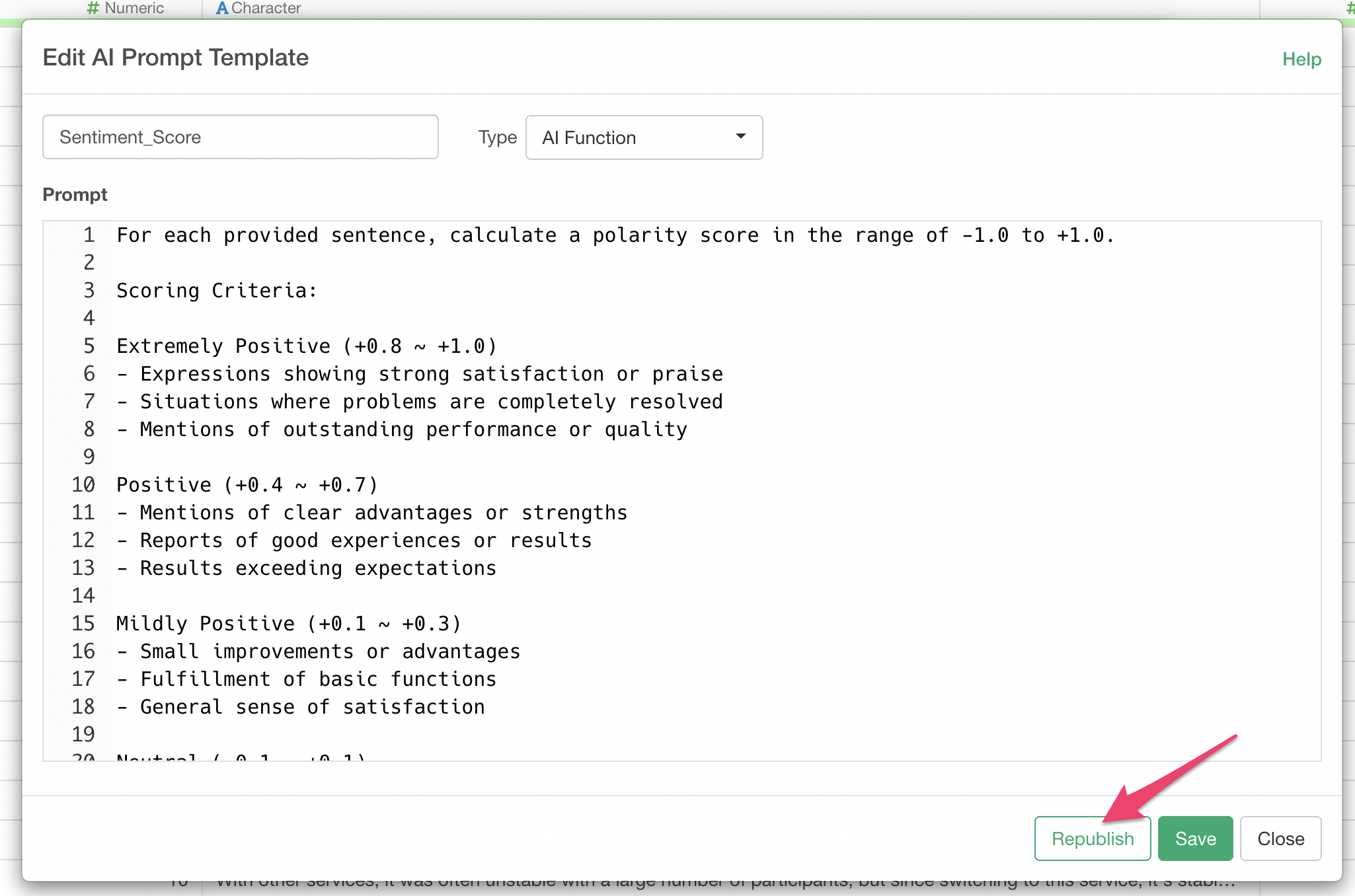
The AI Prompt Template editing screen will appear; click the “Publish” button.
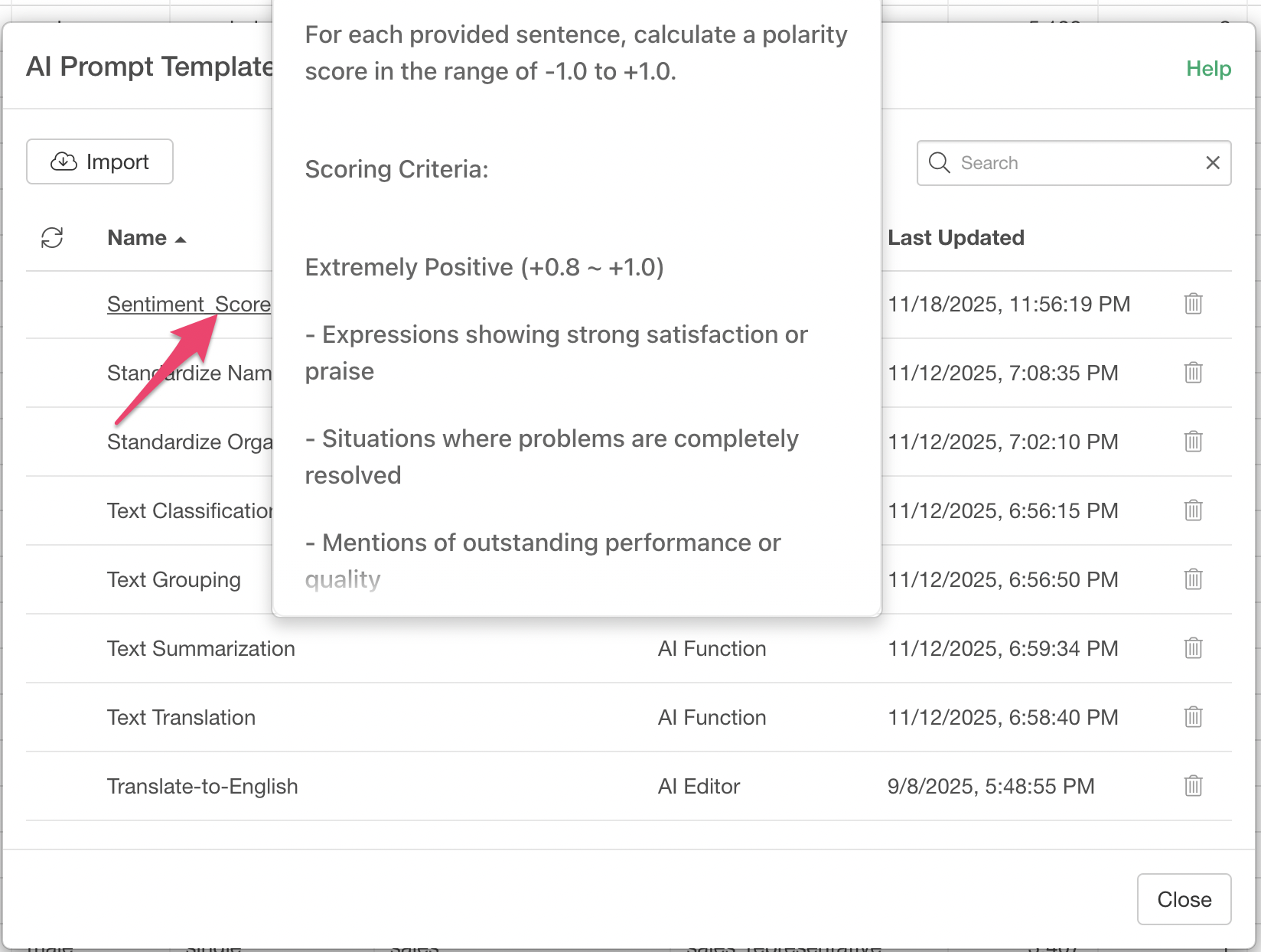
When publishing, if you want to share the prompt template as a team, select the team before publishing.
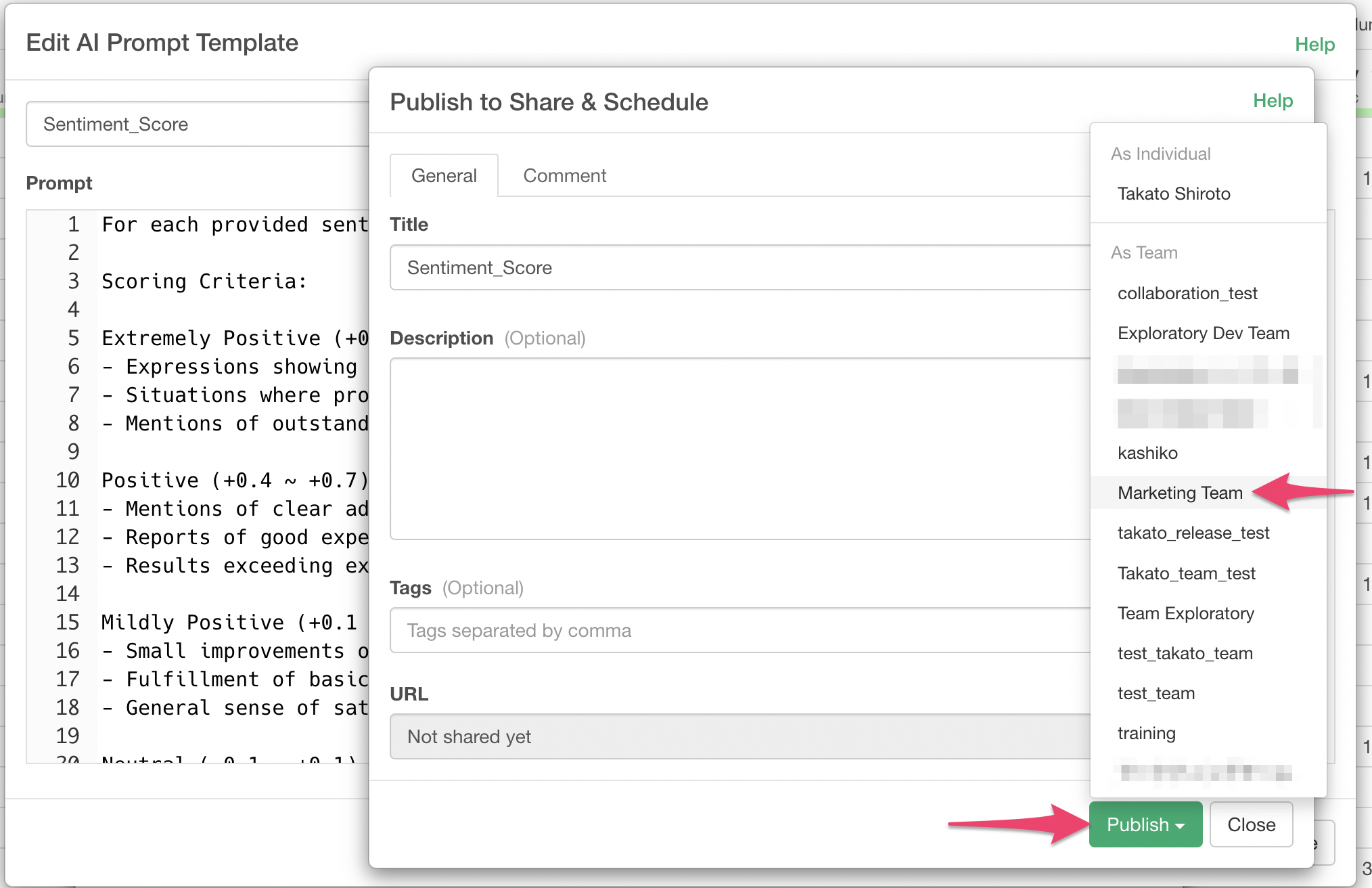
The publishing completion screen will appear; click the “Change Sharing Settings” button.
The prompt published to the Exploratory server can be viewed in the browser, and the sharing dialog will appear.
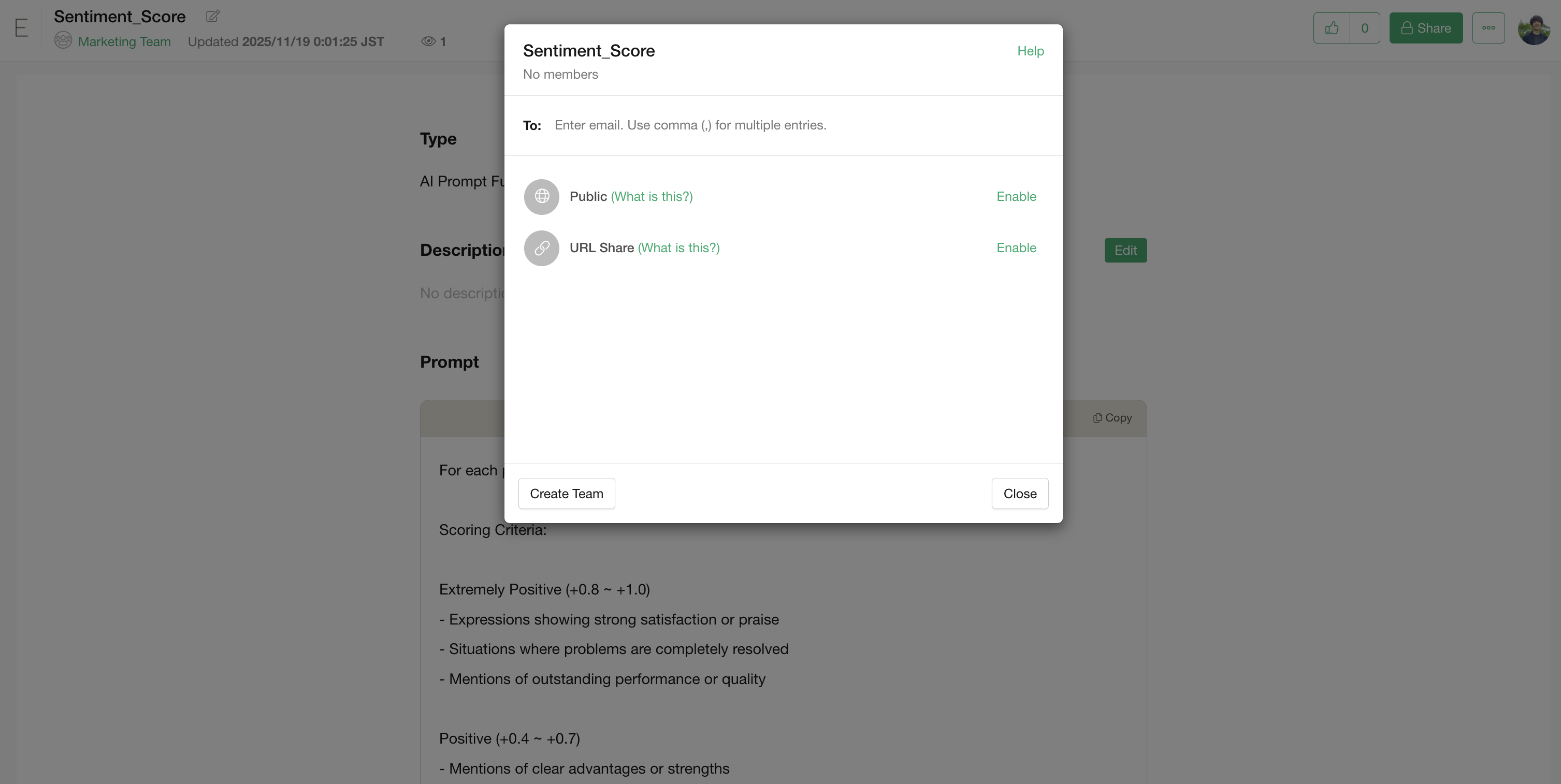
You can add email addresses of other accounts or teams.
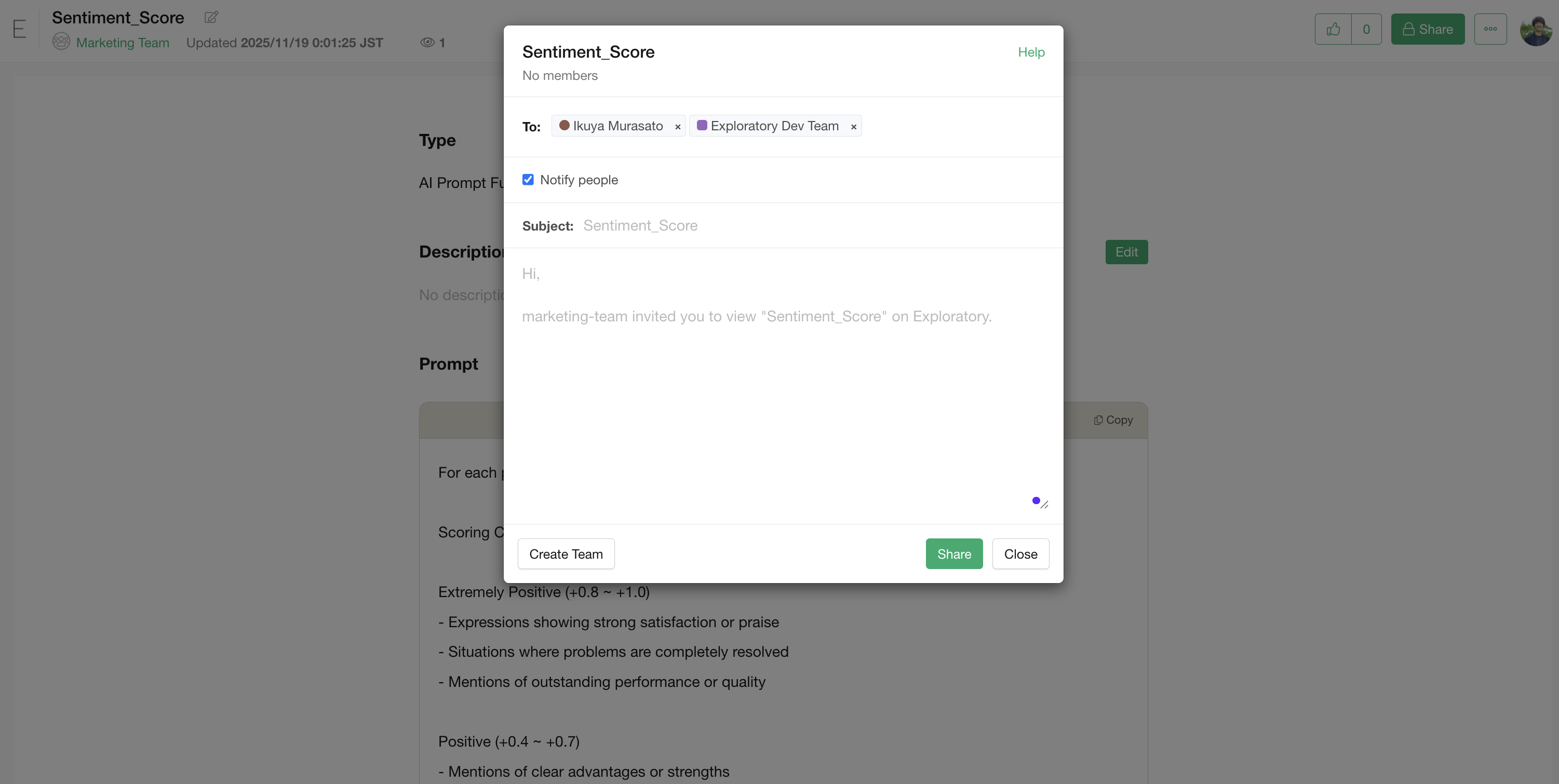
Alternatively, if you want to share via URL, click “Enable” for URL sharing.
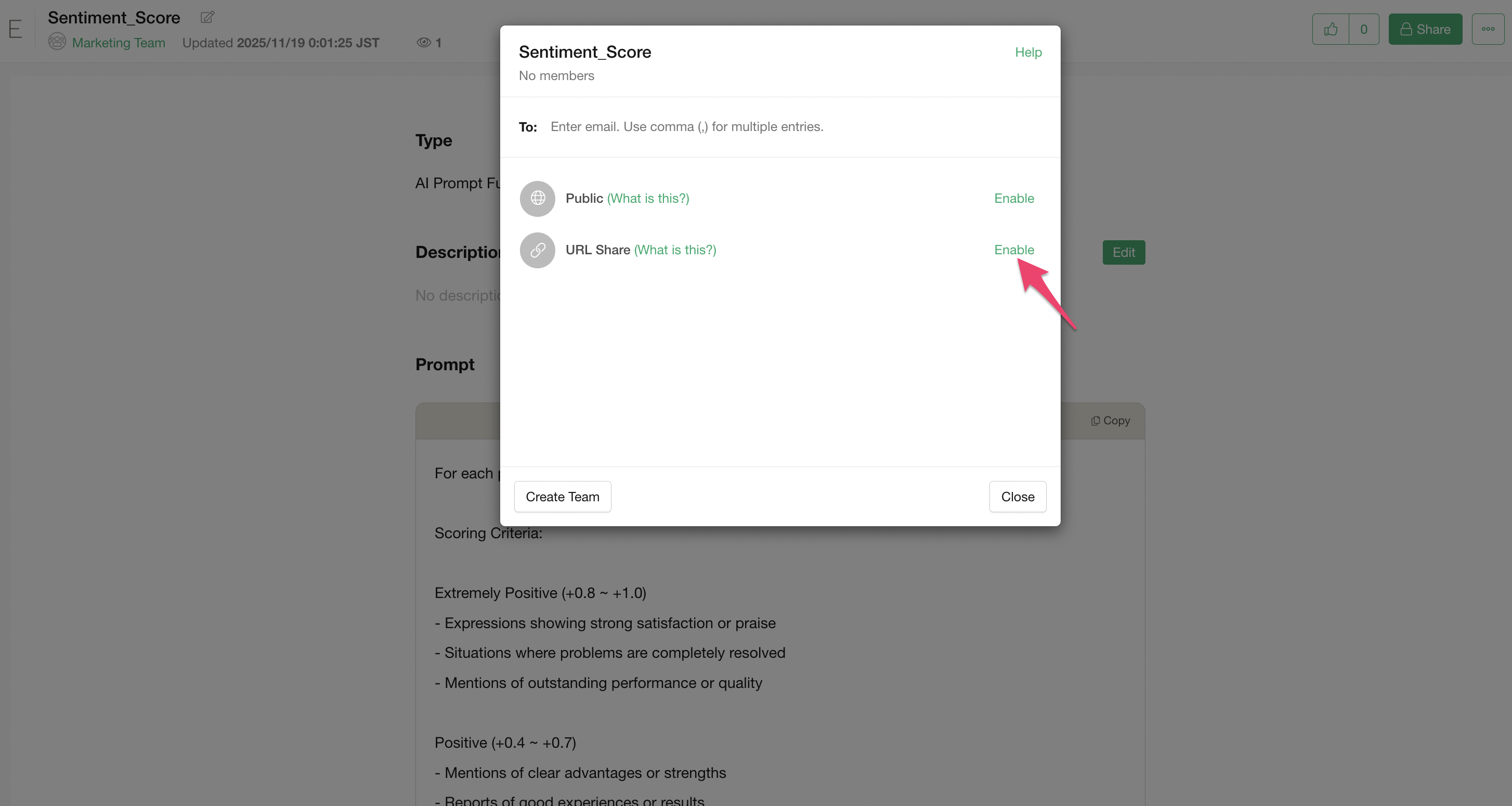
When sharing via URL, you can choose to share with a password-protected URL.
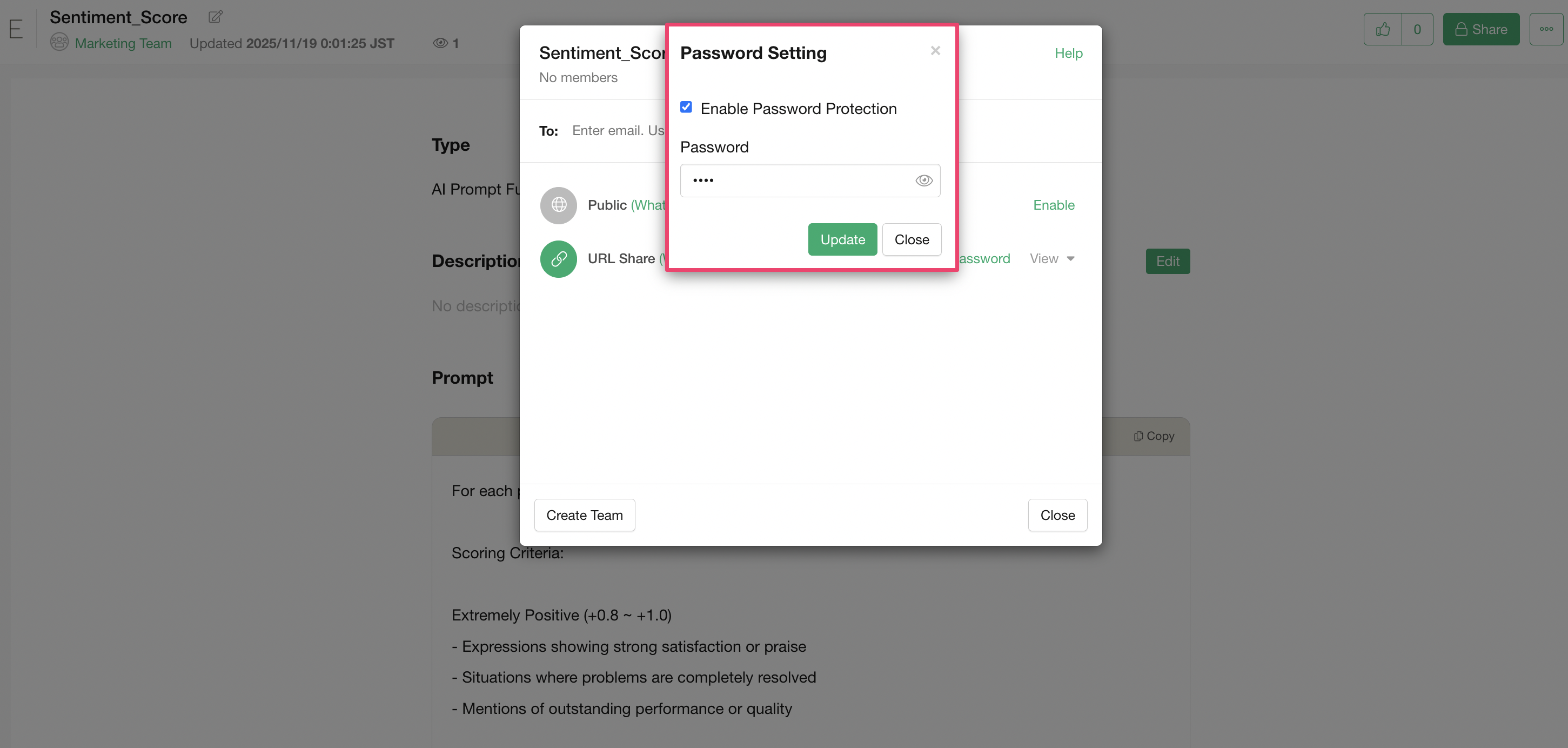
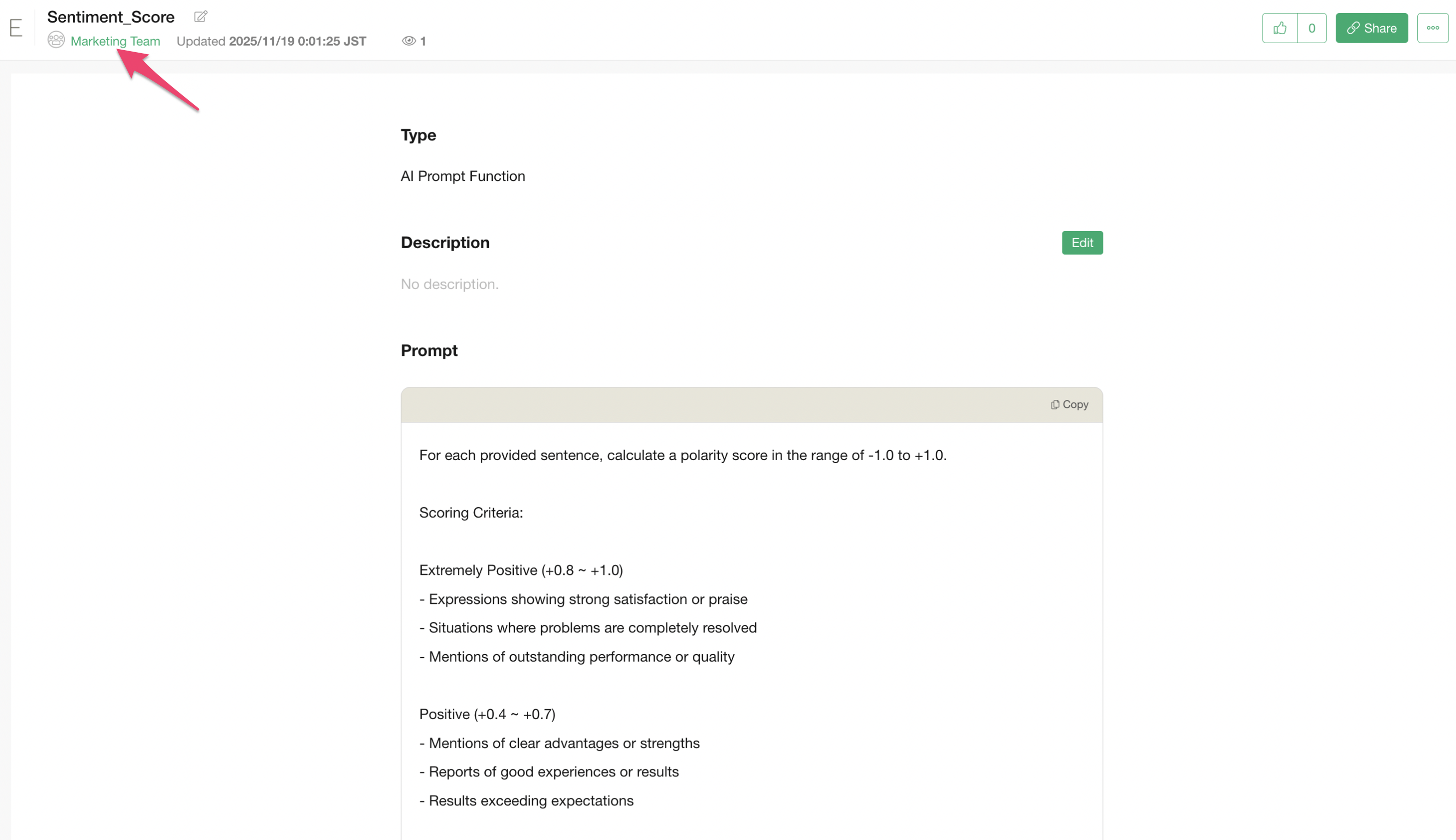
If published as a team, members of that team can view and import this prompt.
Importing AI Prompt Templates
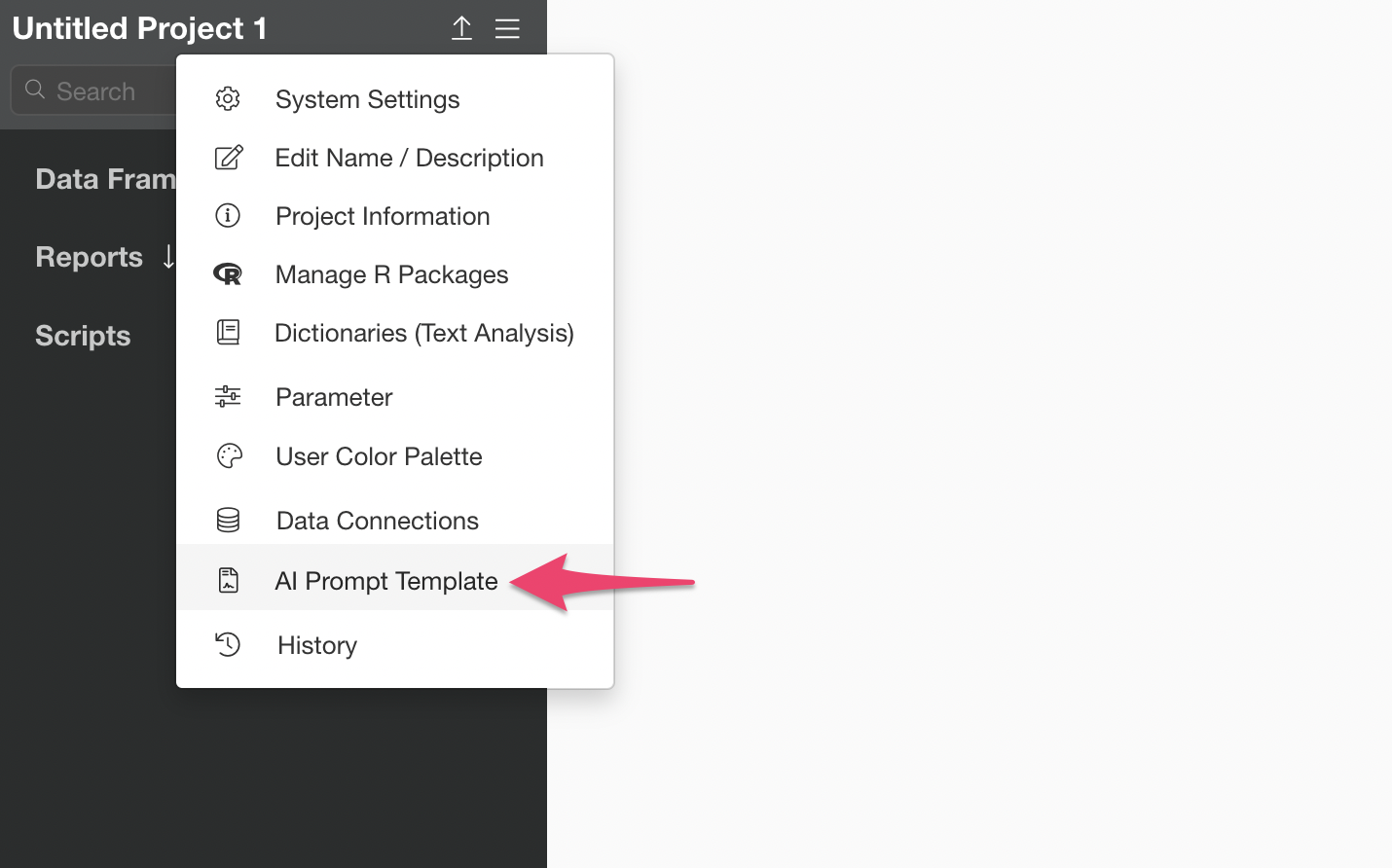
From the project menu, select “AI Prompt Templates”.
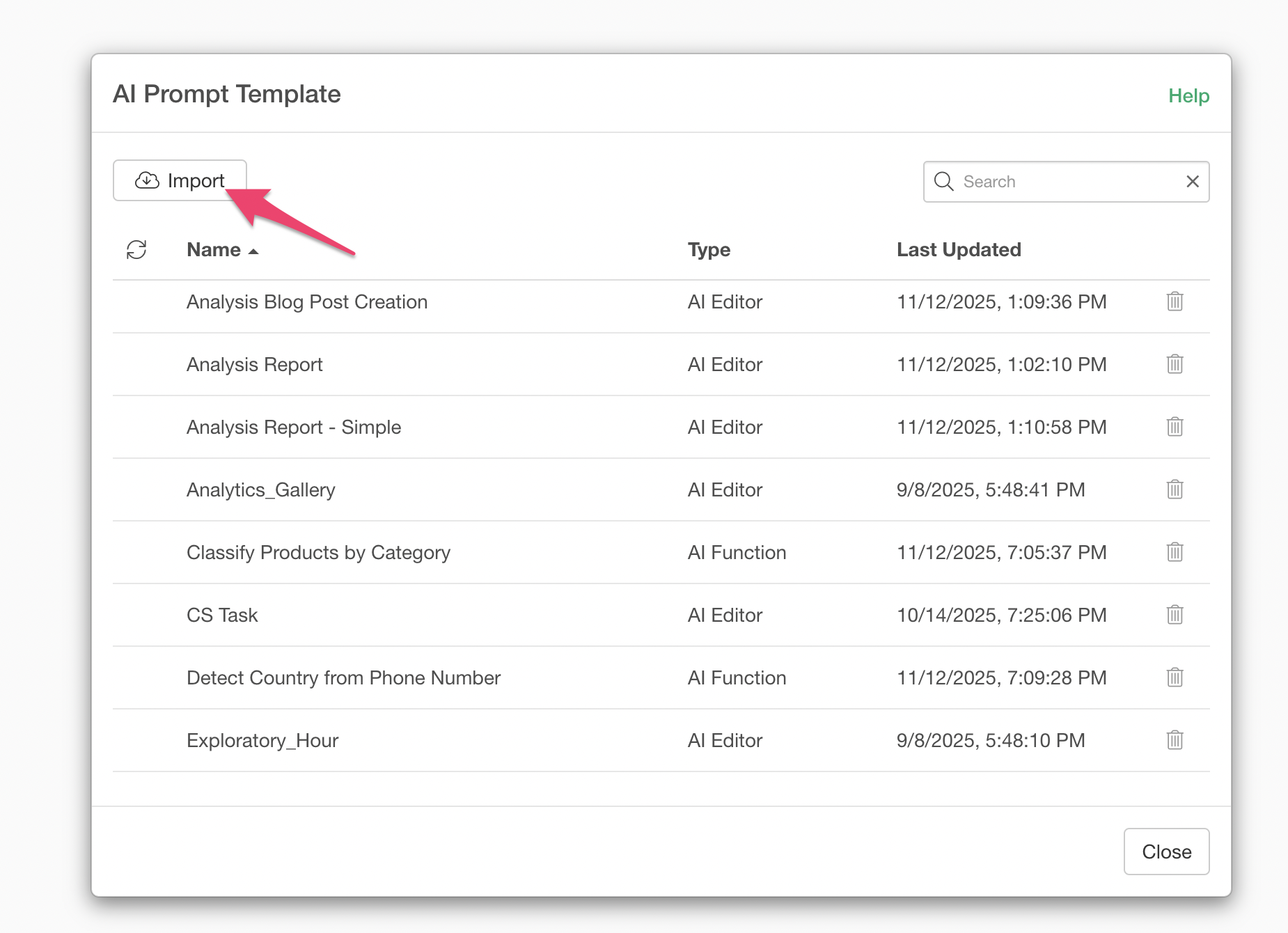
The AI Prompt Templates dialog will appear; click the “Import” button.
AI prompt templates published on the server will be displayed.
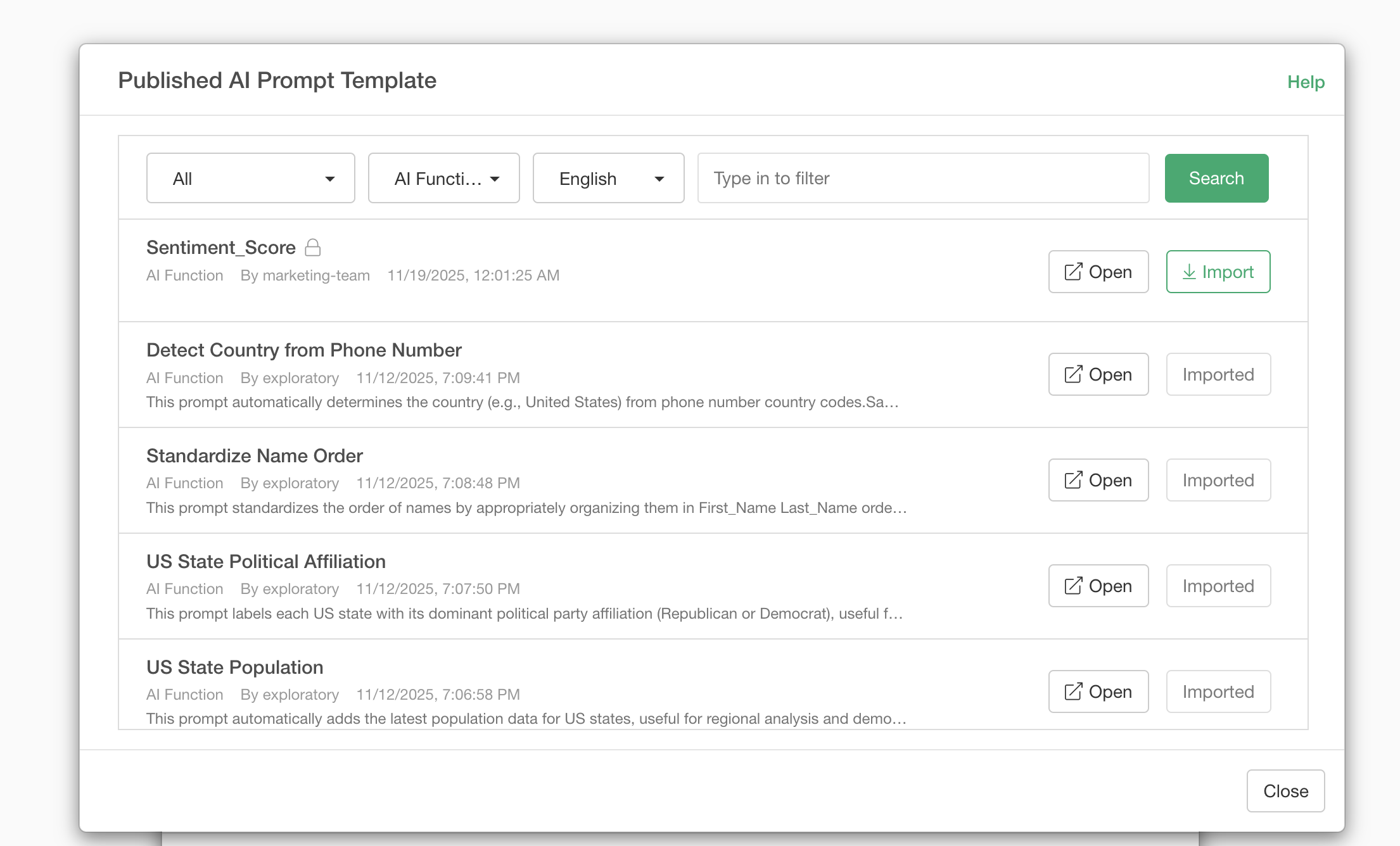
If you want to import an AI prompt template published as a team, select the specific team.
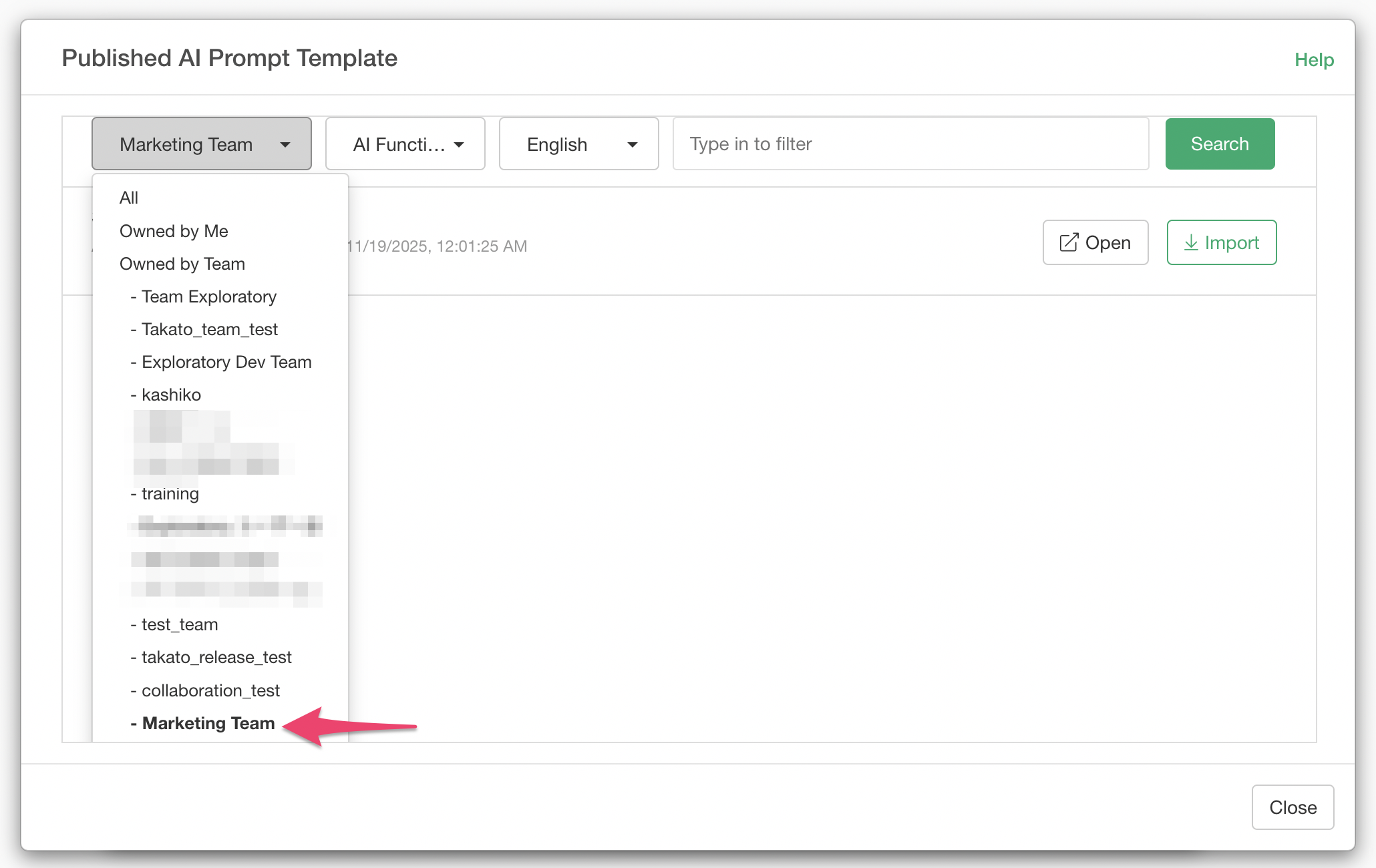
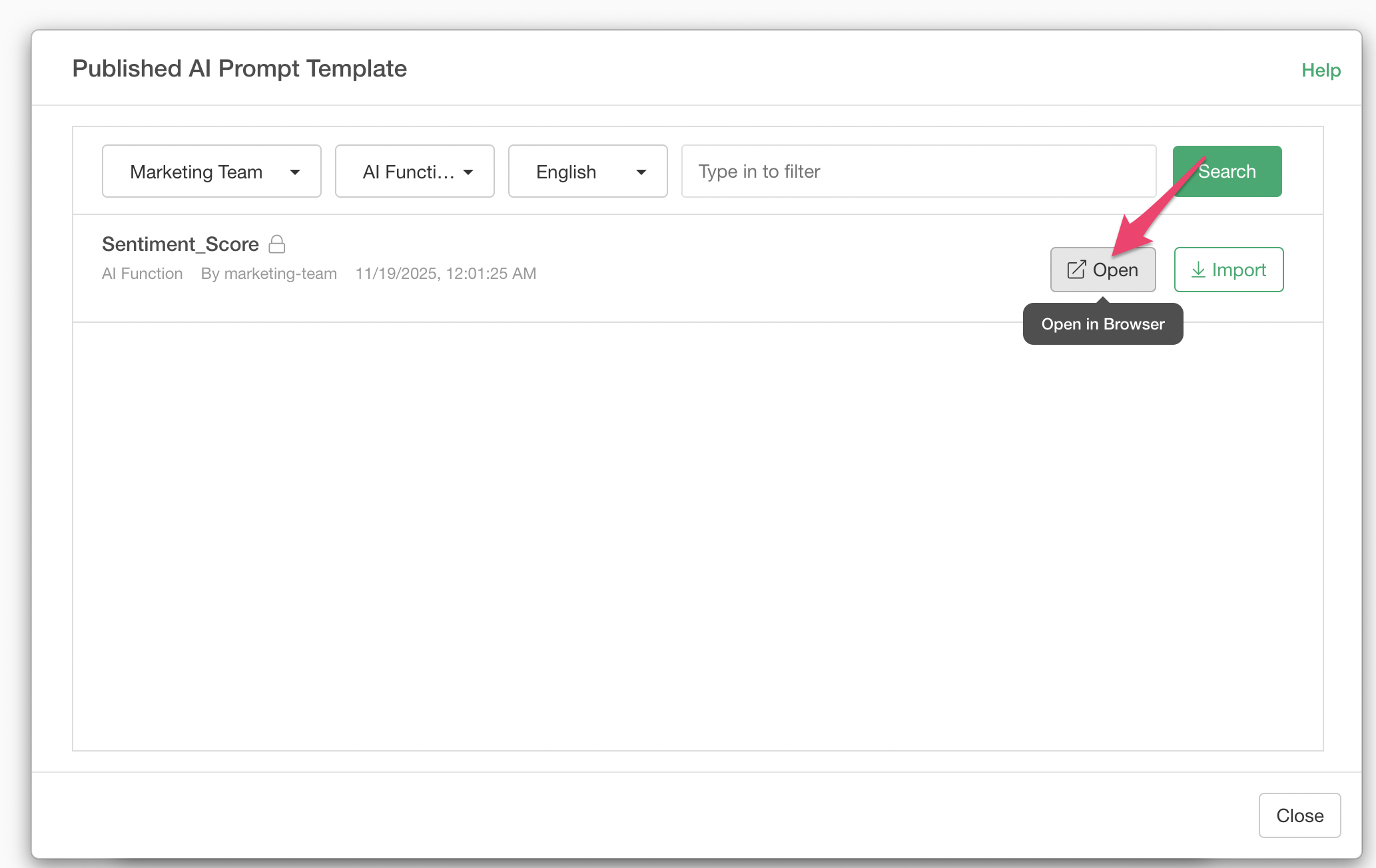
Clicking the “Open” button allows you to view the prompt in your browser.
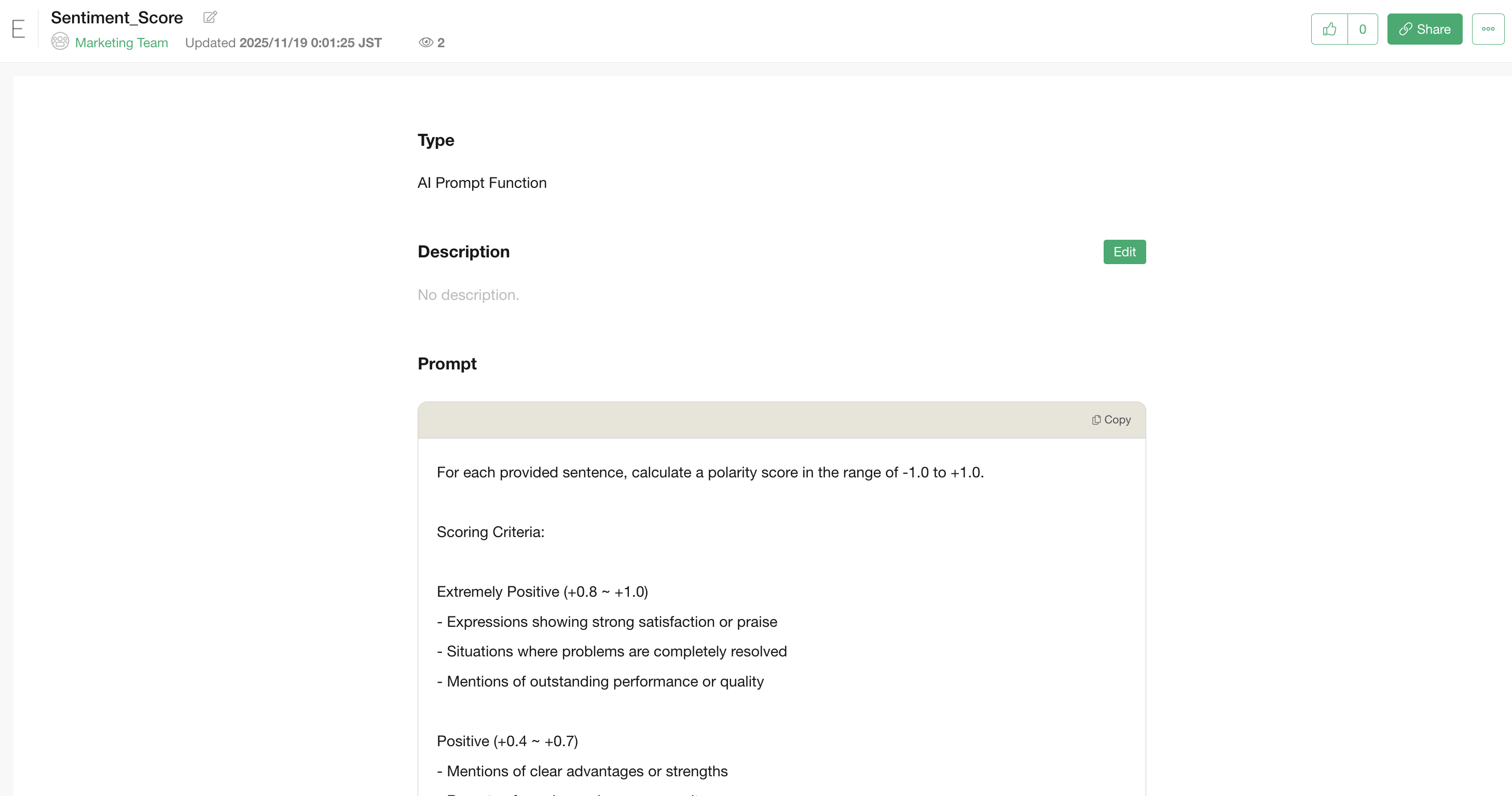
You can check what kind of prompt is actually being used.
Select the AI prompt template you want to import and click the “Import” button.
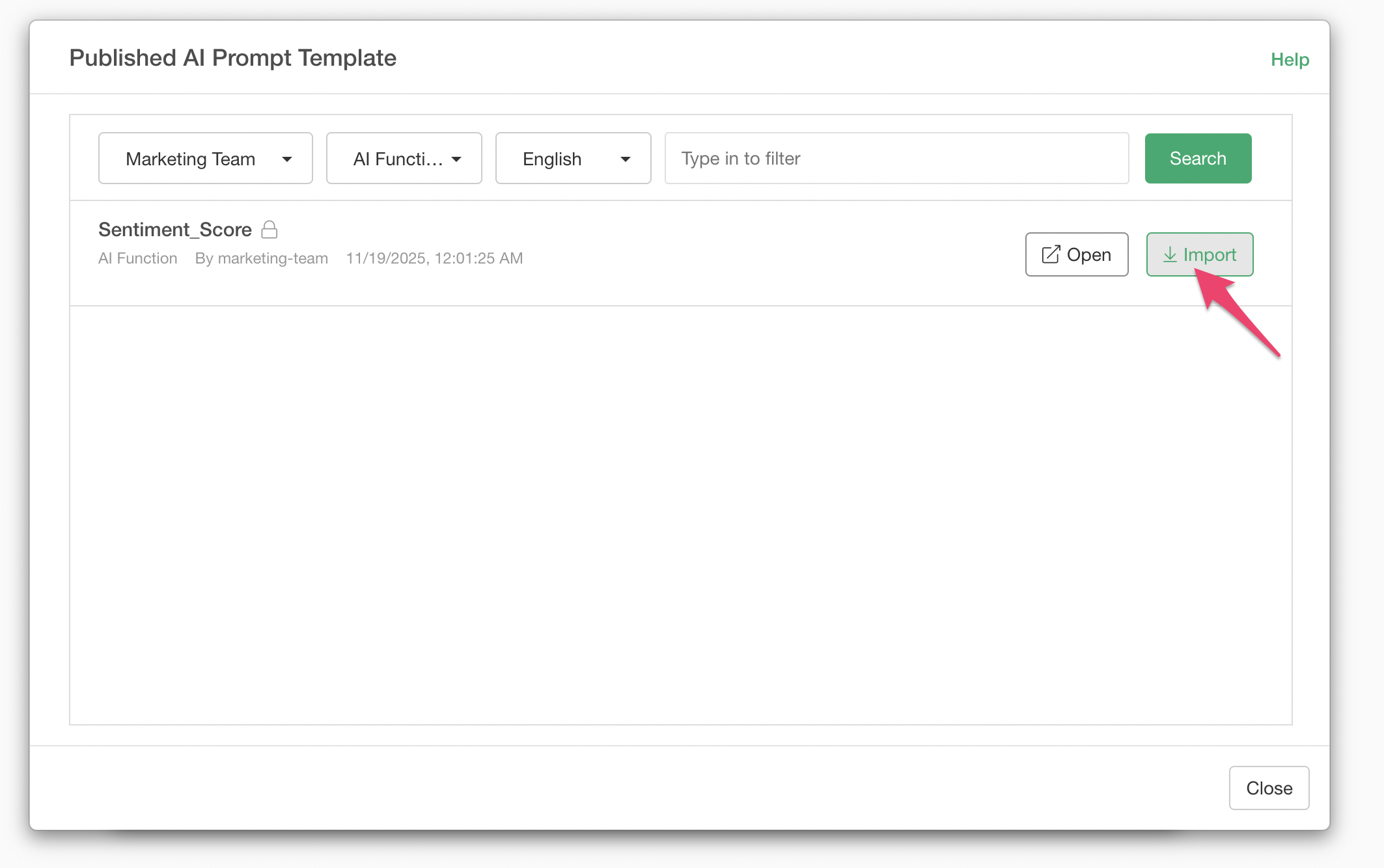
This allows you to import the AI prompt template into your Exploratory Desktop environment.
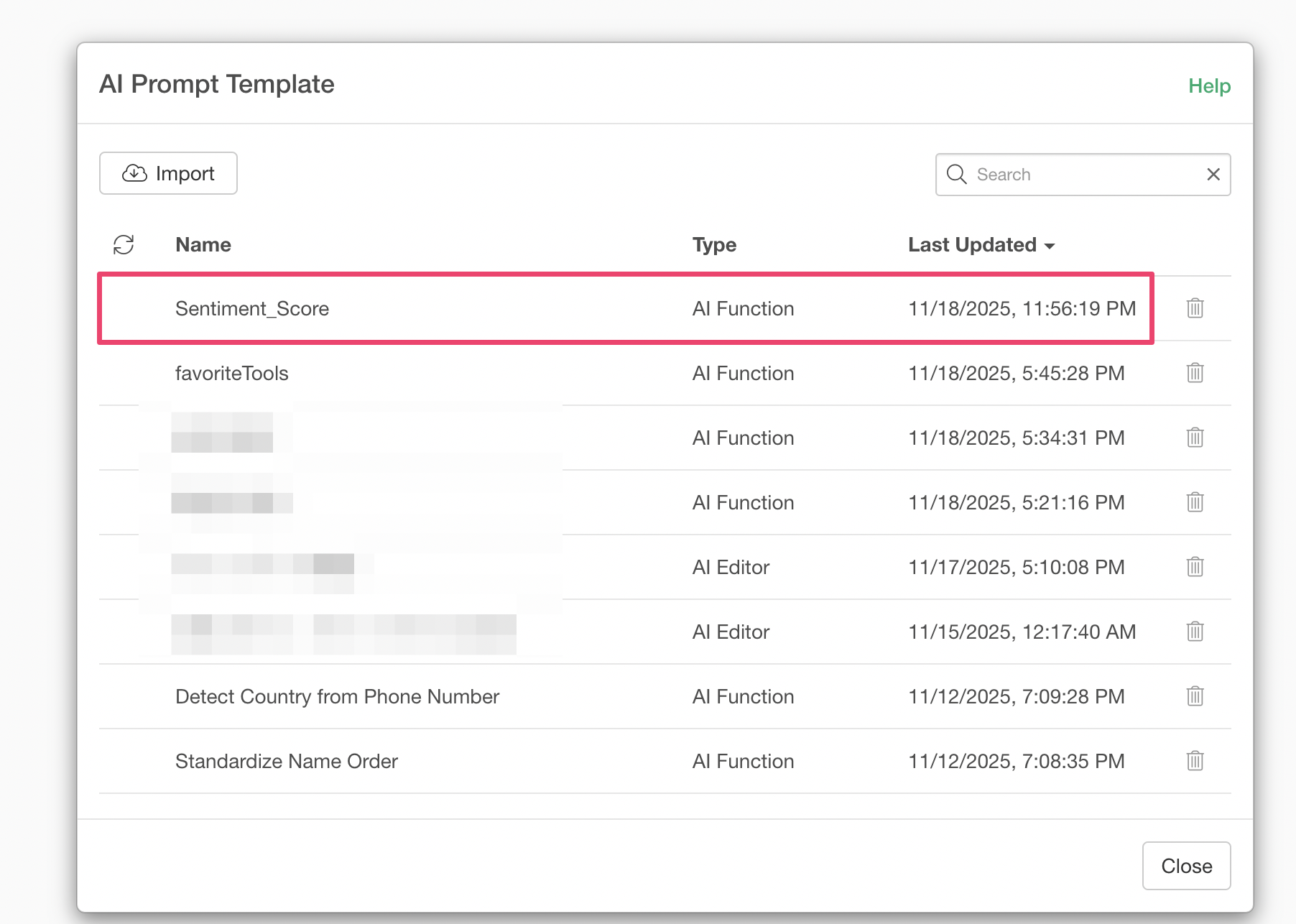
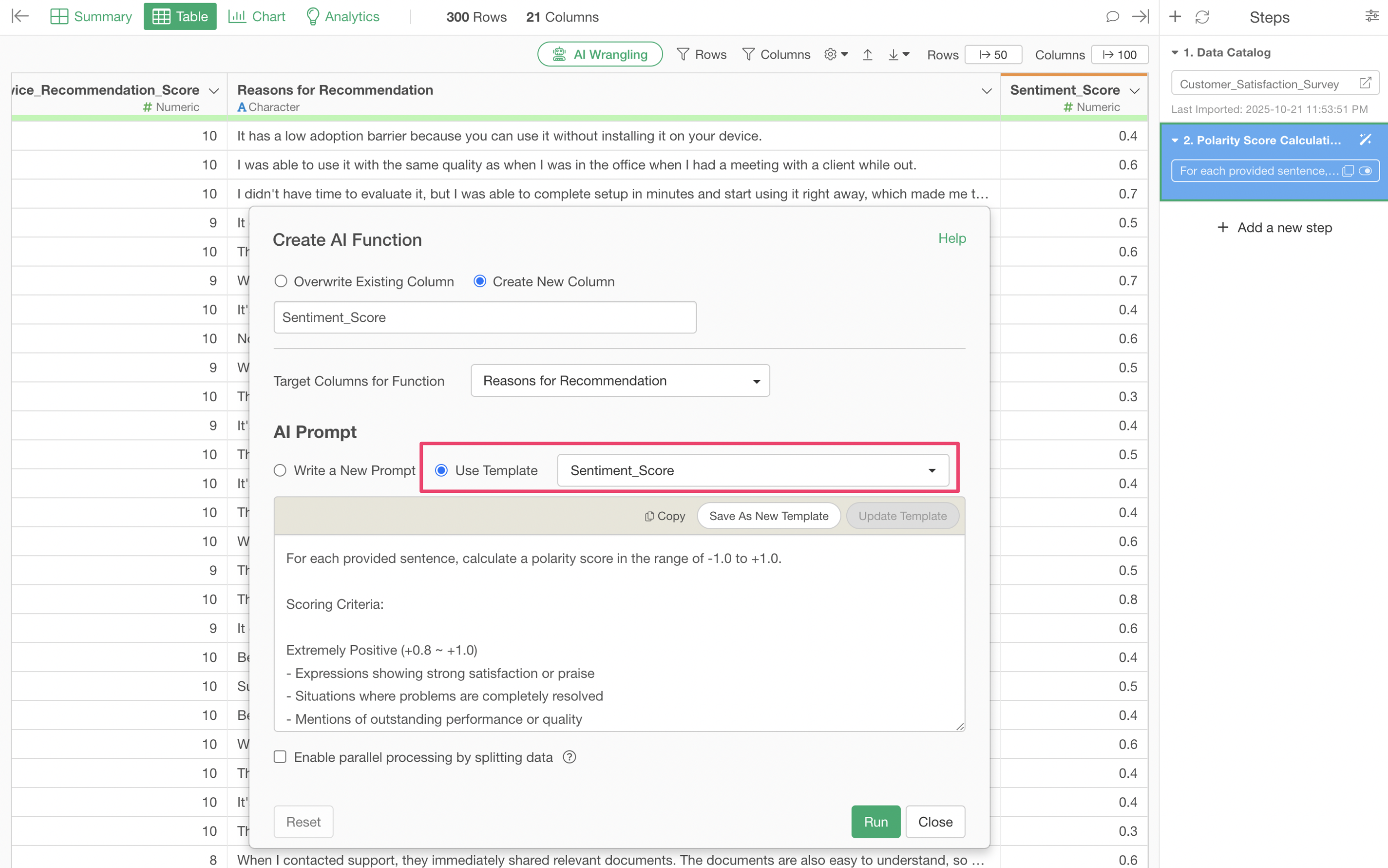
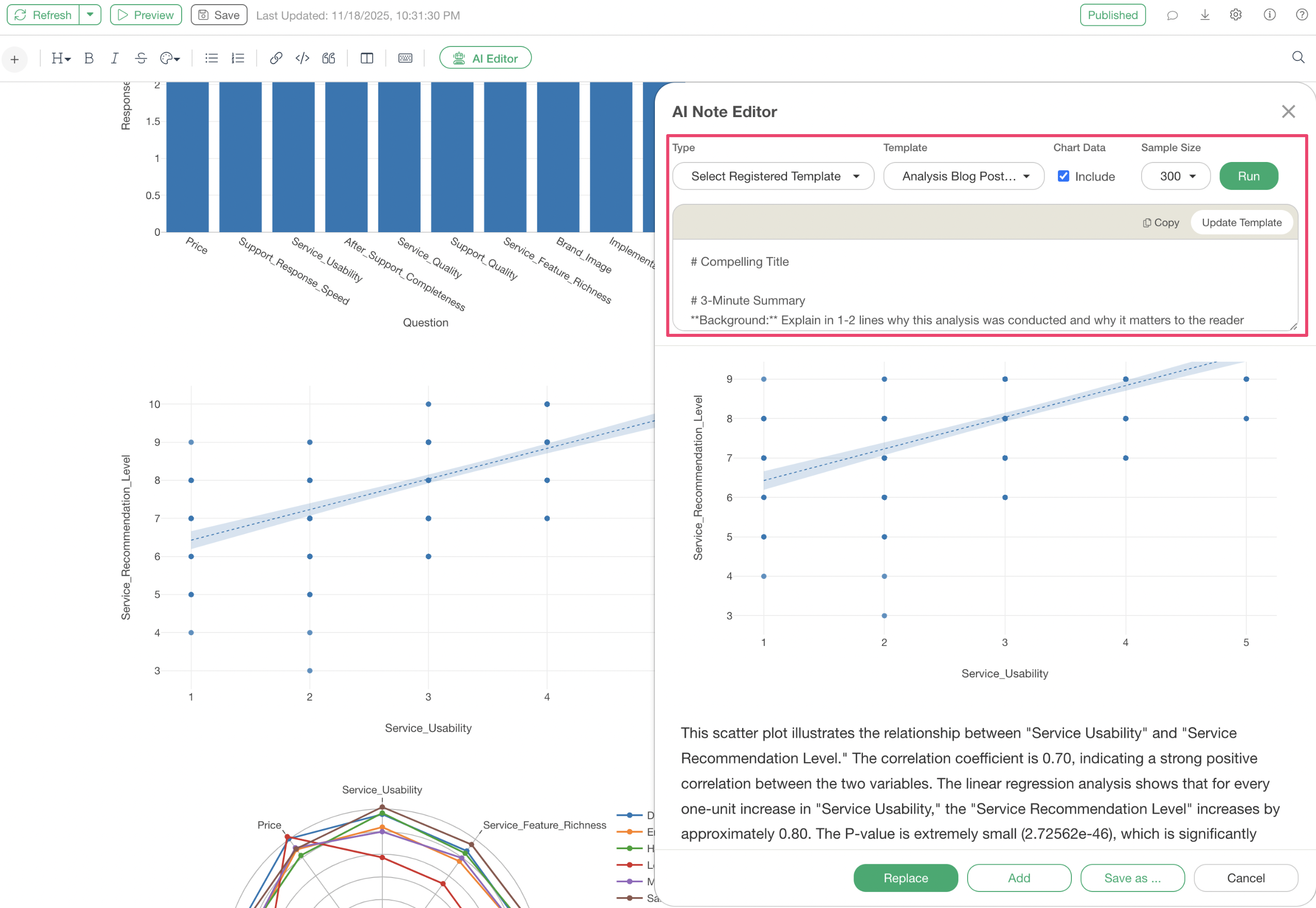
Now you can start using the imported prompt in “AI Functions” and “AI Note Editor”.
For AI Functions
For AI Note Editor
Collaborative Editing of Prompts
Suppose you update a prompt template and want to reflect those changes for team members.
After updating the prompt, select “AI Prompt Templates” from the project menu.
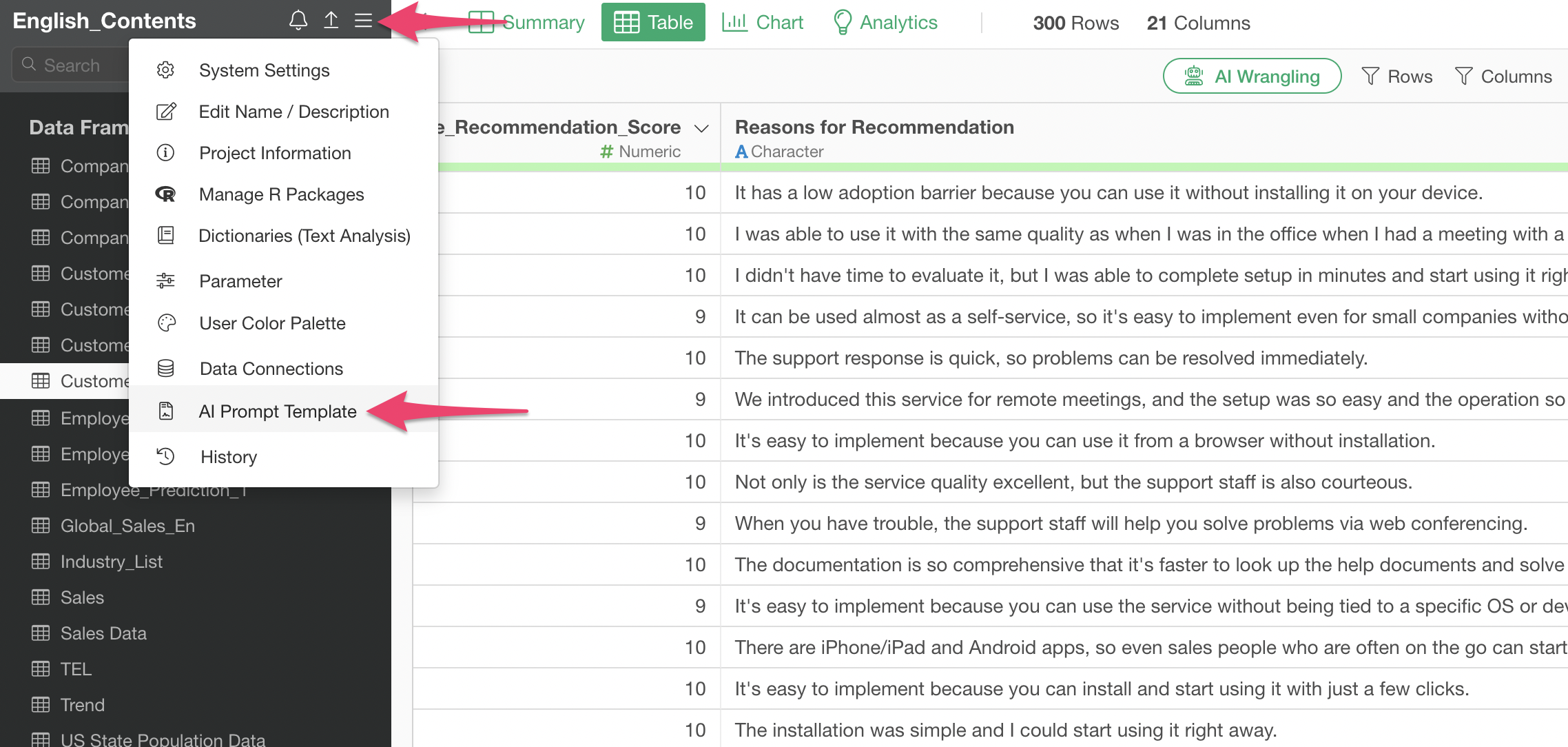
The AI Prompt Templates dialog will appear; select the template you want to publish and share.
Clicking the “Republish” button allows you to update the AI prompt template.
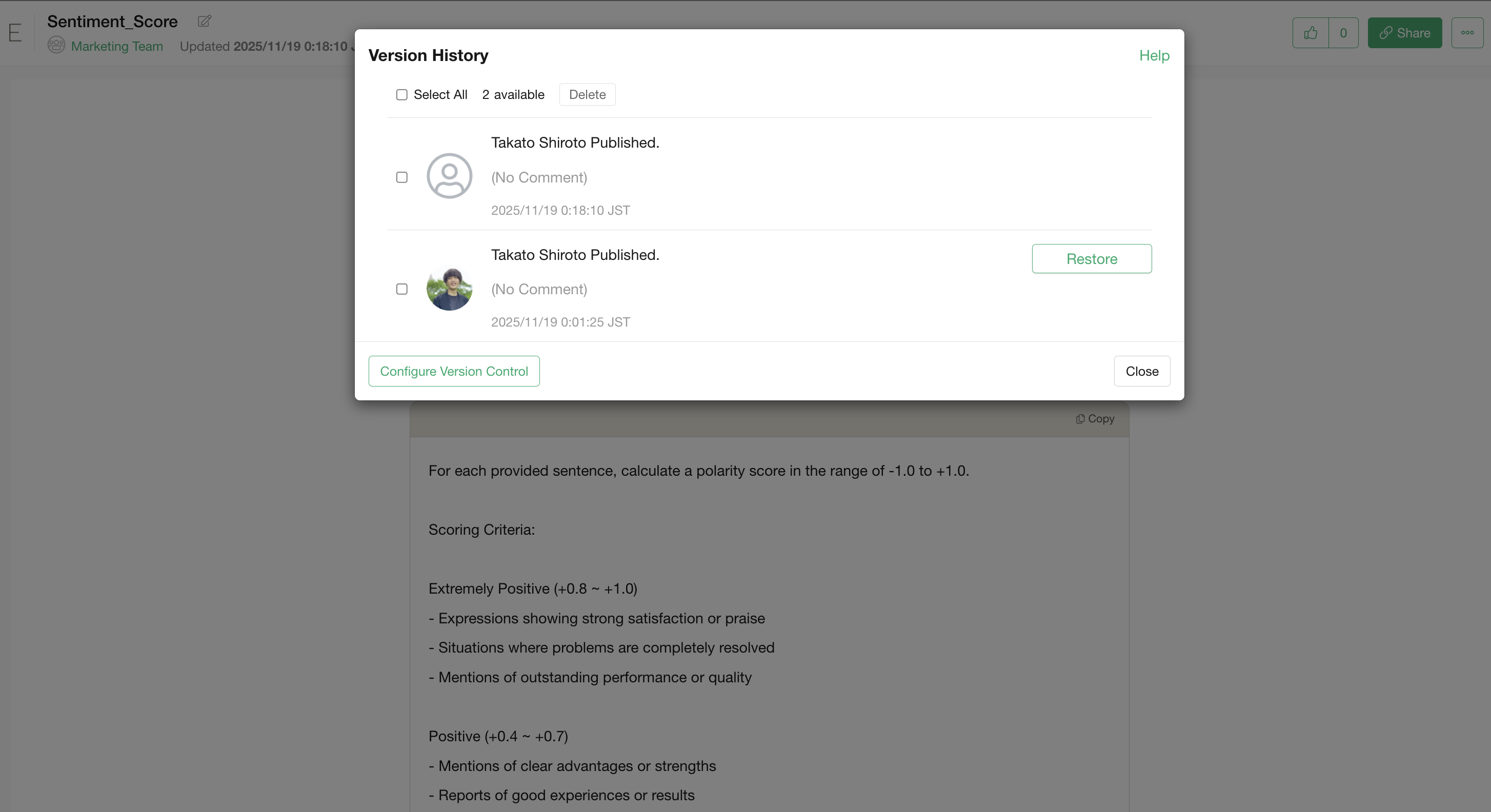
By opening the AI prompt template on the Exploratory server, you can view its version history.
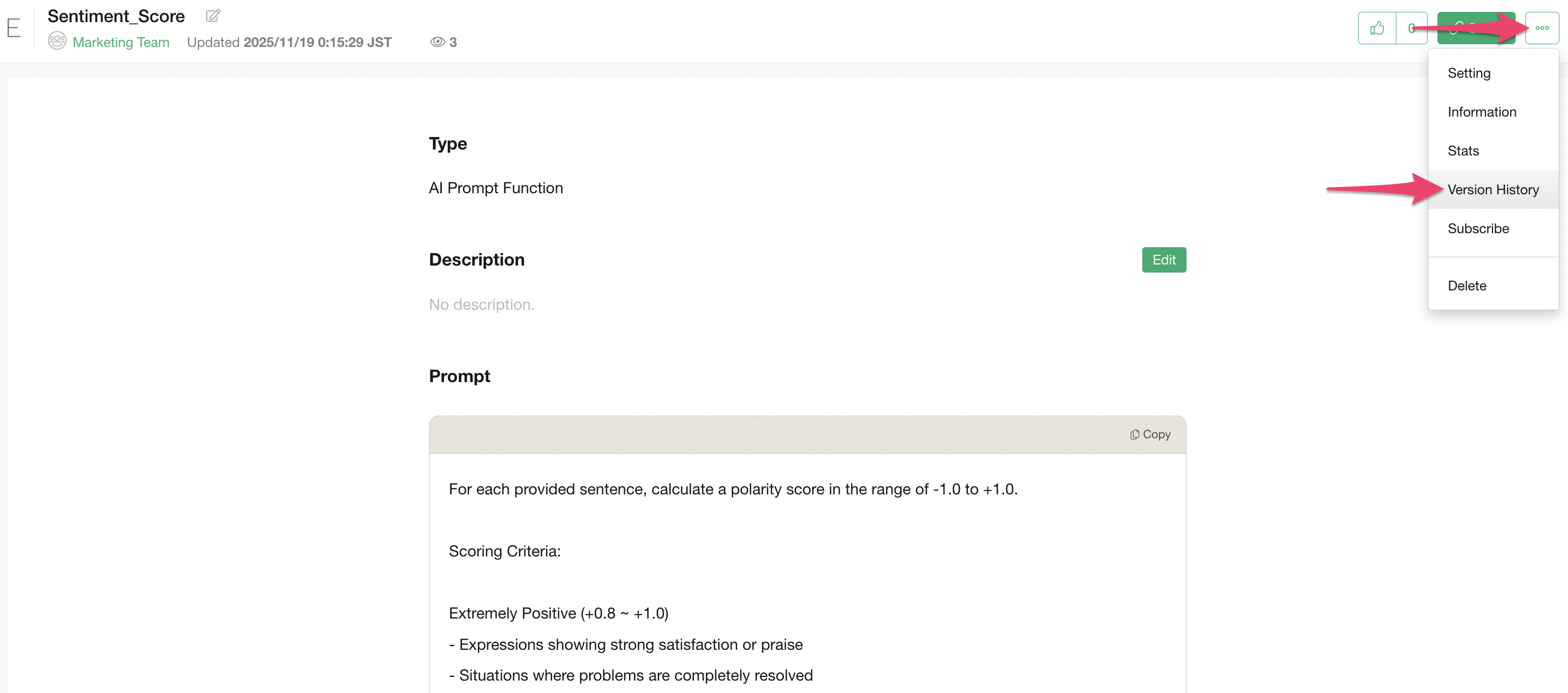
From the version history, you can also restore a specific version.