How to Use Regular Expressions in Exploratory
By combining “Regular Expressions” when processing text data in Exploratory, you will be able to manipulate any text data freely. A “Regular Expression” is a method of representing specific string patterns using symbols and other characters. This note introduces common ways to write and use regular expressions.
Regular Expression Cheat Sheet
Exploratory supports standard R (base) regular expressions. We have summarized frequently used regular expressions in this cheat sheet.
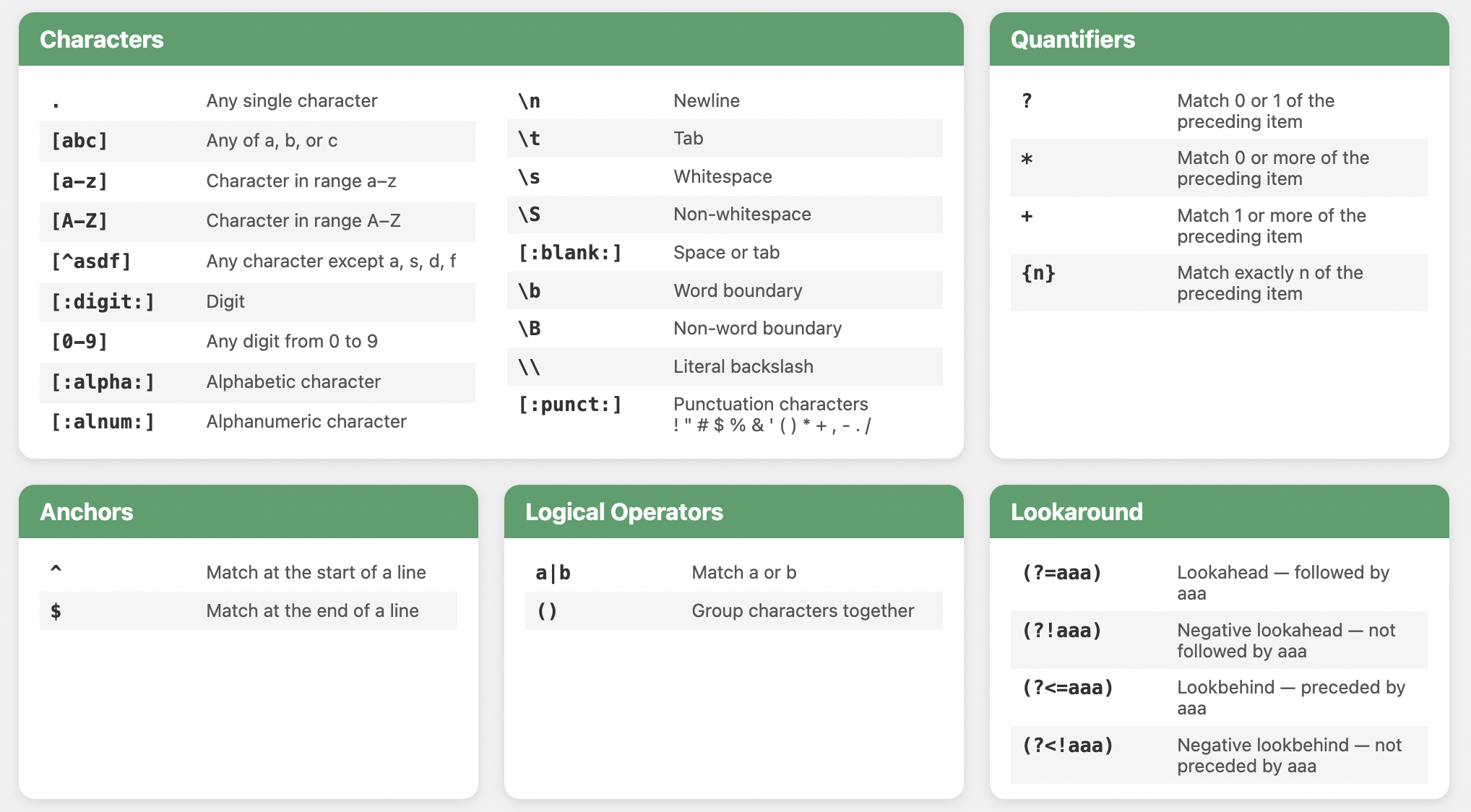 If
you would like to check the PDF version, please see here.
If
you would like to check the PDF version, please see here.
For those who want to learn about other regular expressions, please refer to this site.
Useful Tips for Writing Regular Expressions
Backreferences
Backreferences are particularly effective when you need to detect a specific pattern within text data and reuse part of it to convert it into a new format.
For example, let’s consider converting the text “Hello World” to “World Hello”.
By using the regular expression ([^ ]+) ([^ ]+), you can
capture the strings before and after the space as individual groups.
Then, by using the backreference \2 \1, you can rearrange
the captured groups in reverse order to get “World Hello”.
To explain ([^ ]+) in more detail, it consists of the
following components, forming a group that matches a sequence of any
characters except spaces:
( )- Creates a group[^ ]- Matches any single character except a space+- Matches one or more repetitions of the preceding pattern
Now, let’s try this with customer data.
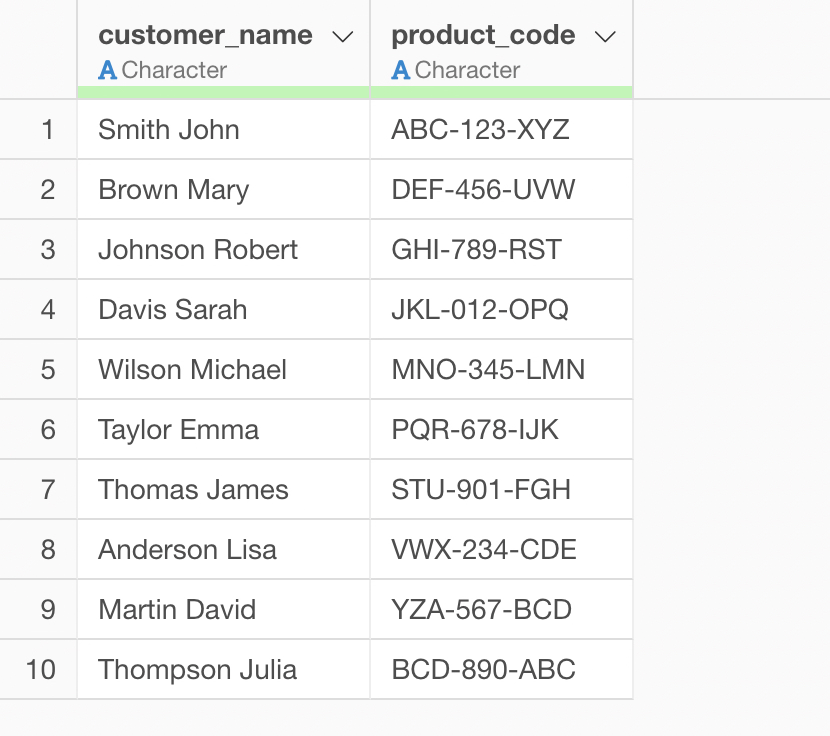
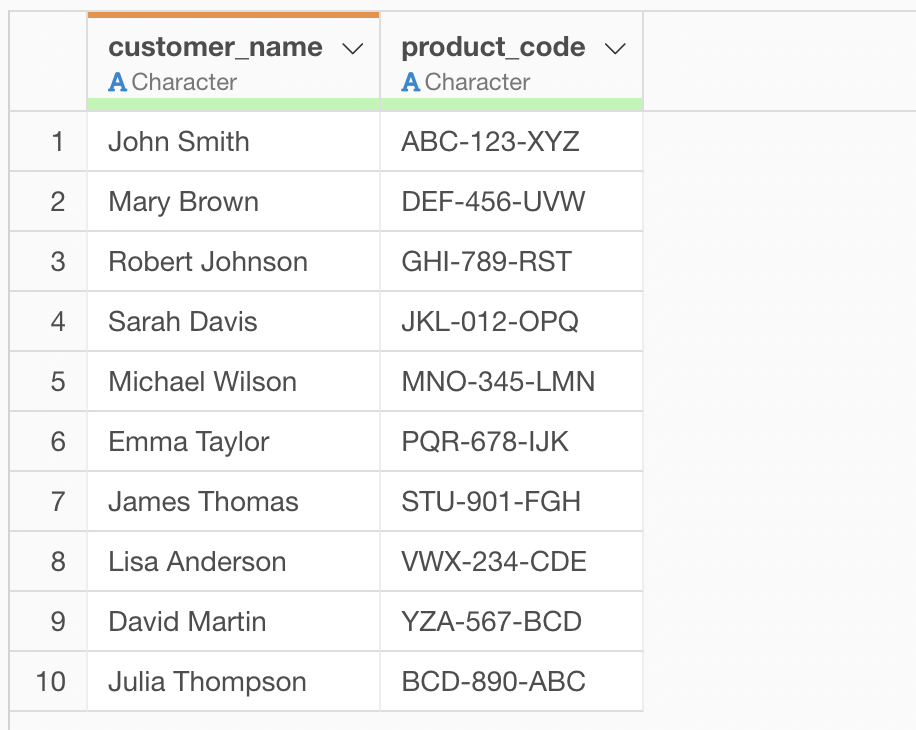
For instance, suppose you have customer name data like the following, and you want to convert the format from “Last Name, First Name” to “First Name, Last Name”.
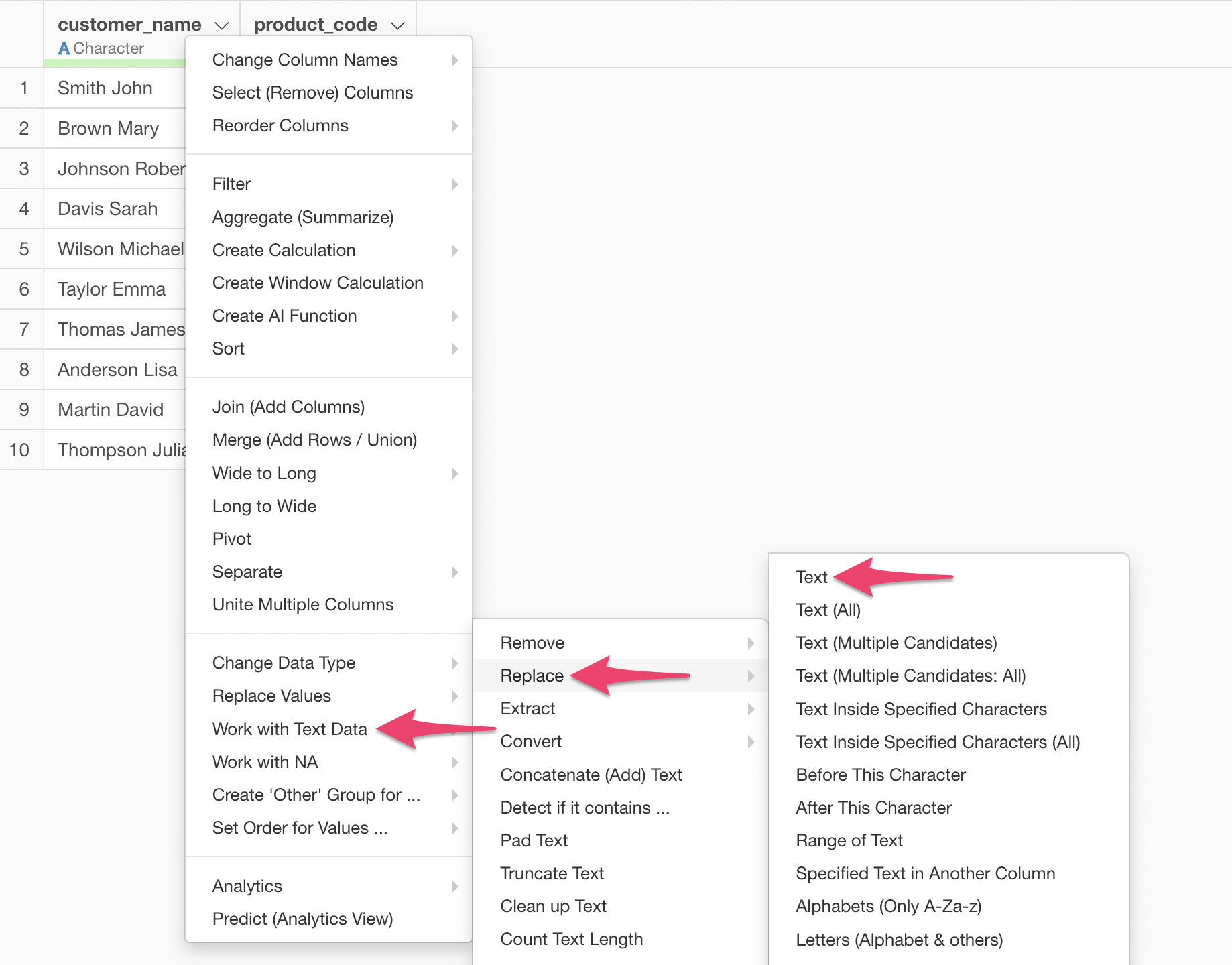
From the column header menu of customer_name, select
“Work with Text Data,” then “Replace,” and then “Text.”
The “Work with Text Data” dialog will appear; check the “Regular Expression” box.
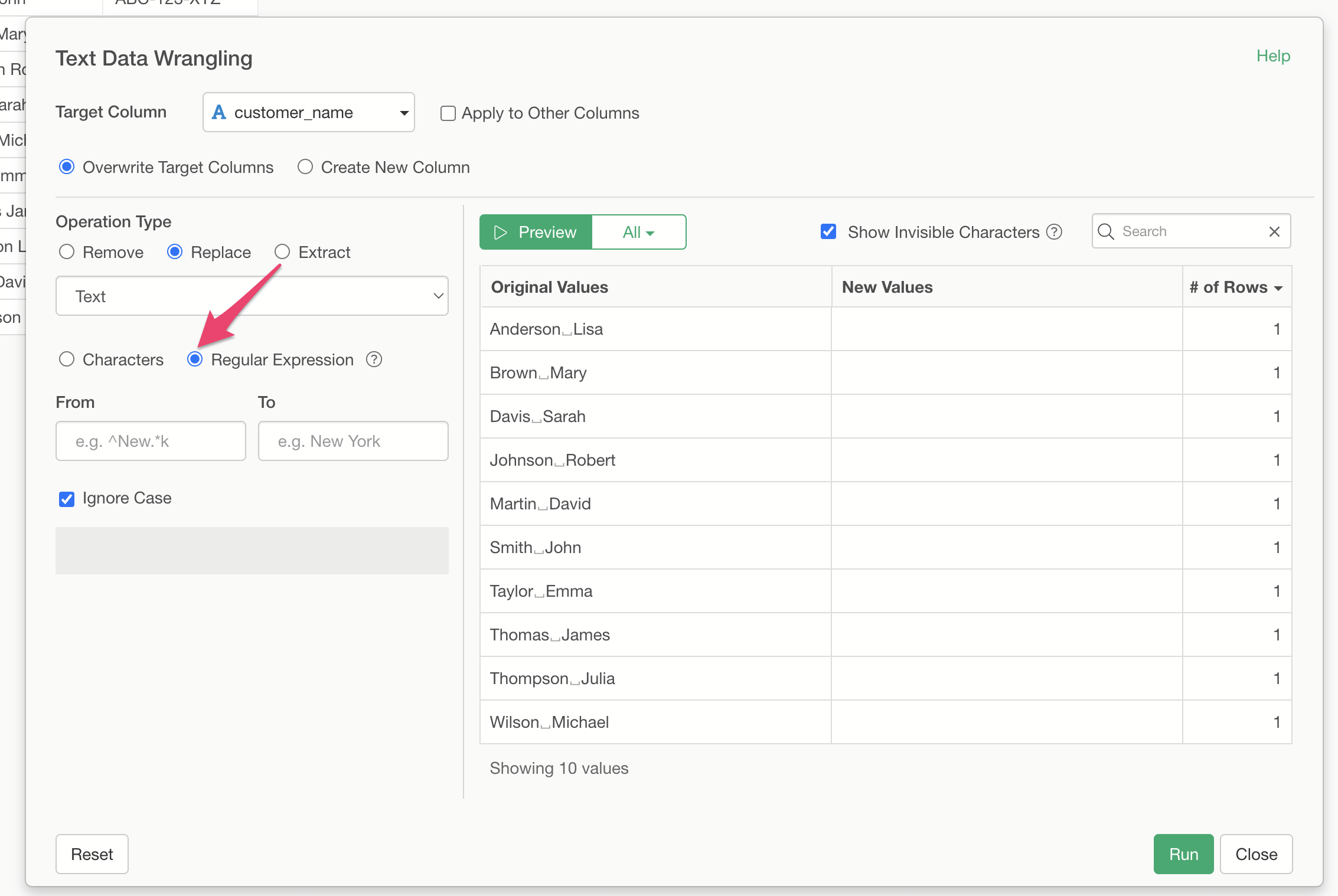
Specify ([^ ]+) ([^ ]+) as the source (pattern to find)
and try specifying \2 as the replacement. This allows you
to extract “First Name,” which is the second group in the “Last Name,
First Name” sequence.
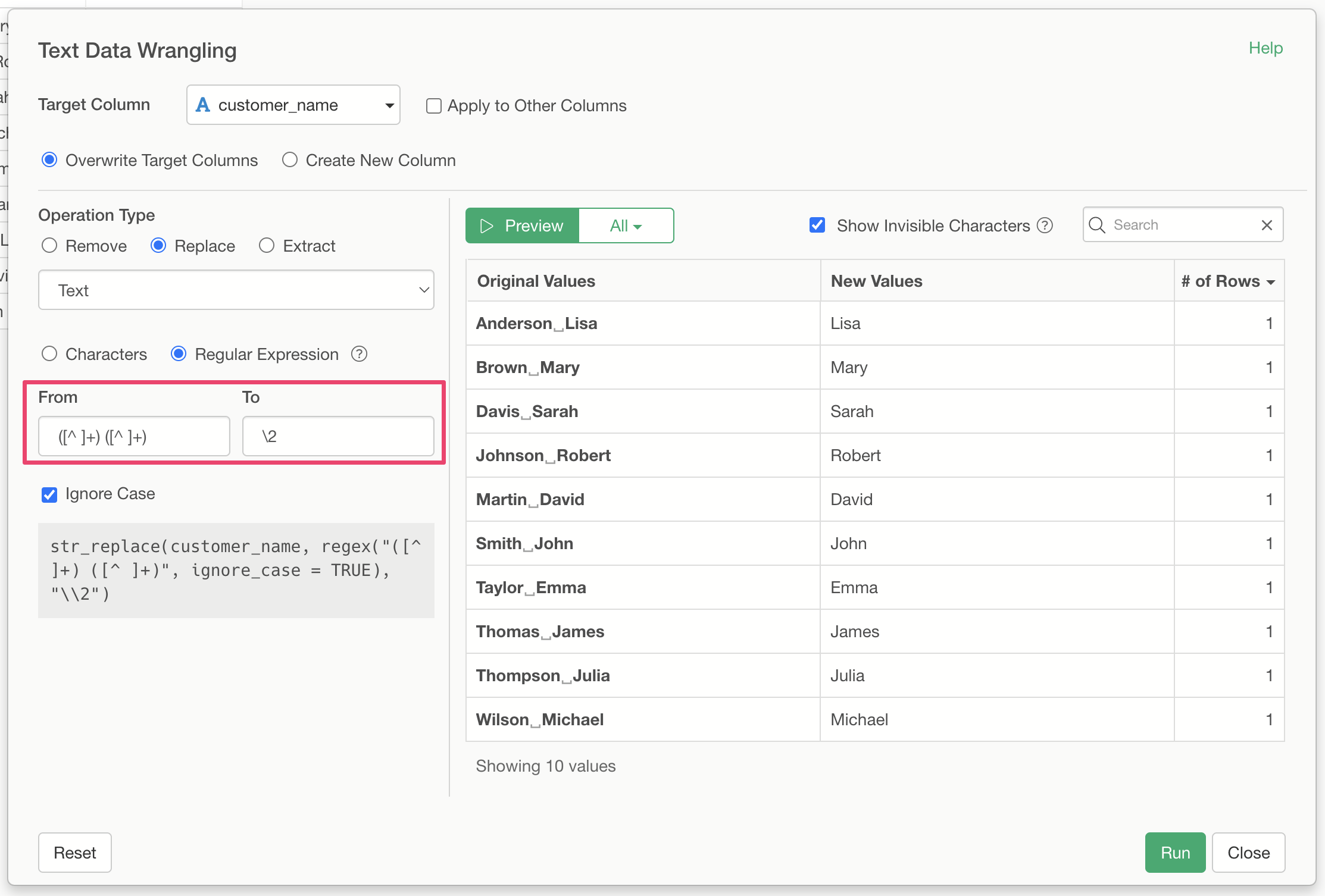
By specifying \2 \1 as the replacement, you can see that
the order is successfully swapped to “First Name, Last Name.”
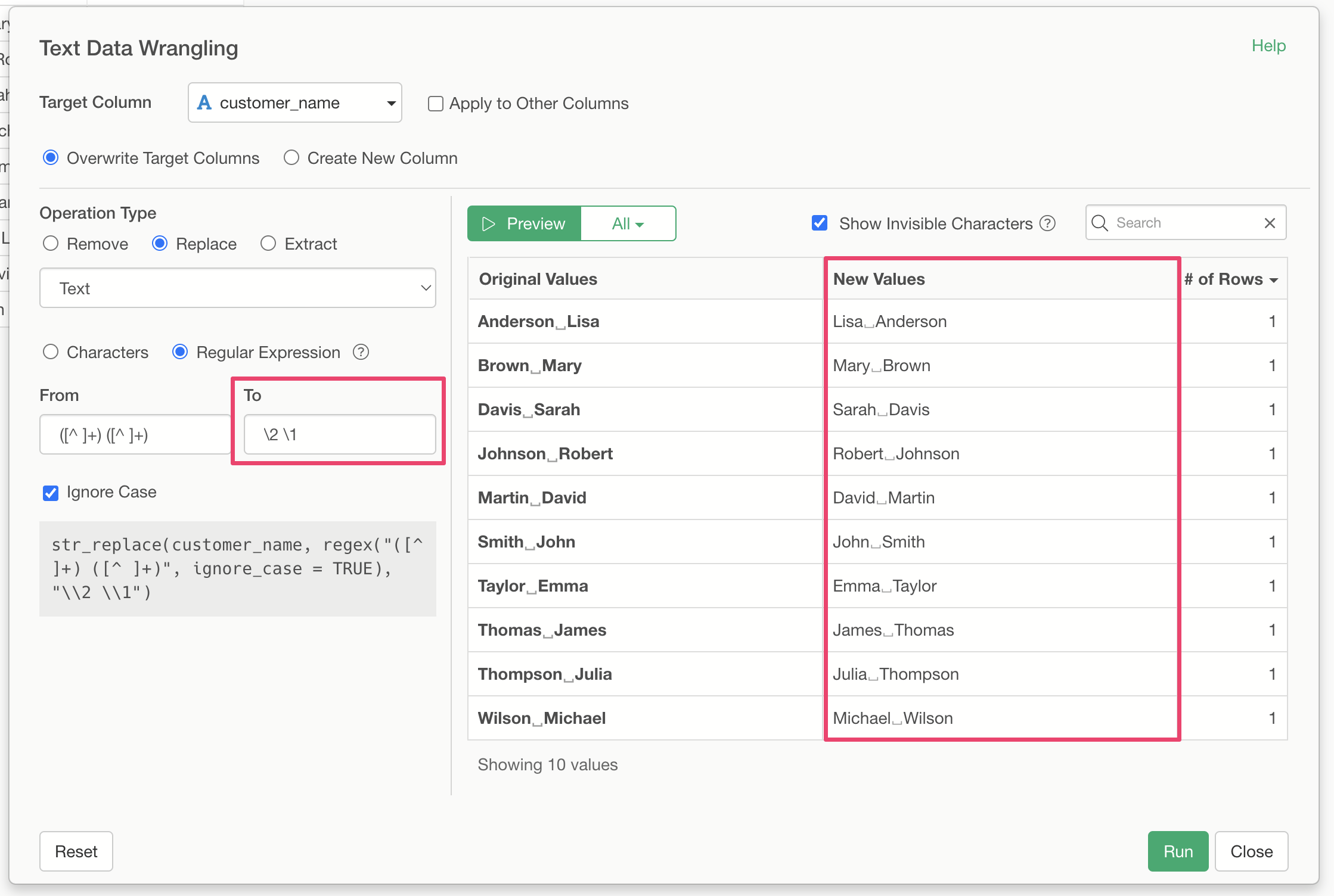
By clicking “Run,” you have successfully converted the data from the “Last Name, First Name” format to the “First Name, Last Name” format.
Text Data Processing Using Regular Expressions
In this seminar, we introduce the basics of regular expressions and examples of text data processing using frequently used regular expressions, along with a demonstration using Exploratory.
- What are Regular Expressions?
- Commonly used Regular Expression patterns
- Processing text data using Regular Expressions