How to extract fiscal year from date data
In Exploratory, you can generate a fiscal year column from date data corresponding to any fiscal year start month. By using the AI Data Wrangling feature, you can automatically create a fiscal year column simply by entering a prompt. In the UI-based operation, you can convert dates to fiscal years using conditional calculations.
Depending on the company, the start of the fiscal year may be set to a month other than January, and fiscal year information is necessary for monitoring sales, aggregation, and visualization on a fiscal year basis.
Therefore, this note introduces how to extract fiscal year information from date data.
Approach
There are two methods to calculate the fiscal year from date data:
Using AI Data Wrangling
Using the UI
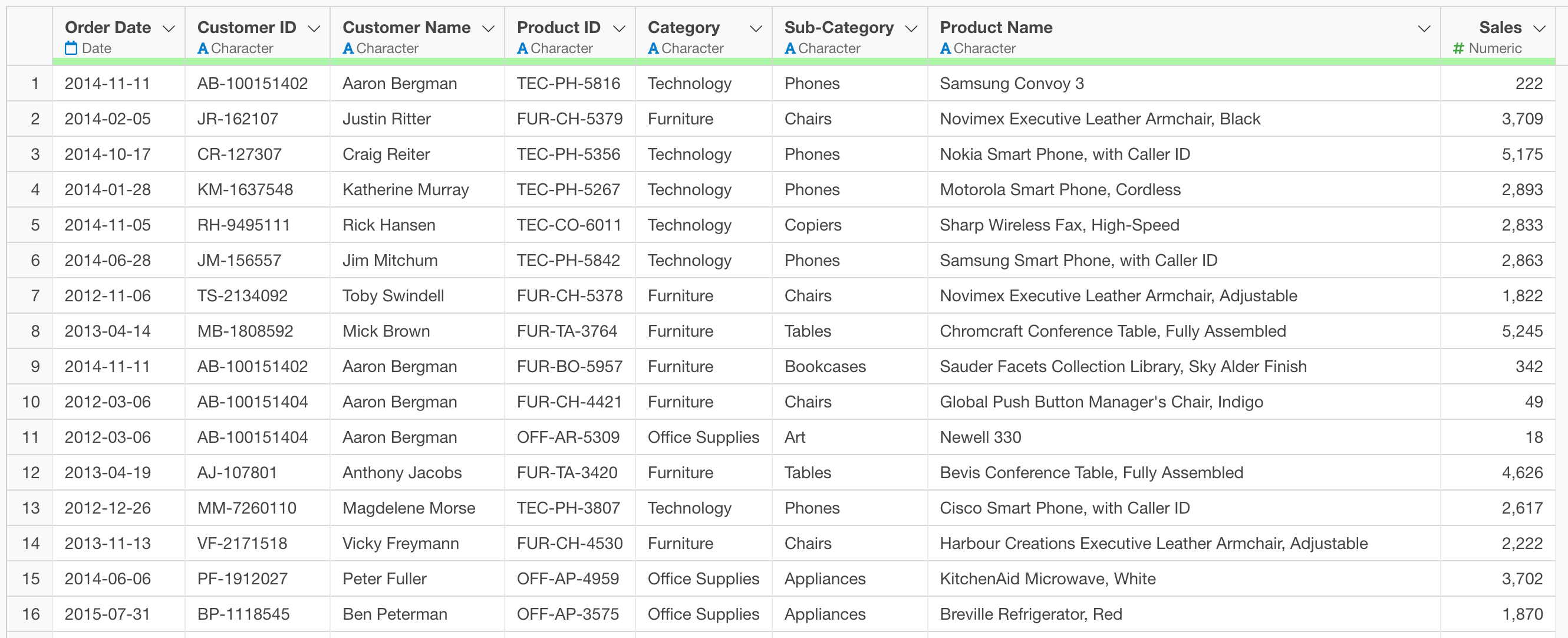
In this example, we will use order data where each row represents one order, and columns include information such as the order date.
AI Wrangling
By simply entering a prompt into the AI Data Wrangling feature, the AI will automatically generate an R script with conditional branching based on the fiscal year start month and create the fiscal year column.
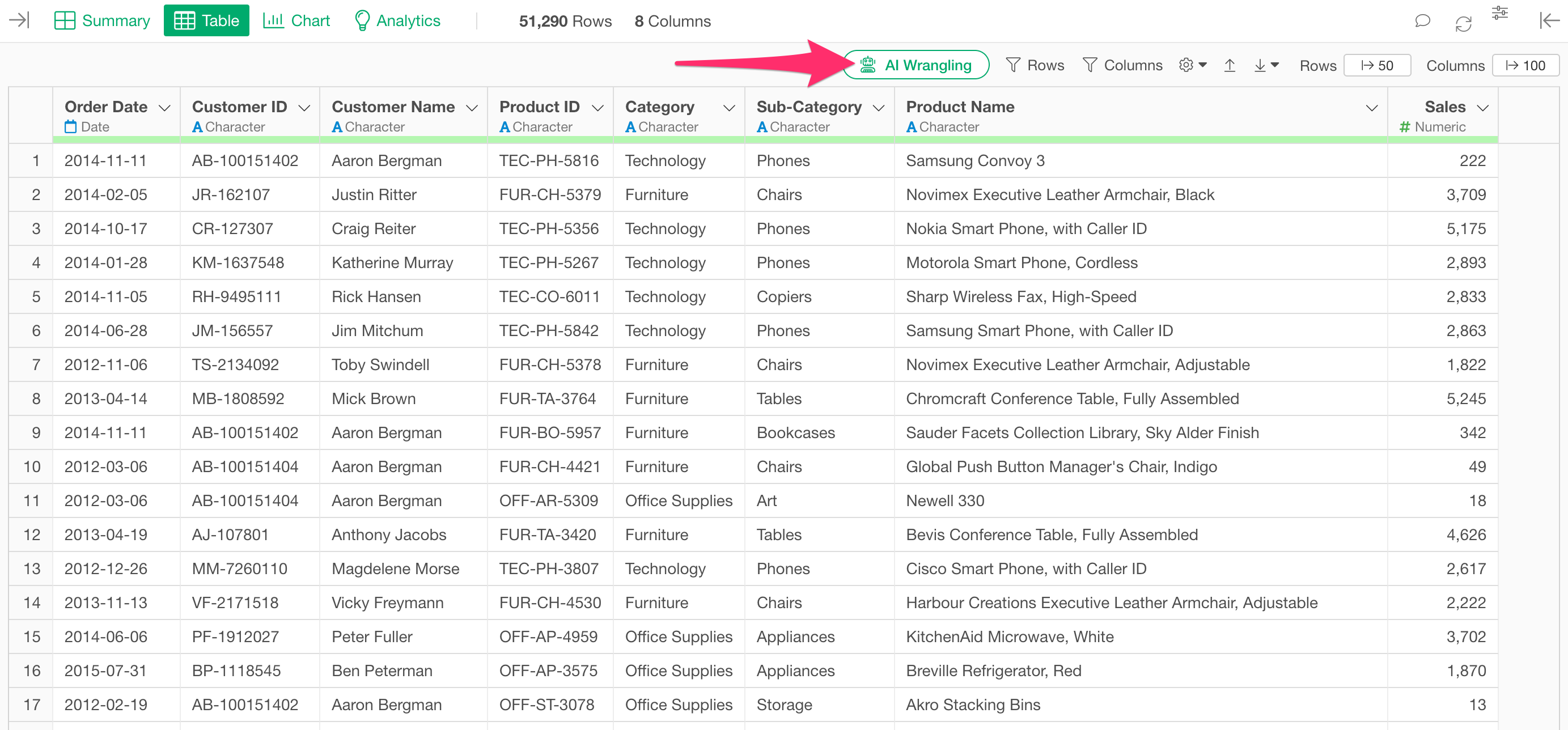
Click the “AI Wrangling” button from the table view.
When the AI prompt dialog opens, enter the following prompt in the input field and execute it.
Create a fiscal year column starting in April based on the Order Date.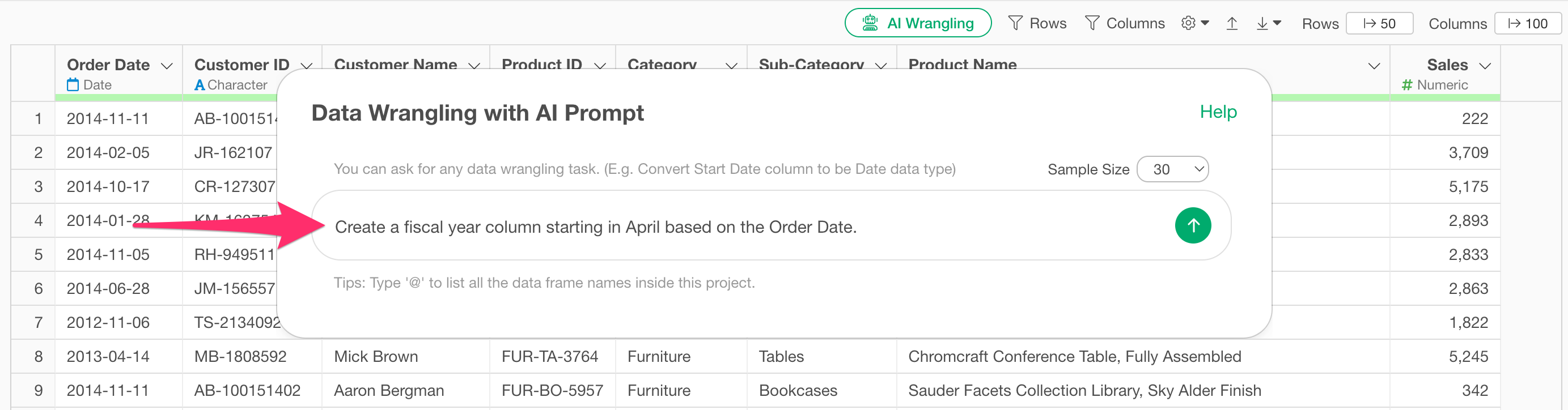
When you execute the prompt, the AI automatically generates an R script including conditional branching based on the fiscal year start month. Along with the generated code, an explanation of the functions used and the expected results will be displayed on the screen.
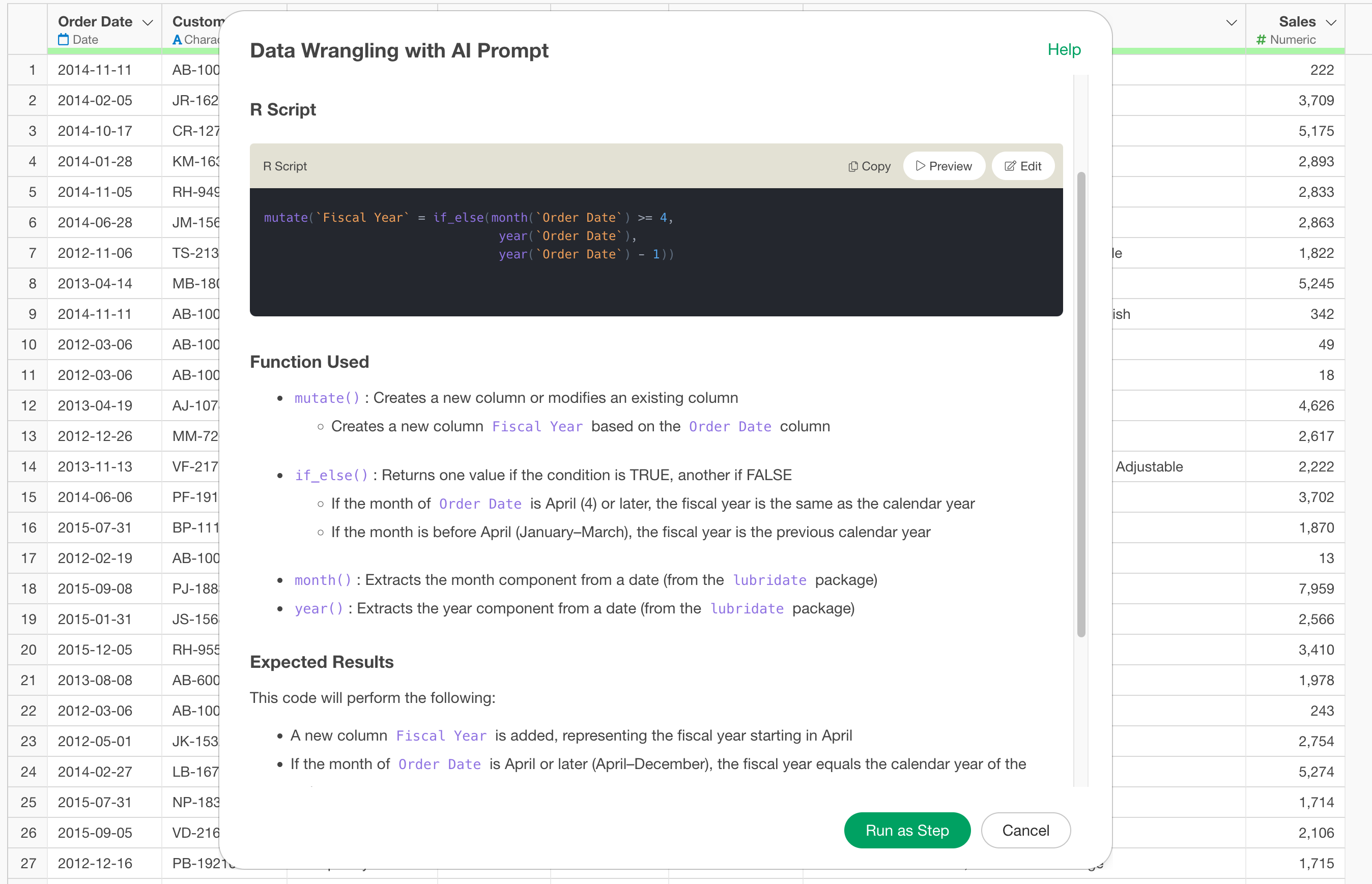
If you want to check the content, click the “Preview” button to see the preview results of the processing applied to the actual data.
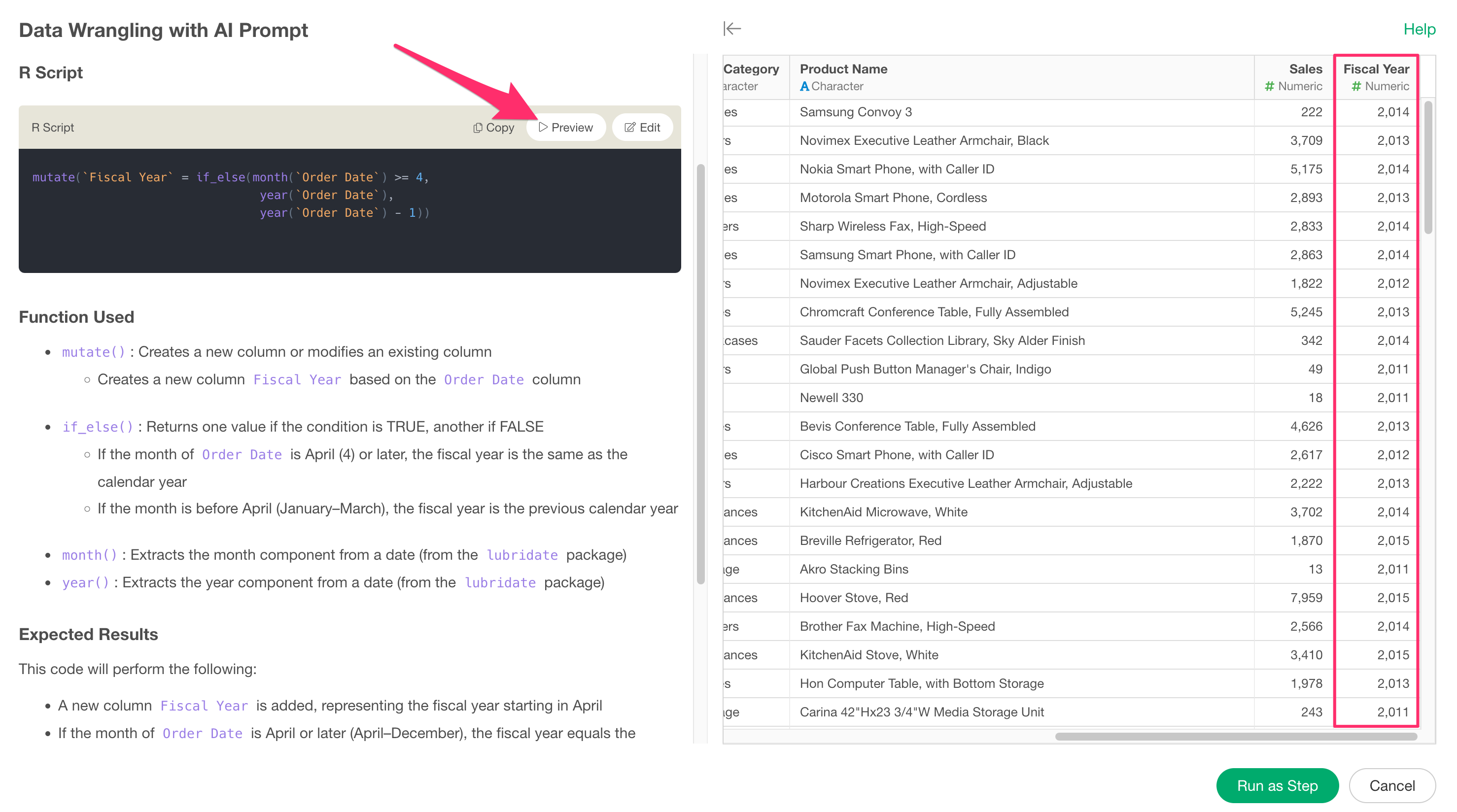
After confirming the content, click the “Run as Step” button.
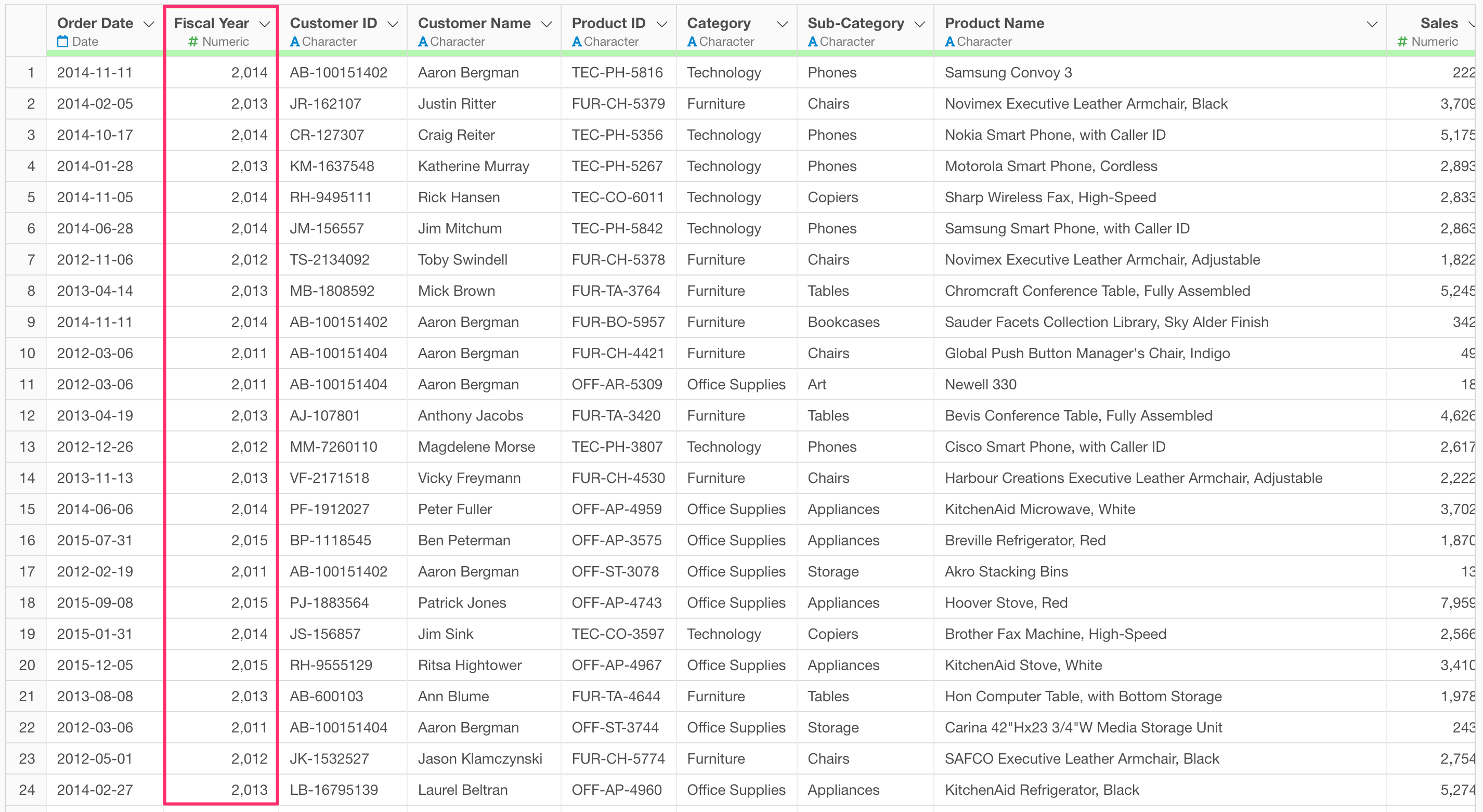
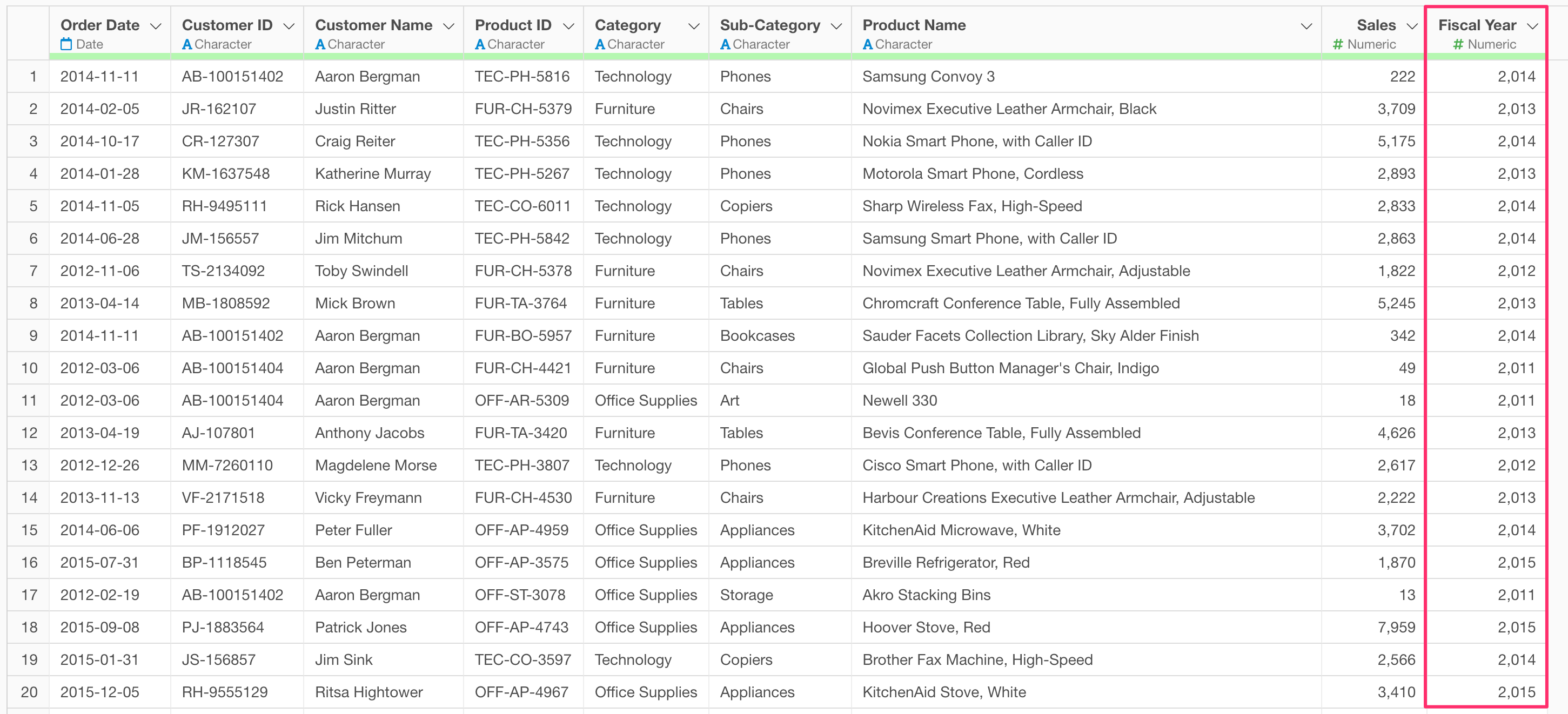
The fiscal year column has now been added to the right end of the data.
UI
In the UI-based operation, use the conditional calculation feature to convert date data into a fiscal year. Set conditions to calculate months before March as the previous fiscal year and months from April onwards as the fiscal year of that year.
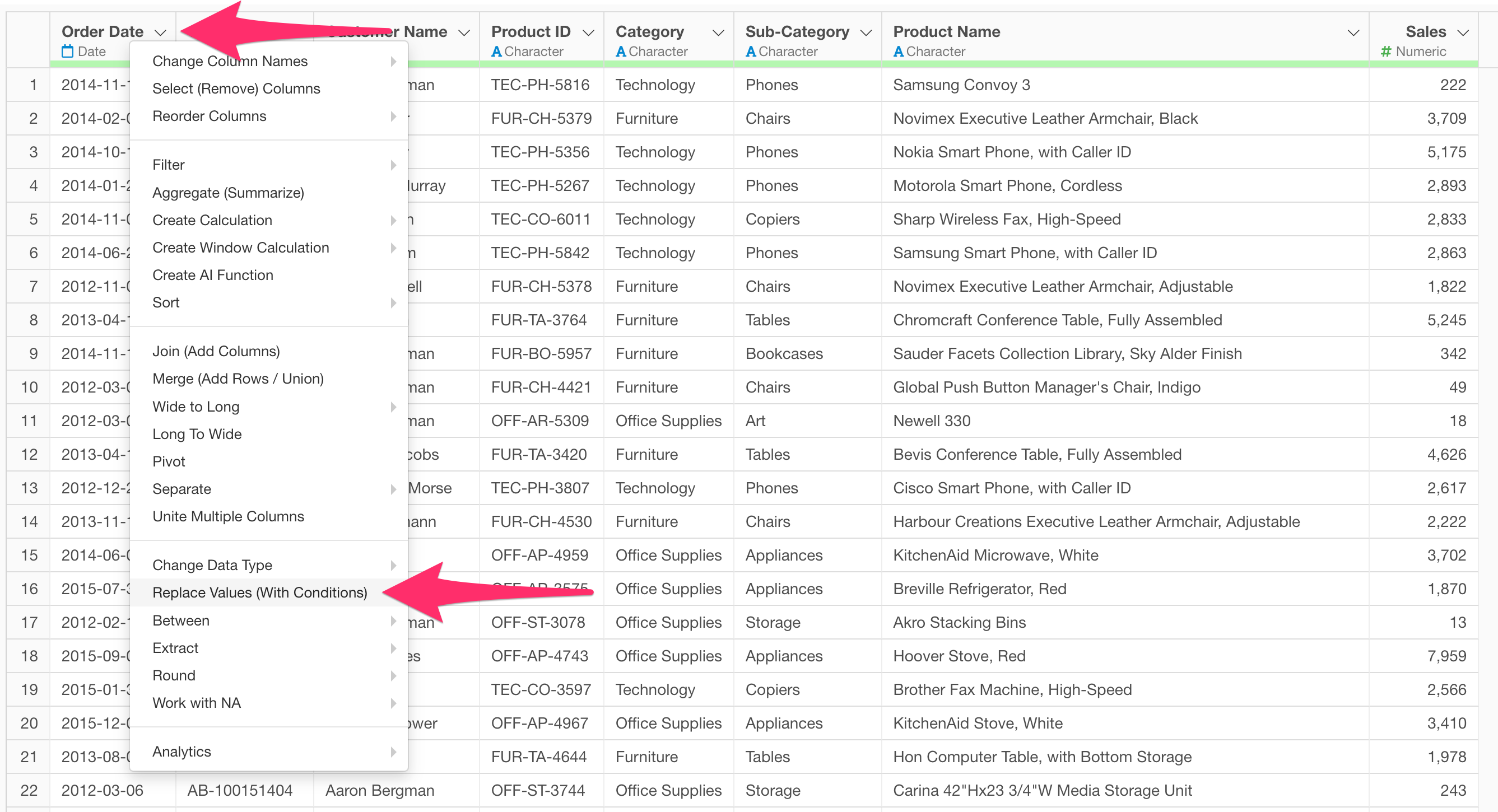
Select “Replace Values (With Conditions)” from the header menu of the “Order Date” column.
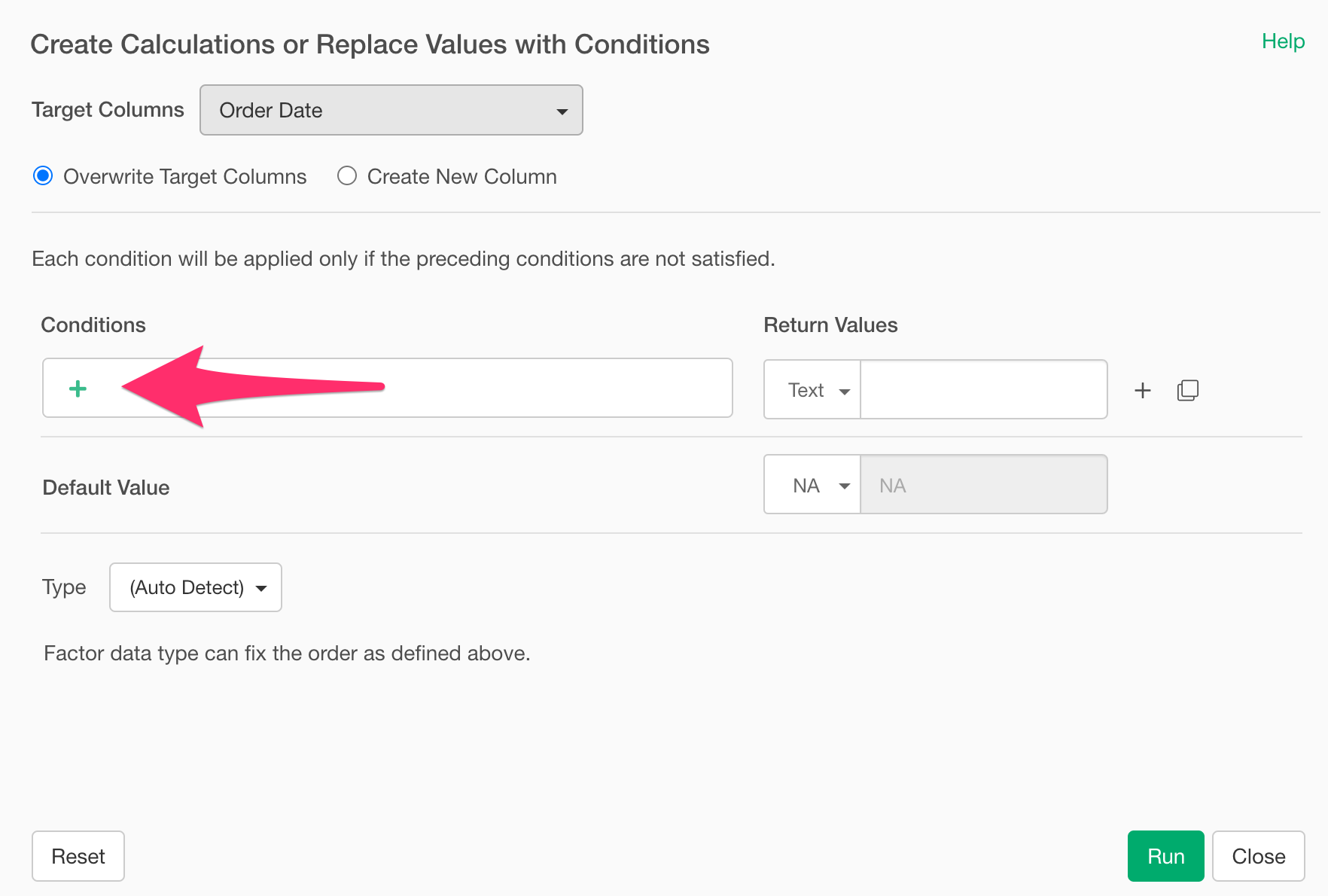
When the “Create Calculations or Replace Values with Conditions” dialog opens, click the plus button for the condition.
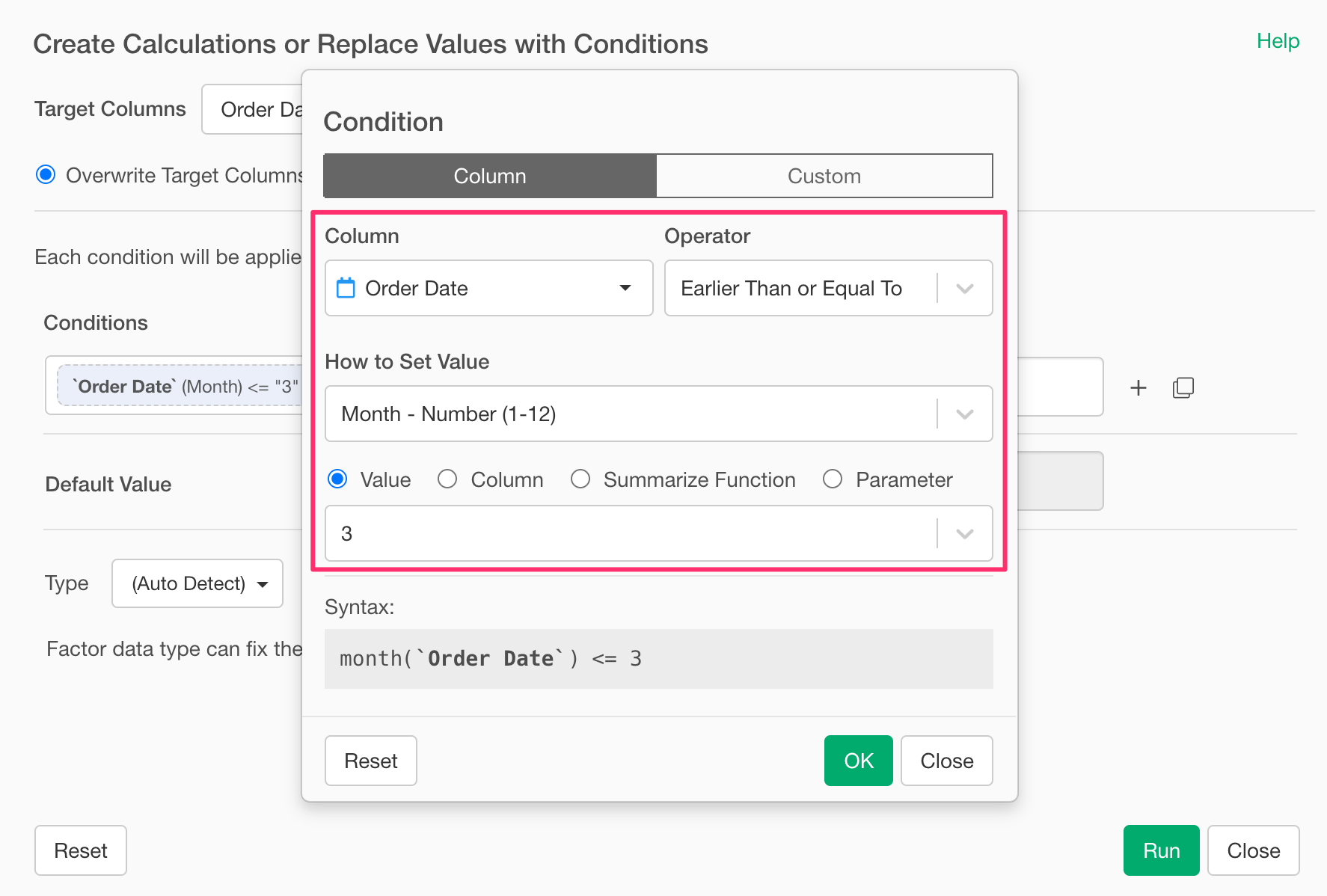
To set the condition for months before March, configure the condition as follows: Select “Order Date” for the column, select “is Earlier Than or Equal to” for the operator, select “Month - Number” for the value type, and enter “3”.
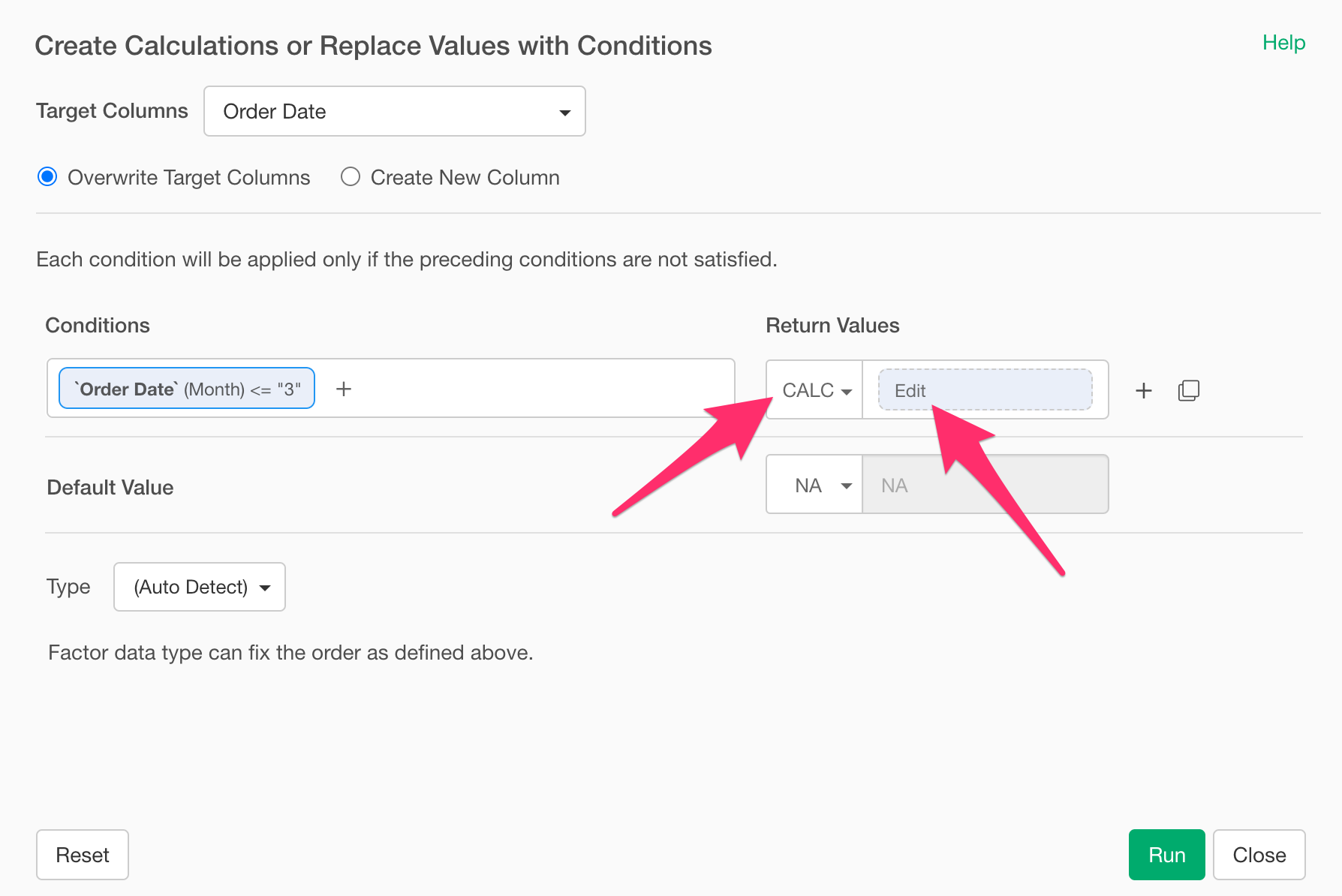
Next, select “Calculation” for the new value type and open the calculation settings dialog.
Since dates before March are treated as the previous fiscal year, enter the following formula in the calculation expression to extract the year from the date and subtract 1.
year(`Order Date`) - 1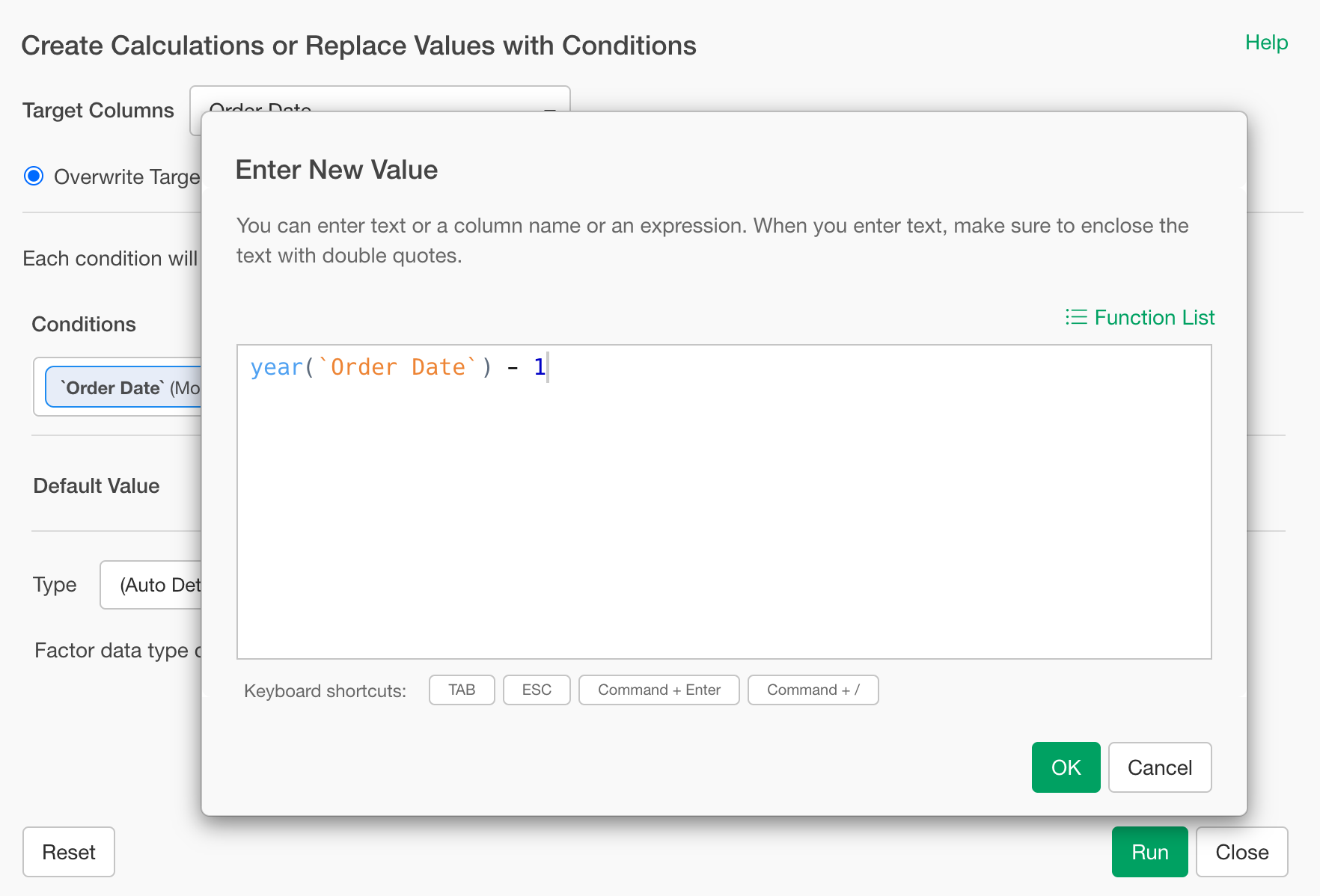
Next, to set the processing for dates from April onwards, select “Calculation” for the value type in the “Default” section and open the calculation settings dialog.
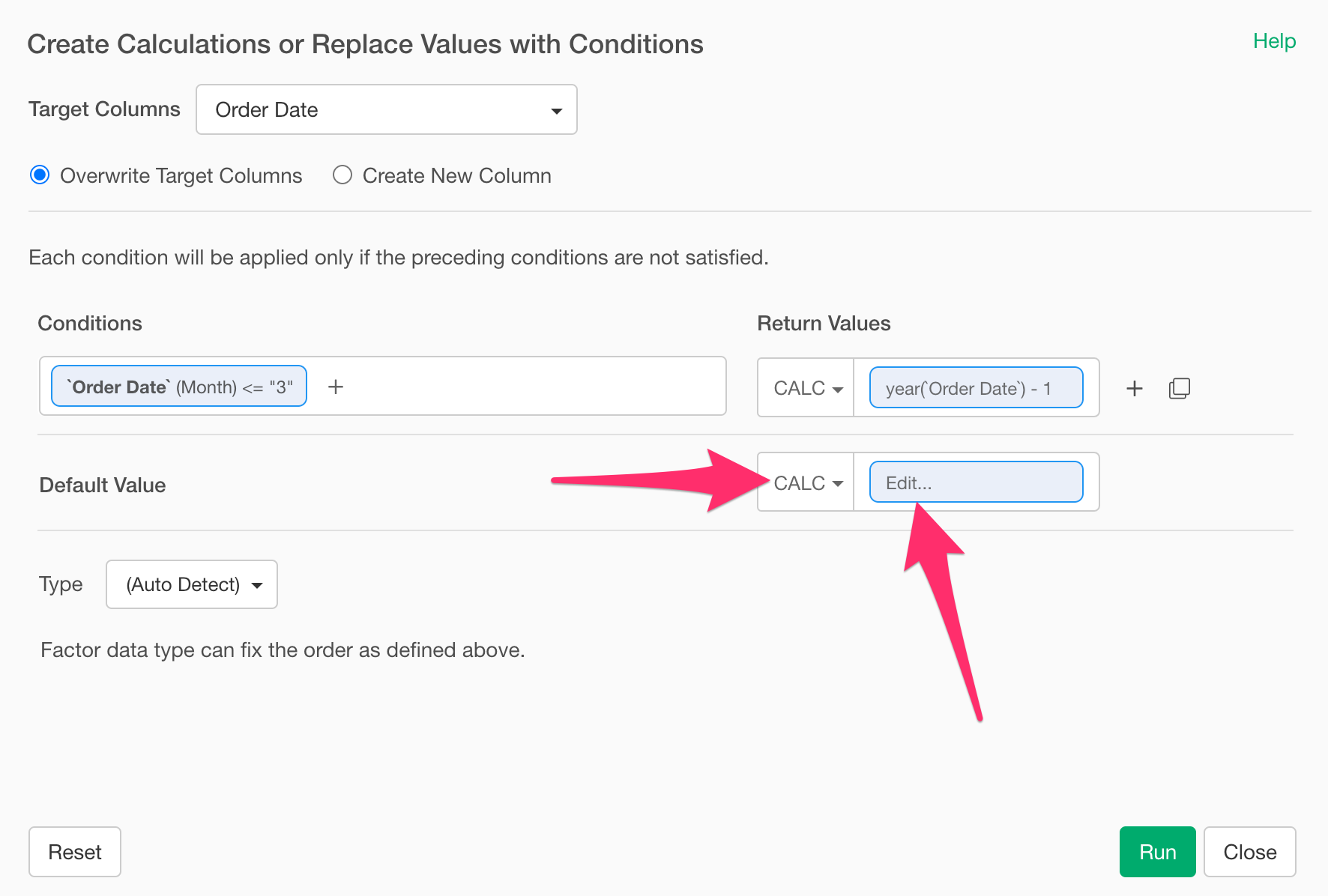
Since dates from April onwards use that year as the fiscal year, enter the following in the calculation expression.
year(`Order Date`)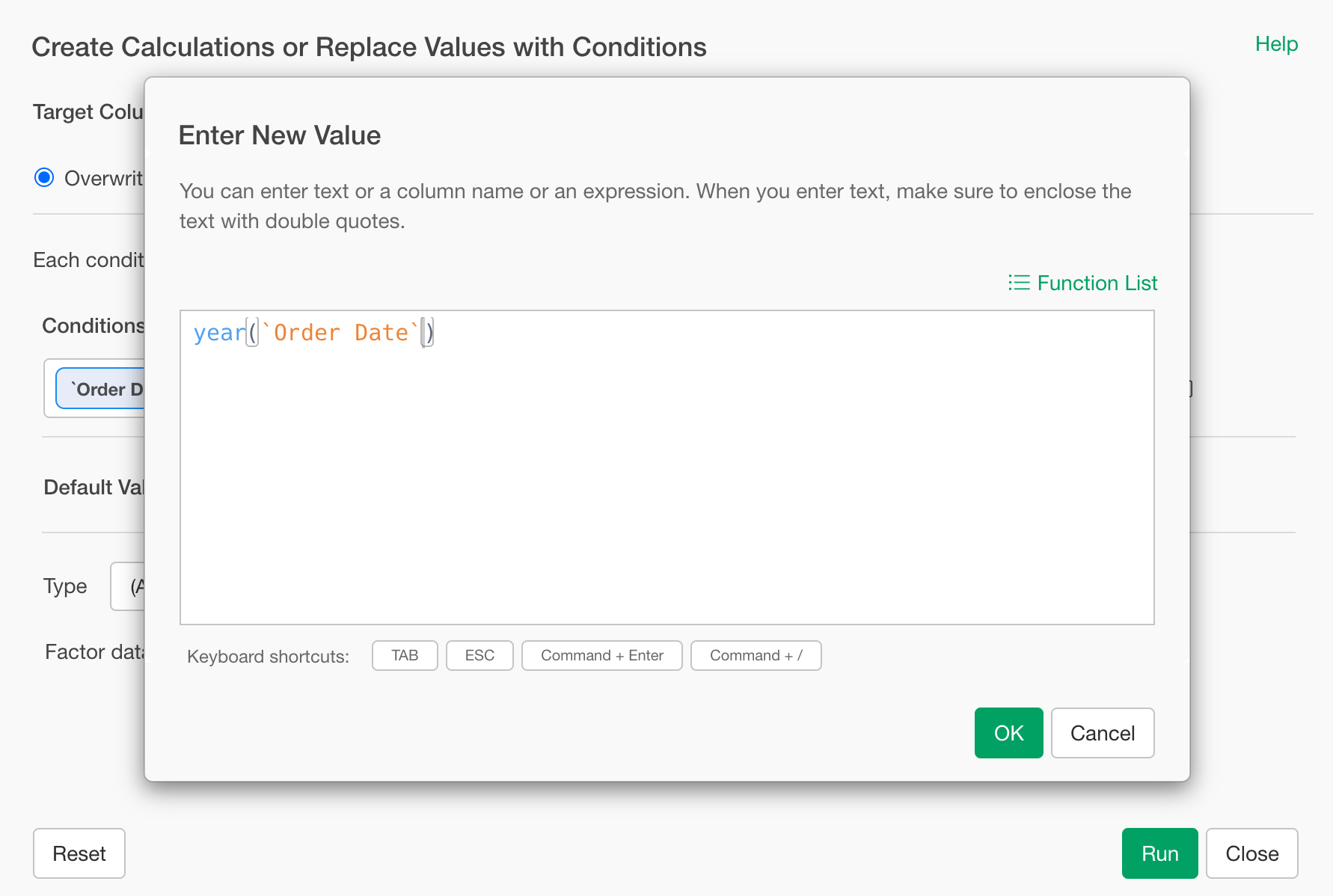
Finally, check “Create New Column,” enter “Fiscal Year” as the column name, and click the Run button.
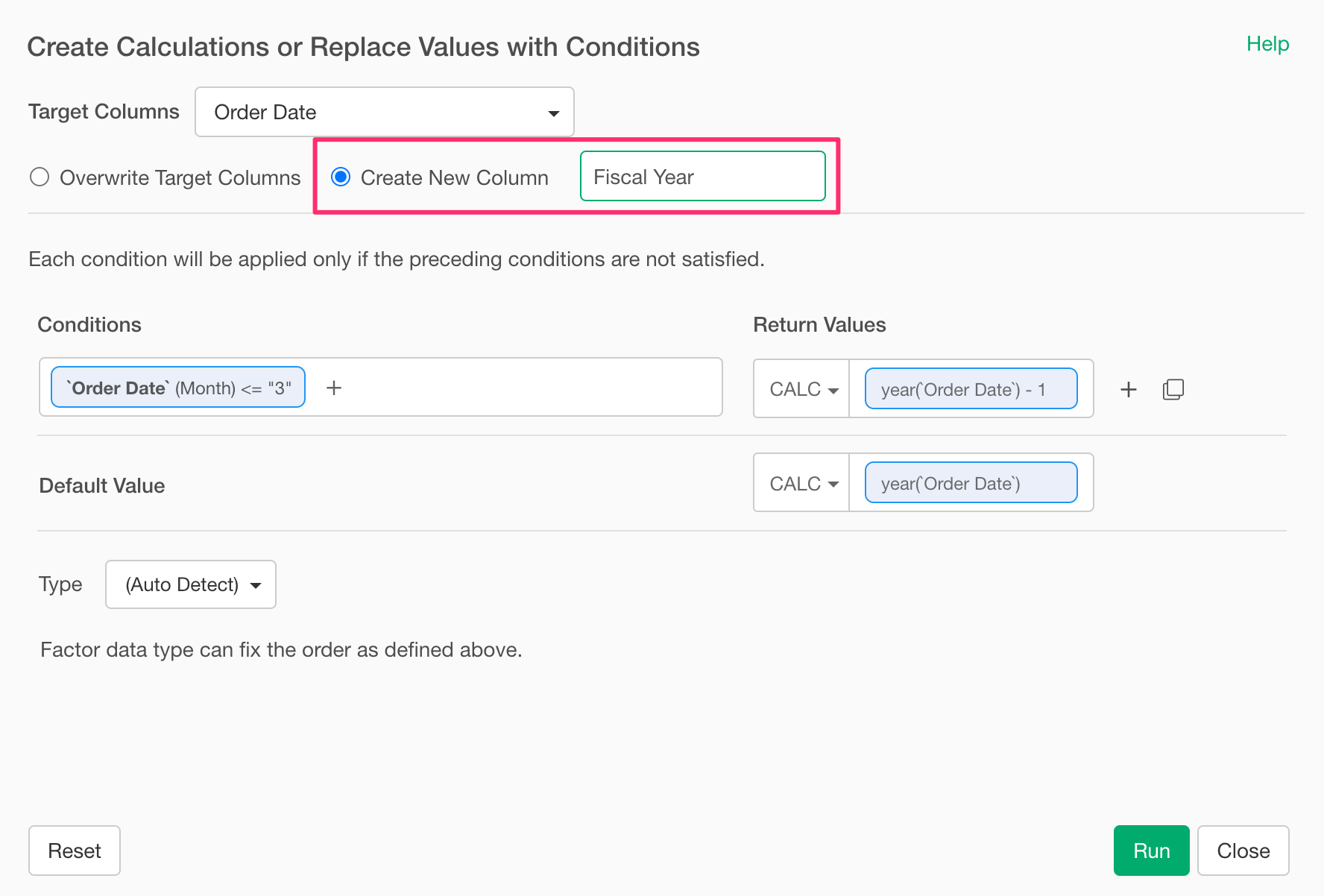
You have now successfully created the fiscal year column. Dates from April to December are displayed as the fiscal year of that year , and dates from January to March are displayed as the fiscal year of the previous year.