How to use cache feature
hen you import data in Exploratory, a Parquet file is automatically generated for lightweight and fast handling.
Also, when reopening the same project, the Parquet file is read, allowing data to be loaded into memory at high speed.
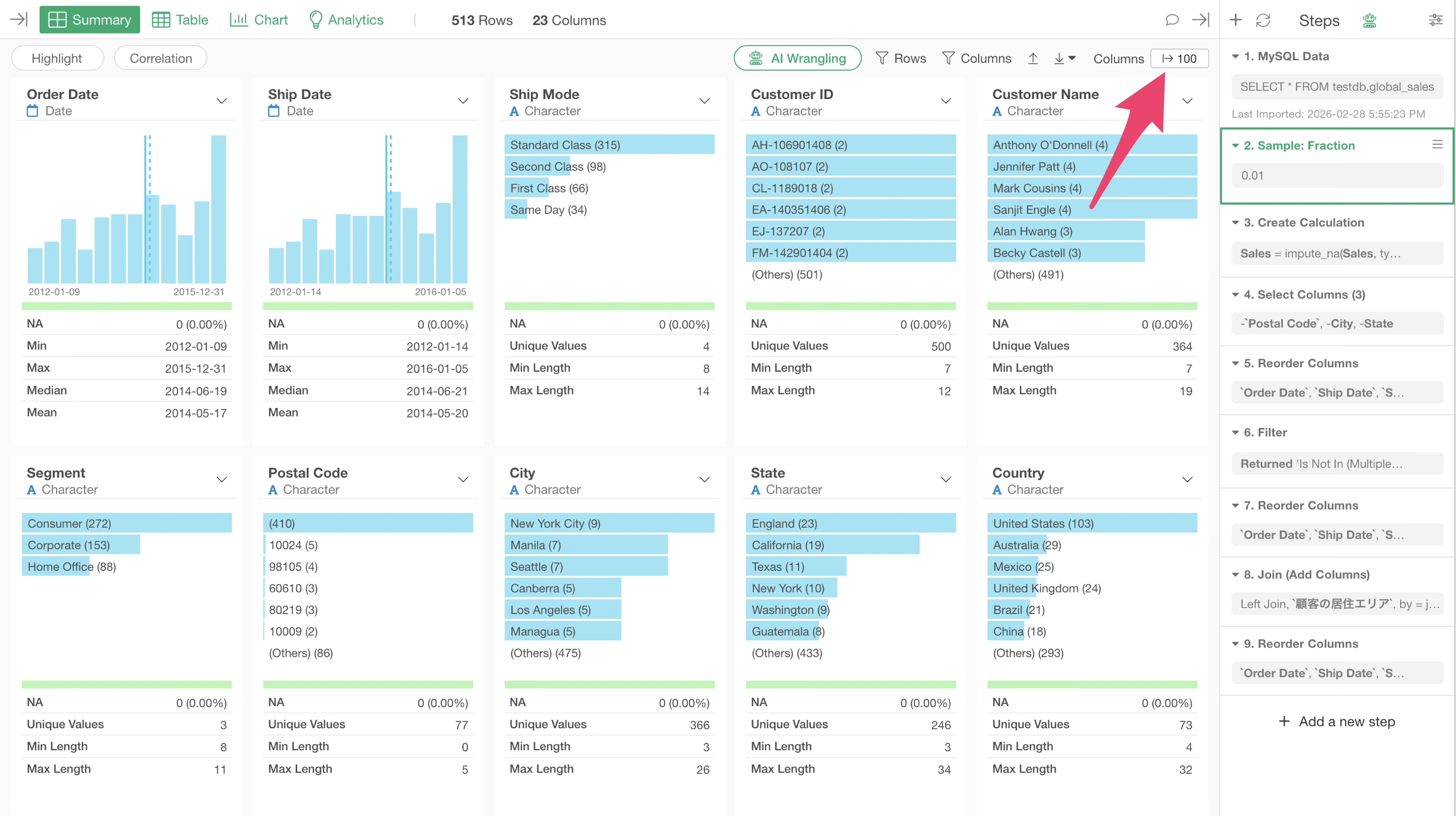
On the other hand, since data for each step is not saved, reopening a data frame in a project that was once closed will re-execute the processes up to the last step after reading the Parquet file.
Therefore, reopening a project that uses large data may result in a wait for step execution, preventing you from starting work immediately.
If data transformation is finished and only the data for a specific (e.g., the last) step is needed, you can export and use the data. However, if you do not want to lose reproducibility or want to create charts for each step, that approach is not always effective.
In such cases, you can cache the step data to save the data at that specific step.
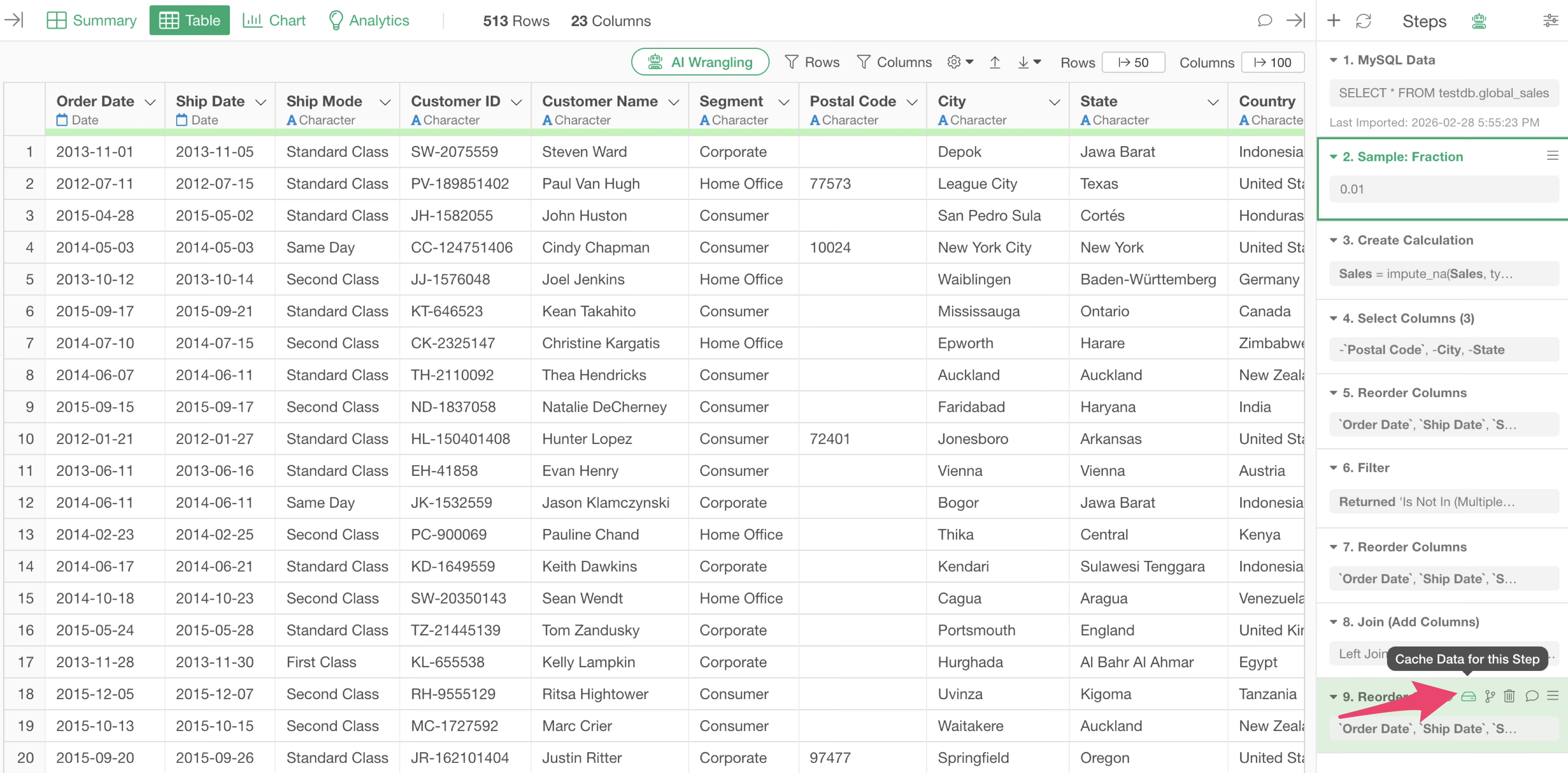
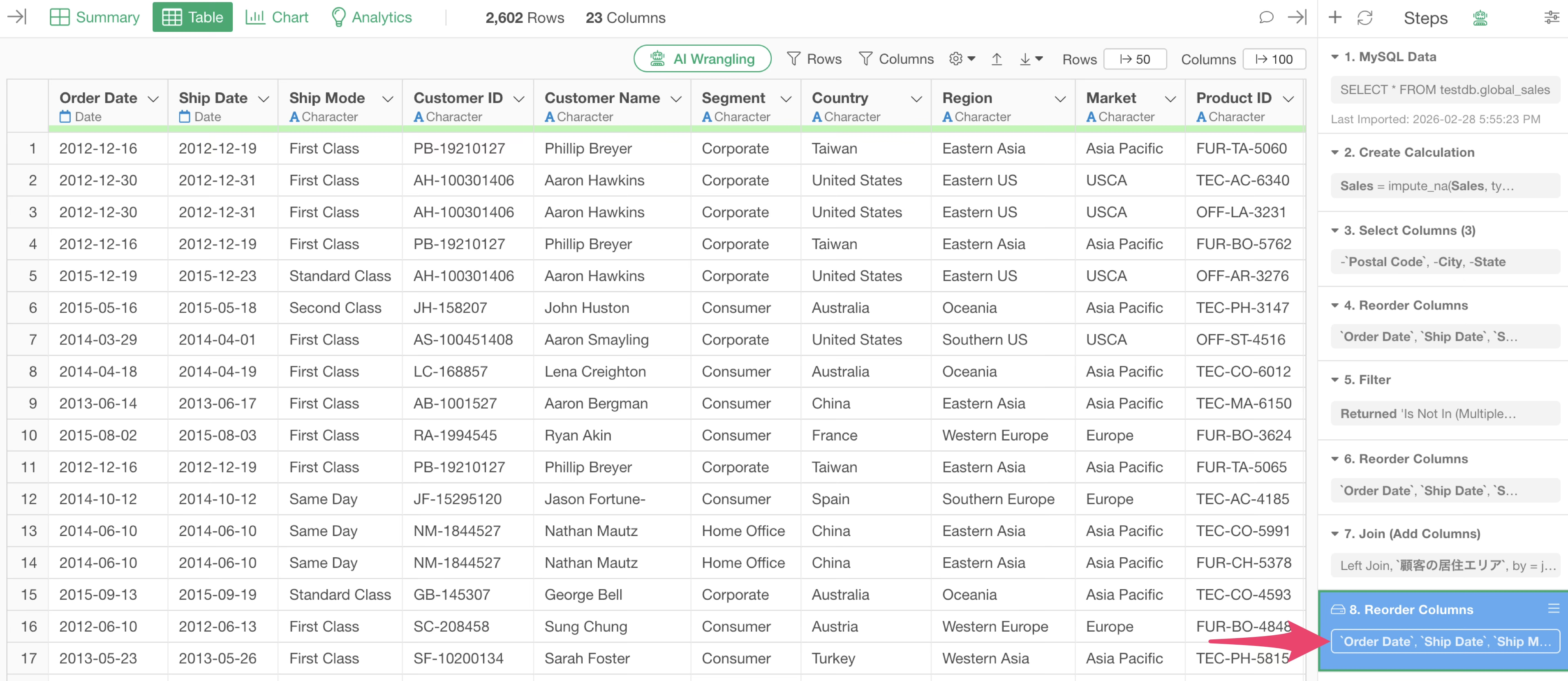
When a step is cached, it turns blue, and you can load the data without processing the preceding steps.
Let’s explain this in more detail.
When you “cache” a step, a Parquet file is created and saved in the repository on your PC.
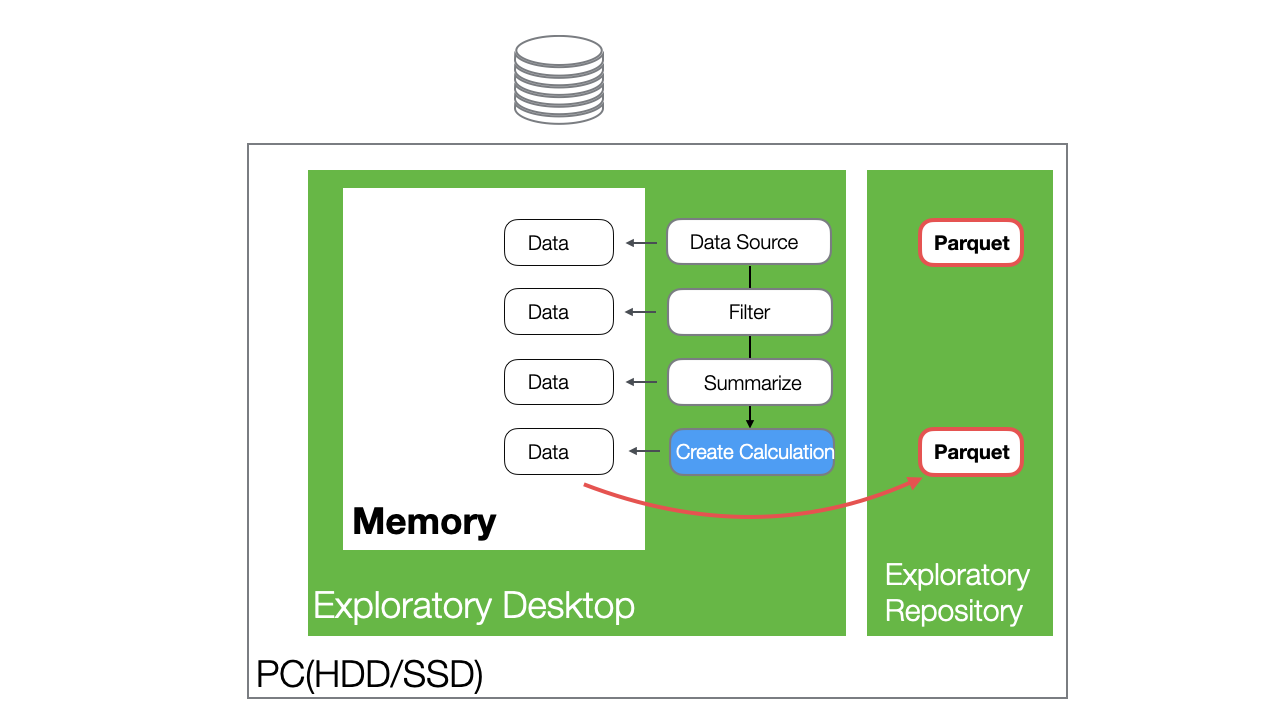
When you reopen the project and open the same data frame containing the cached step, the data is loaded from the cached Parquet file.
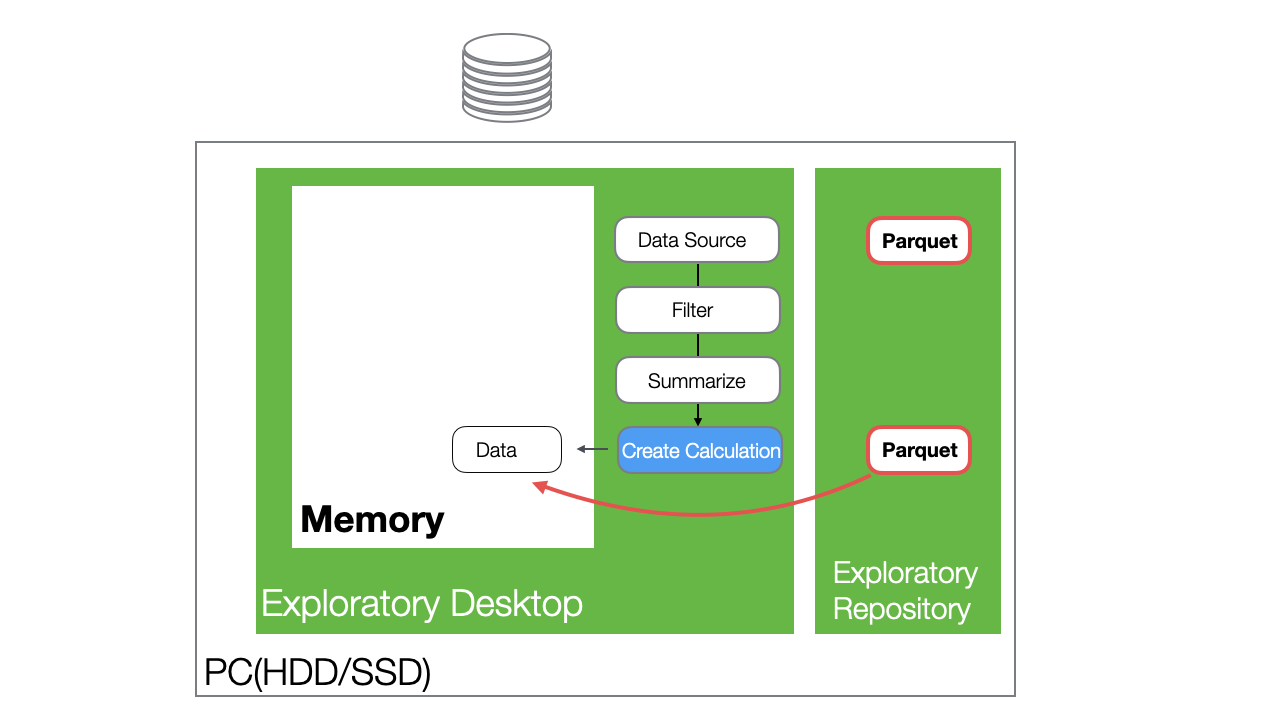
If there are steps after the cached step, the processes following the cached step will be executed when the data frame is opened.
When change is made to a step before the cached step
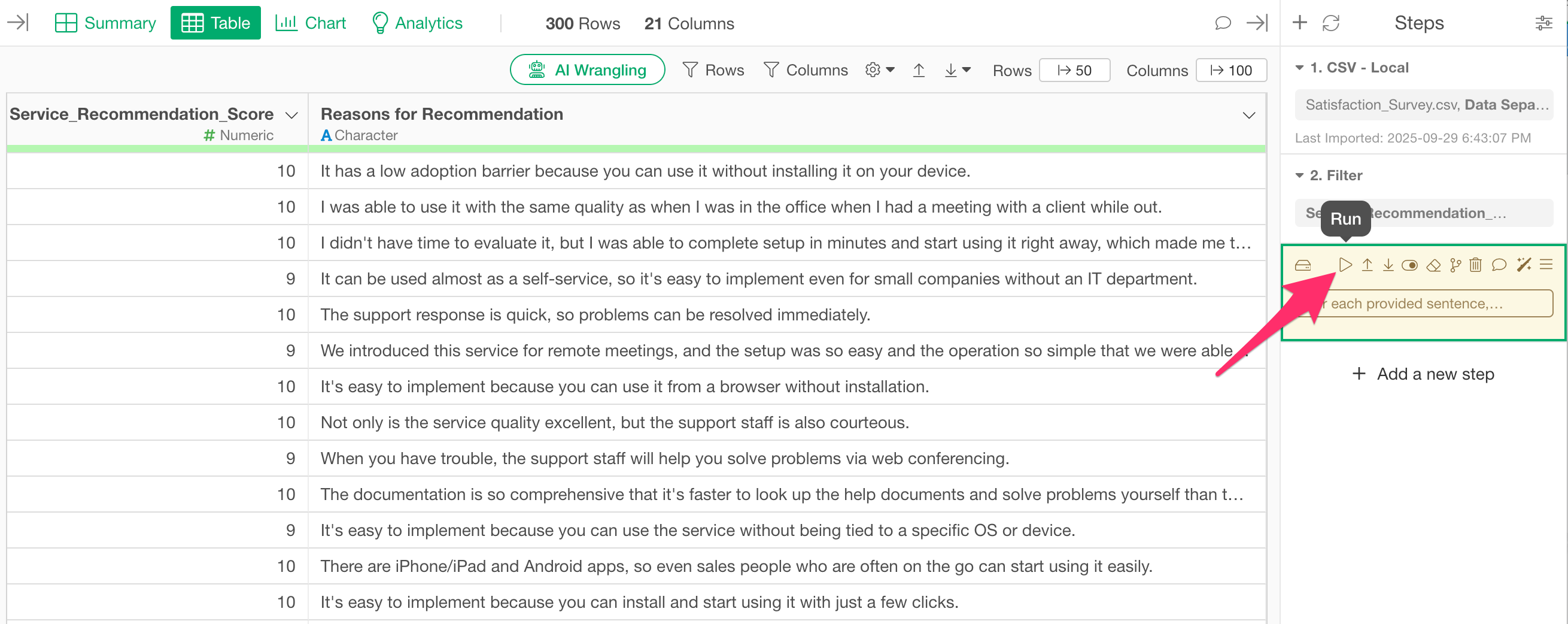
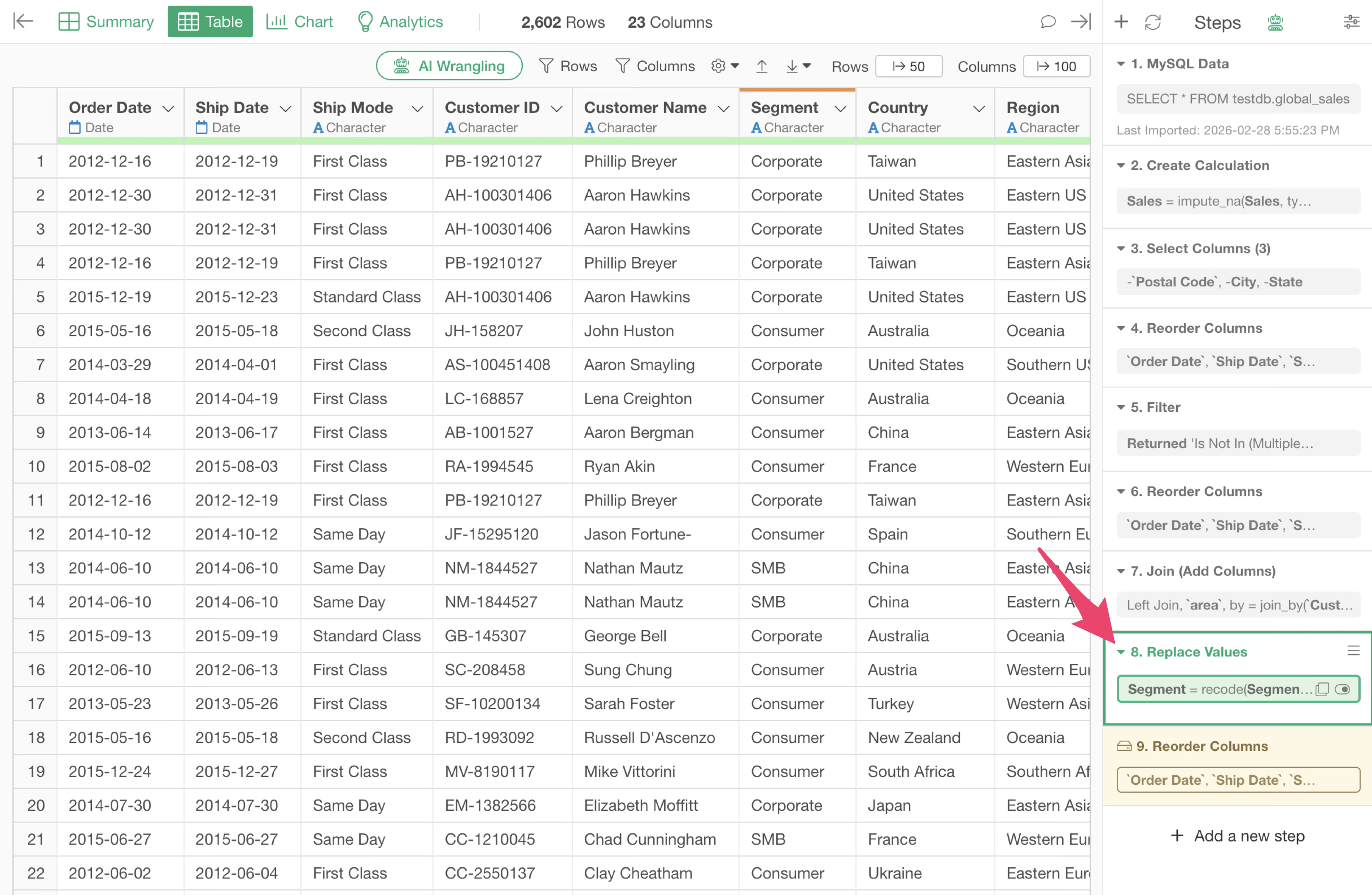
If a change is made to a step before the cached step, the color of that step changes to yellow, indicating that the cached data for that step has become outdated.
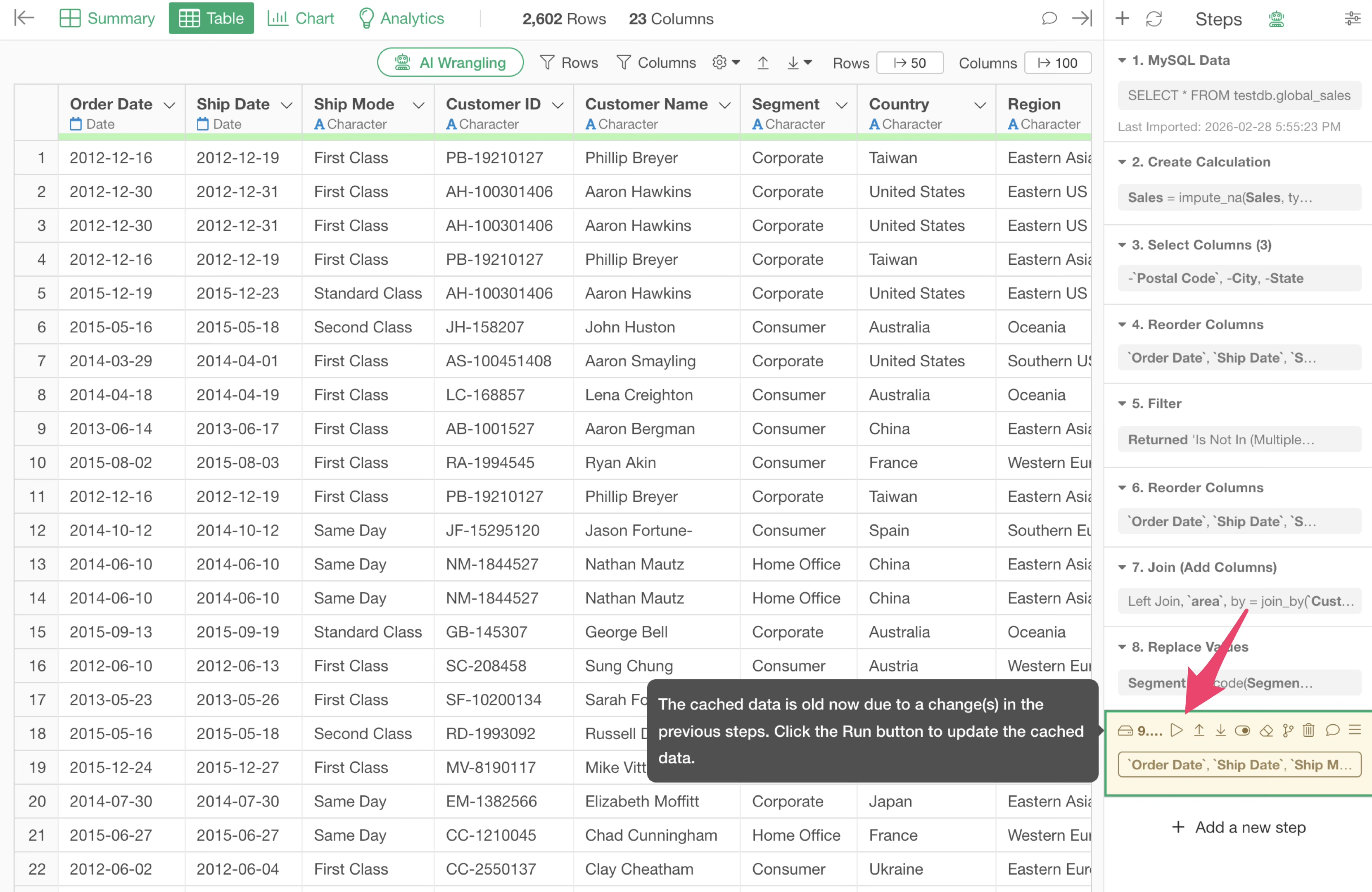
If you want to update the data of a cached step, you can click the “Run” button on the cached step to update the cache.
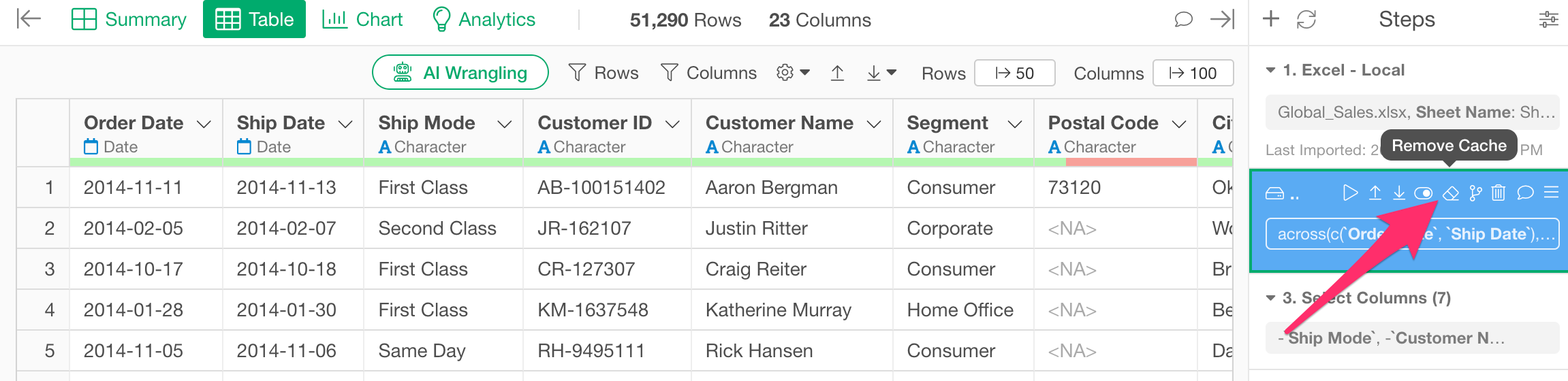
Clear Cache
If you wish to clear the cache, you can do so by clicking the Clear Cache icon.
Cases Where Step Data is Automatically Cached: AI Function Execution
When using AI Functions supported from v14, data processing results by AI are returned row by row based on the prompt you entered.
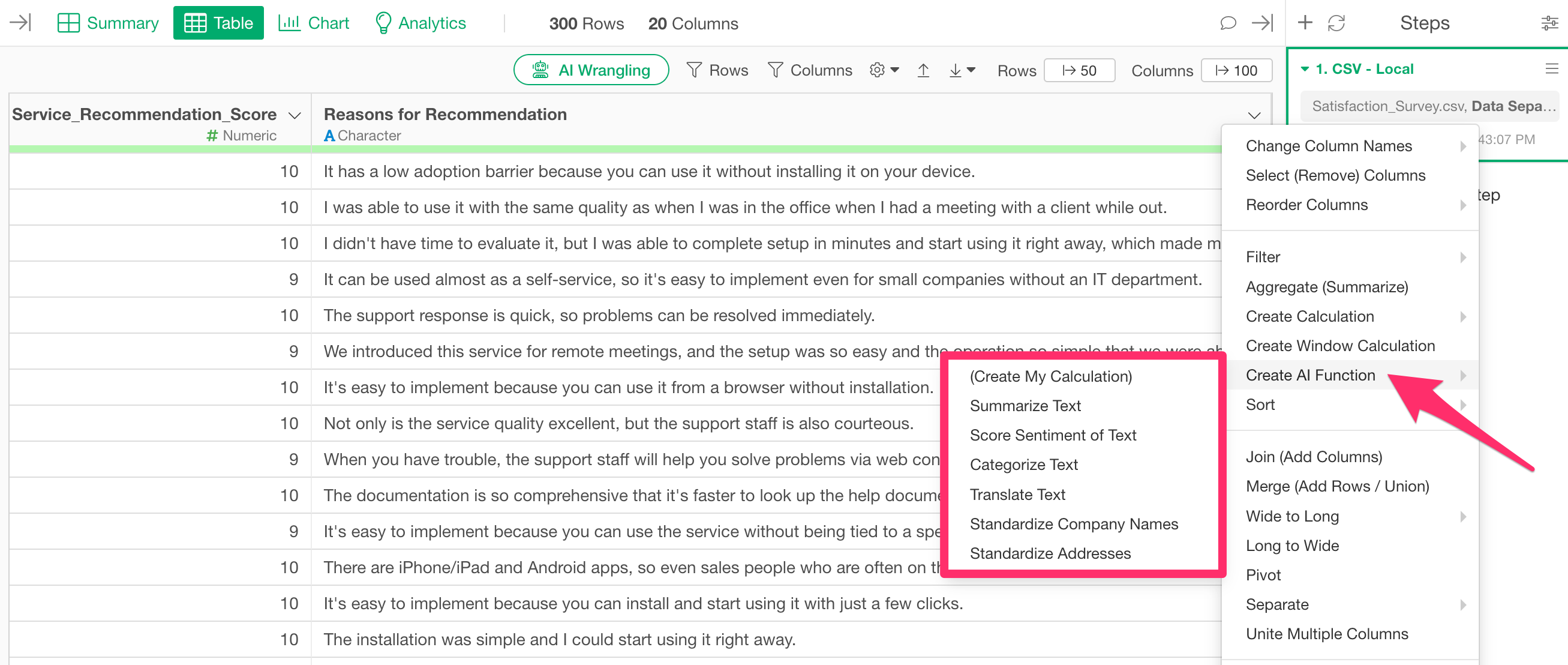
The number of times these AI functions can be used is determined by your plan. Unlike regular data processing steps or AI prompts, these are not executed via R processing.
Therefore, the execution results are not automatically updated when there is a change in a previous step; instead, the AI function step is automatically cached every time it is executed.
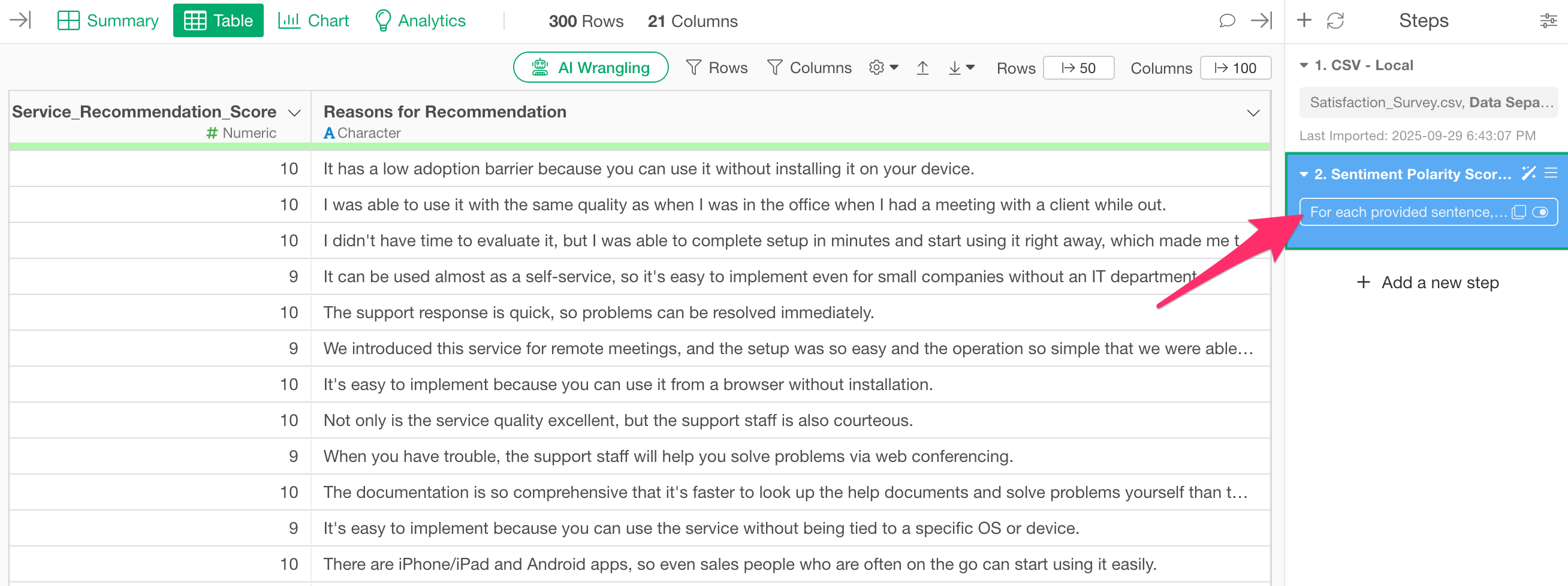
Because the step is automatically cached when executing an AI function, even if a change occurs in a step prior to the AI function, the AI function will not be re-executed automatically, preventing the consumption of your AI function usage quota.
On the other hand, if a change is made to a step before the AI function step, a discrepancy will arise between the cached step and the actual data.
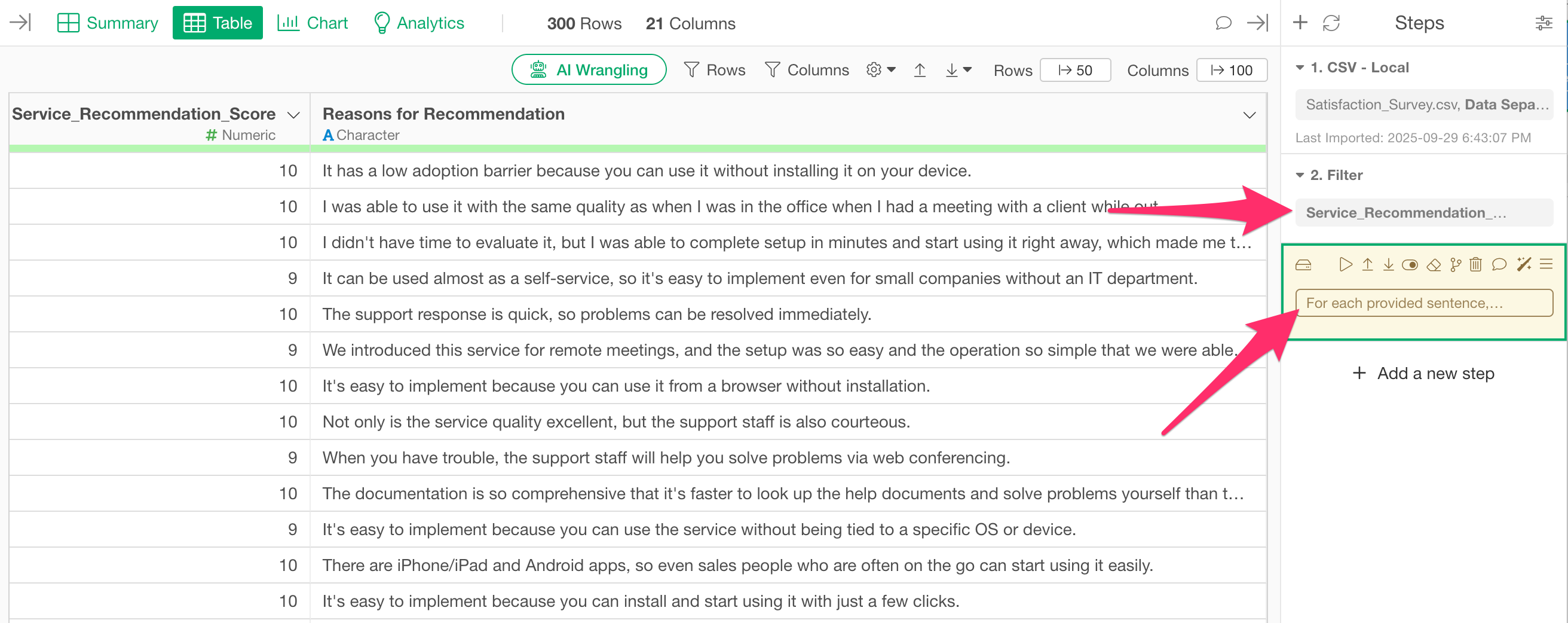
Therefore, if you want to re-run the AI function with the updated data, you will need to re-execute the step.