Introduction to the Content Menu for Notes and Dashboards
In Exploratory, you can consolidate content such as Numbers, Charts, and Analytics into two types of reports: “Notes” and “Dashboards.”
In addition to the content mentioned above, you can also add the following types of content directly from the text editor of a Note or Dashboard:
- R Script
- HTML
- Math Syntax
- YouTube
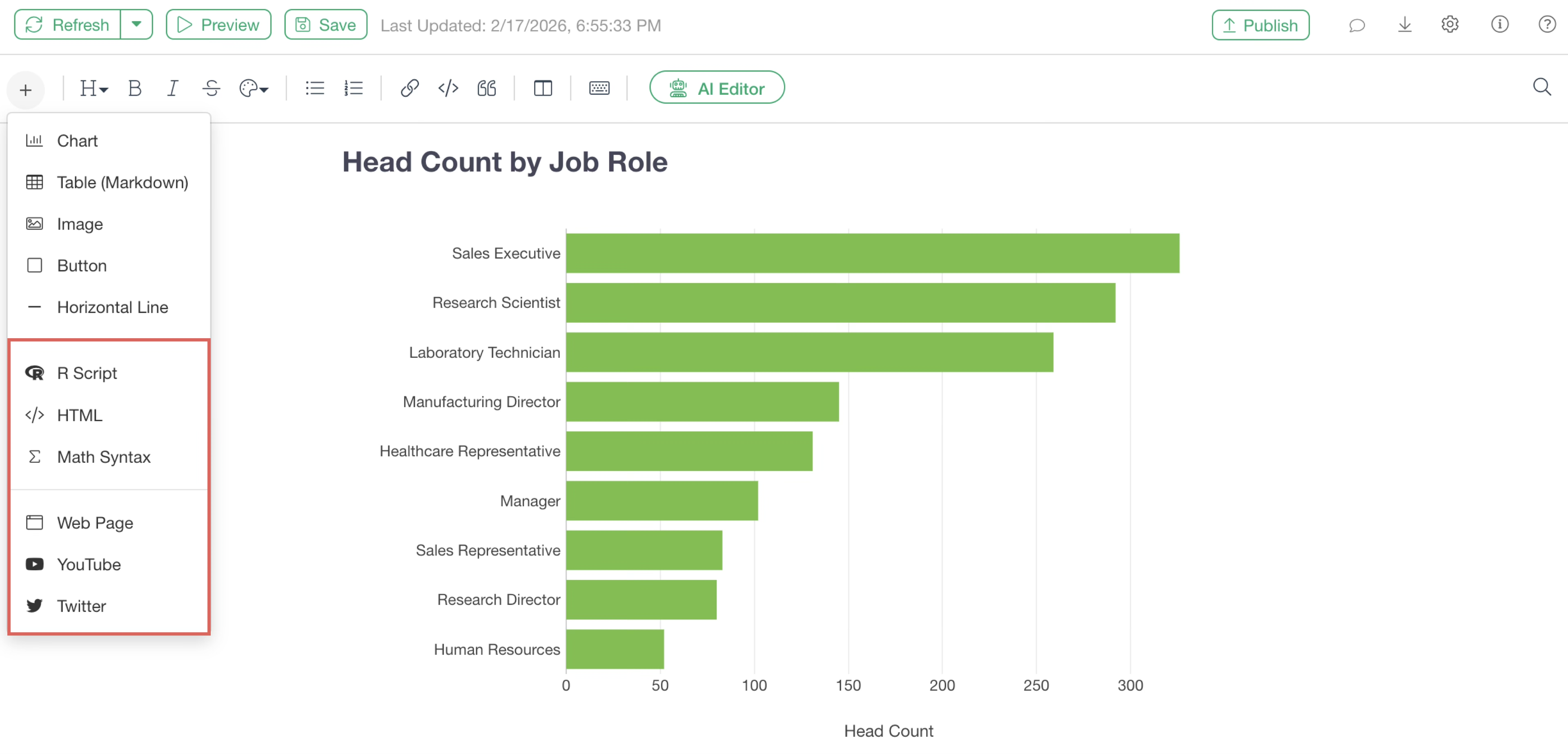
In the case of a Note, each type of content can be added directly using the “Add Content” button in the Note editor.
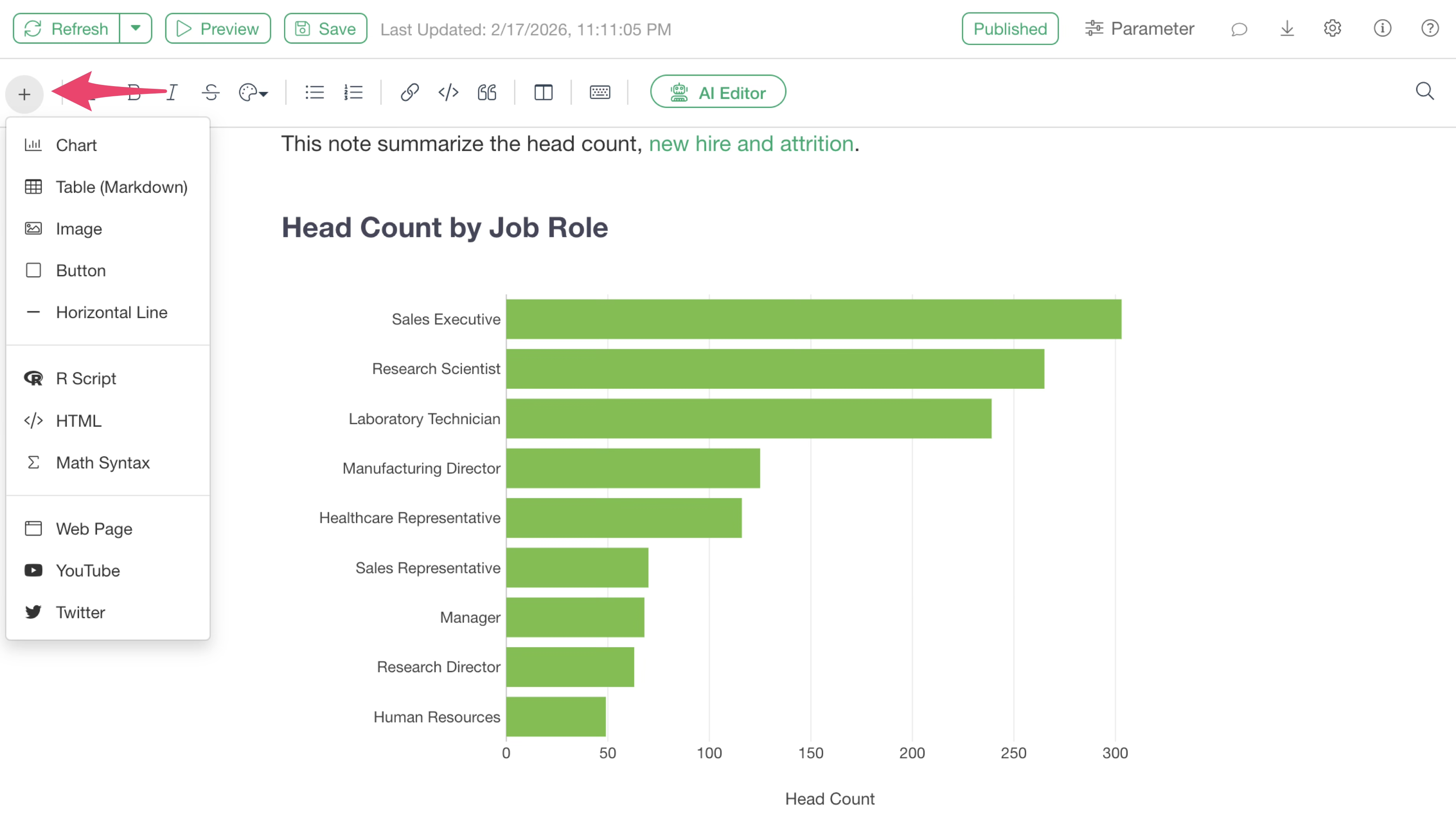
For Dashboards, content can be added from the editor of a text block that has been added to the dashboard.
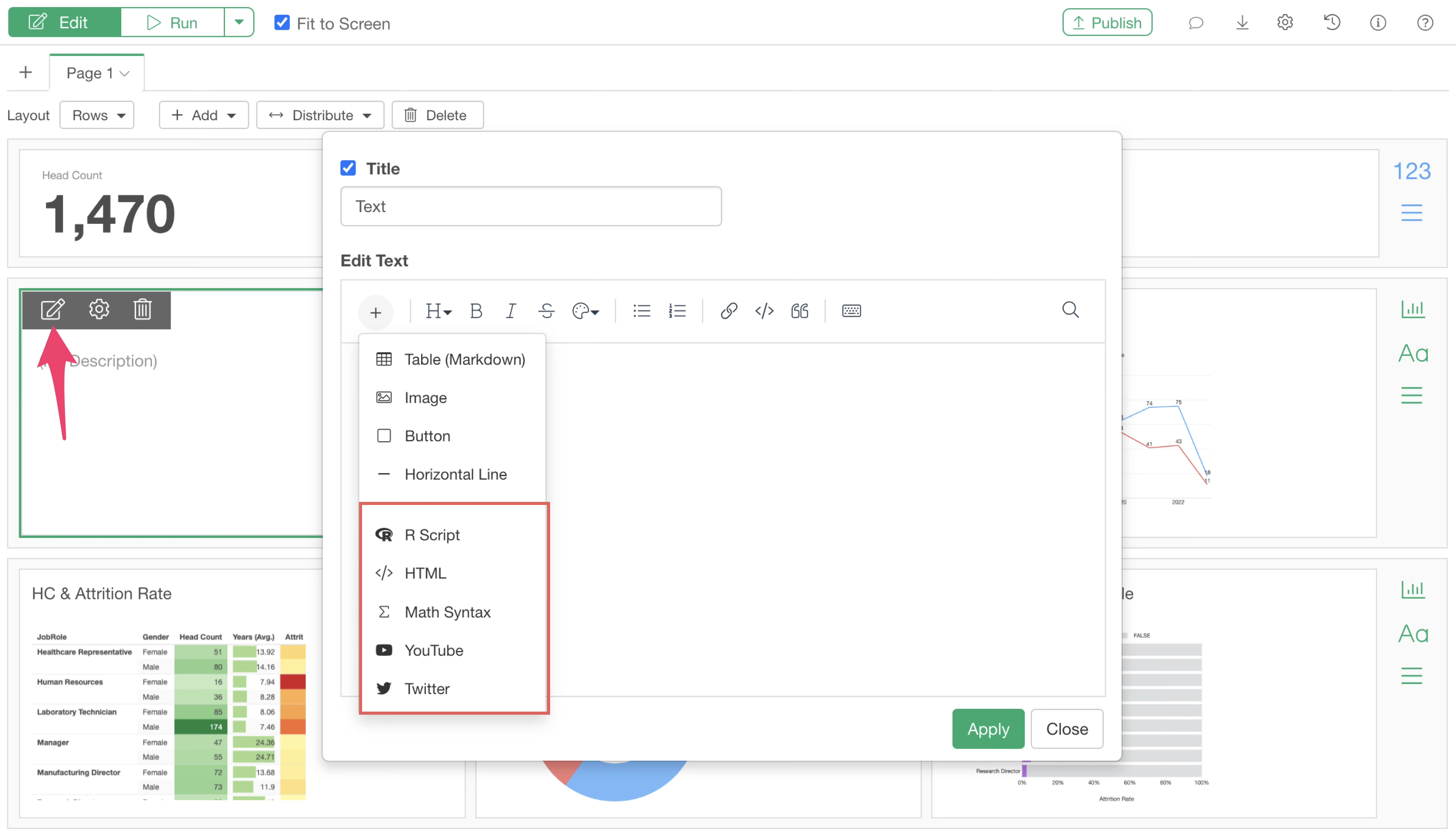
Since the method for adding content to Notes and Dashboards is the same, this Note will use the Note editor as an example to briefly introduce the overview of the content types mentioned above and how to add each of them.
R Script
Code Block
When you select “R Script” from the Add Content menu, an R code block is added.
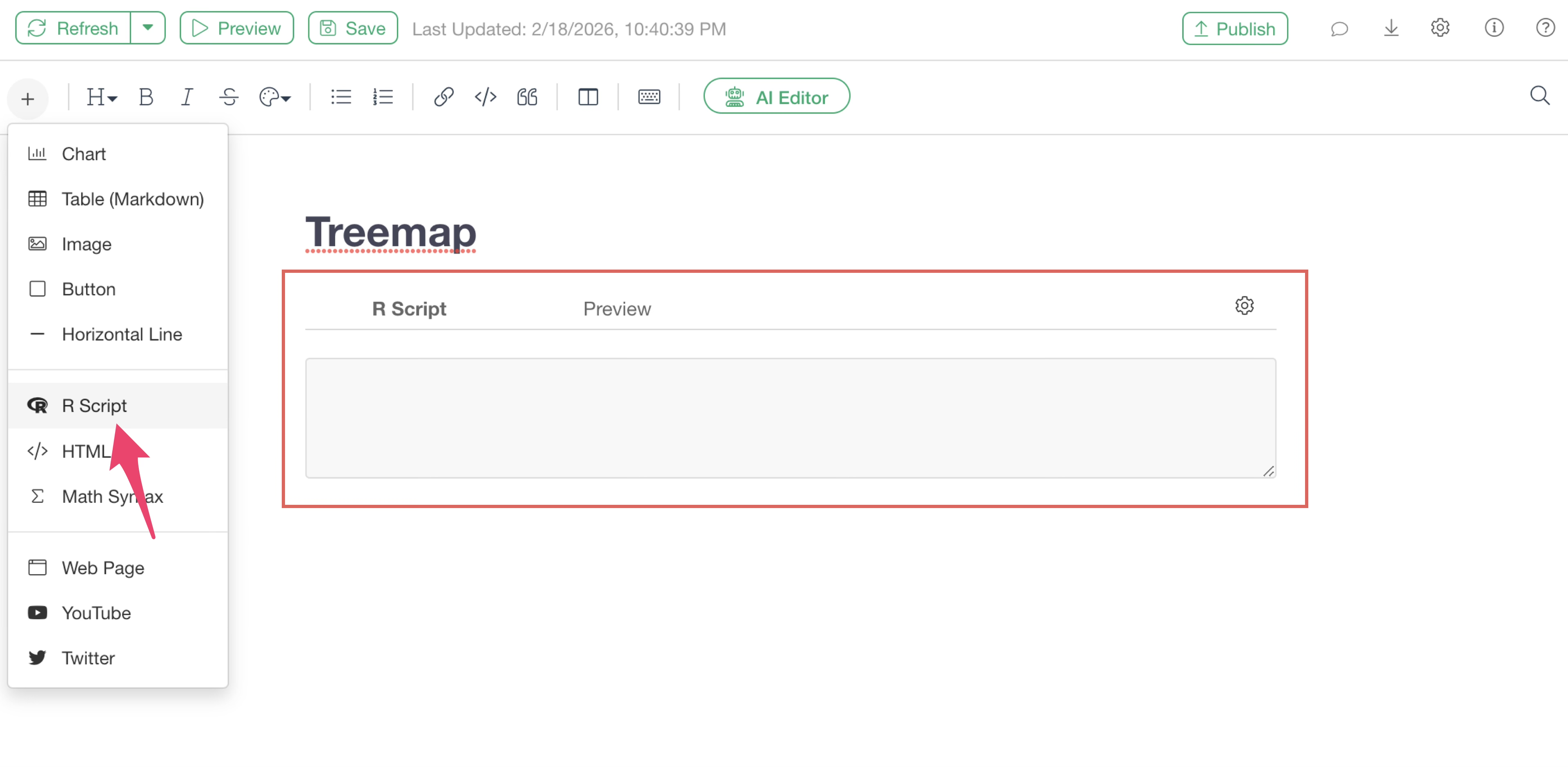
In this R code block, you can write R scripts directly to create charts or analytics that are not supported by default in Exploratory and add them to your Notes or Dashboards.
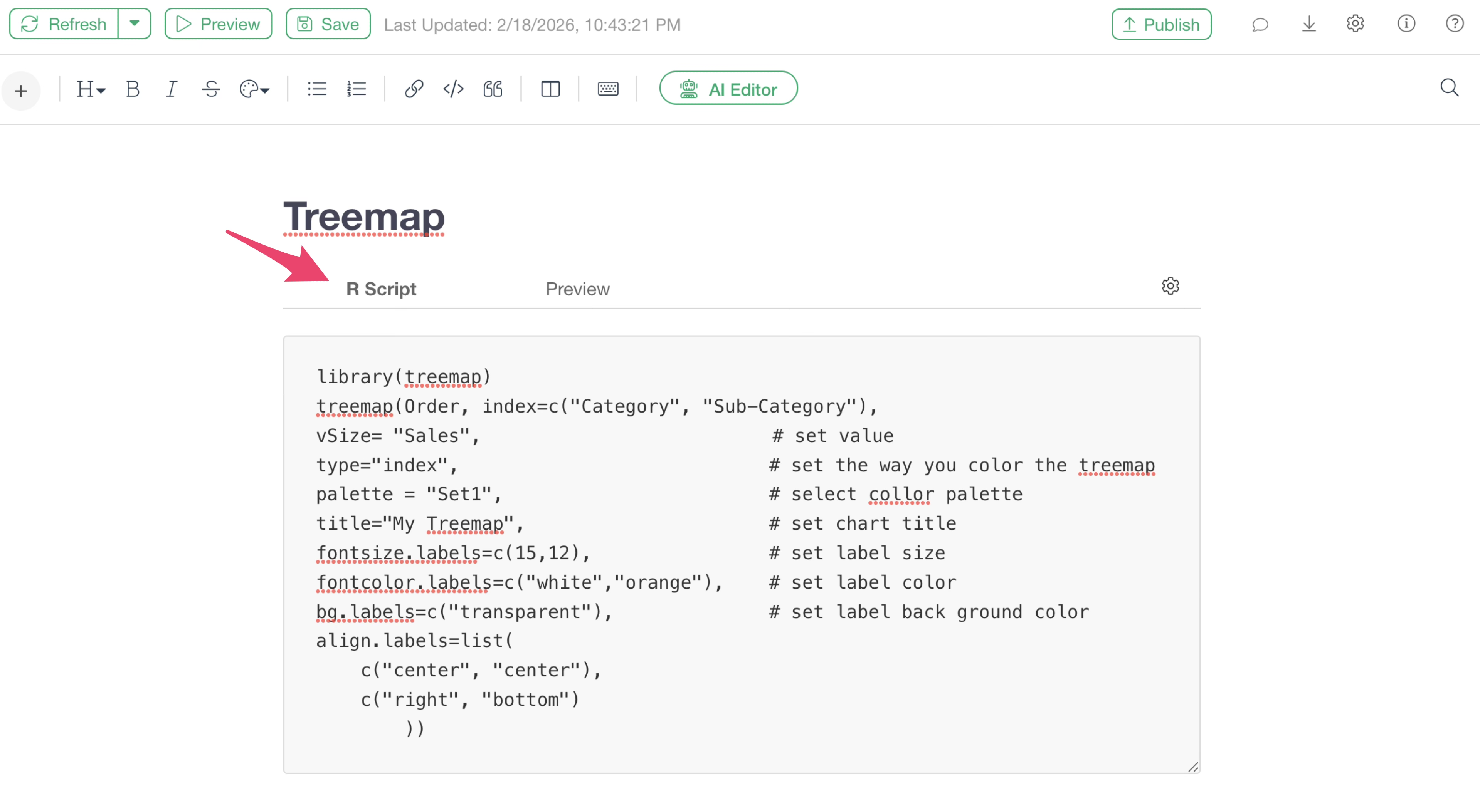
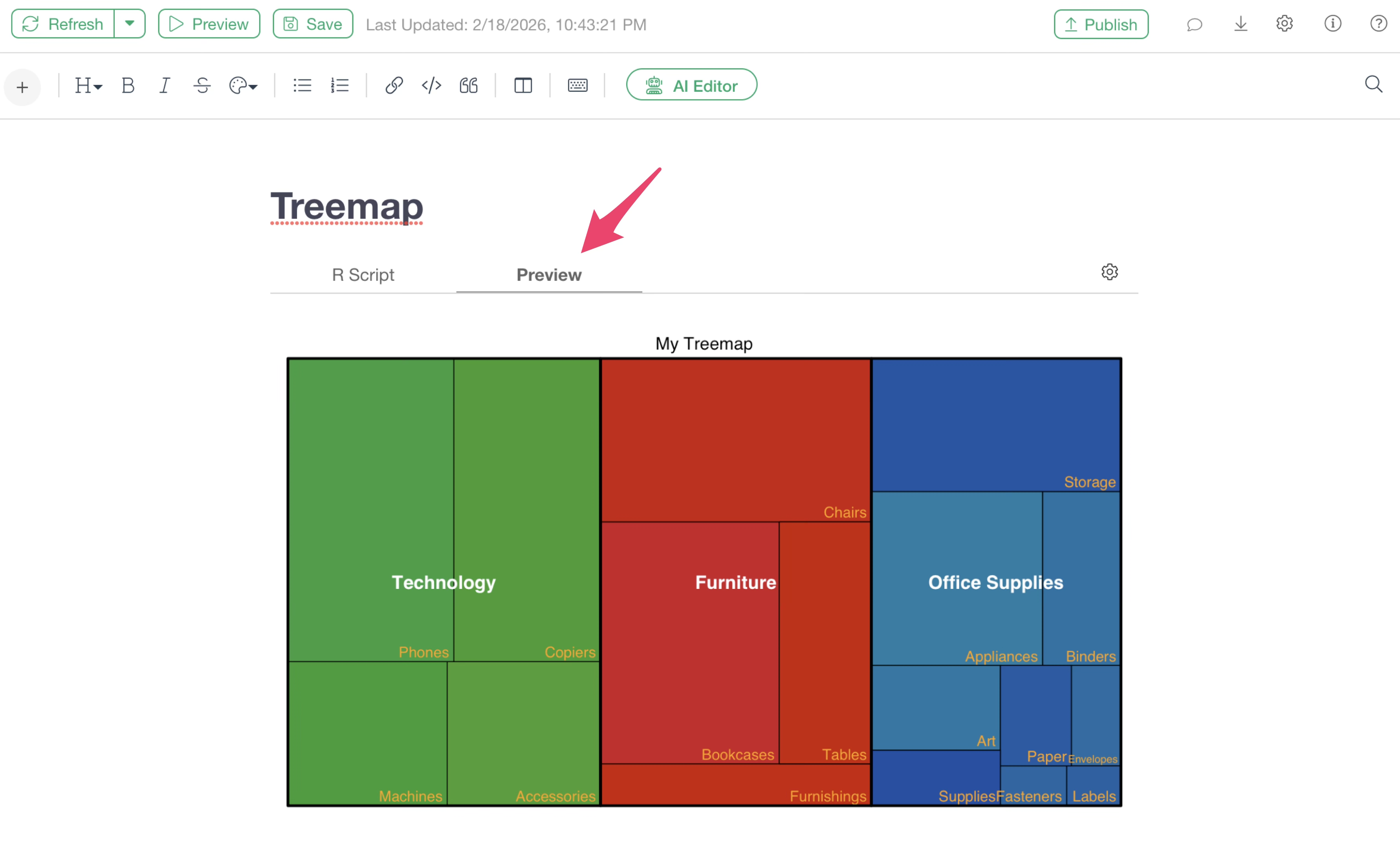
Once you have finished writing the R code, you can click the “Preview” tab to check the execution results of the R code.
Exploratory’s How-to page introduces how to create charts using R scripts. If you are interested, please visit this page.
Furthermore, we have previously held a seminar introducing how to create charts and analytics using R scripts, and the recording is available for viewing:
- Creating Charts and Analytics using R Scripts - Link
Inline
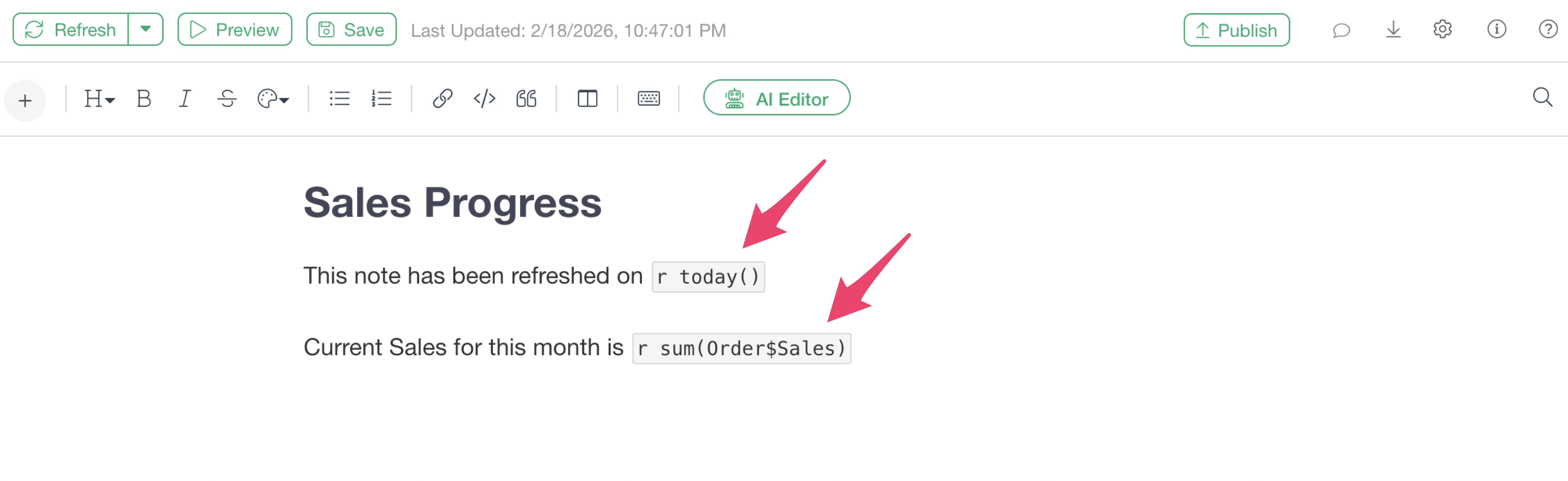
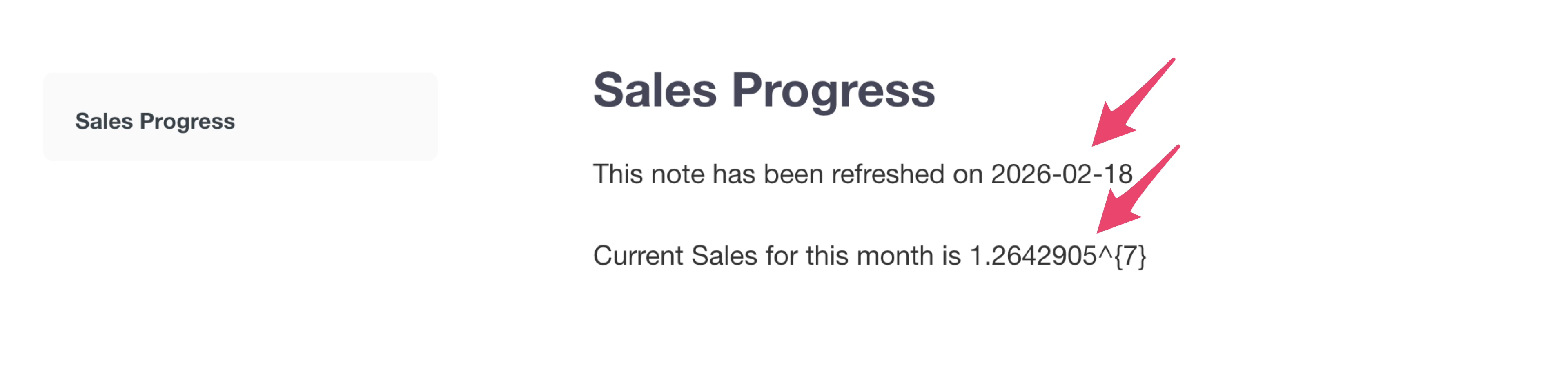
R code can also be used inline, allowing R to dynamically generate parts of your text.
For example, if you want to use the value returned by the
today() function (which returns today’s date) within a
sentence, you type “r” followed by a “space” and then the code,
enclosing them in backticks. (Enclosing them in backticks will
automatically display the inline code block).
Note that inline code is not executed as R code as it is.
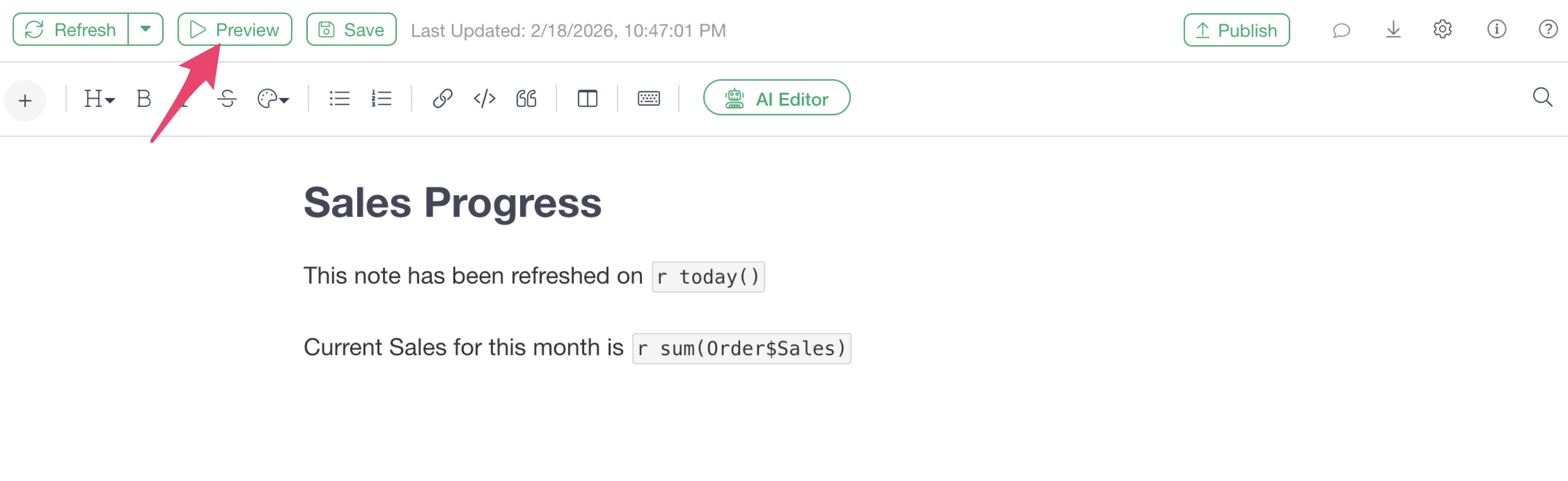
To check the execution result of the R code, click the “Preview” button.
A browser window will open, and you can confirm that the execution result of the R code is returned within the sentence.
HTML
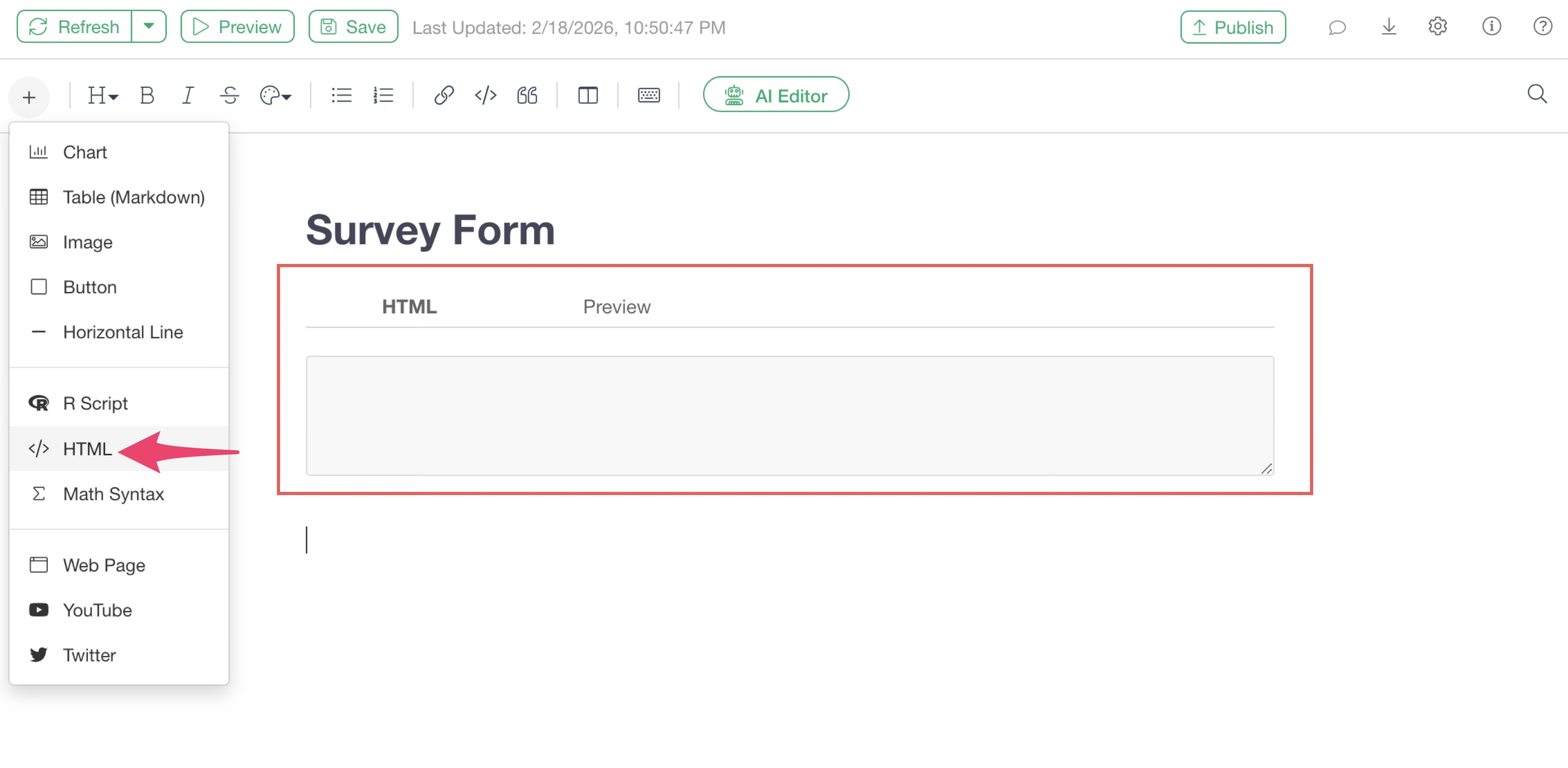
Selecting “HTML” from the Add Content menu adds a code block for writing HTML.
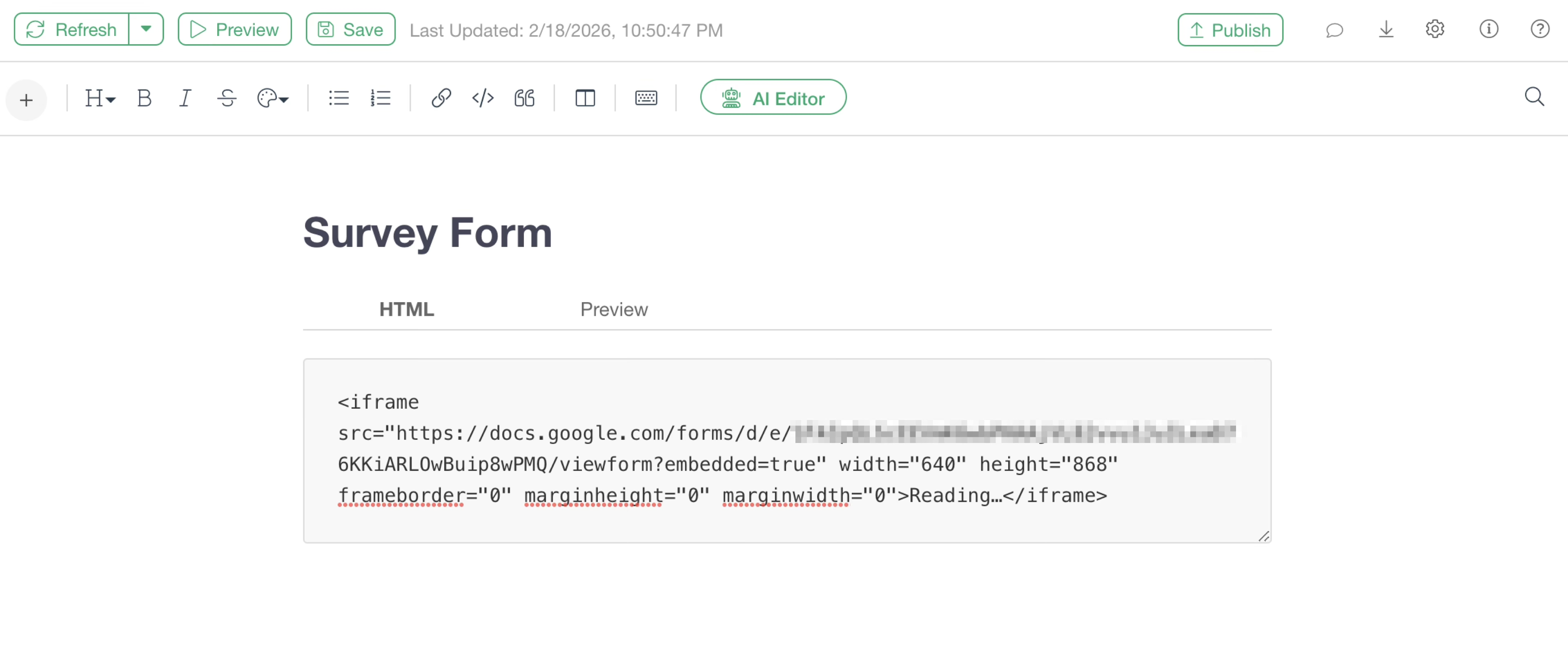
Since you can write HTML code in this block, you can, for example, embed content using iframes.
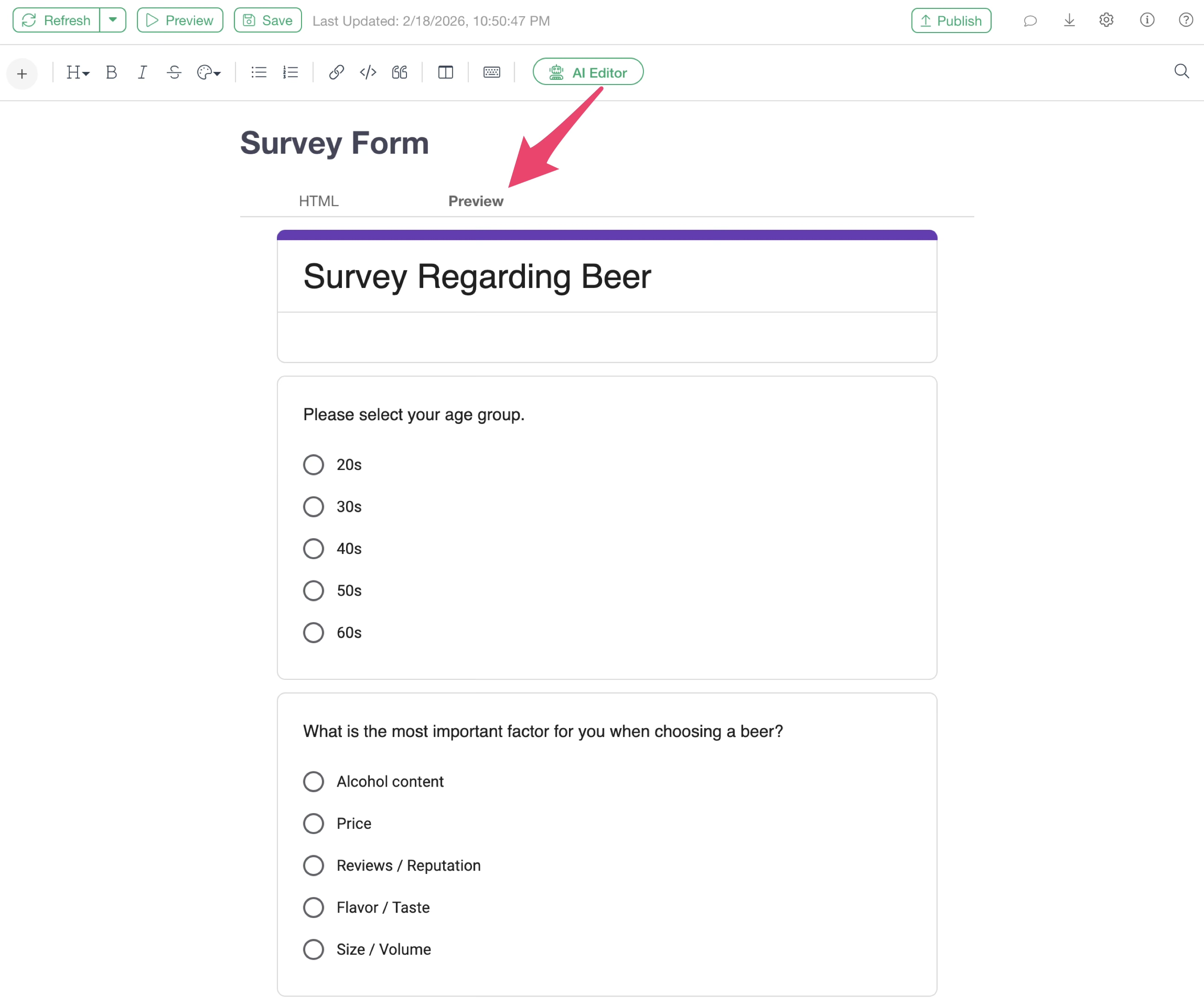
Once you have finished writing the HTML, you can click the “Preview” tab to check the execution result.
Embedding Dashboards
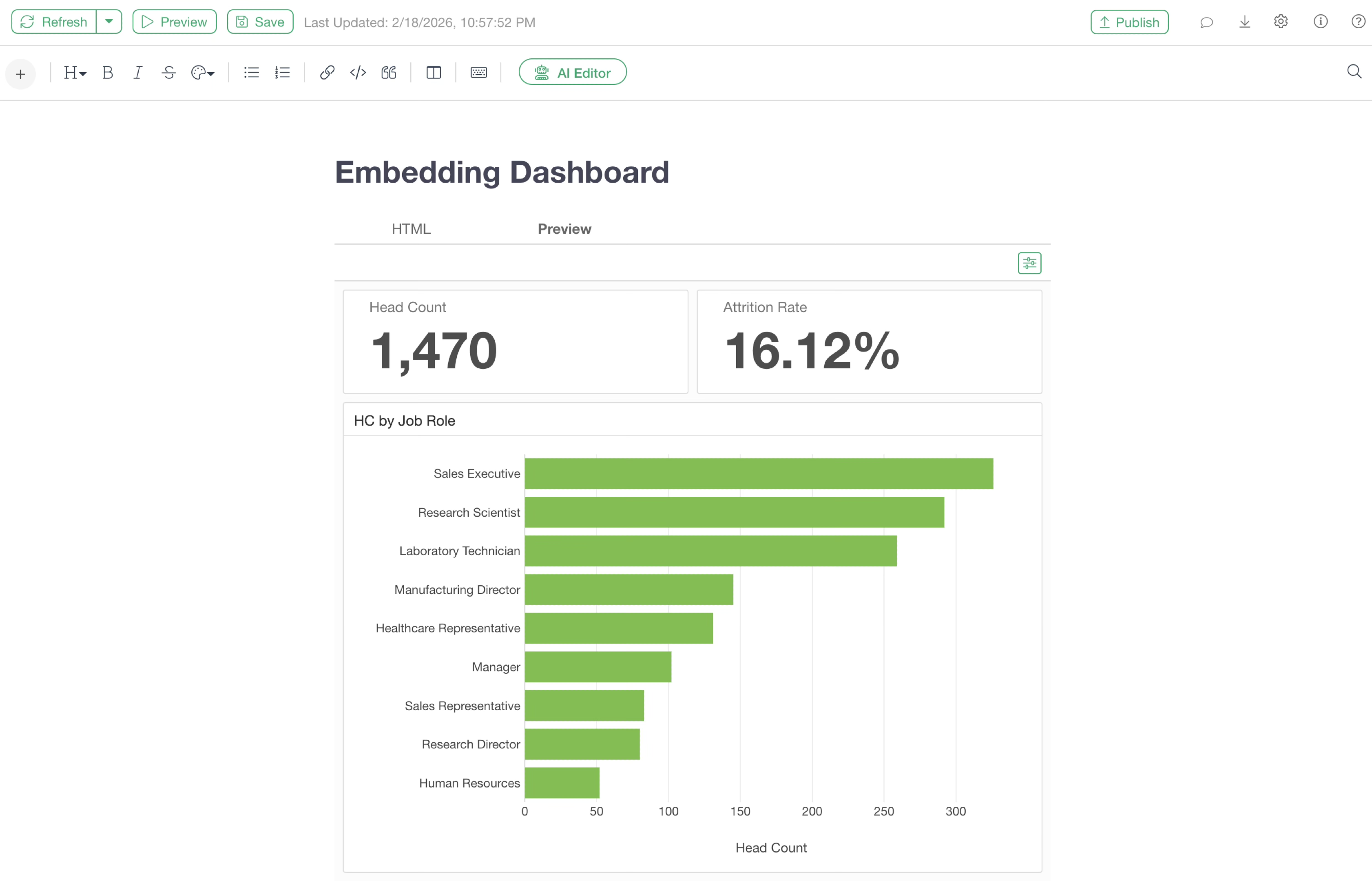
Using this mechanism, you can also embed Exploratory dashboards into a Note.
Math Syntax
Code Block
Selecting “Equations” from the Add Content menu adds a code block where you can write mathematical formulas in LaTeX format.
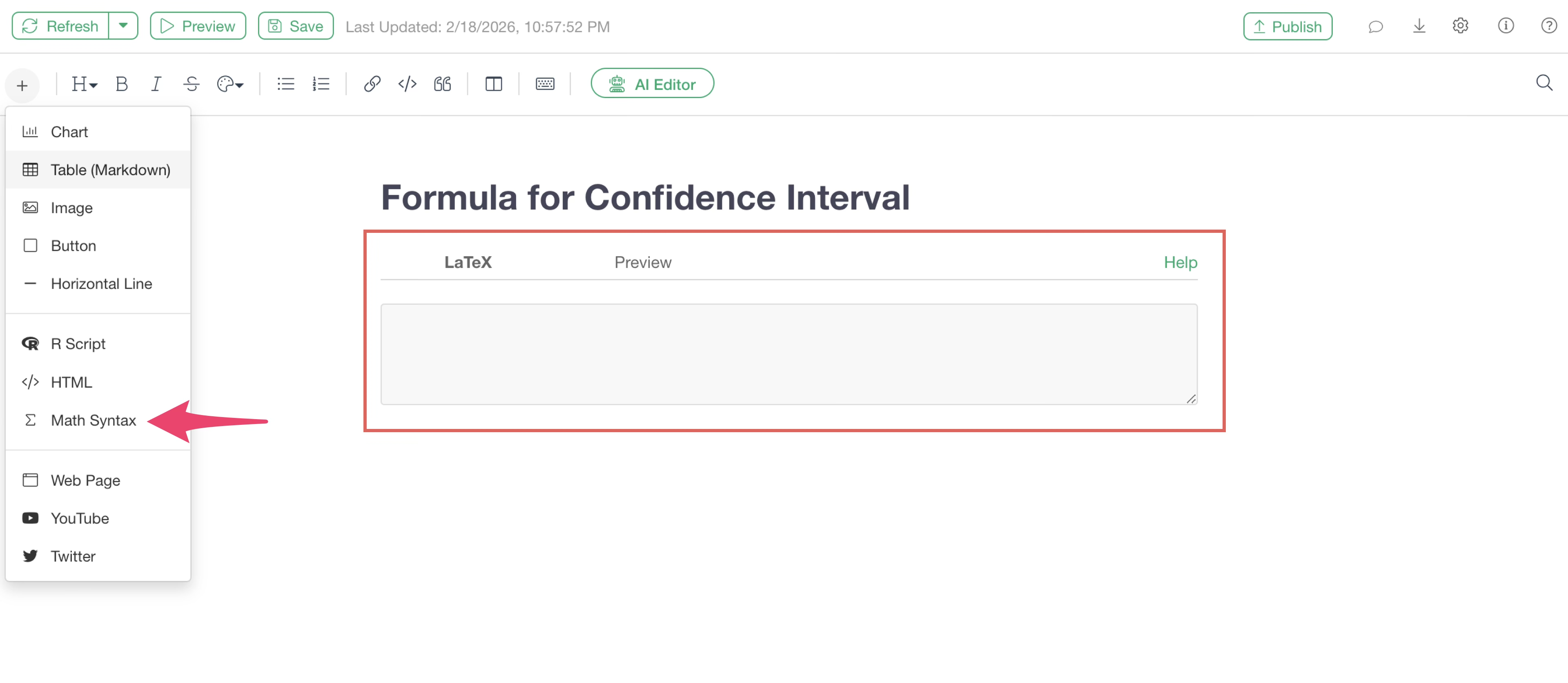
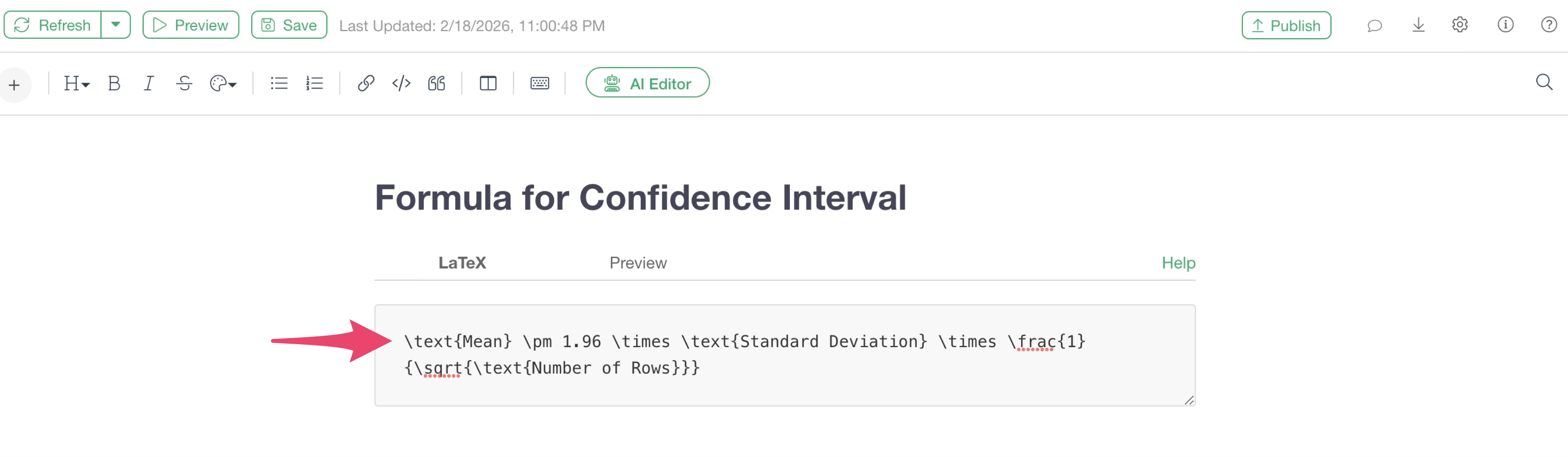
Write the LaTeX format equation inside the code block.
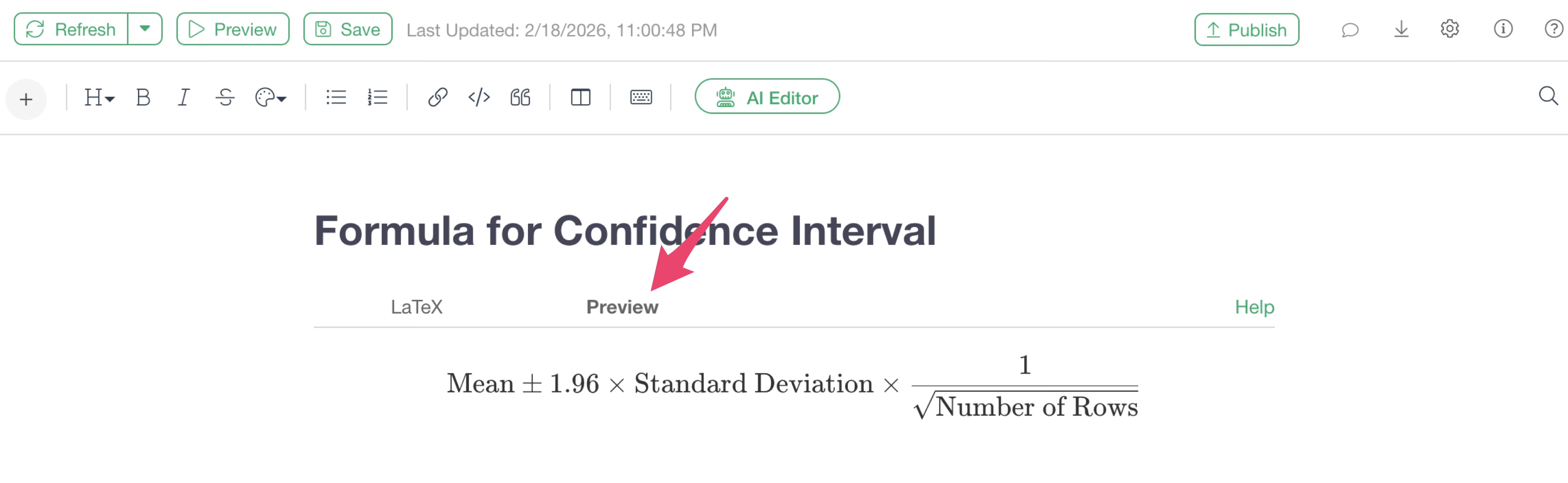
Once you have finished writing the equation, you can click the “Preview” tab to check the content of the formula.
We have a cheat sheet of LaTeX, so please refer to it if needed:
- LaTeX Cheat Sheet - Link
Inline
Similar to Inline R Code, Math Syntax can also
be written inline. To write an Math Syntax inline, use the format
math.

Web Page
If you want to embed a specific “Web Page” into a Note, select “Web Page.”
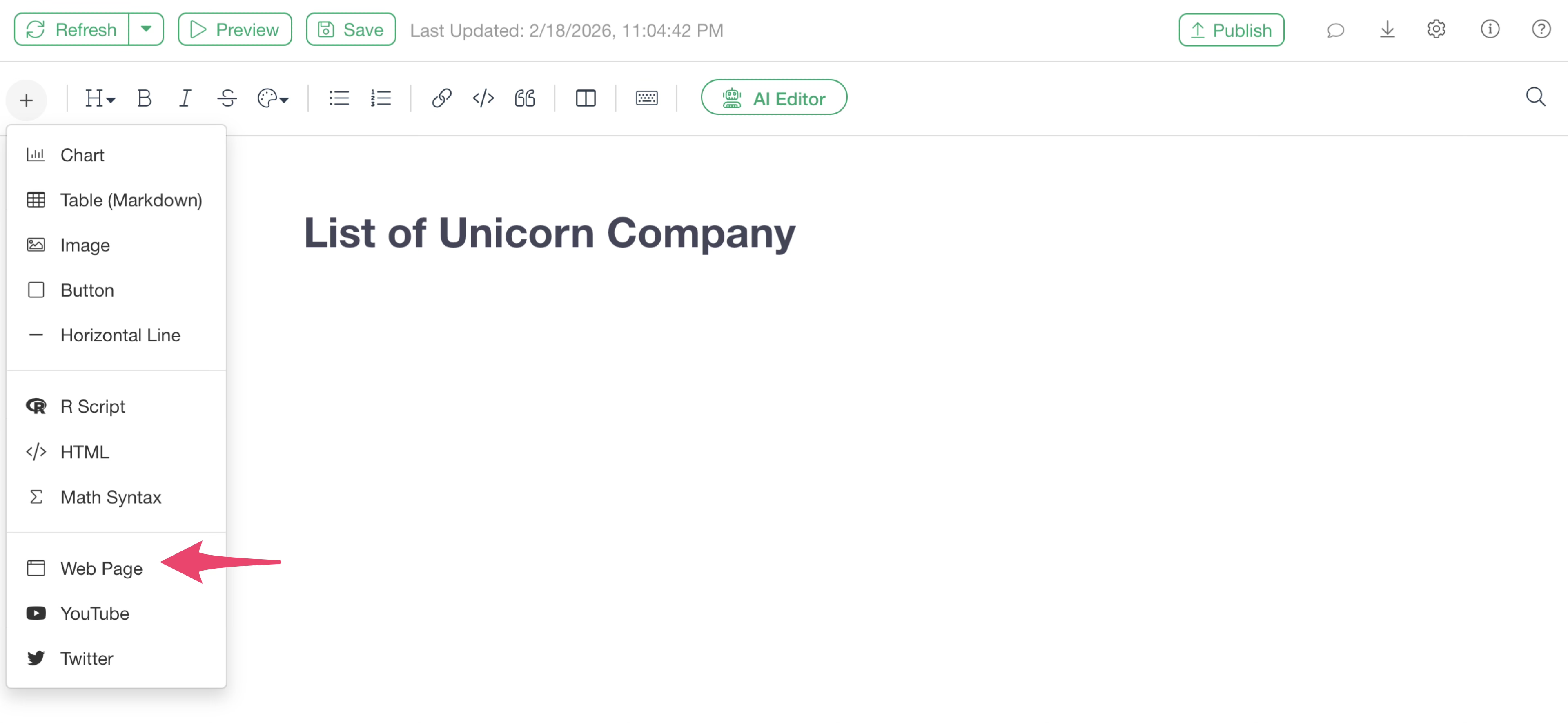
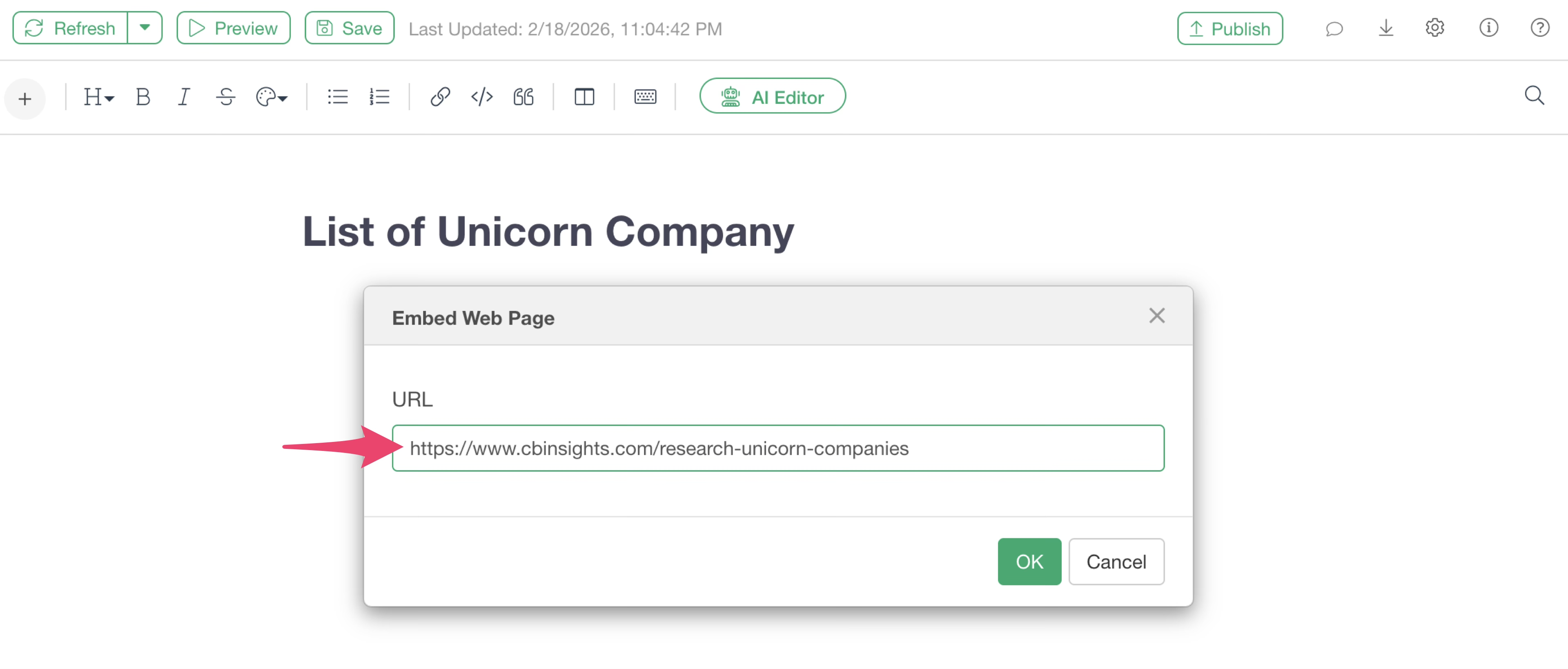
A dialog box will appear for you to specify the web page you want to embed. Enter the URL of the web page.
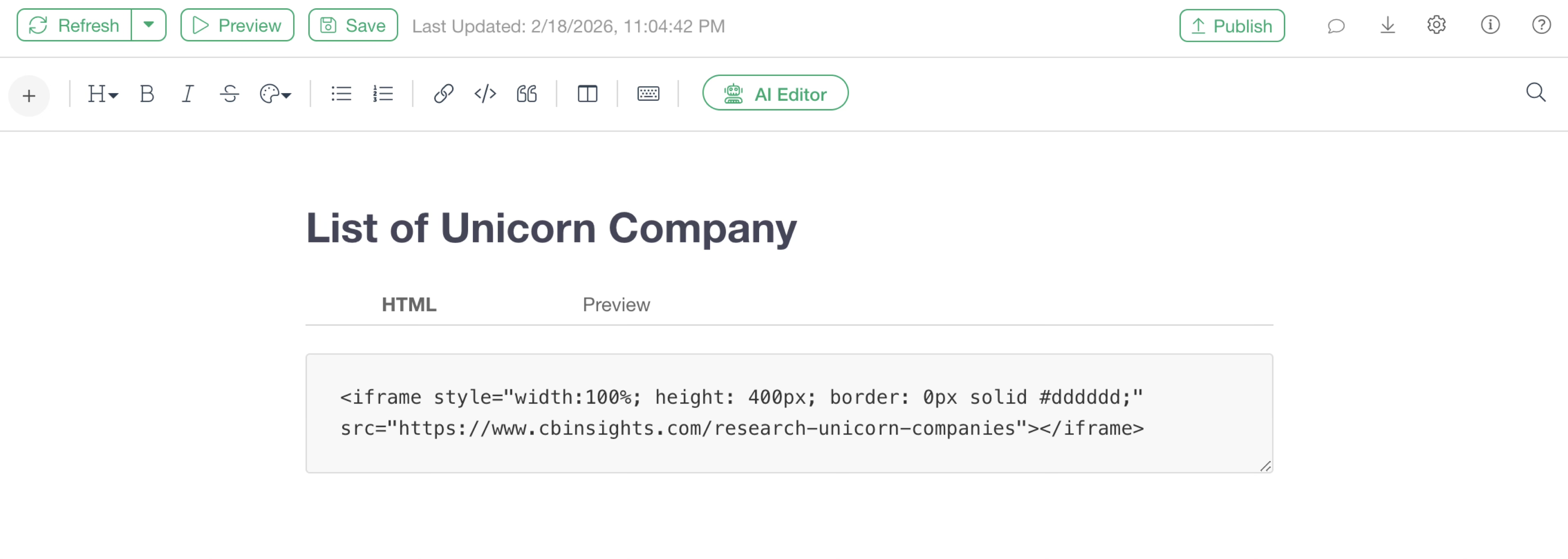
Once the URL is entered, a code block containing the embed code for the web page using an iframe (HTML) will be added.
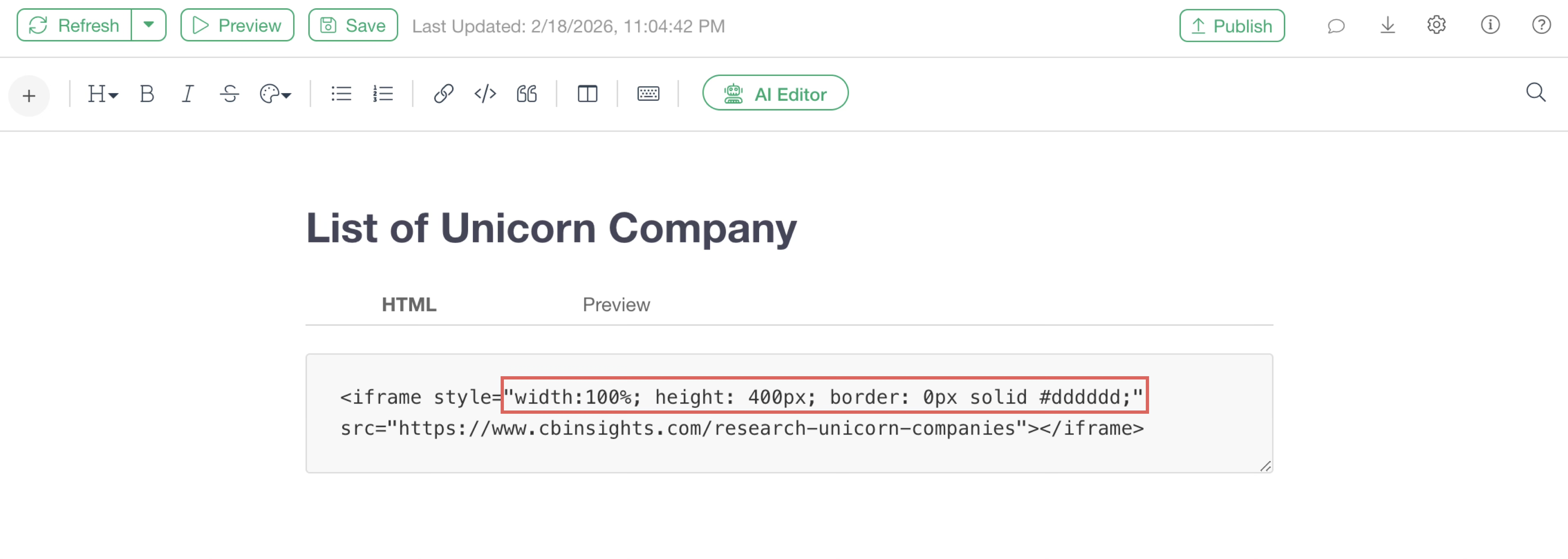
The default settings are “100%” for width, “400px” for height, “0px” for border, and “#dddddd” (gray) for solid border color, but you can specify any percentage or pixel value by typing it directly.
Switching to the “Preview” tab allows you to see the embedded web page.
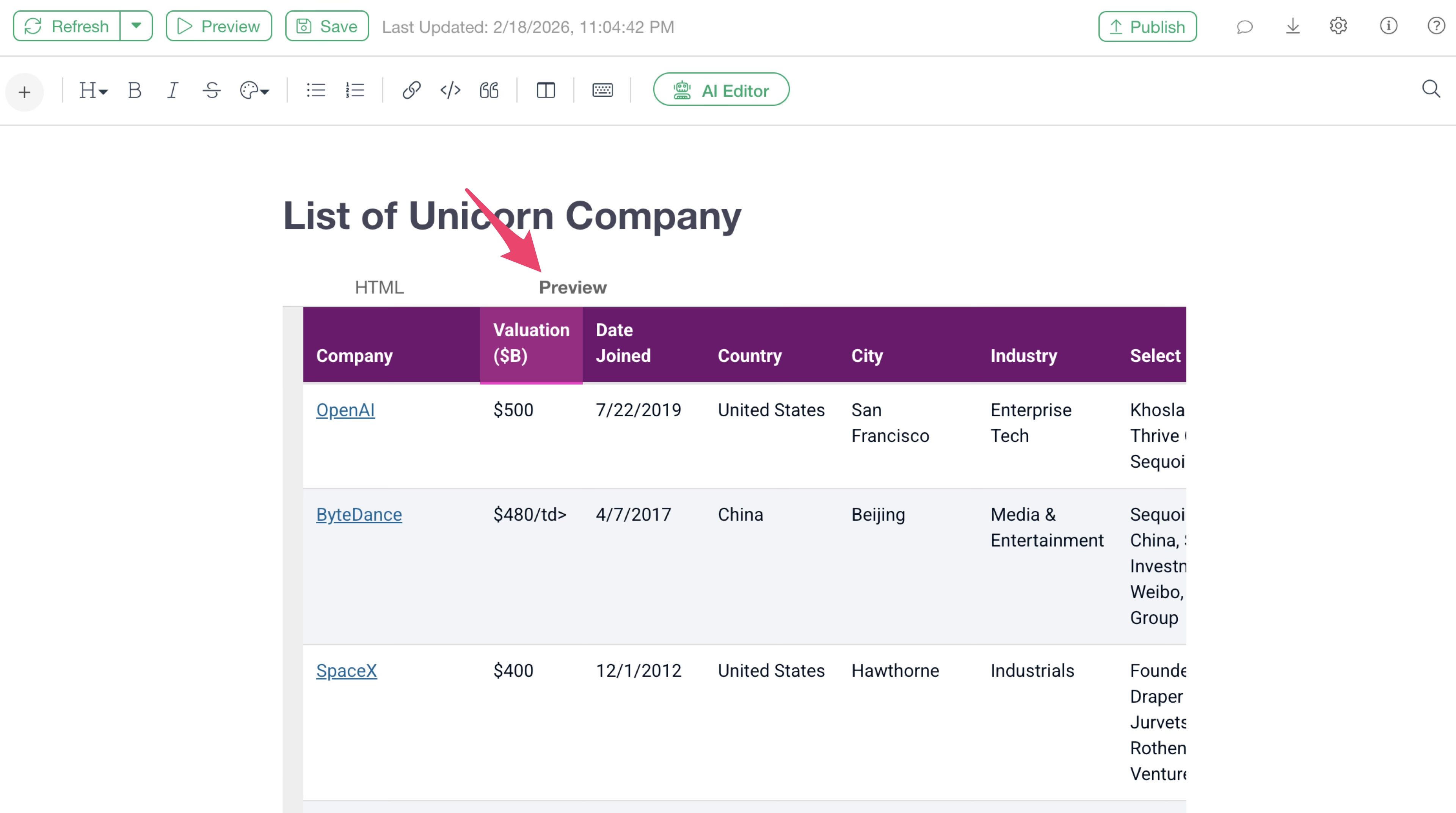
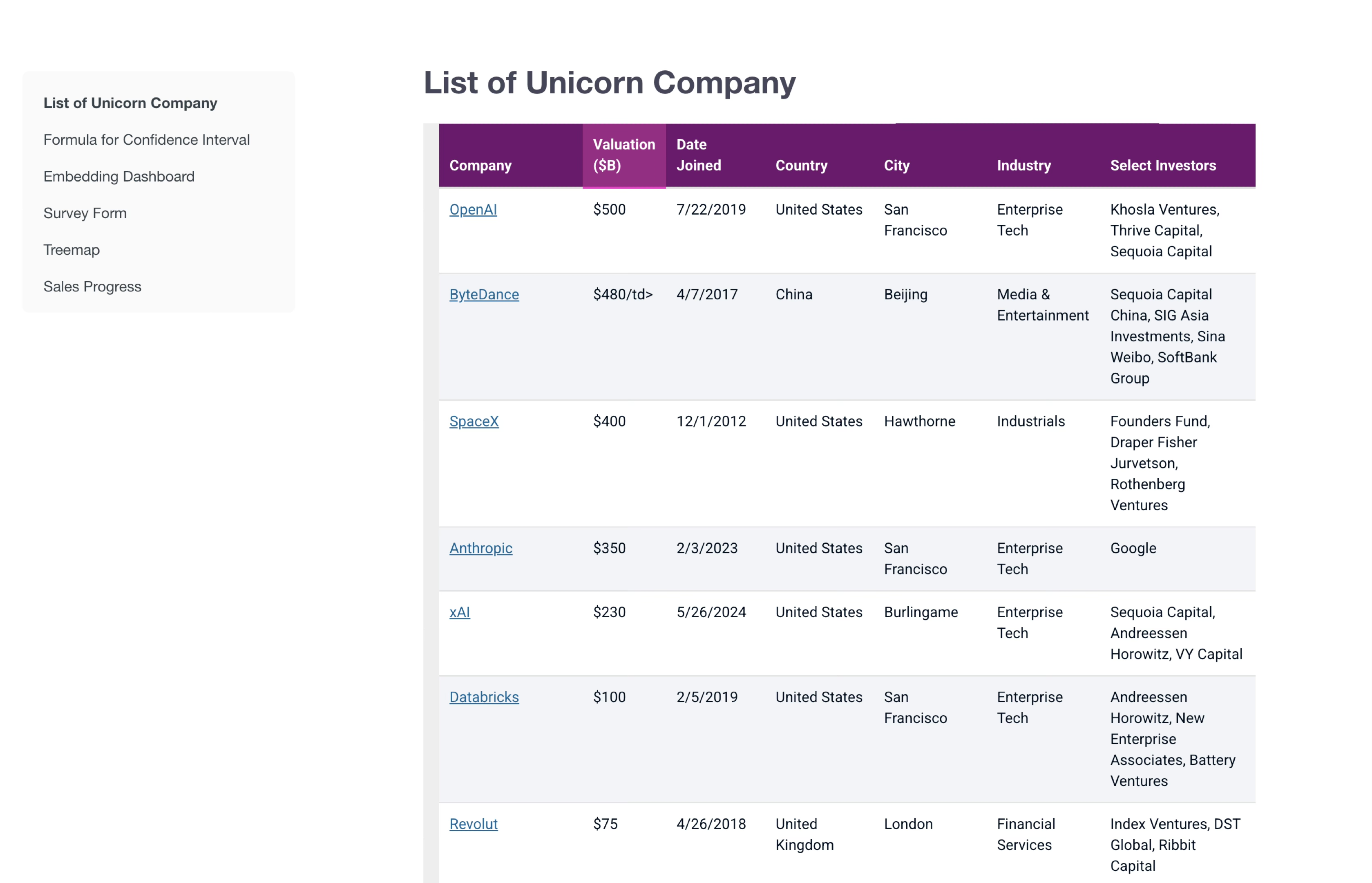
Note that the configured width and height are not reflected in the preview screen. To check how it will look on the actual screen, click the “Preview” button.
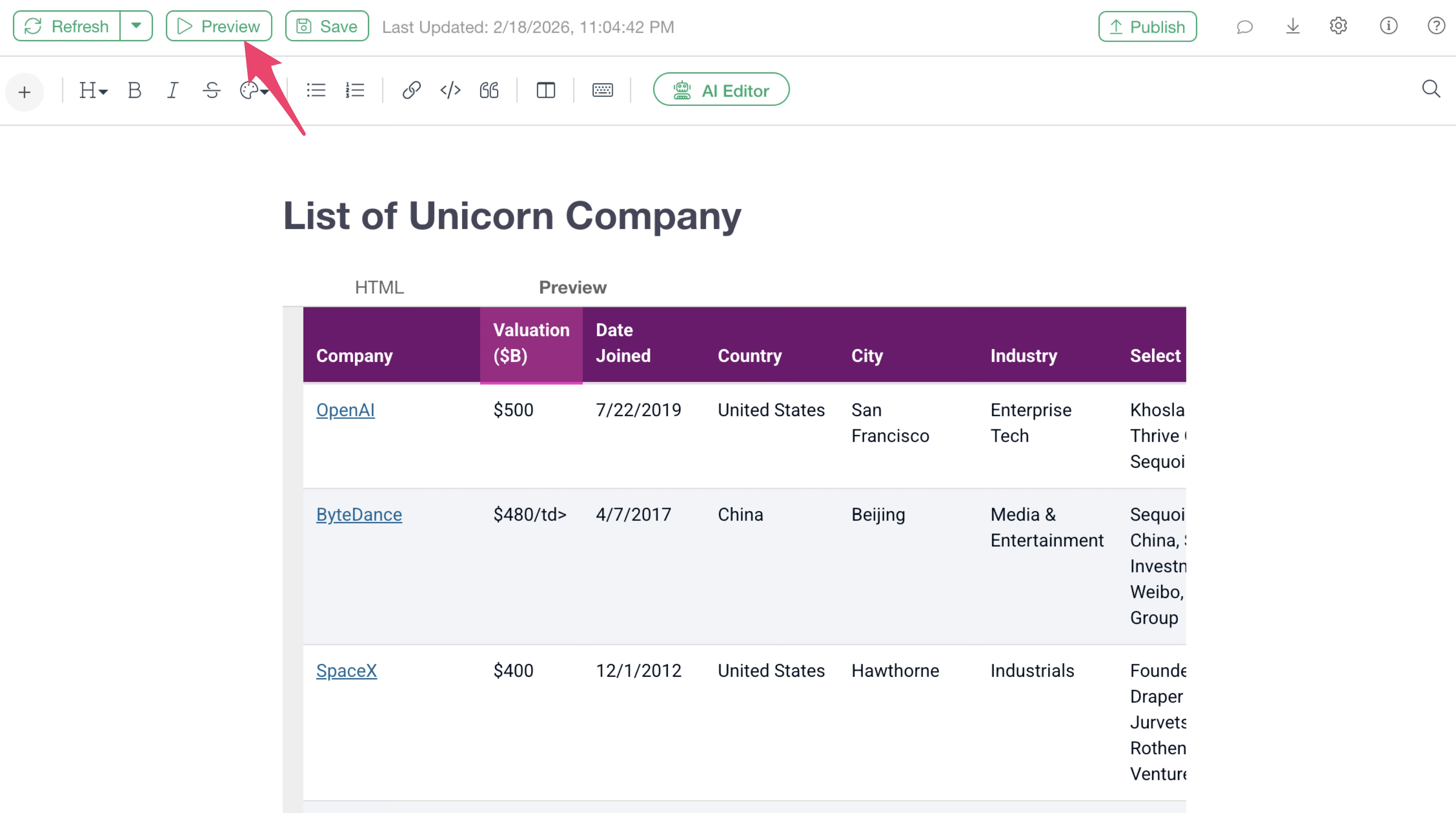
A browser window will open, allowing you to confirm the actual appearance.
YouTube
To embed a “YouTube” video into a Note, select “YouTube.”
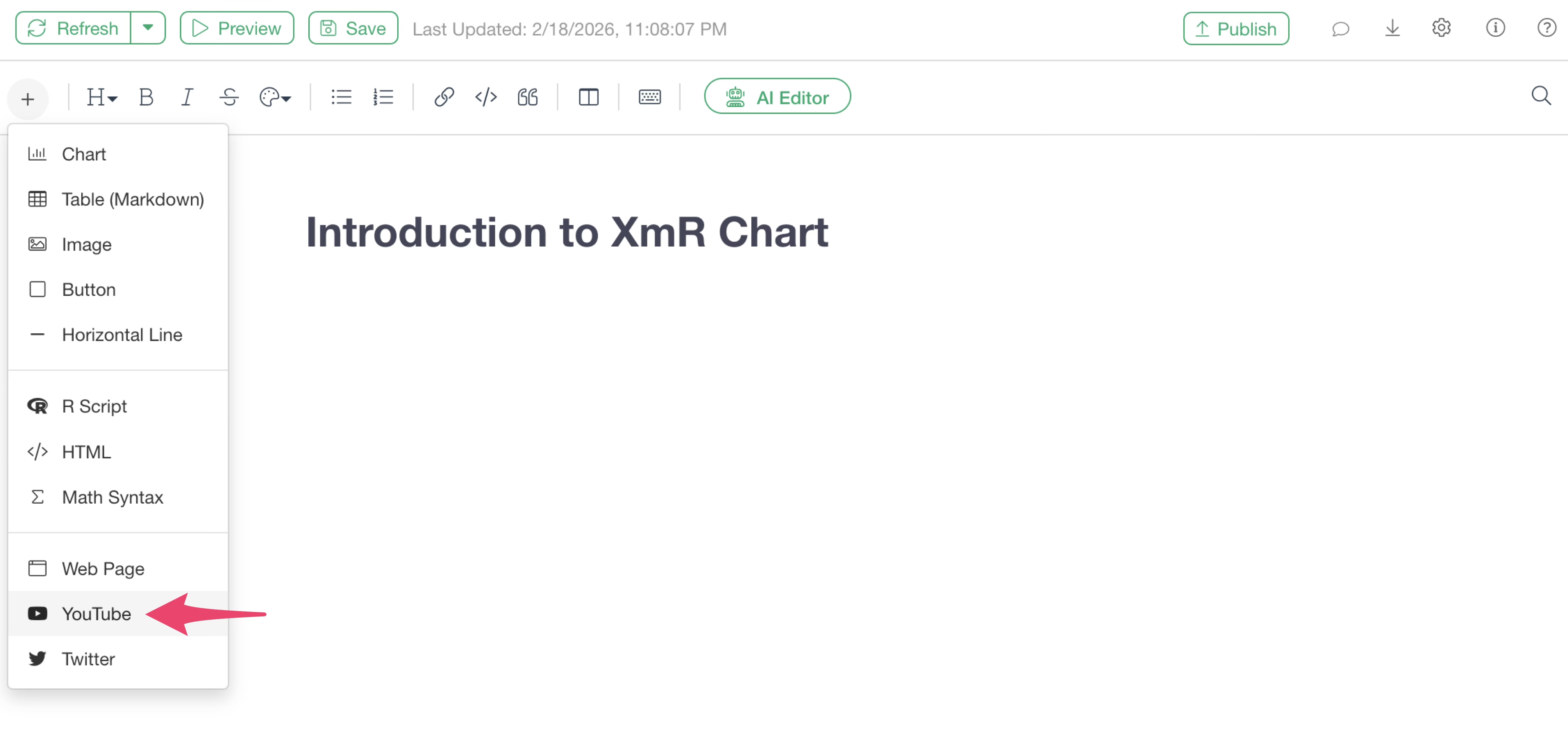
A dialog box will appear for you to specify the YouTube video page. Enter the URL of the YouTube video.
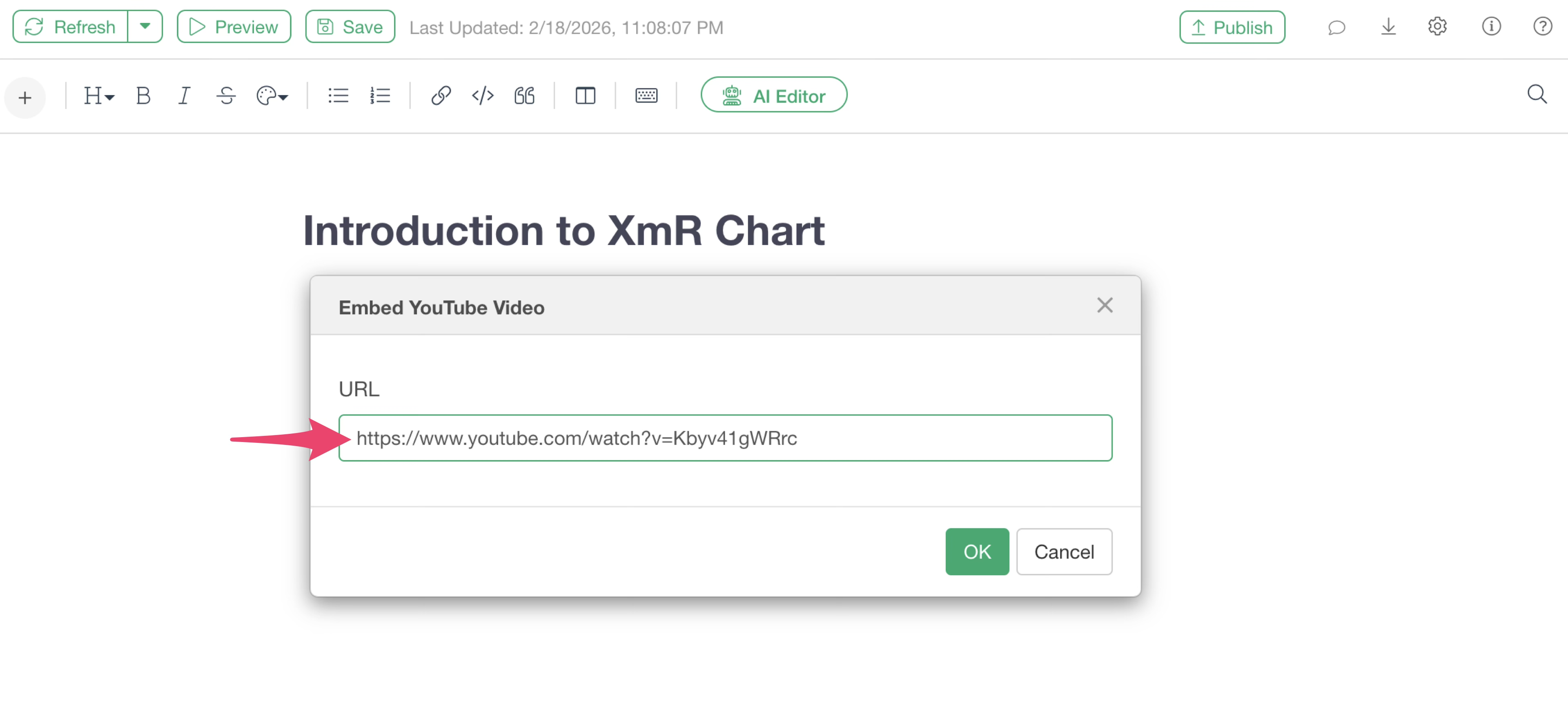
The video will then be embedded in the Note as shown below:

X (Twitter)
To embed an “X” tweet into a Note, select “Twitter.”
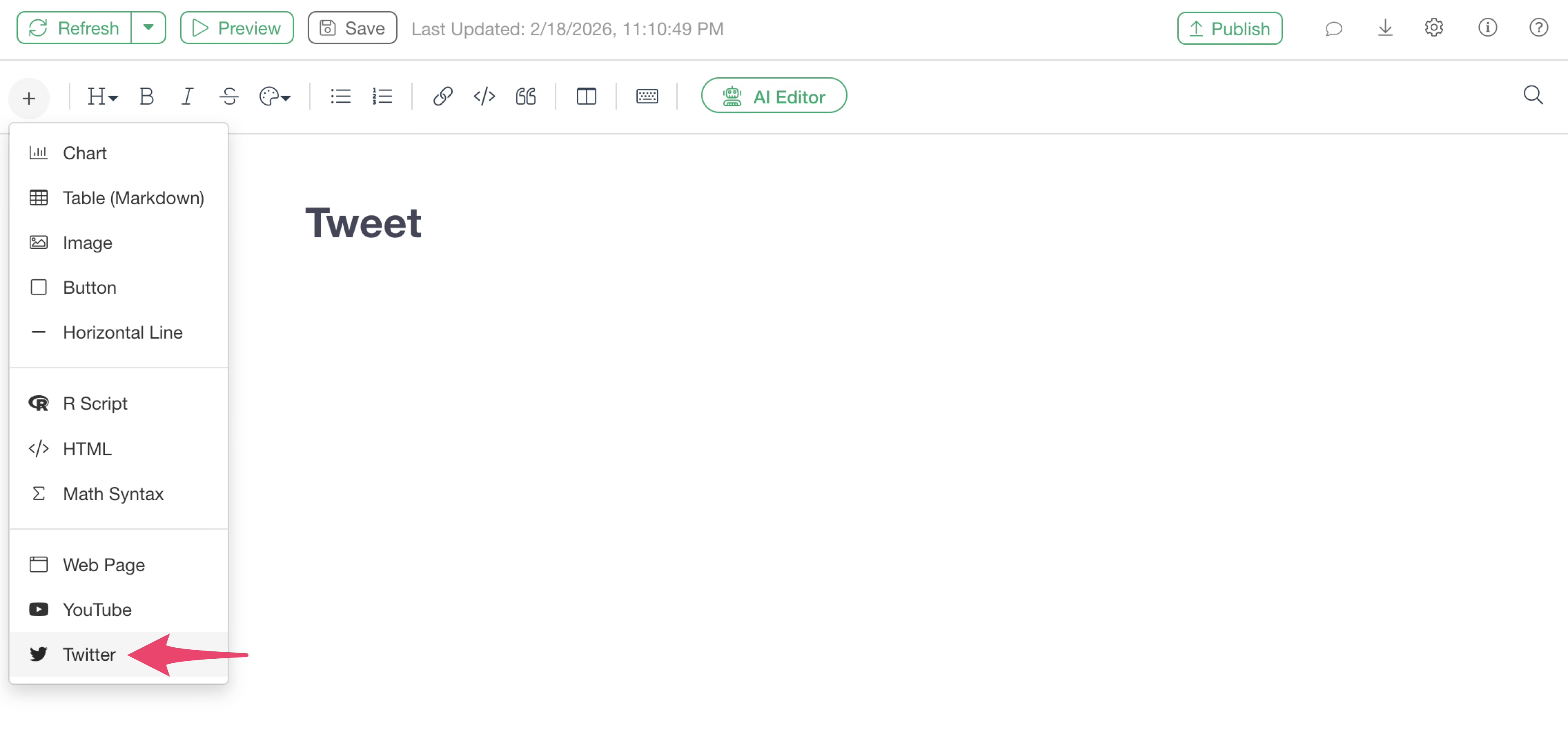
A dialog box will appear for you to specify the Tweet. Enter the URL of the Tweet you want to embed.
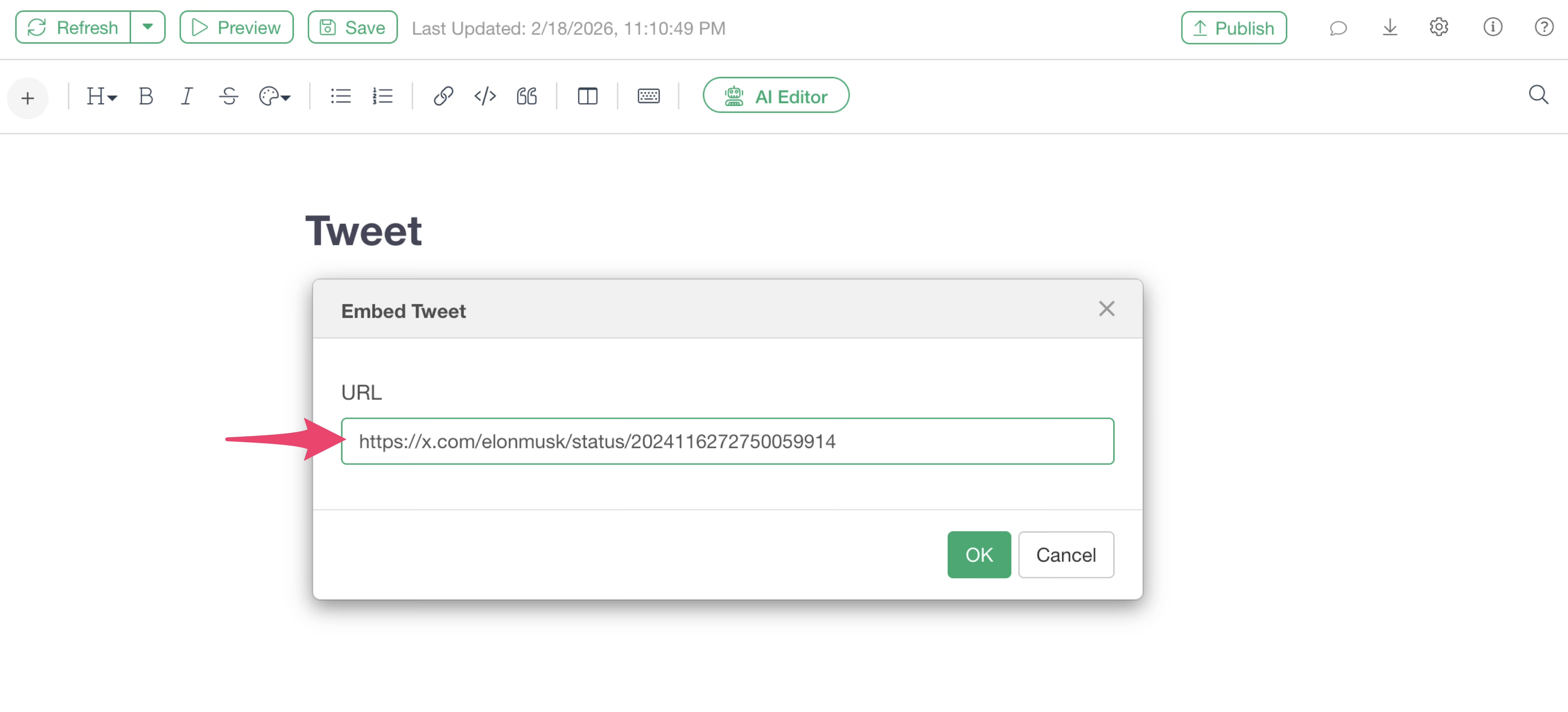
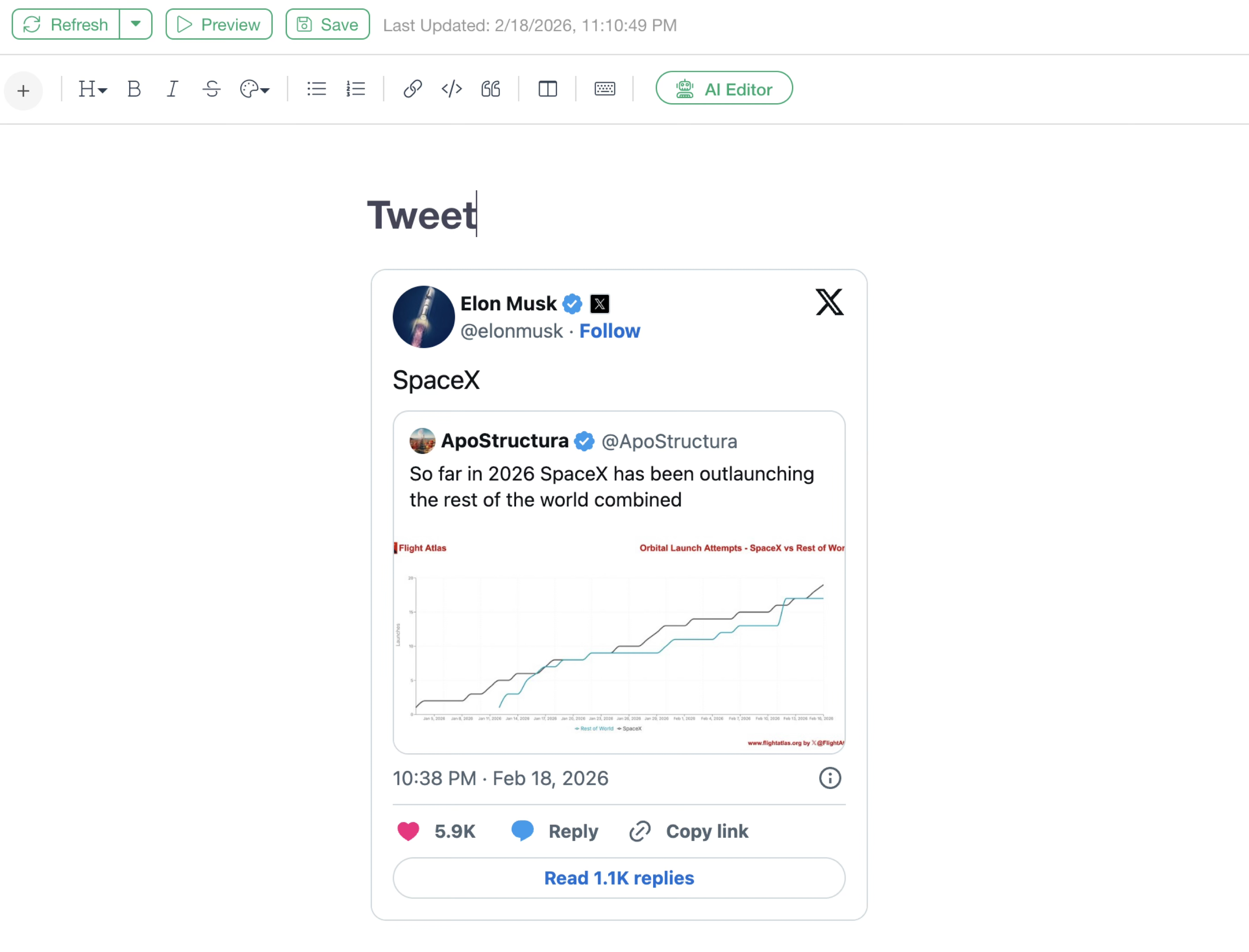
The Tweet will then be embedded in the Note as shown below:
Constraints
Please note that embedding web pages is currently not supported in the Dashboard text editor.