How to use AI Function
If you can create your own functions, you can freely perform complex calculations that aren’t possible with existing tools like Exploratory. Furthermore, if you can build your own models, you can create complex functions for prediction, classification, scoring, and more.
Until now, these capabilities were exclusive to those with programming skills, but Exploratory v14 has broken down this barrier with the introduction of “AI Functions”!
With these “AI Functions,” anyone can easily create their own “functions” simply by using natural language.
But that’s not all. You can create functions tailored to your requirements using the world’s most advanced AI models, built on vast global datasets and cutting-edge AI algorithms.
AI Functions make the following tasks simple:
- Generate company names, industries, and company size information from customer data
- Automatically create optimized campaign emails for each customer based on purchase history
- Categorize, perform sentiment analysis, and automatically label free-text survey responses
This means we’re entering an era where anyone can enhance the value of their data using “their own AI functions.”
Basic Usage
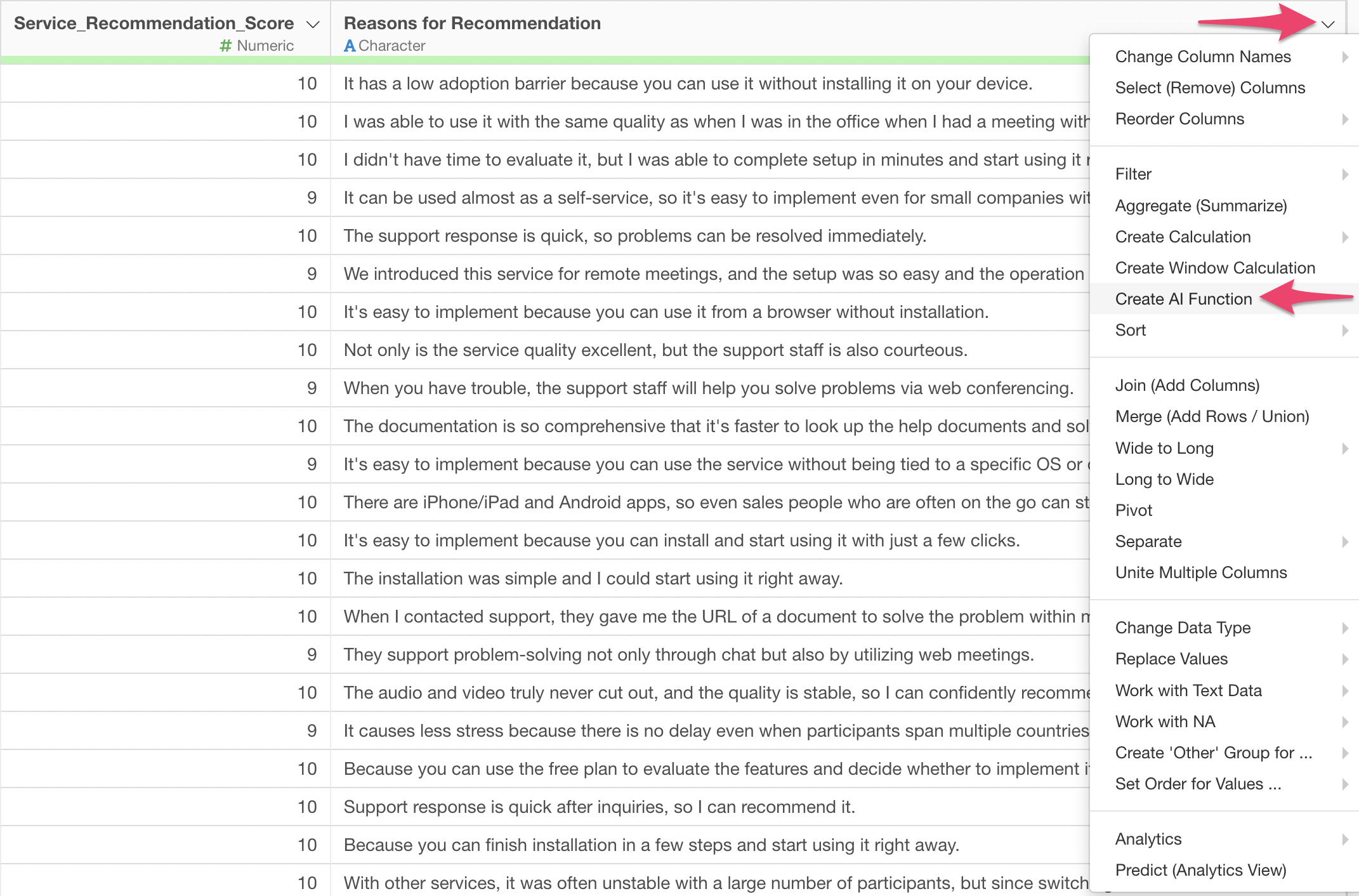
Select “Create AI Function” from the column header menu.
This will display the AI Function dialog.
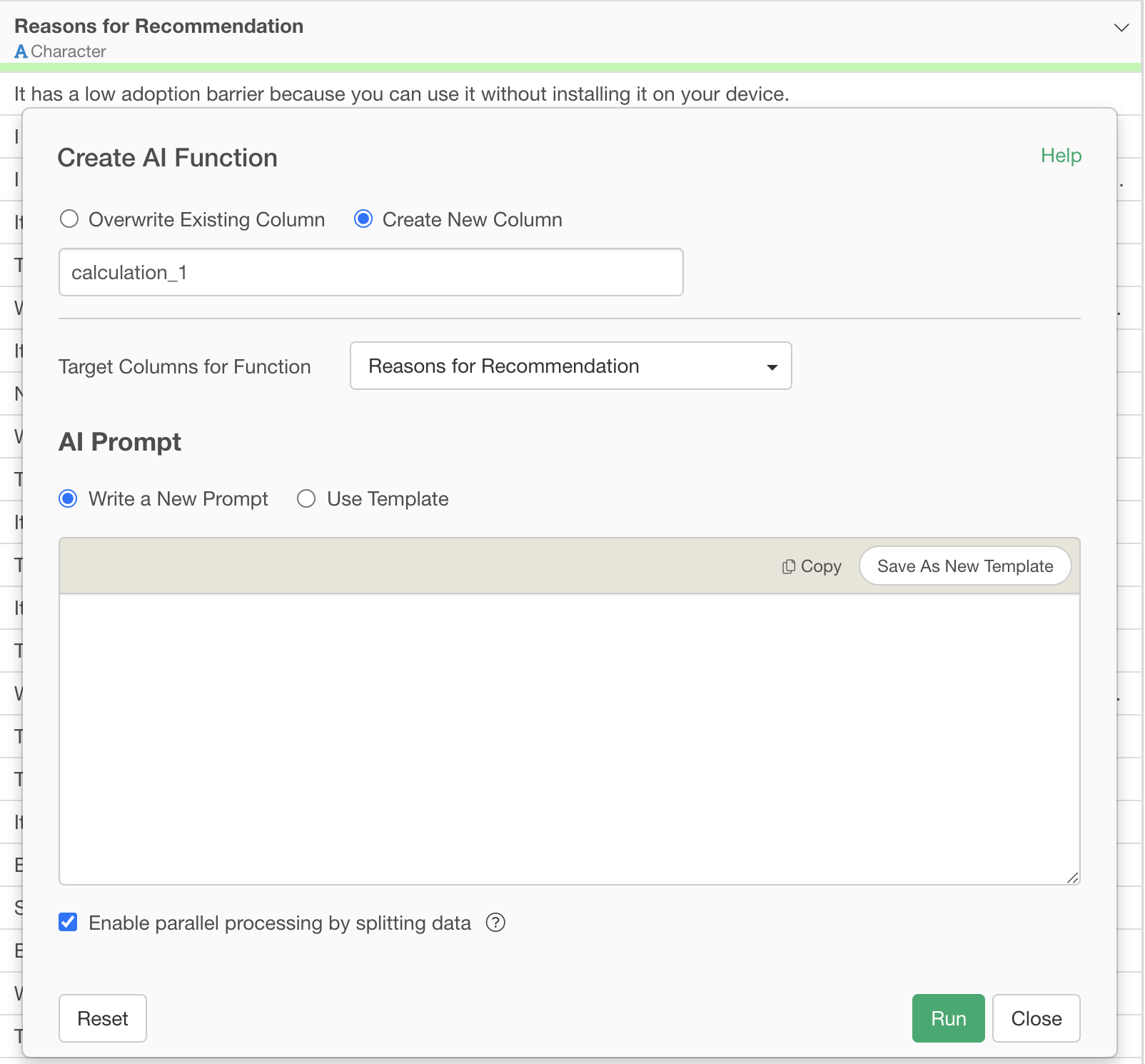
You can create and execute new prompts, and if you find a good prompt, you can save it as a template.
In this note, we’ll introduce two use cases for AI Functions.
Sentiment Score
One common type of question in surveys is “free-text responses.”
For example, in the survey data below, there’s a column for free-text responses such as “Reasons for recommendation.”
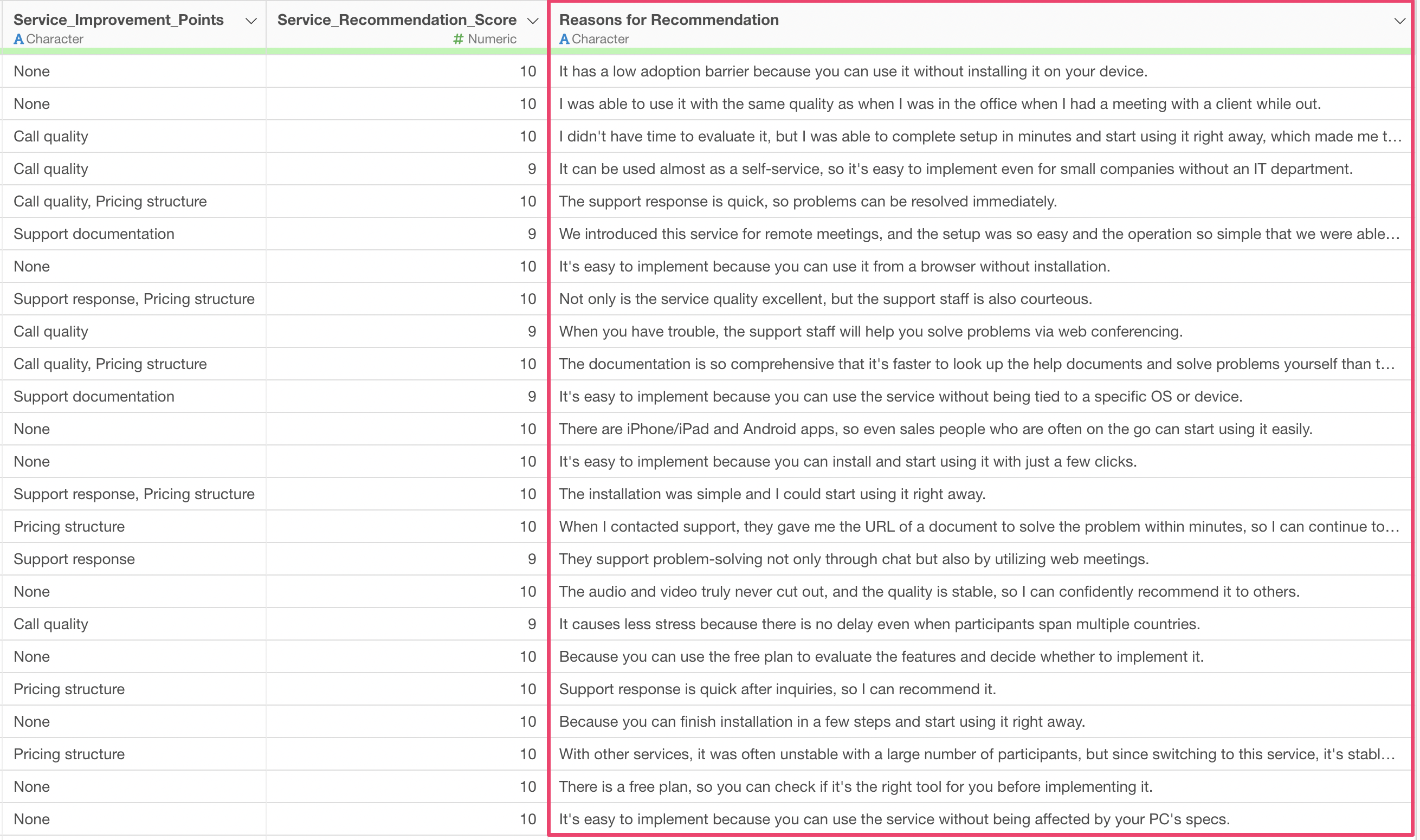
Many Exploratory customers have asked, “Is it possible to calculate sentiment scores from free-text responses?”
This is where “AI Functions” come in handy.
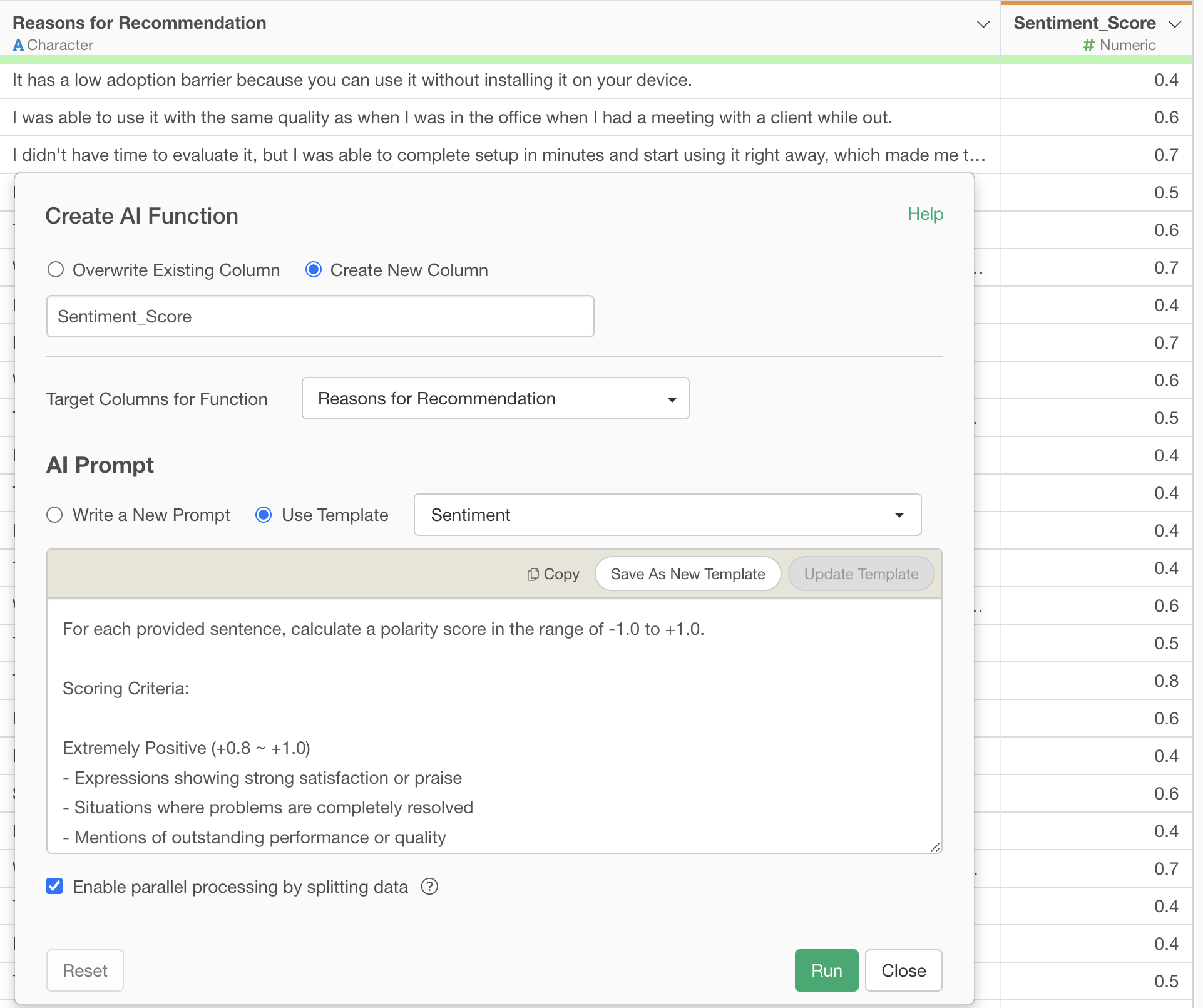
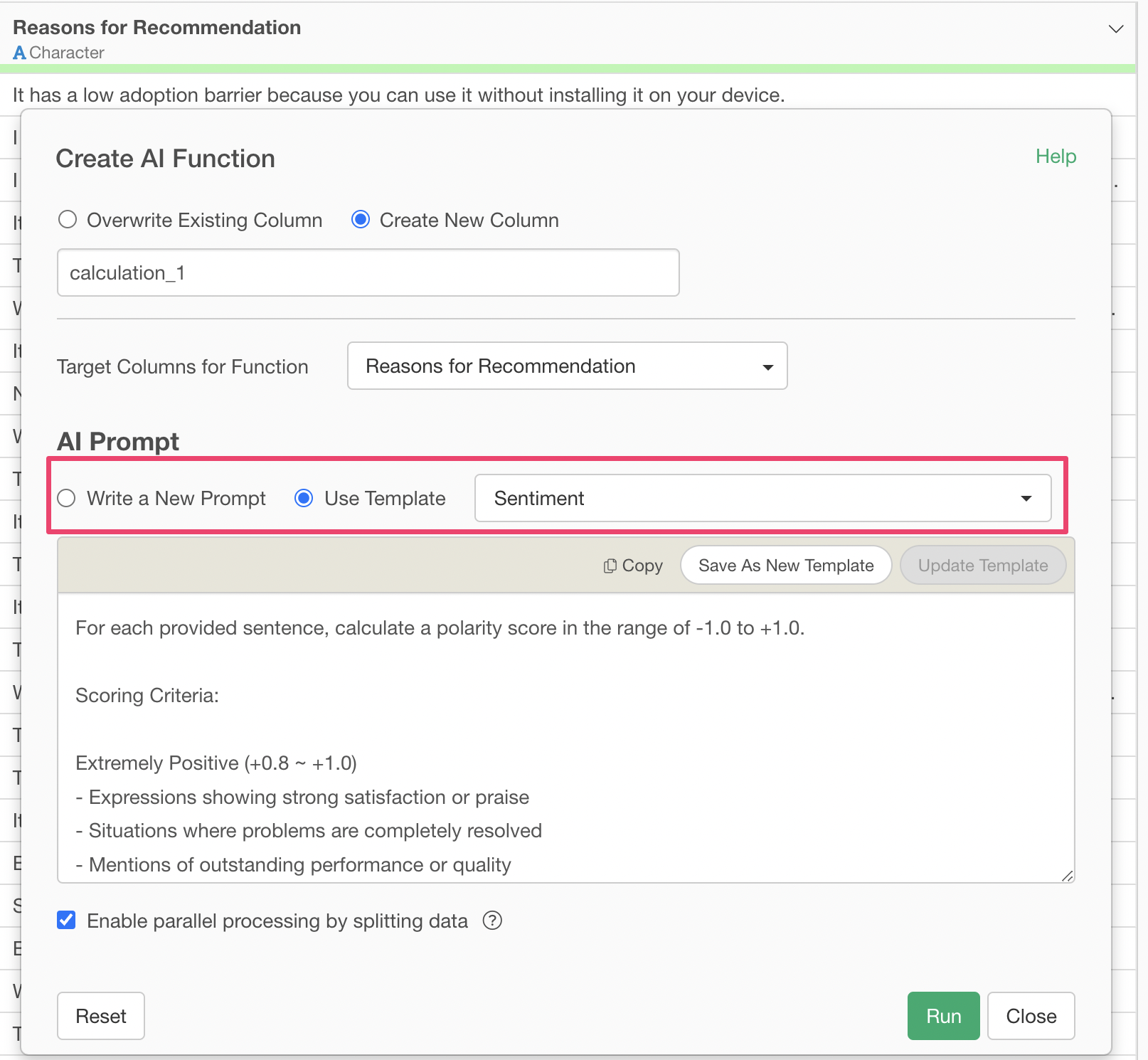
Execute the following prompt with AI Function:
For each provided sentence, calculate a polarity score in the range of -1.0 to +1.0.

Scoring Criteria:

Extremely Positive (+0.8 ~ +1.0)
- Expressions showing strong satisfaction or praise
- Situations where problems are completely resolved
- Mentions of outstanding performance or quality

Positive (+0.4 ~ +0.7)
- Mentions of clear advantages or strengths
- Reports of good experiences or results
- Results exceeding expectations

Mildly Positive (+0.1 ~ +0.3)
- Small improvements or advantages
- Fulfillment of basic functions
- General sense of satisfaction

Neutral (-0.1 ~ +0.1)
- Statement of facts
- Explanations without emotion
- Simple situation descriptions

Mildly Negative (-0.3 ~ -0.1)
- Small inconveniences or challenges
- Minor issues
- Points with room for improvement

Negative (-0.7 ~ -0.4)
- Clear problems or dissatisfaction
- Disappointing results
- Lack of important functions

Extremely Negative (-1.0 ~ -0.8)
- Serious problems or malfunctions
- Strong dissatisfaction or negative emotions
- Major obstacles or hindrances

Factors to Consider in Assessment:
- Strength of expressions (degree adverbs like "very," "extremely," etc.)
- Degree of problem resolution (complete resolution, partial resolution, etc.)
- Relationship between expectations and results (above expectations, as expected, below expectations)
- Specificity and importance of advantages/disadvantages
- Overall context and intent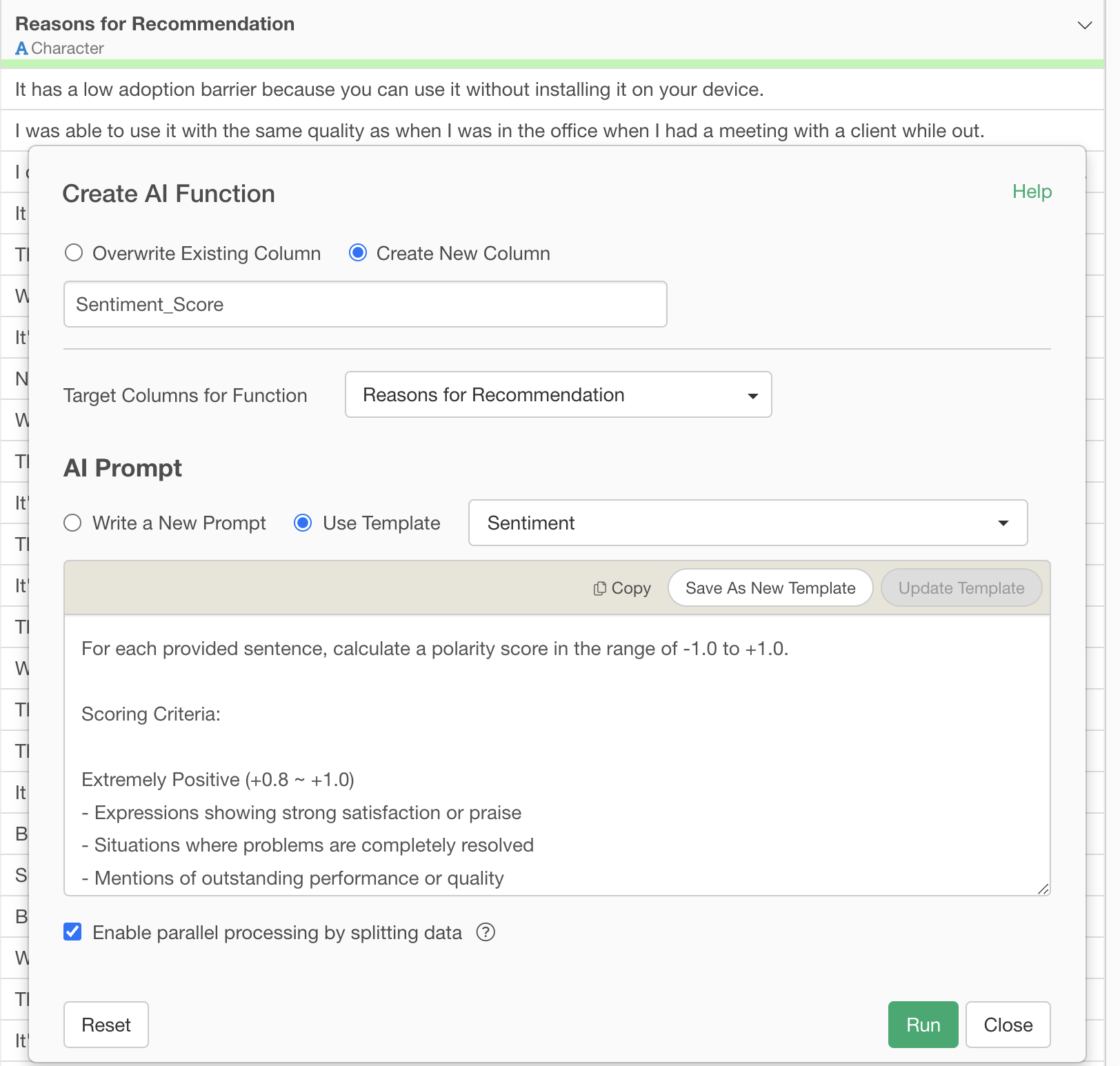
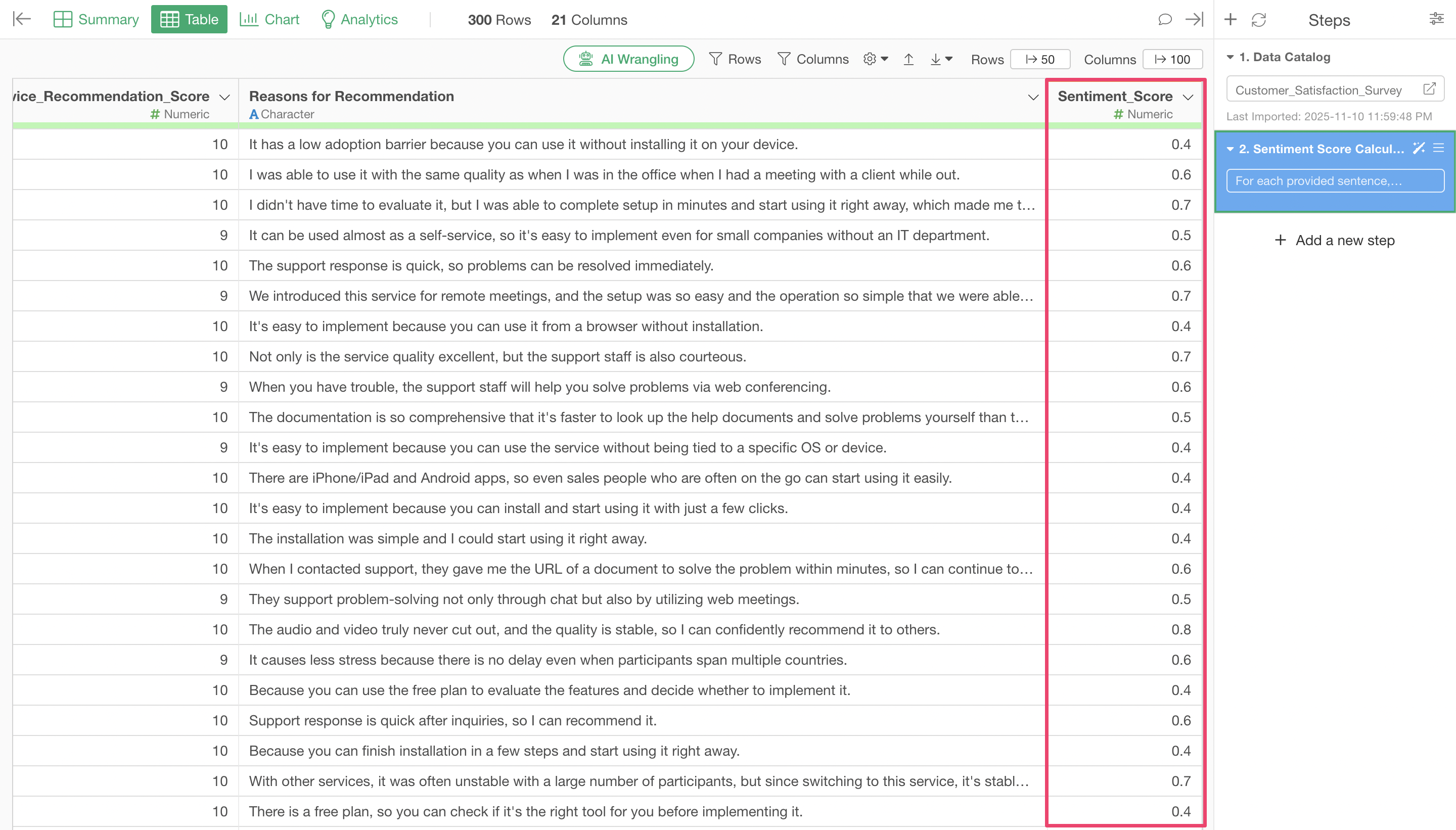
By executing this, we can obtain sentiment scores determined by AI for each row.
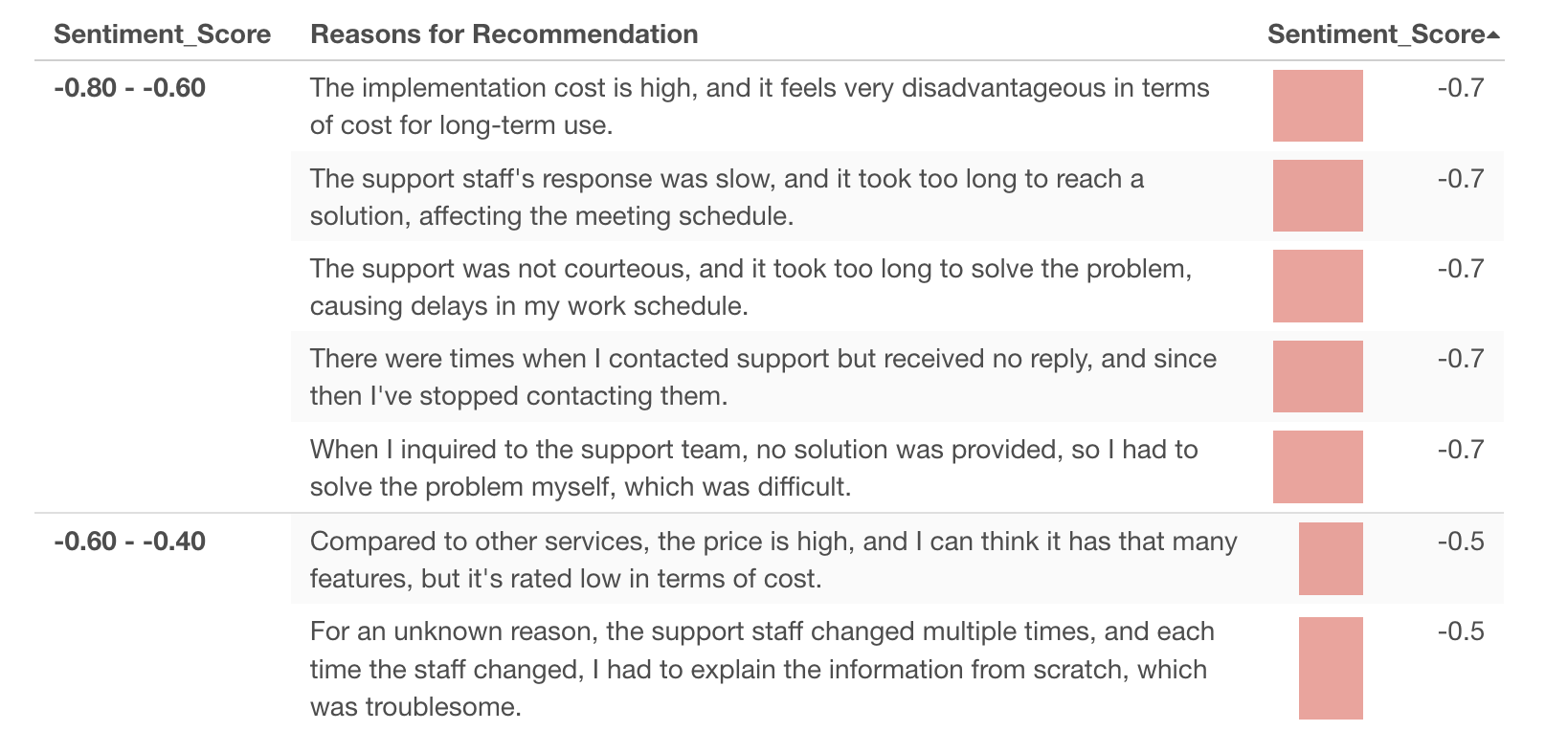
Looking at these sentiment scores, we can see that as the score approaches negative one (-1), strongly negative content becomes more prominent.
Conversely, as the sentiment score approaches positive one (+1), we can confirm that strongly positive content is included.
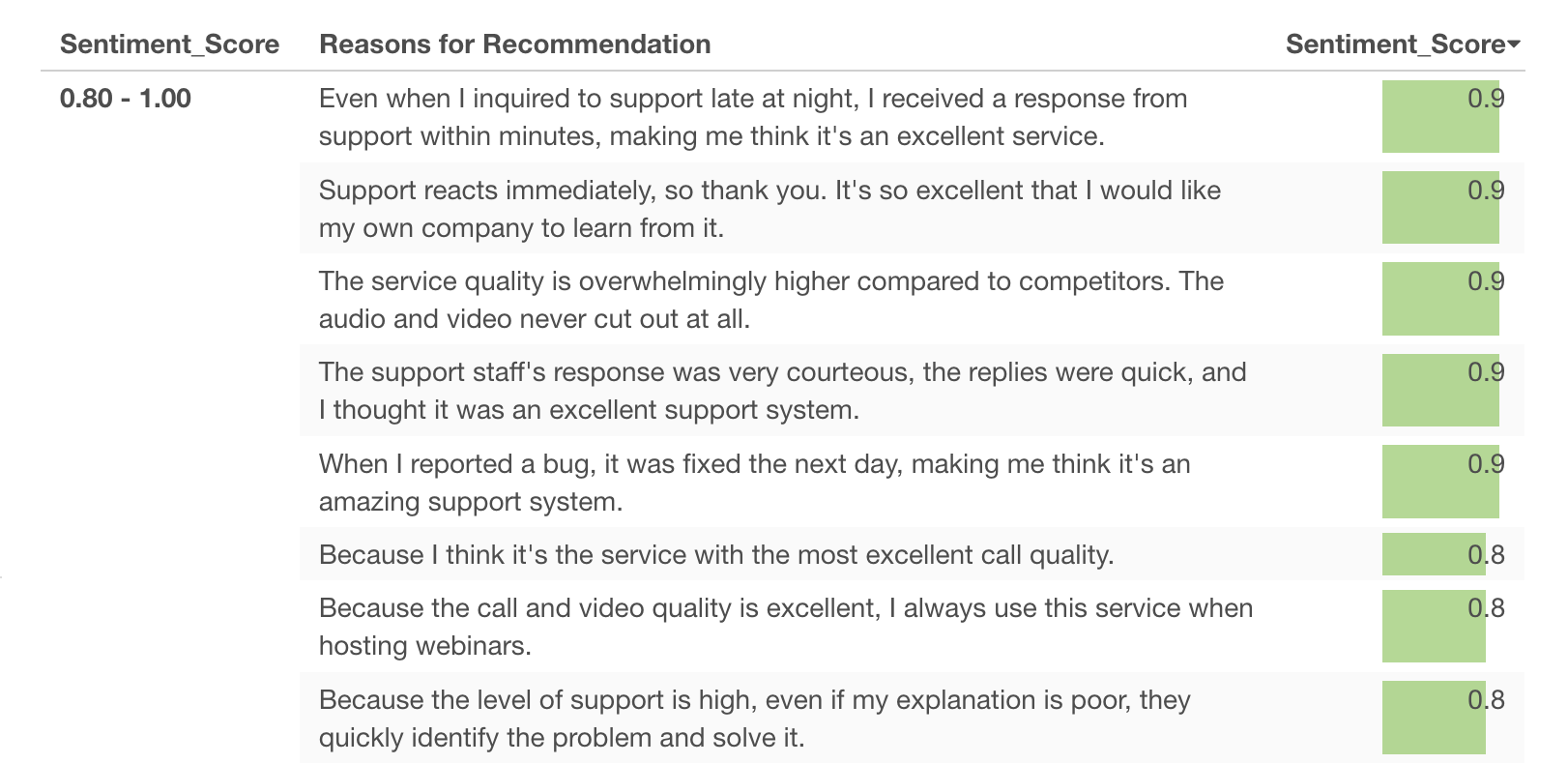
Using AI Functions, we can easily generate sentiment scores for free-text responses and confirm that appropriate scores are assigned based on context.
Text Grouping
We’ll continue targeting the free-text response column such as “Reason for recommendation.”
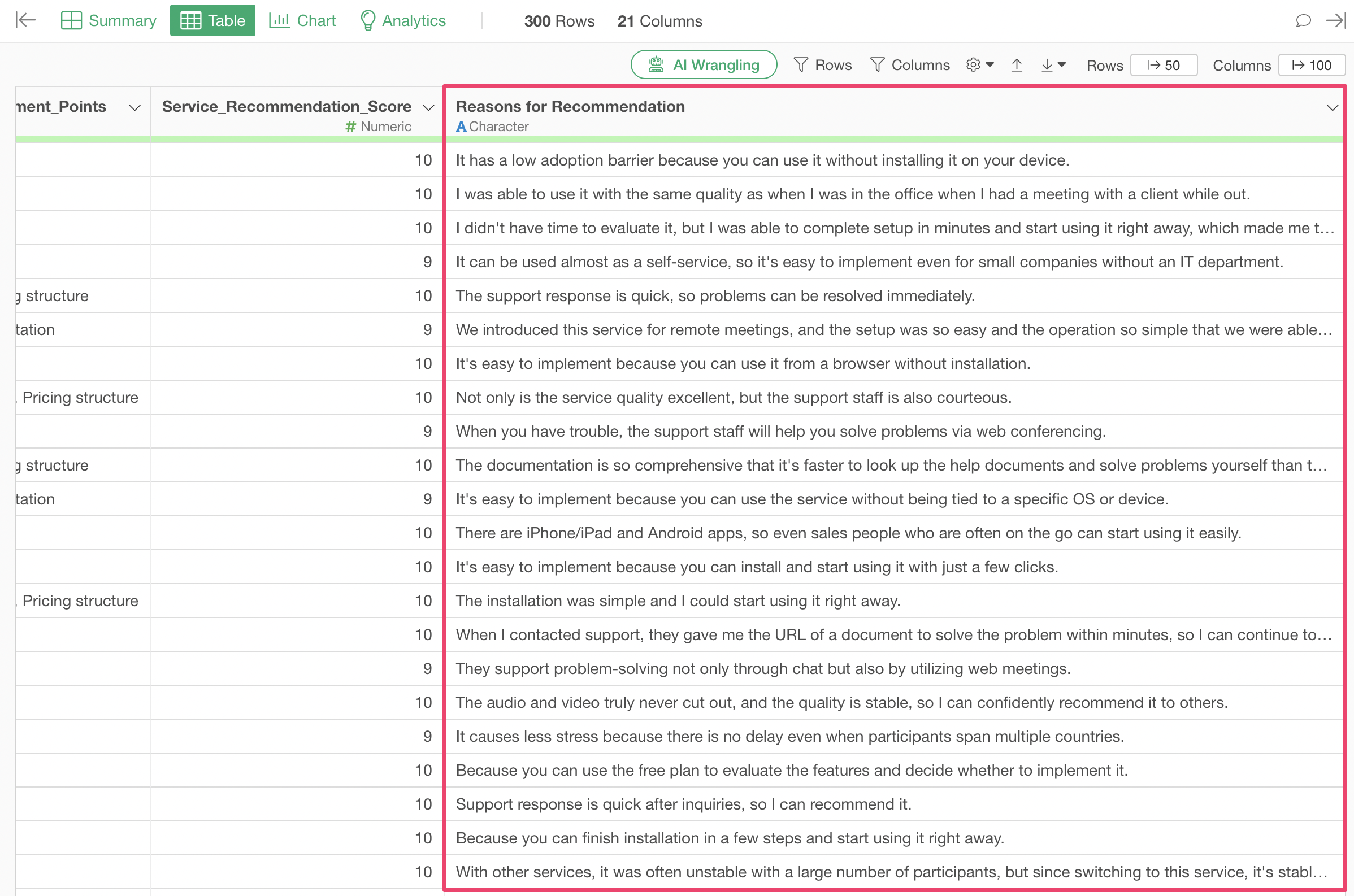
When you have such text, you may want to label and group each piece of text.
Previously, it was standard to use the “Topic Model” in the Analytics View to group texts, but there were cases where we wanted to label using predefined groups.
With AI Functions, “text grouping” can also be achieved.
In the prompt, specify the following. It’s possible to differentiate between “good support” and “Bad support” at the labeling stage.
Please assign labels to categorize the provided text into the following groups:

Good Support
Bad Support
High Product Rating
Low Product Rating
High Rating for Features
Low Rating for Features
Comparison with Competitor Services
Implementation-Related Content
Pricing-Related Content
Other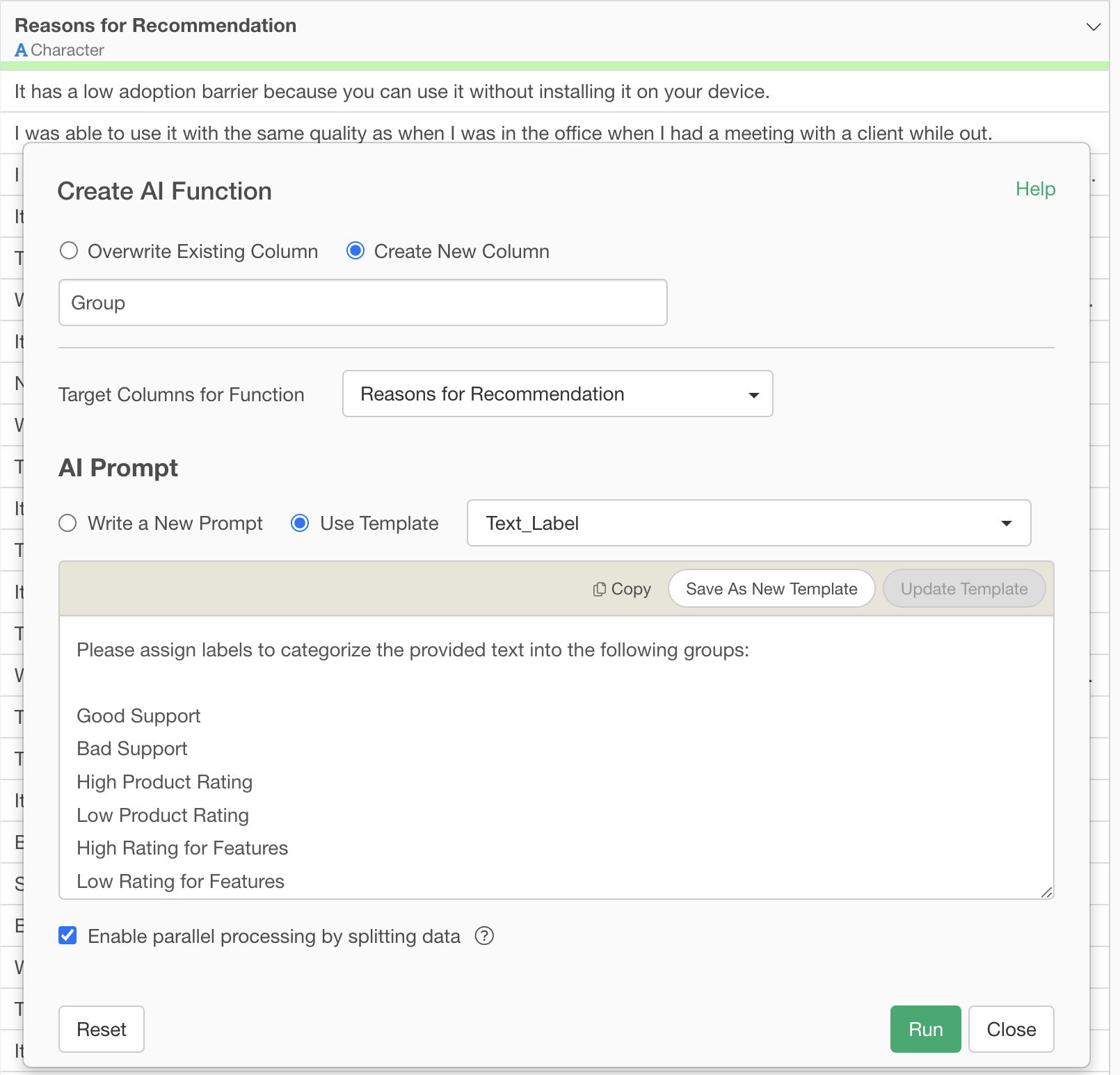
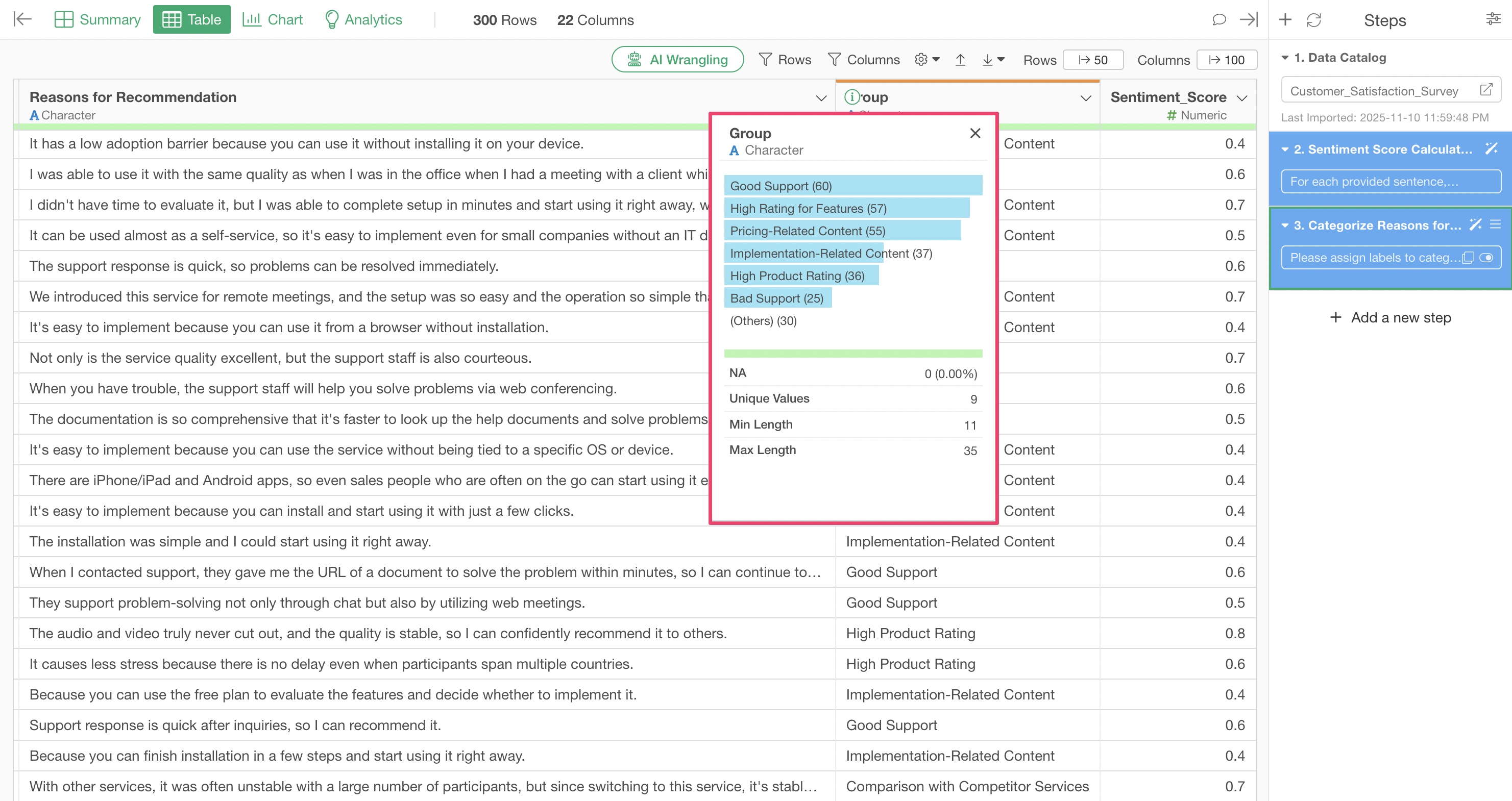
By executing this, we can create a text group column.
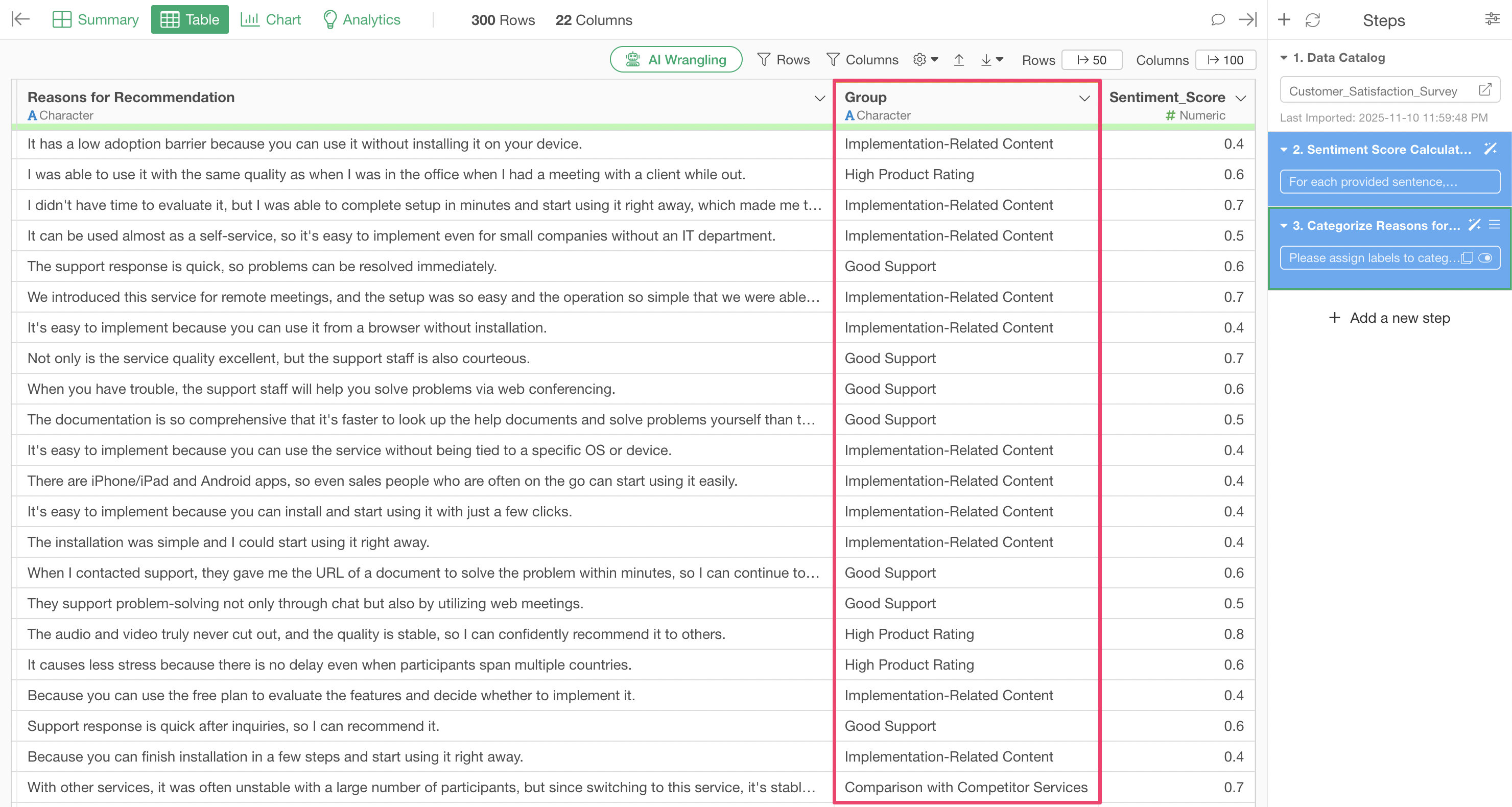
We can confirm that the texts are grouped according to the predefined labels.
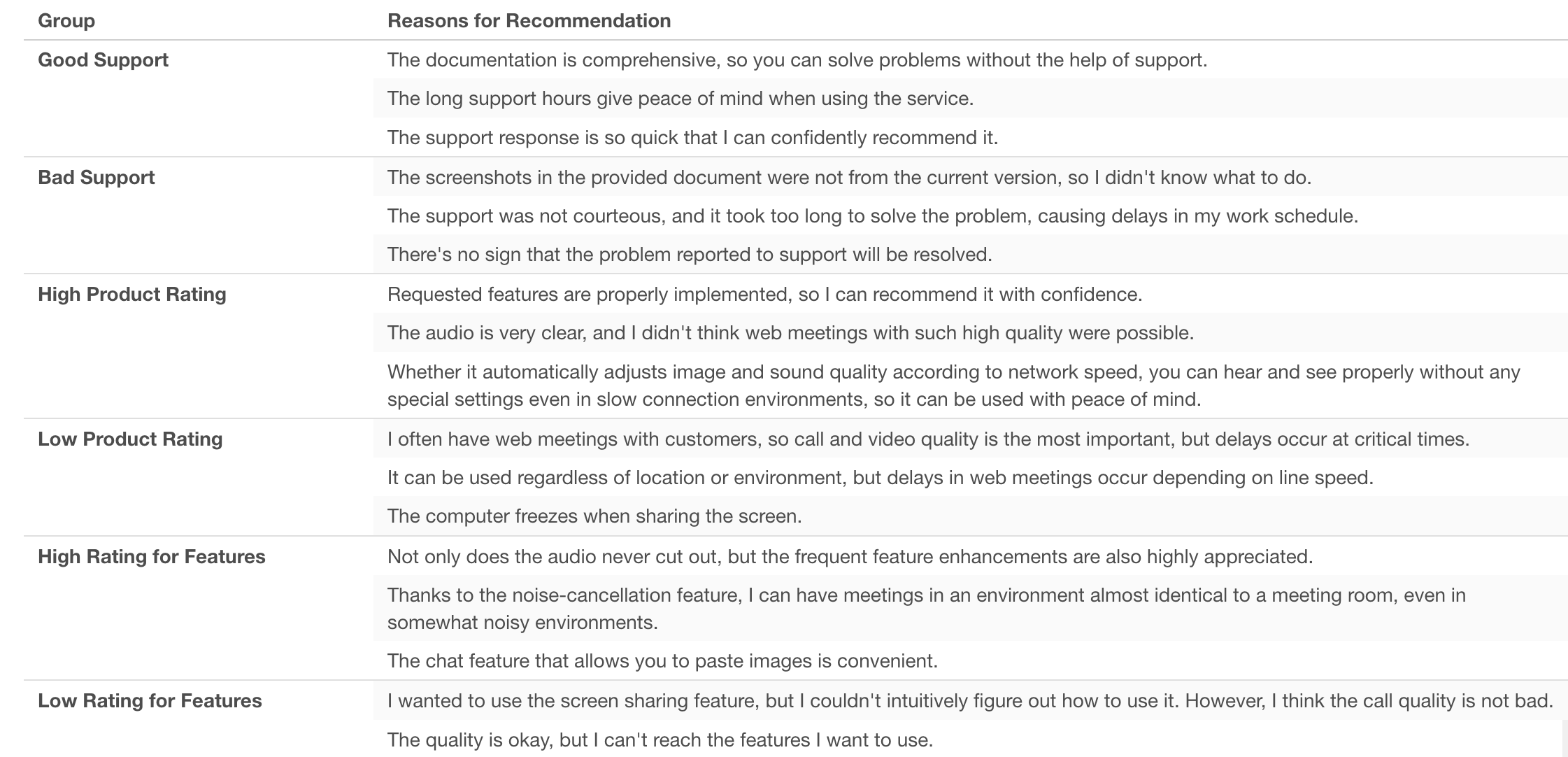
The following shows sample rows from each group, confirming that the quality of support is also well differentiated.
Best Practices for AI Functions
Define Clear Criteria and Evaluation Factors
For AI Functions, it’s important to provide specific judgment criteria and clearly indicate what factors should be considered in the evaluation.
Good Example (Sentiment Score):
For each provided sentence, calculate a polarity score in the range of -1.0 to +1.0.

Scoring Criteria:

Extremely Positive (+0.8 ~ +1.0)
- Expressions showing strong satisfaction or praise
- Situations where problems are completely resolved
- Mentions of outstanding performance or quality

Positive (+0.4 ~ +0.7)
- Mentions of clear advantages or strengths
- Reports of good experiences or results
- Results exceeding expectations

...(omitted)...

Extremely Negative (-1.0 ~ -0.8)
- Serious problems or malfunctions
- Strong dissatisfaction or negative emotions
- Major obstacles or hindrances

Factors to Consider in Assessment:
- Strength of expressions (degree adverbs like "very," "extremely," etc.)
- Degree of problem resolution (complete resolution, partial resolution, etc.)
- Relationship between expectations and results (above expectations, as expected, below expectations)
- Specificity and importance of advantages/disadvantages
- Overall context and intent
Rather than vague instructions, clearly listing the score ranges, judgment conditions, and factors to consider enables AI to analyze from multiple perspectives, significantly improving judgment accuracy.
Clearly Specify Output Format
By specifying what format you want AI to return results in, you can get results in your desired format.
For returning numeric values only:
Predict the virality of the provided social media post with a score from 0-100.

Evaluation criteria:
- Elements that evoke emotions
- Topicality/timeliness
- Elements that make people want to share
- Call-to-action prompts

Return only the score as a numeric value.
For comma-separated returns:
List 5 well-known American companies for each American industry classification.
Return multiple company names separated by commas for each industry.
Return the official company name.

Example: A, B, C, D, E
For specific format returns:
Extract the customer's specific request in one sentence from the provided email body,
and score the business impact from 1-10.

Output format: Request content | Score
Example: Add batch invoice generation feature | 8
Provide Concrete Examples
By including concrete examples in your prompts, AI’s understanding deepens and success rates for similar patterns increase.
Good Example:
This is name and email information.
Based on the name and email information, please estimate and return the correct "last name"
in "Japanese" and "kanji." Even if the original information is in romaji, the result you
return must be the last name in "kanji."

Example: Kato Kota -> 加藤

If you don't know, please return "Unknown."
Concrete examples are especially effective for:
- Format conversions (romaji → kanji, unit normalization, etc.)
- How to assign classification labels
- Name order arrangement
Specify Handling of Edge Cases
Specify in advance how to handle unknown cases and special cases.
Good Example:
You are a specialized assistant for identifying regions from school names.
Based on the provided school name, please determine whether the school is located in the
Kanto region (Tokyo, Kanagawa, Chiba, Saitama, Ibaraki, Tochigi, Gunma).

If the school is in the Kanto region, answer "Kanto," if outside the Kanto region,
answer "Non-Kanto."
If the school name is unclear, answer "NA."
This provides an “escape route” for AI when it’s uncertain, preventing errors and inappropriate guesses.
Make Classification Labels Specific and Comprehensive
When performing label classification, list all label candidates in advance.
Good Example:
Please assign labels to categorize the provided text into the following groups:

Good Support
Bad Support
High Product Rating
Low Product Rating
High Rating for Features
Low Rating for Features
Comparison with Competitor Services
Implementation-Related Content
Pricing-Related Content
Other
Always include an “Other” category to handle cases that don’t fit into any of the defined categories.
Specify Official Names and Notation Rules
When handling company names or proper nouns, clearly define notation rules.
Good Example:
Return the official legal entity name for each organization name.From the provided investor data, correct notation inconsistencies and standardize
company names as much as possible.
Example:
Softbank -> Softbank
Softbank Group -> Softbank
Softbank Corp -> Softbank
Softbank Capital -> Softbank
Sequoia Capital -> Sequoia Capital
Sequoia Capital China -> Sequoia CapitalWhen to Use AI Prompts
AI Prompts is a feature that generates R scripts when you provide data processing instructions in natural language. While AI Functions have AI judge and output results for each row, AI Prompts generate R code to efficiently execute processing based on conditional expressions and calculations.
Cases Where AI Prompts Are Suitable
AI Prompts are suitable for the following types of rule-based processing and calculations:
Concrete Examples:
- “Determine whether sales are 1000 or more”
- “Create age group categories (teens, 20s, …) from age”
- “Label as ‘Order Required’ if inventory is 10 or less, otherwise ‘In Stock’”
For example, suppose you want to create an age group column from an age column.
Even with AI Functions, it’s possible to create an age group column for such cases.
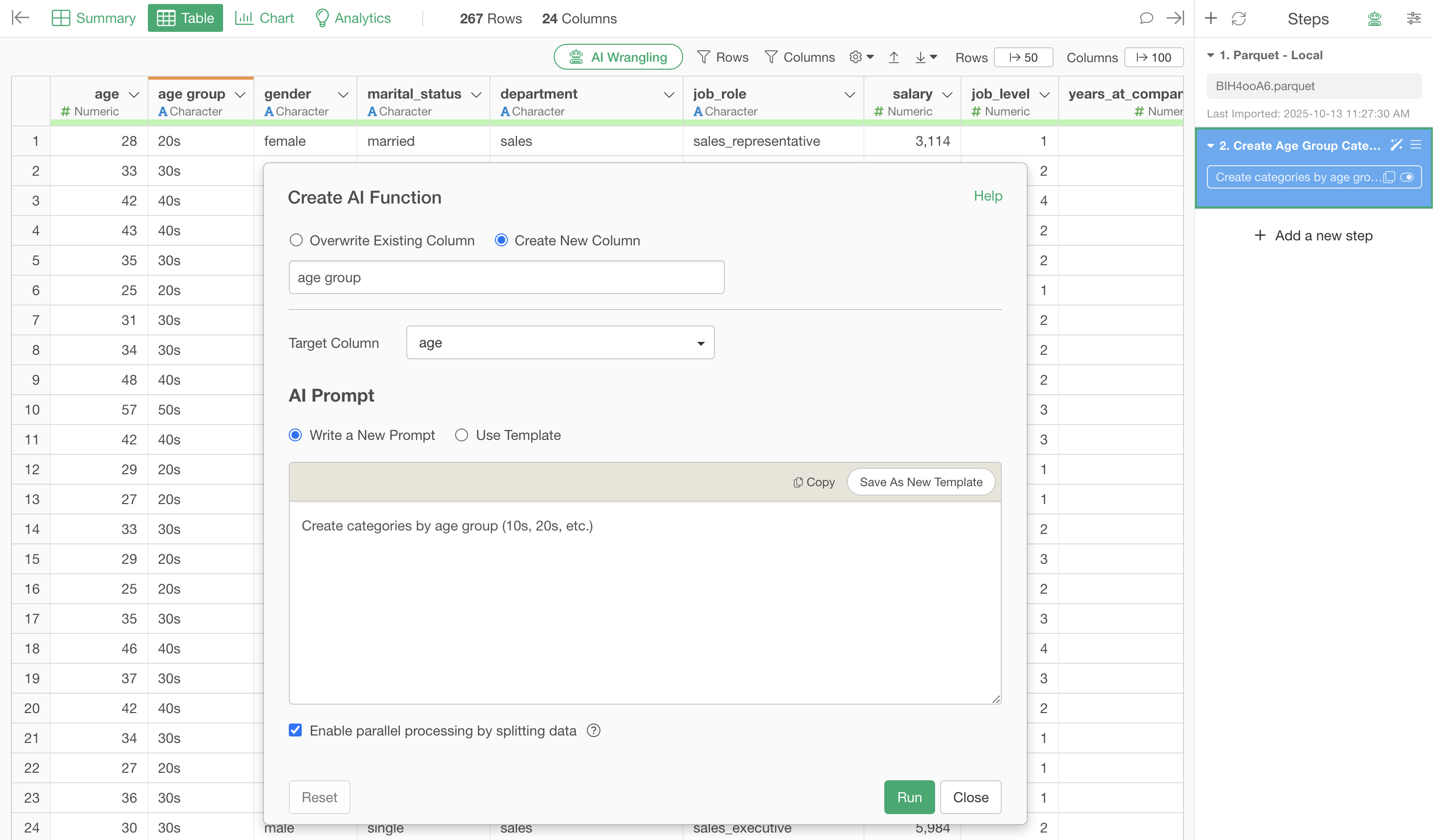
However, using AI Prompts allows you to create the age group column faster and with better reproducibility.
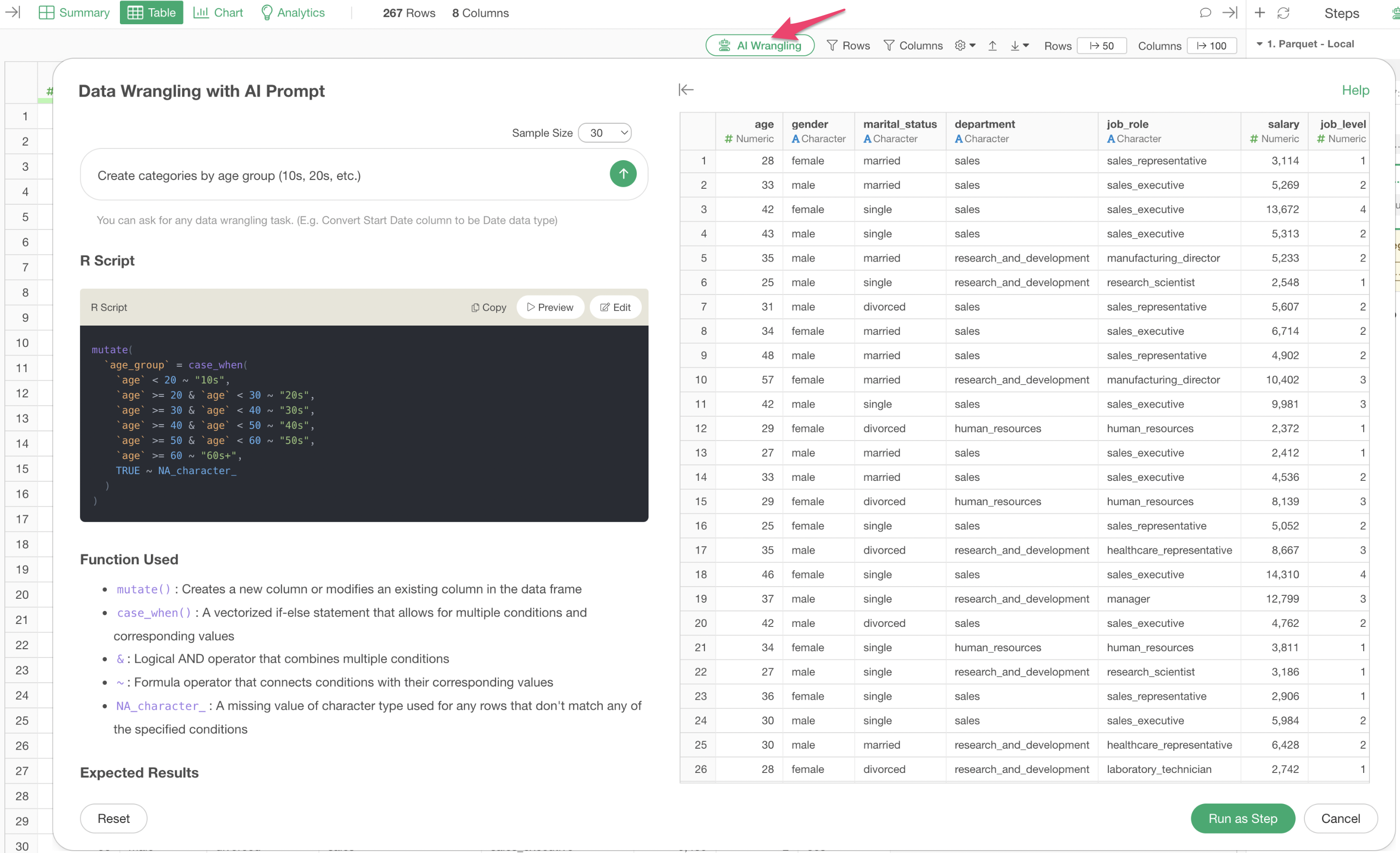
Since AI Prompts return R scripts, they excel at returning labels based on conditions and calculations. On the other hand, when you want to return labels from text or product names—cases requiring understanding of context based on individual values—AI Functions are more suitable.
When using AI Prompts for labeling and calculations based on conditions, there are advantages in the following areas:
Performance
Because they execute as R scripts, there are no row limitations compared to AI Functions. Furthermore, since they don’t return values one by one, they are superior to AI Functions in terms of execution time and cost.
Reproducibility
Because they use conditional expressions in R scripts, the same data will always return the same results. With AI Functions, since AI judges the labels, slight variations may occur depending on the data or the task being instructed.
For more details on AI Prompts, please see this note.
Summary
The “AI Functions” added in Exploratory v14 enable users without programming skills to perform complex calculations and data analysis using AI. This feature facilitates information generation from customer data, automatic creation of campaign emails based on purchase history, categorization of survey free responses, sentiment analysis, and labeling.
Please try the AI Function feature that allows you to easily enhance your data value using AI.
Want to Experience It Now?
Please try these new features like AI Functions for yourself!
If you haven’t used Exploratory yet, please take advantage of our 30-day free trial!