How to Upgrade Your Current Plan
In this note, we will introduce how to upgrade your Exploratory plan.
Exploratory offers multiple plans to meet various customer needs.
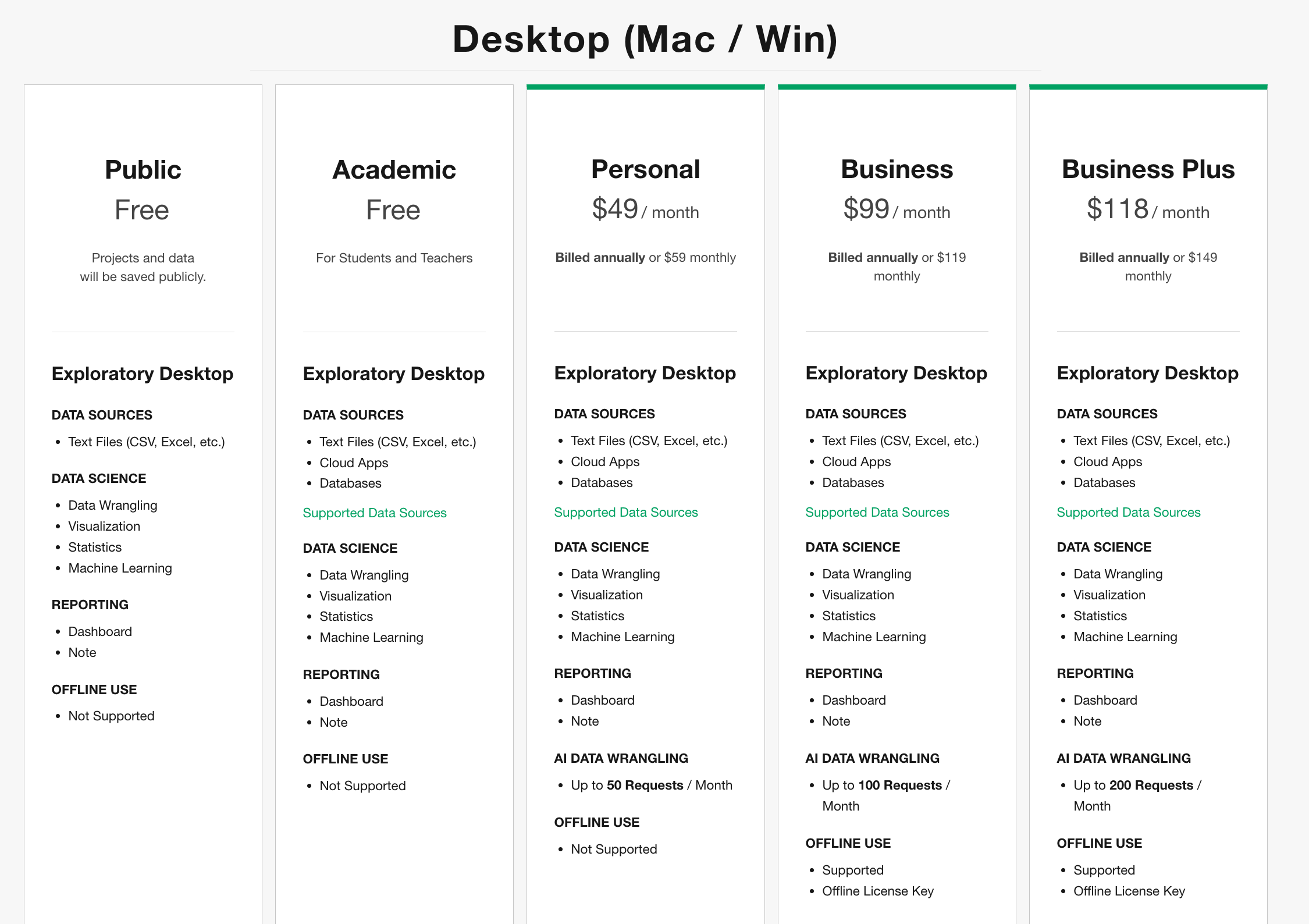
Additionally, as you use Exploratory, you can upgrade your current plan if needs arise, such as increasing storage capacity or expanding AI usage limits.
You can choose an upgrade method based on the contract period of the target plan and your preferred payment method. We will introduce the procedures for each pattern below.
Plan Upgrade Methods
1. Upgrading from a Free Plan to a Paid Plan
If you are using Exploratory with a Public or Academic plan and wish to switch to a paid plan, please refer to the following note:
- How to Buy Exploratory Subscription Licenses with Invoice - Link
2. Upgrading from an Existing Paid Plan
If you are already a customer with a paid Exploratory plan, please choose one of the following methods depending on your desired continuation period (monthly/annual) and payment method preference.
If you wish to continue with a Monthly Plan
If you are considering continuing on a monthly basis, you can perform the upgrade using these steps. (Please note that monthly plans do not support invoice payments such as bank transfers. They only support credit card subscriptions.)
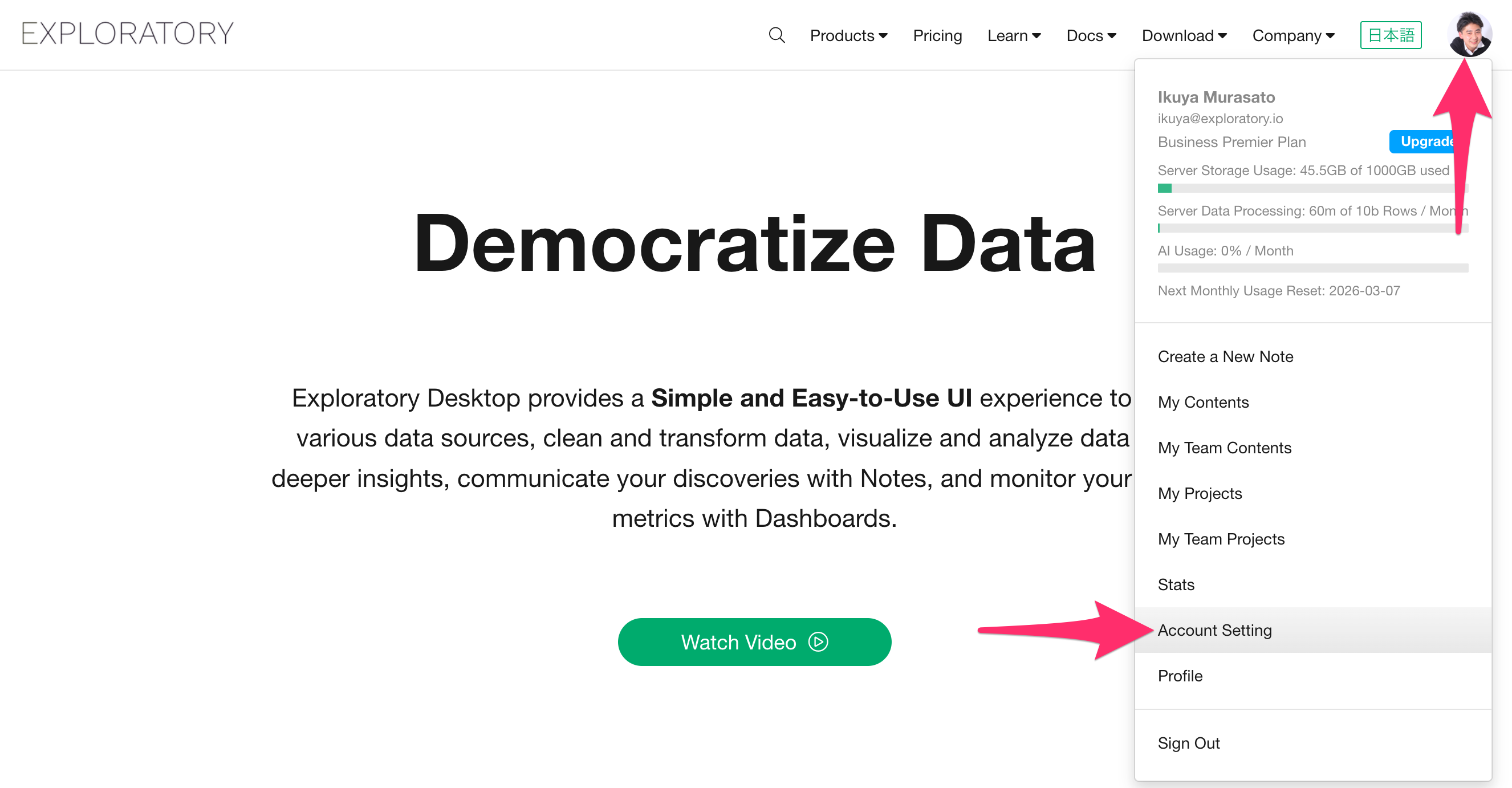
First, go to the Account Settings page.
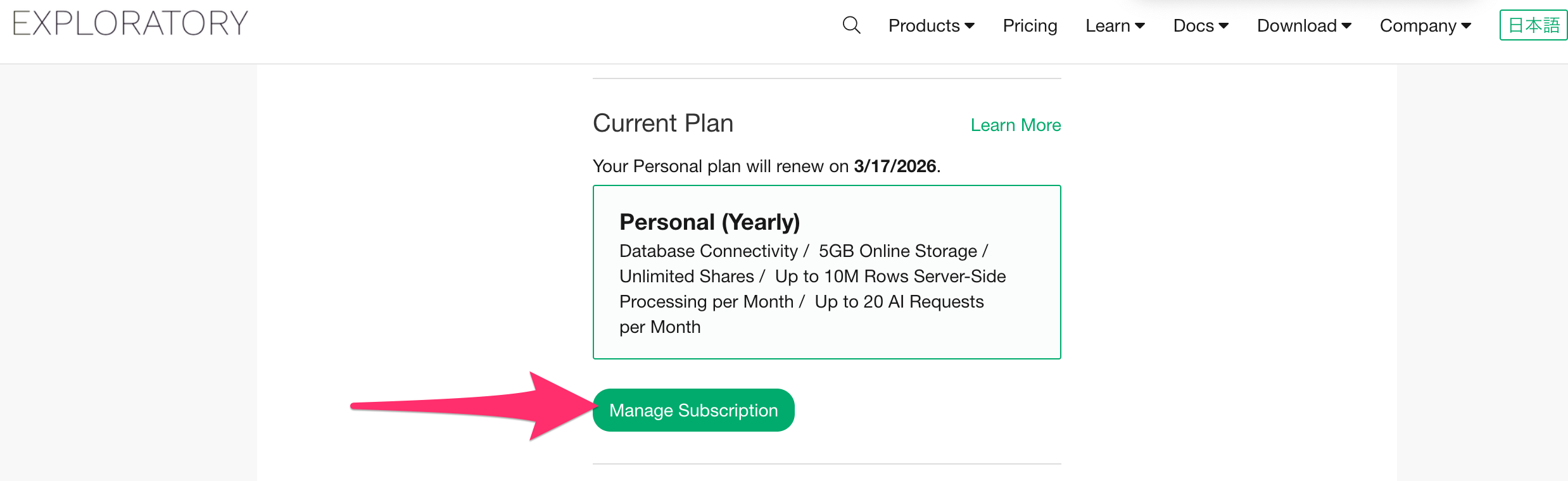
Once on the Account Settings page, navigate to the Plan section and click the “Manage Subscription” button.
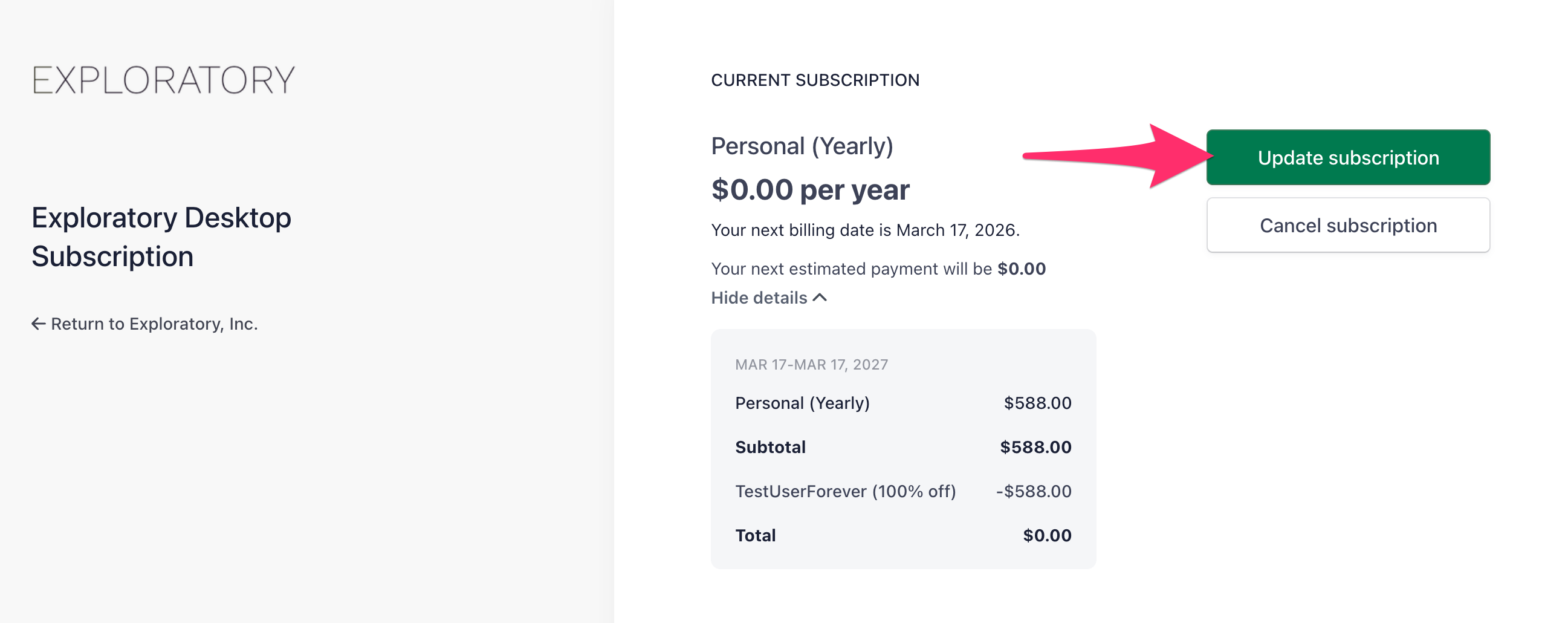
On the Manage Subscription page, click the “Update Subscription” button.
The subscription contract period will be displayed at the top of the screen. Select “Monthly,” choose the plan you wish to upgrade to, click the continue button, and complete the plan upgrade.
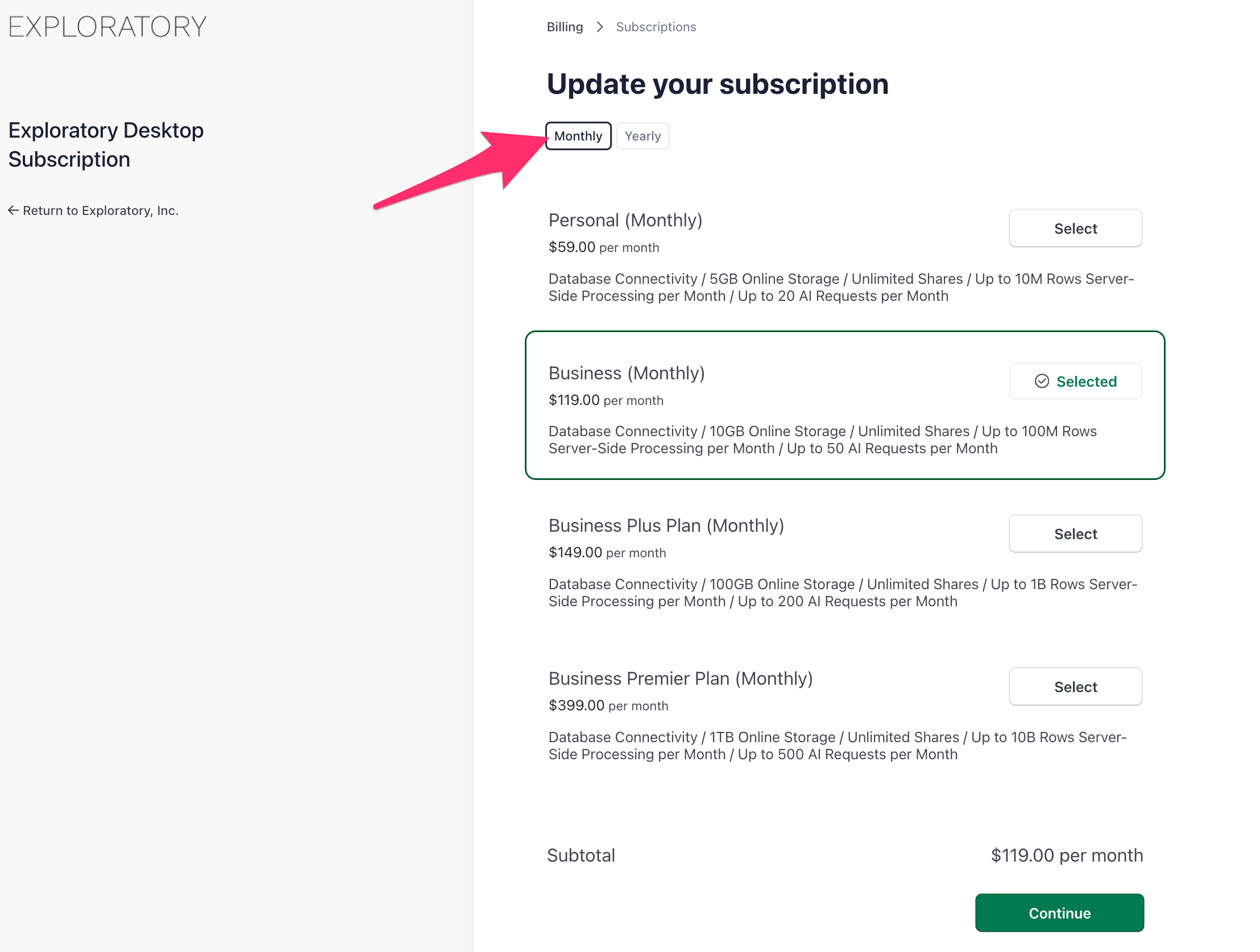
When you upgrade, the cost for the remaining period of your current contract will be deducted (discounted) pro-rata from the cost of the new plan. This allows you to upgrade your plan without any waste.
If you wish to use an Annual Plan
If you currently have an annual contract or are considering one in the future, you can choose from the following two methods. As with the monthly plan, when upgrading from an annual plan, the cost for the remaining period of your current contract will be deducted (discounted) pro-rata from the new contract cost.
Method 1: Upgrading the Subscription Plan
If you have already registered a credit card on the website and have a paid plan, the procedure is the same as in the “If you wish to continue with a Monthly Plan” section above. (Please specify “Yearly” for the plan period.)
Method 2: Purchasing a One-time License via Invoice Payment
If you wish to upgrade to an annual plan and use invoice payment (bank transfer, etc.), we can issue an invoice for the upgrade purchase.
Please contact our support team to request an upgrade invoice. Typically, we will send the invoice within one business day of receiving your request.
Frequently Asked Questions
Q. Can I use the features of the new plan immediately after upgrading?
A. If you upgrade via a monthly or annual subscription plan, you can use the new plan’s features immediately after the procedure is completed. For invoice payments, we will upgrade the license after the invoice is issued, so the upgrade is typically completed within about one business day of your request.
Q. What happens to my existing data and projects during an upgrade?
A. Upgrading will not delete your existing data or projects. Everything will be carried over as is.
Q. Is it possible to downgrade the plan midway and receive a refund?
A. We do not support refunds for plan downgrades within the contracted period.
Contact Us
If you have any questions regarding plan upgrades, please feel free to contact our Support Desk.