Server MCP, Use Your Team’s Data and Analyses from AI Agents
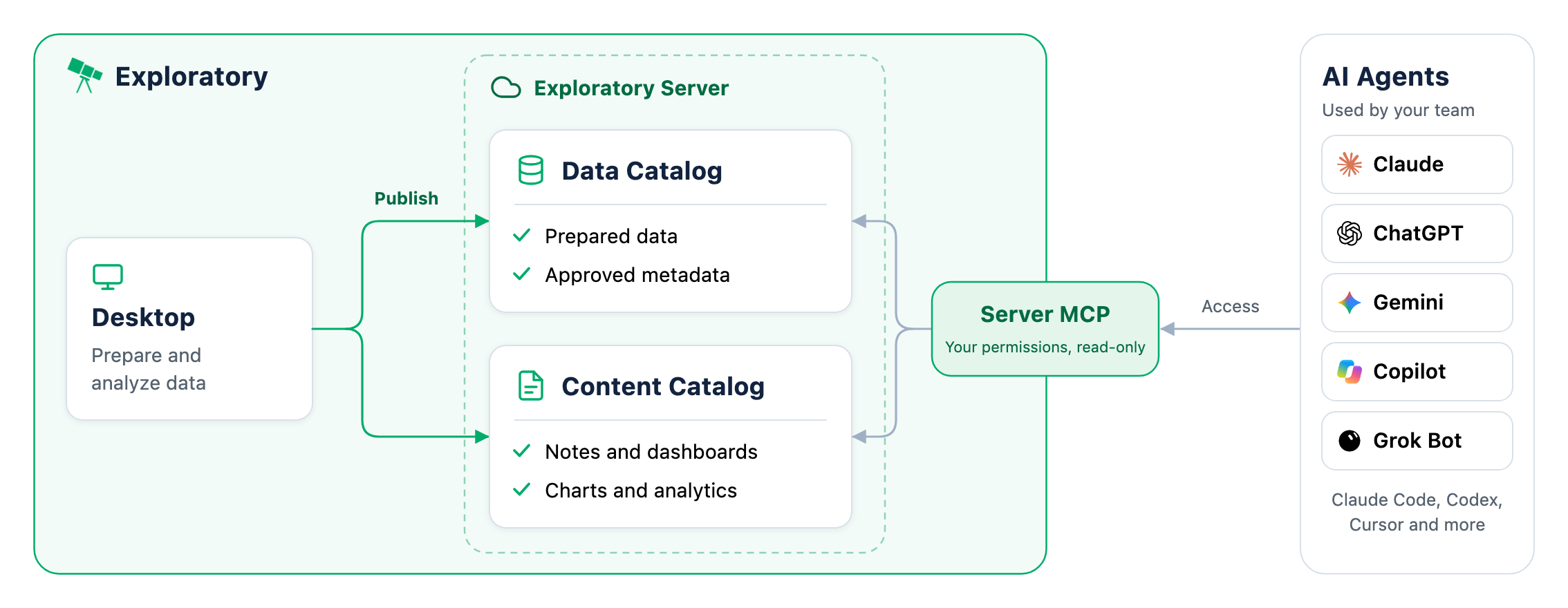
With Exploratory v17.0, AI agents such as Claude and ChatGPT can access the data, notes, dashboards and more that are published to Exploratory Server.
We call this Server MCP. When someone on your team prepares data or an analysis report in Exploratory, everyone on the team can use the AI agent they already use to find it, run queries on the data, summarize the report and more.
This article gives a short introduction to what you can do with Exploratory Server MCP and how to start.
What Is Server MCP?
First, MCP (Model Context Protocol) is a common standard that lets AI tools (ChatGPT, Claude and others) use outside data and apps (such as Exploratory). Think of it as a common “plug” that connects AI to your data and apps. When an app supports MCP, AI tools such as ChatGPT and Claude can use it in the same way. “MCP, Visually Explained” explains how MCP itself works, with diagrams. Please take a look.
Exploratory Server MCP lets AI agents (ChatGPT, Claude and others) use the data, notes, dashboards and more that are published to Exploratory Server, through MCP. The AI agent uses your Exploratory account to find and aggregate data, read notes and dashboards, and answer your questions.
Exploratory has two MCP servers.
| Server MCP | Desktop MCP | |
|---|---|---|
| Connects to | Exploratory Server (exploratory.io) | Exploratory Desktop running on your computer |
| Works with | Published data, notes and dashboards | Your local projects |
| What it does | Find, read and aggregate | Create, edit and publish |
| Main use | Let AI use the data and analyses your team prepared | Use AI to prepare and analyze data |
Another article introduces Desktop MCP.
Prepare Once, Use Across the Team
When you ask AI about data, the most work goes into preparation. You need to import the data, clean it up with wrangling, and decide what each column means. If you give AI data that is not prepared, its answers are off too.
In Exploratory, someone who knows the data does this preparation once and publishes it to Exploratory Server. Published data goes into the Data Catalog, and notes and dashboards go into the Content Catalog. Everyone else on the team just asks the AI agent they already use. Through Server MCP, the AI searches the catalogs and answers with the prepared data and the results of existing analyses.
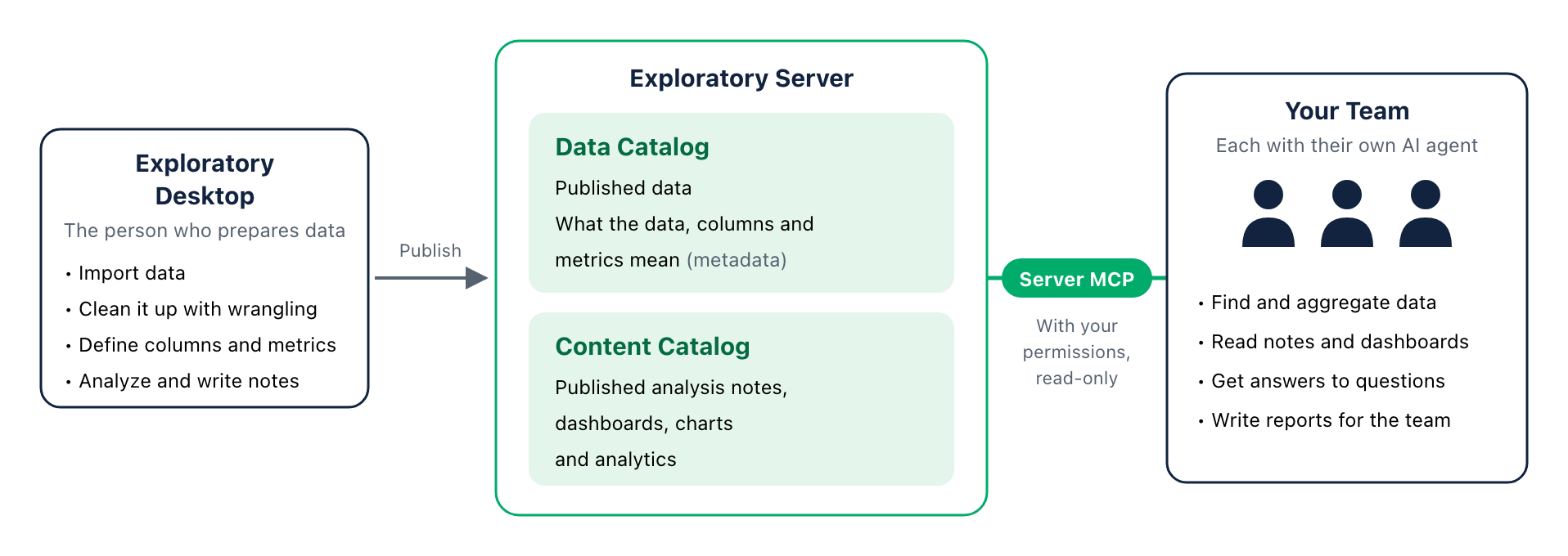
Prepare and analyze the data once in Exploratory. Then everyone on the team can use that data and those analyses from their AI agents.
What You Can Do
1. Find and Aggregate Data in the Data Catalog
The AI finds published data and checks the column names, data types and column descriptions. Then it filters, aggregates and joins the data on Exploratory Server to answer your question. Only the rows needed for the answer are returned to the AI, so it can answer quickly even when the data is large.
For example, you ask:
Using the sales data, show 2026 net sales by region
The AI finds the sales data in the Data Catalog, checks how “net sales” is defined, and then aggregates by region to answer.
2. Read Notes and Dashboards
The AI finds and reads published notes, dashboards, slides, charts and analytics. Besides the text of a note, it can read the numbers behind a chart, the chart’s image, and the results of analytics such as regression.
Because the AI answers by reading existing analyses, nobody has to redo the same analysis from scratch. The answer comes with the URL of the note or dashboard it is based on, so you can open it and check.
Same Data, Same Definitions
Even for the same “sales”, the number changes depending on whether it is before or after discounts, and whether returns are included. An AI that does not know the definition may do a plausible calculation and return a different number.
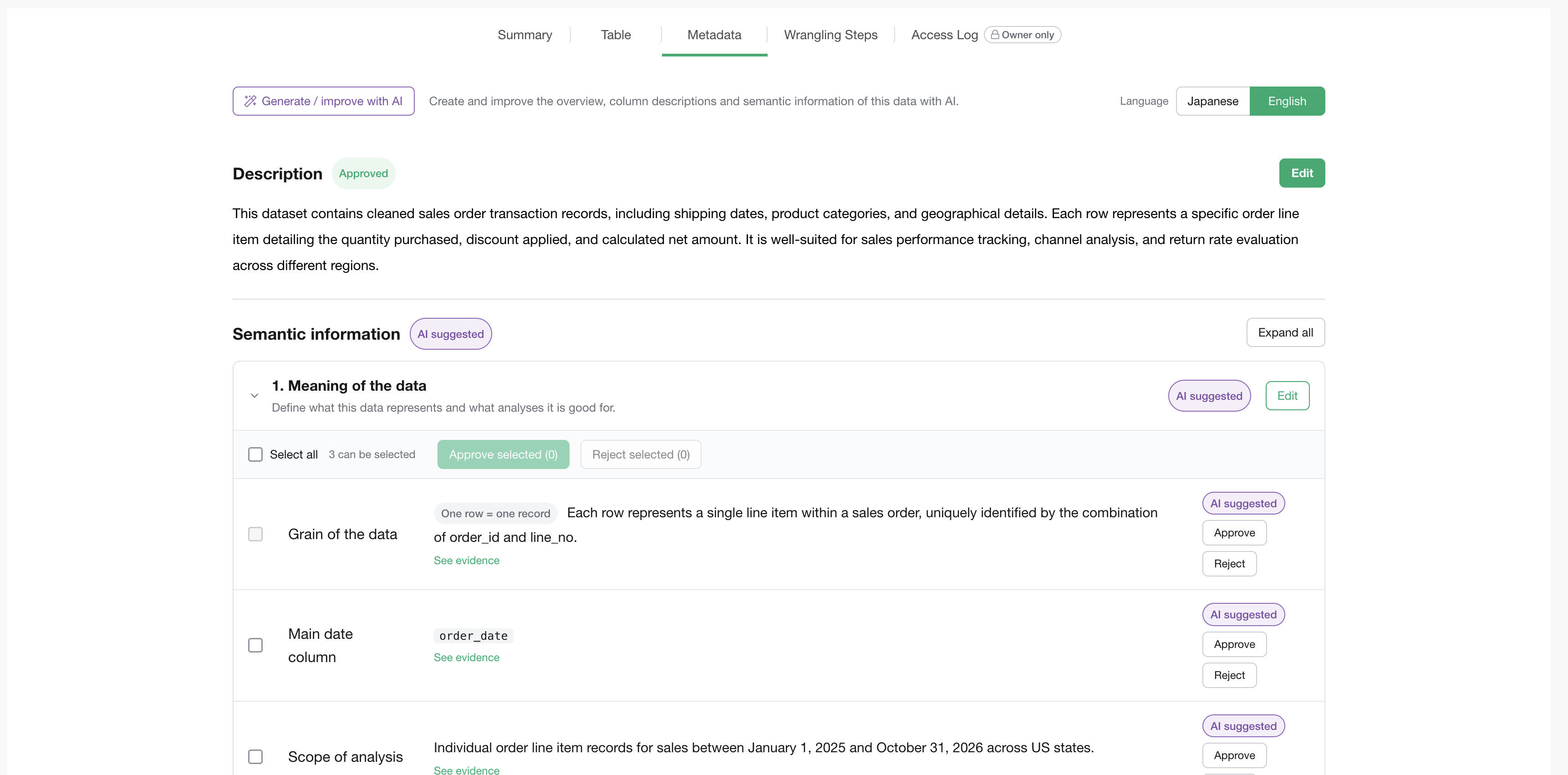
In the Data Catalog, the data owner can write down what the data means, what each column means, how metrics such as “sales” and “churn rate” are defined, and what to watch for when aggregating. On the data’s Metadata tab, click Generate / improve with AI, and AI drafts them. When the owner checks the content and approves it, those definitions are given to AI. Only Approved definitions are returned to AI.
The AI calculates with these definitions, so whoever asks, and whichever AI they use, the numbers follow the same definitions.
Using It Safely
It runs with your permissions: the AI agent signs in with your Exploratory account. Data and notes that you cannot see are not visible to the AI either.
Publishers decide: the person who published can turn off MCP access for each data item or note.
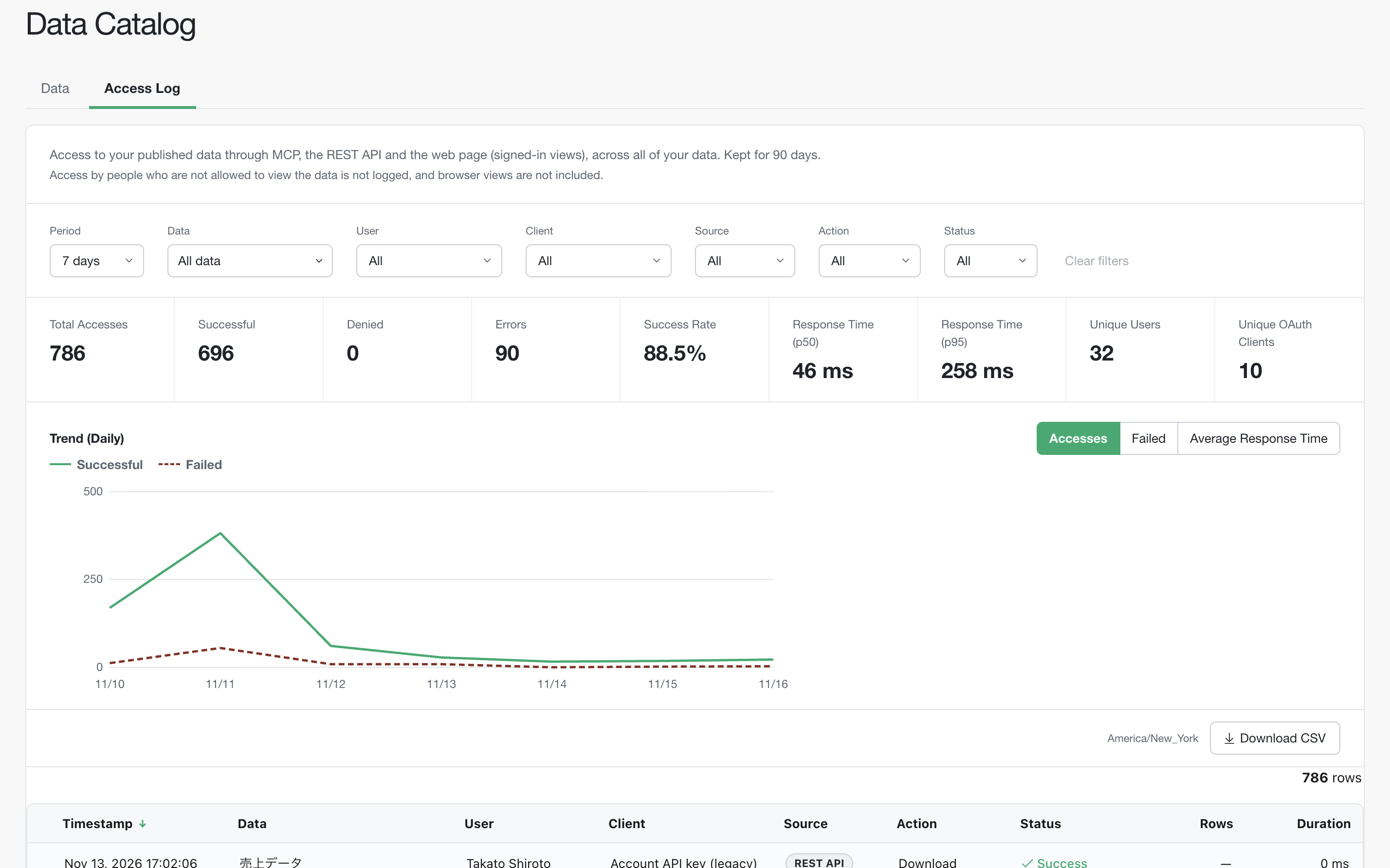
Access Log: on the data’s Access Log tab, you can check who used which data, from which AI tool, and how. Only the data owner can see the Access Log.
Disconnect any time: you can revoke a connection at any time from Connected AI Apps in your exploratory.io account settings.
Data returned to an AI tool is sent to the AI provider that the tool uses. For data that must not leave your organization, turn off MCP access.
How to Start
Server MCP works with Claude, ChatGPT, Google Gemini, Microsoft Copilot, Grok Bot and more. It also works with desktop AI tools such as Claude Code, Codex and Cursor.
All you need is an Exploratory account.
We have a step-by-step getting started guide. Please take a look.
1. Add Server MCP to Your AI Tool
In an AI tool that supports remote MCP, add the following URL. How to add it depends on the AI tool.
https://exploratory.io/mcpFor example, in Claude, open the settings, choose “Customize”, open the “Connectors” screen, and click “+ Add” at the top right.
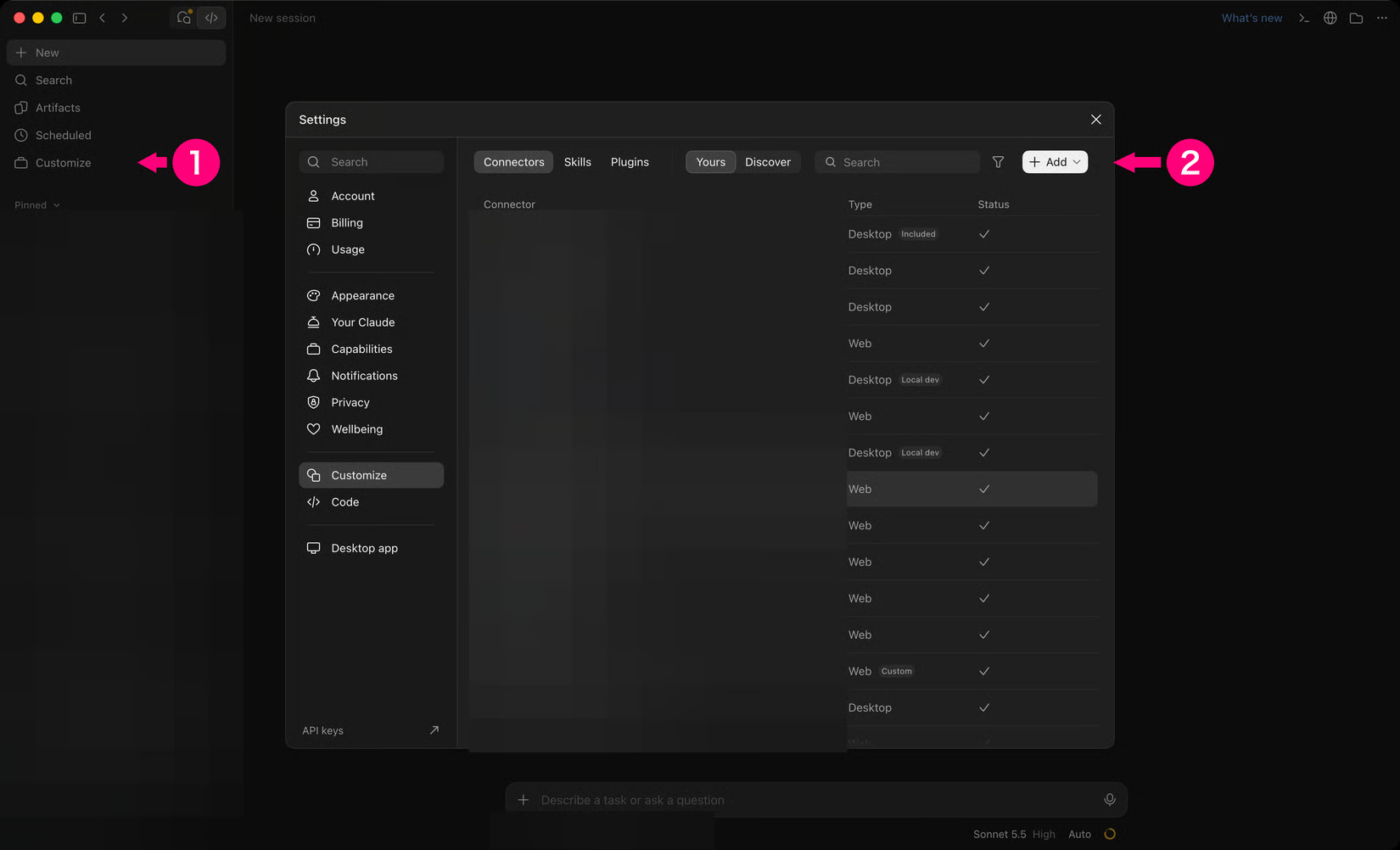
For how to add it in other AI tools, see the Server MCP documentation.
2. Allow the AI Tool to Access Exploratory with Your Account
The first time you use it, the AI tool opens a page in your browser for Exploratory’s OAuth sign-in. On that page, sign in to Exploratory and allow the access.
3. Try It
In your AI tool, ask the following. Replace the note’s name with one that you can see.
Summarize the key points of the "Sales Report" note in ExploratoryTo check only that the connection works, ask:
On the connected Exploratory Server, list up to 3 items of content I can view, with their URLs.If the content is listed with URLs, you are connected.
Summary
With Server MCP, AI agents can find, read and aggregate the data and notes published to Exploratory Server.
Prepare and analyze the data once in Exploratory. Then everyone on the team can use the results from the AI agents they already use.
The AI calculates with the metric definitions that the owner approved.
The AI runs with your permissions and only reads. The publisher decides which data can be used through MCP.
Try It with Exploratory
Try Server MCP with your own data in Exploratory.
👉 Download the latest version of Exploratory
https://exploratory.io/download
If you do not have an Exploratory account, sign up and start a 30-day free trial here:
If your trial has expired, launch the latest version and click Extend Trial to try it again.
Try Server MCP
We have a step-by-step getting started guide. Please take a look.