AI Data - Get the data you need,
just by asking.
Tell AI what data you need, and it figures out how to retrieve it.
AI Data generates the appropriate R script, runs it, reviews the result, and automatically improves the approach when necessary—then imports the data into Exploratory, ready for analysis.
From files and databases to APIs, websites, and open data—all through natural language.
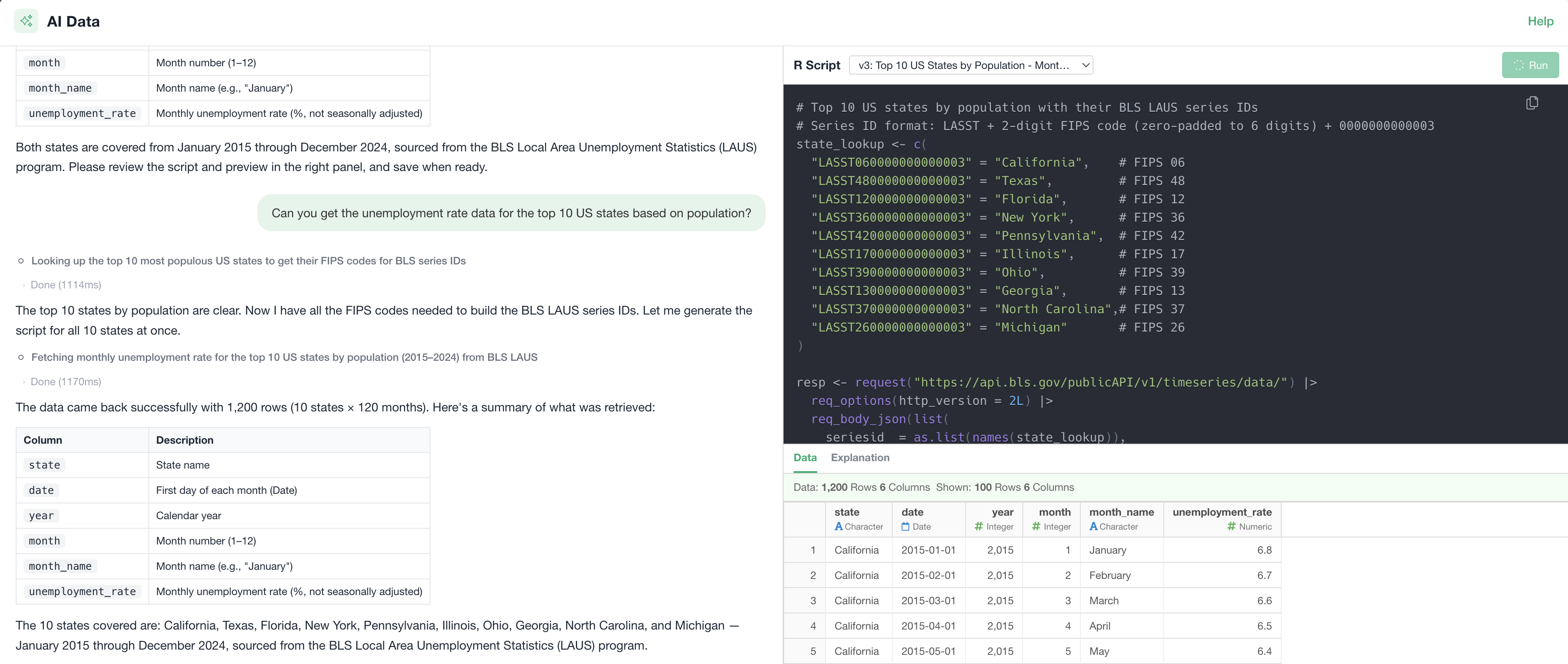
You know what data you need. Getting it is another story.
AI Data handles the work between “I need this data” and “the data is ready to analyze.”
From a request to analysis-ready data
You do not need to know the exact file, table, API endpoint, or query syntax. Simply describe the result you want.
AI examines the available data sources and determines the appropriate approach. Depending on the source, this might mean:
- Reading files
- Generating SQL
- Using an R package
- Calling APIs
- Downloading files from the web
- Scraping a website
It then generates the required R script and runs it inside Exploratory.
AI checks the returned data to determine whether it matches the original request. If not, it re-evaluates the approach, updates the script, and runs it again. Once the result is ready, the data is imported into Exploratory.
If you can access it with R, AI Data can work with it.
Files
- Excel
- CSV
- JSON
- XML
- Word
- Multiple files and folders
- Multiple Excel sheets
Databases
- SQL databases
- MongoDB and other non-relational databases
- Multiple-table joins
- Complex aggregation and analytical queries
Cloud Services and APIs
- Google Analytics
- SaaS platforms
- Web services
- Existing R packages and connectors
- Public APIs
Web and Open Data
- Downloadable files
- Web pages
- Web scraping
- Government open data
- e-Stat and other public data portals
If Exploratory already supports the service, AI can use its existing integration or R functions. When no built-in integration exists, AI can use publicly available API documentation to generate the required data acquisition script.
See the data. Then tell AI what to change.
Review the resulting data preview and give AI additional instructions.
| respondent_id | year | satisfaction |
|---|---|---|
| 000123 | 2024 | 4 |
| 000124 | 2024 | 5 |
| 000125 | 2025 | 3 |
| 000126 | 2025 | 4 |
Not just retrieved. Prepared for analysis.
Getting access to data is only part of the problem.
AI Data can also perform the basic preparation required before visualization or analysis.
Move directly from data acquisition to visualization and analysis.
Get the latest data again without asking AI again.
AI Data does not simply return a snapshot of the data. It creates the R script that produces the data.
That script becomes part of the Exploratory project. When you need updated data, simply click Re-import and run the same process again.
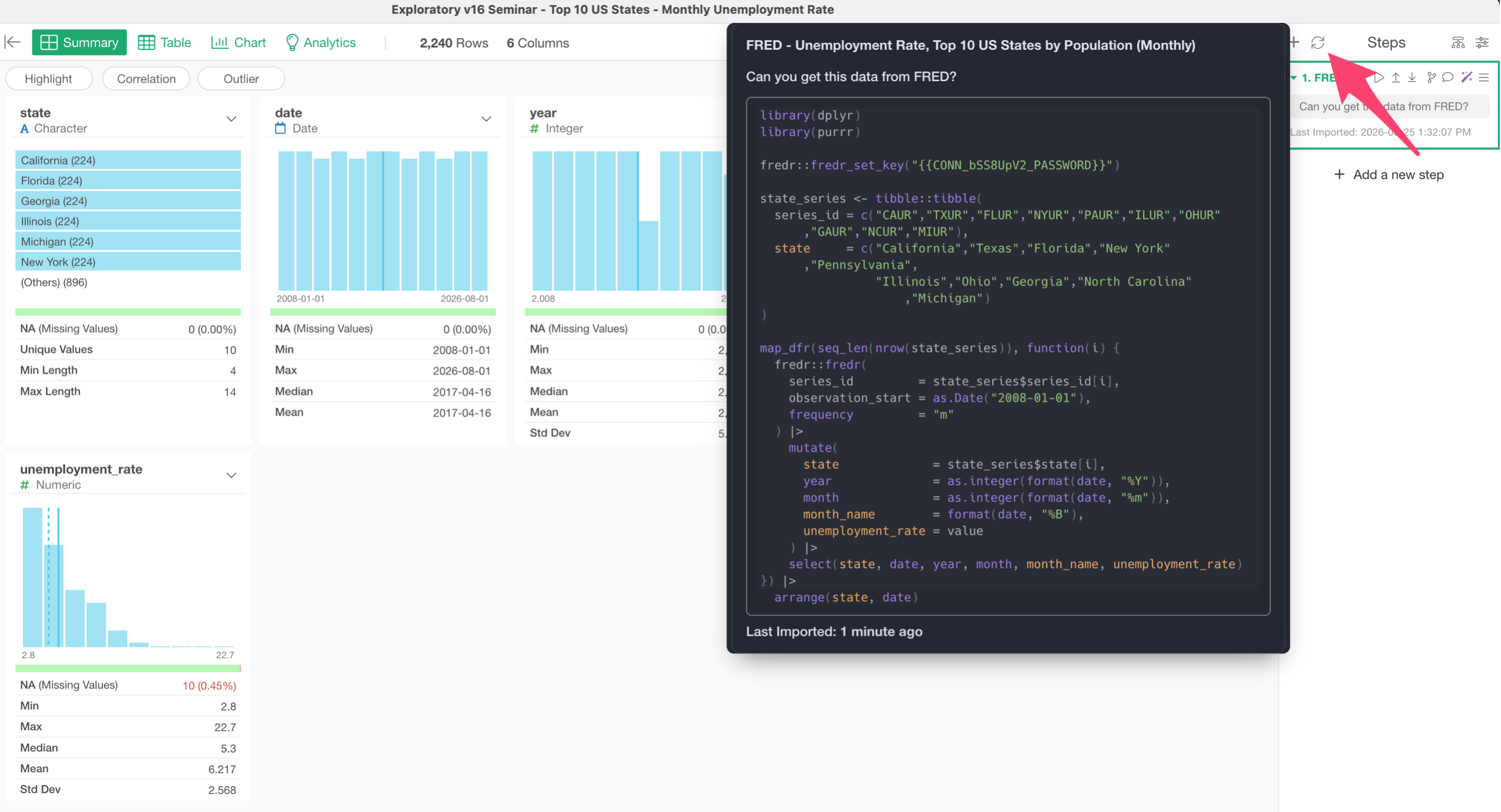
Turn a one-time AI request into a reusable data pipeline.
Experiment freely. You can always go back.
As you refine your request, the underlying R script changes. Each generated version is preserved.
You can inspect previous versions or restore an earlier approach when needed.
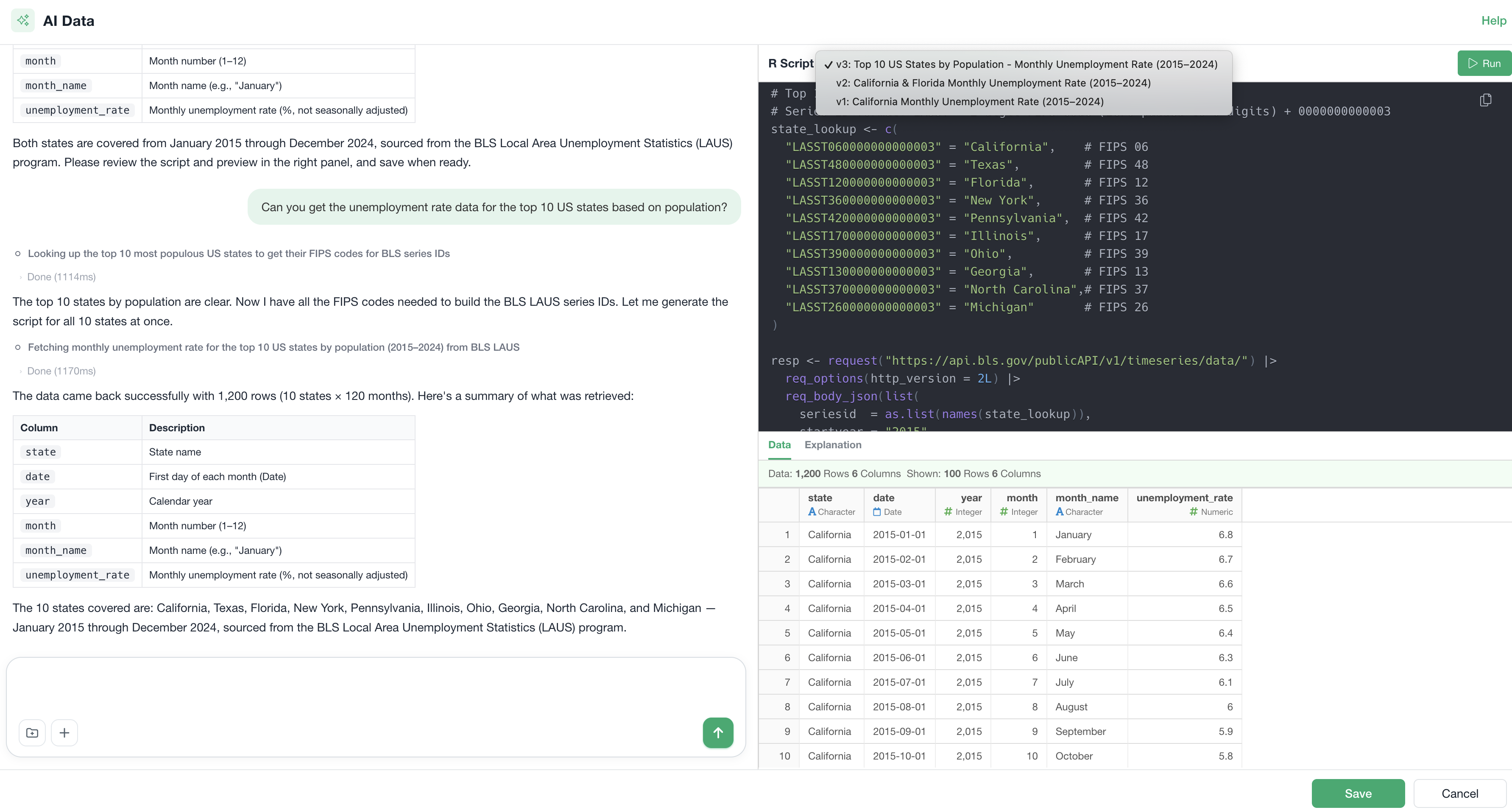
Turn AI trial and error into reusable team knowledge.
The first time AI works with a particular data source, it may need to explore different approaches. Once a successful method has been established, that knowledge can be saved as a Skill.
The next time a similar request is made, AI can reuse the proven approach instead of starting from scratch. Skills can also be shared with others.
Turn one person’s successful AI workflow into a team-wide best practice.
Describe the result. Let AI figure out the tables and SQL.
When configuring a database connection, you can choose which schema information to make available to AI.
Without saved schema information, AI can still inspect the database schema, but doing so requires additional discovery.
Example request
AI determines the appropriate SQL based on the available schema and database capabilities.
Skip the hassle of connection setup
Connecting to a database often means installing drivers, configuring connection settings, and entering credentials. APIs come with their own setup, including API keys, client IDs, and authentication details.
With AI Data, you can let AI guide you through the setup and handle much of the configuration—so you can spend less time figuring out how to connect and get to the data faster.
Real-world use cases
Use Case 1: Survey data with separate layout and response files
Challenge: Survey response data often contains question codes and response codes rather than readable labels.
Use Case 2: Combine annual Excel files
Challenge: Each year’s survey or business data lives in a different Excel file, and column names change slightly from year to year.
Use Case 3: Extract a table from a PDF
If multiple tables are detected, AI can identify them and ask you which table should be imported. After you select one, AI extracts and cleans the relevant table.
Use Case 4: Retrieve Google Analytics data
AI determines the appropriate GA dimensions, metrics, and retrieval process and returns the result as an analysis-ready data frame.
Use Case 5: Find and prepare open data
The exact geographic concept you have in mind may not exist directly in the published dataset.
AI can determine which official geographic units correspond to the requested area, retrieve the necessary records, combine them, and produce a usable result.
Use Case 6: Generate complex SQL without writing SQL
Even if this requires nested SQL, window functions, or database-specific syntax, you only need to describe the output.
AI generates the appropriate query, runs it, inspects the result, and revises it when necessary.
Spend less time figuring out how to get the data.
Analysts who don’t want to write SQL
Describe the result you need without having to know the schema or query syntax.
People working with Excel and file-based data
Combine and standardize fragmented files without repetitive manual preparation.
Open data users
Let AI identify the right public dataset and turn it into a usable analytical table.
Teams working with APIs and SaaS platforms
Retrieve data even when there is no dedicated Exploratory connector.
Analysts working with PDFs and other difficult formats
Extract useful structured data from sources that are otherwise difficult to import.
Teams with recurring data acquisition workflows
Turn a successful process into a reusable and shareable workflow.
Frequently asked questions
What kinds of data does AI Data support?
Any data source you can use in Exploratory today is also available in AI Data. Connections you have already created are listed in the AI Data window, so you don’t need to set them up again.
The main supported data sources are:
- Files: Excel, CSV, PDF, Word, JSON, XML, Parquet, and statistical software formats such as SPSS and Stata.
- Databases: PostgreSQL, MySQL, SQL Server, Oracle, BigQuery, Snowflake, Redshift, MongoDB, and more.
- Cloud storage: Import files stored in Google Drive, Google Sheets, Amazon S3, SharePoint, Dropbox, and Box directly.
You can also get data from public statistics such as e-Stat (the Japanese government’s statistics portal), a wide range of public APIs, and documents published on the web. For data sources without a predefined procedure, AI Data researches their specifications and tries to retrieve the data, so just tell it what you need.
Will AI aggregate or calculate things on its own?
No. AI Data is responsible only for retrieving the data you asked for and shaping it into a form ready for analysis. It never invents metrics you didn’t ask for.
Processing at import time is limited to converting the data into a tidy format and converting data types. AI Data never adds new columns, such as totals or ratios, on its own judgment.
You can trace which values in the source data each number came from through the generated R script.
If you do need additional processing at import time, just ask for it in the AI Data chat.
Can I use the retrieved data for analysis right away?
Yes. Before importing, AI Data shapes the data so that:
- Each row represents one observation
- Each column represents one variable. If the same measure is split across multiple columns, they are combined into one column
- Each cell contains only one value
It also removes empty rows and rows that aren’t data, such as footnotes and source notes. Once the import completes, you can go straight to creating charts.
Are my API keys or database connection details shared with AI?
No. Credentials are handled as follows:
- AI Data never asks for credentials such as API keys or passwords in the chat
- Credentials are never written directly into the R script
- When connecting to a database, the connection information Exploratory holds is inserted as variables at the top of the R script. Host names and port numbers are never sent to AI
For data sources that require an API key, a dedicated dialog asks you to enter it. The value you enter is kept inside Exploratory and is never passed to AI as is.
How much of my data is sent to AI?
Only the information needed to work out how to retrieve the data: the column names and first few rows of files, and database schema information. When a file’s structure is complex and the first few rows aren’t enough to tell where the headers end and the data begins, AI Data may read more rows.
The retrieved data itself is imported by running the generated R script in your environment.
Do I need to ask AI again every time the data is updated?
No.
Once an import completes, the generated R script is saved as the data source. After the source file or database is updated, just click the Re-import button, and only the saved script runs.
AI doesn’t run again, so you get the latest data with the same steps every time.
Because the same process runs the same way every time, you can rely on it for data that is updated regularly.
Can I give additional instructions after importing the data?
Imported data is treated just like any other data frame in Exploratory. So even after the import, you can keep making adjustments, such as changing conditions or removing unwanted rows.
To do this, reopen AI Data from the token (the gray box) in the source step, which is the first step.
It opens with the conversation from the import still there. Enter your additional instructions and send them, and only the new changes are applied on top of what was done before. You don’t need to start over.
Do I need to repeat the same instructions for similar data?
No.
When you create or update a data frame, the steps used at that time are automatically saved as a Skill. The next time you specify data with a similar structure, AI Data applies the same process based on the saved steps, adjusting for differences such as column names.
A Skill is a Markdown file that describes what R script to write for what kind of request. Skills are saved under the “datasource” path in the “ai_skills” folder of the .exploratory repository, so you can review them later to make sure nothing unintended has been saved.